Kitchen display and POS

One queue for room orders and table orders

  • A venue with a menu
  • A kitchen account for the venue
Kitchen
The board

Kitchen

The board

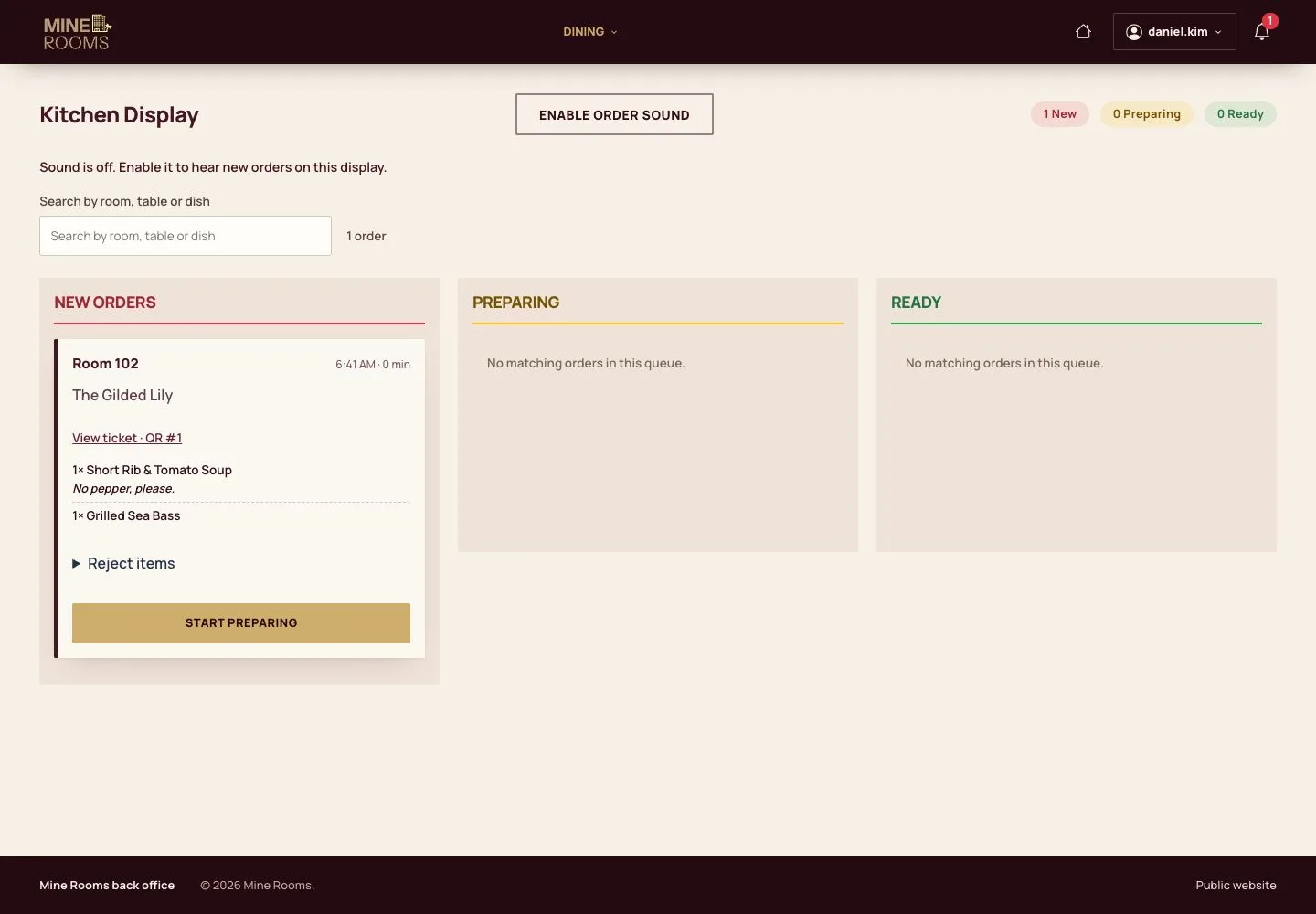
1Step 1 of 11

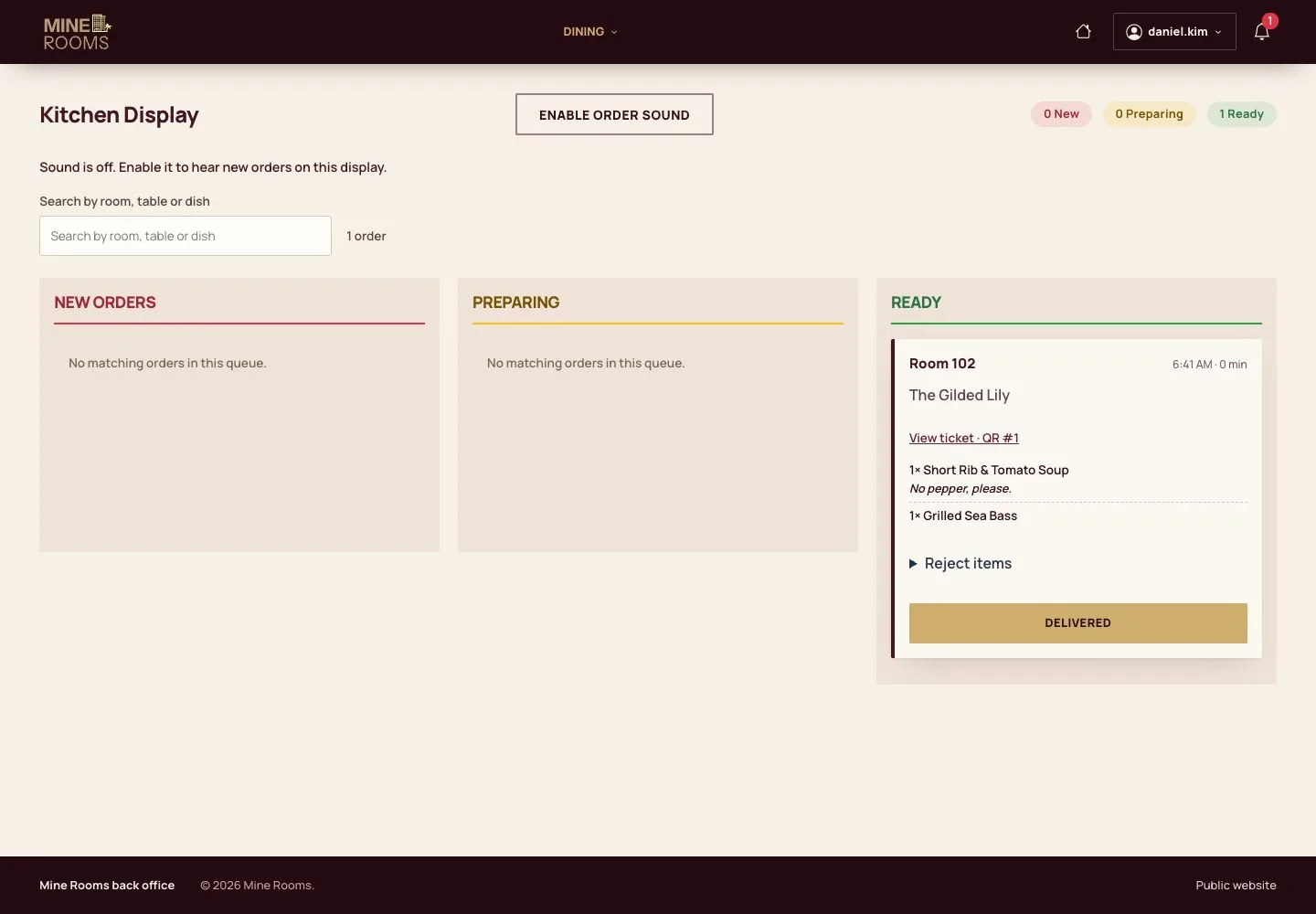
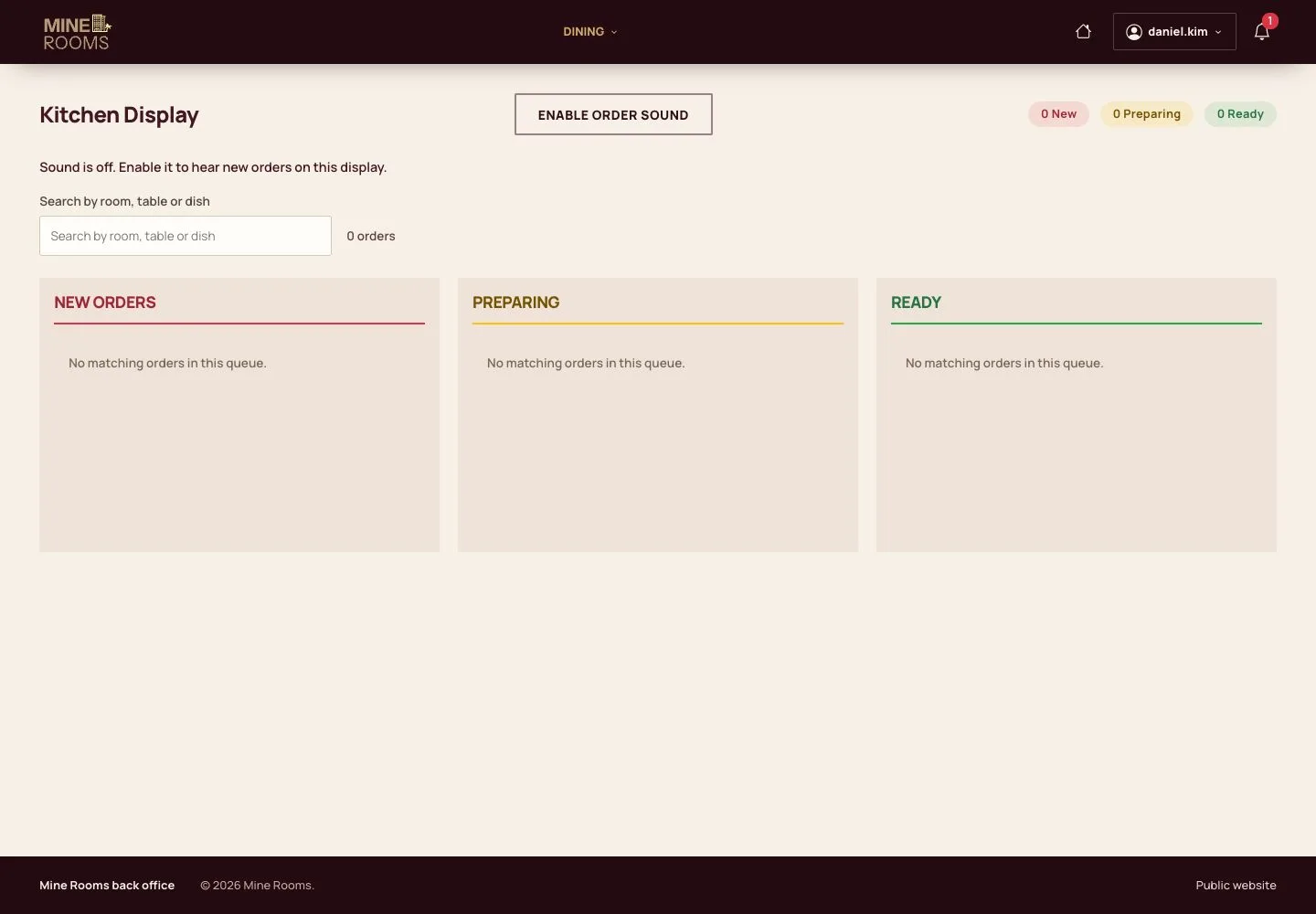
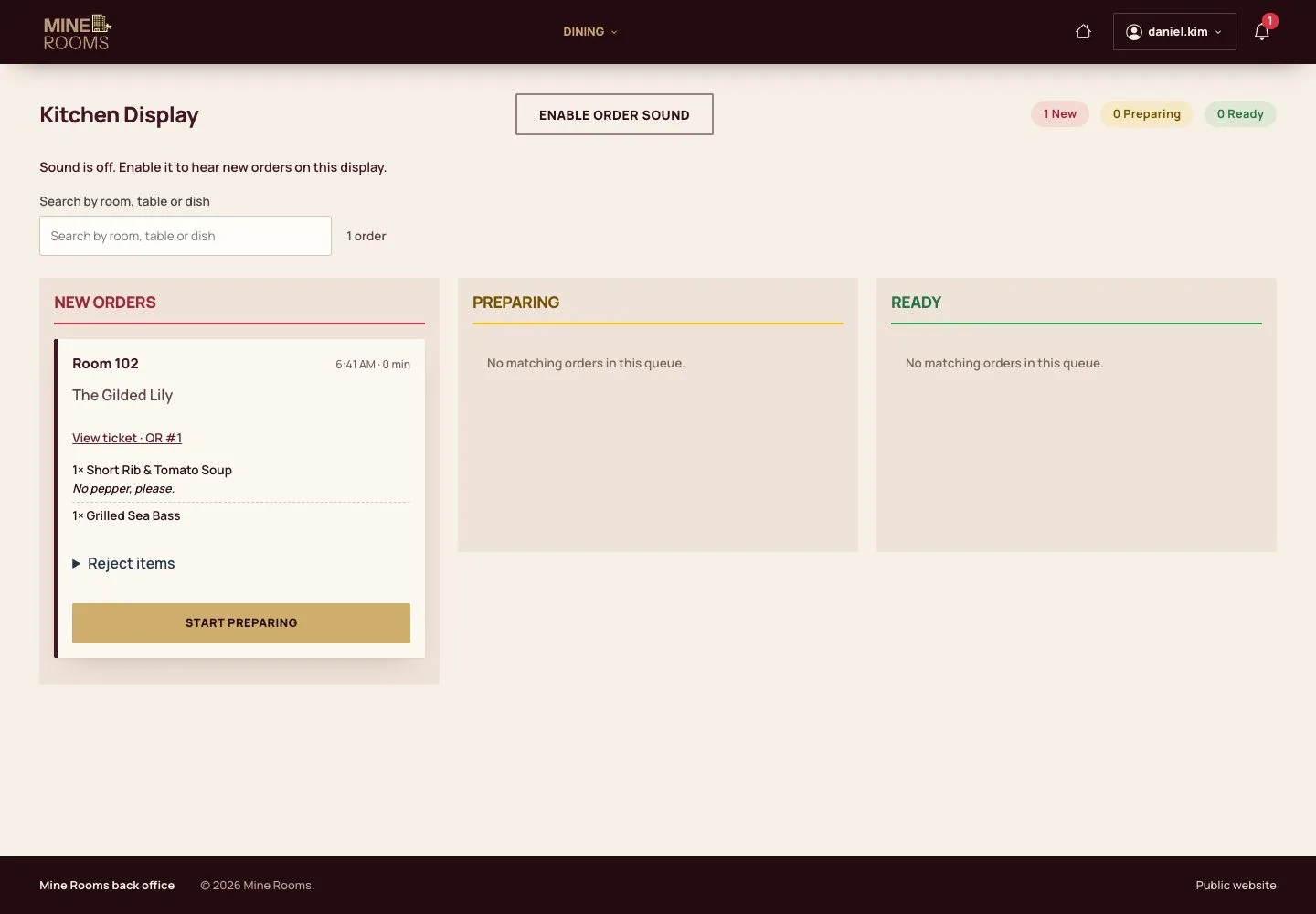
  1. The Kitchen Display splits orders into New, Preparing and Ready, and refreshes by itself.
  2. Each staff member can switch the order sound on.

Open illustrated screen ↗Full image ↗

Kitchen · Kitchen display and POS01

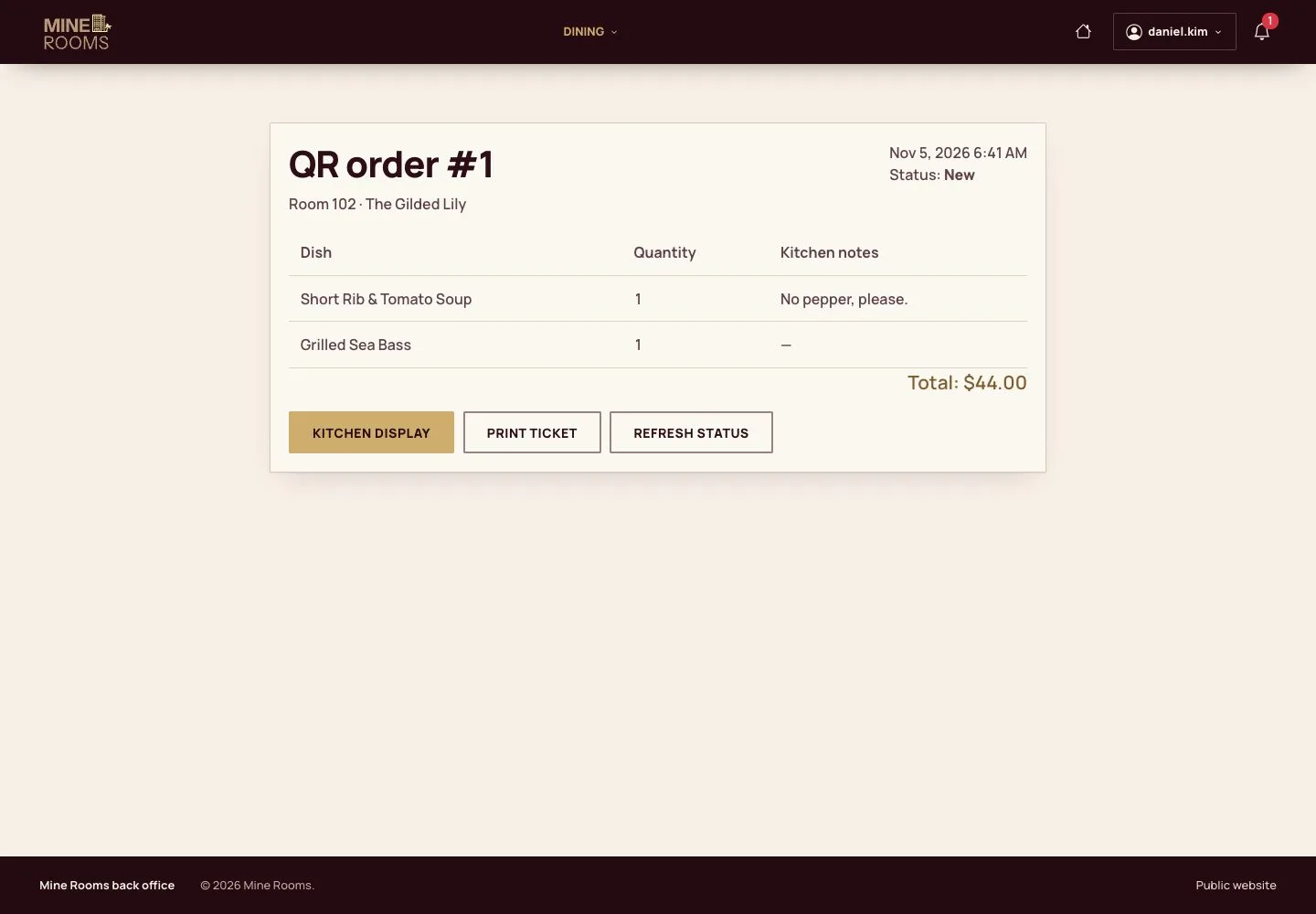
A ticket

Kitchen

A ticket

2Step 2 of 11

  1. A ticket shows the room or table, dishes, quantities and notes.

Full image ↗

Kitchen · Kitchen display and POS02

Prepare

Kitchen

Prepare

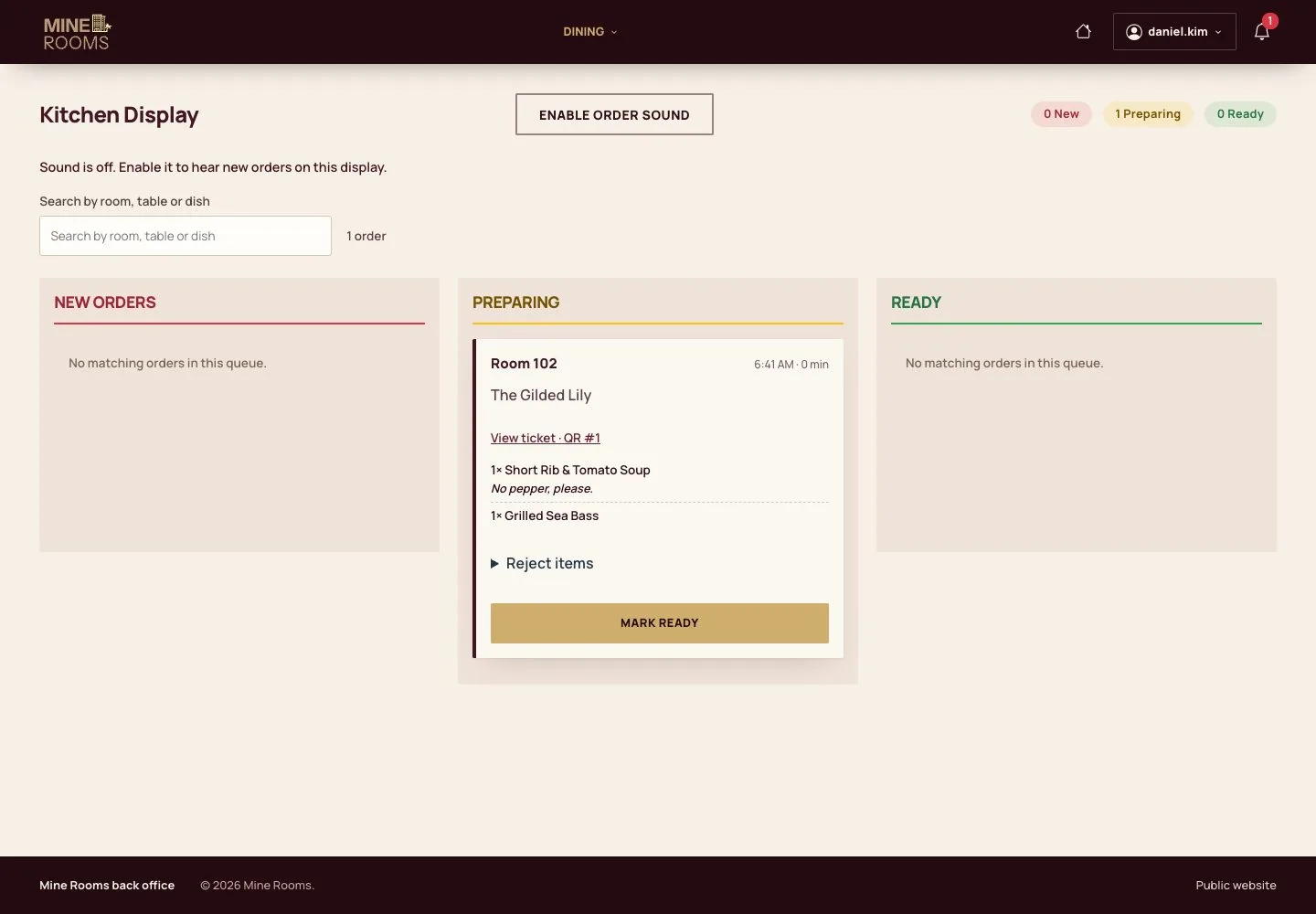
3Step 3 of 11

  1. Start preparing moves the ticket to Preparing.

Open illustrated screen ↗Full image ↗

Kitchen · Kitchen display and POS03

Ready

Kitchen

Ready

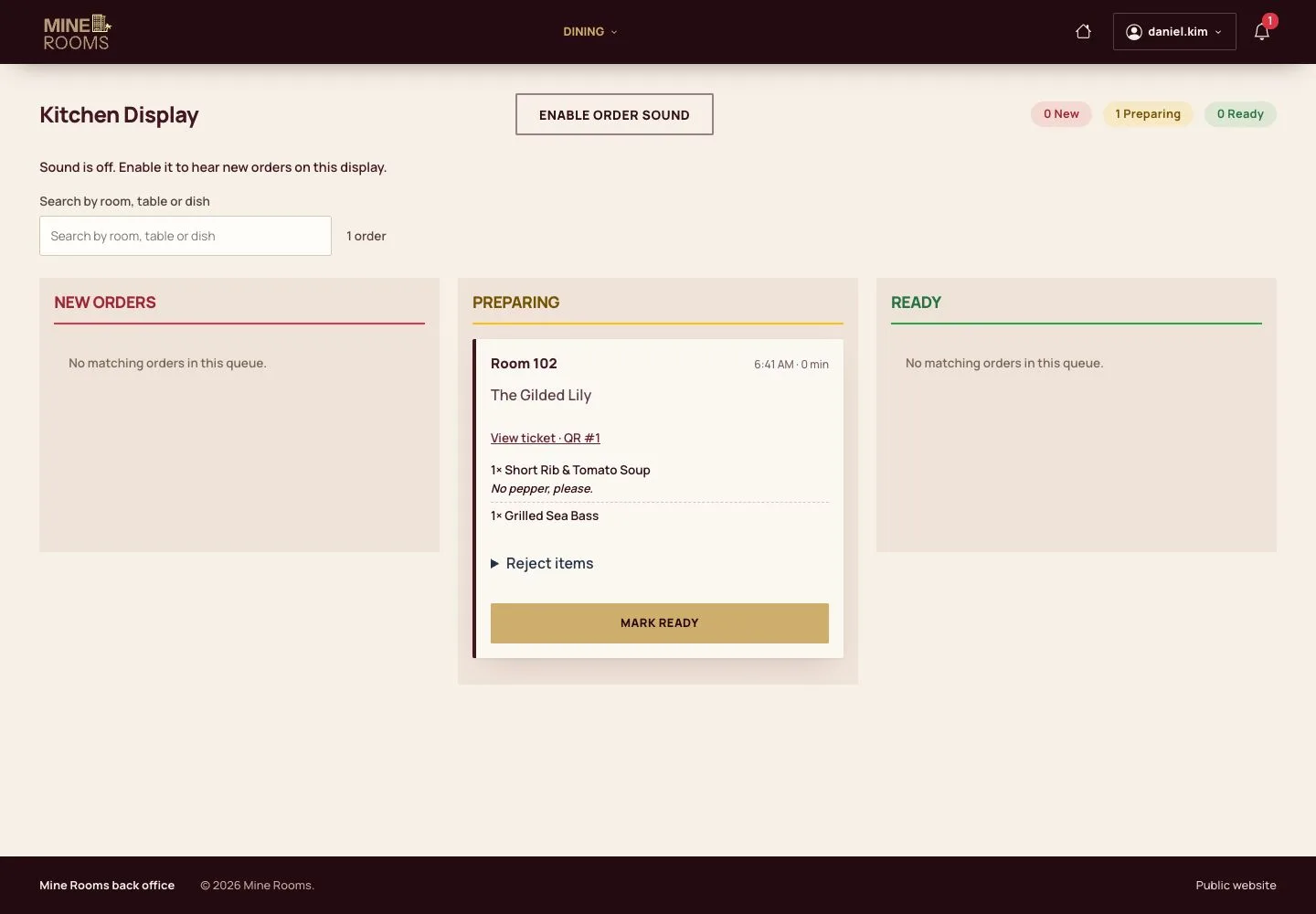
4Step 4 of 11

  1. Mark it ready for the waiter or room service.

Open illustrated screen ↗Full image ↗

Kitchen · Kitchen display and POS04

Delivered

Kitchen

Delivered

5Step 5 of 11

  1. Delivered takes the ticket off the board.

Open illustrated screen ↗Full image ↗

Kitchen · Kitchen display and POS05

Menu availability

Kitchen

Menu availability

6Step 6 of 11

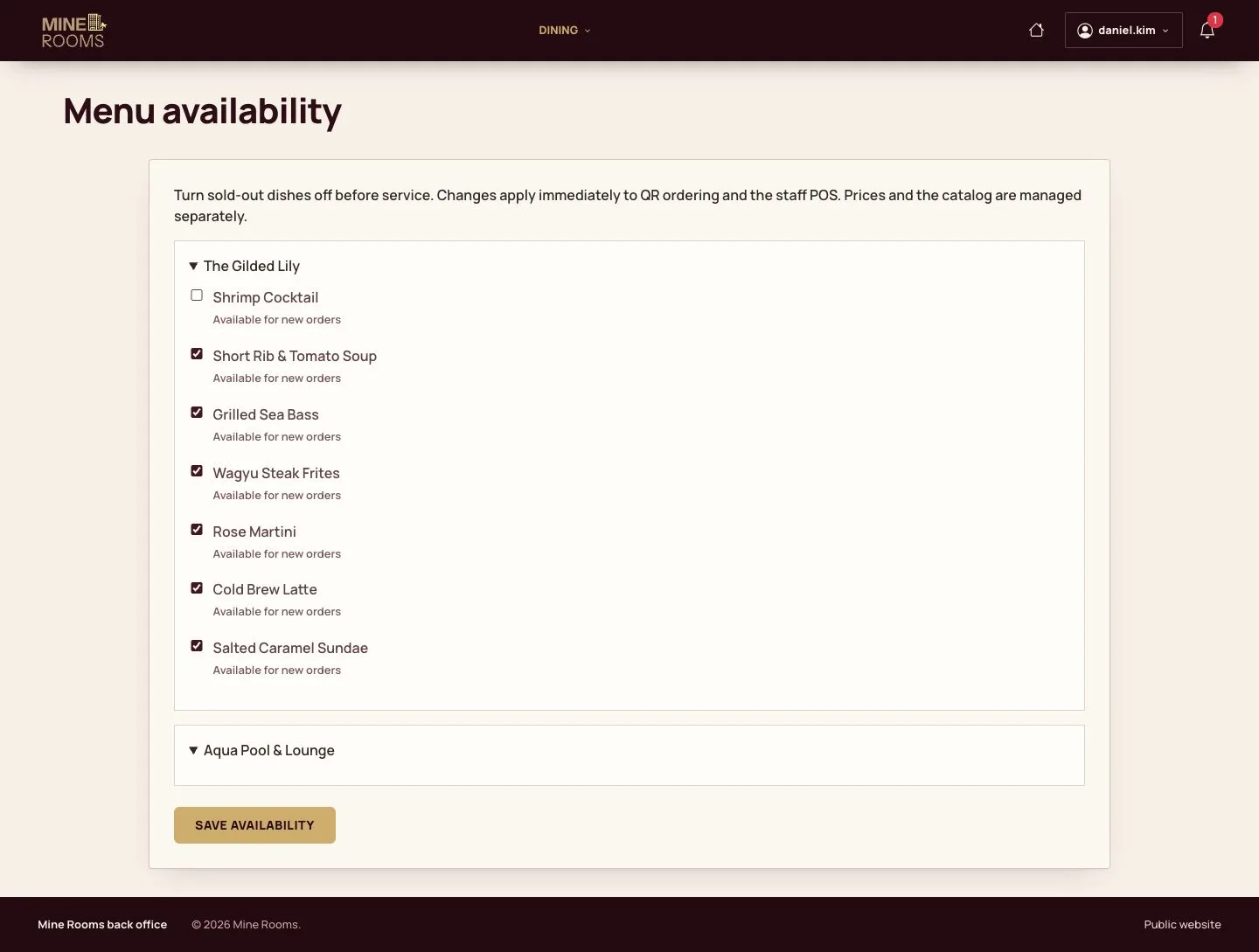
  1. Switch off what has run out; the QR menu and the POS follow at once.

Enlarge, then scroll

Open illustrated screen ↗Full image ↗

Kitchen · Kitchen display and POS06

Point of sale

Manager

Point of sale

7Step 7 of 11

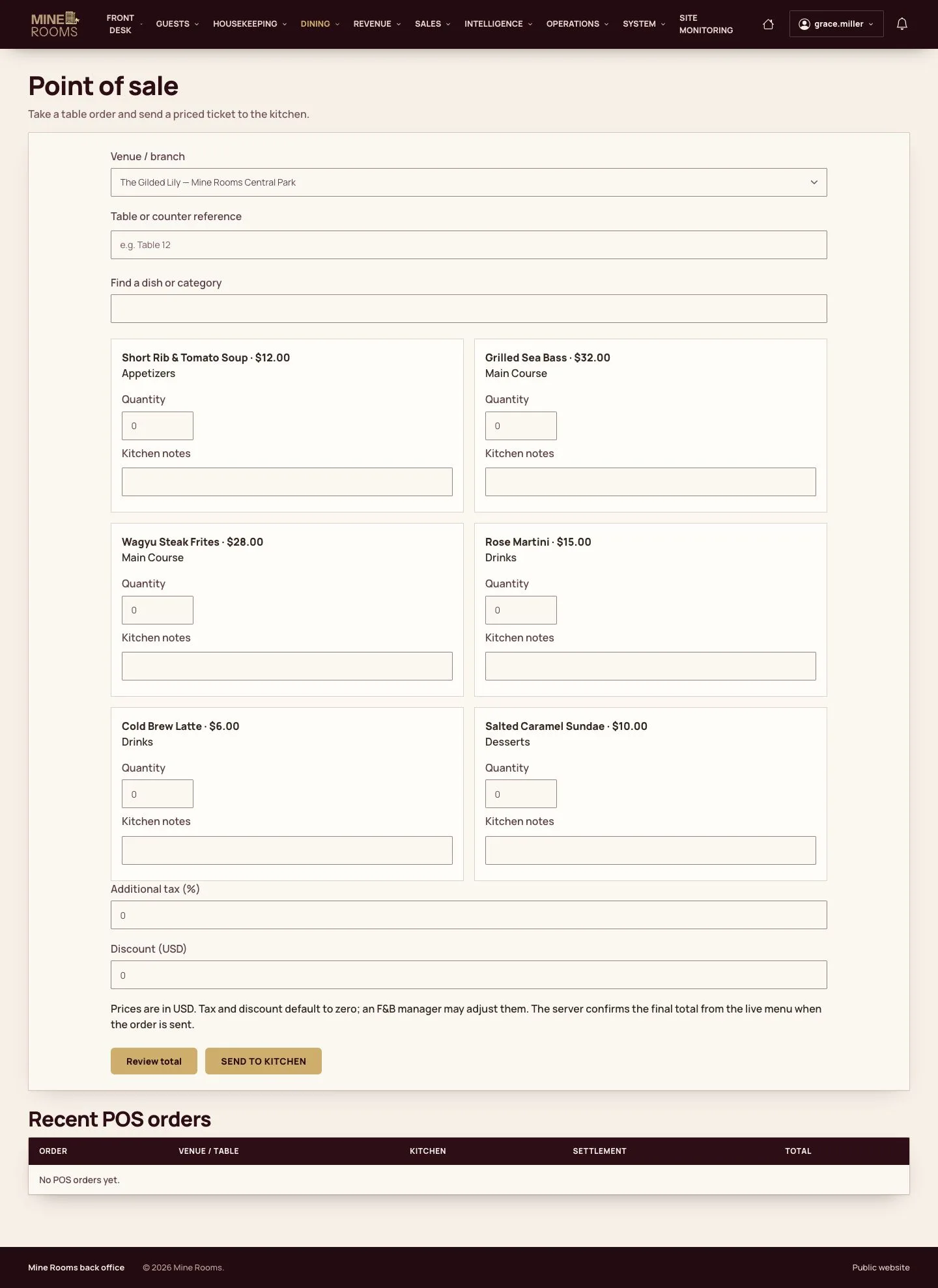
  1. At a table, choose the venue, the table, the dishes and the quantities.

Enlarge, then scroll

Open illustrated screen ↗Full image ↗

Kitchen · Kitchen display and POS07

To the kitchen

Manager

To the kitchen

8Step 8 of 11

  1. After the review of the total, send the order to the kitchen.

Enlarge, then scroll

Open illustrated screen ↗Full image ↗

Kitchen · Kitchen display and POS08

Same board

Kitchen

Same board

9Step 9 of 11

  1. The table order joins the same board.

Open illustrated screen ↗Full image ↗

Kitchen · Kitchen display and POS09

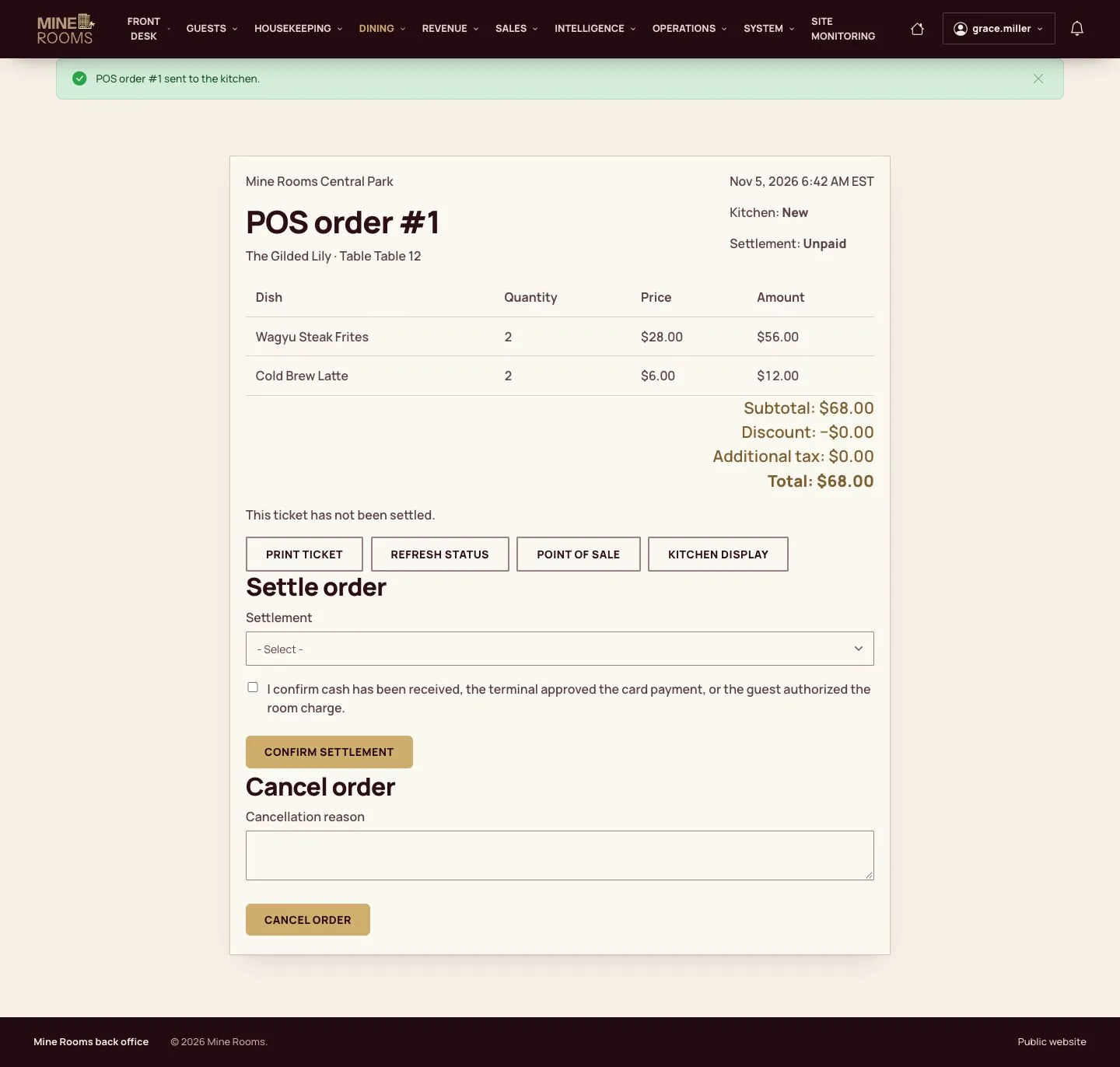
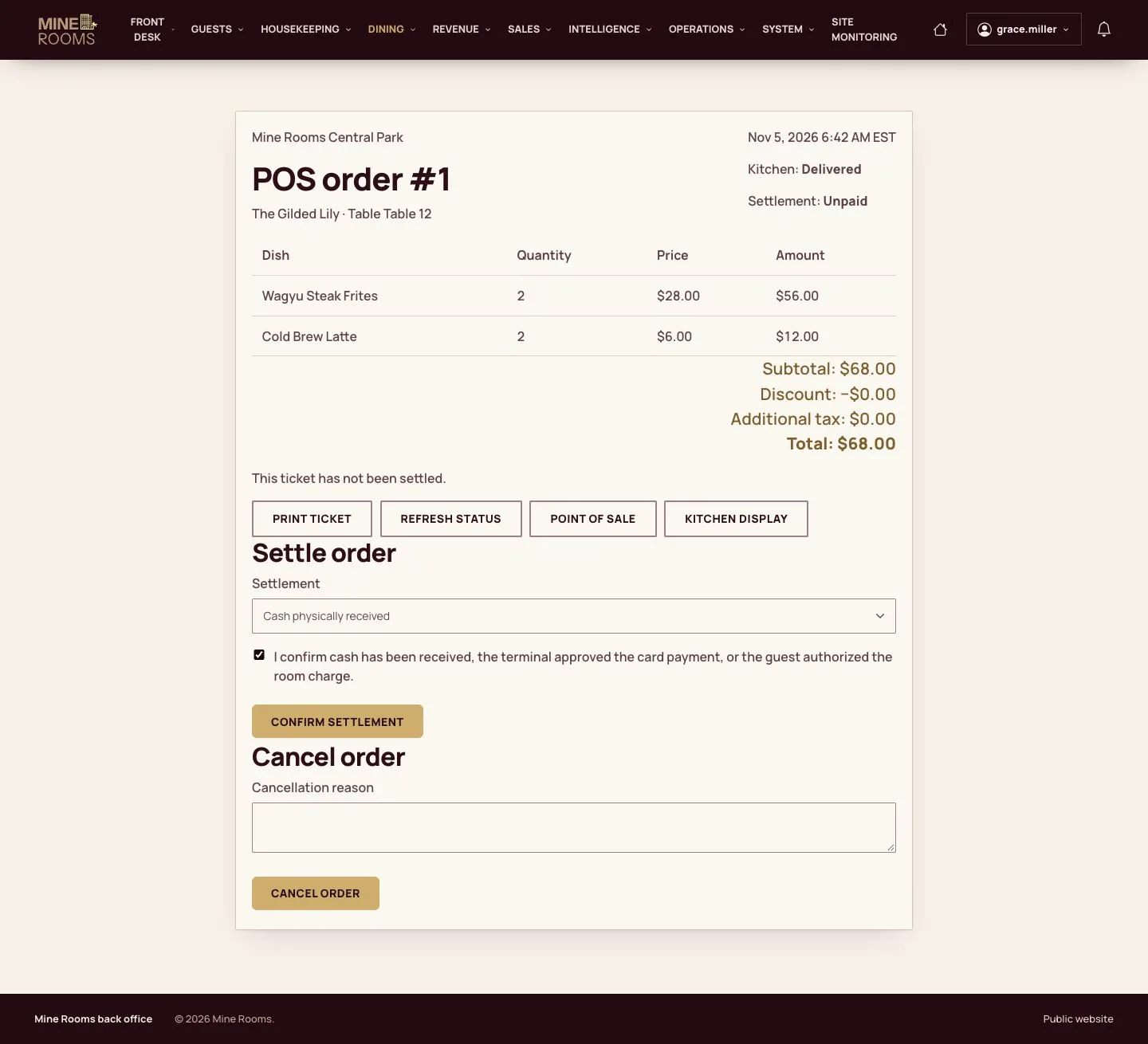
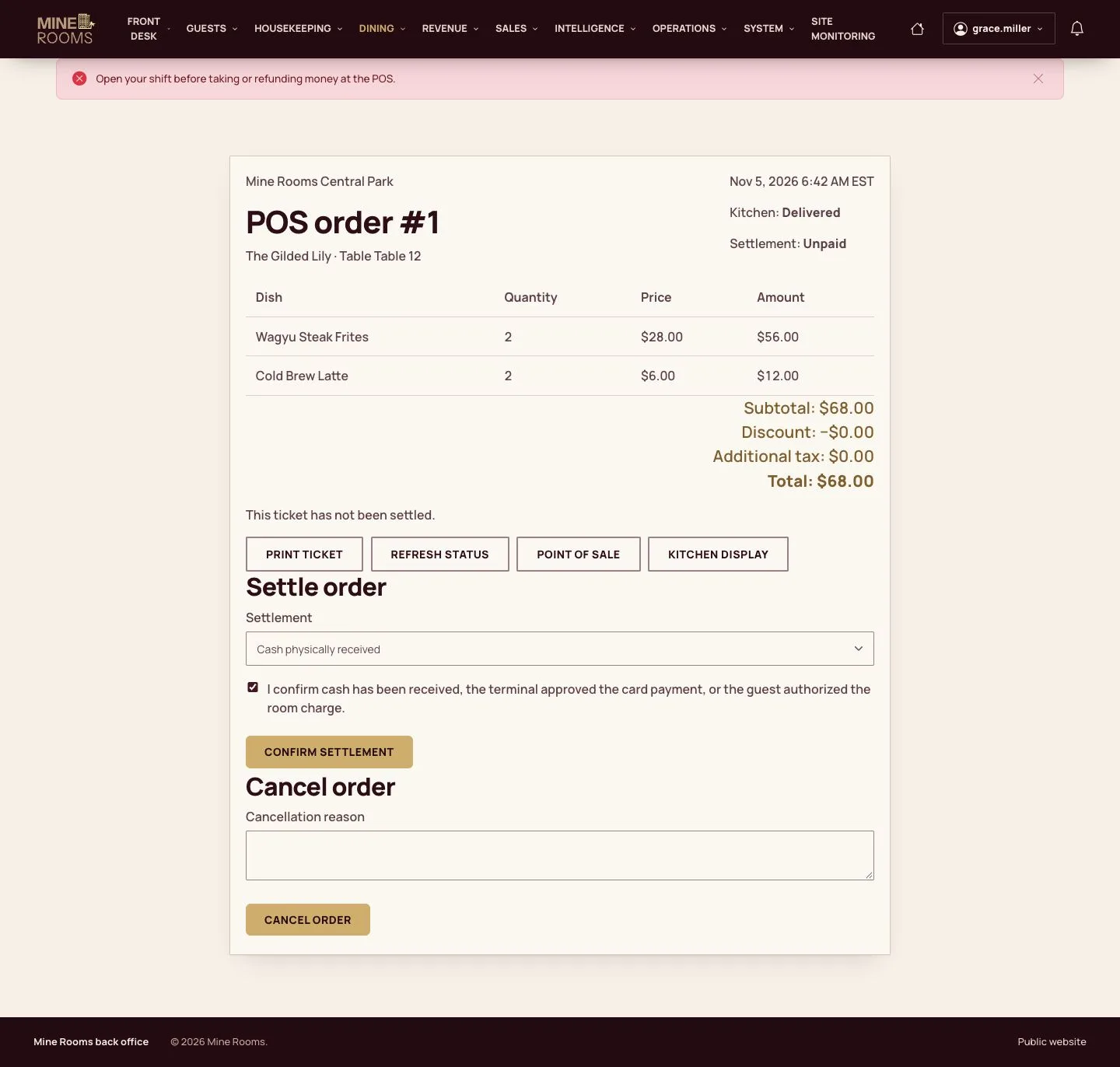
Settle

Manager

Settle

10Step 10 of 11

  1. Choose the payment method and confirm the settlement.

Enlarge, then scroll

Full image ↗

Kitchen · Kitchen display and POS10

Paid

Manager

Paid

11Step 11 of 11

  1. The order is paid and leaves the open list.

Enlarge, then scroll

Full image ↗

Check

The orders are delivered, room orders are on the folio and tables are settled.

Kitchen · Kitchen display and POS11
1 / 12
Privacy Terms