Check-in

From the guest's preparation to a clean room and an open folio

  • A confirmed booking
  • A clean room of the booked type
Receptionist
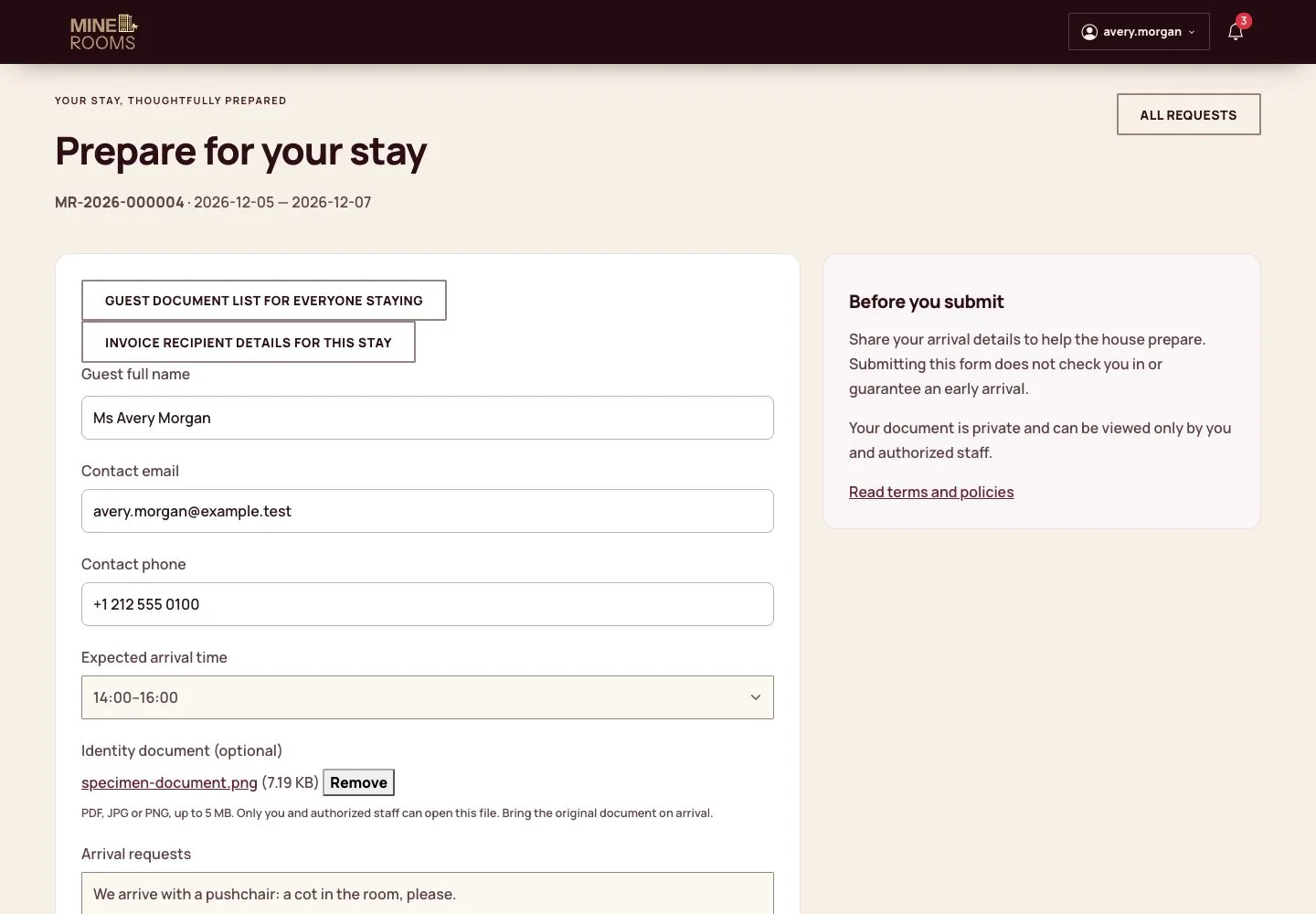
Before the stay

Guest

Before the stay

1Step 1 of 9

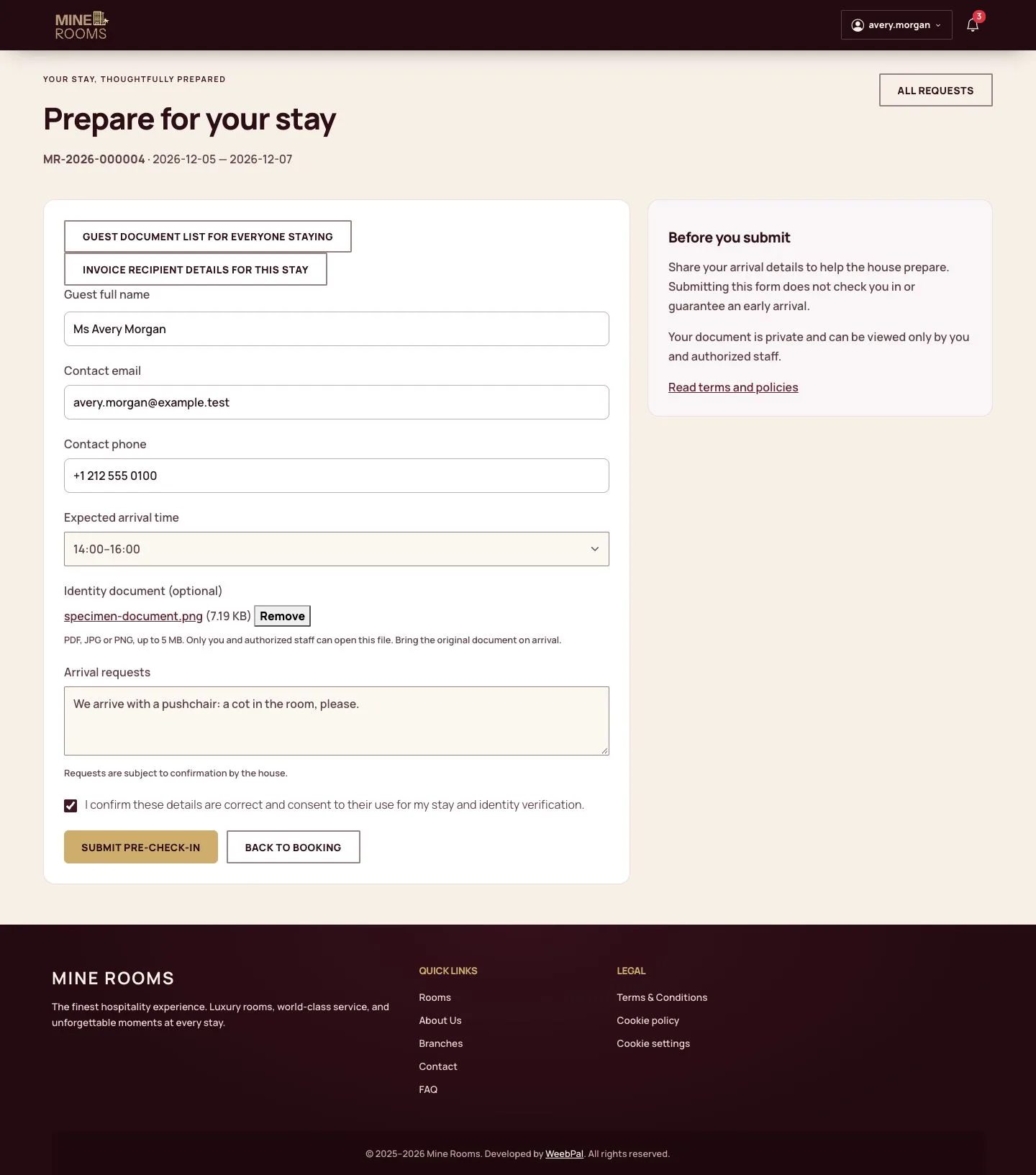
  1. From My Bookings, the guest opens Pre-check-in and confirms the name, contact details and arrival time.
  2. A photo of the ID and any request can be added before arriving.

Documents are kept private, and staff still compare them with the original.

Enlarge, then scroll

Full image ↗

Receptionist · Check-in01

Who is staying

Guest

Who is staying

2Step 2 of 9

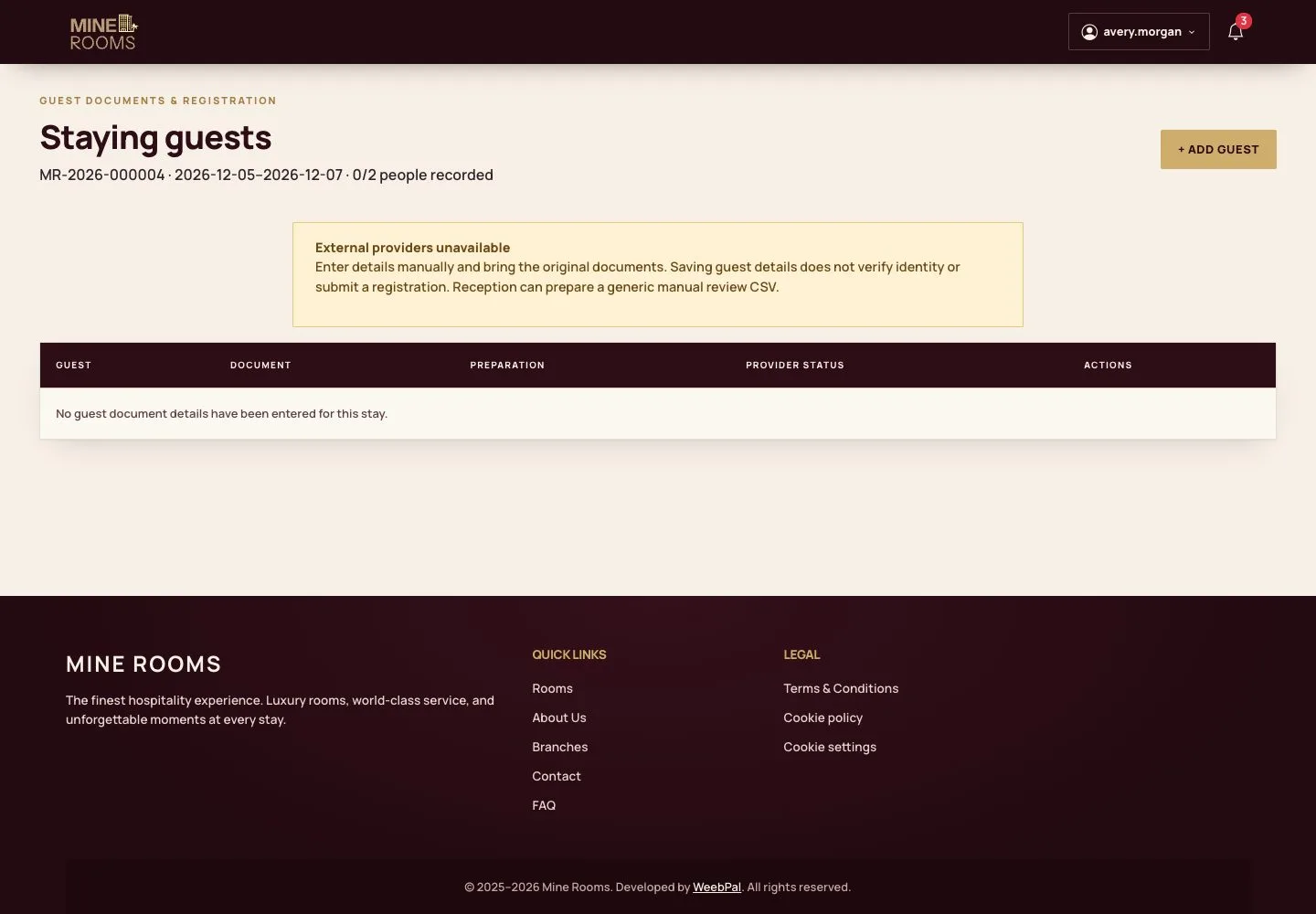
  1. The guest sees the people on the stay and a reminder to bring the original documents.

Full image ↗

Receptionist · Check-in02

The desk sees it

Manager

The desk sees it

3Step 3 of 9

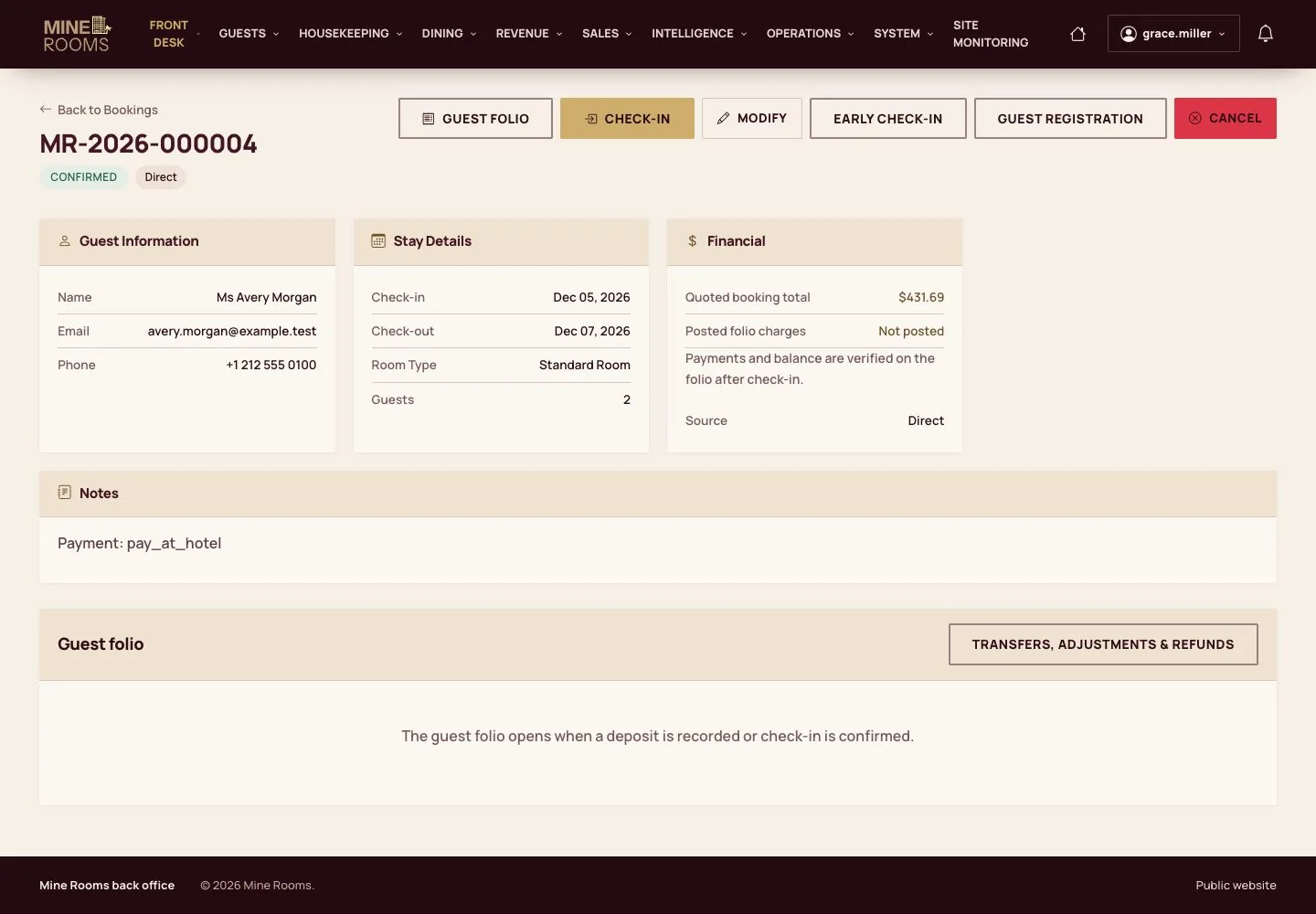
  1. The booking shows the guest's pre-check-in to the desk and the manager, so the arrival starts with the details ready.

Full image ↗

Receptionist · Check-in03

Room Board

Receptionist

Room Board

4Step 4 of 9

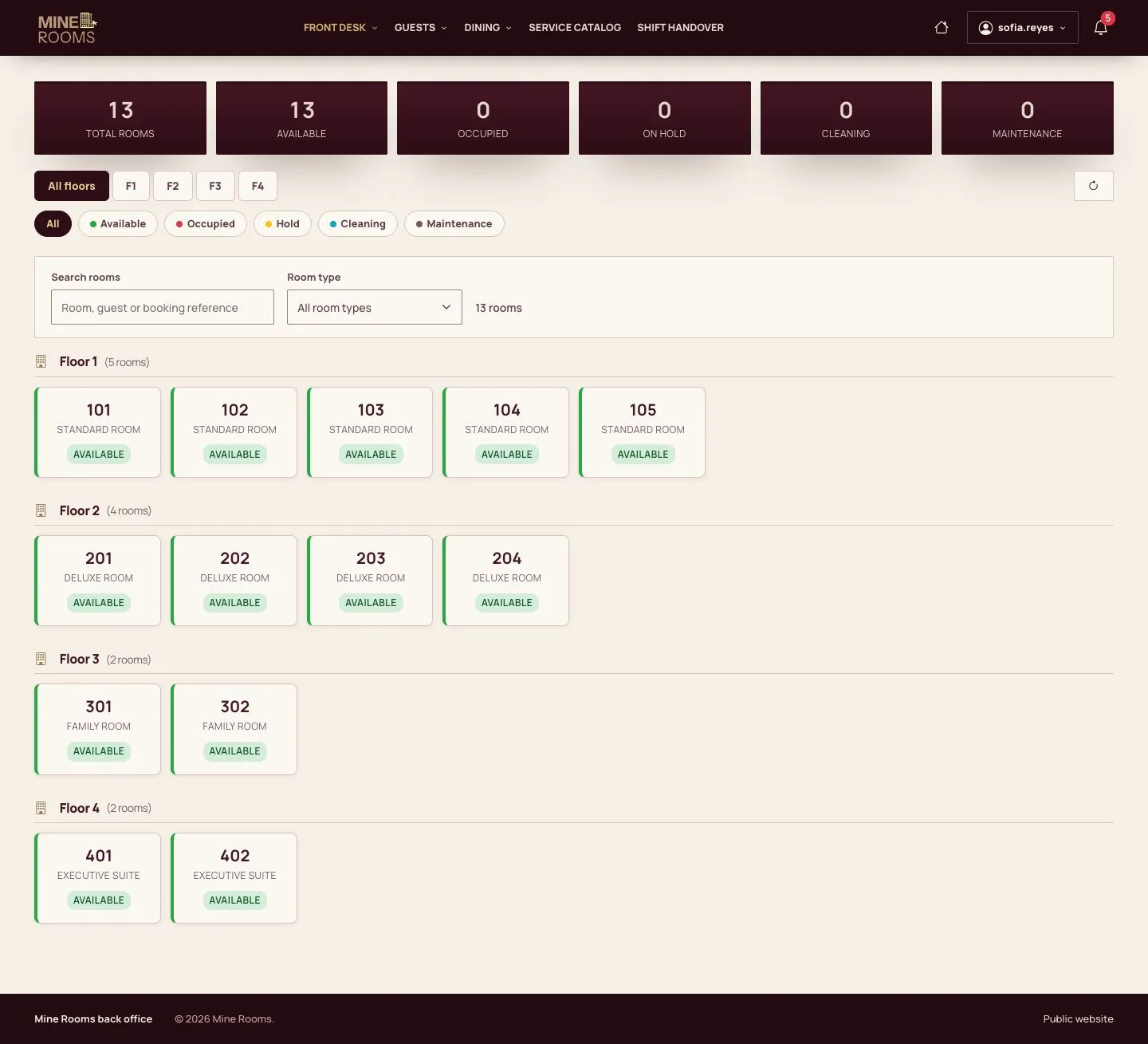
  1. The Room Board shows every room of the house by floor and status: free, occupied, held, cleaning or maintenance.
  2. It is the first screen of a receptionist.

Enlarge, then scroll

Open illustrated screen ↗Full image ↗

Receptionist · Check-in04

Arrivals of the day

Receptionist

Arrivals of the day

5Step 5 of 9

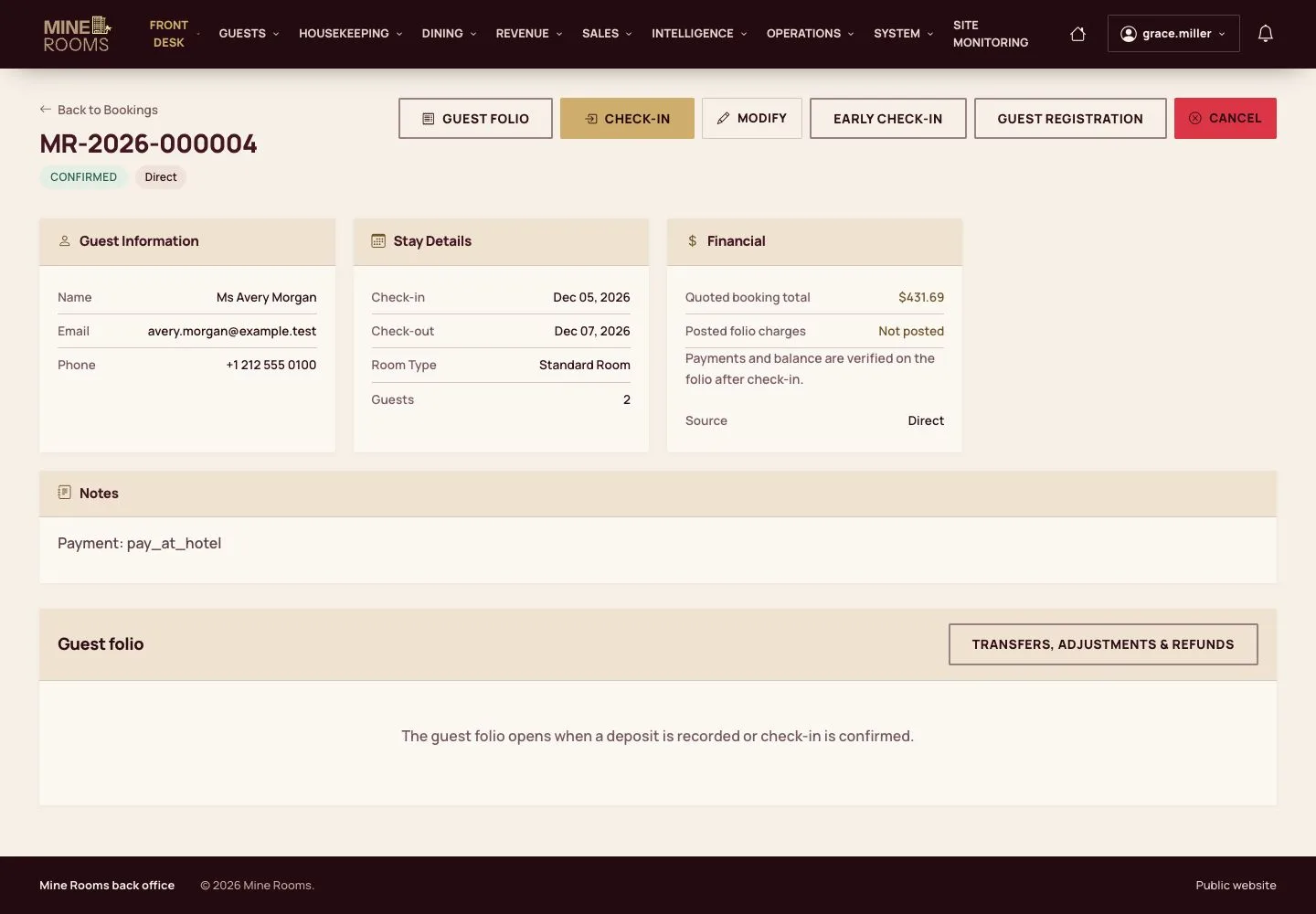
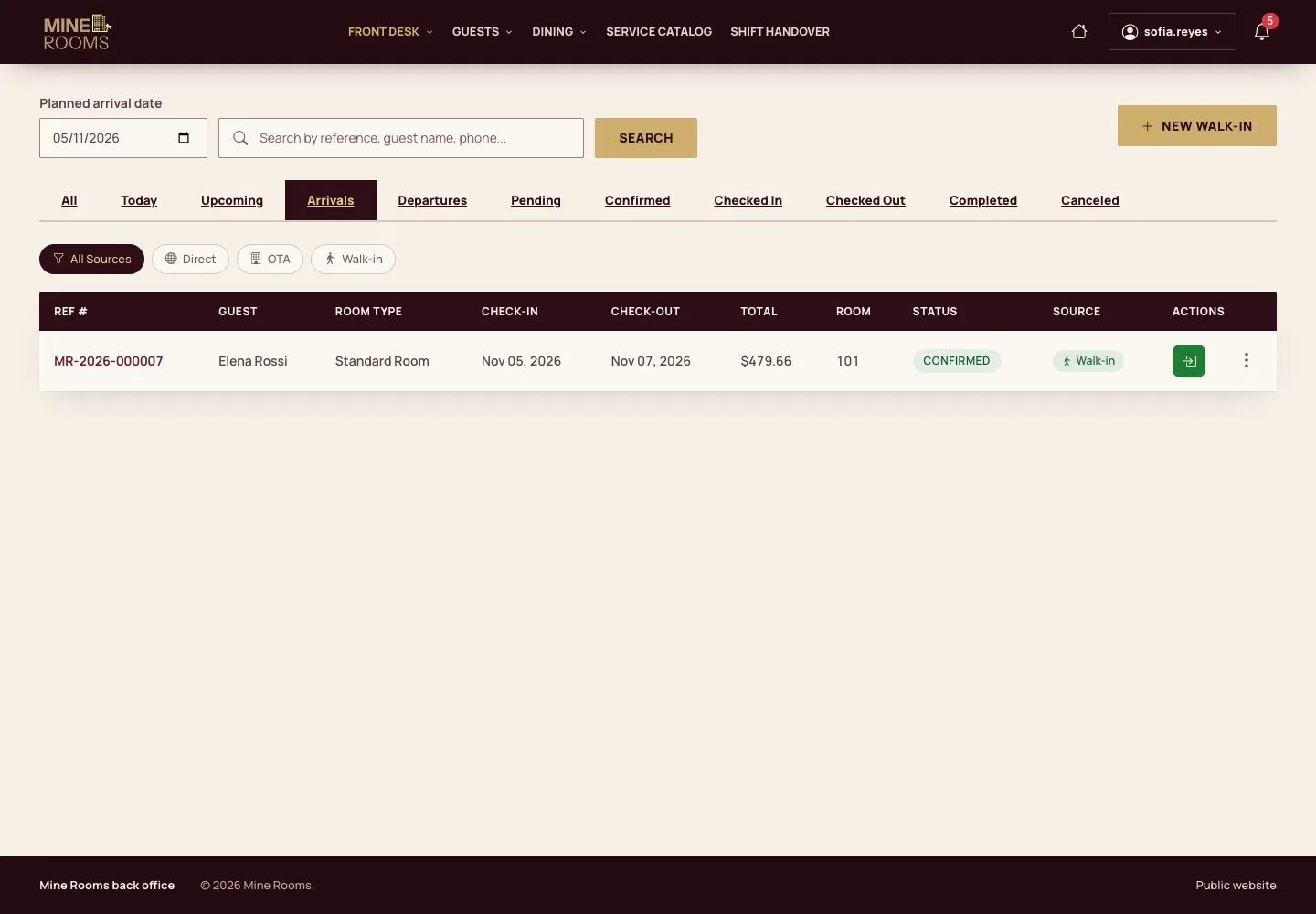
  1. The Arrivals tab of Bookings lists who comes in today; open a booking from the list.

Open illustrated screen ↗Full image ↗

Receptionist · Check-in05

Record the staying guest

Receptionist

Record the staying guest

6Step 6 of 9

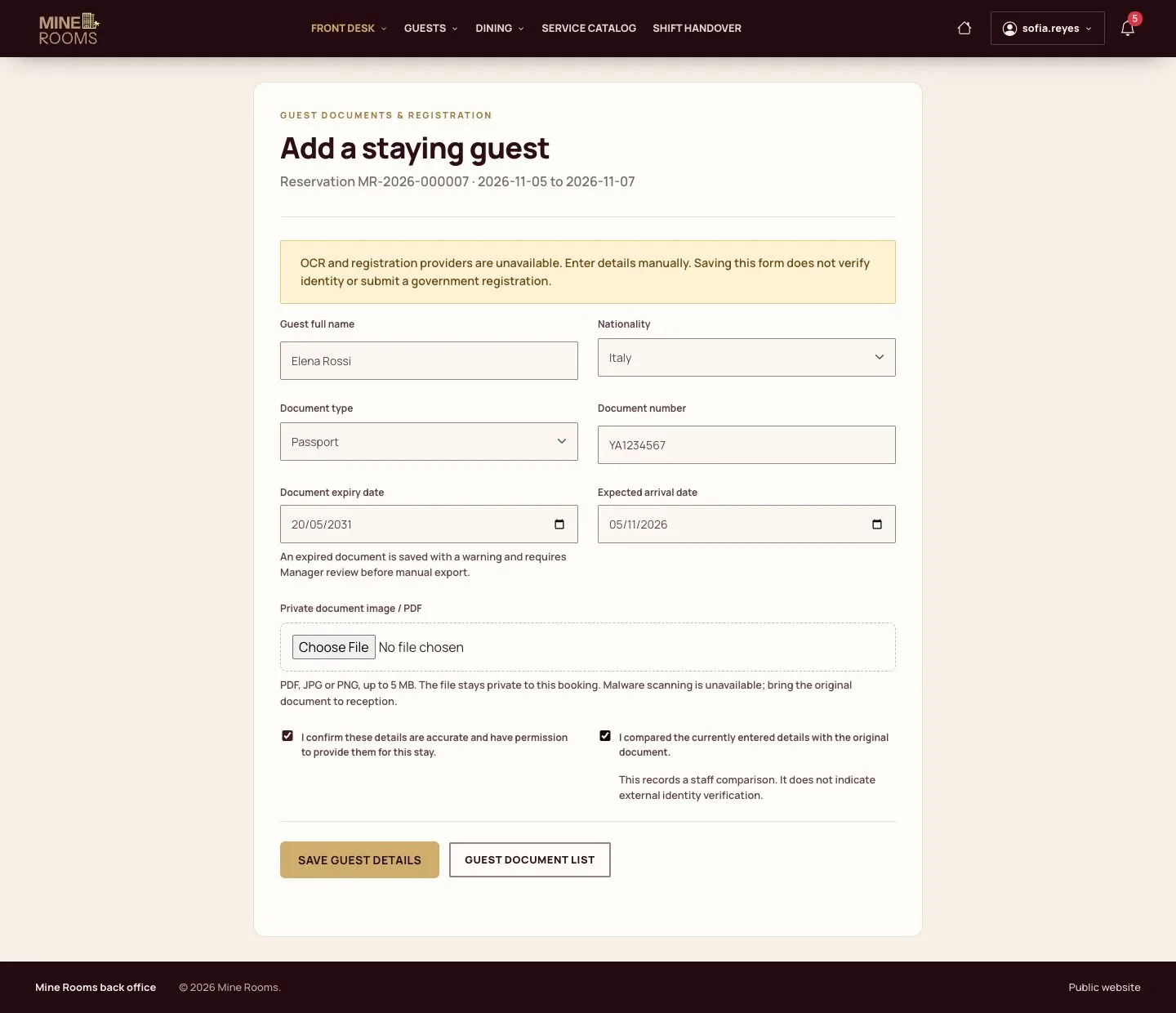
  1. Add each person with name, nationality and document, and confirm the original was checked.

Document numbers stay masked in lists and are shown only to those who need them.

Enlarge, then scroll

Full image ↗

Receptionist · Check-in06

Choose the room

Receptionist

Choose the room

7Step 7 of 9

  1. Check-in offers only clean rooms of the booked type that are free for the whole stay.
  2. Choose one and confirm.

Enlarge, then scroll

Full image ↗

Receptionist · Check-in07

Checked in

Receptionist

Checked in

8Step 8 of 9

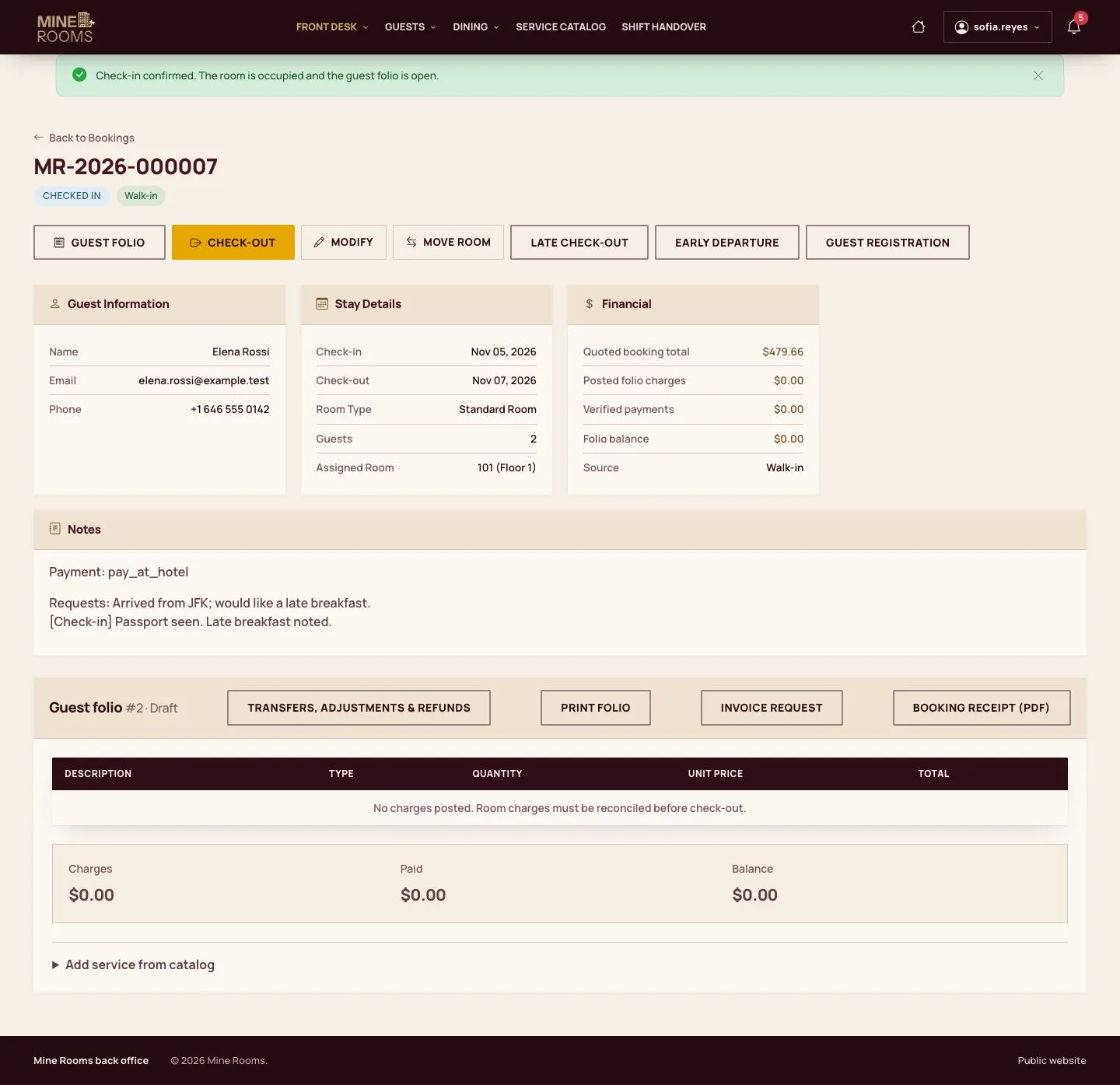
  1. The booking is checked in, the room is occupied and the folio is open for the stay.

Enlarge, then scroll

Full image ↗

Receptionist · Check-in08

The board follows

Receptionist
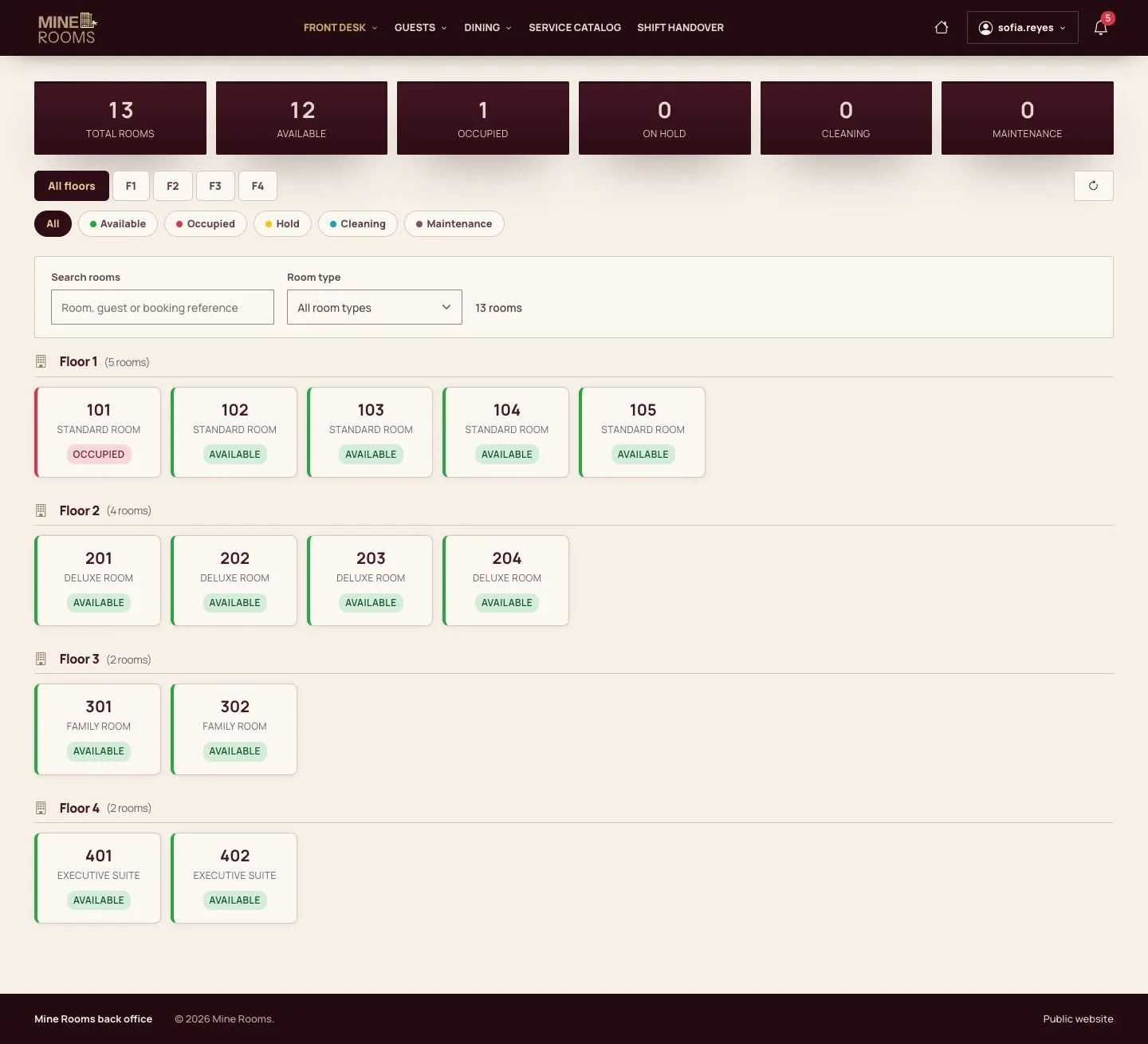
The board follows

9Step 9 of 9

  1. The room changes status on the Room Board at once, for everyone.

Enlarge, then scroll

Open illustrated screen ↗Full image ↗

Check

The booking is checked in, the room is occupied and the Room Board shows it.

Receptionist · Check-in09
1 / 10
Privacy Terms