






 SubstitutooInternal training
User guide · Operative
Plan the working day
Use My Day and the rota to see assigned domestic-cleaning visits before opening a visit record.
OperativeStep-by-step instructions
Open My Day
Operative
1Step 1 of 3
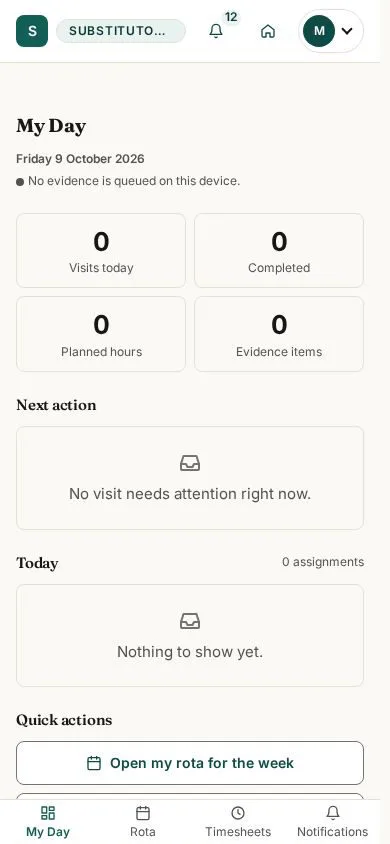
My Day is the field-work starting point for the operative account.
- Review the work shown for today and open the visit you need to prepare for.
Open on site ↗sign-inFull-page screenshot ↗
What you should see
You see the visits made available to the signed-in operative.
Check the rota
Operative
2Step 2 of 3
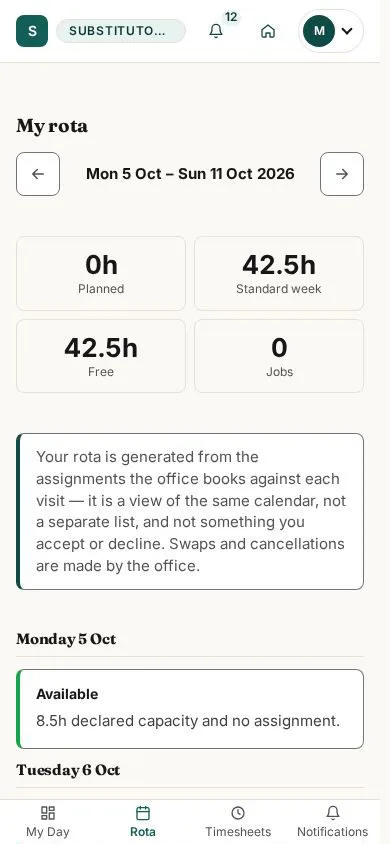
The rota gives a wider view of assigned work around the current day.
- Move to the relevant date and open the assigned visit.
Open on site ↗sign-inFull-page screenshot ↗
What you should see
You can place today's work in the context of the operative's rota.
Read a scheduled visit
Operative
3Step 3 of 3
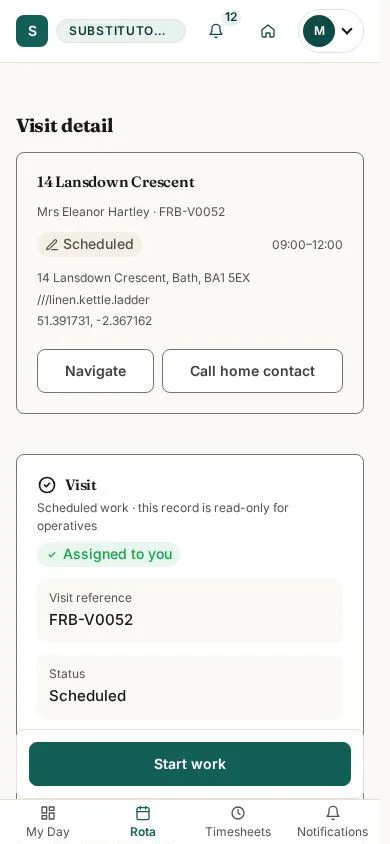
The visit detail contains the time, home and work information available before starting.
- Confirm the visit, address and timing before travelling or choosing any state action.
Open on site ↗sign-inFull-page screenshot ↗
What you should see
The scheduled record gives the information available to this operative.
1 / 4