






 SubstitutooInternal training
User guide · Authenticated user
Manage your account and security
Review the signed-in identity, update permitted account fields and open the multi-factor authentication controls.
Confirm the signed-in identity
Authenticated user
1Step 1 of 4
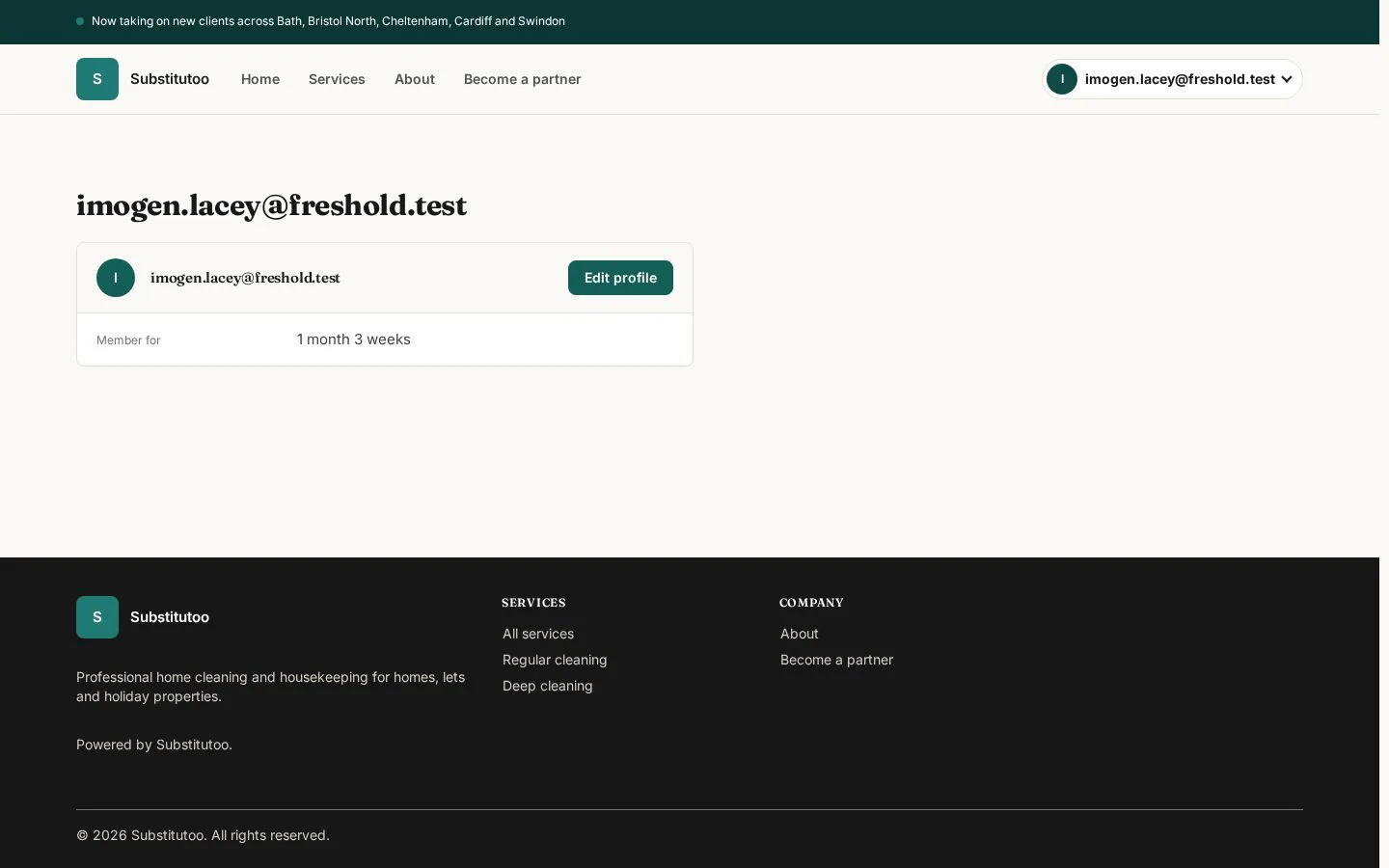
The profile page identifies the account currently in use.
- Check the account name before changing personal or security information.
Open on site ↗sign-inFull-page screenshot ↗
You know which account the current session represents.
Review editable account fields
Authenticated user
2Step 2 of 4
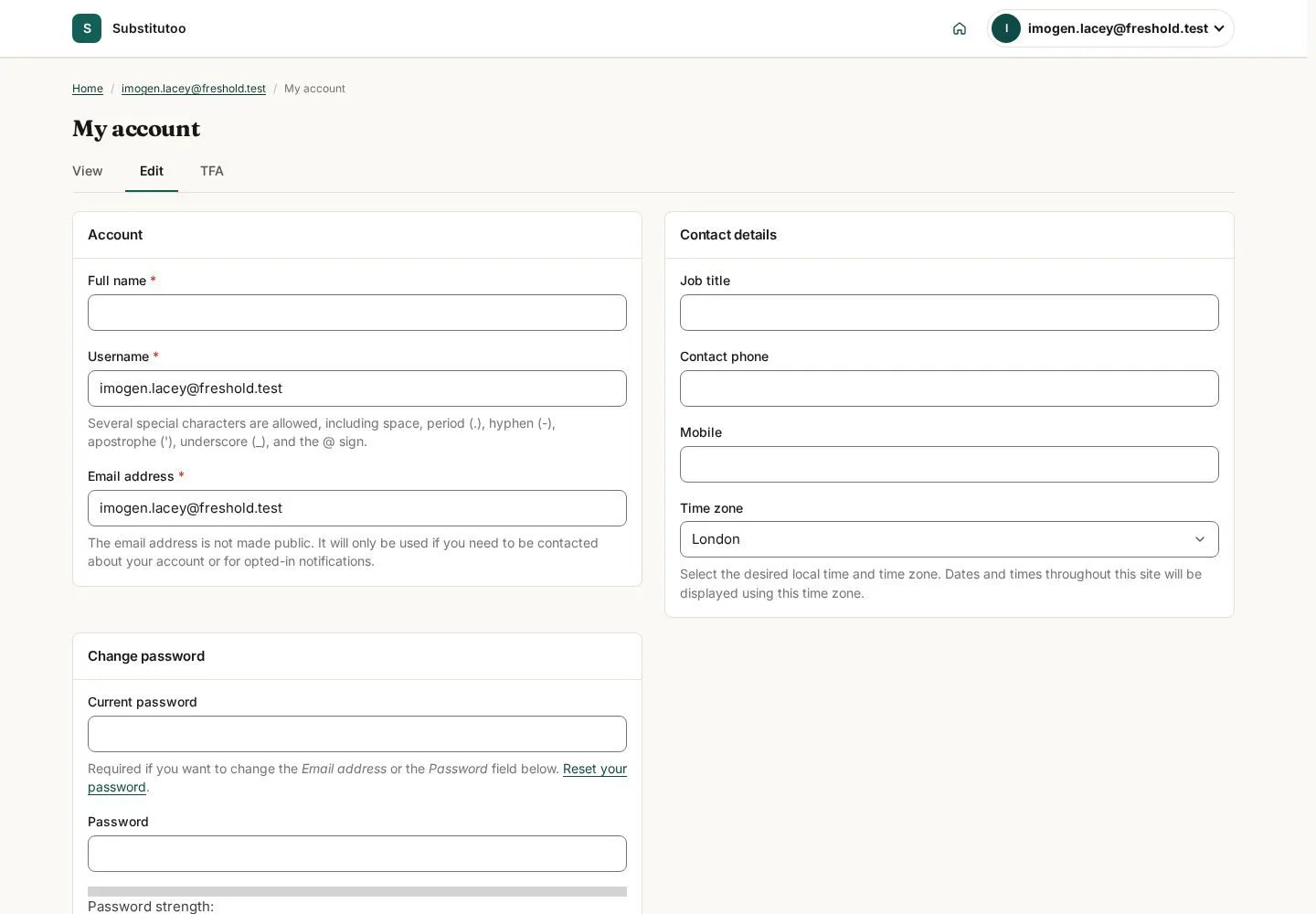
The account edit page contains only the fields this user may maintain.
- Review the available fields, make only authorised changes and save when appropriate.
Open on site ↗sign-inFull-page screenshot ↗
The account form shows the current editable values.
Open security settings
Authenticated user
3Step 3 of 4
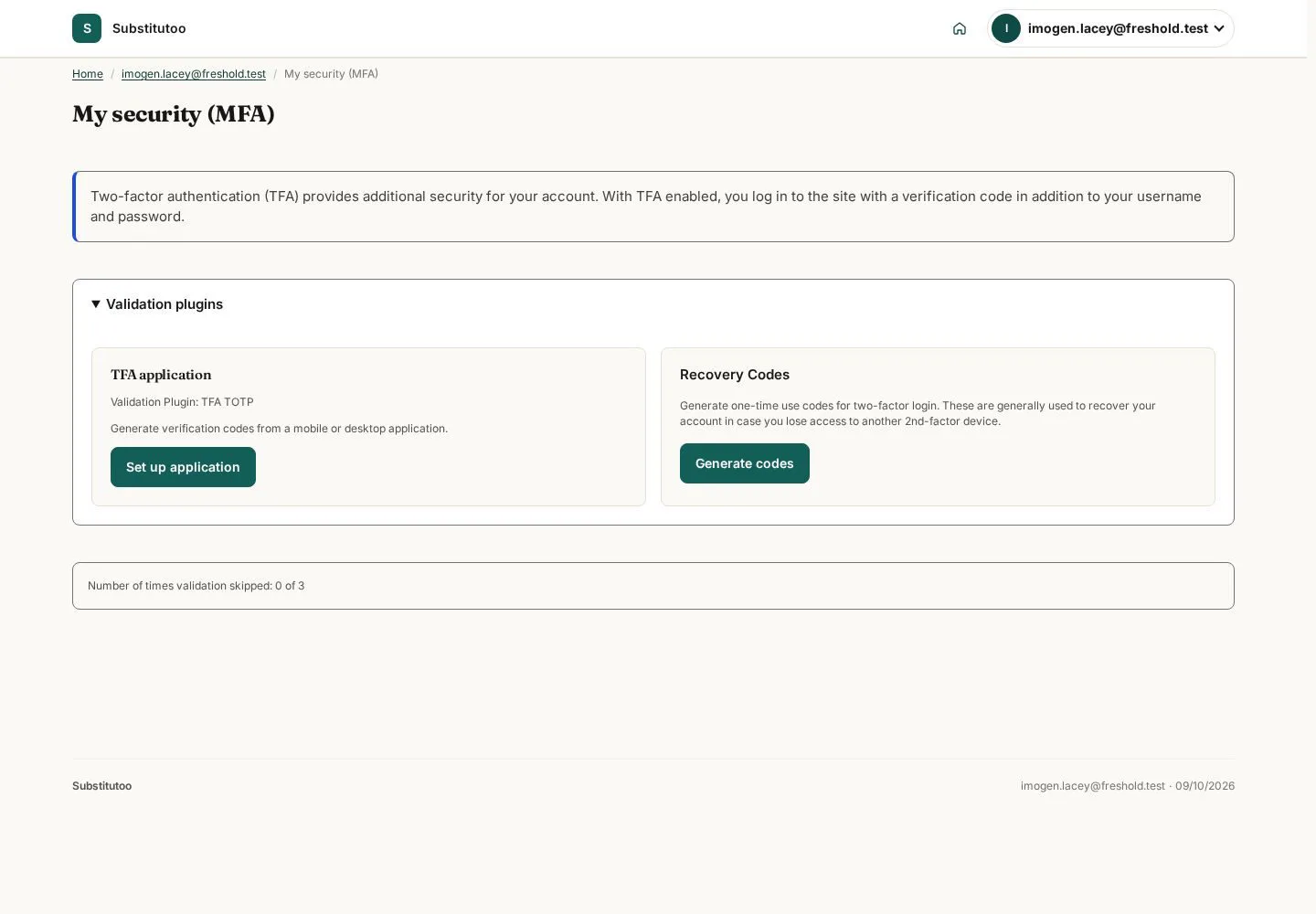
The security area groups the multi-factor authentication controls for the account.
- Choose the available TFA option if your organisation requires stronger sign-in protection.
Open on site ↗sign-inFull-page screenshot ↗
You reach security settings for the signed-in account.
Review TFA setup
Authenticated user
4Step 4 of 4
The setup screen explains the authenticator or recovery method currently offered by the site.
- Follow the on-screen setup sequence and store recovery information in an approved secure place.
Open on site ↗sign-inFull-page screenshot ↗
You can complete the site's TFA workflow when authorised to do so.