






 SubstitutooInternal training
User guide · Office Administrator
Review evidence and approve hours
Inspect visit evidence and use the timesheet approval controls without conflating captured forms with executed actions.
Review the evidence list
Office Administrator
1Step 1 of 5
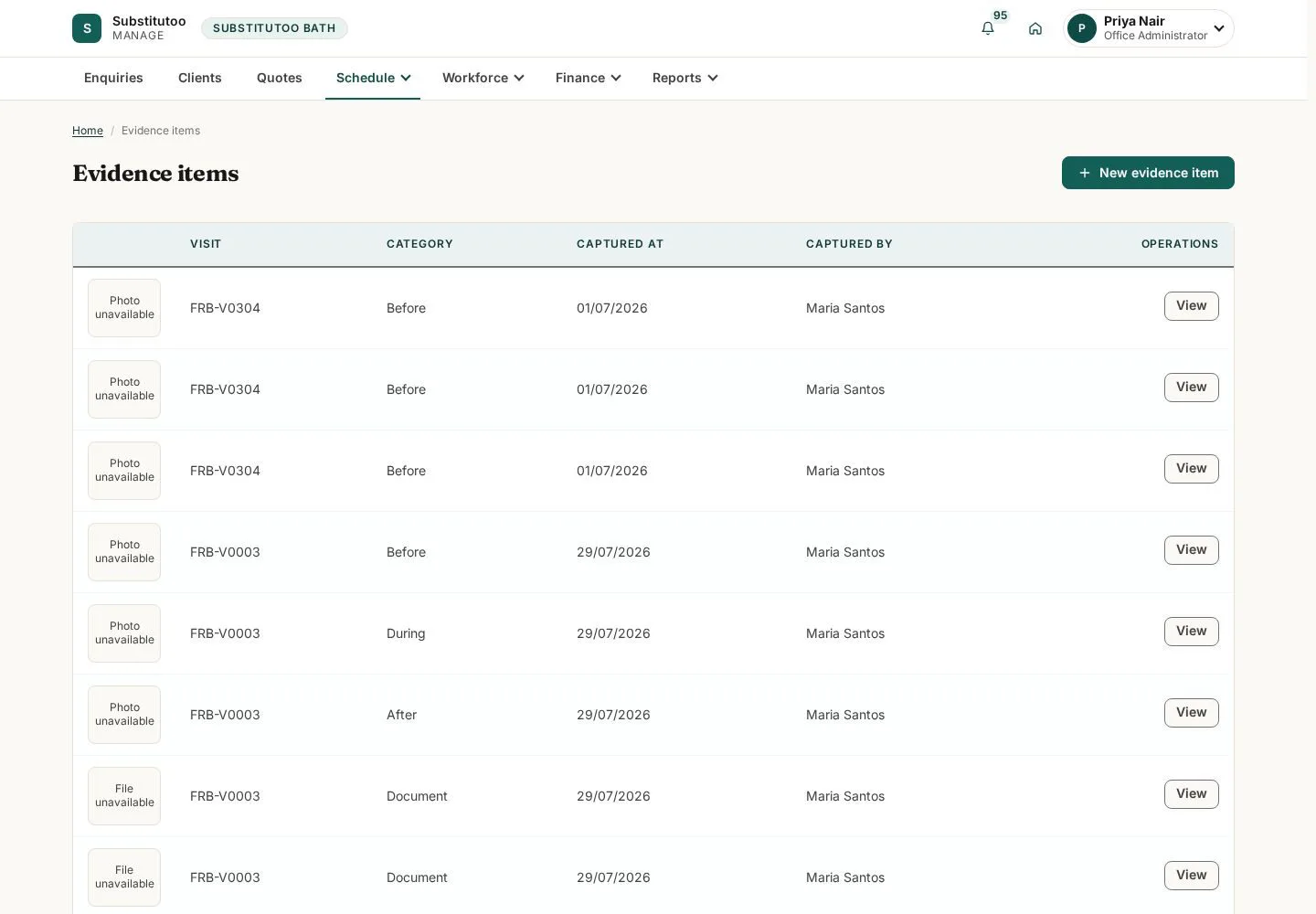
Evidence items can be traced to the service record they support.
- Open the item linked to the visit you are reviewing.
Open on site ↗sign-inFull-page screenshot ↗
You can identify the relevant evidence record.
Inspect evidence detail
Office Administrator
2Step 2 of 5
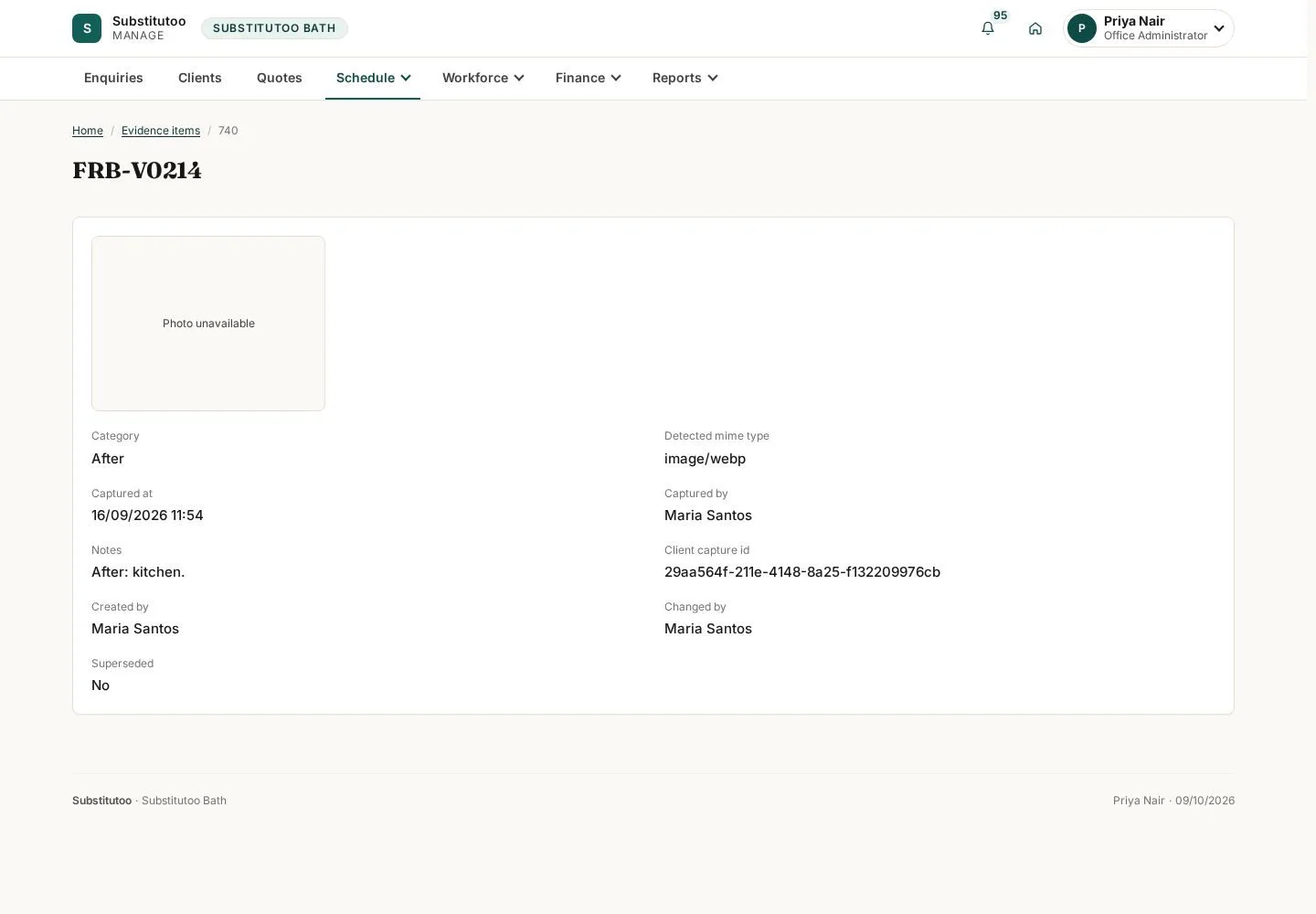
The detail page provides the recorded evidence metadata and available controls.
- Check the linked visit and record details; use supersede only when replacement evidence is justified.
Open on site ↗sign-inFull-page screenshot ↗
You have the evidence context needed for an operational decision.
Open timesheet approvals
Office Administrator
3Step 3 of 5
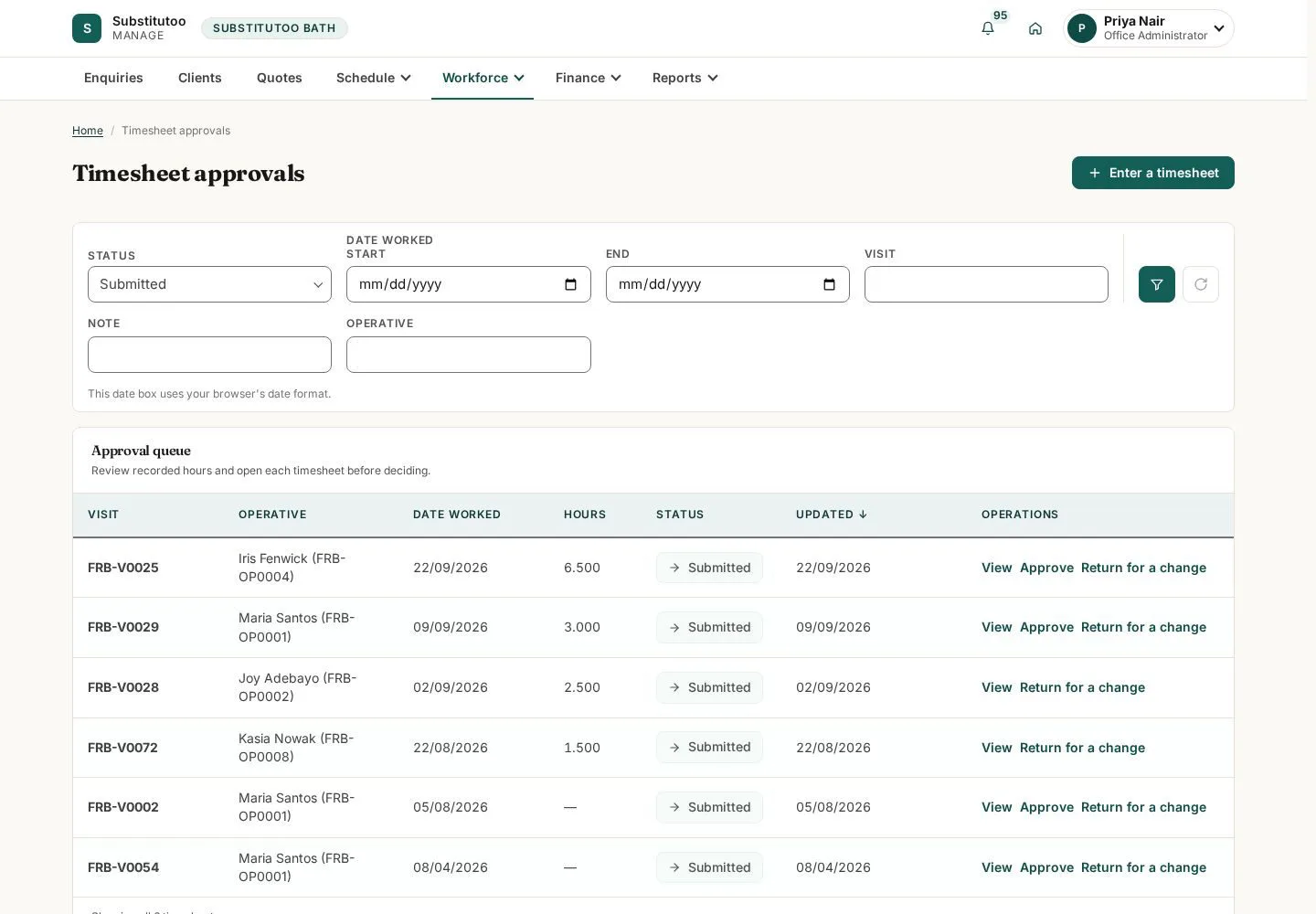
The approval list shows timesheets awaiting or retaining an office decision.
- Filter or search for the relevant operative and work period.
Open on site ↗sign-inFull-page screenshot ↗
You can locate the timesheet that needs review.
Review the timesheet
Office Administrator
4Step 4 of 5
The detail page ties the recorded hours to the operational work.
- Compare the hours with the visit and evidence before choosing an approval action.
Open on site ↗sign-inFull-page screenshot ↗
The timesheet is ready for an informed decision.
Review the approval confirmation
Office Administrator
5Step 5 of 5
Approval is shown as an explicit confirmation step.
- Confirm only when the recorded hours and evidence are correct.
Open on site ↗sign-inFull-page screenshot ↗
The approval action is visible but has not been submitted by this guide.