






 SubstitutooInternal training
User guide · Operative
Deliver a domestic-cleaning visit
Follow the recorded visit states from scheduled work through in-progress evidence and the completion review.
Review the scheduled visit
Operative
1Step 1 of 6
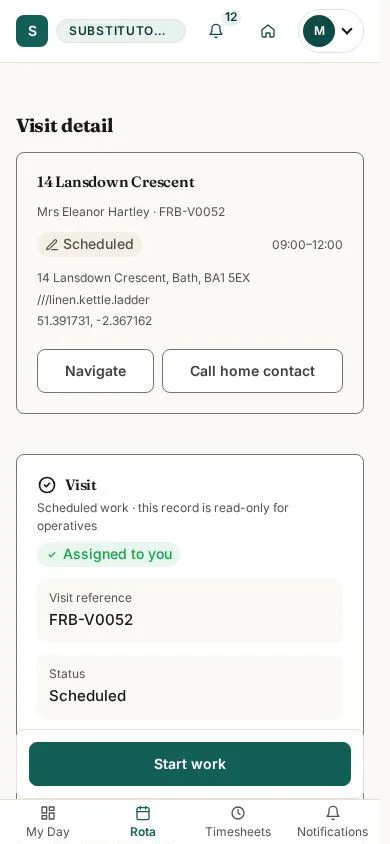
Start from the visit assigned to the operative, not from another worker's record.
- Check the household, time and visit details before choosing the start action.
Open on site ↗sign-inFull-page screenshot ↗
You are working from the correct scheduled visit.
Confirm the start action
Operative
2Step 2 of 6
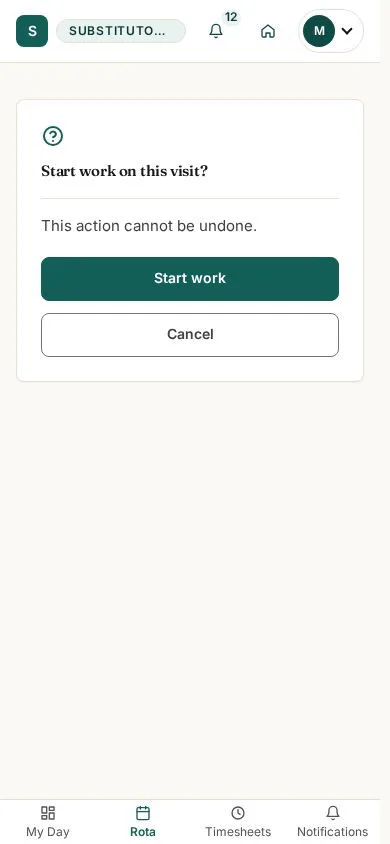
The confirmation screen makes the state change explicit before work begins.
- Read the confirmation and proceed only when the visit is actually starting.
Open on site ↗sign-inFull-page screenshot ↗
The start action is ready for confirmation; the documentation does not trigger it.
Use the in-progress visit record
Operative
3Step 3 of 6
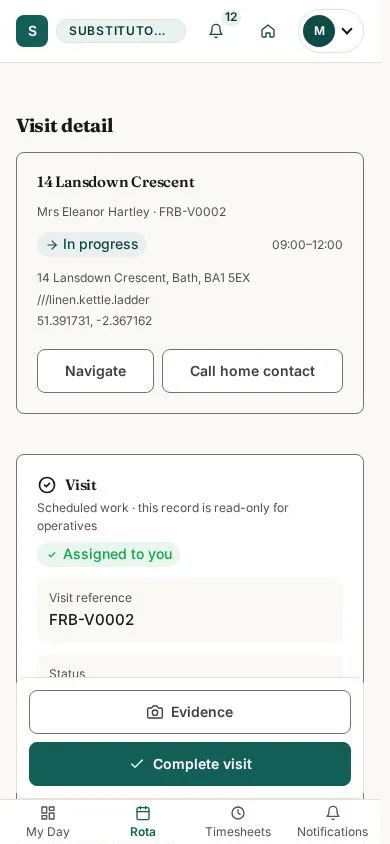
An in-progress record exposes the controls relevant while work is being delivered.
- Follow the visit instructions and open evidence capture when evidence is required.
Open on site ↗sign-inFull-page screenshot ↗
The record is in its captured in-progress state.
Prepare visit evidence
Operative
4Step 4 of 6
Evidence capture associates a record with the visit being delivered.
- Add only relevant evidence and check that it belongs to the correct visit before saving outside this guide.
Open on site ↗sign-inFull-page screenshot ↗
The evidence form is ready for review; no upload is performed by the guide.
Review completion details
Operative
5Step 5 of 6
The completion screen is the final check before the operative marks work complete.
- Review the completion information and choose the final action only after the real visit is finished.
Open on site ↗sign-inFull-page screenshot ↗
The completion action is visible but has not been submitted by this guide.
Recognise a completed record
Operative
6Step 6 of 6
A separate captured record shows how completed work is presented.
- Check the state and recorded details; use the timesheet route when it is available for the completed visit.
The screenshots use representative records and do not claim that one record was mutated through every state during the crawl.
Open on site ↗sign-inFull-page screenshot ↗
You can distinguish completed work from scheduled and in-progress work.