






 SubstitutooInternal training
User guide · Office Administrator
Plan and assign visits
Use the calendar, recurring schedules and visit assignment forms to organise service delivery.
Review the calendar
Office Administrator
1Step 1 of 5
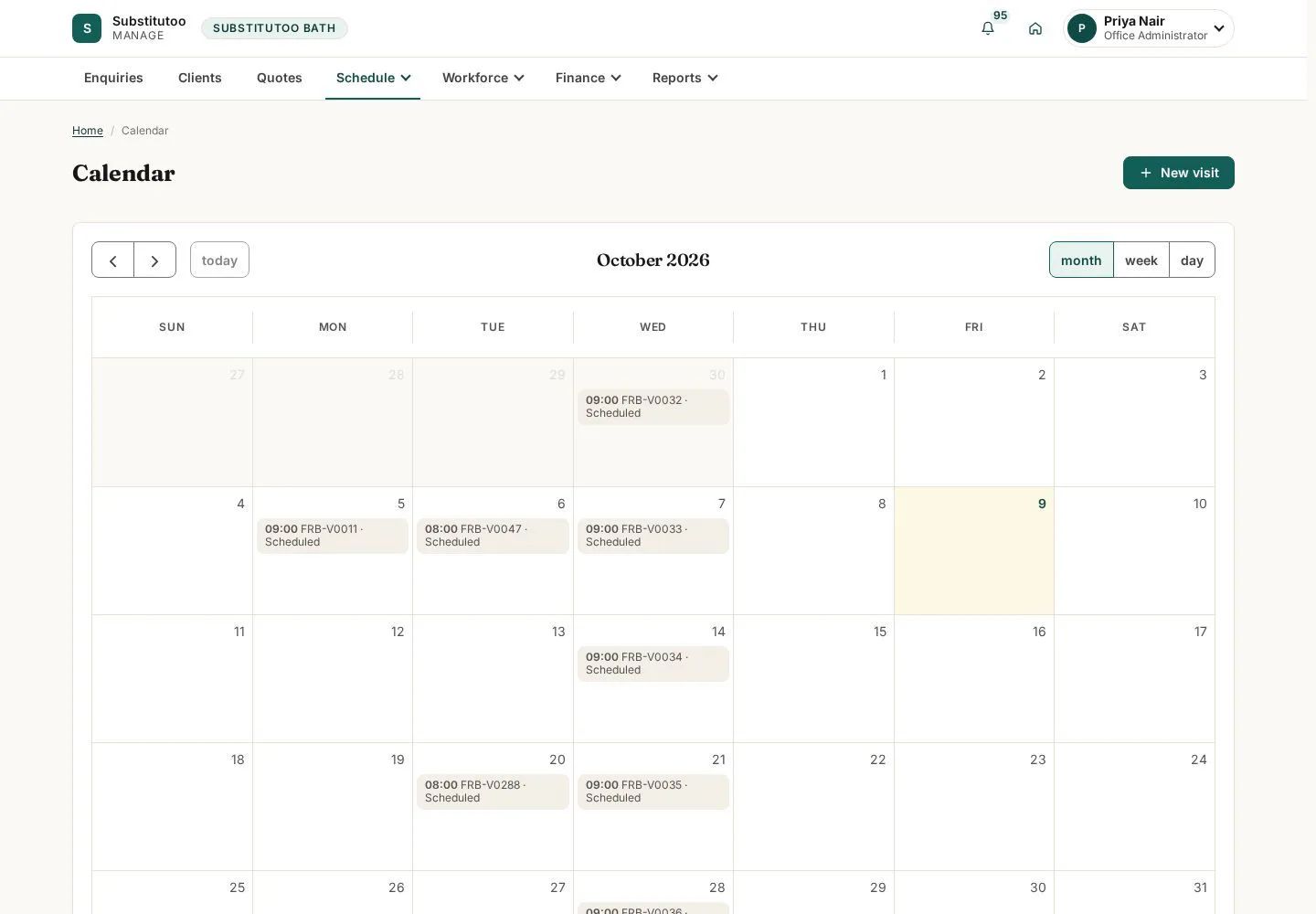
The calendar shows planned visits for the partner operation.
- Move to the relevant date and open the visit that needs attention.
Open on site ↗sign-inFull-page screenshot ↗
You can see the office's scheduled workload.
Open recurring schedules
Office Administrator
2Step 2 of 5
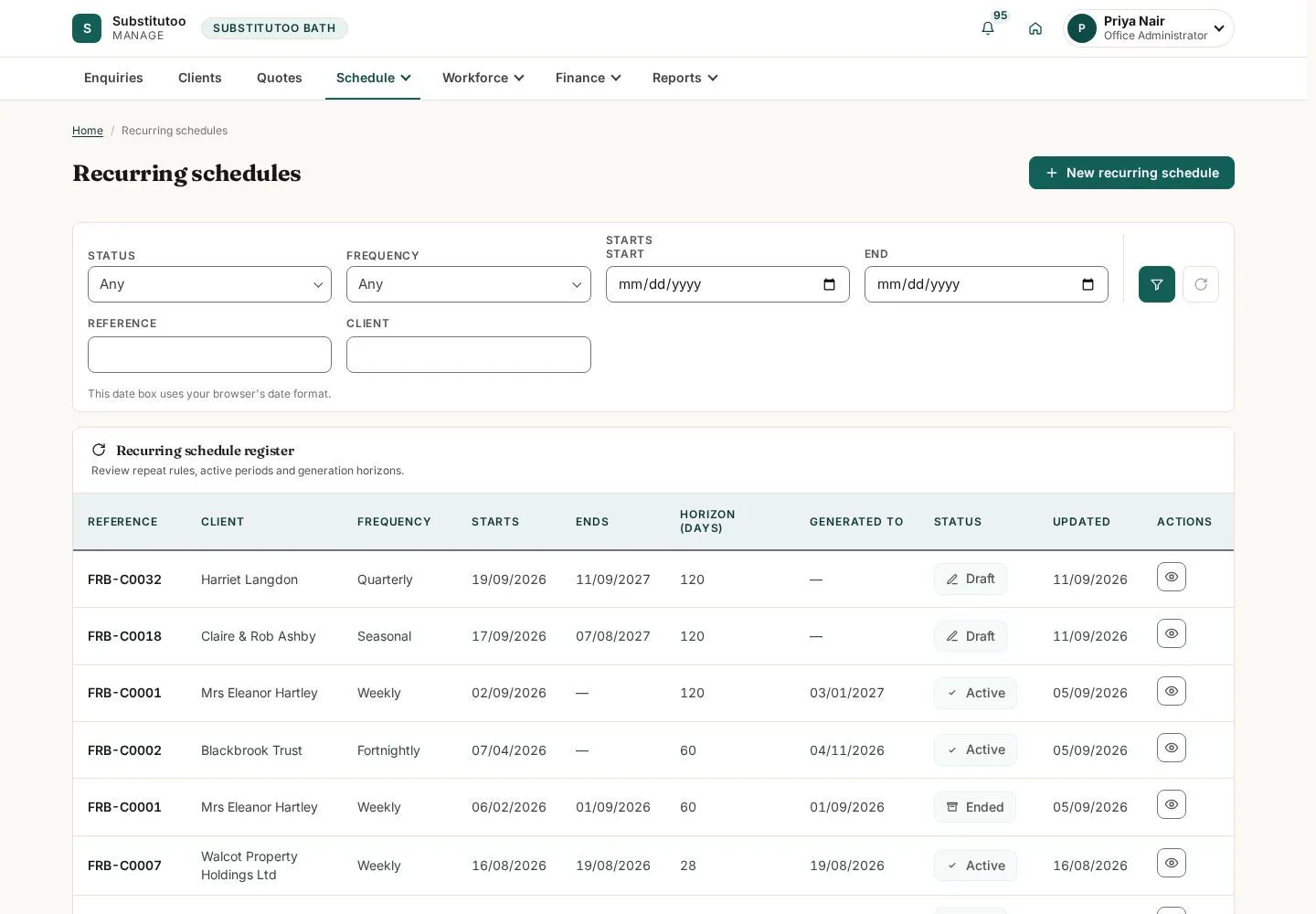
Recurring schedules are the template for repeat household work.
- Find the customer's schedule and open it before changing future work.
Open on site ↗sign-inFull-page screenshot ↗
You can separate recurring setup from an individual visit.
Prepare a new visit
Office Administrator
3Step 3 of 5
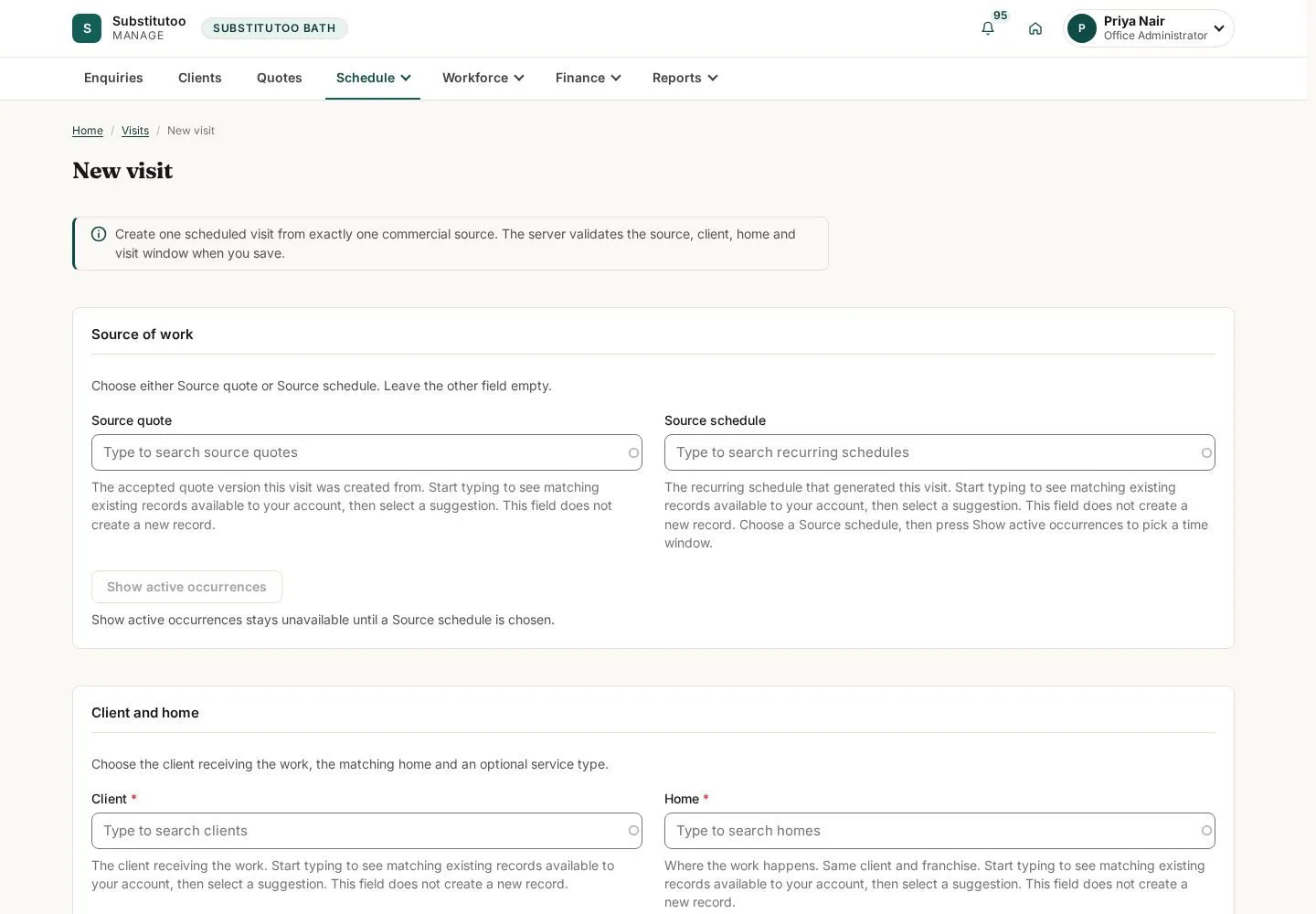
The visit form records the home, timing and planned work.
- Choose the correct customer and home, enter the planned time and review the form before saving.
Open on site ↗sign-inFull-page screenshot ↗
The visit form is ready for authorised completion.
Review visit detail
Office Administrator
4Step 4 of 5
The visit record shows its operational state and related assignment information.
- Check the visit state and details before opening assignment.
Open on site ↗sign-inFull-page screenshot ↗
You are acting on the intended visit.
Prepare operative assignment
Office Administrator
5Step 5 of 5
The assignment screen associates permitted operatives with the visit.
- Select an appropriate operative, review timing and conflicts, then confirm only in live operations.
Open on site ↗sign-inFull-page screenshot ↗
The assignment is ready for review; no assignment is submitted by the guide.