






 SubstitutooInternal training
User guide · Office Administrator
Process an enquiry into a customer
Review the enquiry pipeline, qualify the request and open the conversion form that creates the operational records.
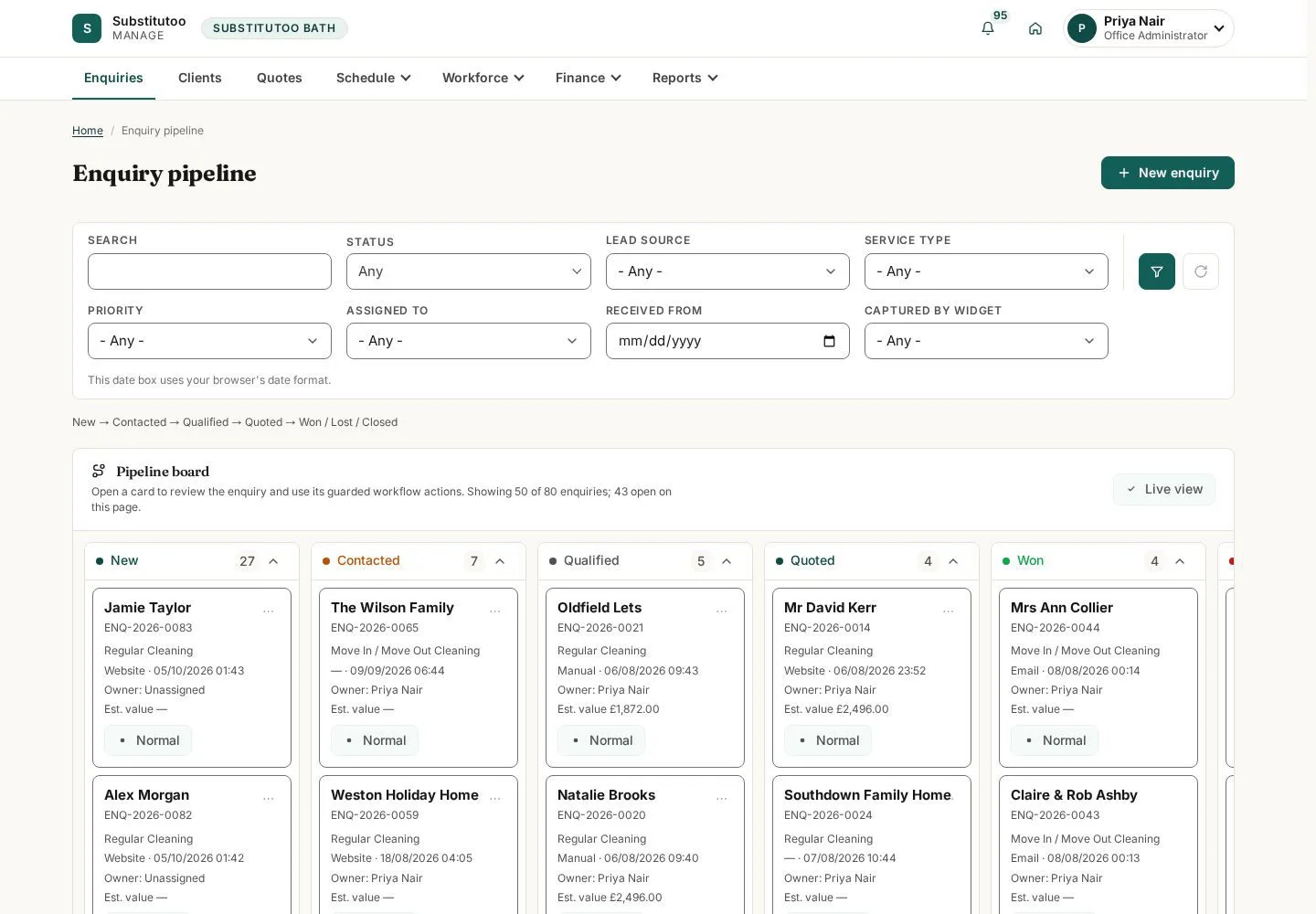
Open the enquiry pipeline
Office Administrator
1Step 1 of 5
The pipeline is the office starting point for household requests.
- Use the visible filters and open the enquiry that needs follow-up.
Open on site ↗sign-inFull-page screenshot ↗
You see the enquiry records available to this partner office.
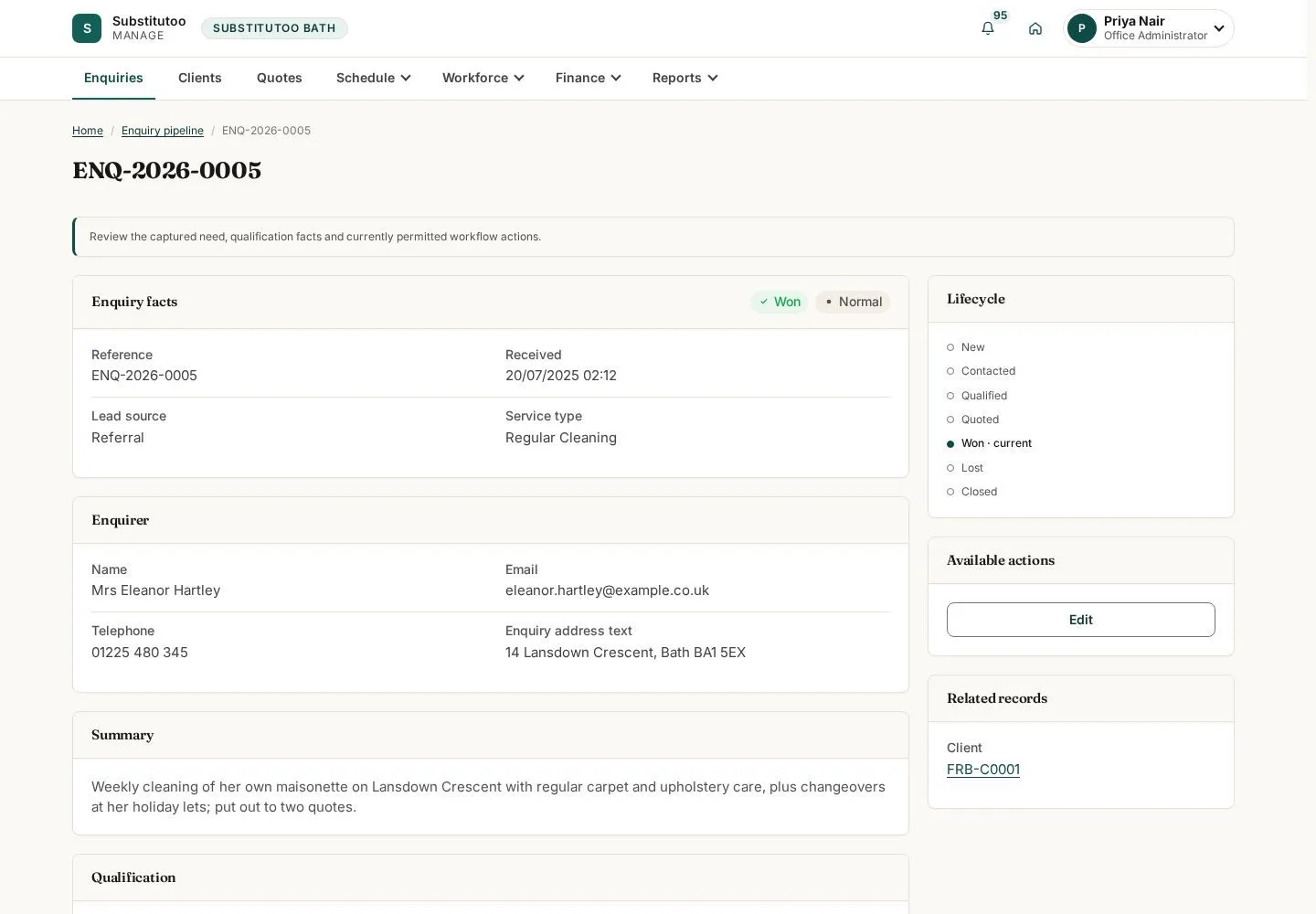
Read the enquiry record
Office Administrator
2Step 2 of 5
The detail page brings together the household request and its current state.
- Check contact details, requested help and history before choosing a transition.
Open on site ↗sign-inFull-page screenshot ↗
You have enough context to choose the next permitted enquiry action.
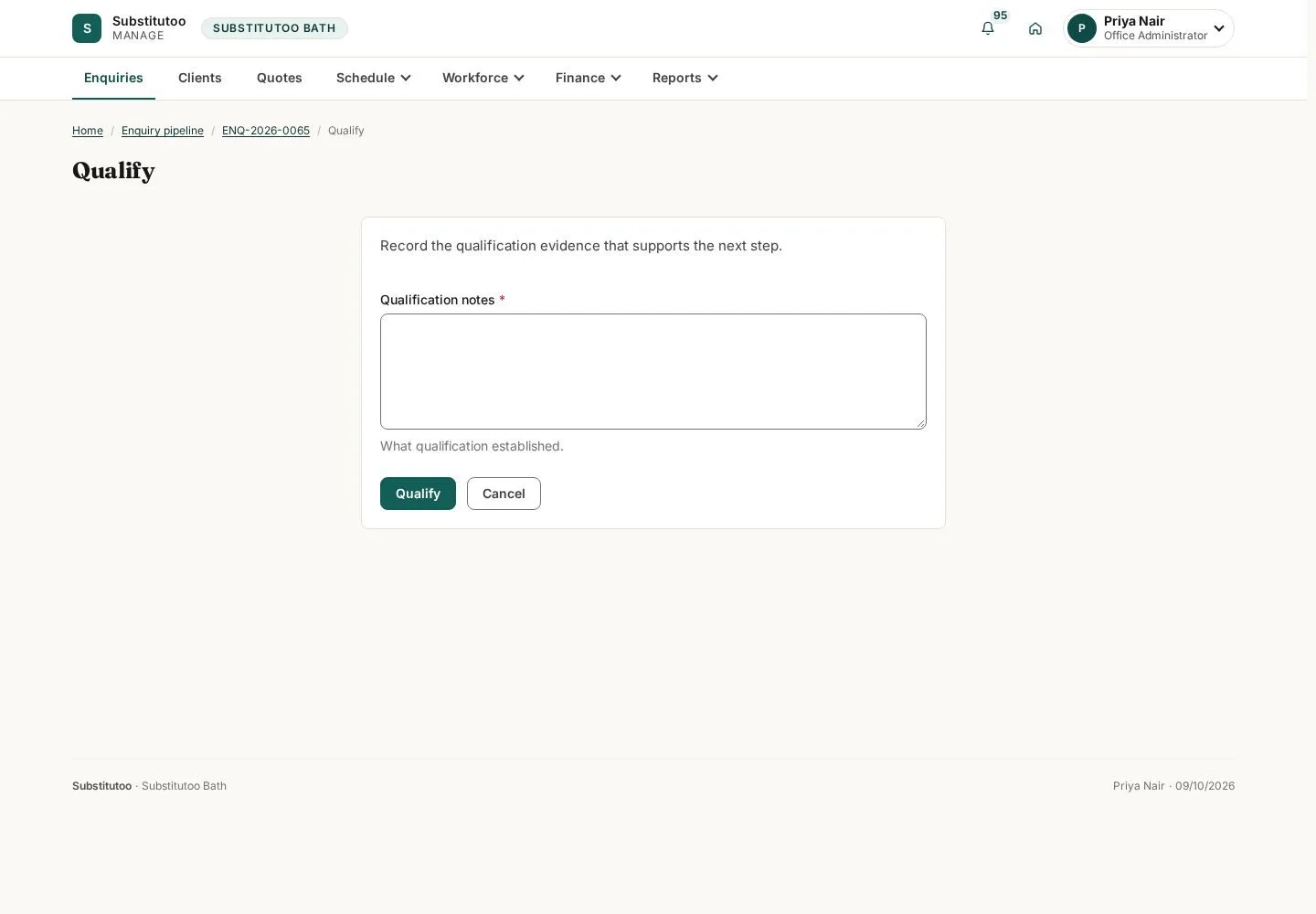
Review a qualification action
Office Administrator
3Step 3 of 5
Qualification is presented as an explicit state transition.
- Confirm that the request meets the office criteria before submitting the transition outside this guide.
Open on site ↗sign-inFull-page screenshot ↗
The transition confirmation is ready; the crawl did not apply it.
Prepare conversion
Office Administrator
4Step 4 of 5
The conversion screen turns a qualified request into the connected operational records.
- Review the proposed customer and home information before confirming the conversion in live work.
Open on site ↗sign-inFull-page screenshot ↗
The conversion form is available but is not submitted by the guide.
Find the customer record
Office Administrator
5Step 5 of 5
Converted work is managed from the customer list and detail pages.
- Search for the customer and open the matching record.
Open on site ↗sign-inFull-page screenshot ↗
You can continue operational setup from the customer record.