






 SubstitutooInternal training
User guide · Operative
Review hours and notifications
Open the operative's timesheets and notification list after field work has been recorded.
OperativeStep-by-step instructions
Open My timesheets
Operative
1Step 1 of 3
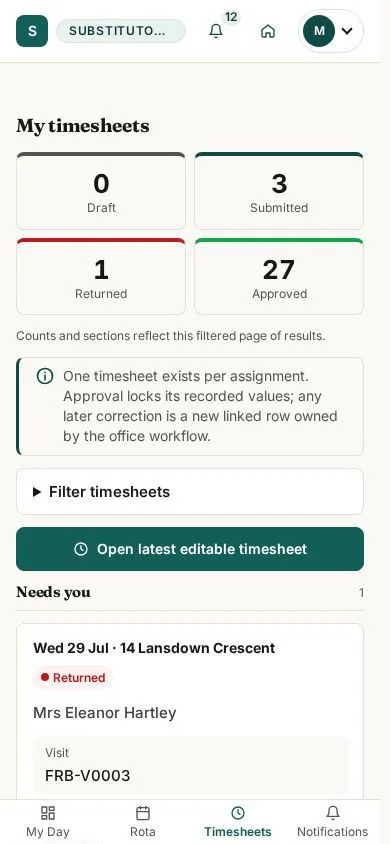
The list groups the hours available to the signed-in operative.
- Find the relevant period or visit and open the timesheet you need to review.
Open on site ↗sign-inFull-page screenshot ↗
What you should see
You see the timesheet records available to this operative.
Review a timesheet before submission
Operative
2Step 2 of 3
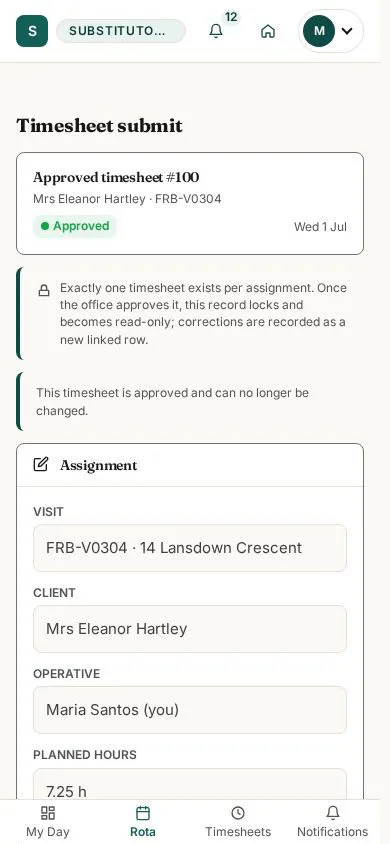
The detail form is where the operative checks the recorded hours.
- Check the linked work and hours, correct authorised fields, and submit only when they are accurate.
Open on site ↗sign-inFull-page screenshot ↗
What you should see
The timesheet is ready for the operative's review.
Read field notifications
Operative
3Step 3 of 3
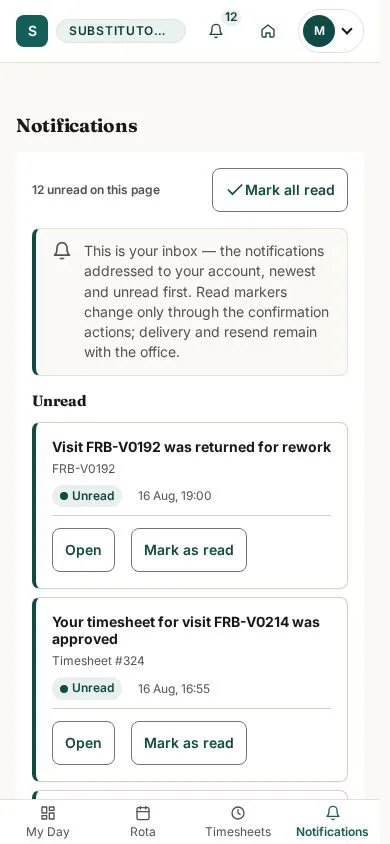
Notifications surface items the operative may need to follow up.
- Open the relevant notification and follow its link before marking it read.
Open on site ↗sign-inFull-page screenshot ↗
What you should see
You can identify outstanding notifications for this account.
1 / 4