





User guide · Waiter
Start the shift:dashboard and table
Check the work waiting for this shift, then select the correct table on the POS floor.
- Sign in with a Waiter account.
Check the staff dashboard
Waiter
1Step 1 of 3
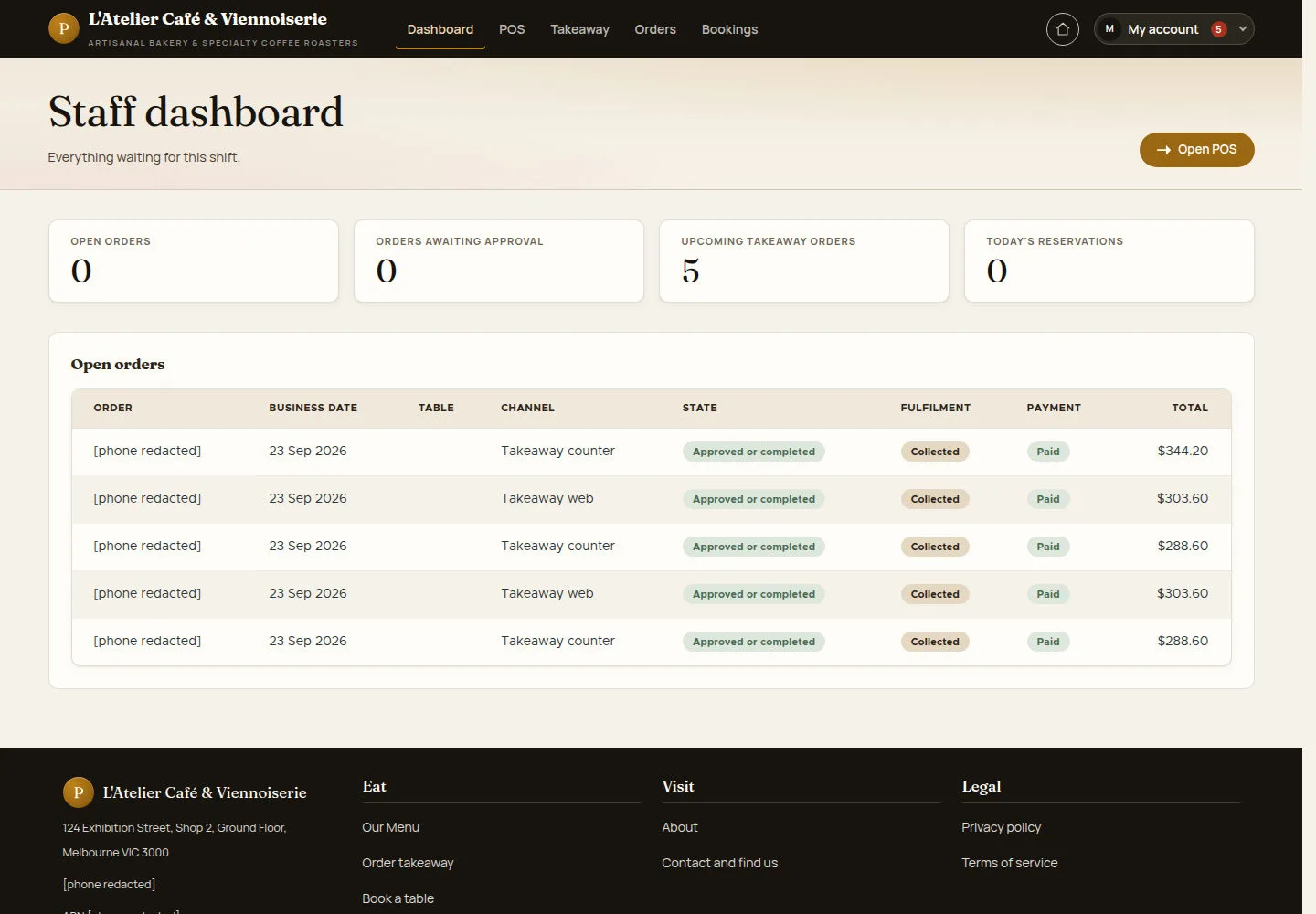
The dashboard links to POS and the queues that need staff attention.
- Review open orders, guest approvals, takeaway and reservations. Select Open POS to work at a table.
Open on site ↗sign-inFull-page screenshot ↗
You know which queue or table to open next; summary values reflect the current records.
Find the right table
Waiter
2Step 2 of 3
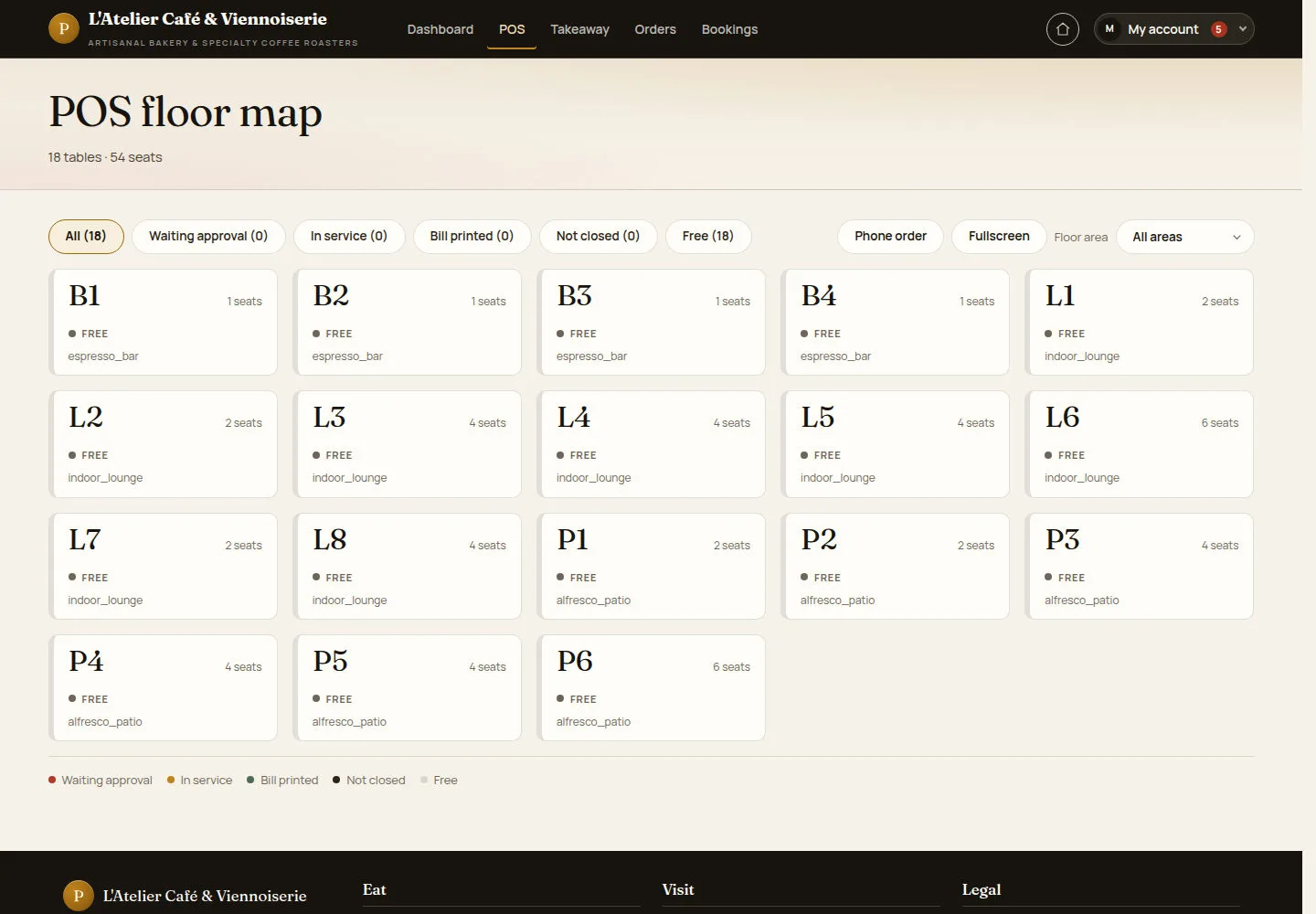
The floor map distinguishes free tables from those already in service.
- Use the state tabs and Floor area, then choose the intended table. Check its label and state.
Open on site ↗sign-inFull-page screenshot ↗
A free table offers Start order; an occupied table should lead to its existing service.
Prepare a table order
Waiter
3Step 3 of 3
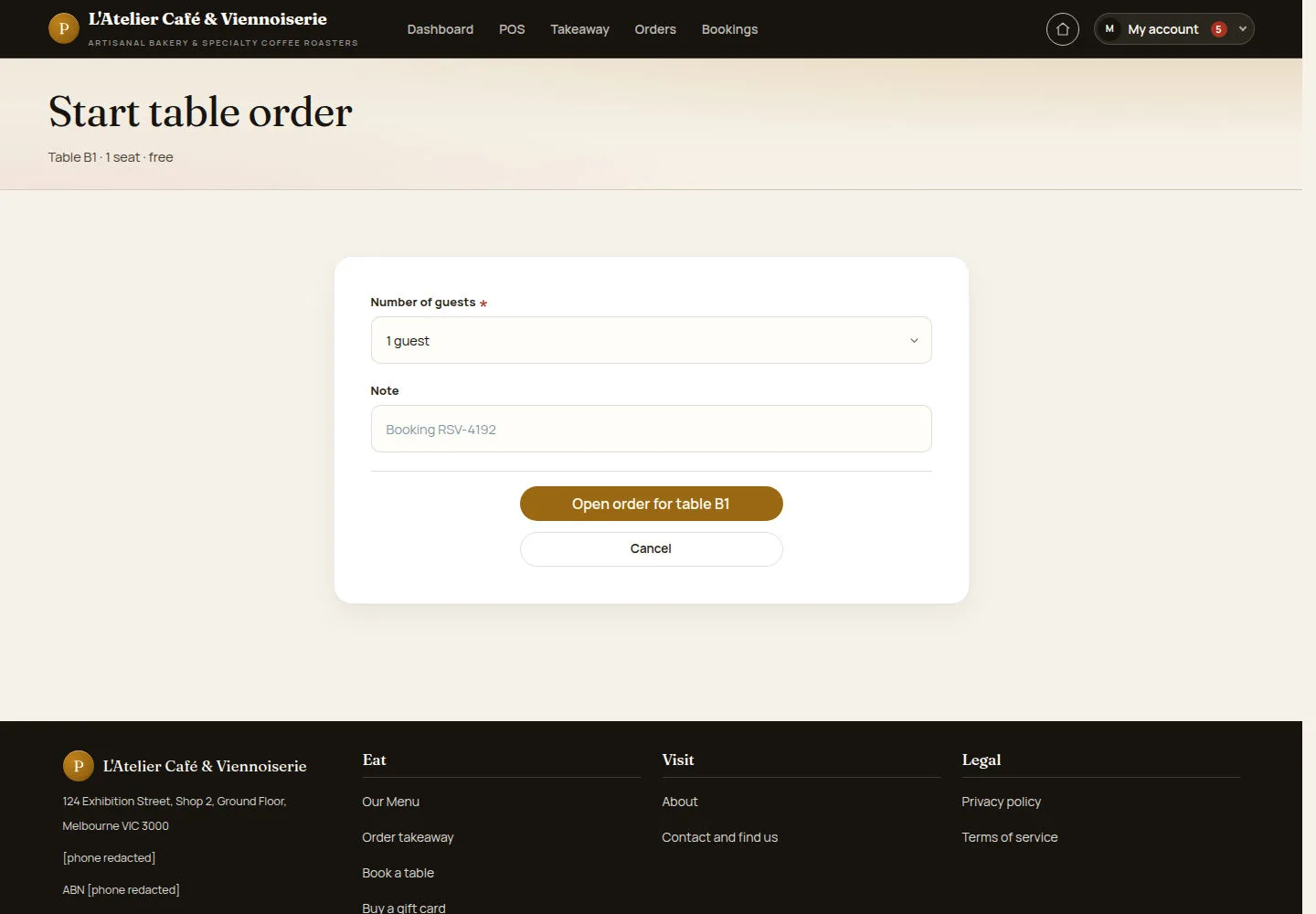
The start form checks the table and party before an order is opened.
- Confirm the table. Choose Number of guests and add a useful note before submitting the form.
Open on site ↗sign-inFull-page screenshot ↗
Proceed only for the correct free table. A newly opened order must be checked before adding and sending dishes.