





User guide · Guests
Choose takeaway:menu, cart and checkout
Find the takeaway menu and understand what to check before checkout.
- A cart needs available items before checkout can proceed.
Open Order takeaway
Guests
1Step 1 of 3
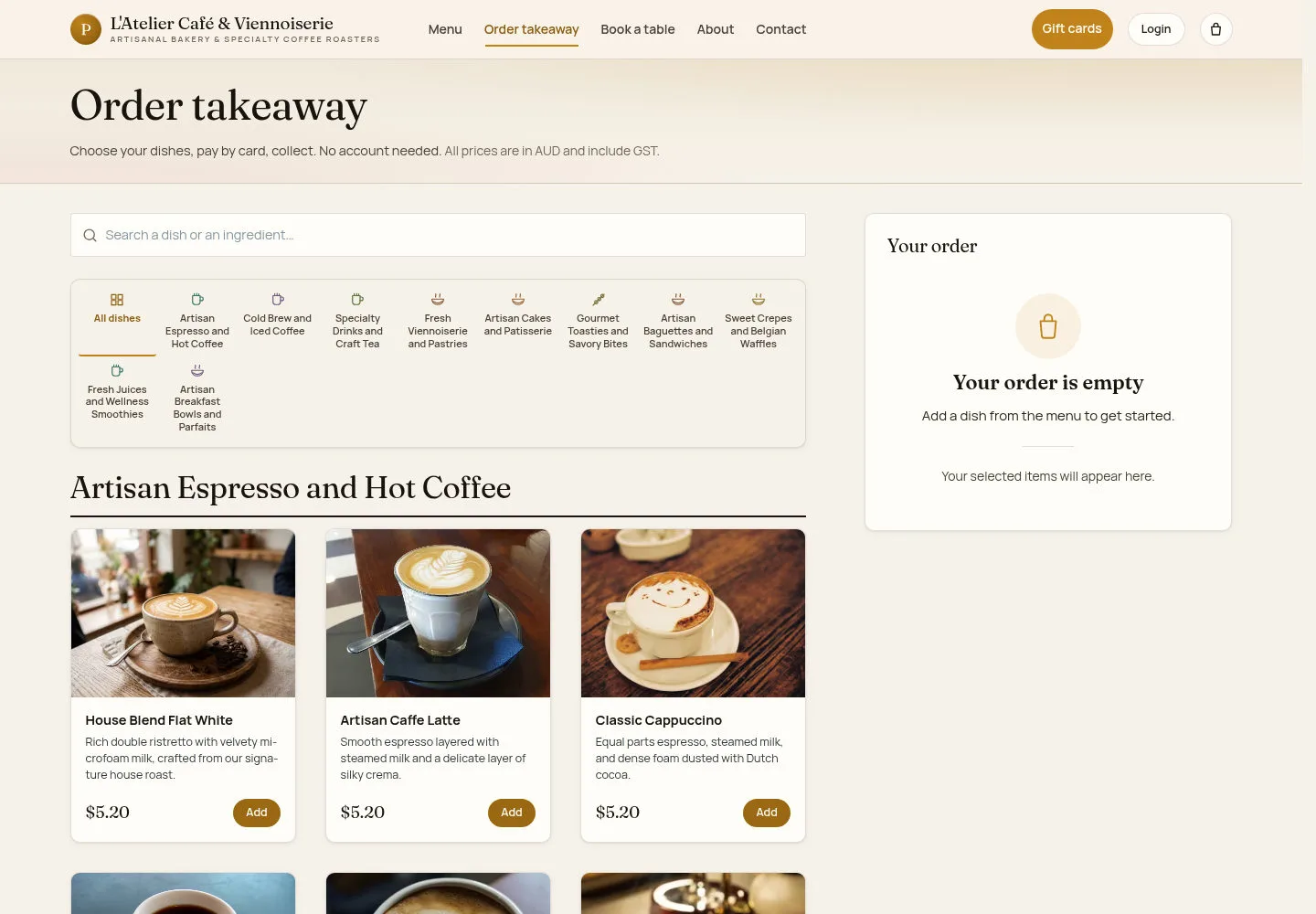
Use the takeaway menu to find the dishes you want to collect.
- Select Order takeaway. Browse categories and use Add when the item form is available.
If an item opens an access error, return to the menu and ask staff for help; that item has not been added.
Open on site ↗Full-page screenshot ↗
The menu and your order summary appear together. An empty summary asks you to add a dish.
Review the cart
Guests
2Step 2 of 3
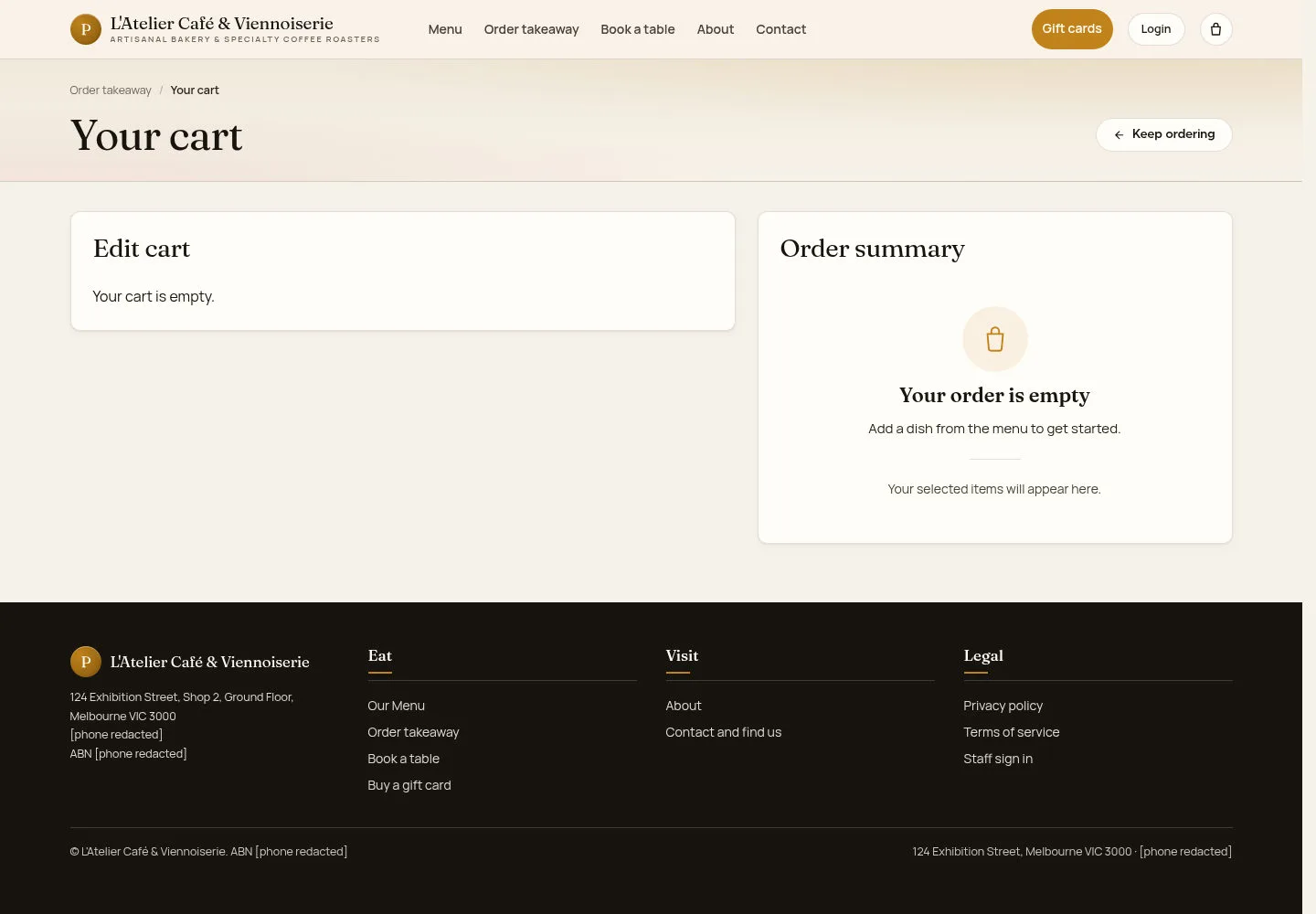
Check the selected dishes, quantities and options before continuing.
- Open Your cart. Use Keep ordering to return for more dishes.
Open on site ↗Full-page screenshot ↗
A filled cart should show the order to review. The illustrated empty cart has no order to pay for.
Check the checkout requirement
Guests
3Step 3 of 3
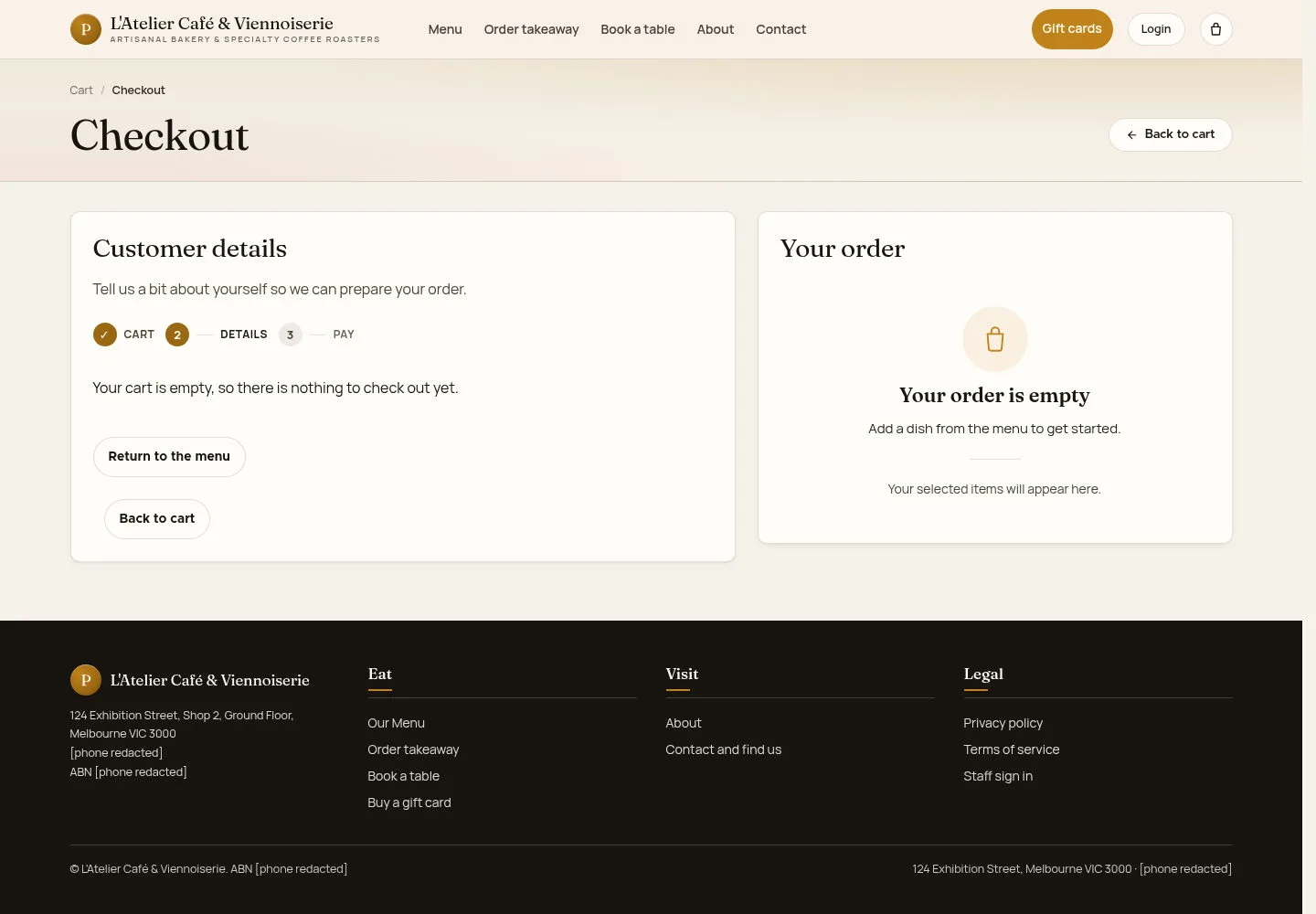
Checkout depends on the current cart and the café’s online ordering settings.
- If checkout says the cart is empty, select Return to the menu. When items are present, follow the details and payment choices actually offered.
Open on site ↗Full-page screenshot ↗
Continue only with a valid order summary. Treat an order as placed only after the site provides its confirmation.