





User guide · Manager
Prepare tables and their QR posters
Keep seating information and table ordering entry points ready for service.
- Know the actual table labels, seats and floor areas.
Review the table list
Manager
1Step 1 of 3
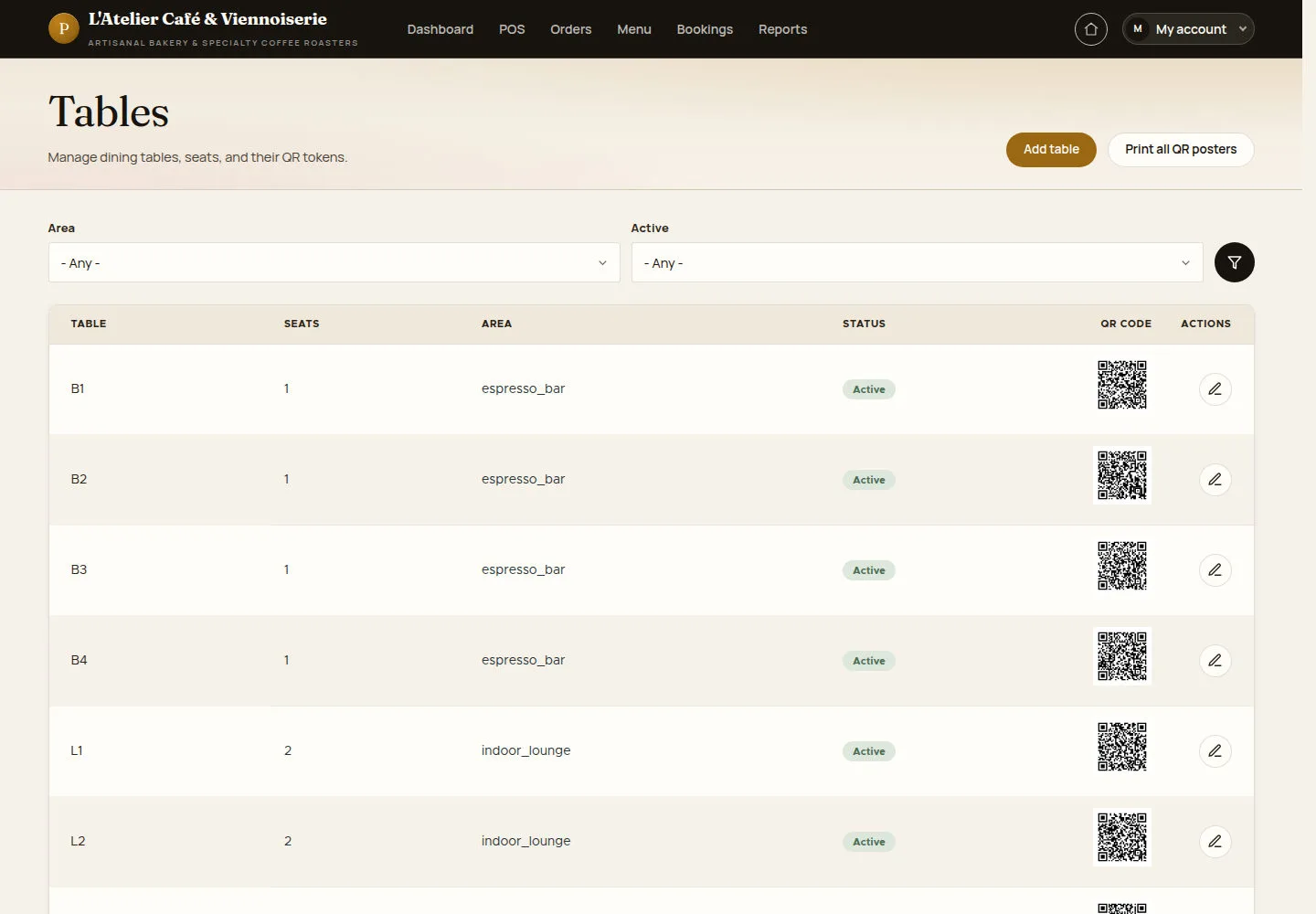
The table list is the setup source for seating and the floor map.
- Open Tables. Find the table to change, or choose Add table for a new seating position.
Open on site ↗sign-inFull-page screenshot ↗
Each table can be identified by its label, seats and service state.
Update seating details
Manager
2Step 2 of 3
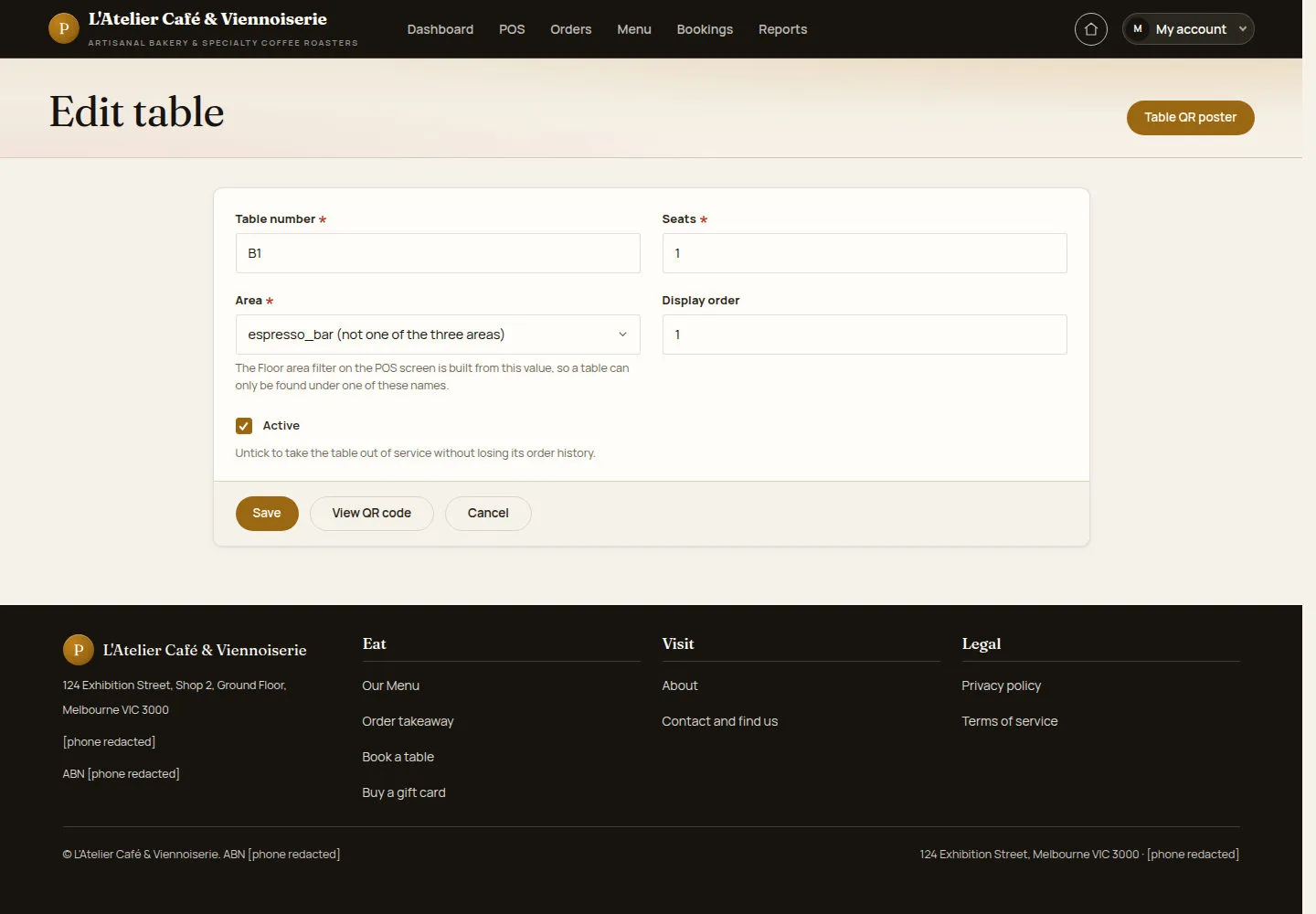
Active state and floor area determine whether and where staff find the table.
- Check Table number, Seats, Area, display order and Active. Save only the intended change.
Open on site ↗sign-inFull-page screenshot ↗
The table appears under the intended floor area. Taking a table out of service retains its history.
Check the QR posters
Manager
3Step 3 of 3
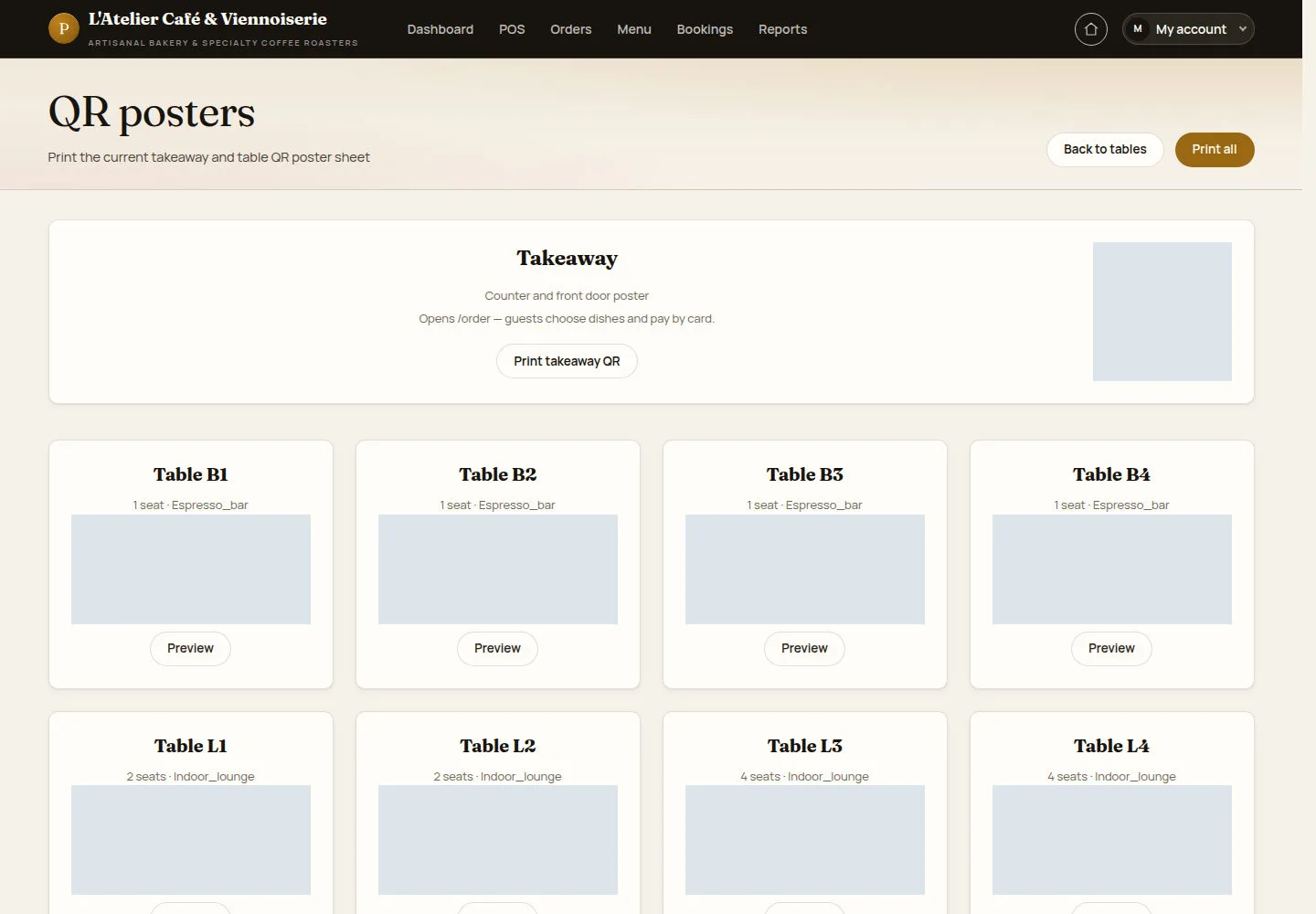
Each poster belongs to a table and should be checked before it is placed in the venue.
- Open QR posters. Match the printed table label to the physical table and test its current QR on the live site.
Replacing a table QR changes how guests enter that table. Coordinate any replacement with the staff using it.
Open on site ↗sign-inFull-page screenshot ↗
The QR opens the correct table menu. The documentation images mask private codes and should not be printed for guest use.