





User guide · Administrator
Use the café business workspace
Move between service, menu and reports using the business navigation available to your account.
- Sign in with the administrator account assigned for business operations.
Open the staff dashboard
Administrator
1Step 1 of 4
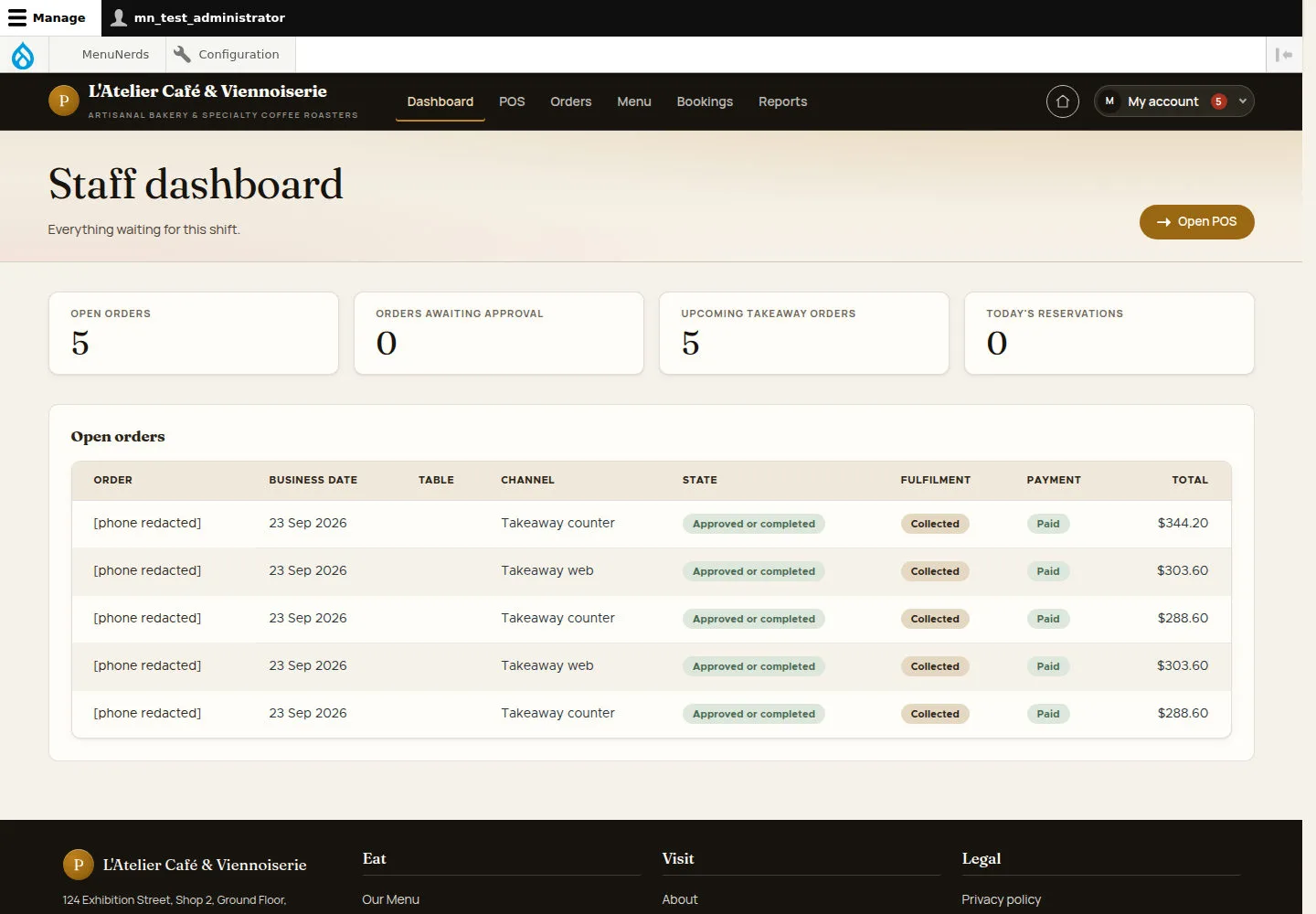
The business dashboard brings the day’s service entry points together.
- Review the dashboard and choose the service queue you need.
Open on site ↗sign-inFull-page screenshot ↗
The dashboard reflects the business records your account can access.
Check the POS floor
Administrator
2Step 2 of 4
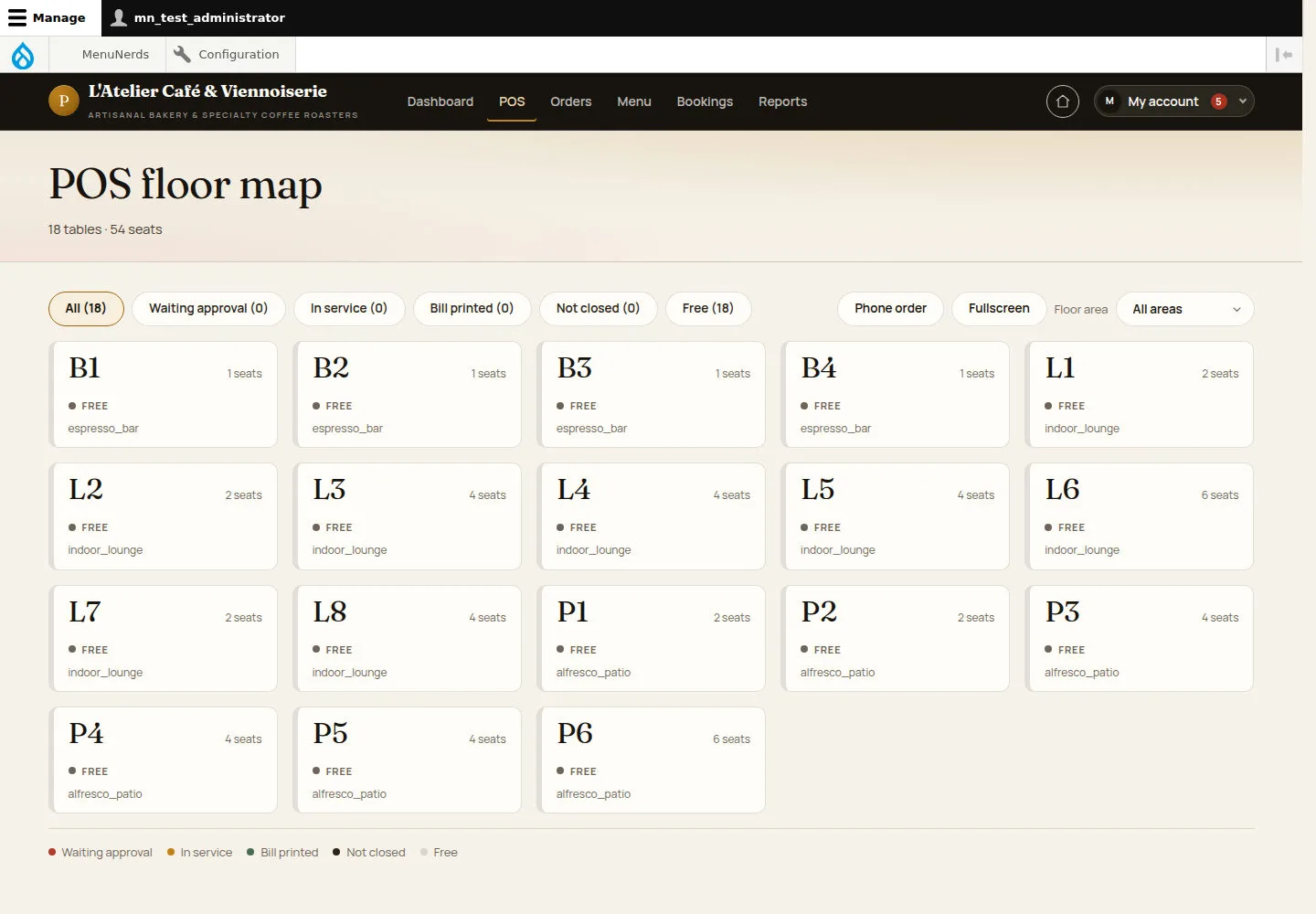
POS shows the current table layout and service states.
- Open POS, filter the floor area and inspect the intended table.
Open on site ↗sign-inFull-page screenshot ↗
You can identify the table and its current service state before opening it.
Find menu setup
Administrator
3Step 3 of 4
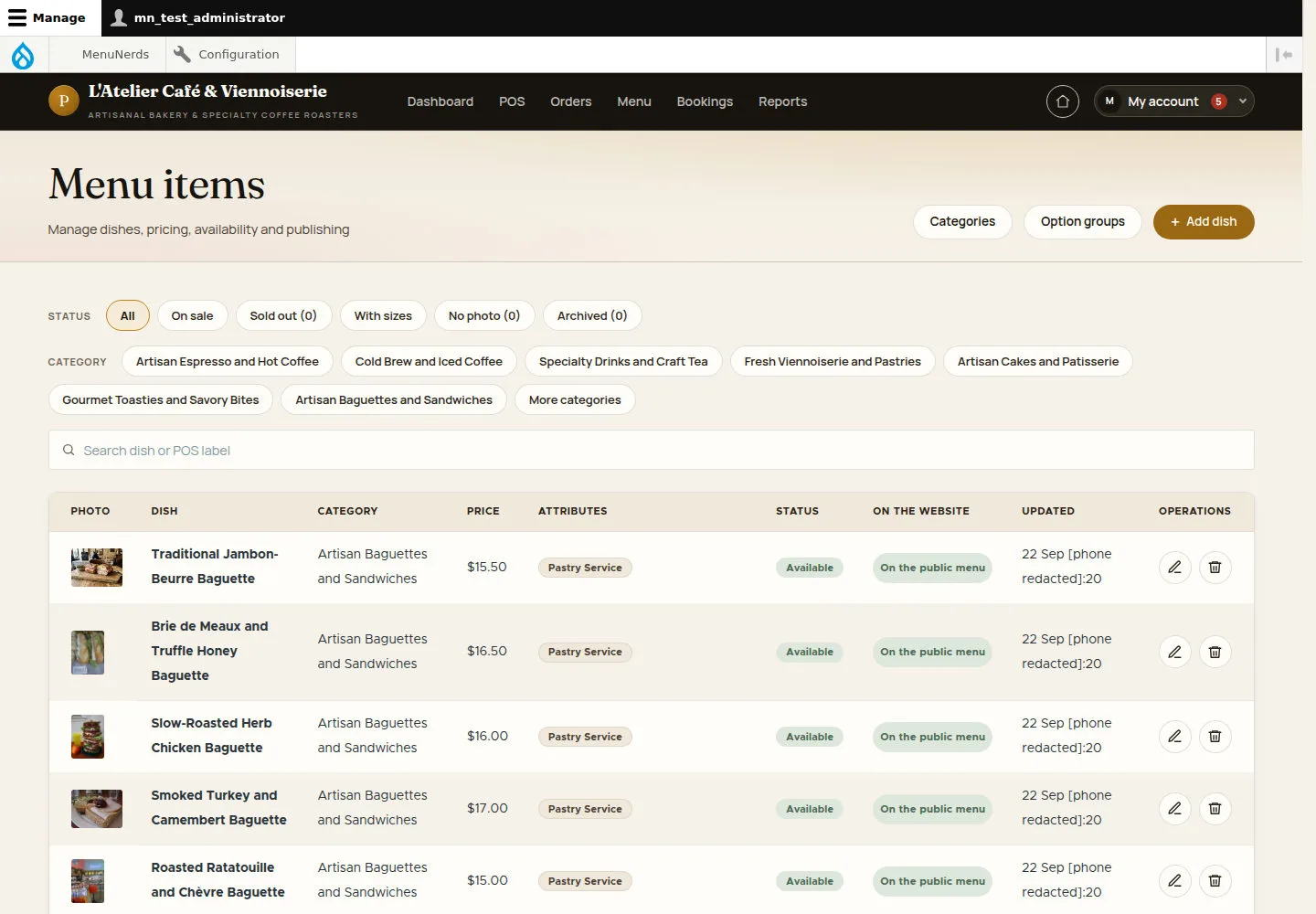
The business menu list is separate from the guest menu.
- Open Menu items. Use the Manager menu guide when changing labels, categories, options or prices.
Open on site ↗sign-inFull-page screenshot ↗
You reach the menu management list with the actions allowed for your account.
Open the business report
Administrator
4Step 4 of 4
The reports entry uses the same date-selection principles as the Manager workflow.
- Open Daily sales. Check the period before reading or exporting values.
Open on site ↗sign-inFull-page screenshot ↗
The report relates to the selected business period, including an empty state if no matching sales exist.