





User guide · Manager
Review reservations for service
Find the relevant booking requests and use their actual status when organising seating.
- Use the date and contact details supplied by the guest.
Find the booking window
Manager
1Step 1 of 3
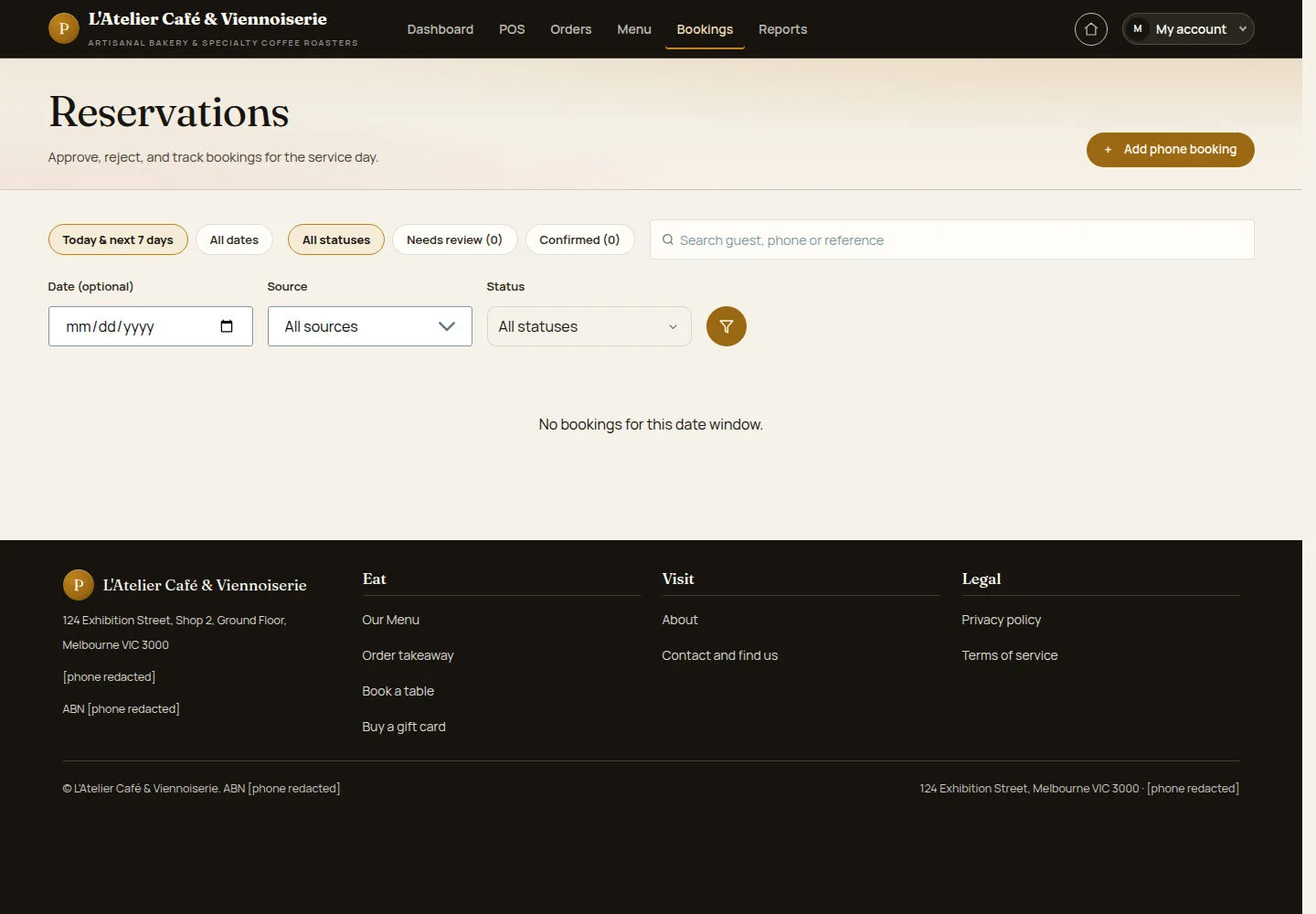
The list separates source and status so staff can focus on requests that need attention.
- Open Reservations. Choose dates, source and status, then apply the filters.
Open on site ↗sign-inFull-page screenshot ↗
Matching requests appear, or the page states that there are no bookings in that window.
Enter a request taken by staff
Manager
2Step 2 of 3
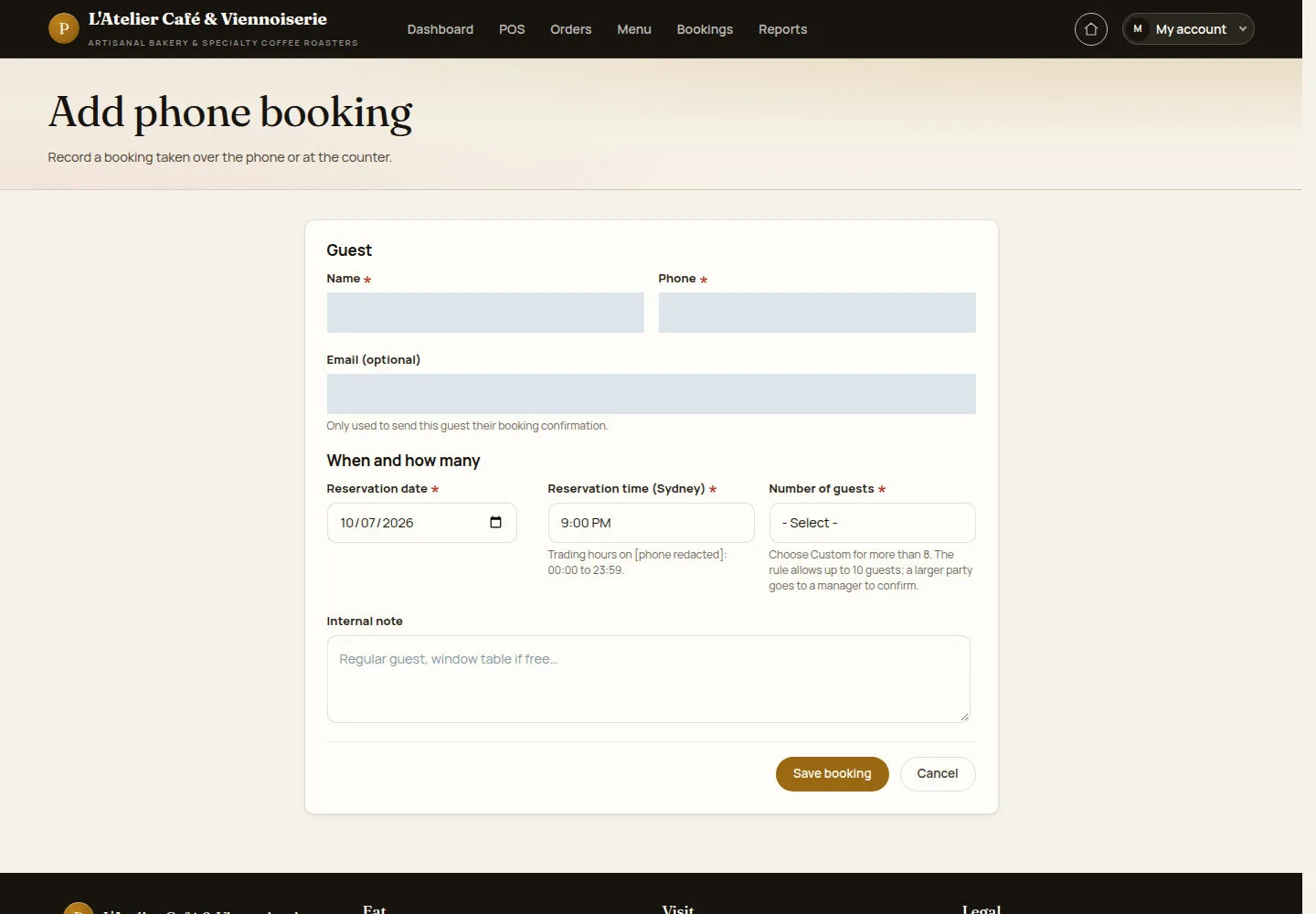
A phone booking records guest details and a seating request through the staff form.
- Choose Add phone booking. Enter the guest, date, venue time and party size; check notes and save.
Open on site ↗sign-inFull-page screenshot ↗
Check the resulting booking status before telling the guest it is confirmed.
Review booking outcomes
Manager
3Step 3 of 3
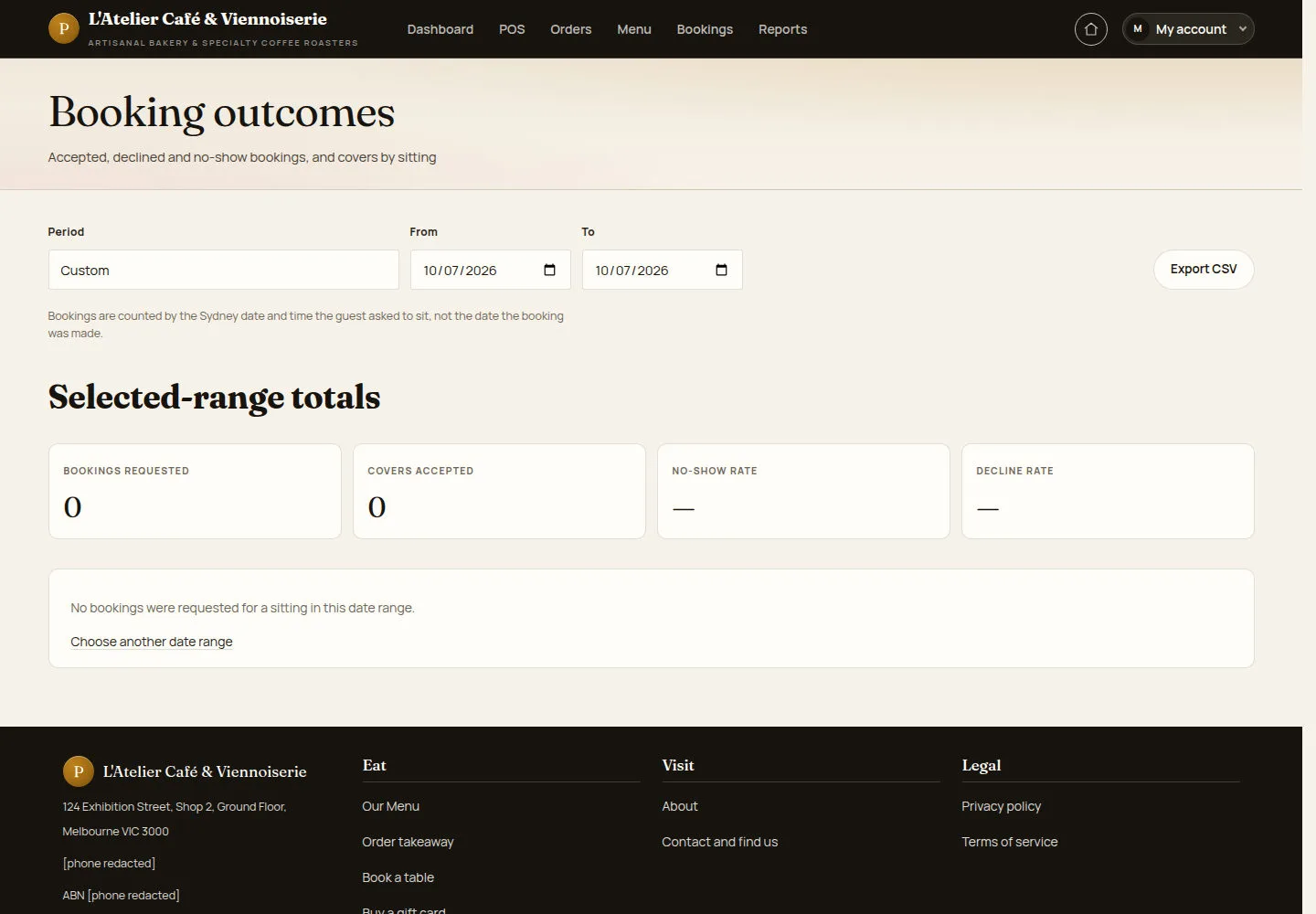
Booking outcomes helps review the selected reporting period.
- Open Booking outcomes. Choose the period and read the statuses represented in the report.
Open on site ↗sign-inFull-page screenshot ↗
The report reflects bookings for that range. An empty report should be checked against the selected dates.