





MenuNerdsCafé managementService handbook
User guide · Waiter
Keep service availability up to date
Use the Sold out board when a dish is no longer available for service.
- Check the change with the kitchen or the person responsible for stock.
WaiterStep-by-step instructions
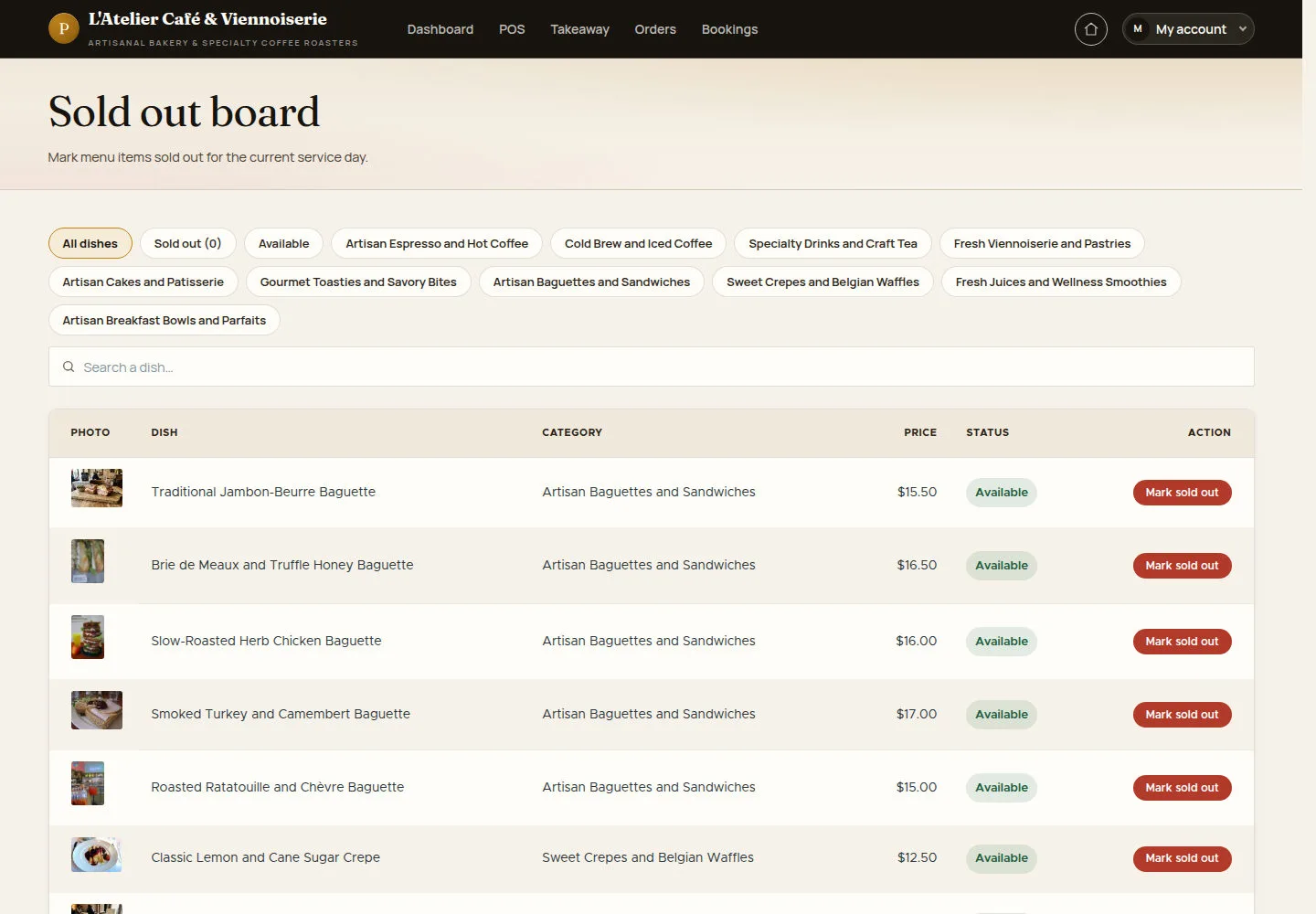
Find the dish on Sold out board
Waiter
1Step 1 of 2
The board shows a service-day availability state for each dish.
- Open Sold out board. Search by dish or category and check the exact item before using Mark sold out.
Open on site ↗sign-inFull-page screenshot ↗
What you should see
After a successful update, the item should show the new state and the available reversal action.
Check what remains available
Waiter
2Step 2 of 2
State tabs help staff avoid offering a dish that cannot currently be prepared.
- Use Sold out or Available to review the relevant items. Restore availability only when service can fulfil the dish again.
Open on site ↗sign-inFull-page screenshot ↗
What you should see
The board matches the kitchen’s current service decision; menu publishing and long-term prices are managed separately.
1 / 3