





MenuNerdsCafé managementService handbook
User guide · Waiter
Follow service:orders and takeaway queue
Find the day’s orders and identify the takeaway stage before taking the next action.
- Use a staff account with permission for the order you need.
WaiterStep-by-step instructions
Find an order
Waiter
1Step 1 of 2
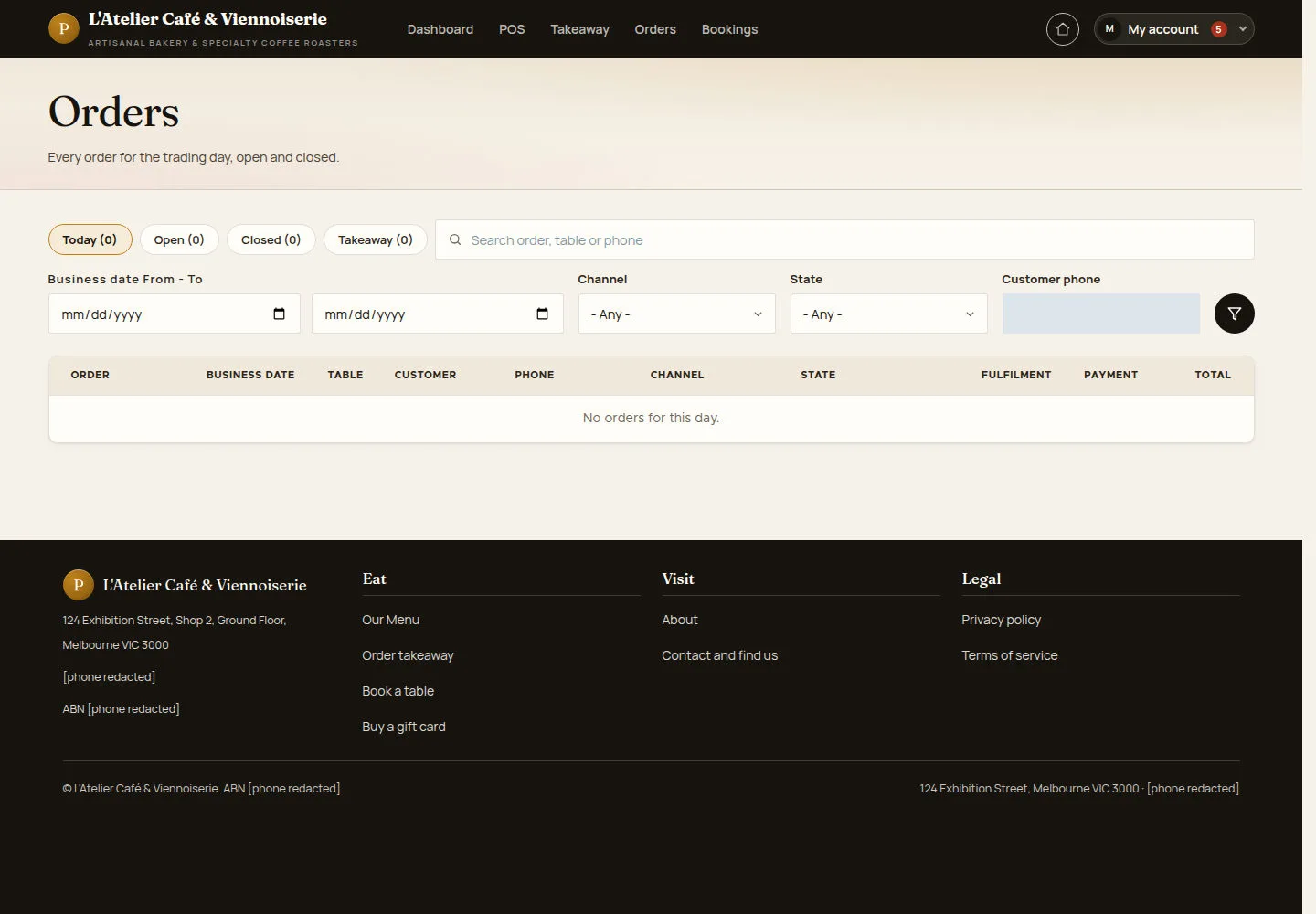
Orders can be narrowed by business date, channel and lifecycle state.
- Open Orders. Set the date range and filters; use a customer phone only when needed for service.
Open on site ↗sign-inFull-page screenshot ↗
What you should see
The list contains matching orders or an empty-state message. An empty date window does not mean every order has disappeared.
Read the takeaway stage
Waiter
2Step 2 of 2
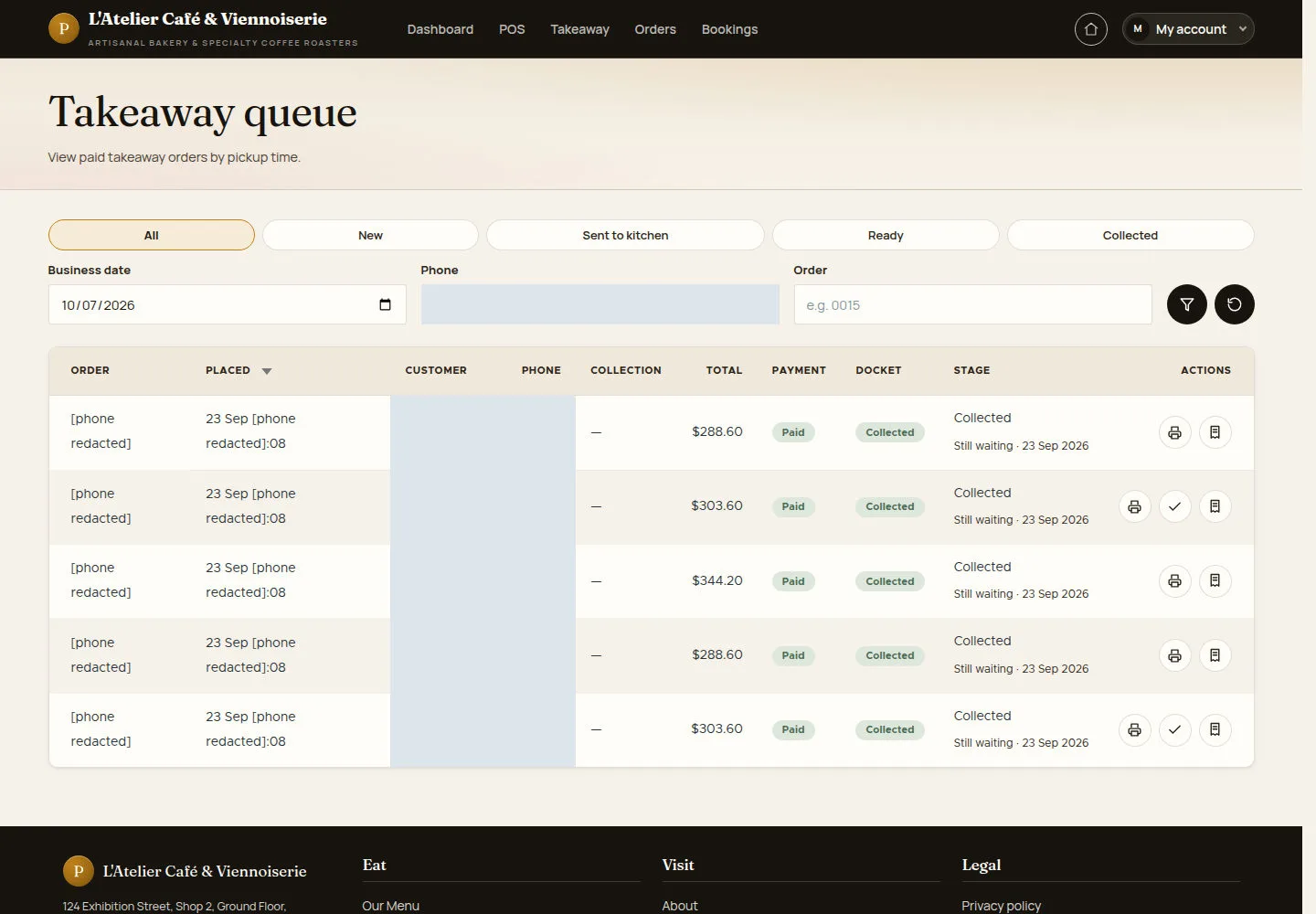
The takeaway queue separates fulfilment stage from payment status.
- Open Takeaway queue. Filter by stage or business date and check the order, collection time and payment column together.
If an order detail is refused, return to the list and ask a manager; access to the queue does not grant access to every historical order.
Open on site ↗sign-inFull-page screenshot ↗
What you should see
You can distinguish an order awaiting preparation from one ready or collected. Use only the actions offered for that order.
1 / 3