





User guide · Manager
Maintain staff accounts and website content
Create the staff accounts you may grant, maintain active access and find website content to update.
- Confirm the staff member’s role and contact details before creating or changing an account.
Find the staff member
Manager
1Step 1 of 4
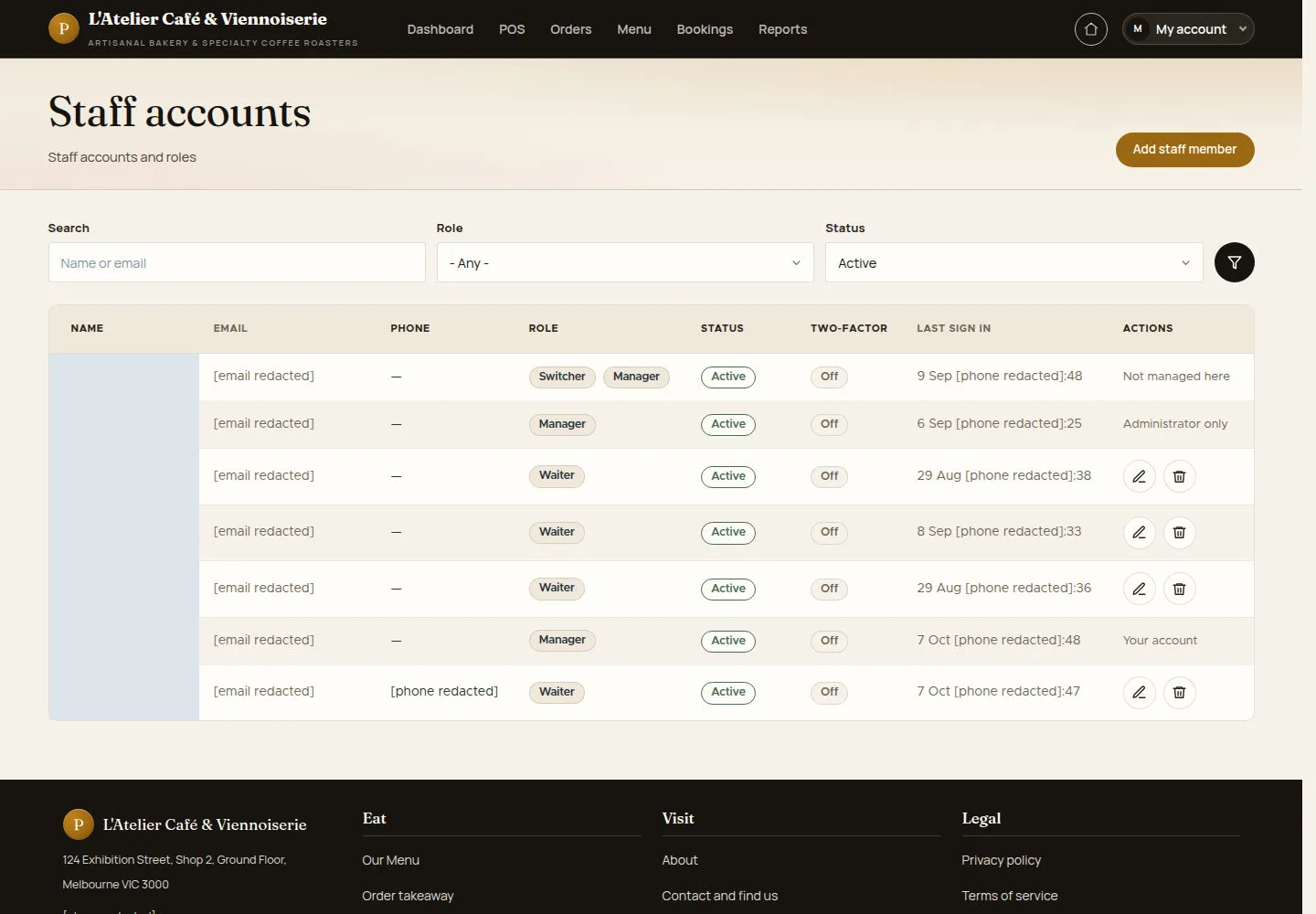
The staff list is the entry for creating and maintaining staff access.
- Open Staff accounts. Find an existing account before choosing to add another.
Open on site ↗sign-inFull-page screenshot ↗
You can choose the intended account or continue to Add staff account.
Create an allowed staff account
Manager
2Step 2 of 4
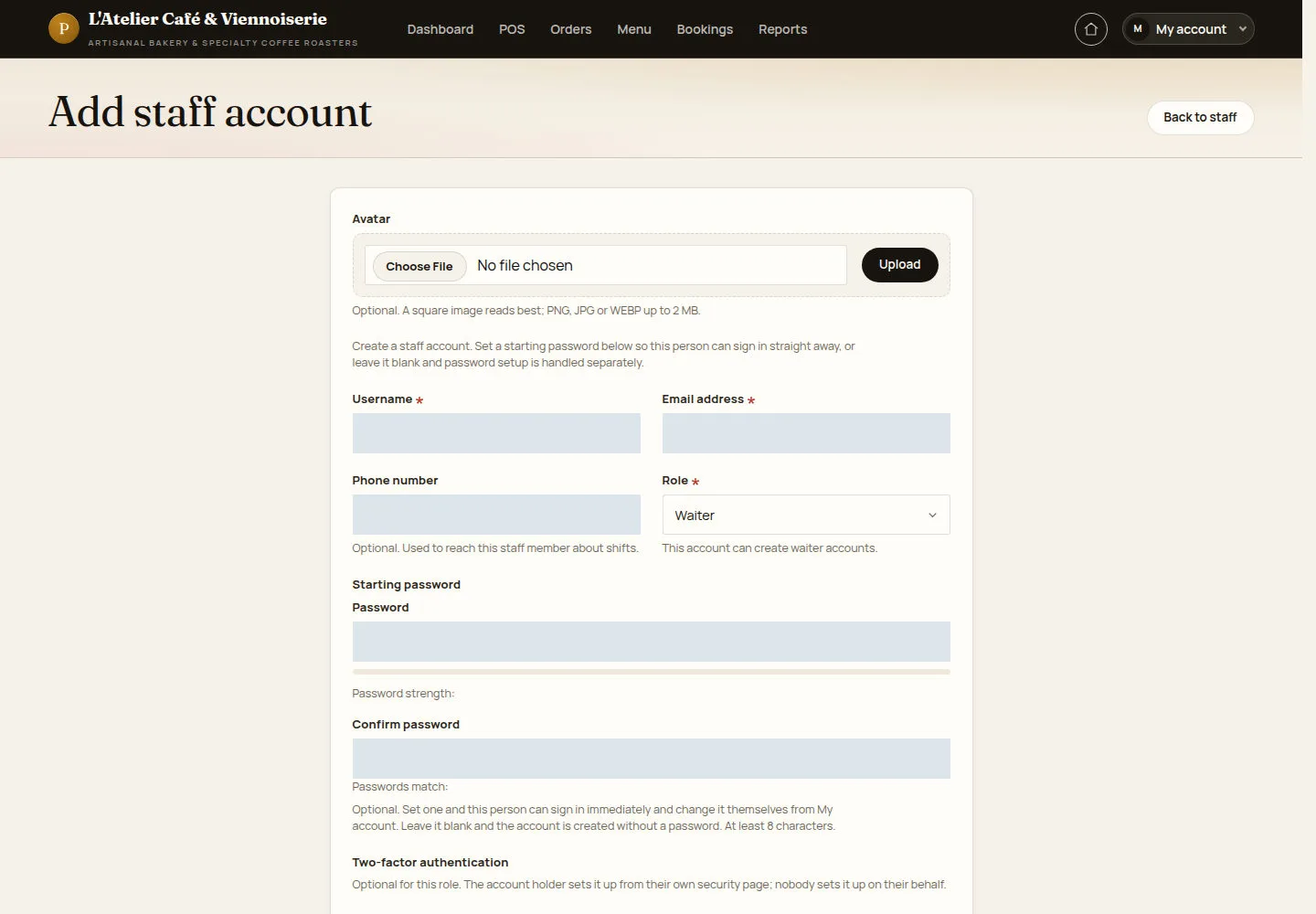
The form offers only the roles the current account may create.
- Enter the username and contact details. Choose the offered role and follow the starting-password guidance before saving.
Open on site ↗sign-inFull-page screenshot ↗
A created account has the selected permitted role. On the illustrated Manager form, account creation is limited to Waiter.
Maintain active access
Manager
3Step 3 of 4
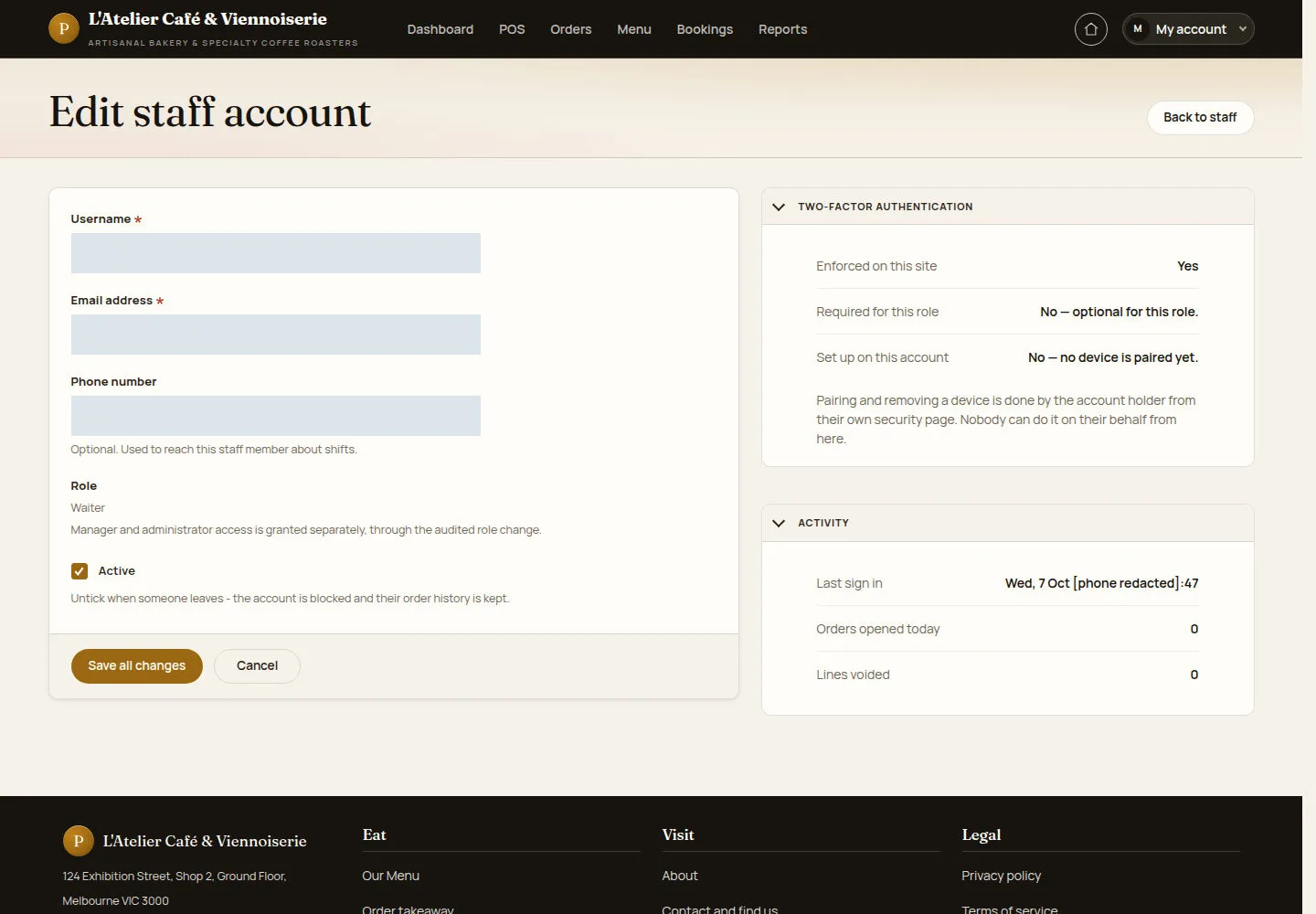
Blocking a staff account preserves its order history.
- Edit the correct account. Review contact details and Active; disable it when the person should no longer sign in.
Two-factor pairing is performed by the account holder where supported, rather than on their behalf from this form.
Open on site ↗sign-inFull-page screenshot ↗
After saving, check the updated account state. Manager and administrator role changes follow the separate audited process.
Find the public content block
Manager
4Step 4 of 4
Website content lists the homepage and information blocks that can be edited.
- Open Website content. Search for the correct block and use View to check the page before editing it.
Open on site ↗sign-inFull-page screenshot ↗
You identify the block and its publication state. Review the public page again after a content change.