





User guide · Manager
Set trading hours and service rules
Align opening times, special closures, takeaway and booking limits with the café’s operation.
- Agree the trading schedule and service limits before changing them.
Maintain weekly hours
Manager
1Step 1 of 4
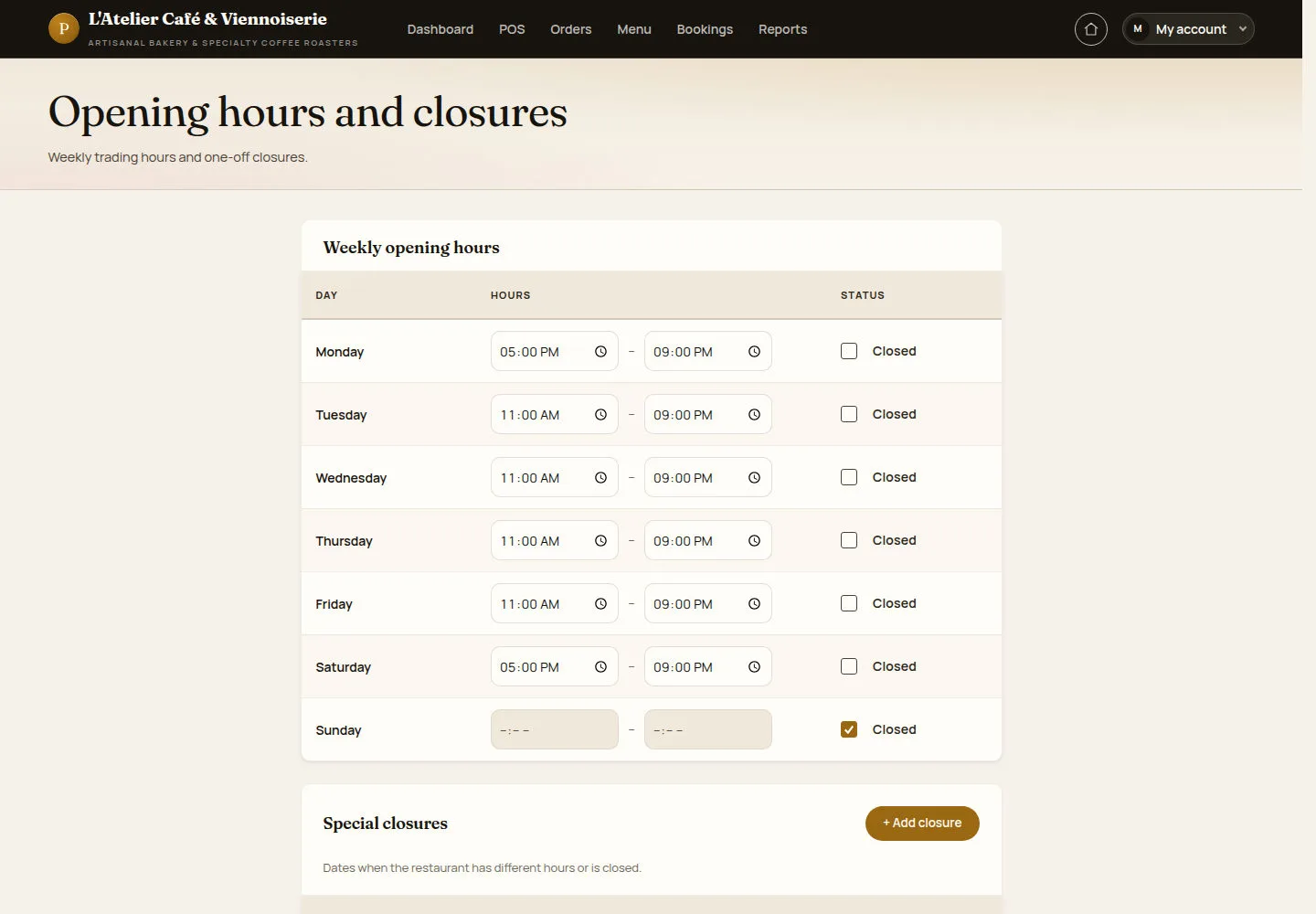
Opening hours and closures controls the published weekly schedule.
- Review each day. Set opening and closing times or mark the day closed, then save the agreed schedule.
Open on site ↗sign-inFull-page screenshot ↗
The saved schedule matches the planned opening times; check the public page after updating.
Add a special closure
Manager
2Step 2 of 4
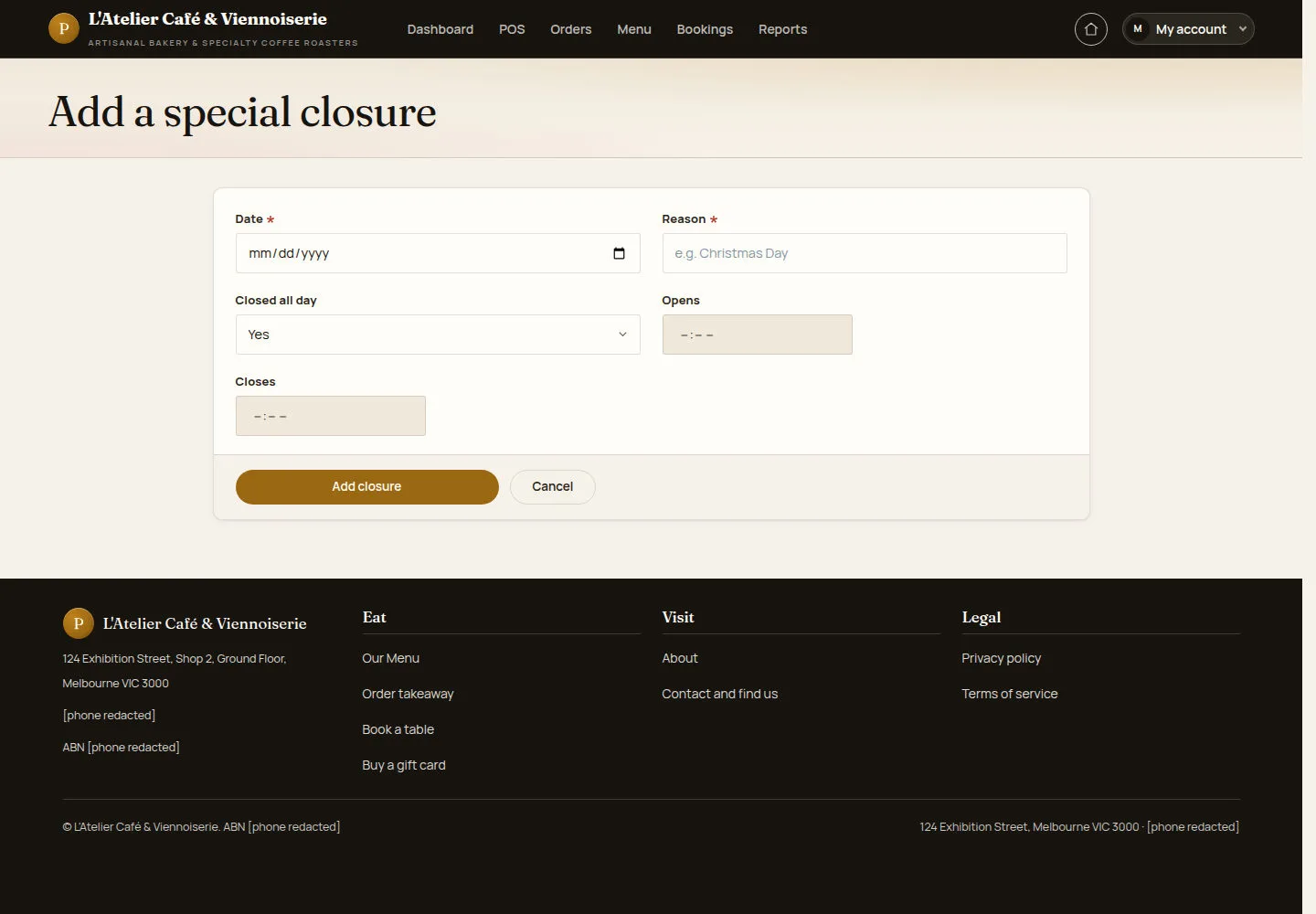
A dated exception handles a closure or different hours without rewriting the weekly schedule.
- Select Add closure, enter the date and reason, and choose all-day closure or exception hours.
Open on site ↗sign-inFull-page screenshot ↗
After saving, the exception appears in the special closure list for the intended date.
Review online ordering rules
Manager
3Step 3 of 4
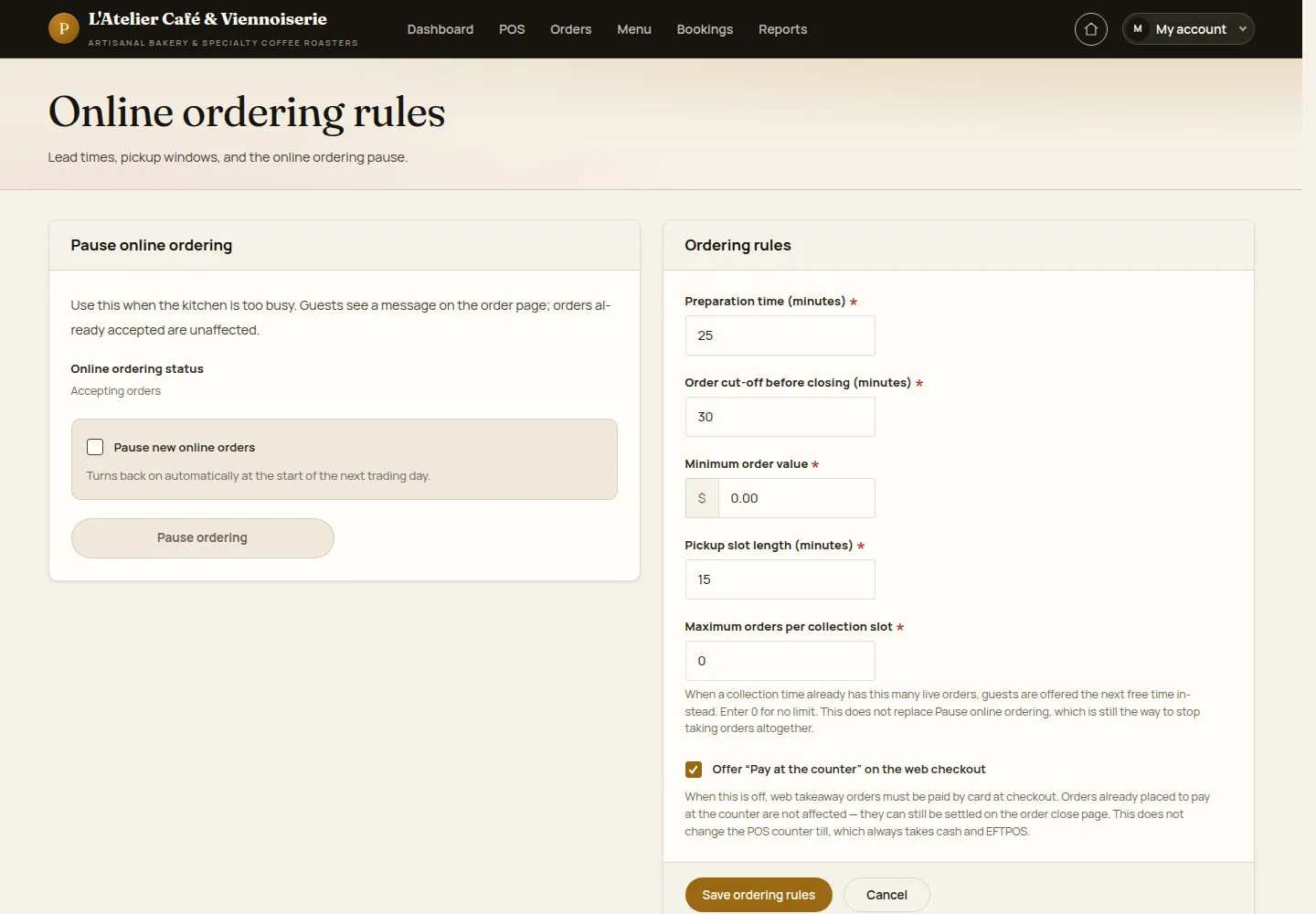
Ordering rules govern pickup timing, minimum value and whether new online orders are paused.
- Check preparation time, cutoff, pickup slots, capacity and Pay at the counter. Use Pause ordering only when service needs to stop new online requests.
Open on site ↗sign-inFull-page screenshot ↗
New checkout choices follow the saved rules. Pausing new requests does not cancel orders already accepted.
Review booking rules
Manager
4Step 4 of 4
Booking rules define party limits, seating windows and automatic confirmation behaviour.
- Review slot length, capacity, notice, booking horizon and cancellation cutoff. Check the automatic-confirmation and demonstration switches before saving.
Open on site ↗sign-inFull-page screenshot ↗
Requests that need review remain distinguishable from confirmed bookings. Demonstration hours should not be mistaken for the venue’s published schedule.