





 MineCourtCourt and venue operations
User guide · Venue Staff
Store counter:shift and orders
Recognise the POS shift gate and inspect store orders before fulfilment.
- Use an account with access to this workspace.
Open POS with the shift gate
Venue Staff
1Step 1 of 3
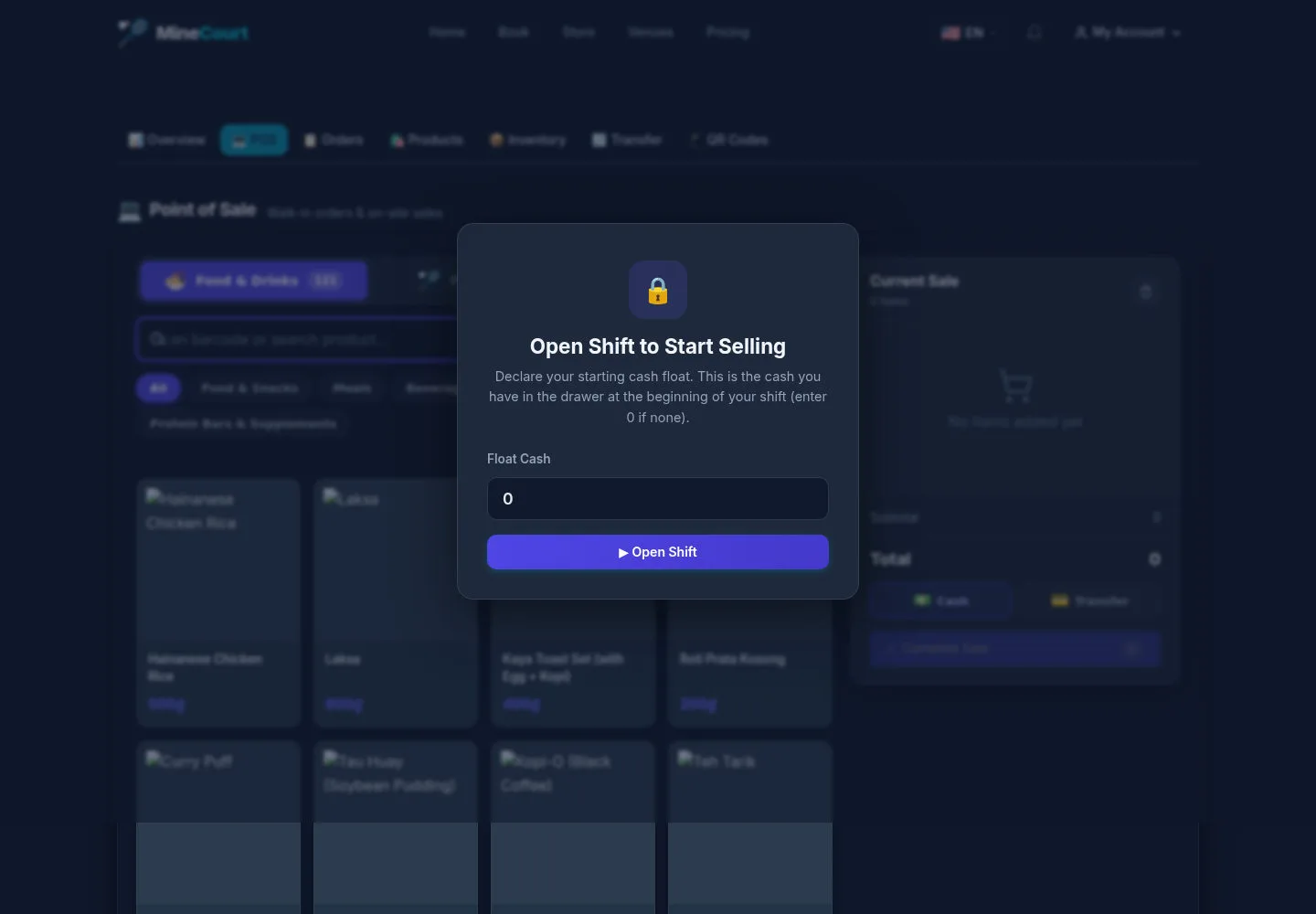
The captured POS shows Open Shift to Start Selling above the product screen.
- Review the opening cash field and use Open Shift when starting your authorised shift.
Open on site ↗sign-inFull-page screenshot ↗
This capture stops at the shift gate. An opened shift, completed sale, rental return or closing reconciliation is not shown.
Find a store order
Venue Staff
2Step 2 of 3
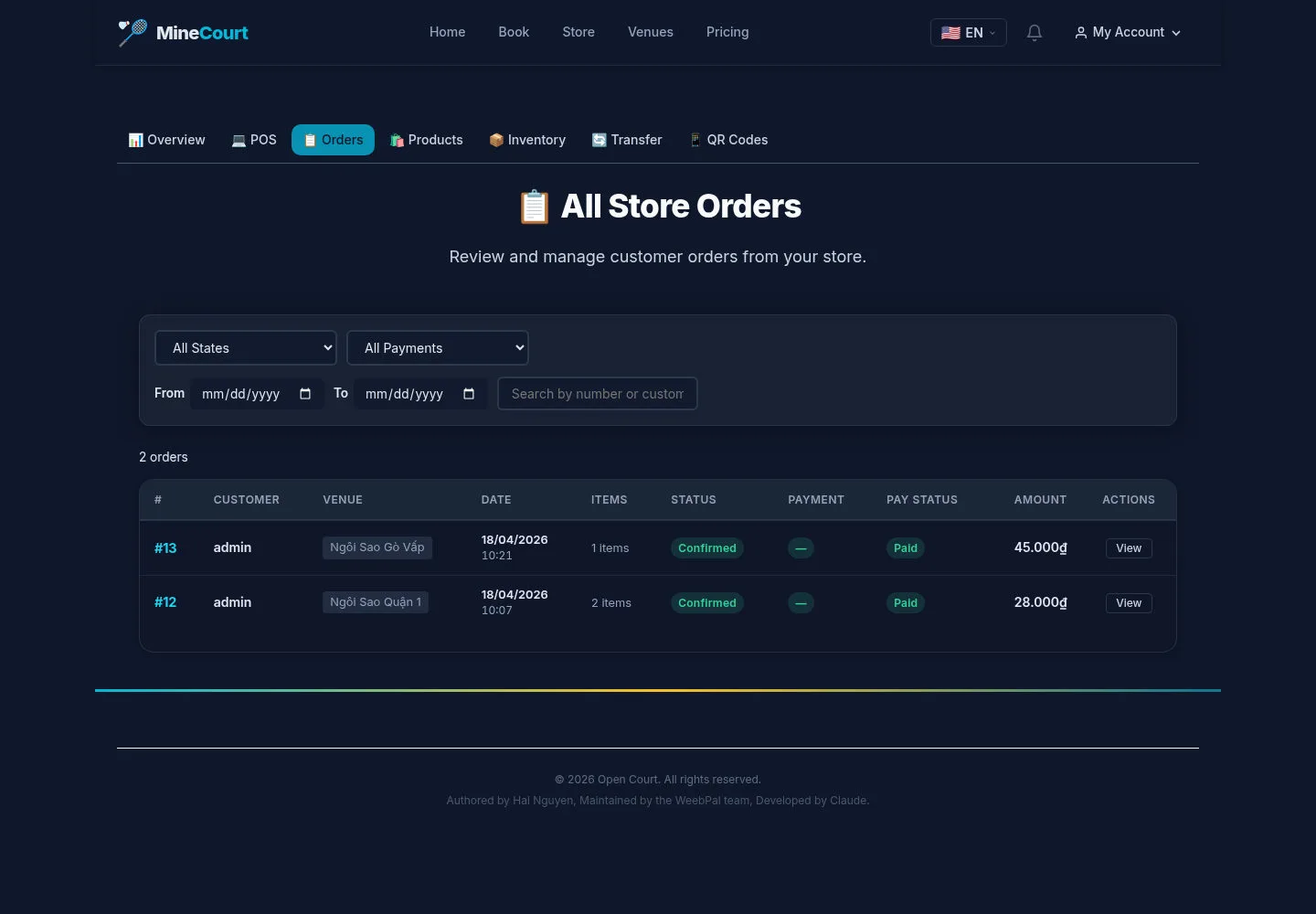
Store Orders has state, payment, date and customer search filters.
- Filter the order list, then use View on the intended order.
Open on site ↗sign-inFull-page screenshot ↗
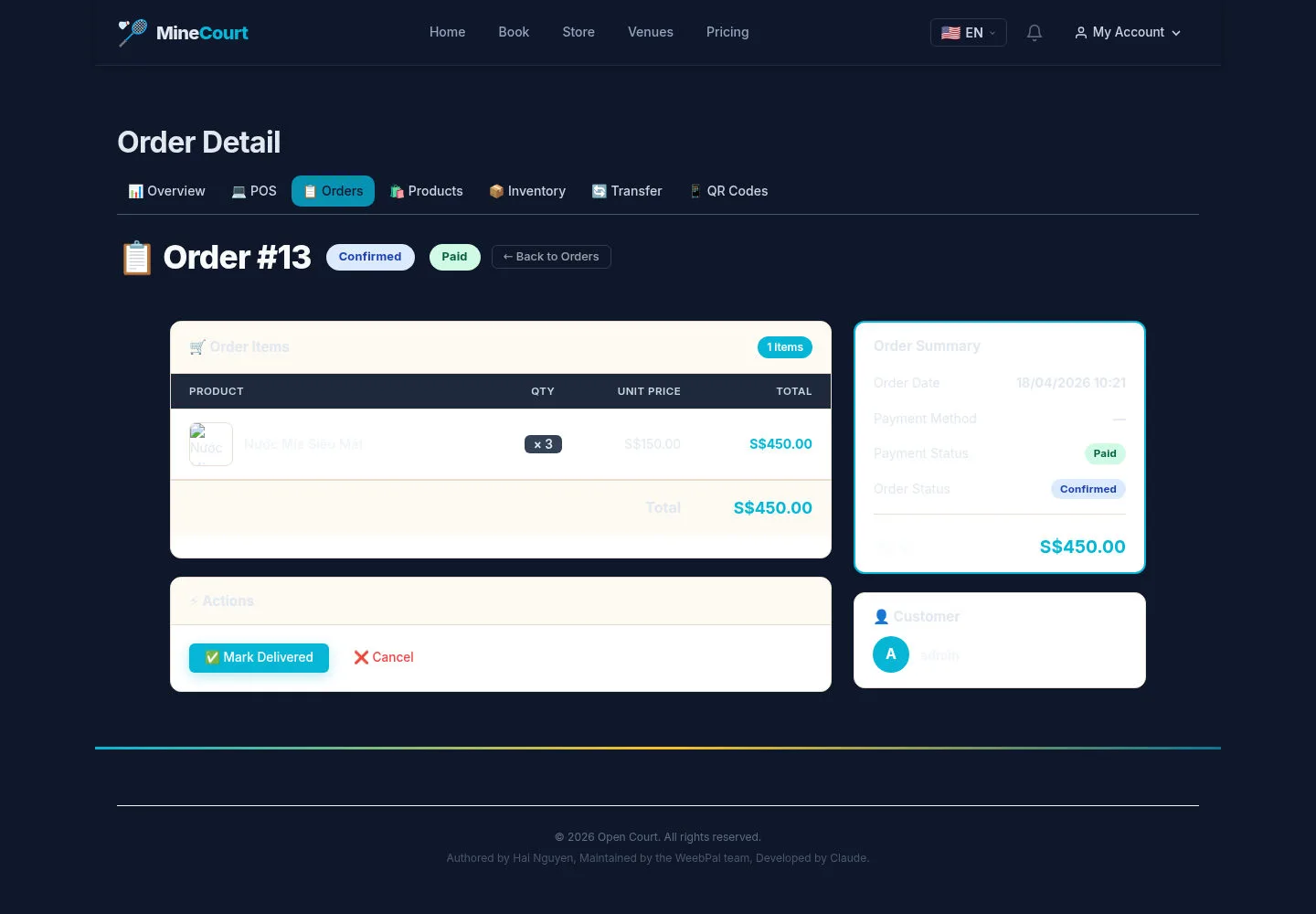
The detail shows items, customer and order/payment states.
Review before delivery
Venue Staff
3Step 3 of 3
The example detail has Mark Delivered and Cancel actions beside the order information.
- Check items, quantities, venue and payment status before choosing an action on your live order.
Open on site ↗sign-inFull-page screenshot ↗
Review the updated state after any authorised action. No delivery or cancellation was submitted for this capture.