





 MineCourtCourt and venue operations
User guide · Venue Manager
Schedule:hours and pricing
Review normal hours, exceptions and the pricing schedule before publishing changes.
- Use an account with access to this workspace.
- The screenshots show the form before submission. Review the saved record on your site after saving.
Review normal hours
Venue Manager
1Step 1 of 6
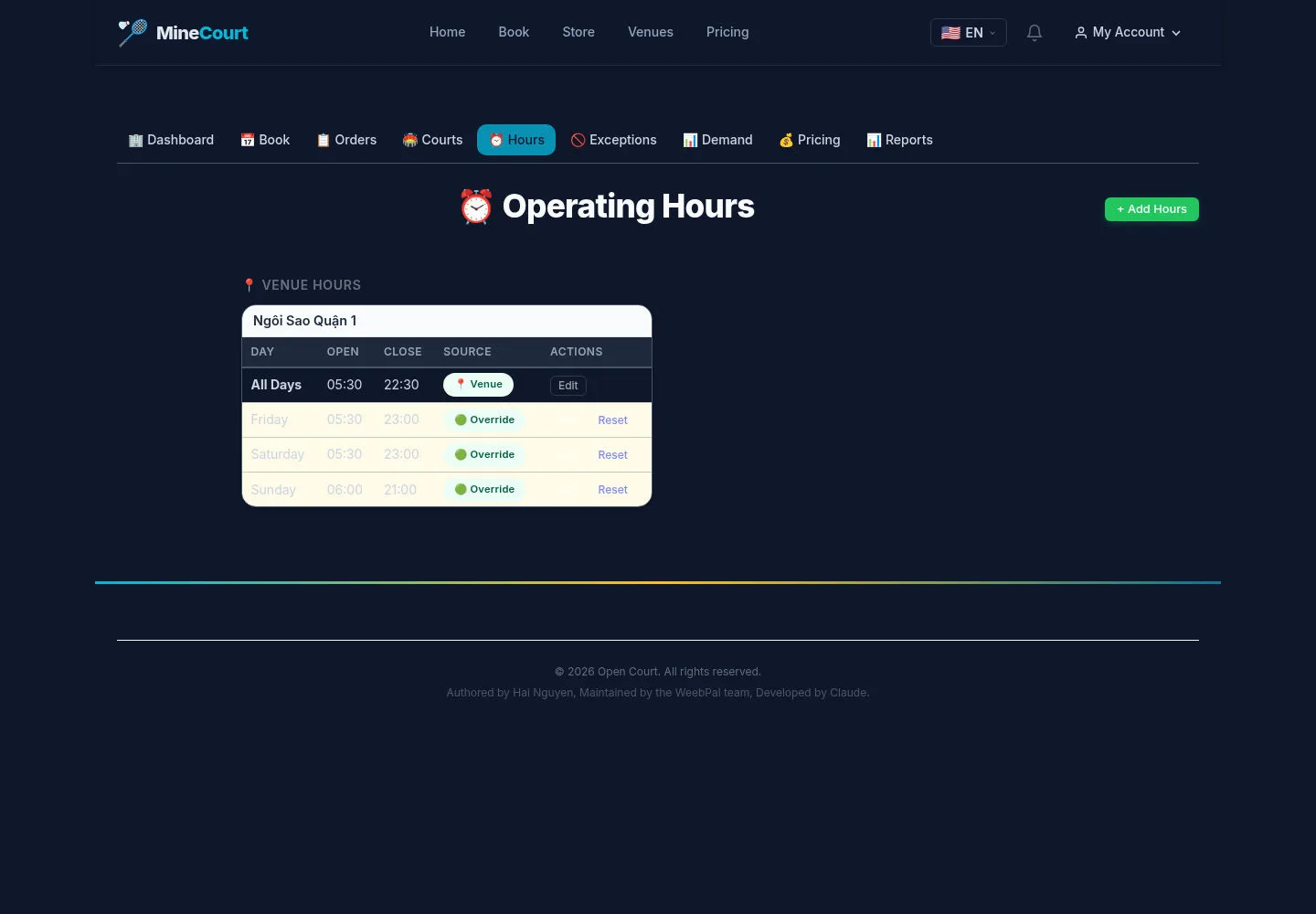
Operating Hours groups the venue’s opening schedule.
- Review the weekly hours and the scope of each existing record.
Open on site ↗sign-inFull-page screenshot ↗
Check whether a venue or court override already covers the period you need.
Prepare an hours override
Venue Manager
2Step 2 of 6
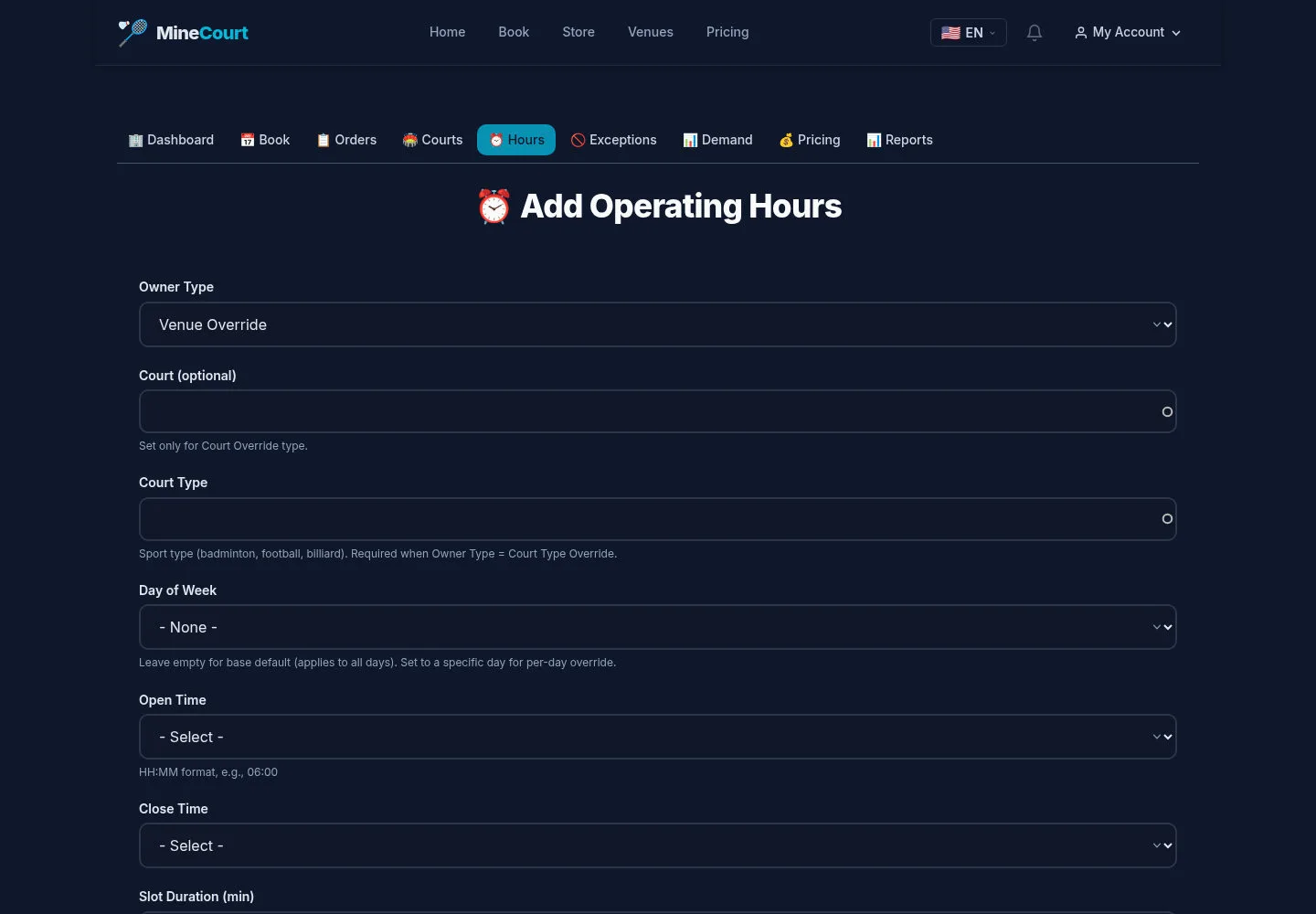
The form includes owner type, optional court, day, open/close times, slot duration and buffer.
- Choose the intended scope and weekday, then review the time range before saving.
Open on site ↗sign-inFull-page screenshot ↗
The capture shows inputs; it does not demonstrate generated slots after saving.
Review dated exceptions
Venue Manager
3Step 3 of 6
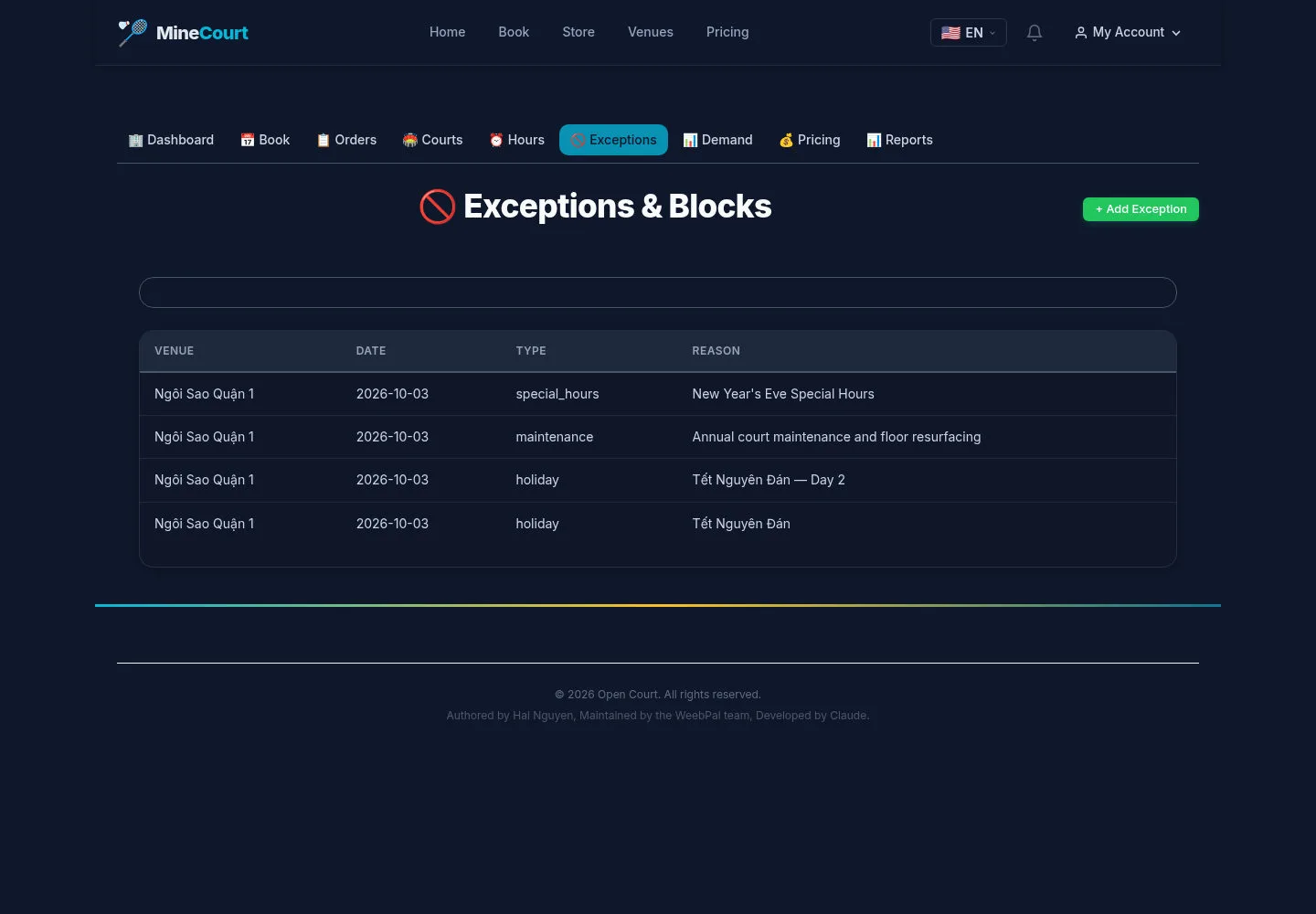
Exceptions & Blocks is separate from normal operating hours.
- Review existing exceptions before adding a closure or special-hours period.
Open on site ↗sign-inFull-page screenshot ↗
Use exceptions for the dated change and normal hours for the recurring schedule.
Prepare an exception
Venue Manager
4Step 4 of 6
The form includes type, start/end, reason, optional court and all-day or special-hours fields.
- Choose the exception type and period, then verify the affected court scope before Save.
Open on site ↗sign-inFull-page screenshot ↗
Verify the saved exception and grid on your site. The screenshot does not show its effect on existing bookings.
Review the pricing schedule
Venue Manager
5Step 5 of 6
Pricing groups hourly prices by day type and demand level; special dates appear below.
- Select the venue and inspect Weekday, Weekend and Holiday pricing before Save Pricing.
Open on site ↗sign-inFull-page screenshot ↗
Review the configured rates and currency; the sample amounts are not universal product prices.
Prepare a pricing rule
Venue Manager
6Step 6 of 6
A pricing rule has a name, court/day type, time range, multiplier and fixed addition.
- Review the rule’s scope and adjustment, then use Save when correct.
Open on site ↗sign-inFull-page screenshot ↗
Check the resulting grid price on your site. A form alone does not prove which rule wins or a completed booking price.