





 MineCourtCourt and venue operations
User guide · Player
Account:profile and updates
Find your personal information and review notifications in one account workspace.
- Sign in with your own Player account. The public pages shown here were captured while signed in.
PlayerStep-by-step instructions
Open your profile
Player
1Step 1 of 3
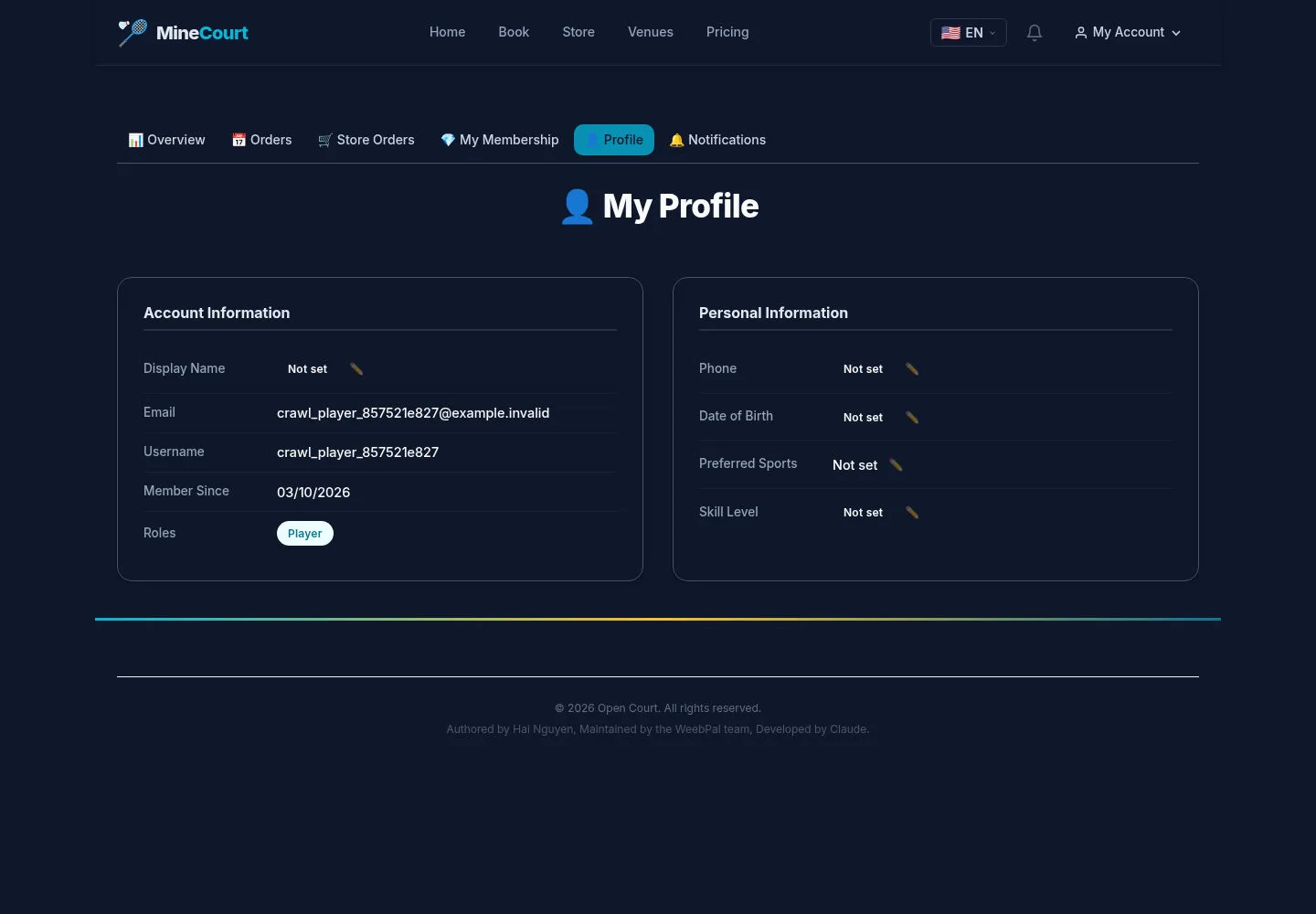
Your personal workspace links to Profile and Notifications.
- Open Profile and review the information shown for your account.
Open on site ↗sign-inFull-page screenshot ↗
What you should see
Use the edit option when you need to update your own information.
Prepare a profile update
Player
2Step 2 of 3
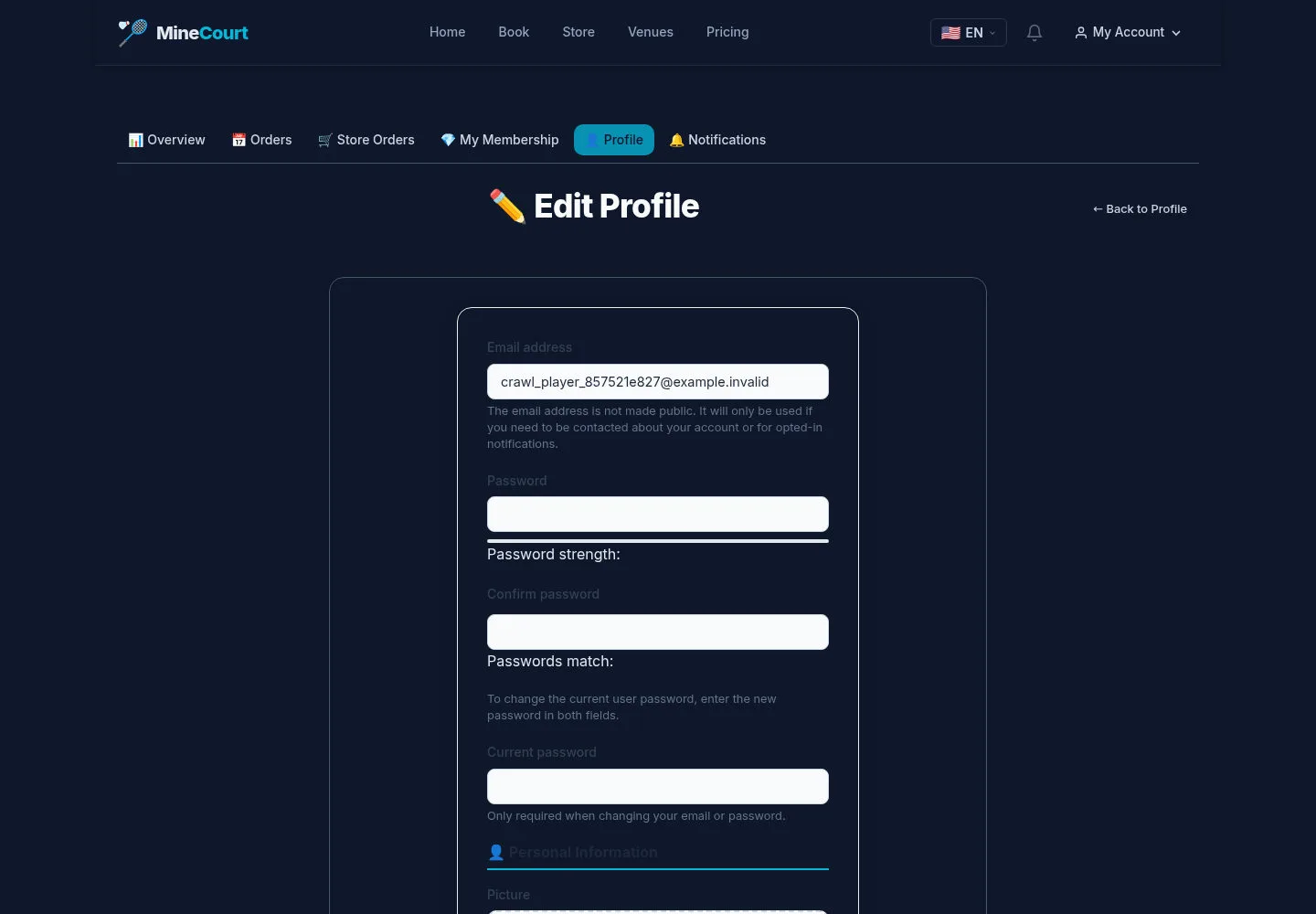
The form includes display name, phone, picture, preferred sport and skill level.
- Check the values, use Save Changes, then review your profile on the site.
Open on site ↗sign-inFull-page screenshot ↗
What you should see
The screenshot shows the edit form; it does not prove a saved profile update.
Review your notifications
Player
3Step 3 of 3
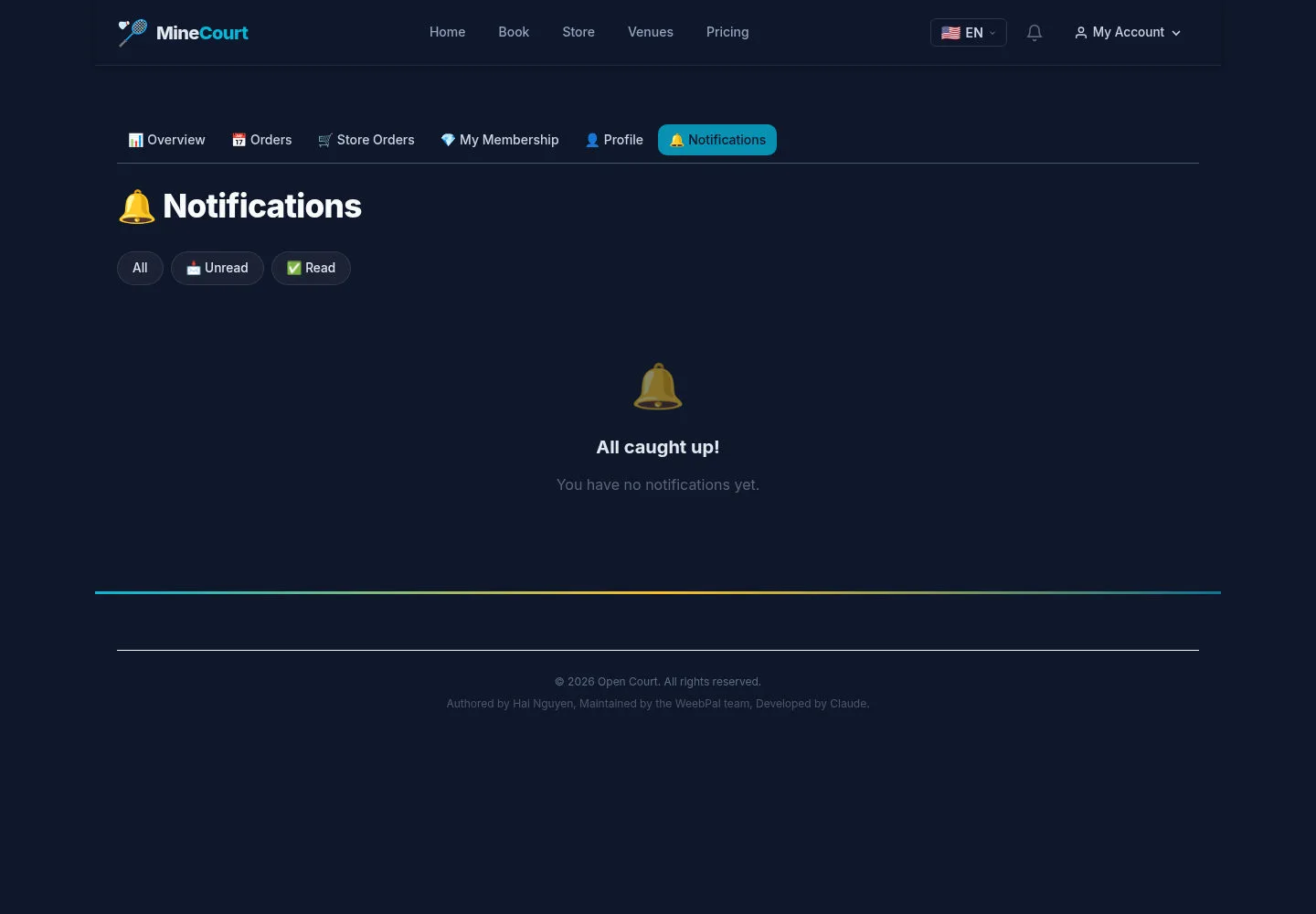
Notifications has views for all messages and unread messages.
- Open Notifications and choose All or Unread.
Open on site ↗sign-inFull-page screenshot ↗
What you should see
Read available messages, or All caught up! when there are none. This does not confirm delivery through email or OTT.
1 / 4