






 MineCourtCourt and venue operations
User guide · Content Editor
Content:prepare News and Pages
Open the content lists and review the forms for an article or information page.
- Use an account with access to this workspace.
- The screenshots show the form before submission. Review the saved record on your site after saving.
Review the News list
Content Editor
1Step 1 of 4
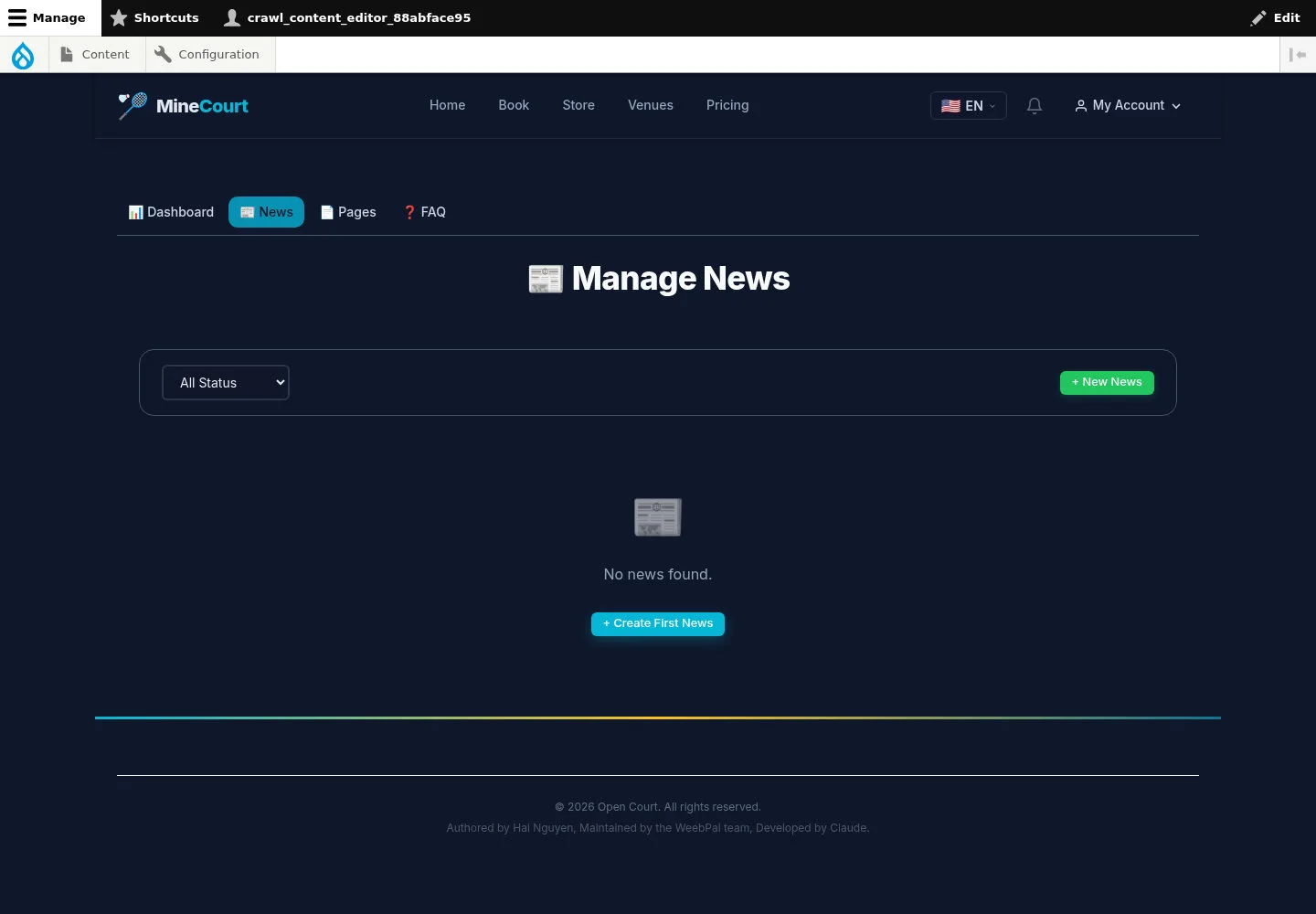
Manage News provides a status filter and an add option.
- Check the current list before adding a News item.
Open on site ↗sign-inFull-page screenshot ↗
The captured list has no content; it does not show a published article.
Prepare a News article
Content Editor
2Step 2 of 4
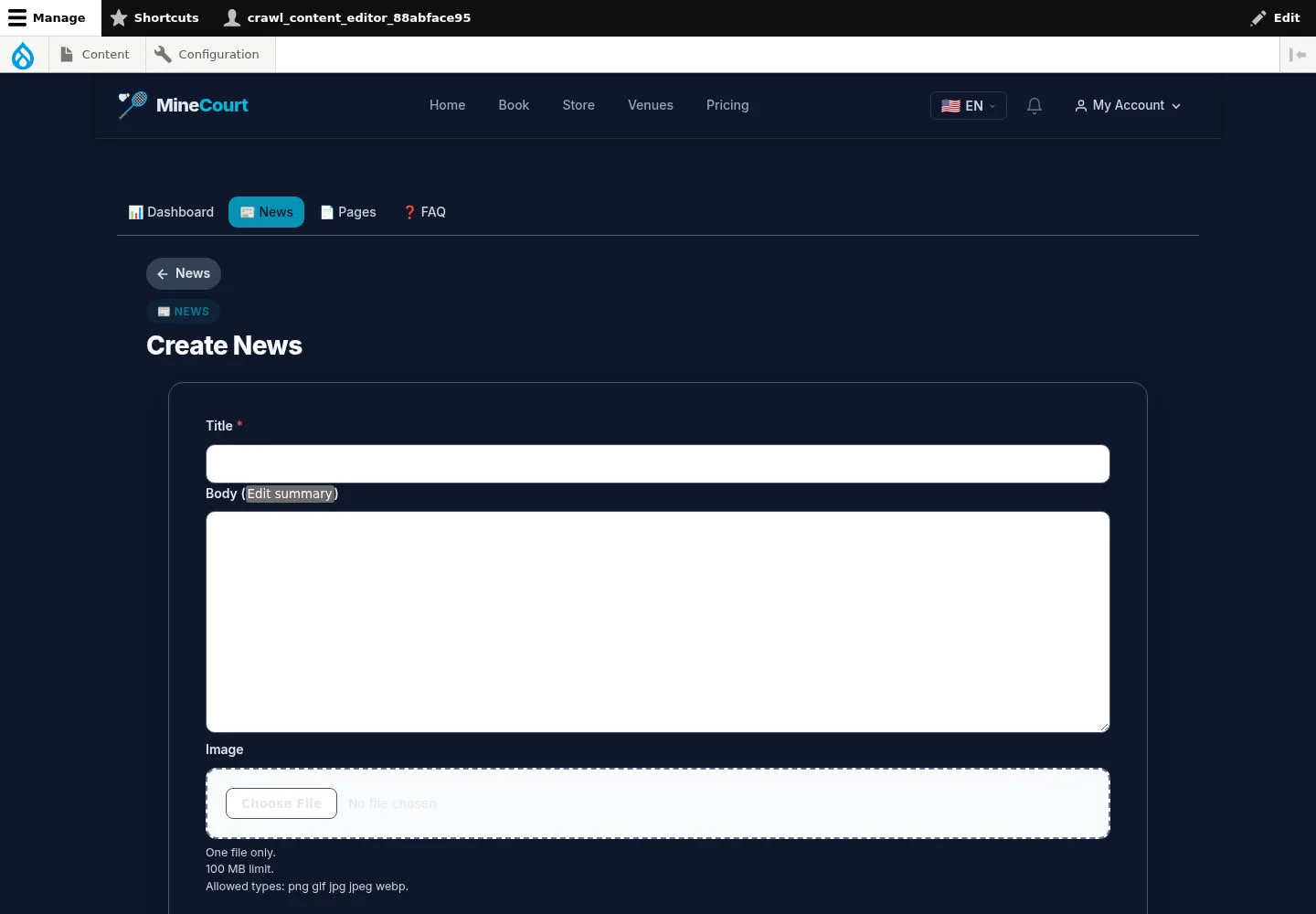
Create News contains title, body and image fields.
- Prepare the article and image, review the form, then use Save when ready.
Open on site ↗sign-inFull-page screenshot ↗
Review the saved content and public visibility on your site. The capture shows no submitted article.
Review information pages
Content Editor
3Step 3 of 4
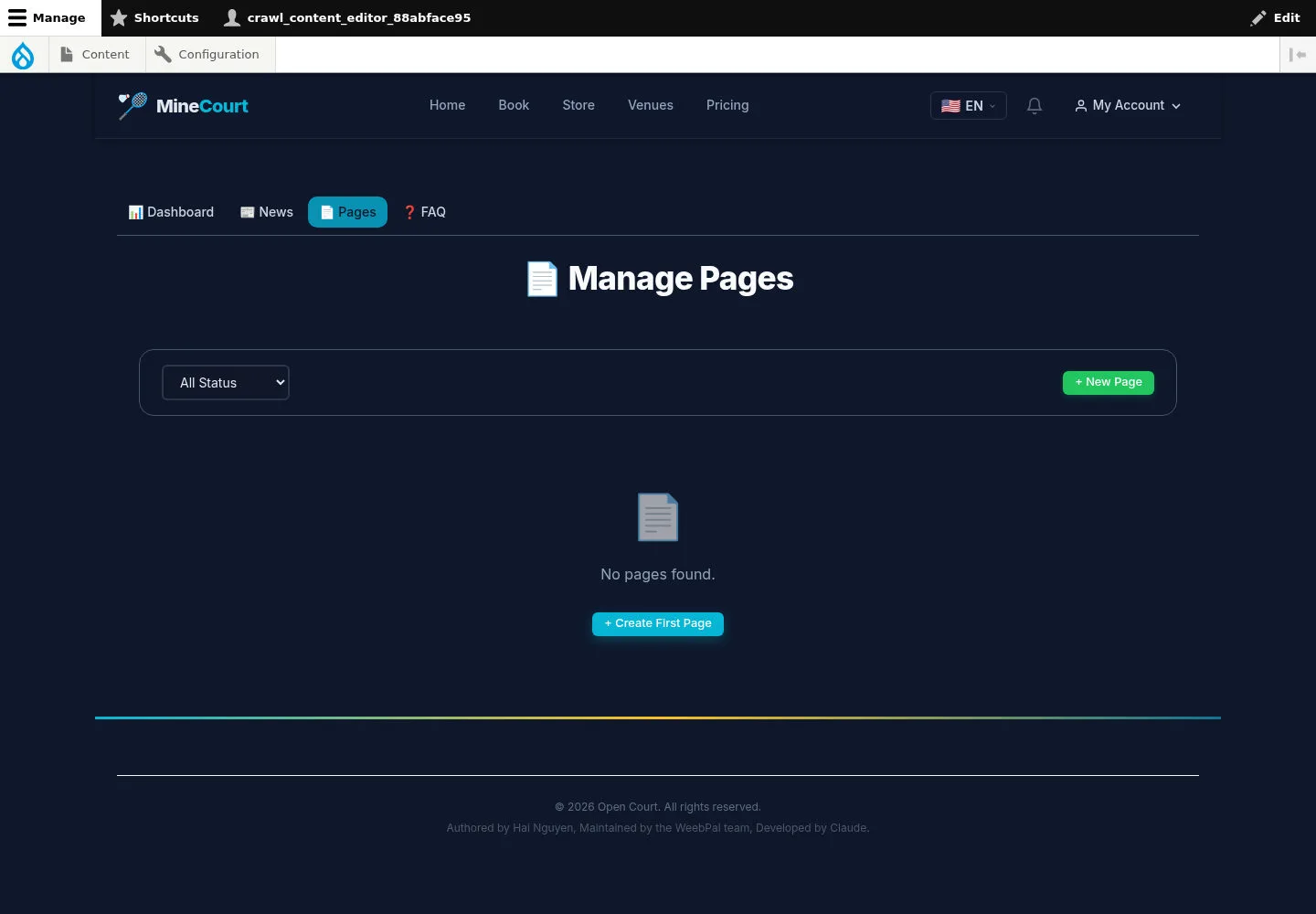
Manage Pages is separate from News.
- Review existing pages and their status before adding another.
Open on site ↗sign-inFull-page screenshot ↗
The captured Pages list is empty.
Prepare a page
Content Editor
4Step 4 of 4
Create Page provides title and body fields.
- Prepare the page content and use Save when reviewed.
Open on site ↗sign-inFull-page screenshot ↗
Verify the saved page and its public route on your site; the form capture alone does not show publication.