





 MineCourtCourt and venue operations
User guide · Player
Open Slots:find a game
Browse a game, read its conditions and find the participation and hosting lists.
- Sign in with your own Player account. The public pages shown here were captured while signed in.
Find a suitable game
Player
1Step 1 of 5
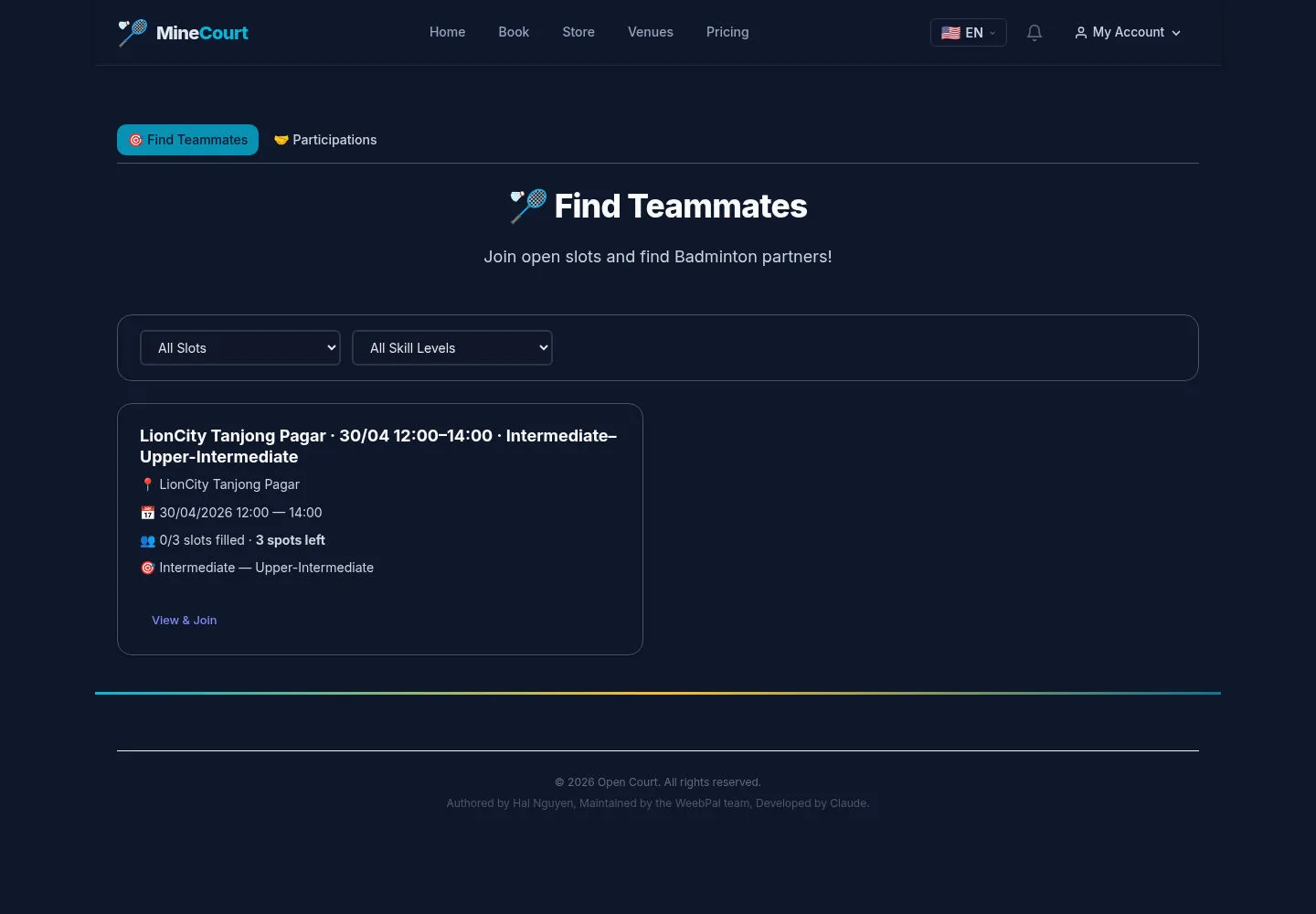
Find Teammates lists Open Slots with their availability and skill level.
- Filter by availability and skill, then open View & Join.
Open on site ↗sign-inFull-page screenshot ↗
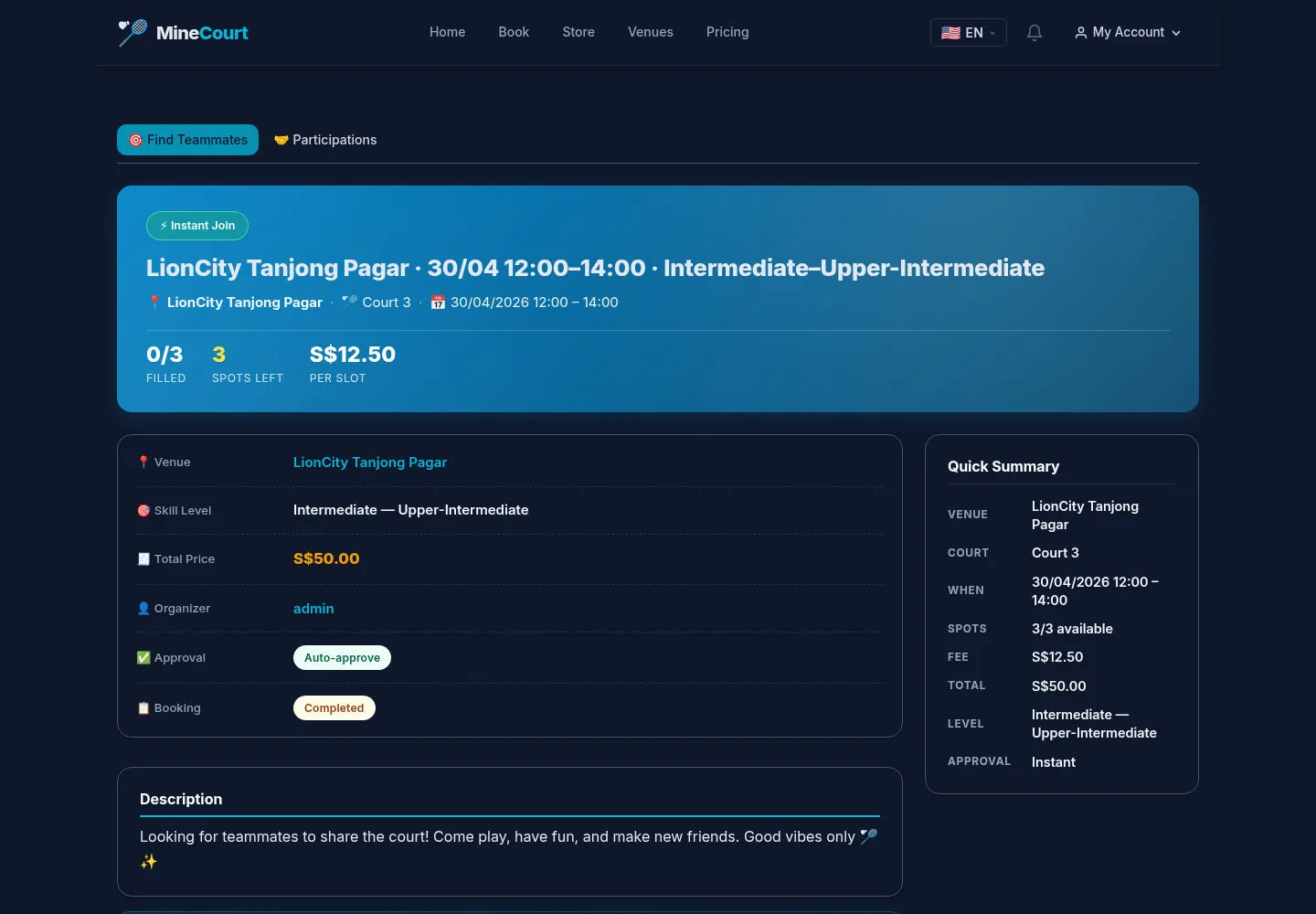
The slot detail displays the venue, time and participation terms.
Read the slot conditions
Player
2Step 2 of 5
Review the description, participants, summary and organizer before using Join This Slot.
- Check the date and whether the game still accepts participants.
Open on site ↗sign-inFull-page screenshot ↗
A join control is visible in the example. Approval, payment and a successful join are not shown by this capture.
Review participation requests
Player with hosting access
3Step 3 of 5
↪ The work moves from Player to Player with hosting access.
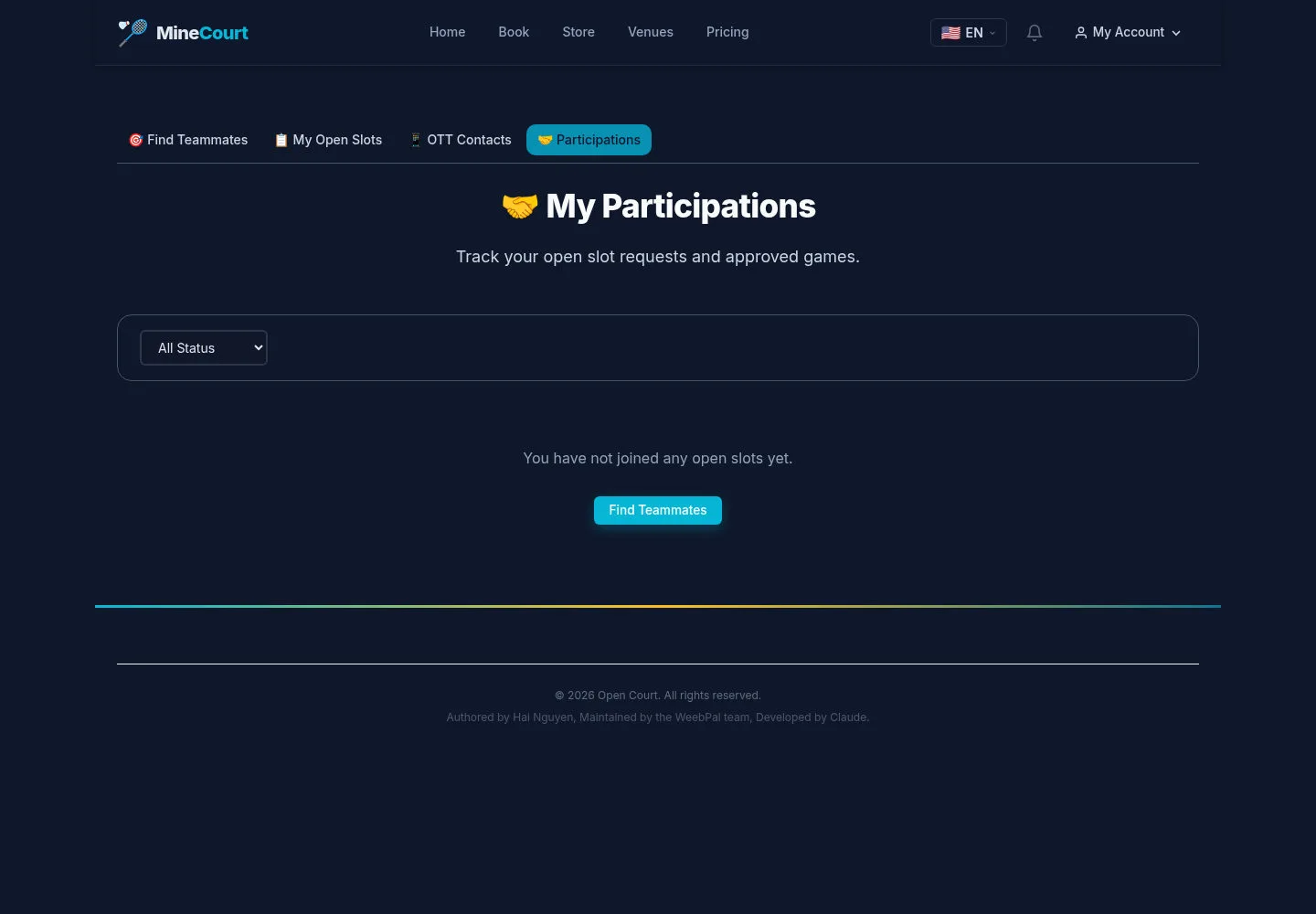
Participations is the place to review games you have asked to join.
- Open Participations and filter by status.
Open on site ↗sign-inFull-page screenshot ↗
Review your current participation state; the example account has no participation records.
Find the games you host
Player with hosting access
4Step 4 of 5
My Open Slots groups games hosted by the account. This screen was captured with the legacy Organizer assignment.
- Open My Open Slots and review the status filter.
Open on site ↗sign-inFull-page screenshot ↗
This is the hosting list. The current solution puts hosting under Player; a creation or participant approval result is not captured.
Review team contact access
Player with hosting access
5Step 5 of 5
OTT Contacts is a separate view alongside hosting and participations.
- Open OTT Contacts when this option is available to your account.
Open on site ↗sign-inFull-page screenshot ↗
The capture shows the contact view without contacts; it does not demonstrate a sent message or external connection.