





 MineCourtCourt and venue operations
User guide · Player
Orders:upcoming and history
Find your court orders, inspect their state and view recurring booking records.
- Sign in with your own Player account. The public pages shown here were captured while signed in.
Open your court orders
Player
1Step 1 of 3
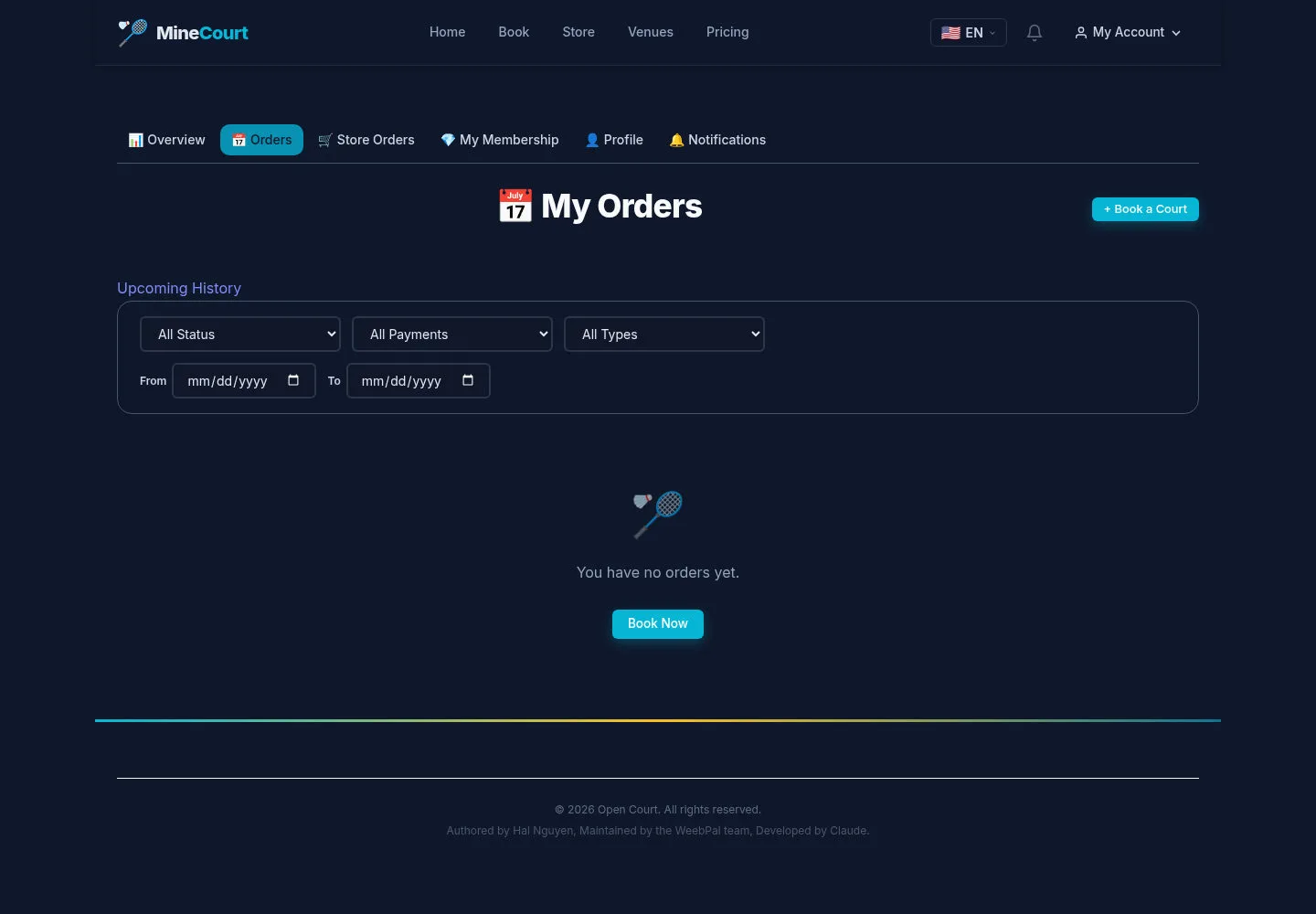
In your personal workspace, Orders lists court orders belonging to your account.
- Filter by status, payment, type and date when looking for a particular order.
Open on site ↗sign-inFull-page screenshot ↗
The list shows matching orders, or an empty state if none match. The captured test account has no orders.
Review past orders
Player
2Step 2 of 3
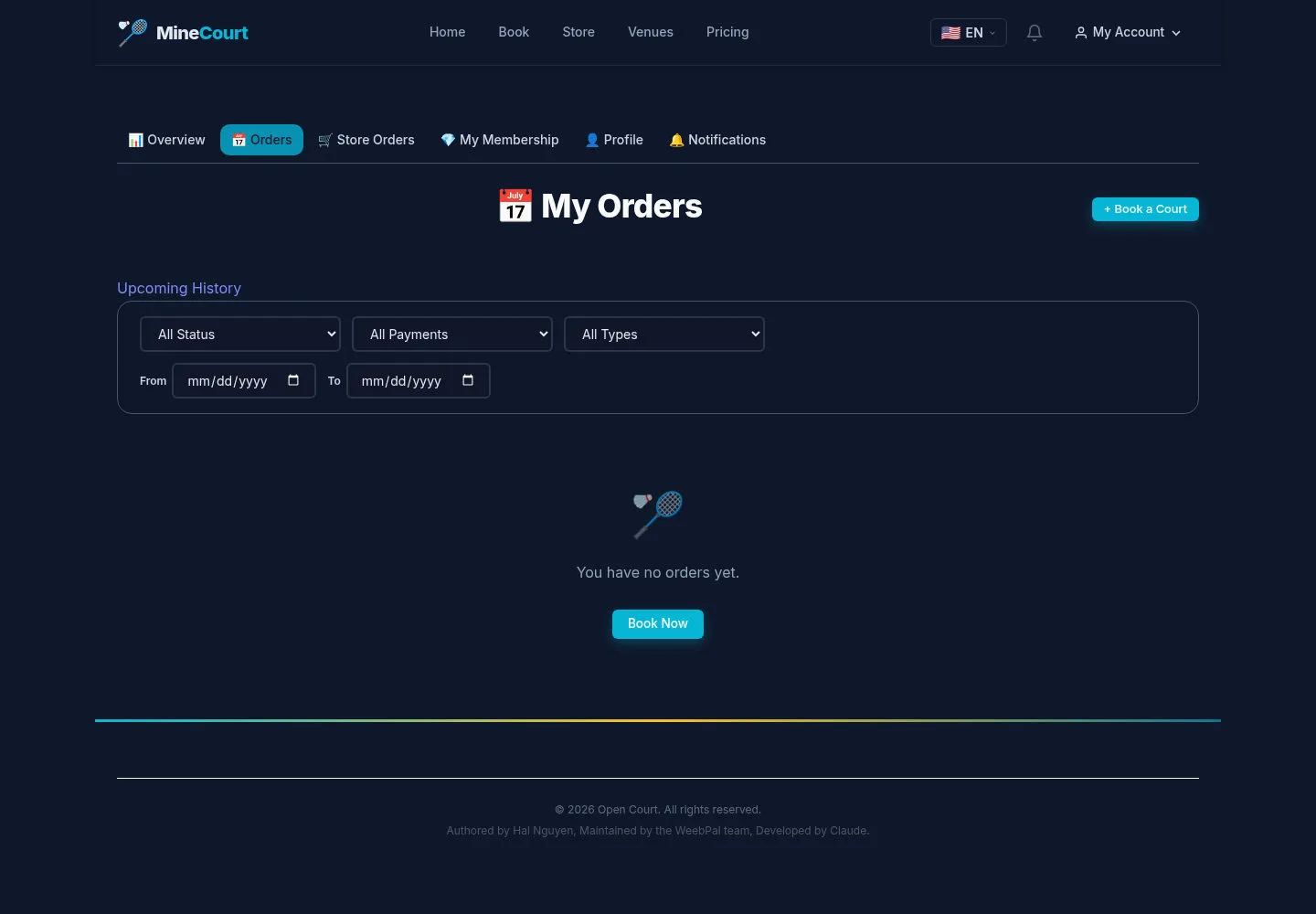
History separates previous court orders from upcoming use.
- Open the history view and use its filters for the period you need.
Open on site ↗sign-inFull-page screenshot ↗
Review the order and payment states together; a cancelled order does not by itself prove a completed refund.
Find recurring bookings
Player
3Step 3 of 3
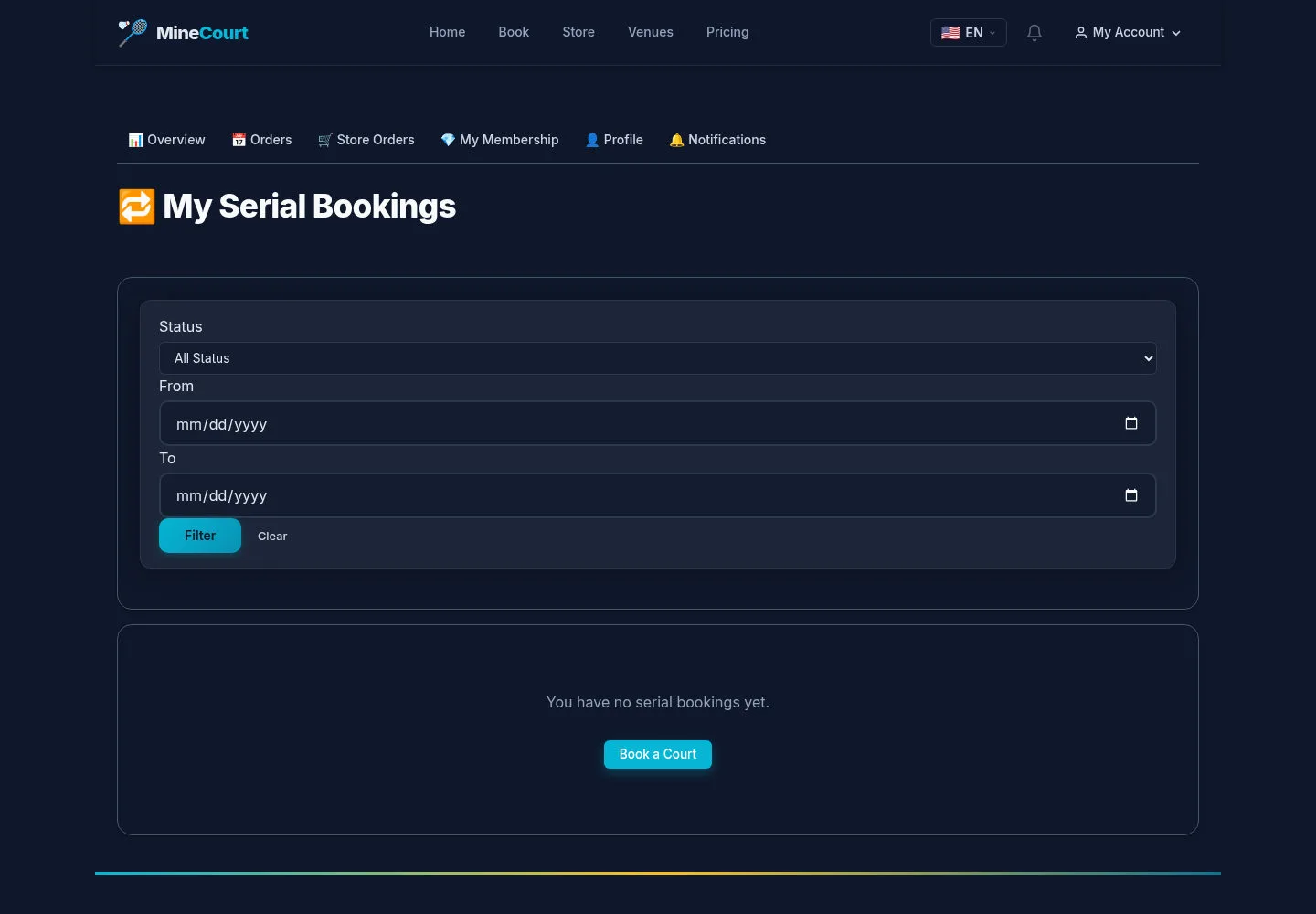
My Serial Bookings is the list for recurring court reservations.
- Choose a status and date range, then use Filter.
Open on site ↗sign-inFull-page screenshot ↗
Matching recurring records appear here. This empty capture does not demonstrate creation or cancellation of a series.