





 MineCourtCourt and venue operations
User guide · Venue Staff
Front desk:court availability
Move from the daily venue view to Staff Booking and find court orders.
- Use an account with access to this workspace.
Start with today’s venue view
Venue Staff
1Step 1 of 4
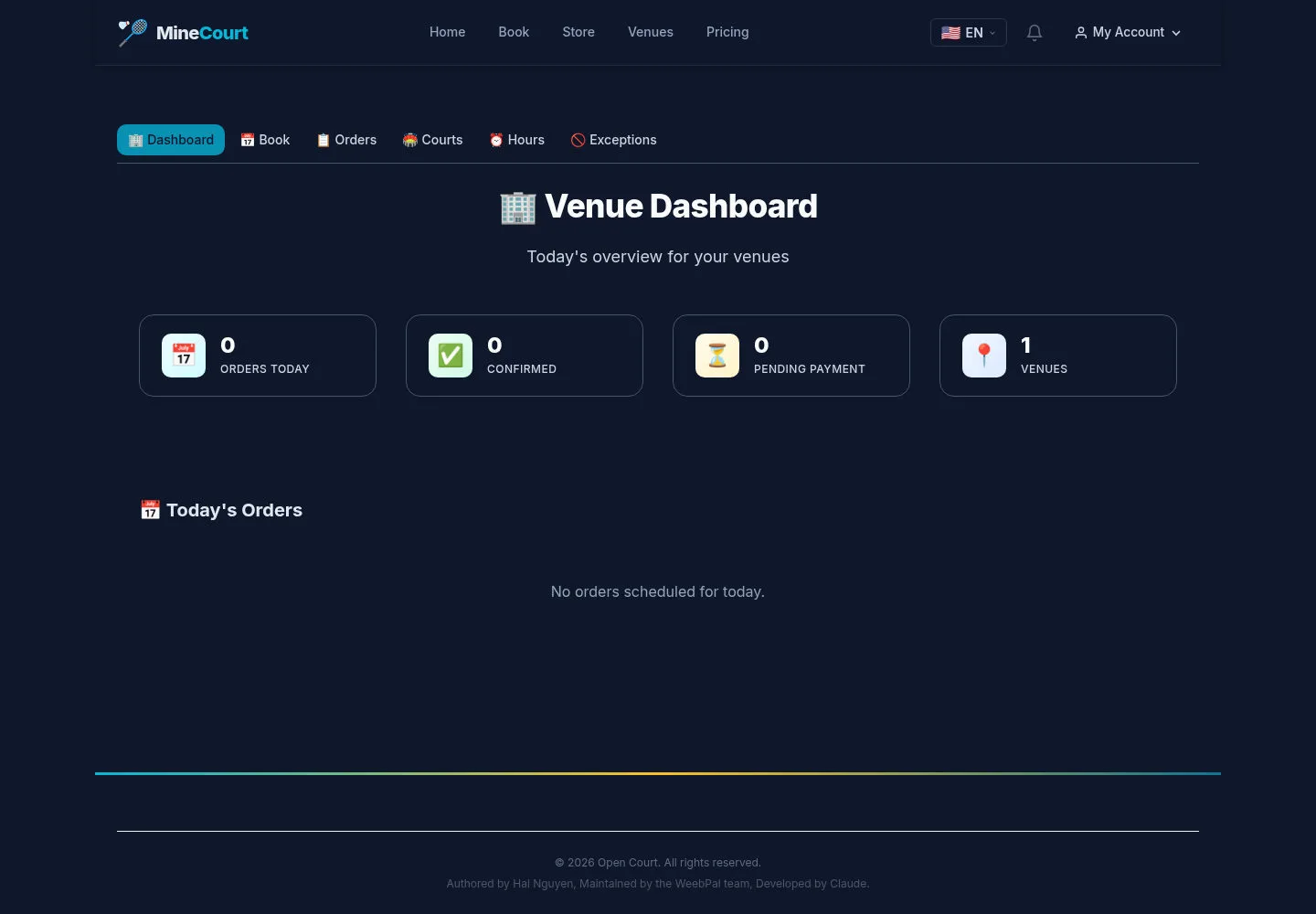
Venue Dashboard groups today’s orders for the venue workspace.
- Confirm the venue context, then open Book.
Open on site ↗sign-inFull-page screenshot ↗
Staff Booking opens the grid for customer reservations.
Review the staff booking grid
Venue Staff
2Step 2 of 4
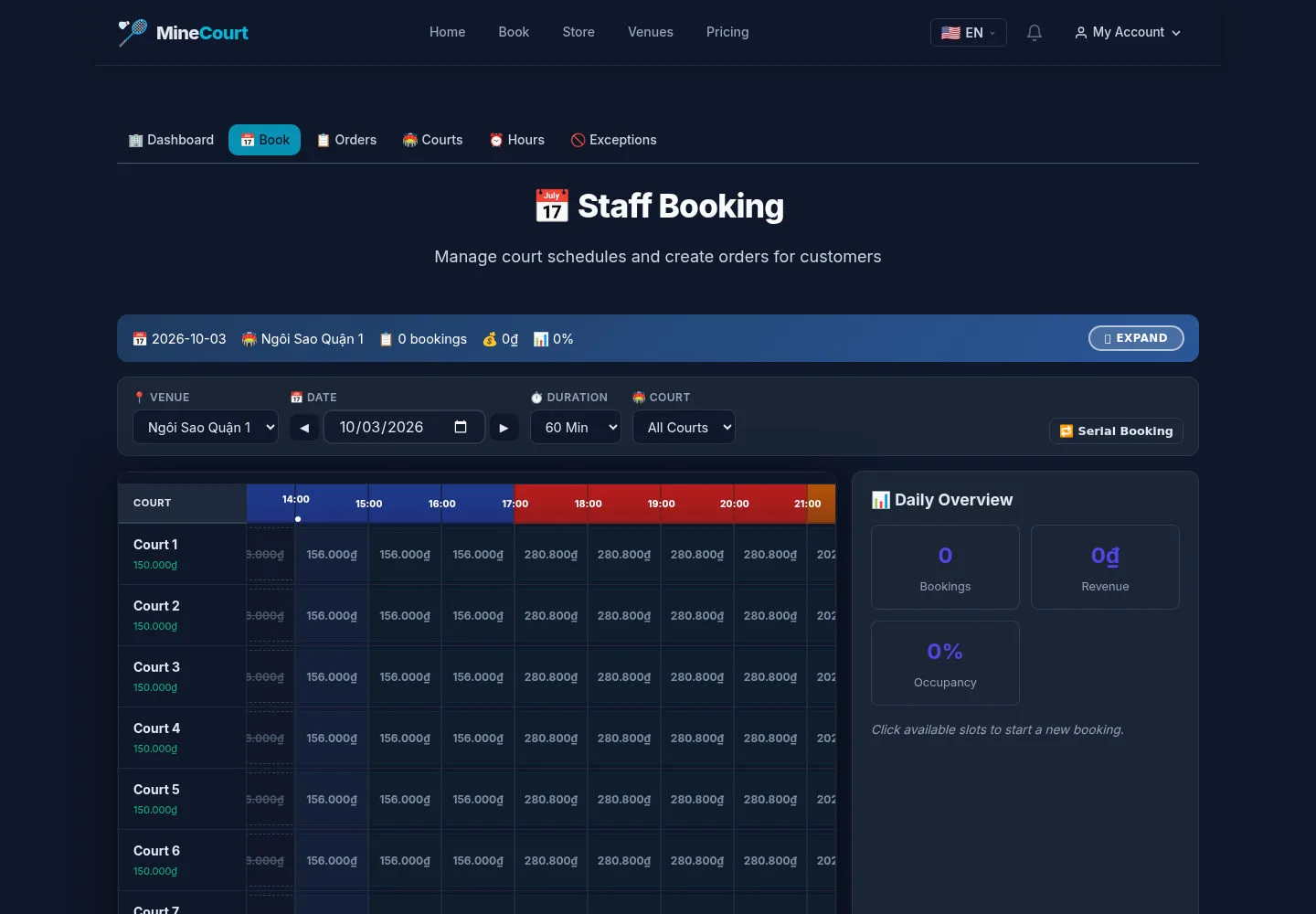
Staff Booking offers venue, date, duration and court filters, plus a daily overview.
- Select the intended venue and date before choosing available court times.
Open on site ↗sign-inFull-page screenshot ↗
Review the selected times and customer context before continuing to checkout.
Recover a missing selection
Venue Staff
3Step 3 of 4
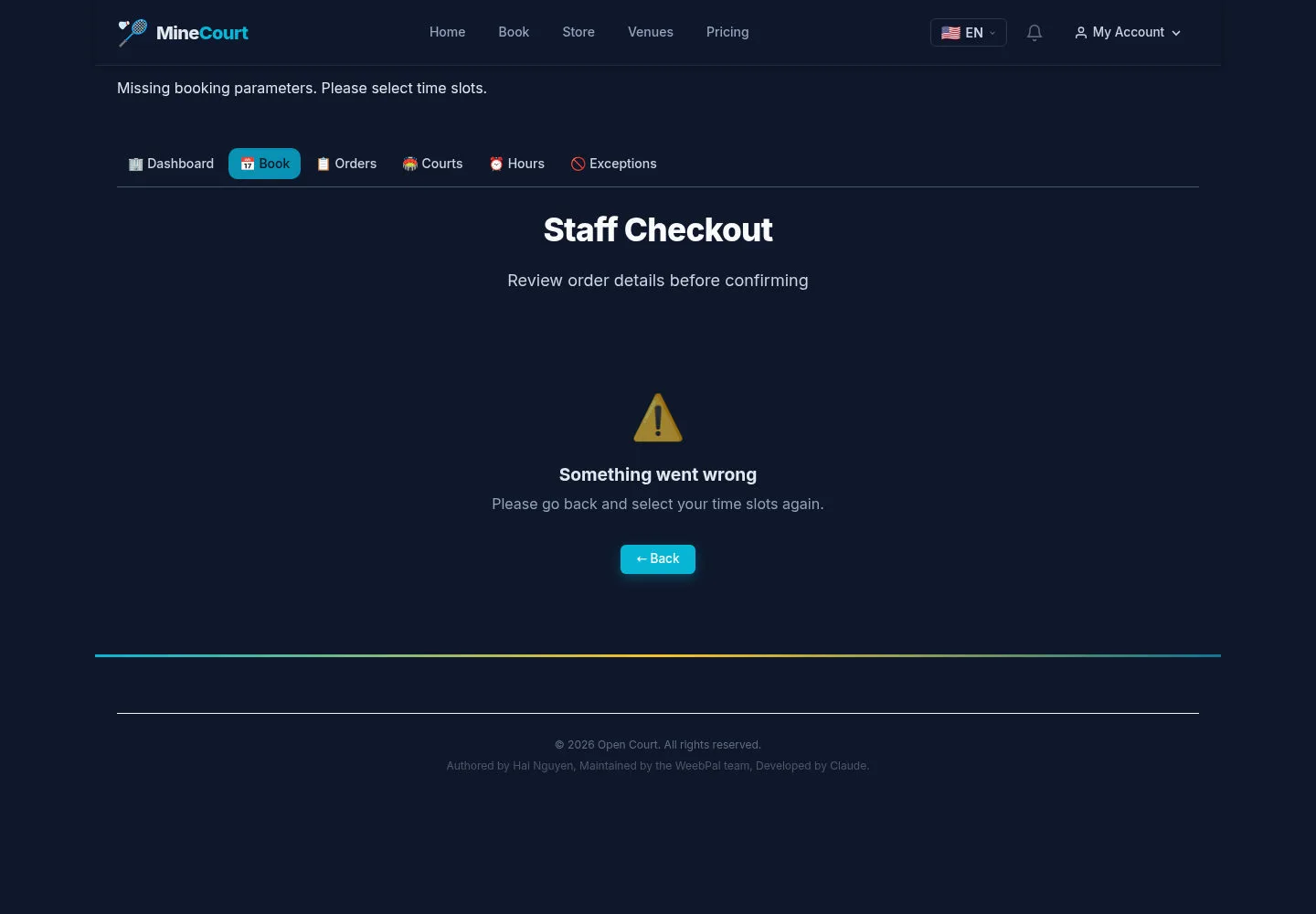
This Staff Checkout was opened without booking parameters and shows an error.
- Use the return-to-booking link and select the court times again.
Open on site ↗sign-inFull-page screenshot ↗
The capture shows the error state, with no created order or cash collection.
Find a venue order
Venue Staff
4Step 4 of 4
Orders lists court reservations in the venue workspace.
- Use the available order filters and open the order you are authorised to handle.
Open on site ↗sign-inFull-page screenshot ↗
Check booking and payment states before taking a payment or cancellation action.