
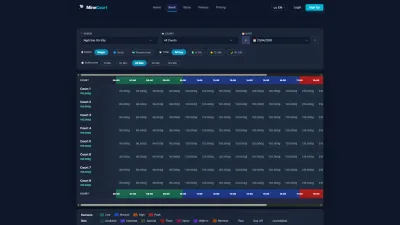





 MineCourtCourt and venue operations
User guide · Player
Find a venue:choose court time
Browse venue details and the booking grid, then recognise the checkout context you need.
- Sign in with your own Player account. The public pages shown here were captured while signed in.
- The examples use different sample venues. Keep the intended venue selected throughout your own booking.
Find a venue
Player
1Step 1 of 4
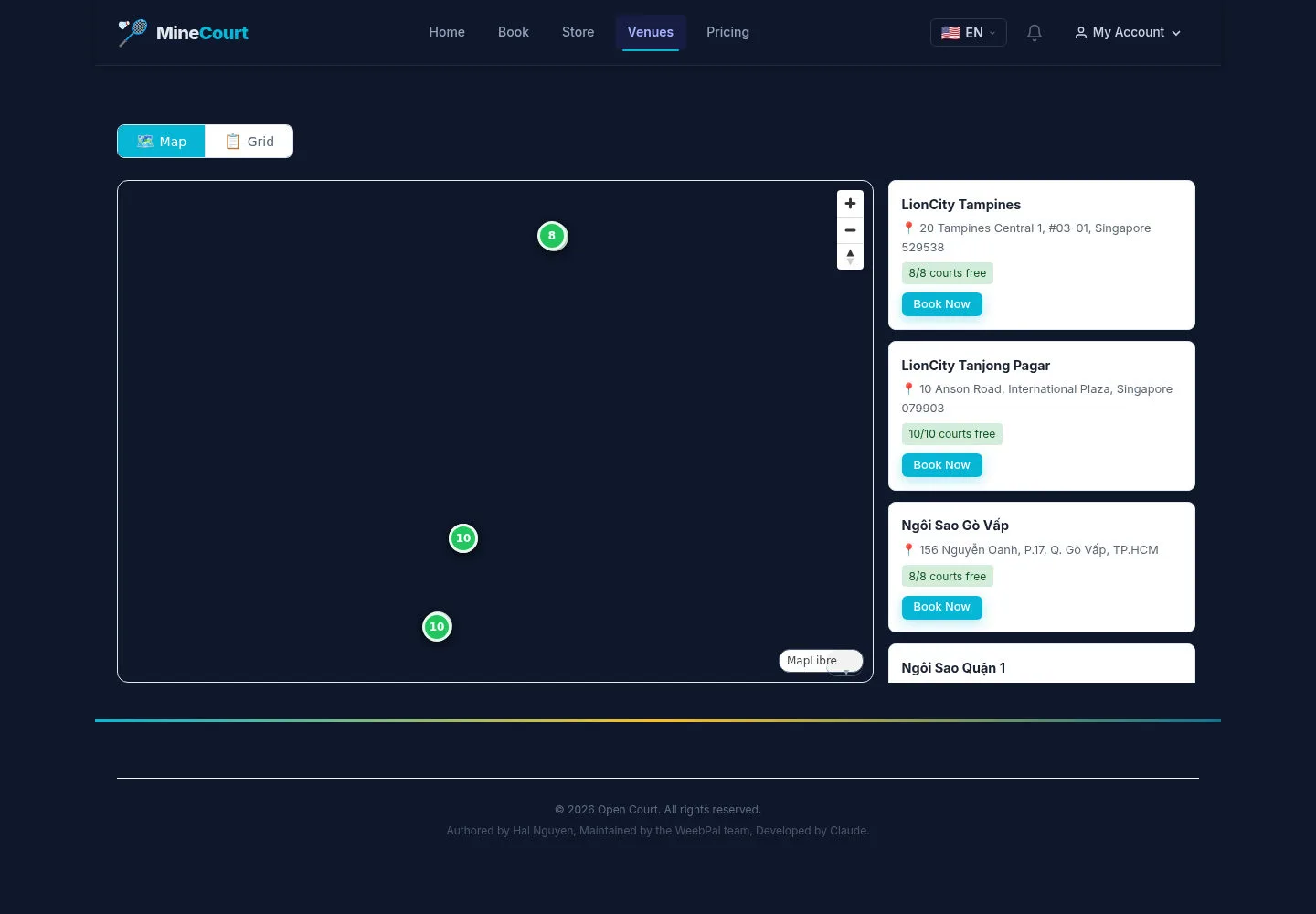
Start with Venues to compare locations before selecting a court.
- Open a venue card and review its location.
Open on site ↗sign-inFull-page screenshot ↗
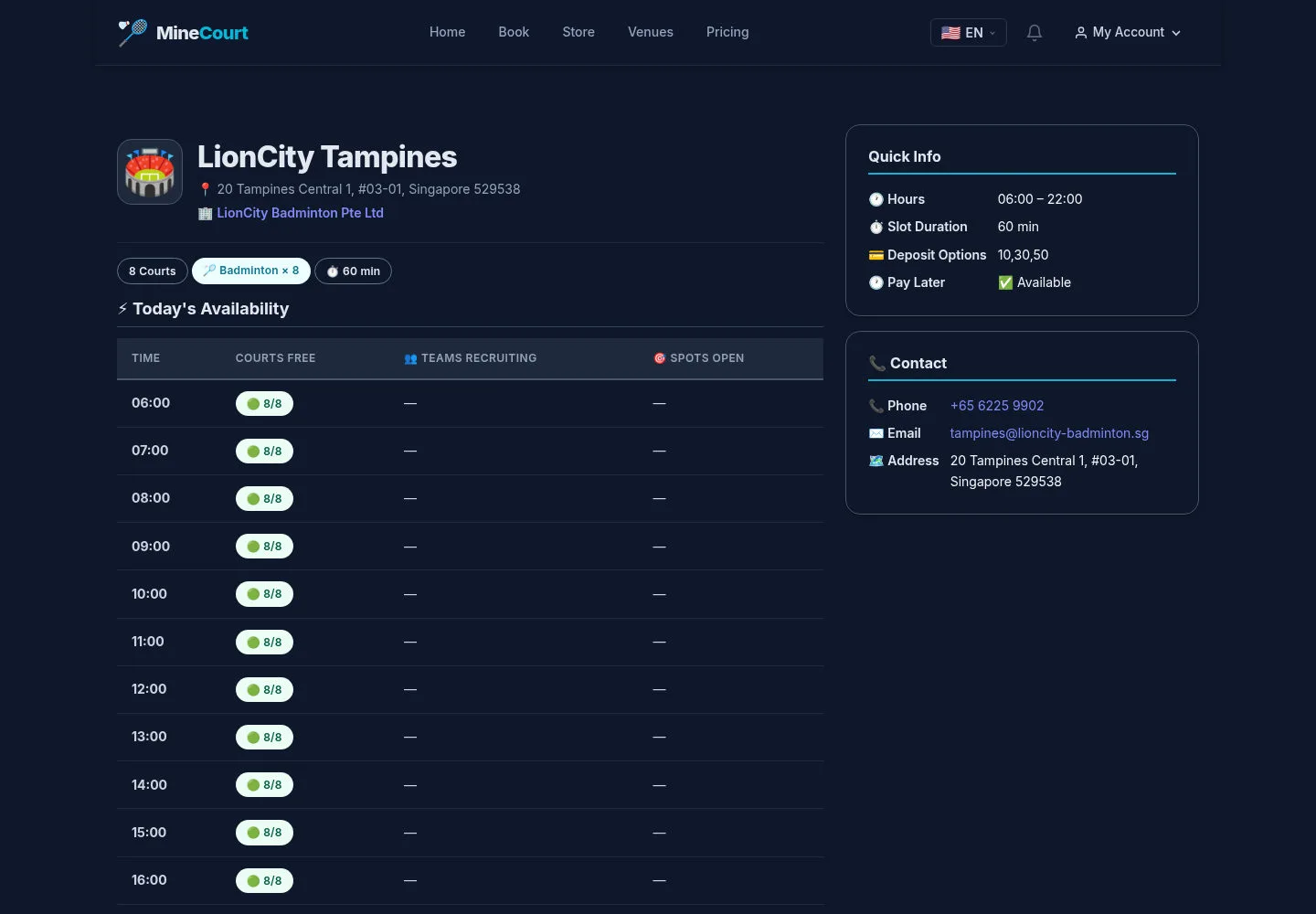
The selected venue opens with its own courts and contact details.
Review the venue
Player
2Step 2 of 4
Check the address and court options on the venue page.
- Use the booking link for the venue you intend to visit.
Open on site ↗sign-inFull-page screenshot ↗
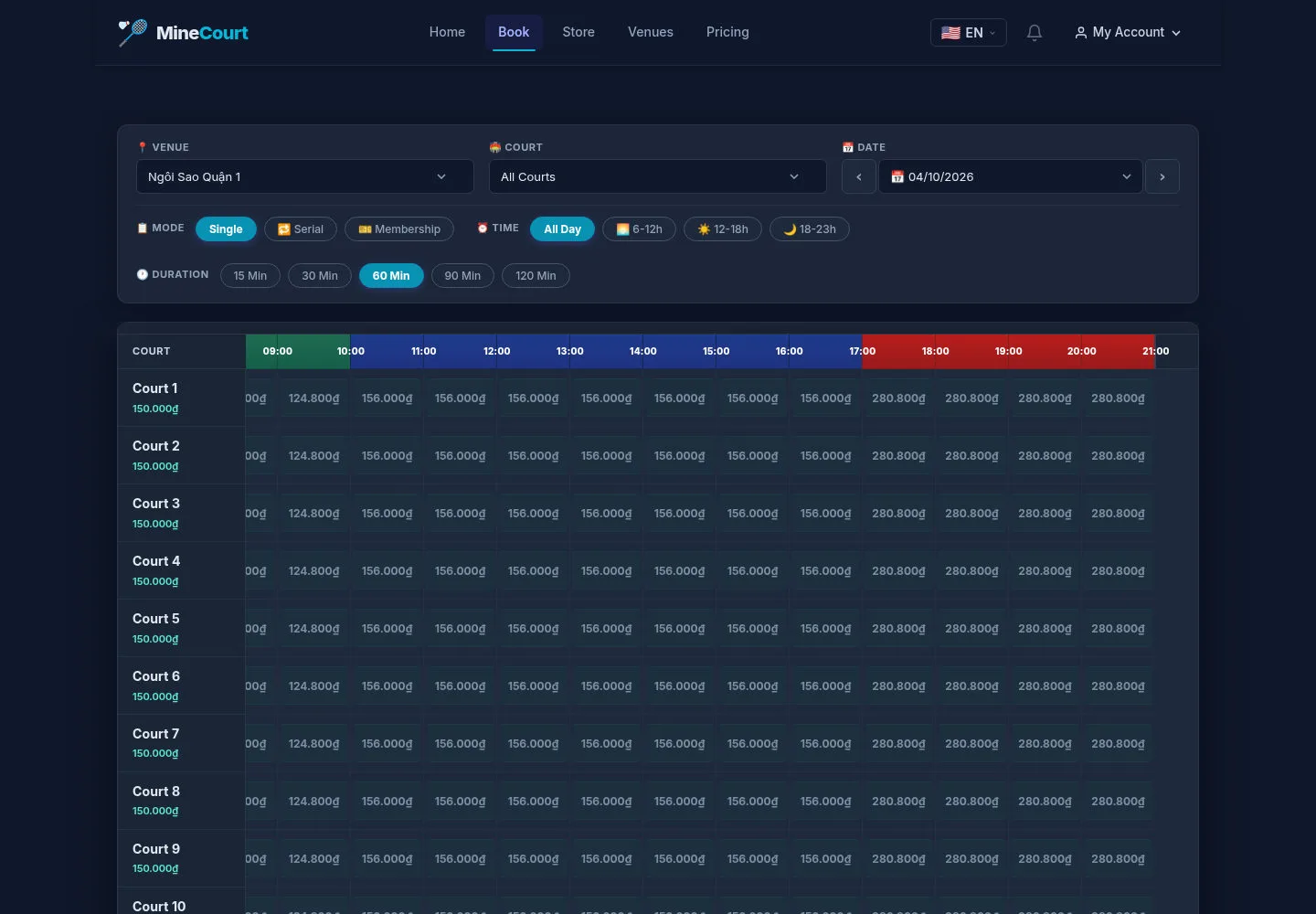
The booking grid is the place to choose a date, duration and available court time.
Choose a date and duration
Player
3Step 3 of 4
The grid groups time slots by court. Prices belong to the current venue, day and duration.
- Choose the venue, date, court filter and duration, then select available time slots.
Open on site ↗sign-inFull-page screenshot ↗
Review your selected court times before continuing; a visible price alone is not a confirmed booking.
Return when checkout lacks slots
Player
4Step 4 of 4
Opening Checkout without a slot selection displays Missing booking parameters and Something went wrong in this capture.
- Use Back to Booking, choose the slots again and continue from the grid.
Open on site ↗sign-inFull-page screenshot ↗
This screenshot shows recovery from missing selection. It does not show a payment or confirmed order.