



News, glossary and help

News, glossary, community, about us, learning support

  • No account needed to read
Public

News

Public

News

1Step 1 of 7

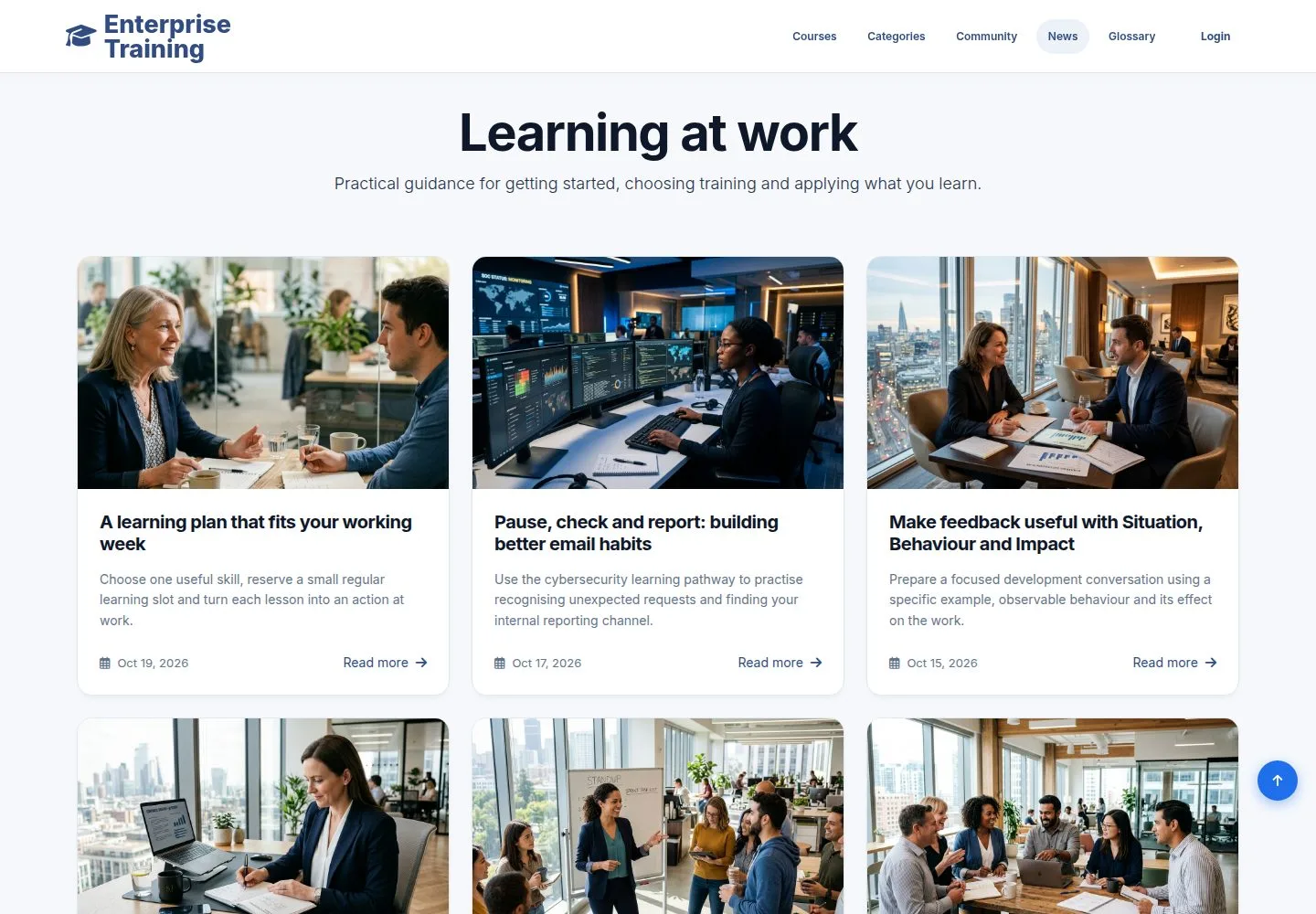
  1. News, in the header: the company articles, newest first.
  2. Read more opens one.

Enlarge, then scroll

Open illustrated screen ↗Full image ↗

Public · News, glossary and help01

An article

Public

An article

2Step 2 of 7

  1. The author, the date and the reading time sit under the title.

Enlarge, then scroll

Open illustrated screen ↗Full image ↗

Public · News, glossary and help02

Glossary

Public

Glossary

3Step 3 of 7

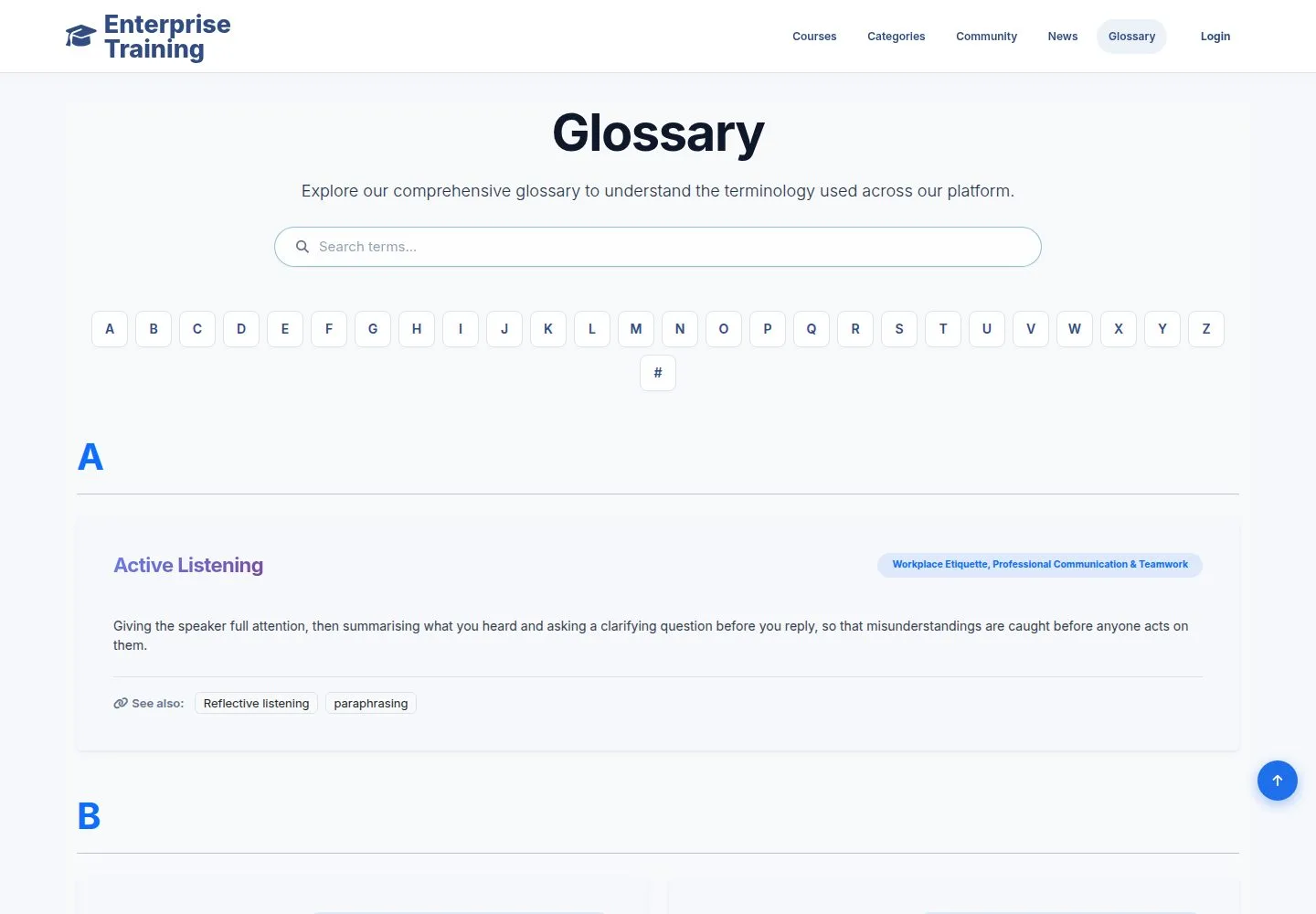
  1. Glossary, in the header: training terms from A to Z.
  2. A letter takes you to its terms; each term names its course and related words.

Enlarge, then scroll

Open illustrated screen ↗Full image ↗

Public · News, glossary and help03

Search the glossary

Public

Search the glossary

4Step 4 of 7

  1. Type a word: the matching terms show.

Enlarge, then scroll

Open illustrated screen ↗Full image ↗

Public · News, glossary and help04

Community

Public

Community

5Step 5 of 7

  1. Community, in the header: questions and answers between colleagues, open to read.
  2. Sign in to start a topic or reply.

Enlarge, then scroll

Open illustrated screen ↗Full image ↗

Public · News, glossary and help05

About us

Public

About us

6Step 6 of 7

  1. About us, in the footer: how company training works and how to find the right course.

Enlarge, then scroll

Open illustrated screen ↗Full image ↗

Public · News, glossary and help06

Learning Support

Public

Learning Support

7Step 7 of 7

  1. Learning Support, in the footer: reset your password, open My Courses or write to the training team.

Enlarge, then scroll

Open illustrated screen ↗Full image ↗

Check

You can read the company news and terms, and you know whom to ask

Public · News, glossary and help07
1 / 8
Privacy Terms