Community and reviews

Topics, replies, best answer, course reviews

  • Signed in to post
Employee

Community

Employee

Community

1Step 1 of 8

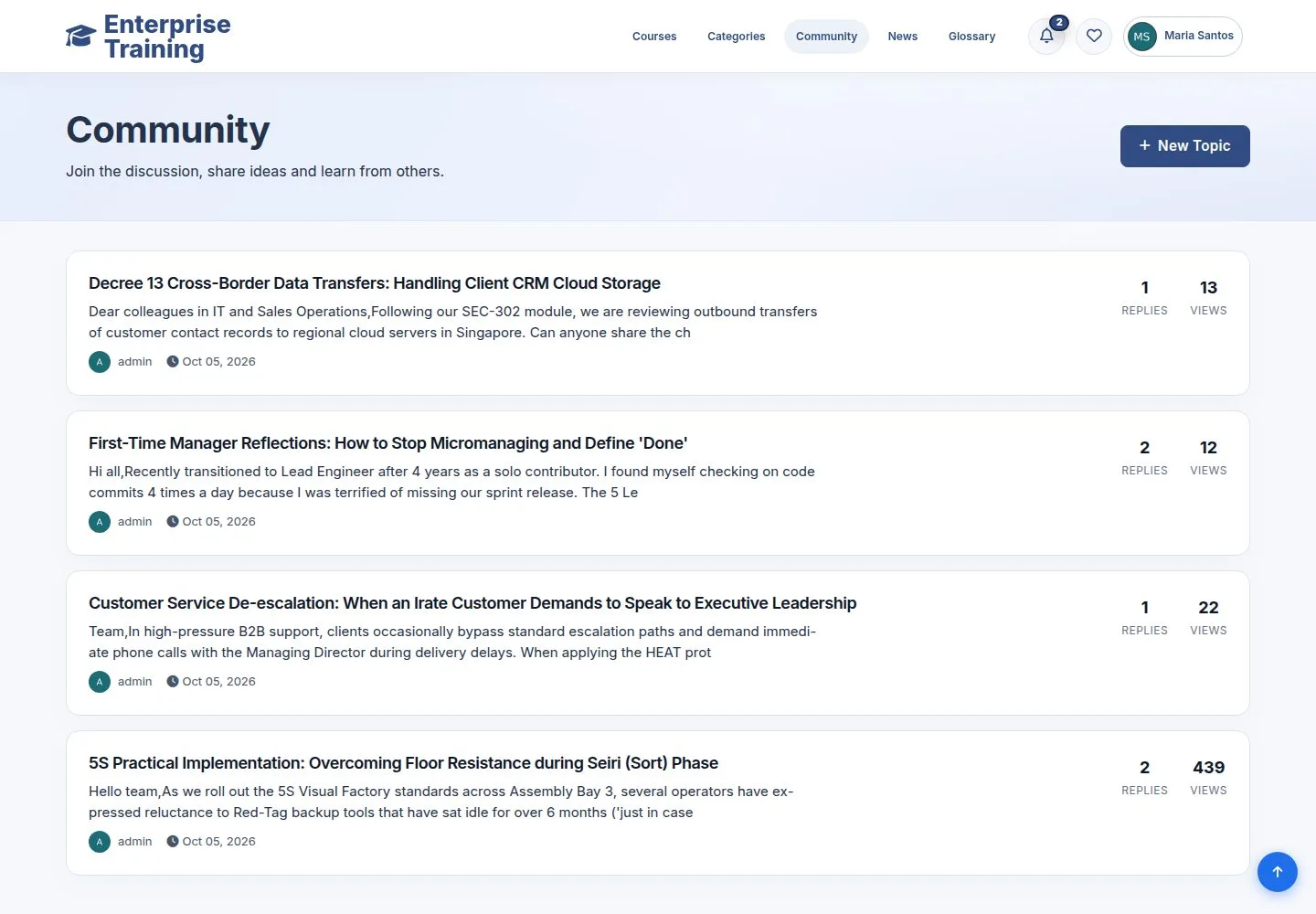
  1. Topics with replies and views.
  2. New Topic opens a form.

Enlarge, then scroll

Open illustrated screen ↗Full image ↗

Employee · Community and reviews01

New topic

Employee

New topic

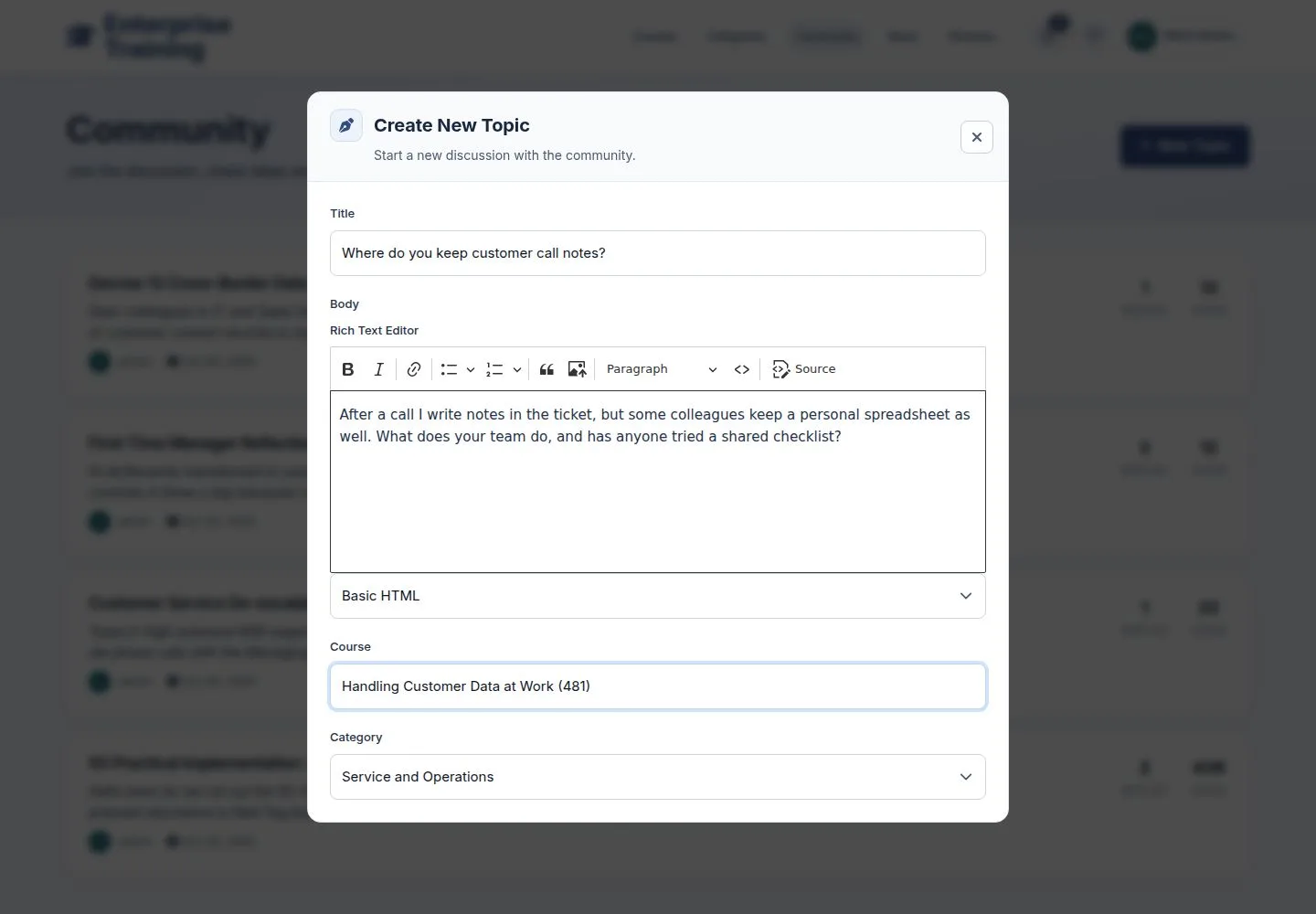
2Step 2 of 8

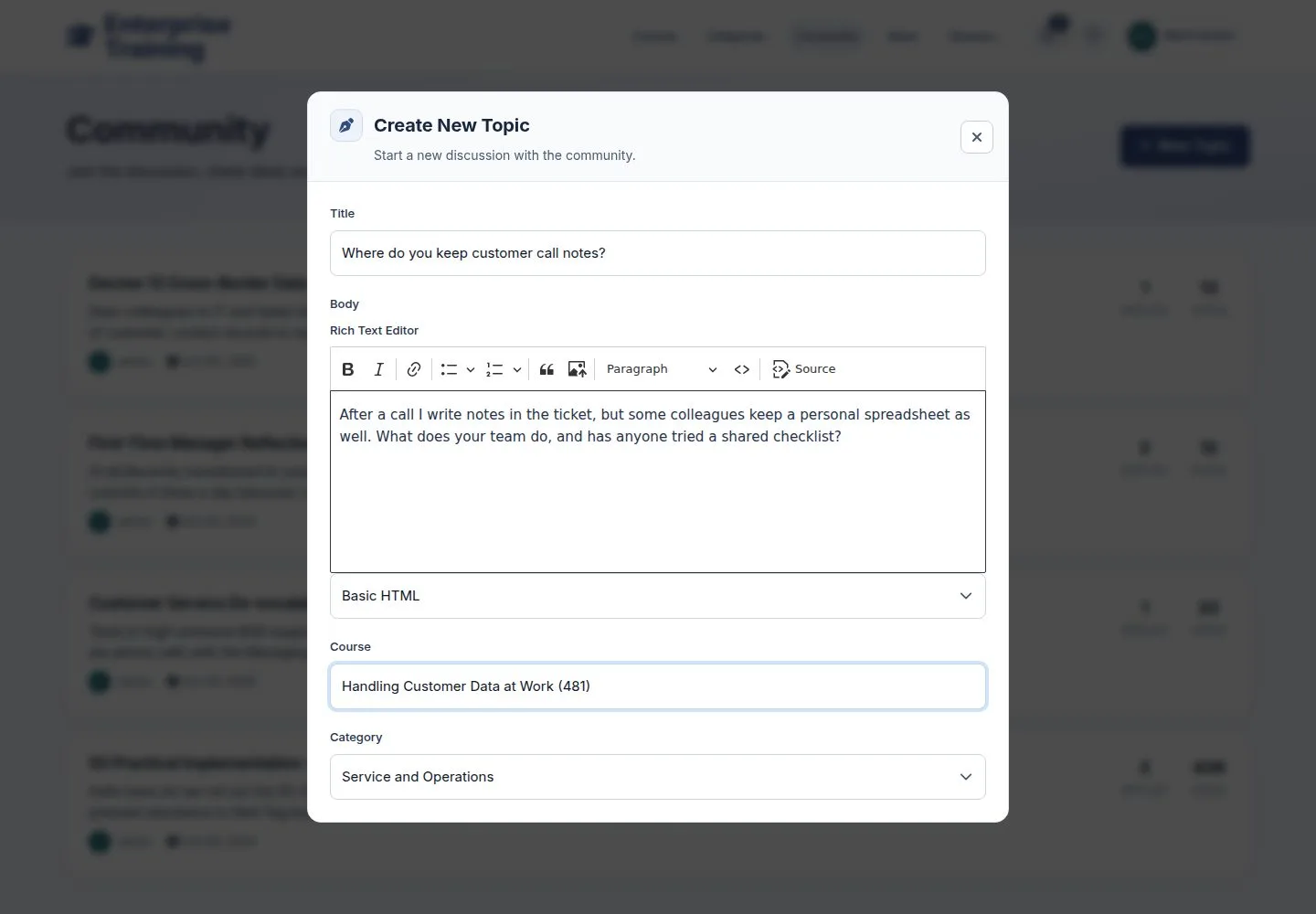
  1. Title, body, the course it is about, a category.

Open illustrated screen ↗Full image ↗

Employee · Community and reviews02

The topic

Employee

The topic

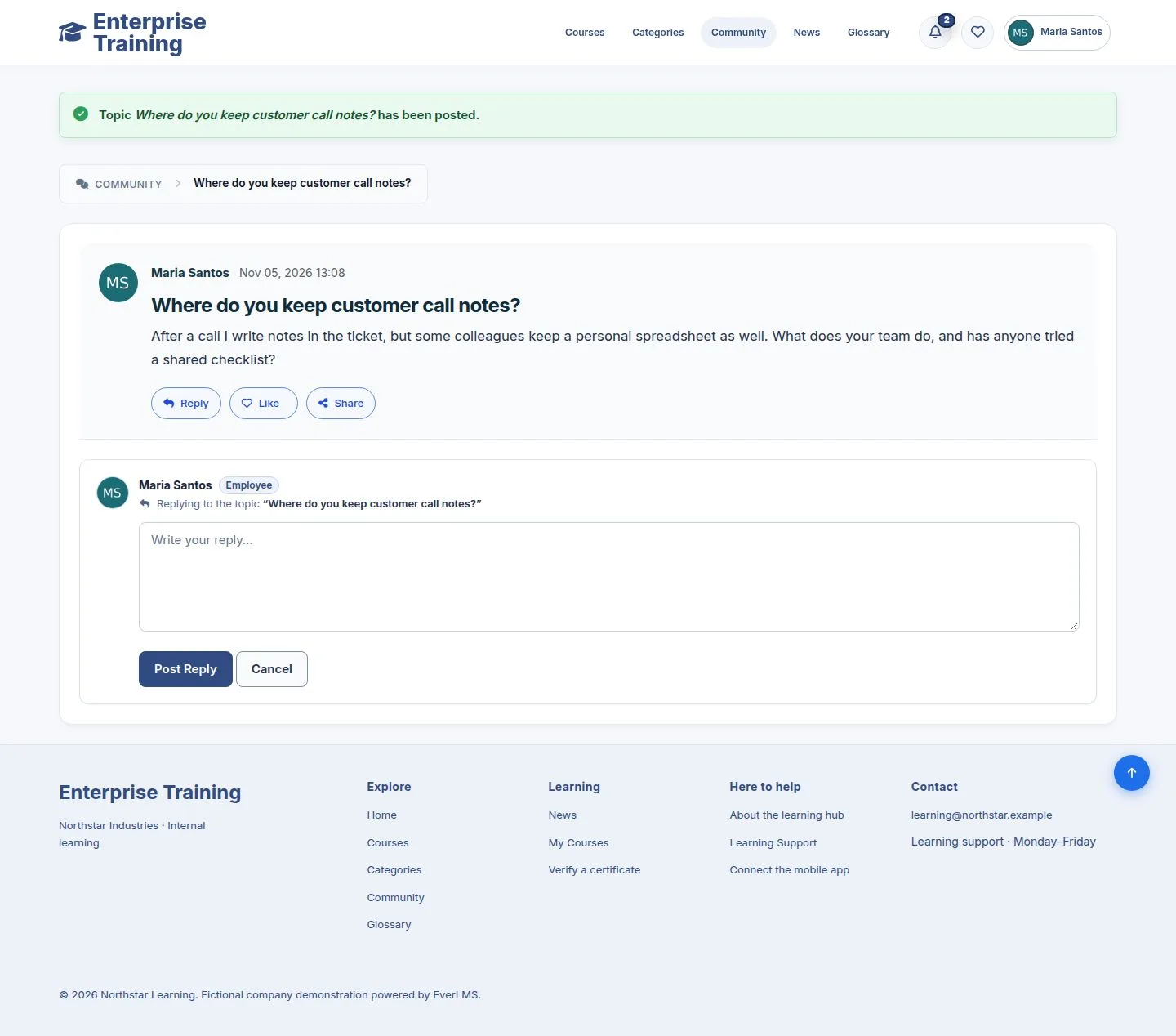
3Step 3 of 8

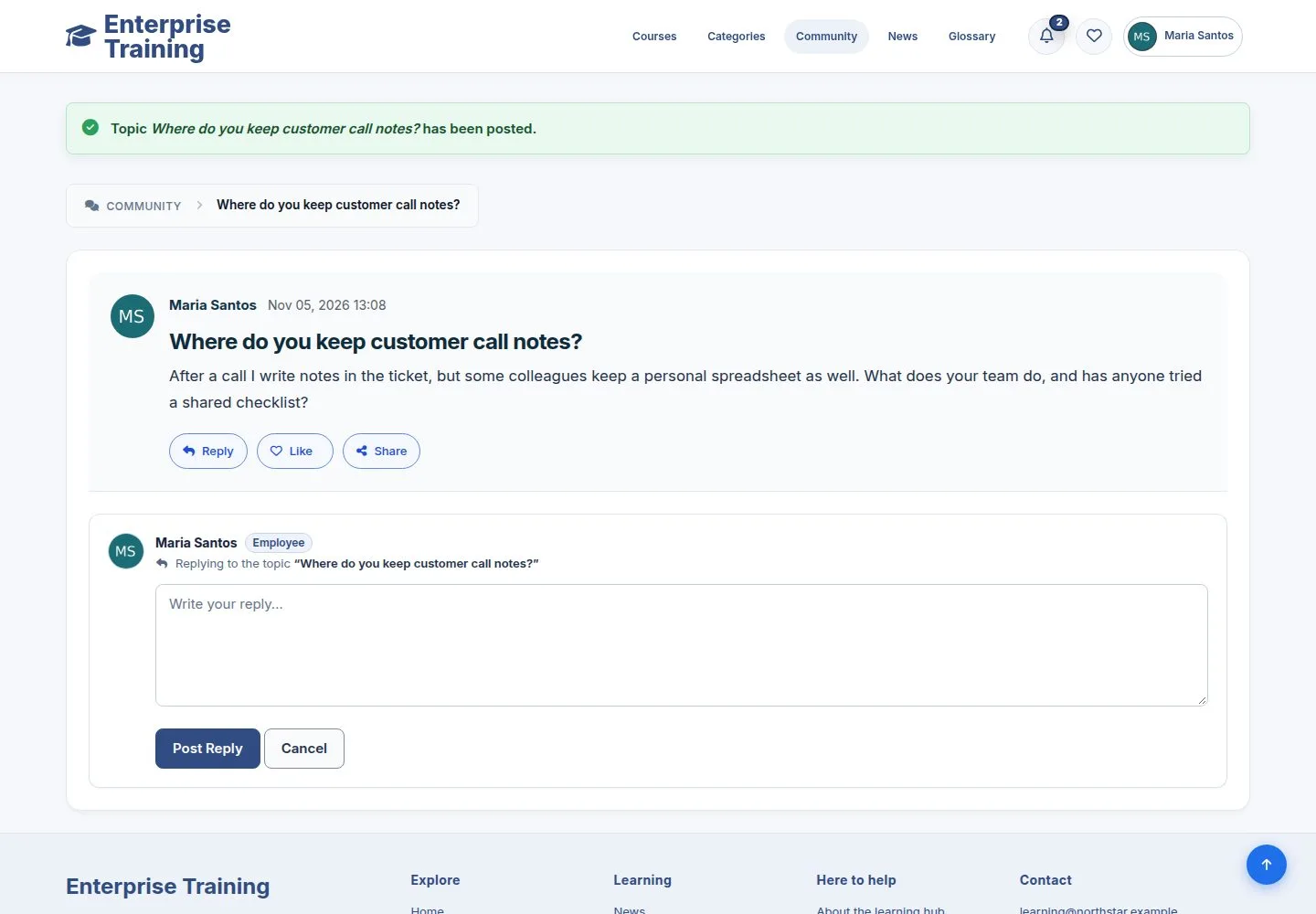
  1. Reply, Like, Share.

Enlarge, then scroll

Open illustrated screen ↗Full image ↗

Employee · Community and reviews03

A reply

Employee

A reply

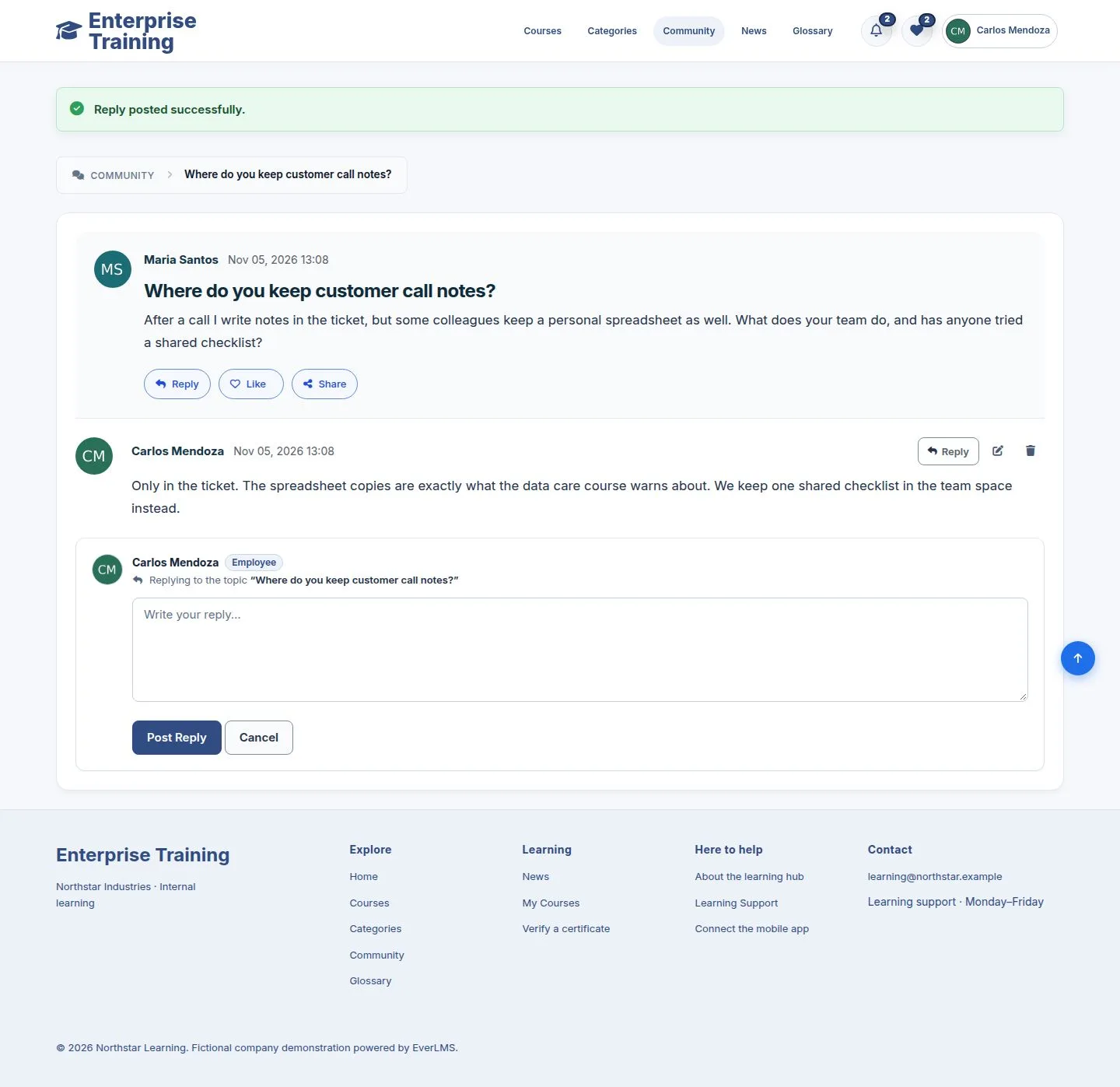
4Step 4 of 8

  1. Your reply appears under the topic and the author is told.

Enlarge, then scroll

Open illustrated screen ↗Full image ↗

Employee · Community and reviews04

Best answer

Employee

Best answer

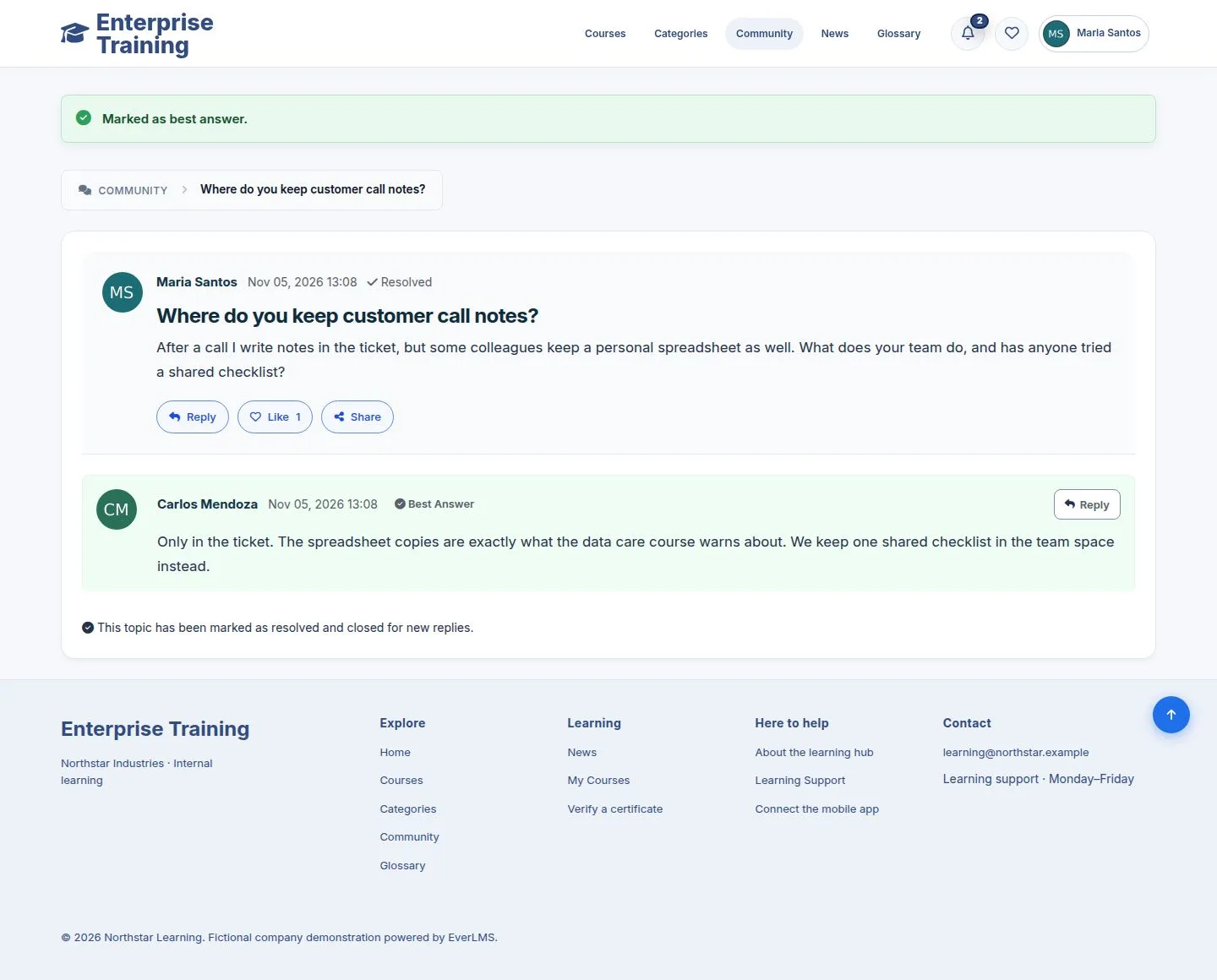
5Step 5 of 8

  1. The author marks the reply that solved it.
  2. The topic shows as resolved.

Enlarge, then scroll

Open illustrated screen ↗Full image ↗

Employee · Community and reviews05

Review a course

Employee

Review a course

6Step 6 of 8

  1. Reviews tab: a score and a few words.
  2. Reviews wait for approval.

Enlarge, then scroll

Open illustrated screen ↗Full image ↗

Employee · Community and reviews06

Approve

Manager

Approve

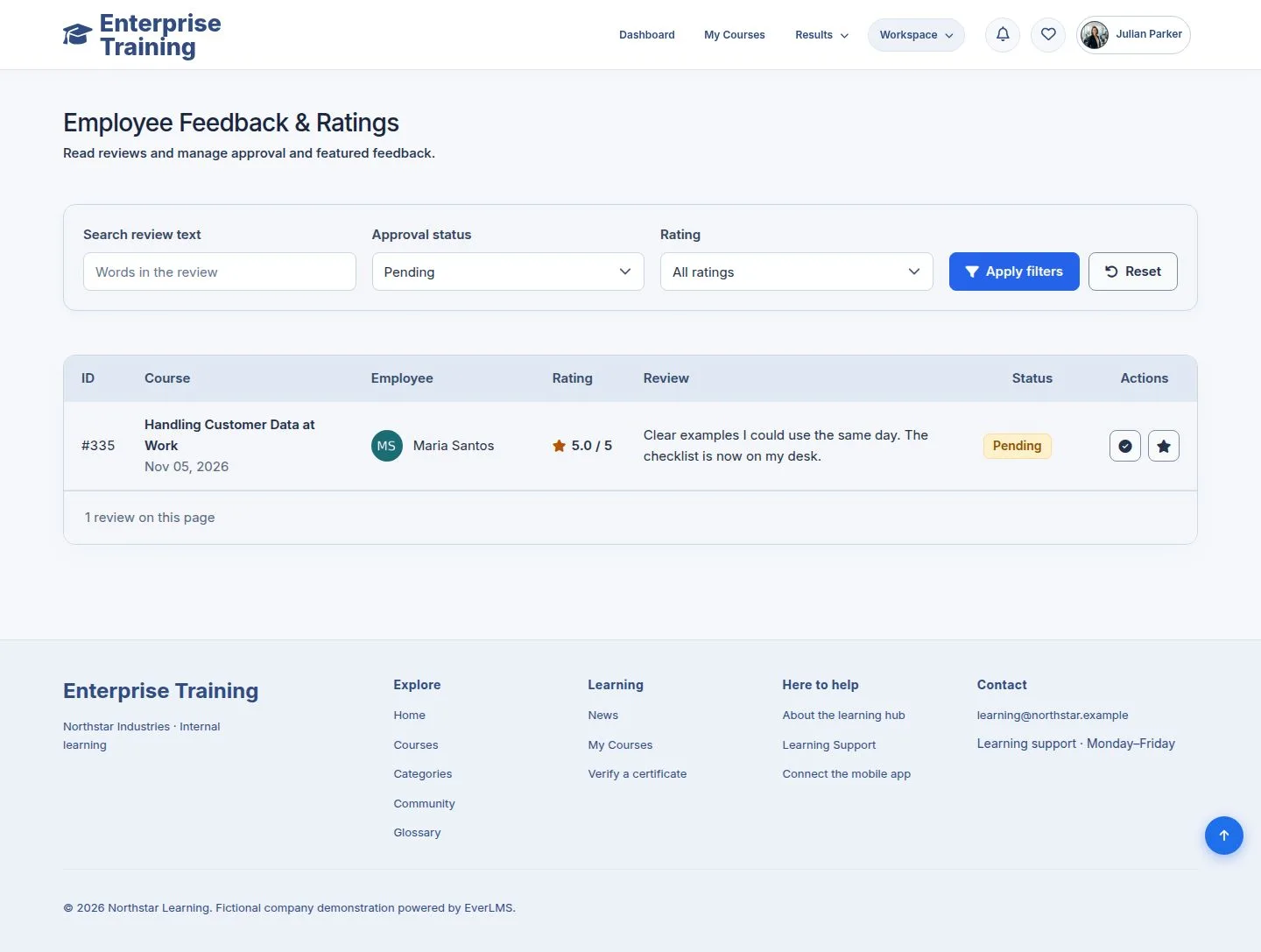
7Step 7 of 8

  1. Workspace → Employee Feedback: filter Pending.
  2. Approve shows it on the course page; Feature marks it.

Enlarge, then scroll

Open illustrated screen ↗Full image ↗

Employee · Community and reviews07

On the course page

Visitor

On the course page

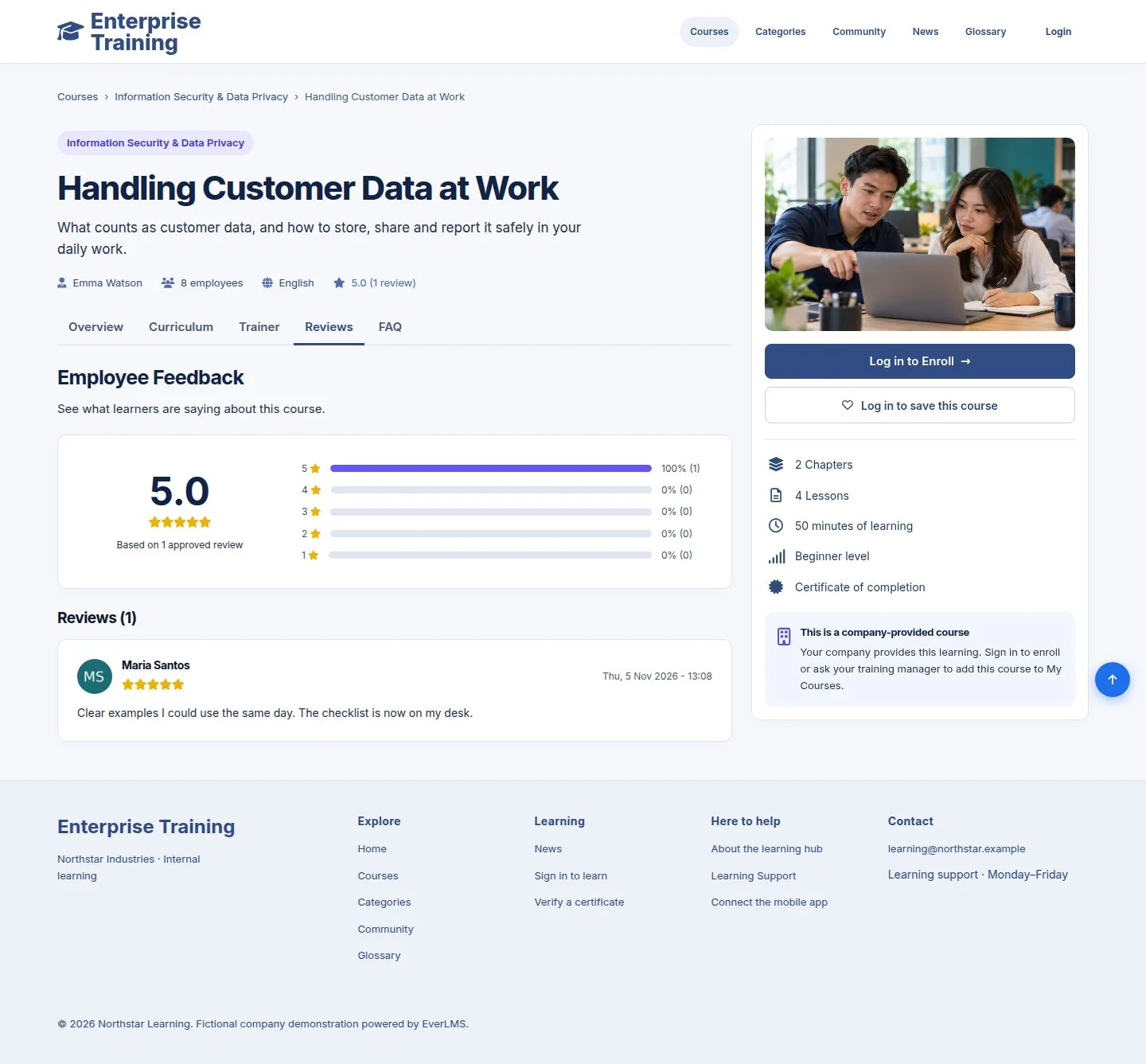
8Step 8 of 8

  1. The score summary and the review, for everyone.

Enlarge, then scroll

Open illustrated screen ↗Full image ↗

Check

Discussions are open to colleagues; a review shows once approved

Employee · Community and reviews08
1 / 9
Privacy Terms