Assign a course

One employee, one course, kept history

  • The employee is in your branch
  • The course is published
Manager
Start

Manager

Start

1Step 1 of 9

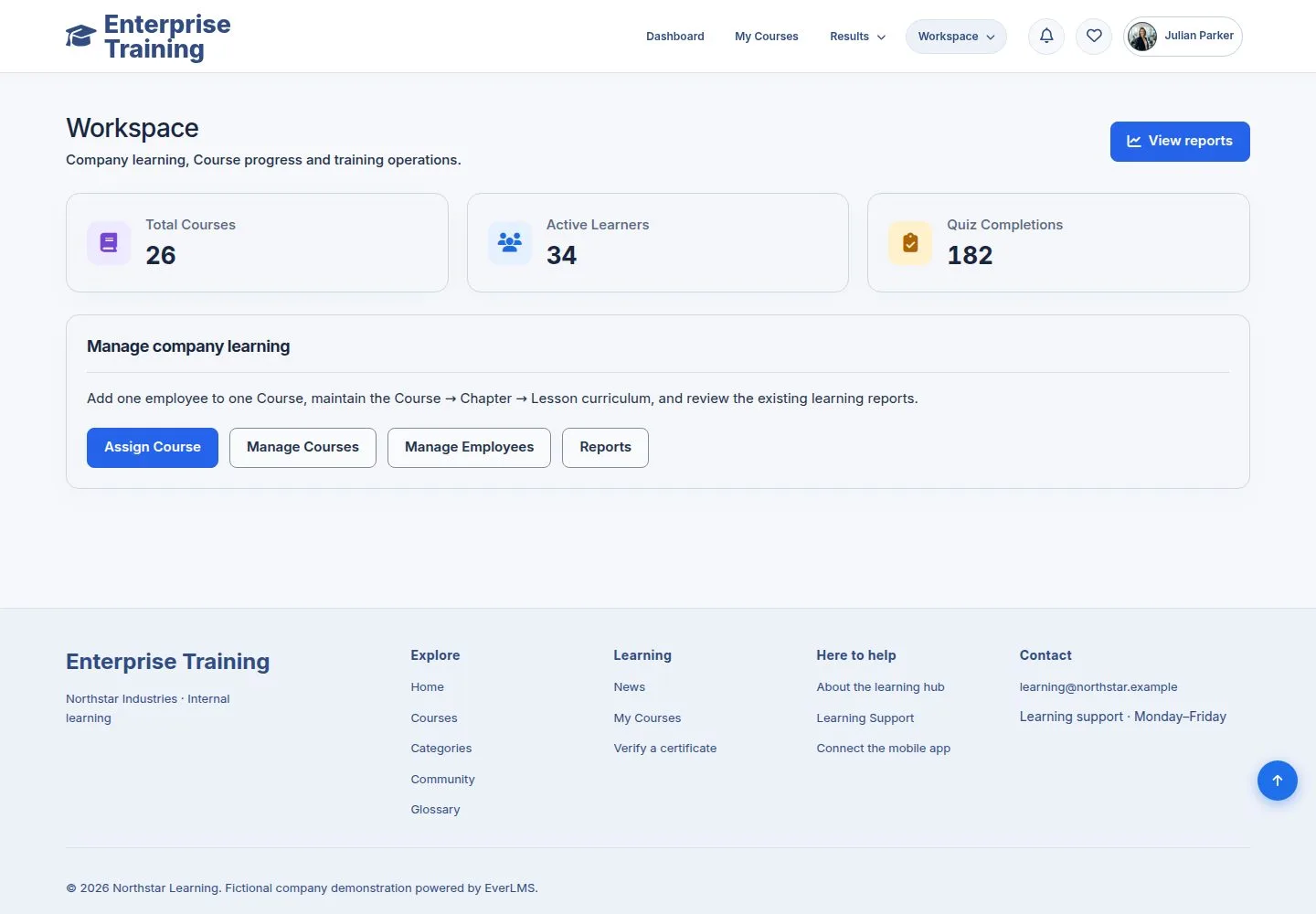
  1. Workspace → Assign Course.

Enlarge, then scroll

Open illustrated screen ↗Full image ↗

Manager · Assign a course01

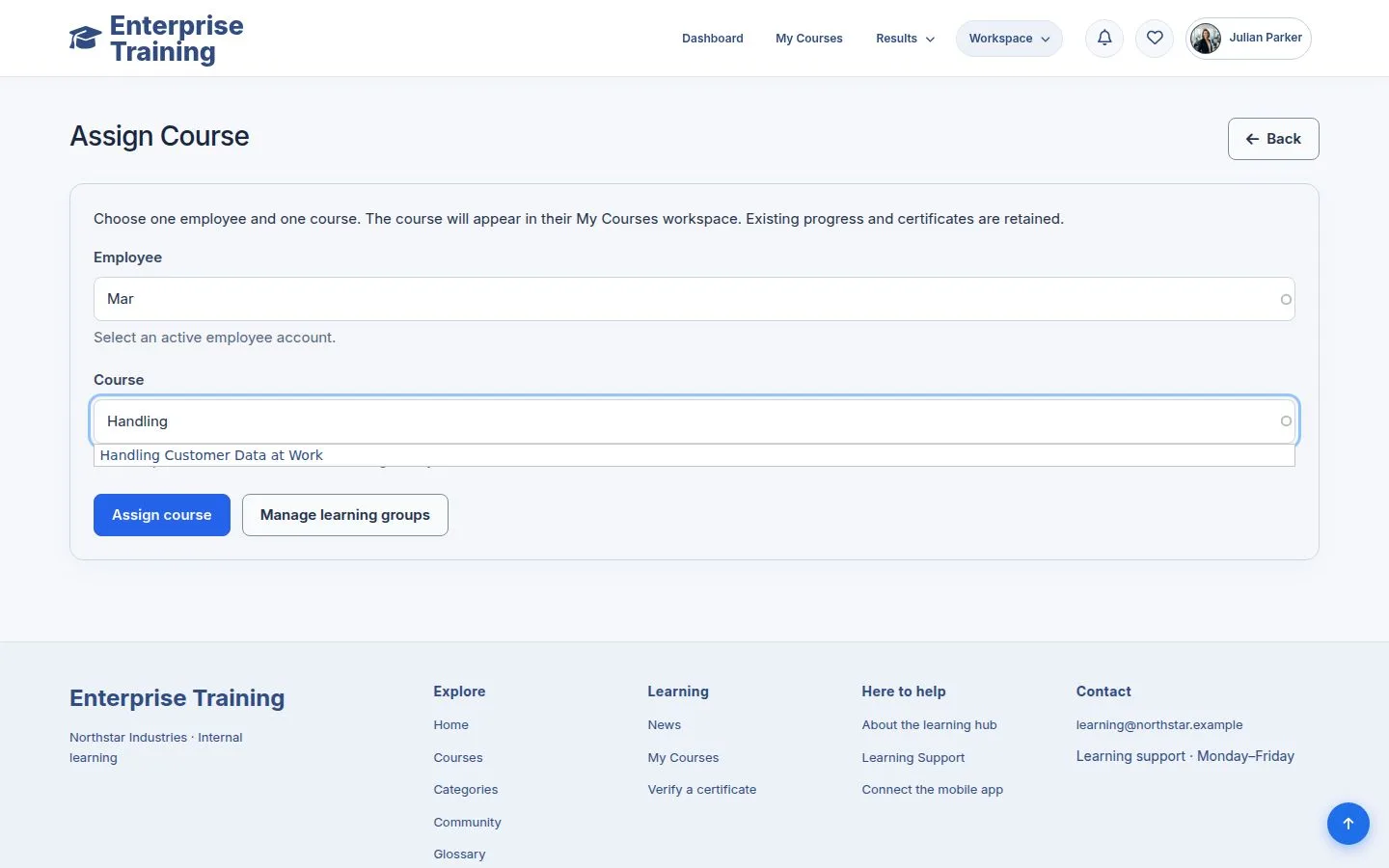
Find the employee

Manager

Find the employee

2Step 2 of 9

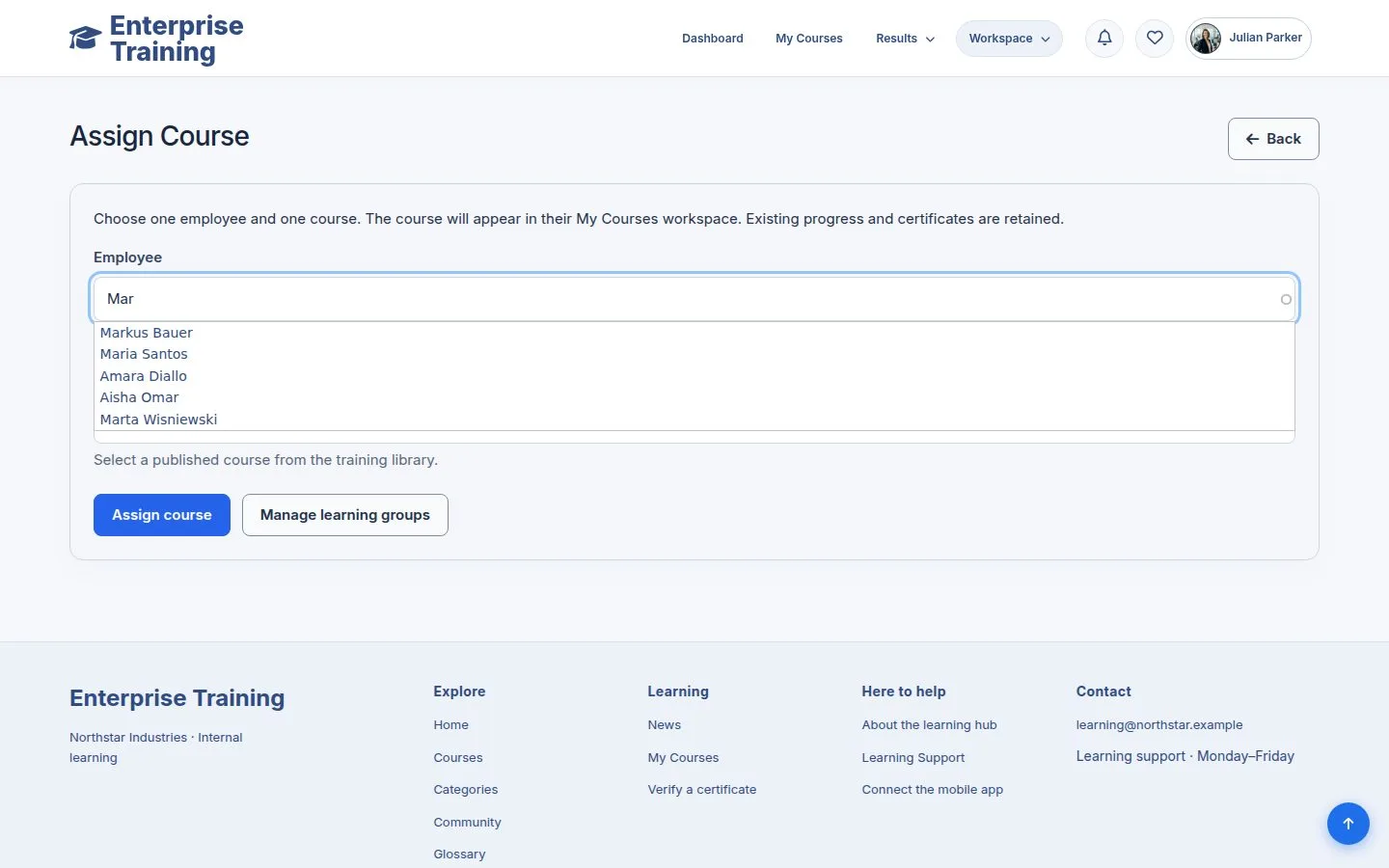
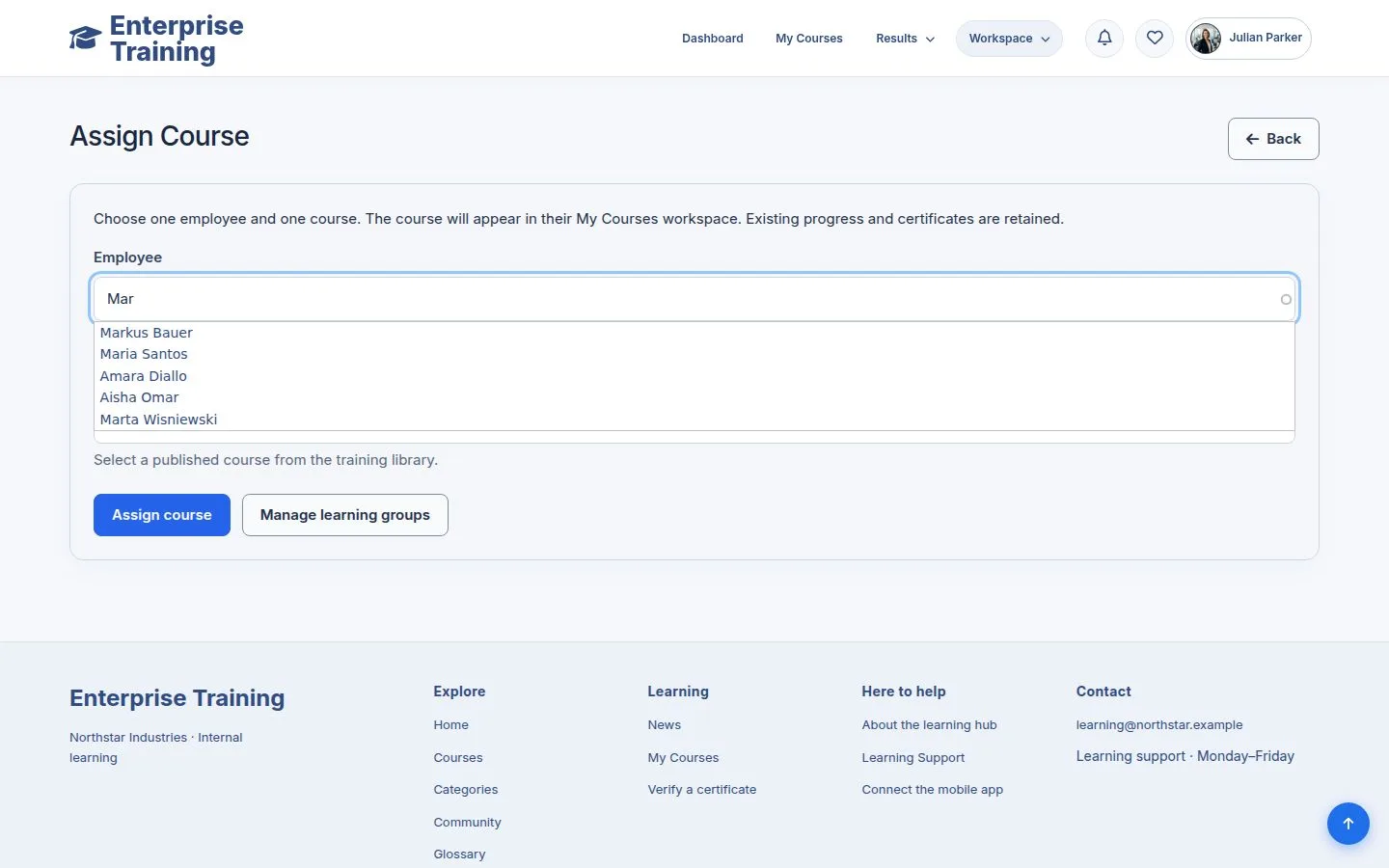
  1. Type a name, login or email; only your branch is offered.

Open illustrated screen ↗Full image ↗

Manager · Assign a course02

Find the course

Manager

Find the course

3Step 3 of 9

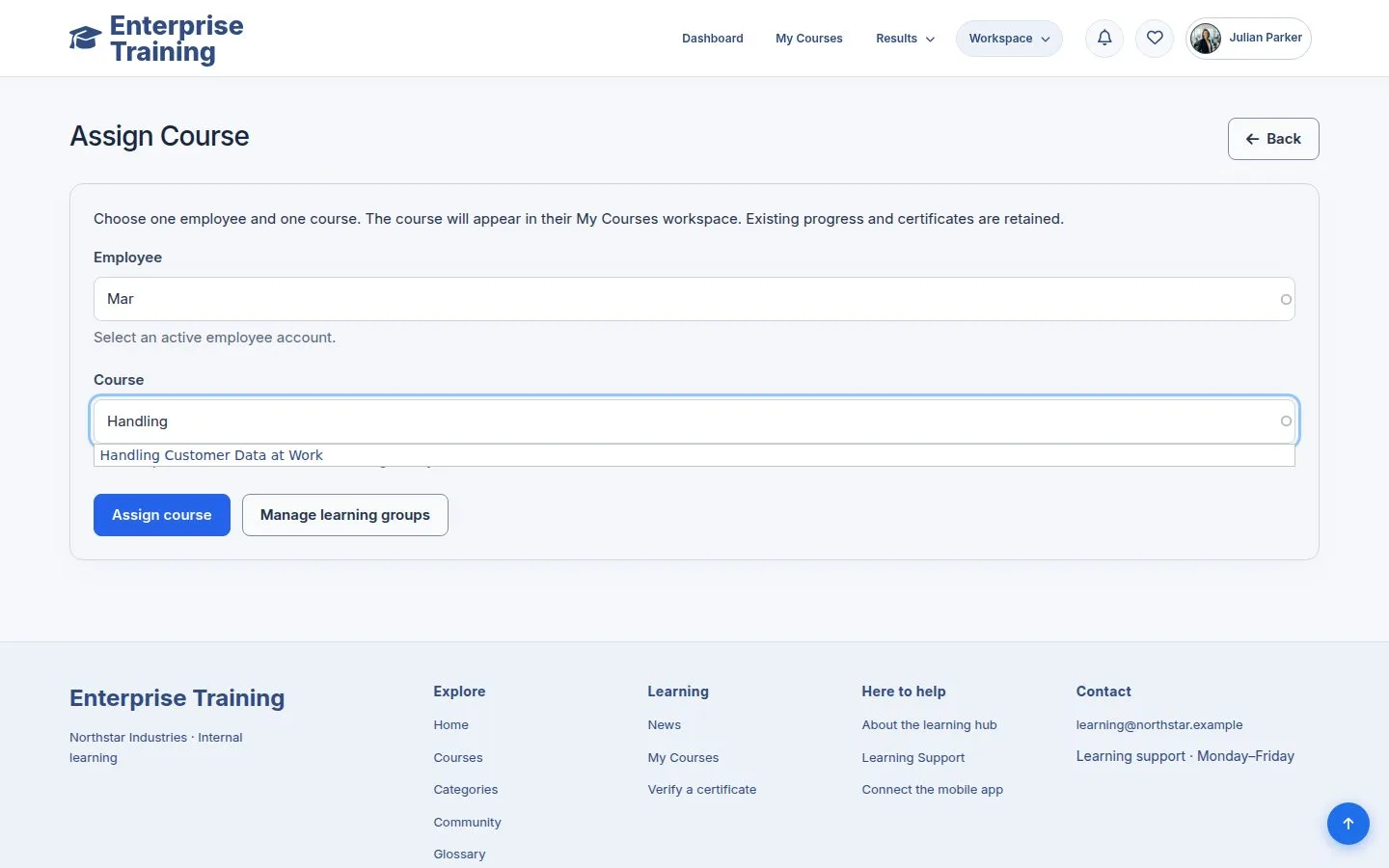
  1. Only published courses.

Open illustrated screen ↗Full image ↗

Manager · Assign a course03

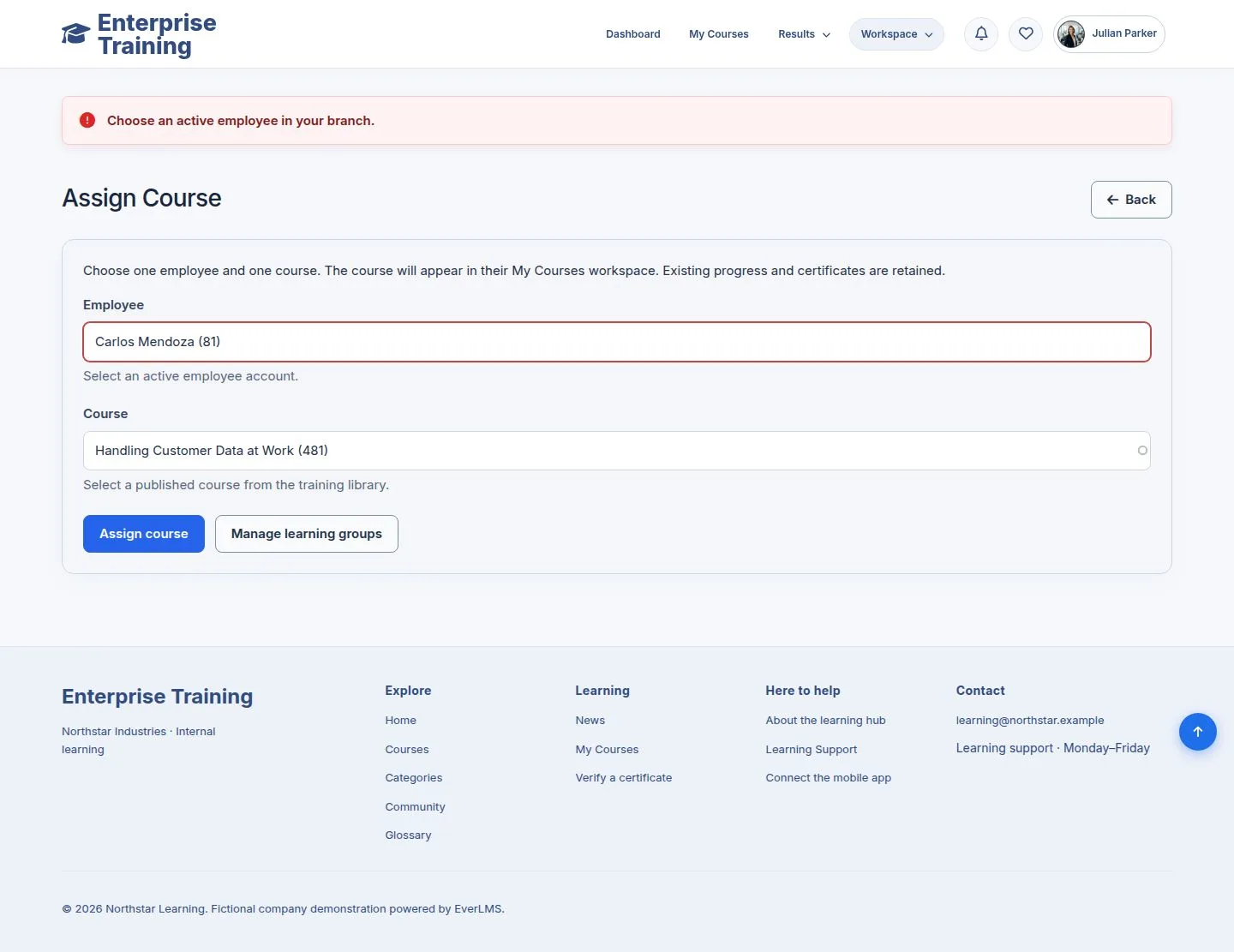
Refused

Manager

Refused

4Step 4 of 9

  1. Someone outside your branch or a draft course is refused, with the reason.

Enlarge, then scroll

Open illustrated screen ↗Full image ↗

Manager · Assign a course04

Assign

Manager

Assign

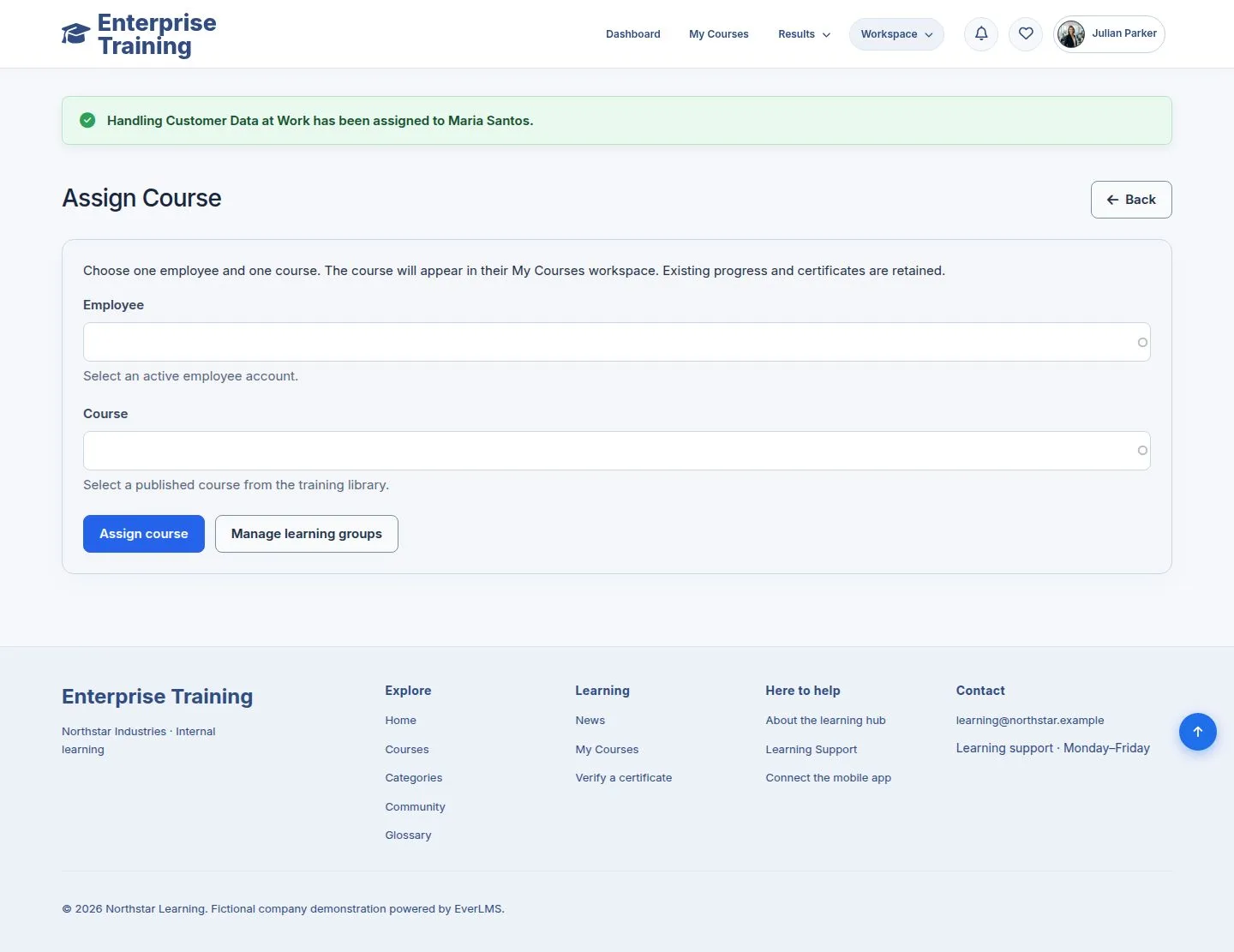
5Step 5 of 9

  1. Assign course: the employee is told.

Enlarge, then scroll

Open illustrated screen ↗Full image ↗

Manager · Assign a course05

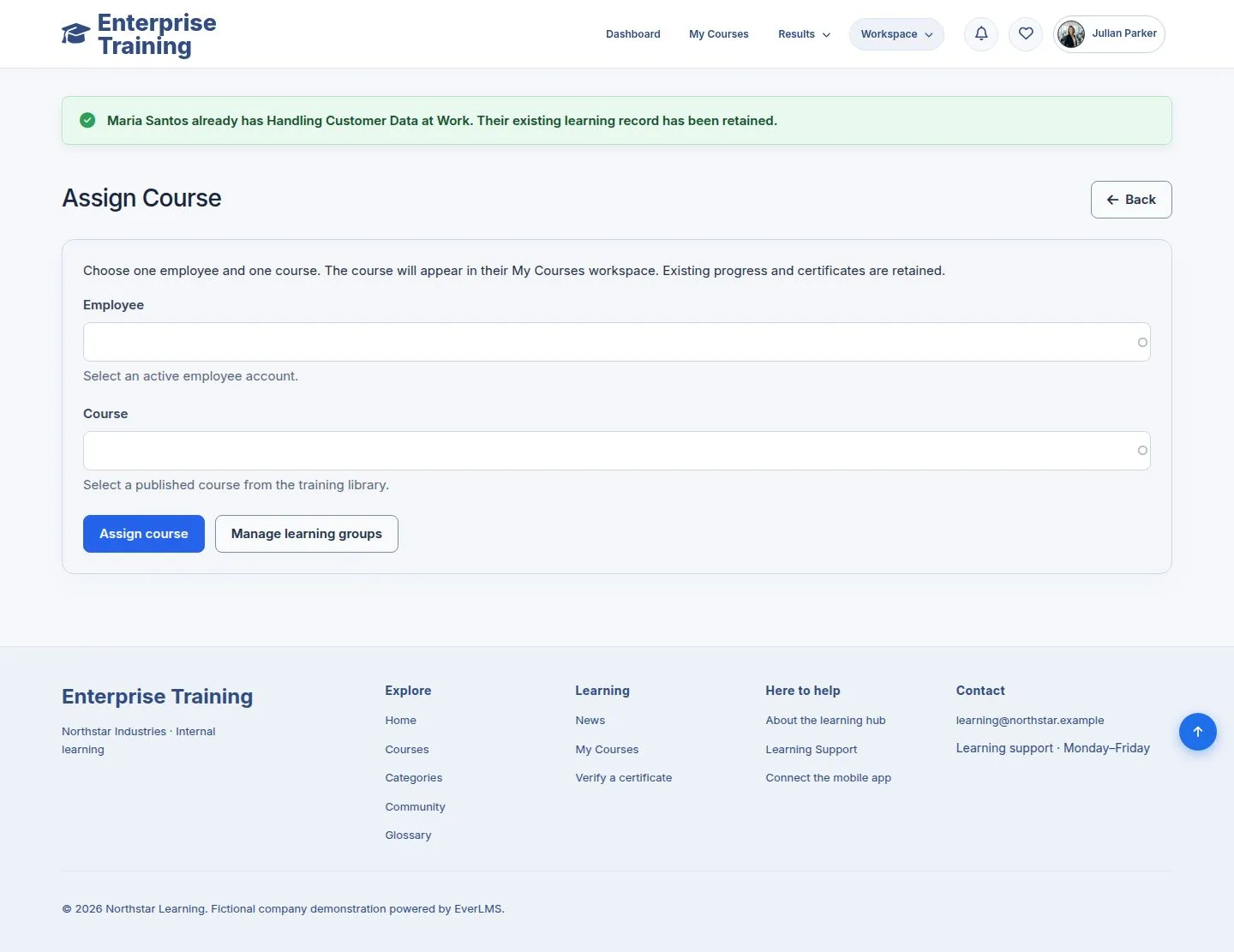
Already assigned

Manager

Already assigned

6Step 6 of 9

  1. Assigning again changes nothing: progress and results stay.

Enlarge, then scroll

Open illustrated screen ↗Full image ↗

Manager · Assign a course06

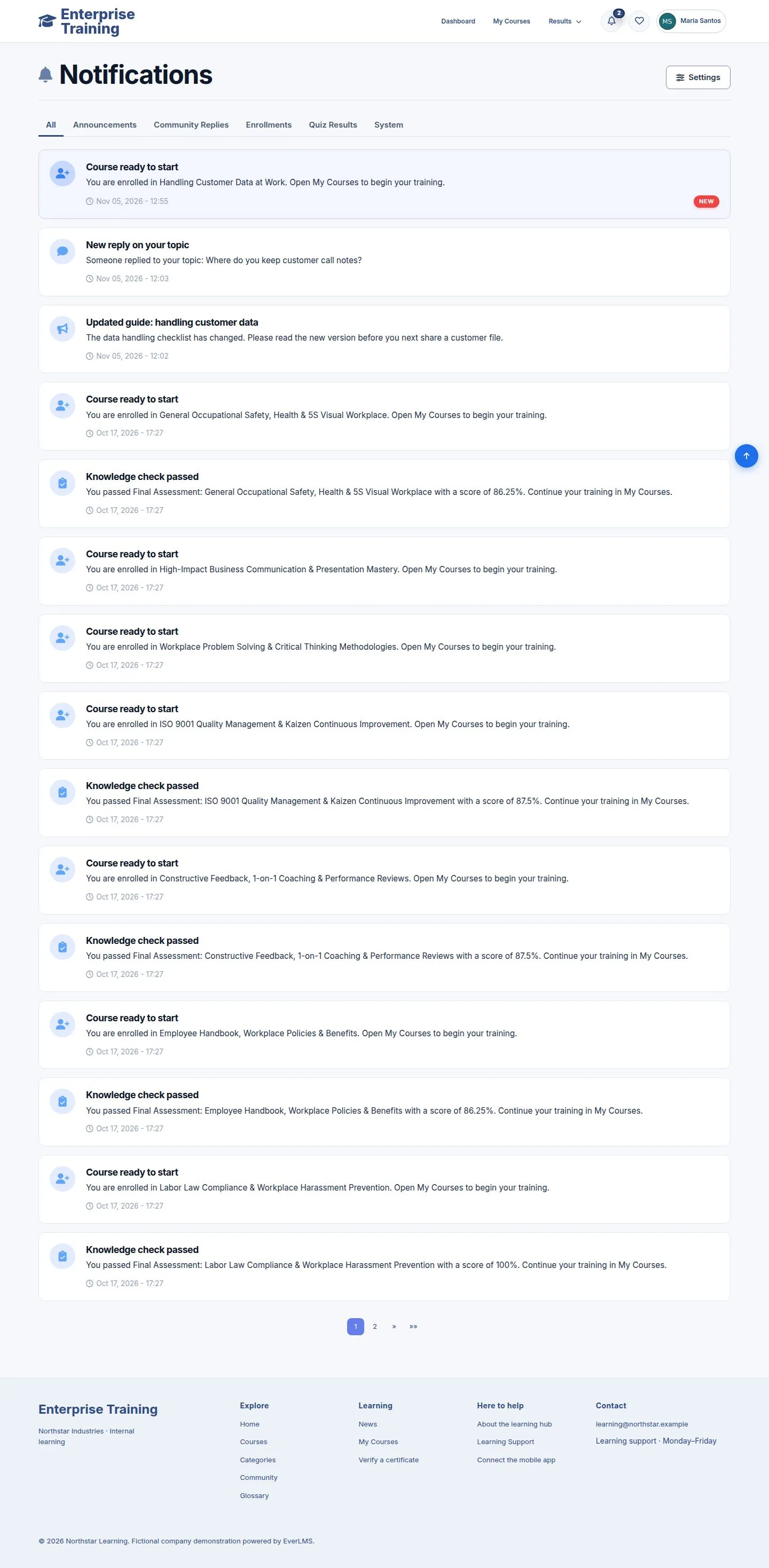
What the employee sees

Employee

What the employee sees

7Step 7 of 9

  1. Course ready to start, linked to My Courses.

Enlarge, then scroll

Open illustrated screen ↗Full image ↗

Manager · Assign a course07

Their progress

Manager

Their progress

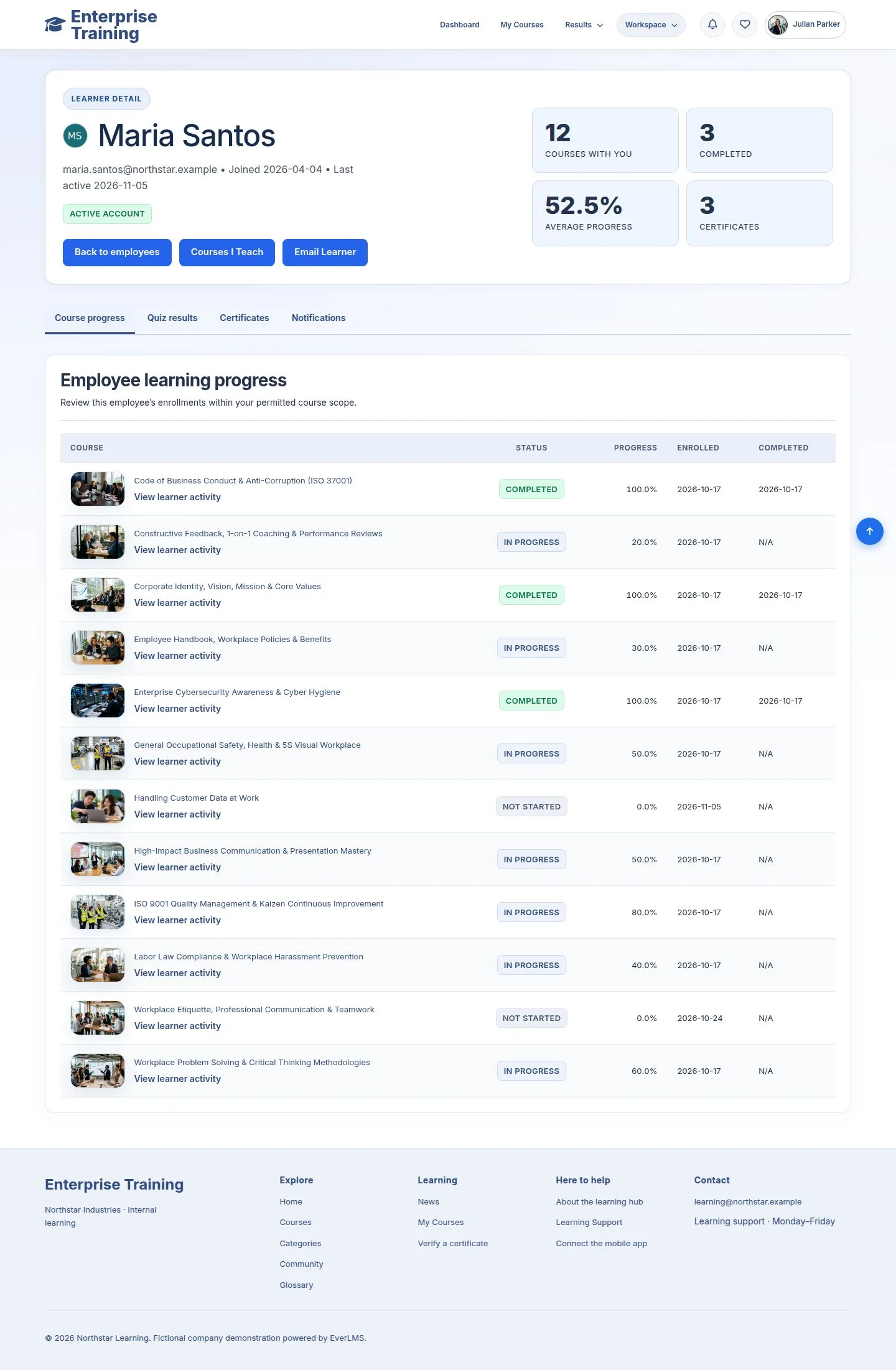
8Step 8 of 9

  1. Manage Employees → the course count opens this page.

Enlarge, then scroll

Open illustrated screen ↗Full image ↗

Manager · Assign a course08

Administrators

Administrator

Administrators

9Step 9 of 9

  1. An administrator can assign to anyone in any branch.

Enlarge, then scroll

Open illustrated screen ↗Full image ↗

Check

The course is in the employee's My Courses; existing records are kept

Manager · Assign a course09
1 / 10
Privacy Terms