Company content

News, FAQ, glossary, banners

  • The Manager role
Manager

News

Manager

News

1Step 1 of 8

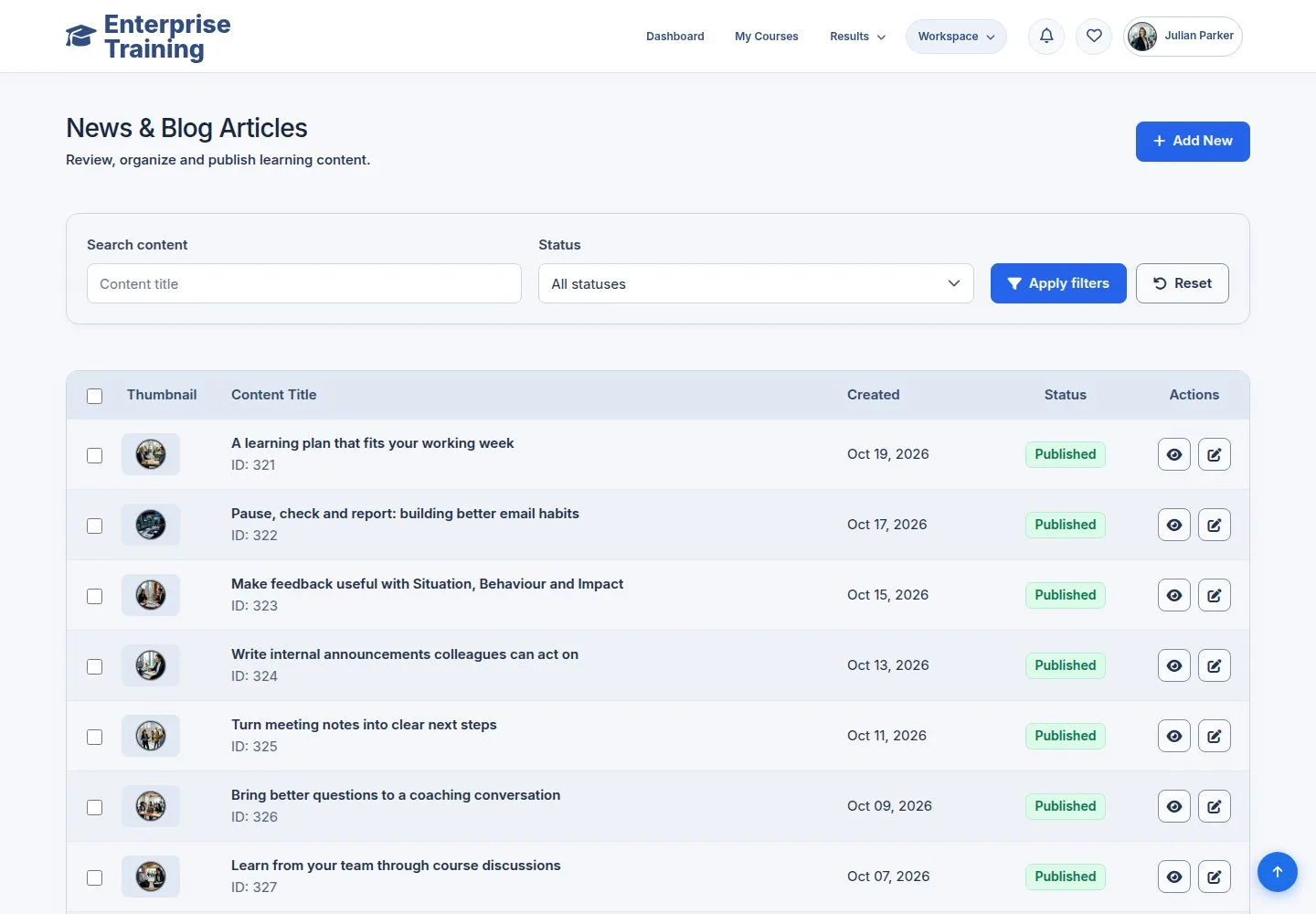
  1. Workspace → Manage News: search, filter, publish or unpublish in bulk.

Enlarge, then scroll

Open illustrated screen ↗Full image ↗

Manager · Company content01

Add an article

Manager

Add an article

2Step 2 of 8

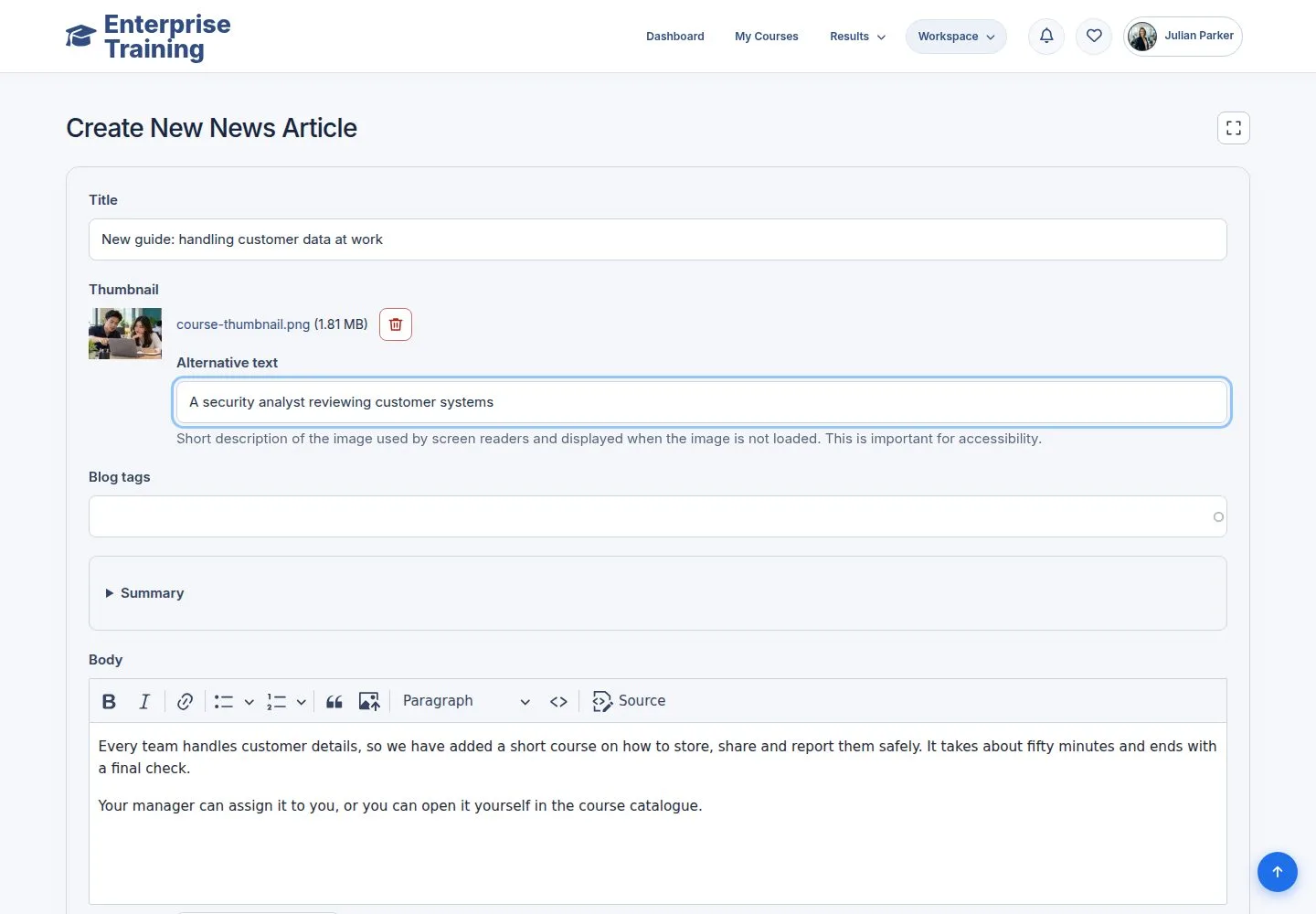
  1. Title, thumbnail with alt text, tags, body.

Enlarge, then scroll

Open illustrated screen ↗Full image ↗

Manager · Company content02

Published

Visitor

Published

3Step 3 of 8

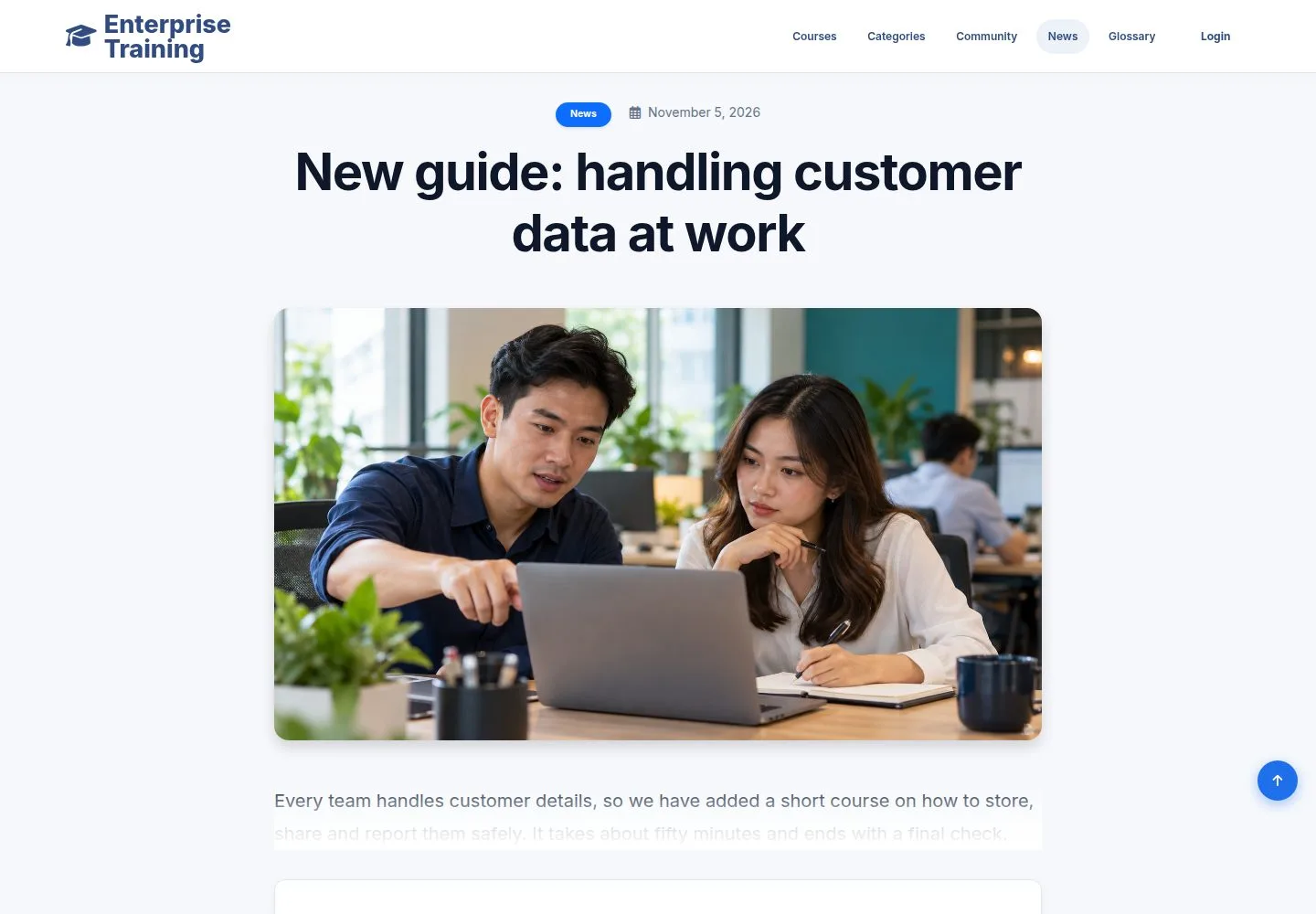
  1. At News, for everyone.

Enlarge, then scroll

Open illustrated screen ↗Full image ↗

Manager · Company content03

FAQ

Manager

FAQ

4Step 4 of 8

  1. Question, answer, global or for a course.

Enlarge, then scroll

Open illustrated screen ↗Full image ↗

Manager · Company content04

On the course page

Visitor

On the course page

5Step 5 of 8

  1. FAQ tab of the course.

Enlarge, then scroll

Open illustrated screen ↗Full image ↗

Manager · Company content05

Glossary

Manager

Glossary

6Step 6 of 8

  1. Term, synonyms, related course, definition.

Enlarge, then scroll

Open illustrated screen ↗Full image ↗

Manager · Company content06

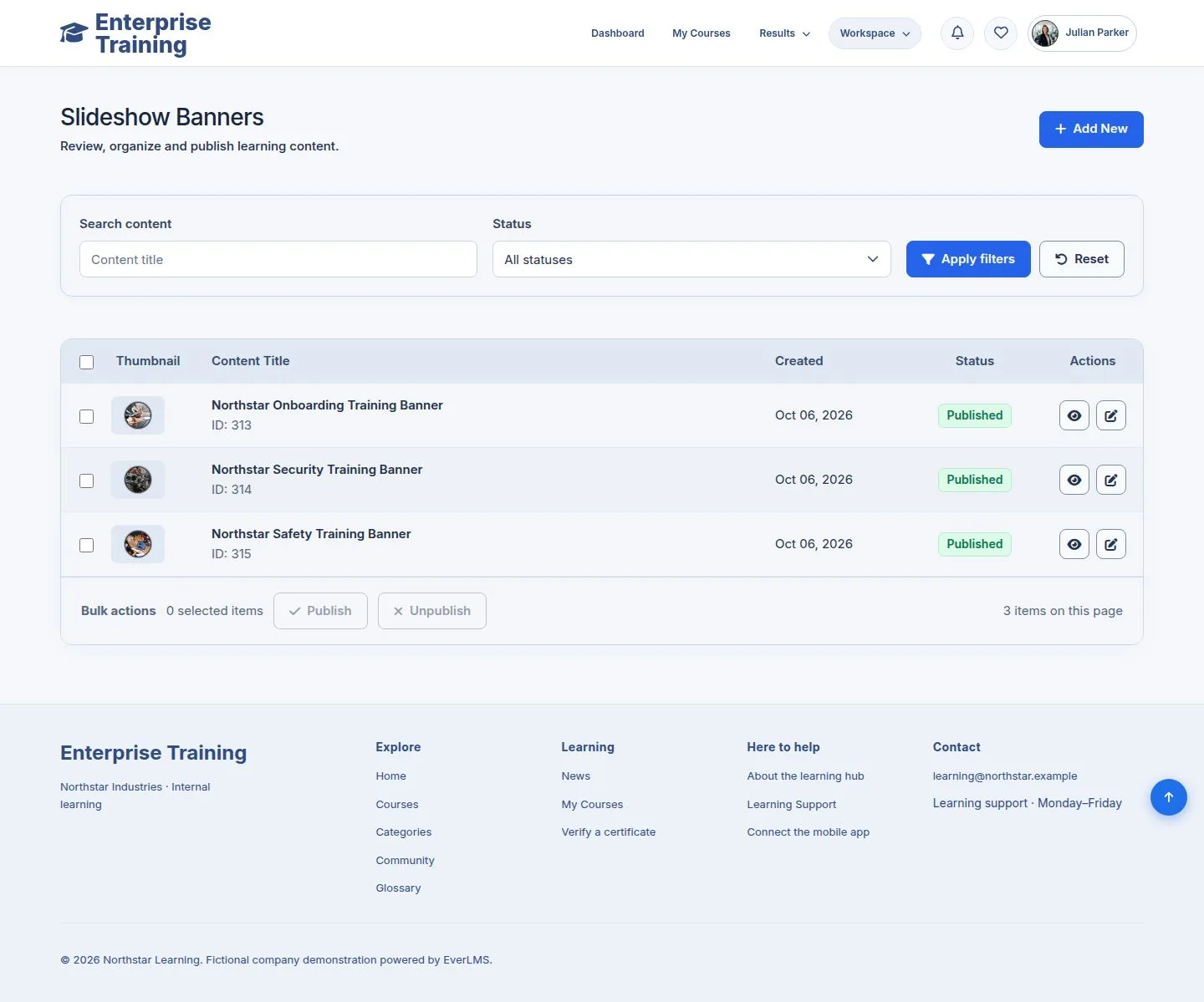
Banners

Manager

Banners

7Step 7 of 8

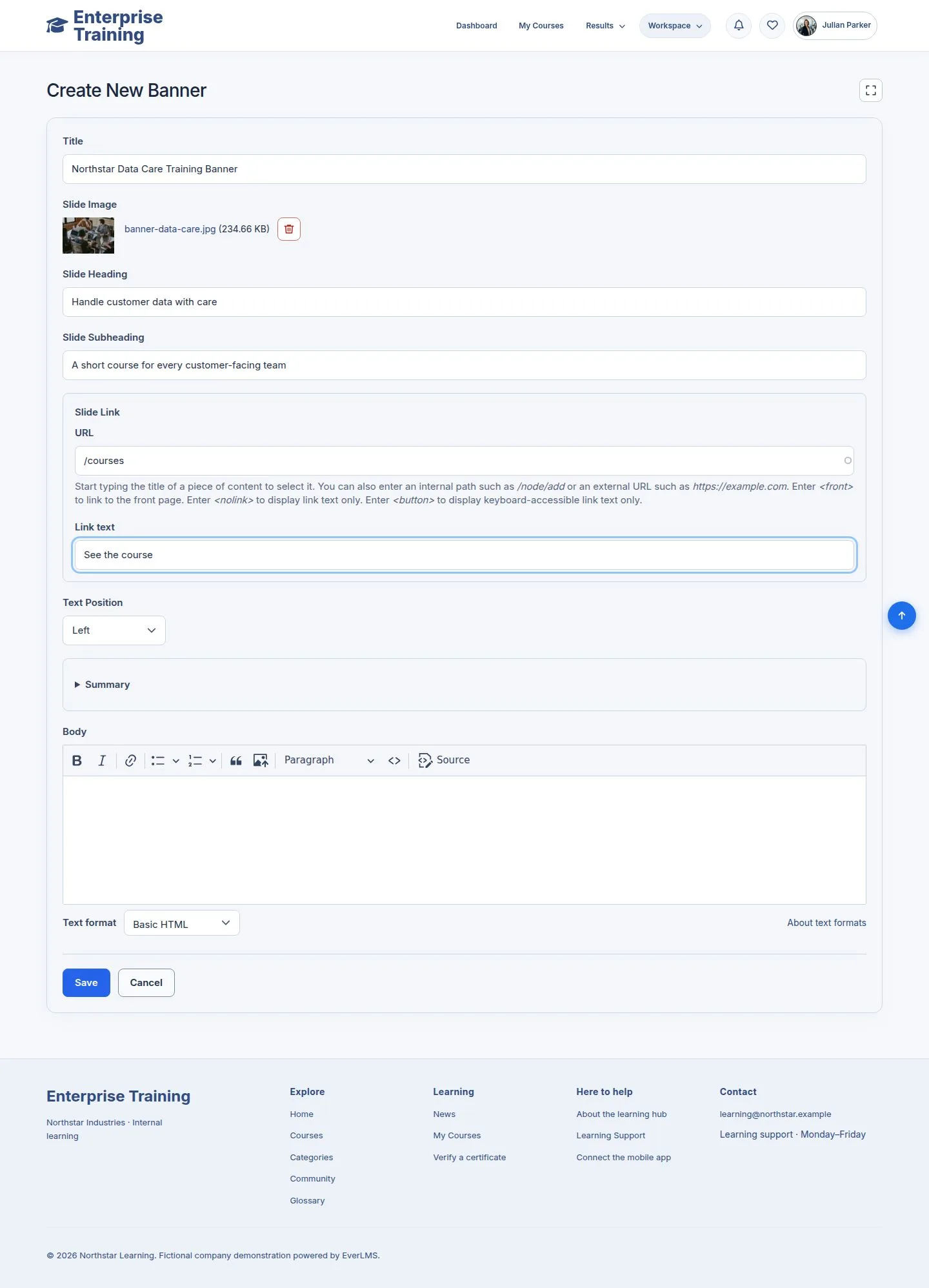
  1. Workspace → Manage Slideshows: picture, heading, link, text position.

Enlarge, then scroll

Open illustrated screen ↗Full image ↗

Manager · Company content07

On the home page

Manager

On the home page

8Step 8 of 8

  1. Unpublish takes a banner out of the rotation.

Enlarge, then scroll

Open illustrated screen ↗Full image ↗

Check

The site says what the company wants it to say

Manager · Company content08
1 / 9
Privacy Terms