Take a quiz

Eight question types, attempts, written answers

  • Enrolled in the course
Employee
The quiz lesson

Employee

The quiz lesson

1Step 1 of 7

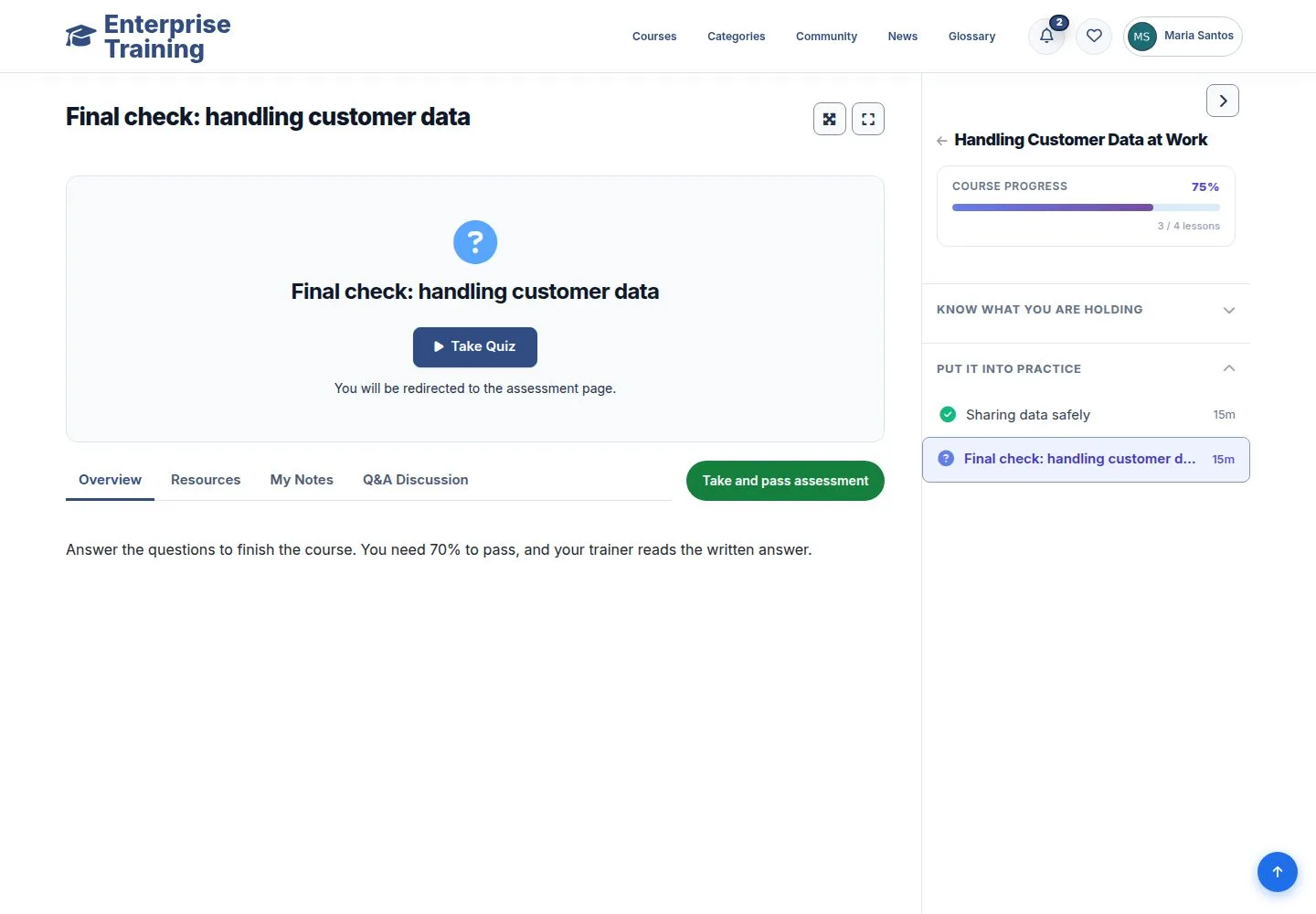
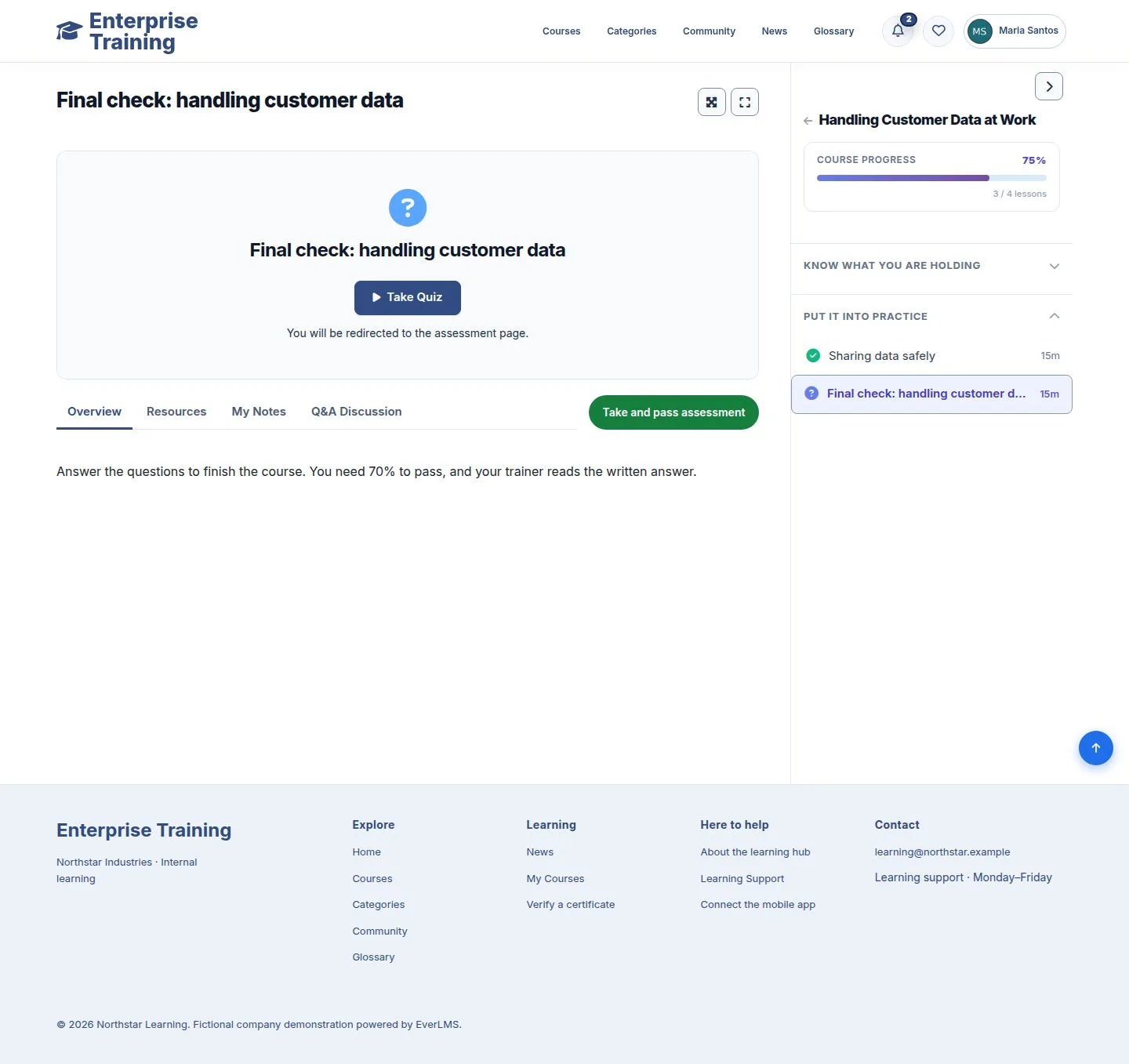
  1. Take Quiz opens the assessment.
  2. A quiz lesson has no Mark Complete: it counts when the quiz is passed.

Enlarge, then scroll

Open illustrated screen ↗Full image ↗

Employee · Take a quiz01

The quiz page

Employee

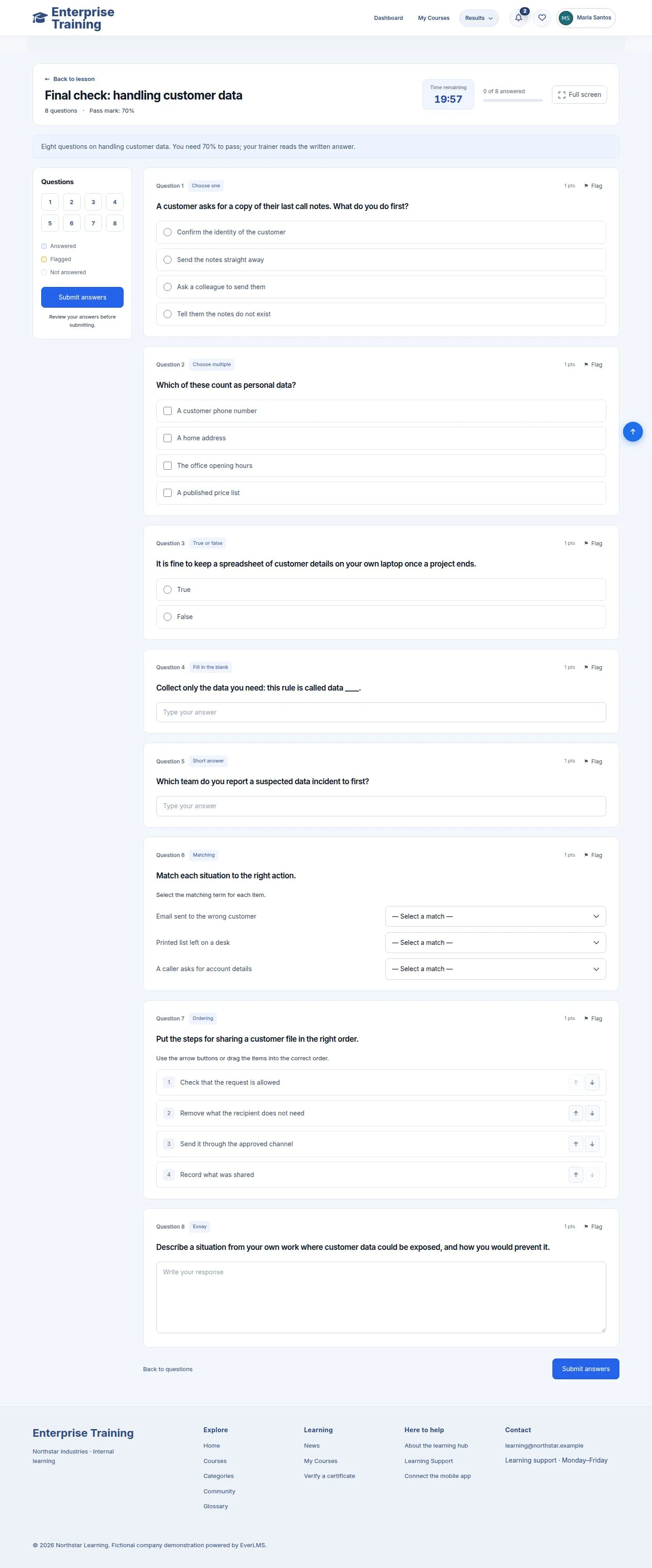
The quiz page

2Step 2 of 7

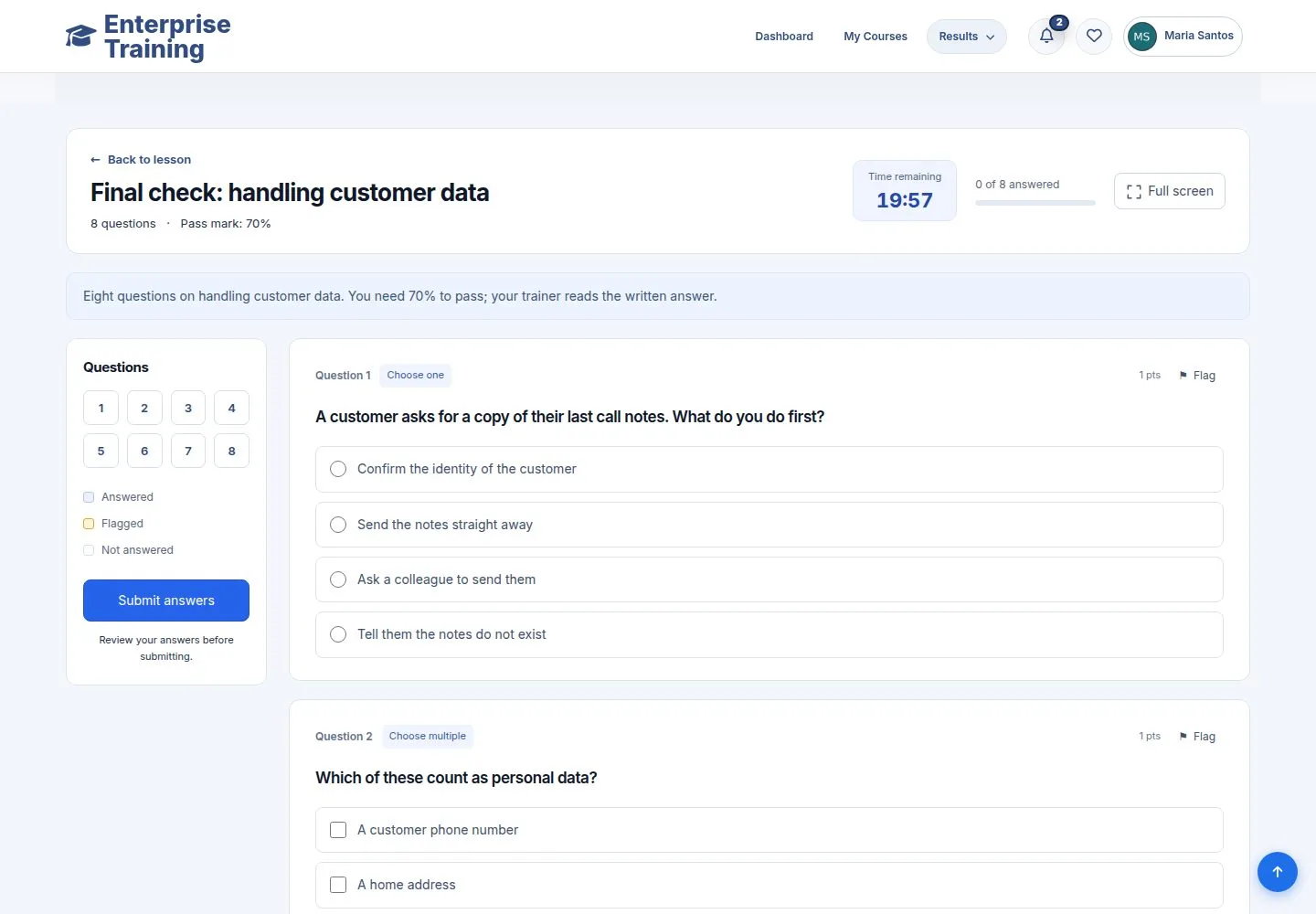
  1. Instructions, time left, pass mark.
  2. The panel on the left jumps to a question and shows what is answered.

Enlarge, then scroll

Open illustrated screen ↗Full image ↗

Employee · Take a quiz02

Answering

Employee

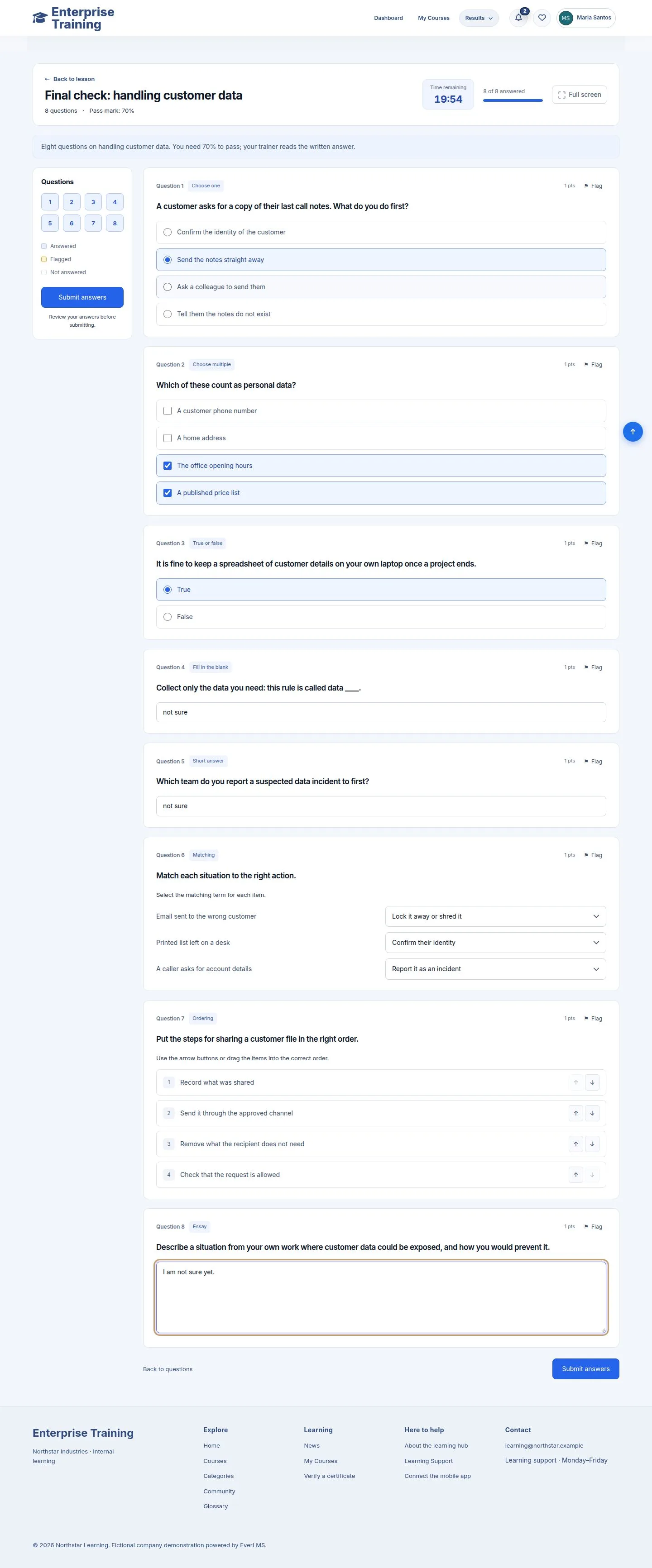
Answering

3Step 3 of 7

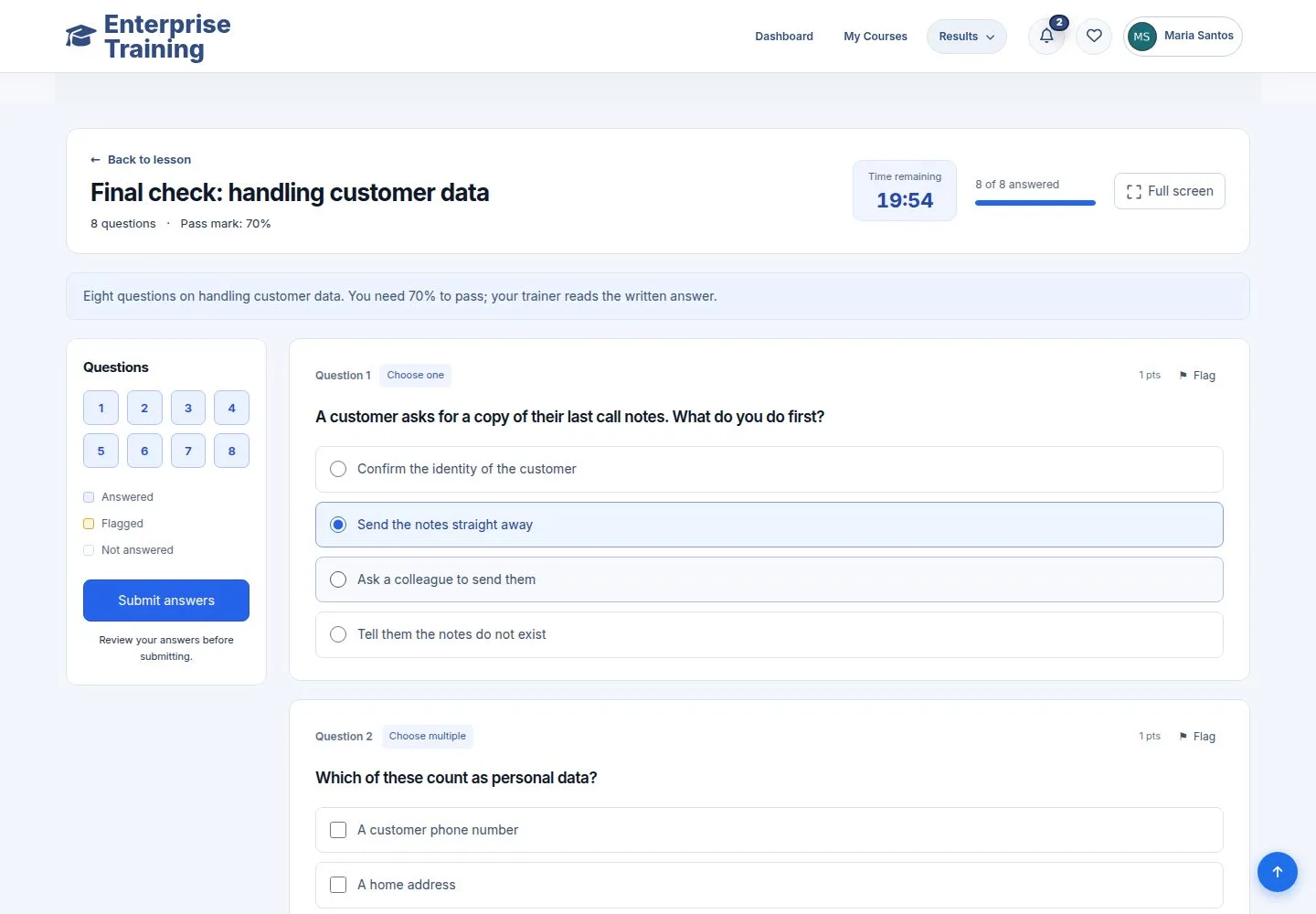
  1. Single and multiple choice, true or false, fill in the blank, short answer, matching, ordering, essay.
  2. Flag a question to come back to it.

Enlarge, then scroll

Open illustrated screen ↗Full image ↗

Employee · Take a quiz03

Submit

Employee

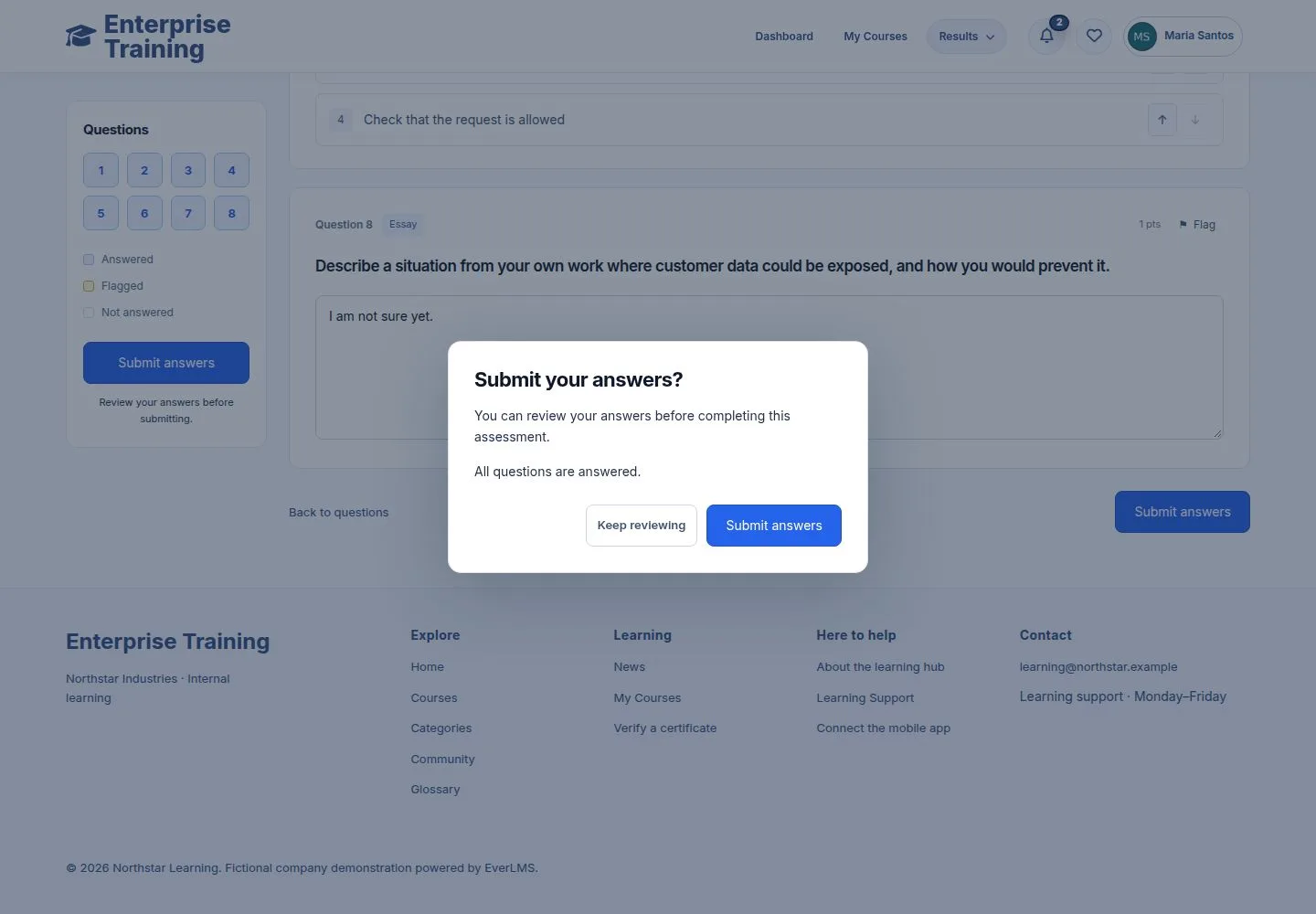
Submit

4Step 4 of 7

  1. Submit answers asks you to confirm and says what is unanswered.

Open illustrated screen ↗Full image ↗

Employee · Take a quiz04

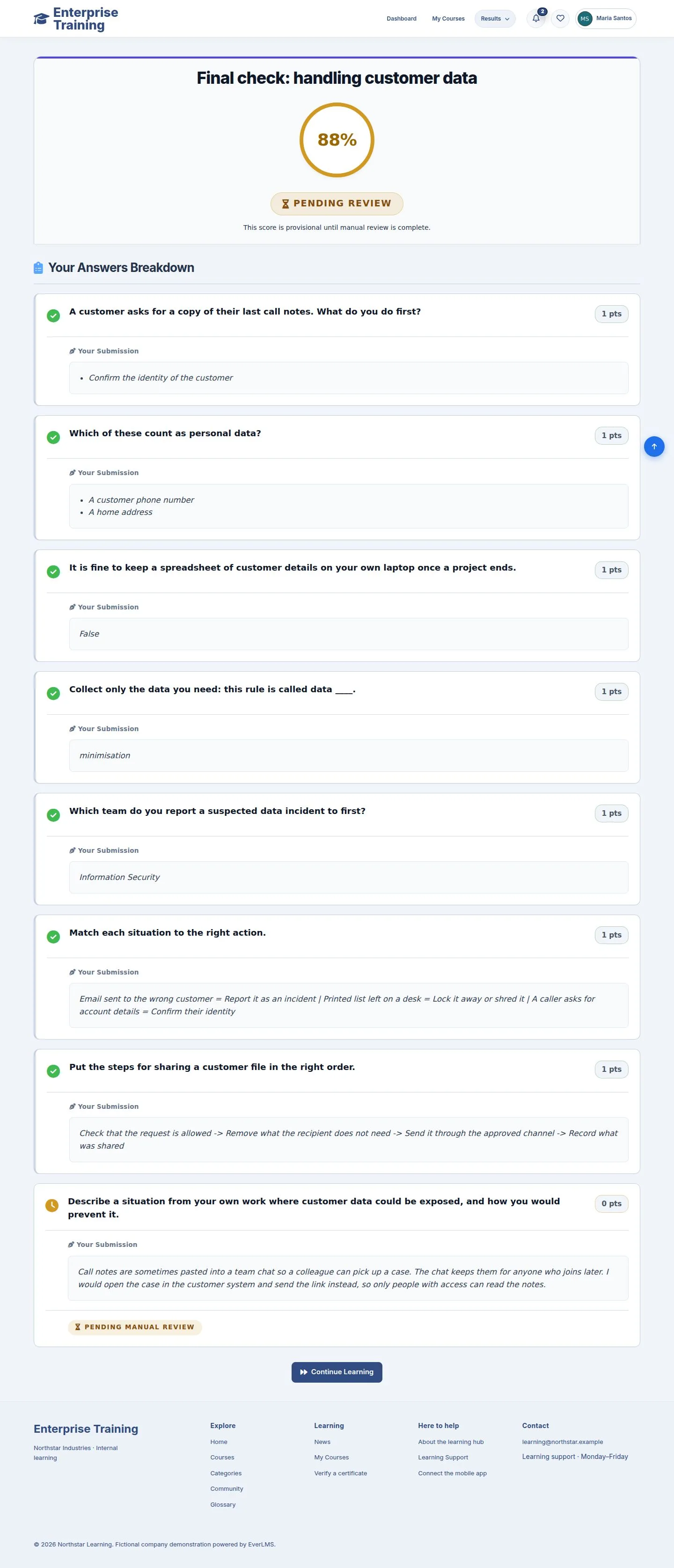
Waiting for a written answer

Employee

Waiting for a written answer

5Step 5 of 7

  1. A quiz with an essay shows Pending review and a provisional score.
  2. Your answers are listed, right or wrong.

The number of attempts and the pass mark are set per quiz.

Enlarge, then scroll

Open illustrated screen ↗Full image ↗

Employee · Take a quiz05

My Quiz Results

Employee

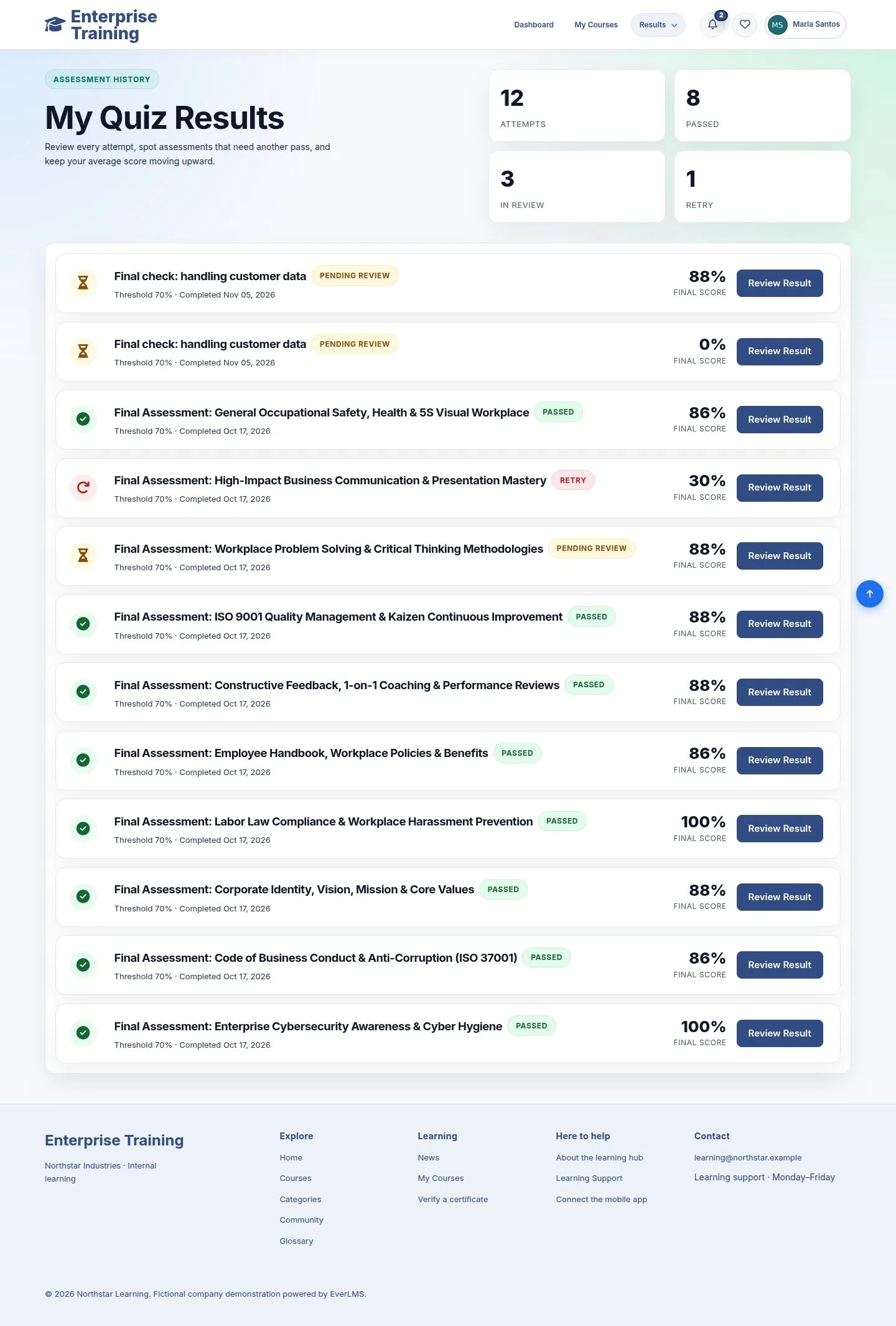
My Quiz Results

6Step 6 of 7

  1. Every attempt with score and result.
  2. Review Result opens it.

Enlarge, then scroll

Open illustrated screen ↗Full image ↗

Employee · Take a quiz06

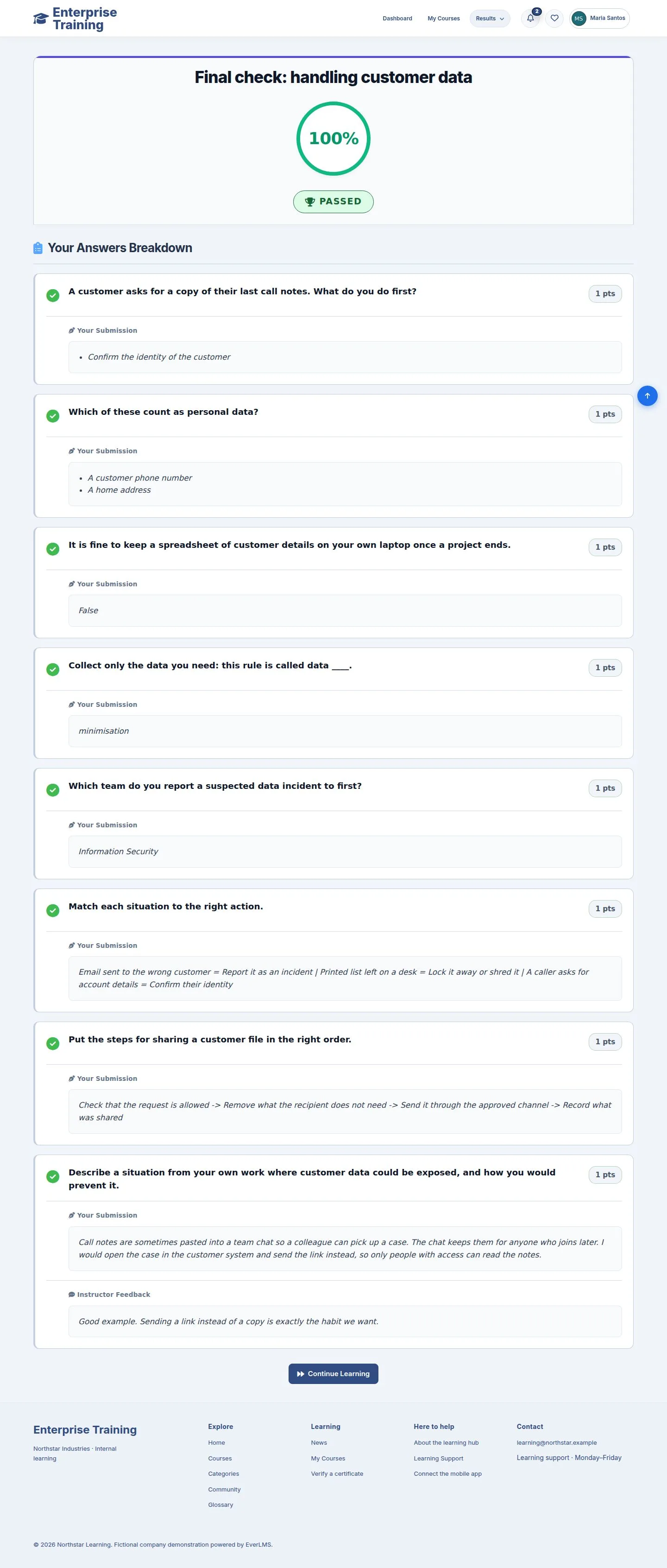
Graded

Employee

Graded

7Step 7 of 7

  1. After grading: Passed or Failed, the score, and any feedback.
  2. A pass completes the lesson; the last one completes the course.

Enlarge, then scroll

Open illustrated screen ↗Full image ↗

Check

The result is in My Quiz Results; a written answer waits for the trainer

Employee · Take a quiz07
1 / 8
Privacy Terms