Create a course

Chapters, lessons, types, draft and publish

  • Pictures and files ready
  • A quiz if the course has one
Manager
Course Management

Manager

Course Management

1Step 1 of 10

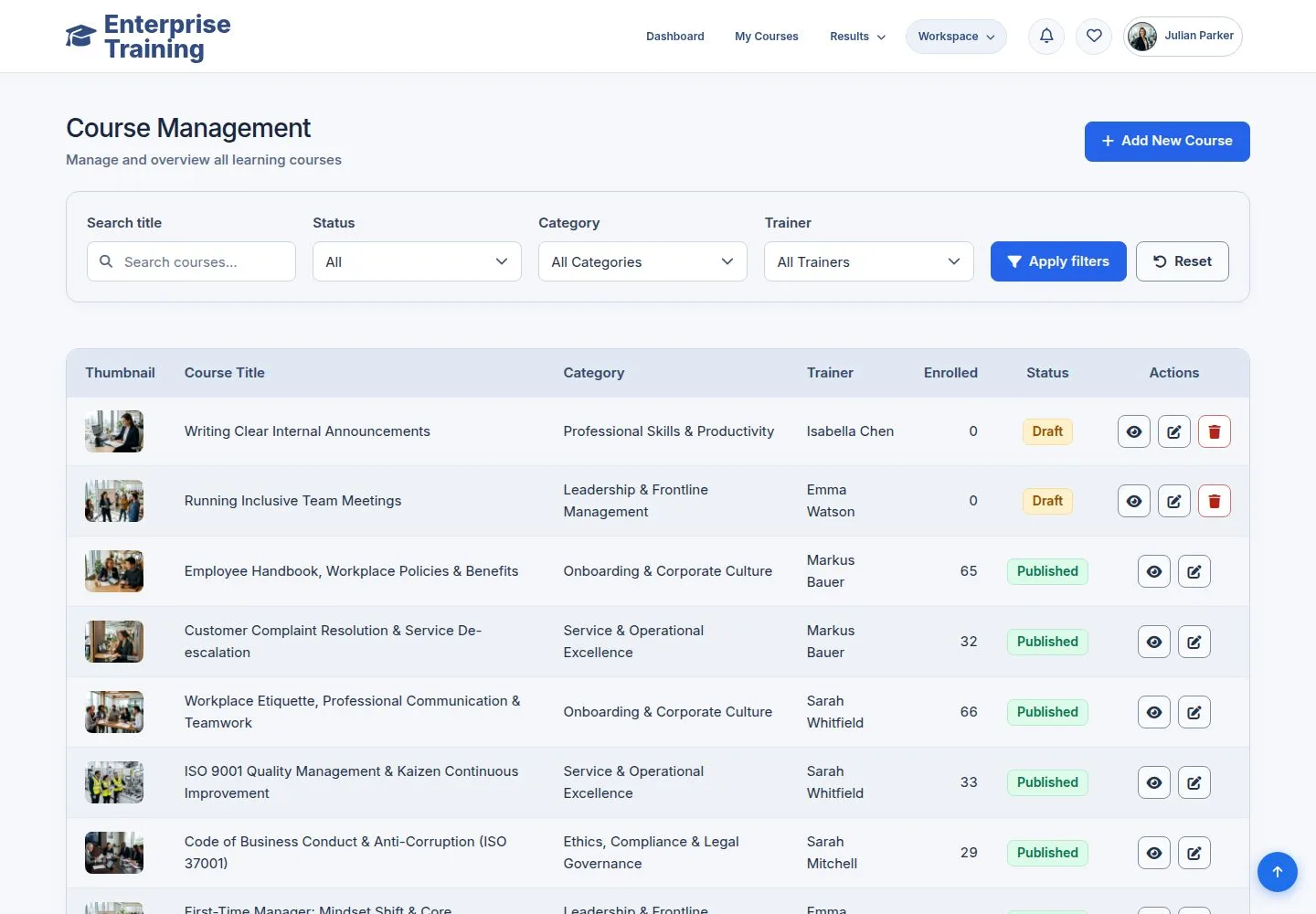
  1. Workspace → Manage Courses.
  2. Filter by status, category, trainer.

Enlarge, then scroll

Open illustrated screen ↗Full image ↗

Manager · Create a course01

Info

Manager

Info

2Step 2 of 10

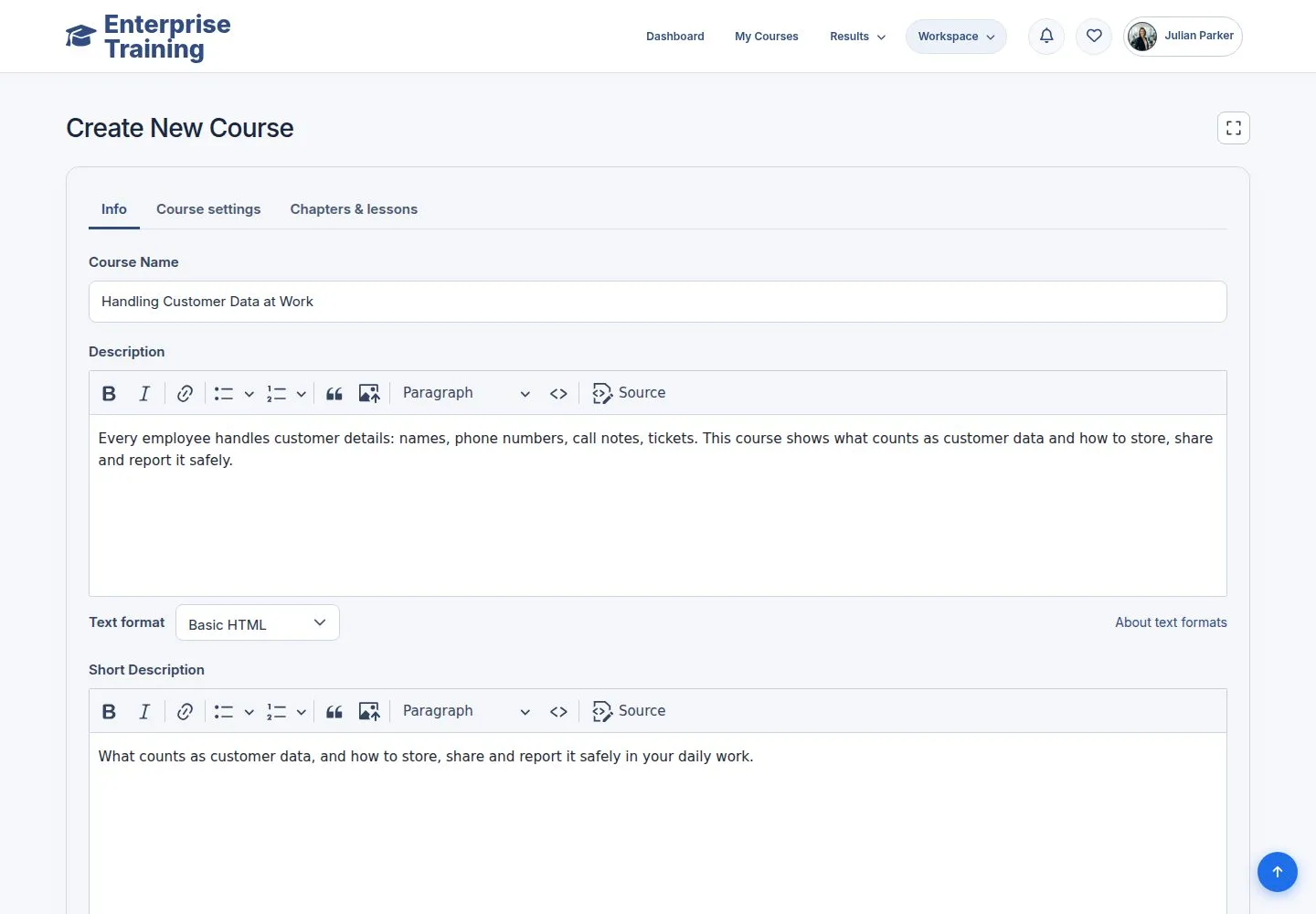
  1. Add New Course: name, descriptions, thumbnail and banner with alt text, certificate template.

Enlarge, then scroll

Open illustrated screen ↗Full image ↗

Manager · Create a course02

Course settings

Manager

Course settings

3Step 3 of 10

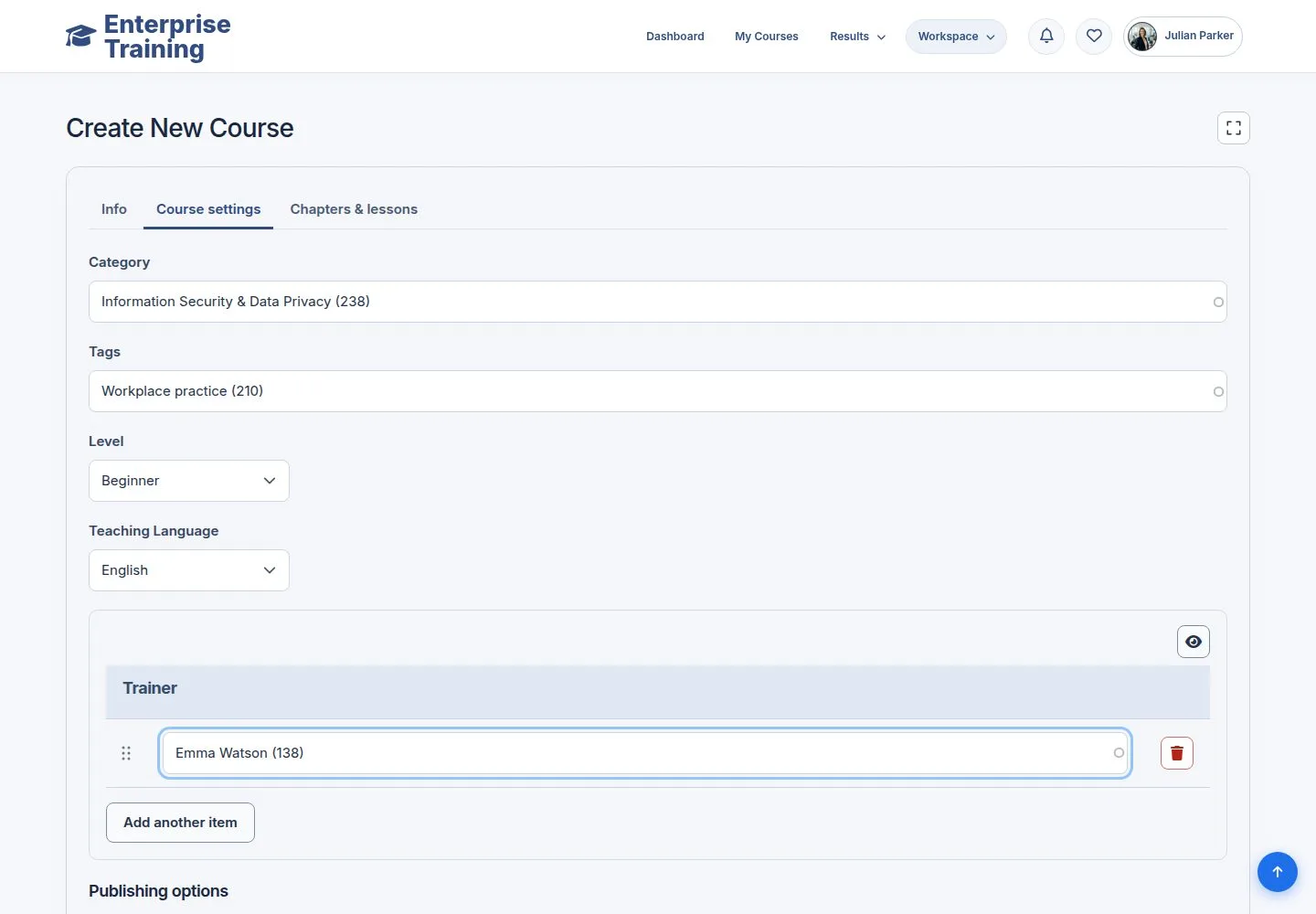
  1. Category, tags, level, language, trainers, Published.

Leave Published off to keep working on a draft.

Enlarge, then scroll

Open illustrated screen ↗Full image ↗

Manager · Create a course03

A chapter and a lesson

Manager

A chapter and a lesson

4Step 4 of 10

  1. Add new chapter, then Add new lesson: name, content, type, minutes.

Enlarge, then scroll

Open illustrated screen ↗Full image ↗

Manager · Create a course04

A PDF lesson

Manager

A PDF lesson

5Step 5 of 10

  1. Attachments: pdf, Office, zip and audio files.

Enlarge, then scroll

Open illustrated screen ↗Full image ↗

Manager · Create a course05

A quiz lesson

Manager

A quiz lesson

6Step 6 of 10

  1. Choose the quiz by name.

Enlarge, then scroll

Open illustrated screen ↗Full image ↗

Manager · Create a course06

The curriculum

Manager

The curriculum

7Step 7 of 10

  1. Drag chapters to reorder; edit or remove a row.

Enlarge, then scroll

Open illustrated screen ↗Full image ↗

Manager · Create a course07

Publish

Manager

Publish

8Step 8 of 10

  1. Tick Published, Save course.
  2. The course page opens to everyone and the course joins the catalogue.

Enlarge, then scroll

Open illustrated screen ↗Full image ↗

Manager · Create a course08

Trainers

Trainer

Trainers

9Step 9 of 10

  1. A trainer edits the courses they own or are assigned to.

Enlarge, then scroll

Open illustrated screen ↗Full image ↗

Manager · Create a course09

A course with history

Manager

A course with history

10Step 10 of 10

  1. A course with learners has no Delete.
  2. Remove it from the catalogue by unpublishing; records stay.

Enlarge, then scroll

Open illustrated screen ↗Full image ↗

Check

The course is published and appears in the catalogue

Manager · Create a course10
1 / 11
Privacy Terms