Certificates

Issued on completion, public check, revoke

  • Every lesson done and every quiz passed
Employee
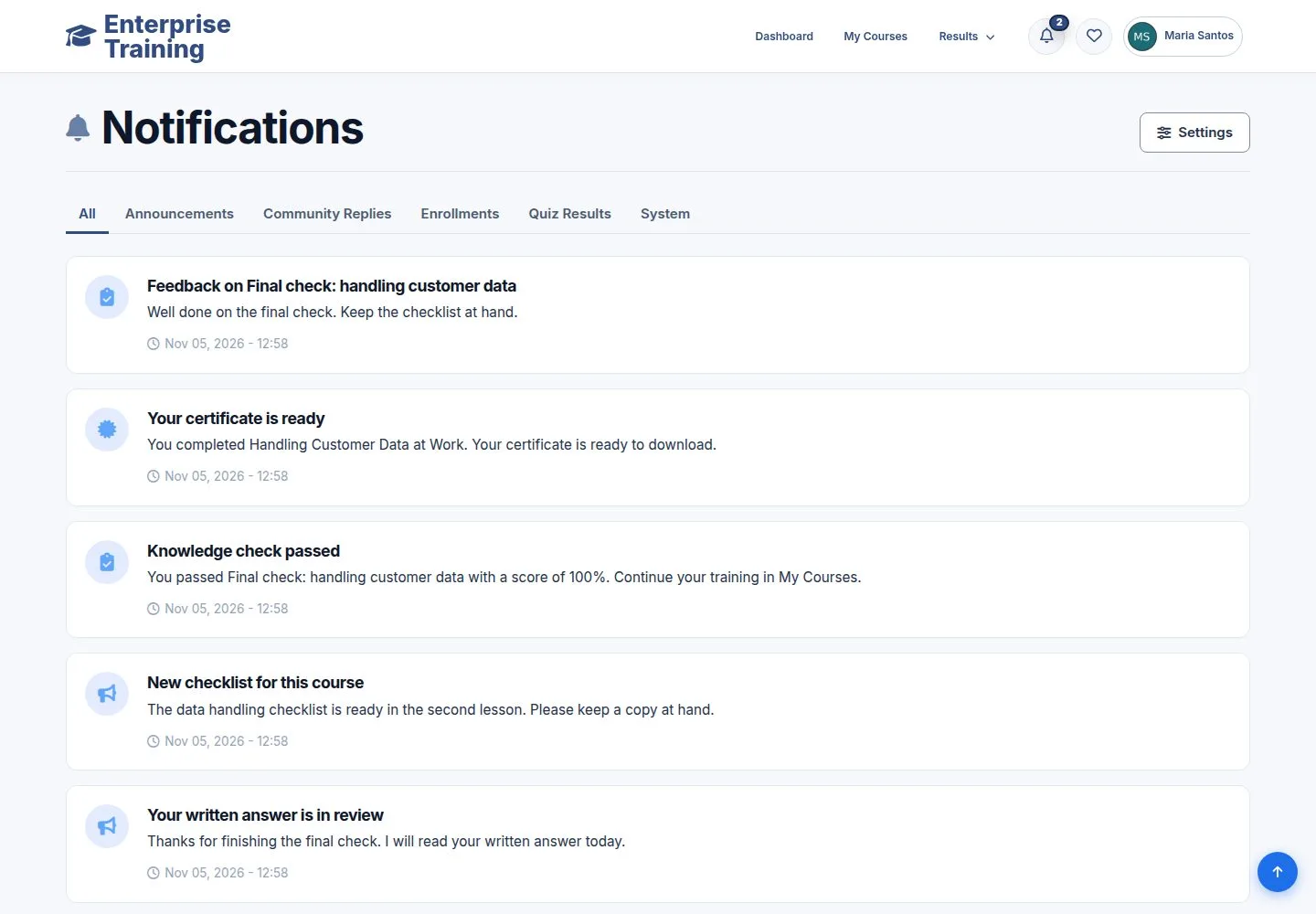
You are told

Employee

You are told

1Step 1 of 12

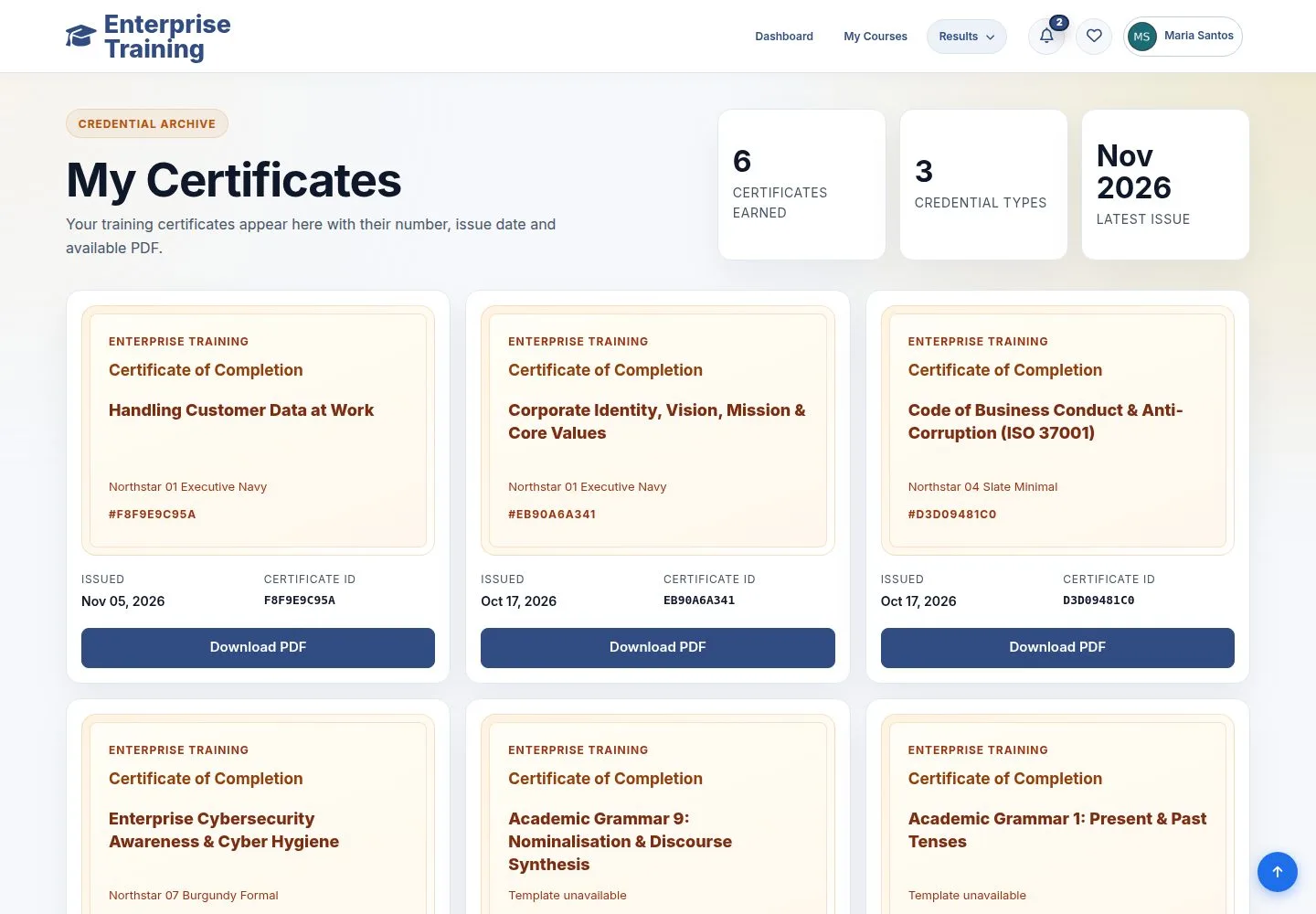
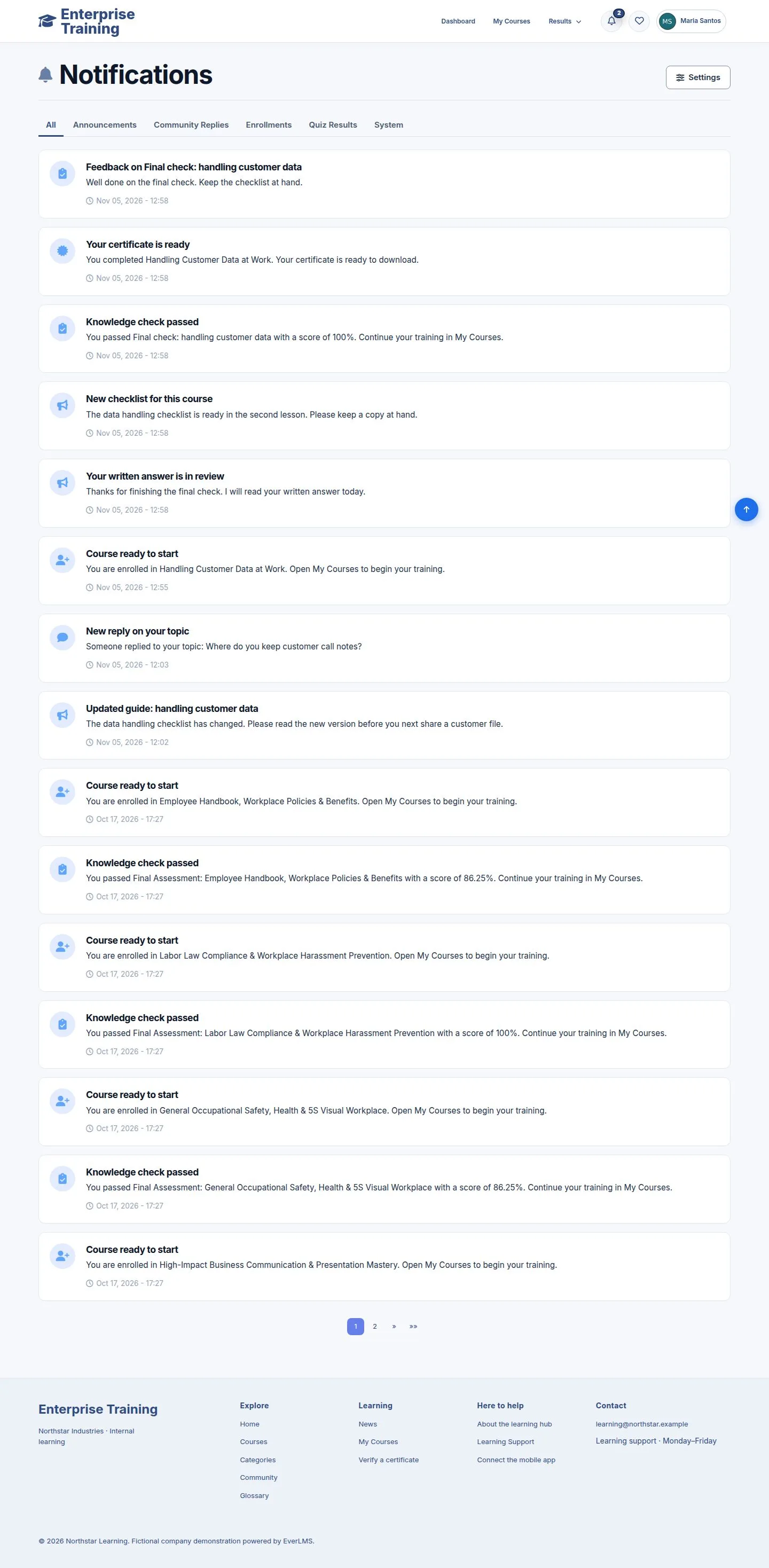
  1. Your certificate is ready appears when the course is completed.

Enlarge, then scroll

Open illustrated screen ↗Full image ↗

Employee · Certificates01

My Certificates

Employee

My Certificates

2Step 2 of 12

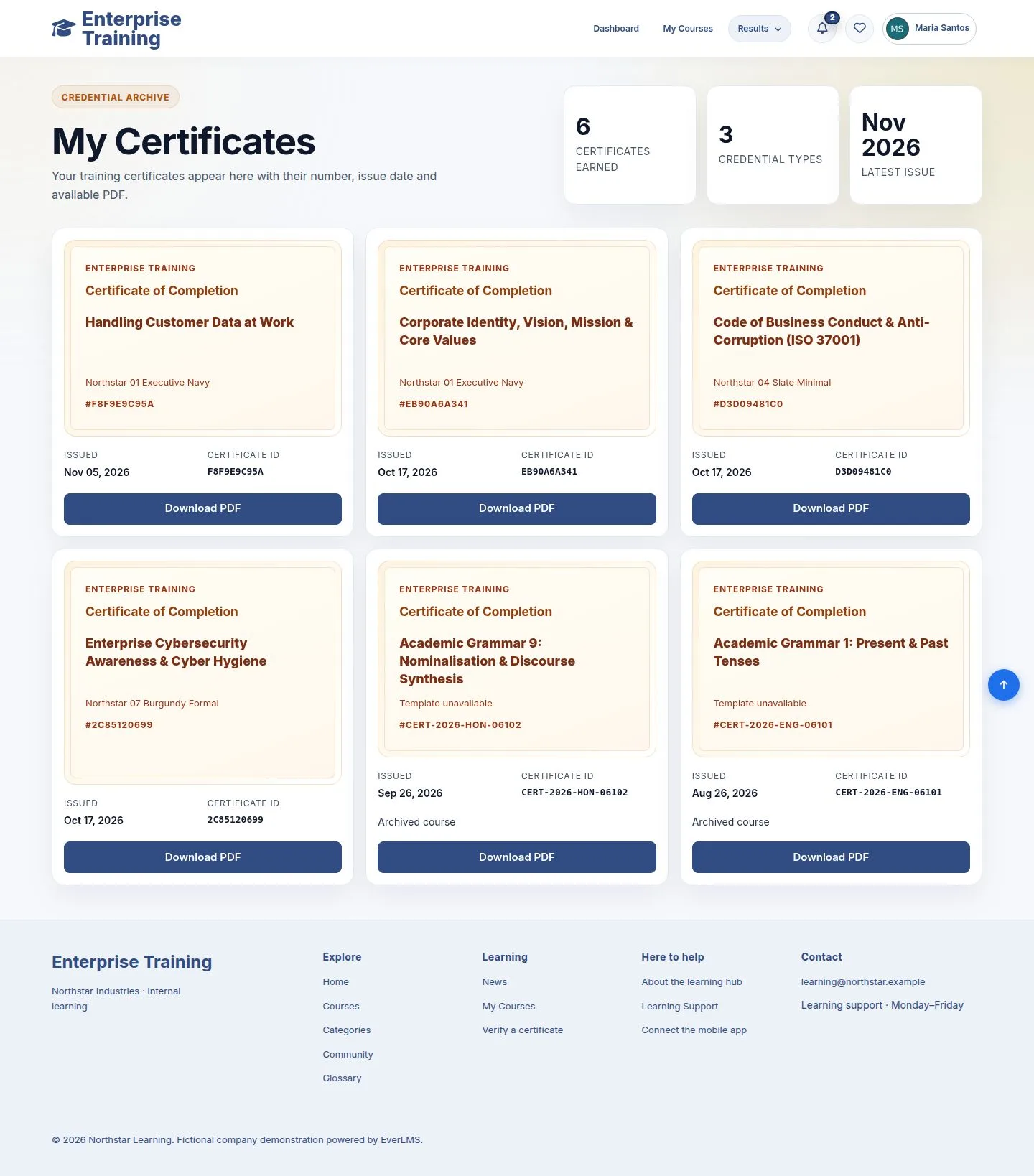
  1. Each certificate with its issue date and code.
  2. Certificates of courses later archived stay here.

Enlarge, then scroll

Open illustrated screen ↗Full image ↗

Employee · Certificates02

The PDF

Employee

The PDF

3Step 3 of 12

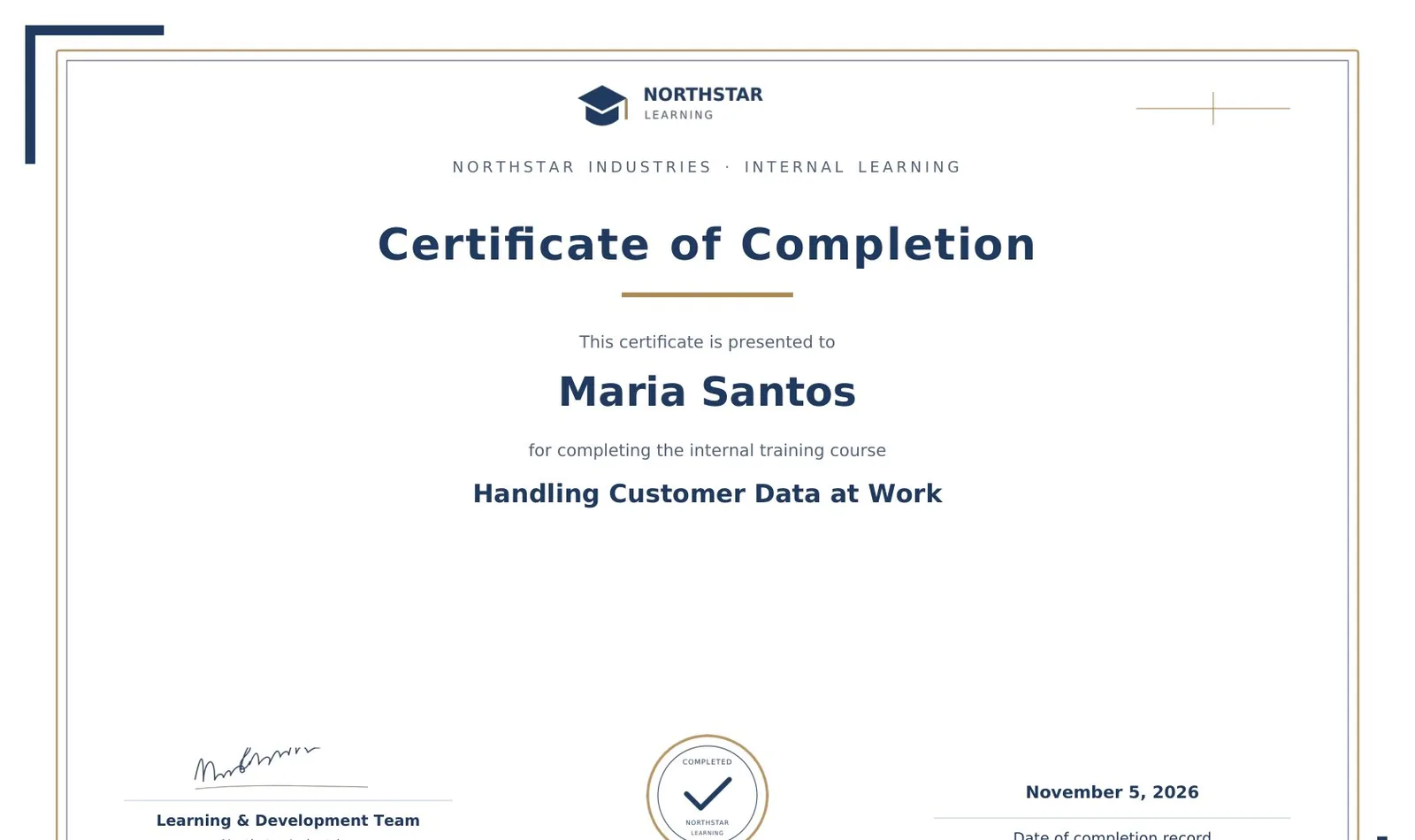
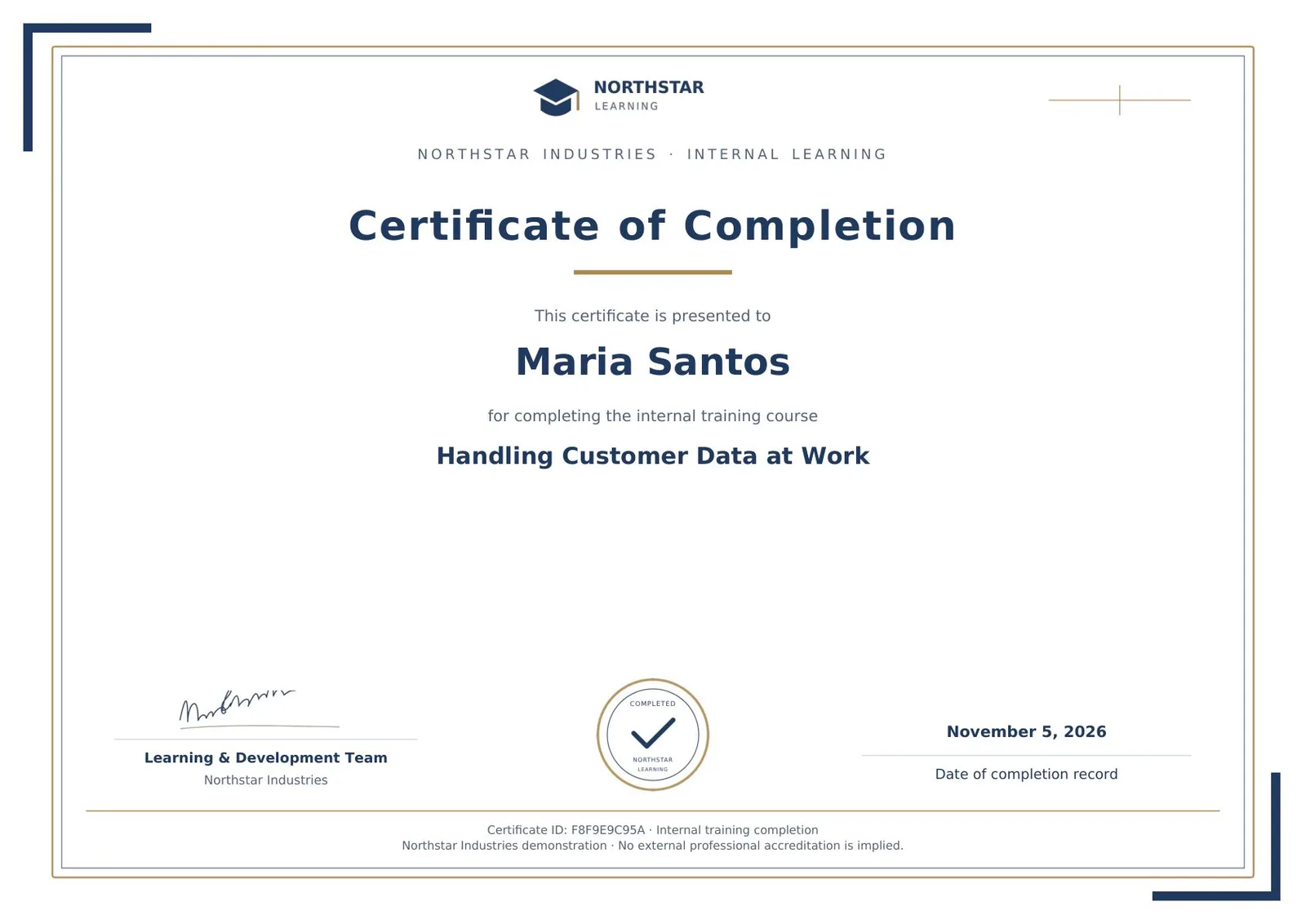
  1. Download PDF opens the certificate with its code.

Only you, the trainers of the course and a manager of your branch can open it.

Enlarge, then scroll

Open illustrated screen ↗Full image ↗

Employee · Certificates03

Check a code

Visitor

Check a code

4Step 4 of 12

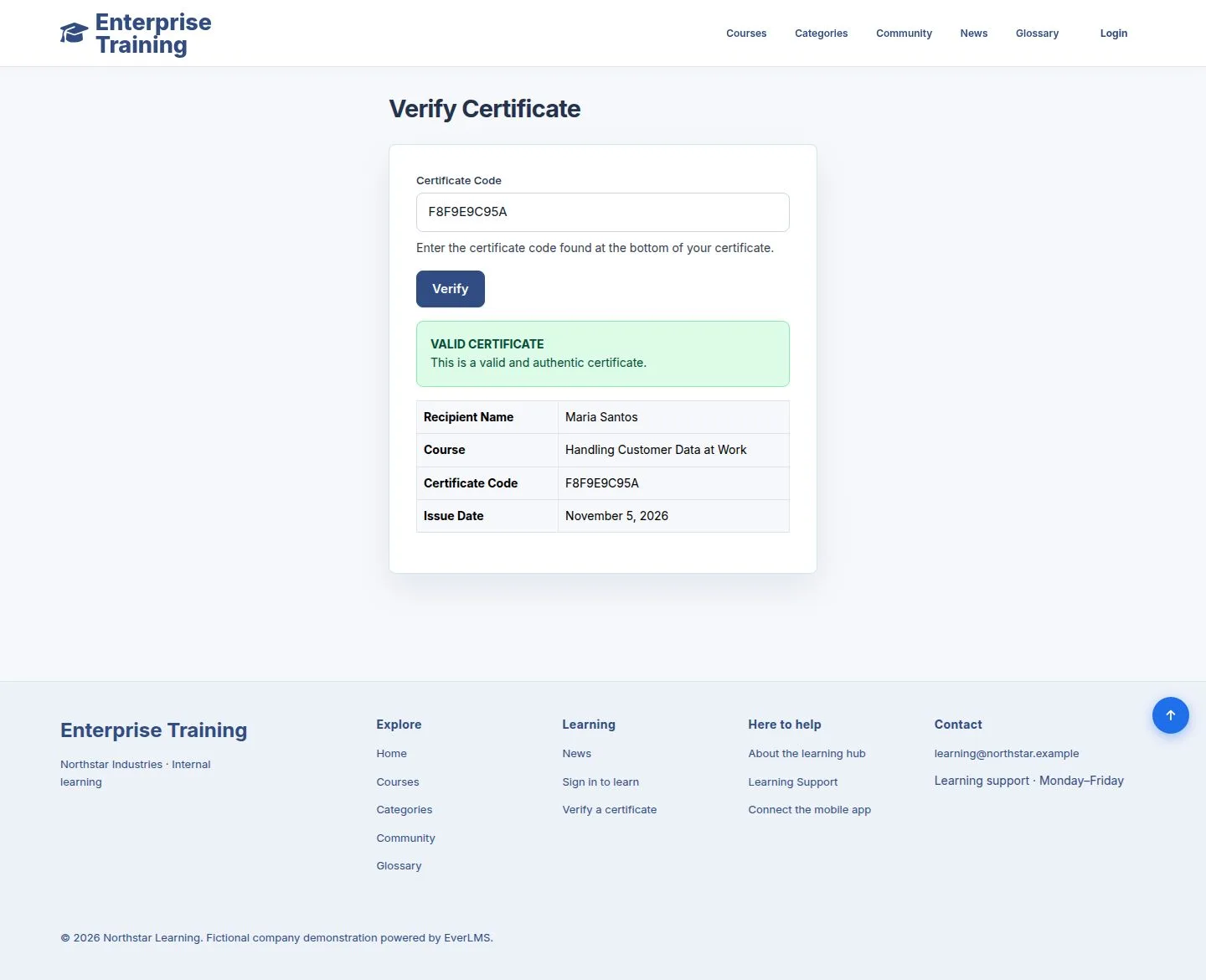
  1. Verify a certificate, in the footer of every page.
  2. No account is needed.

Open illustrated screen ↗Full image ↗

Employee · Certificates04

Valid

Visitor

Valid

5Step 5 of 12

  1. Recipient, course and date.

Enlarge, then scroll

Open illustrated screen ↗Full image ↗

Employee · Certificates05

Not found

Visitor

Not found

6Step 6 of 12

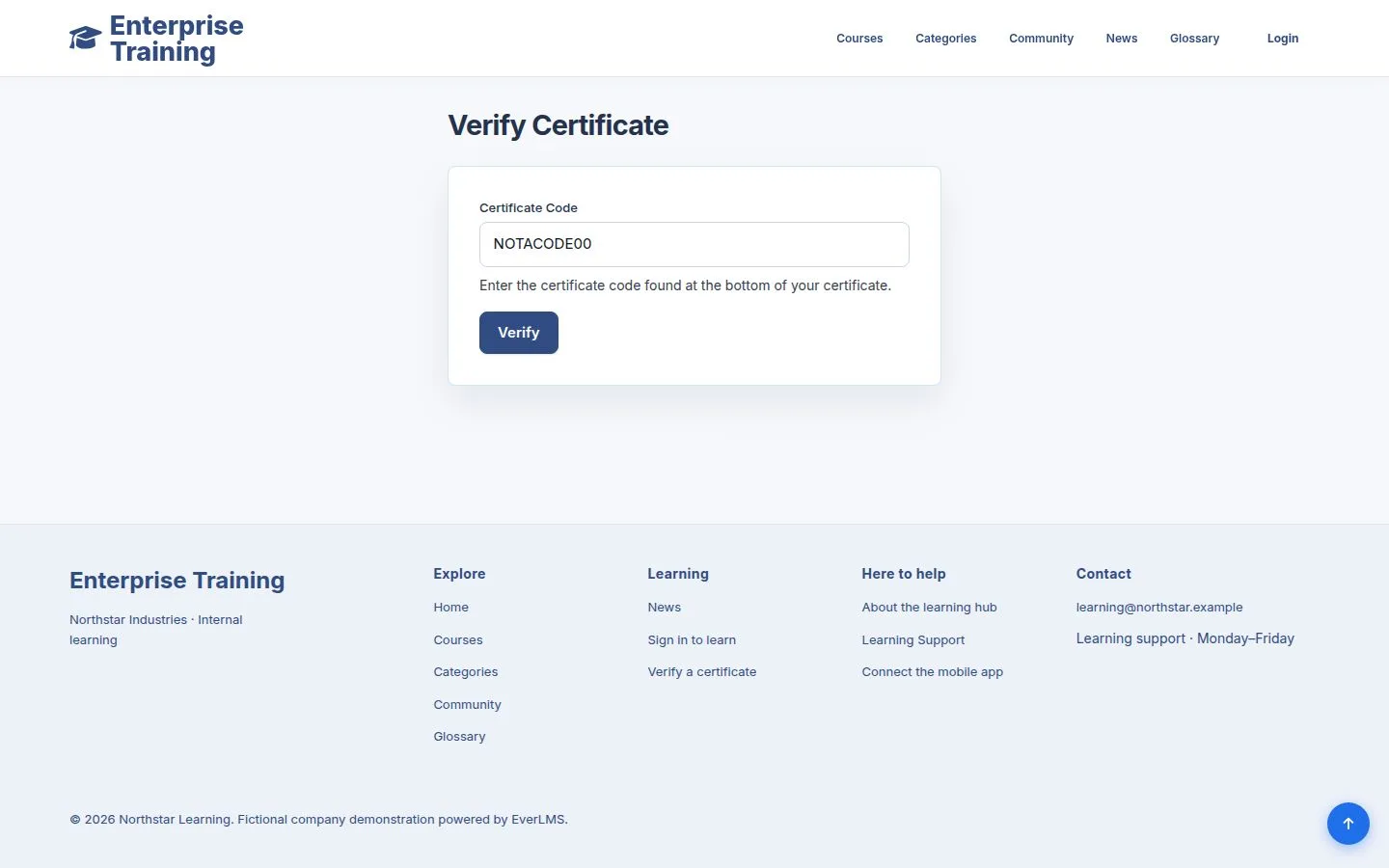
  1. A code that does not exist is reported as such.

Open illustrated screen ↗Full image ↗

Employee · Certificates06

Manage certificates

Manager

Manage certificates

7Step 7 of 12

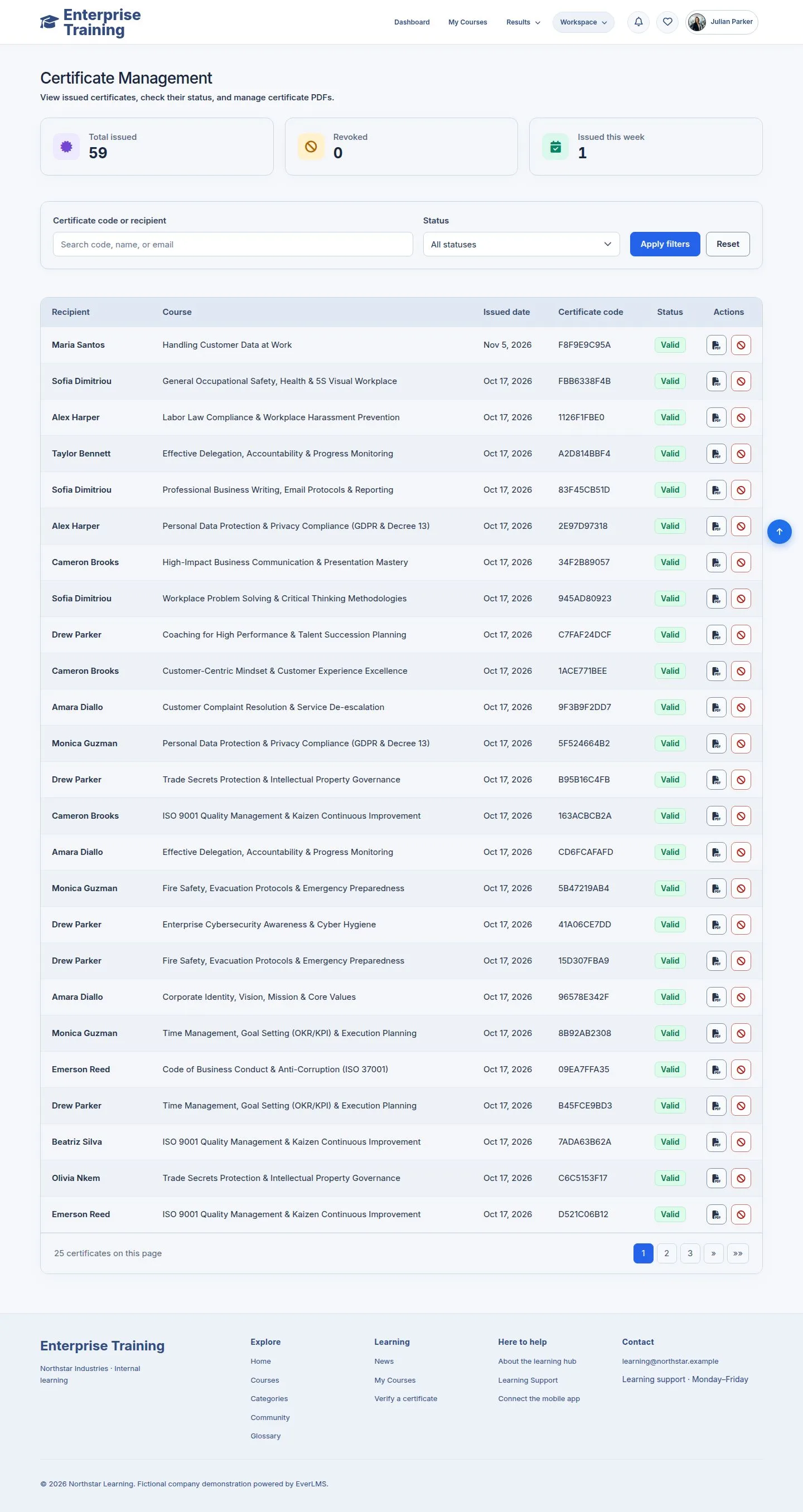
  1. Workspace → Manage Certificates: certificates of your branch.
  2. Search by code or name, filter by status.

Enlarge, then scroll

Open illustrated screen ↗Full image ↗

Employee · Certificates07

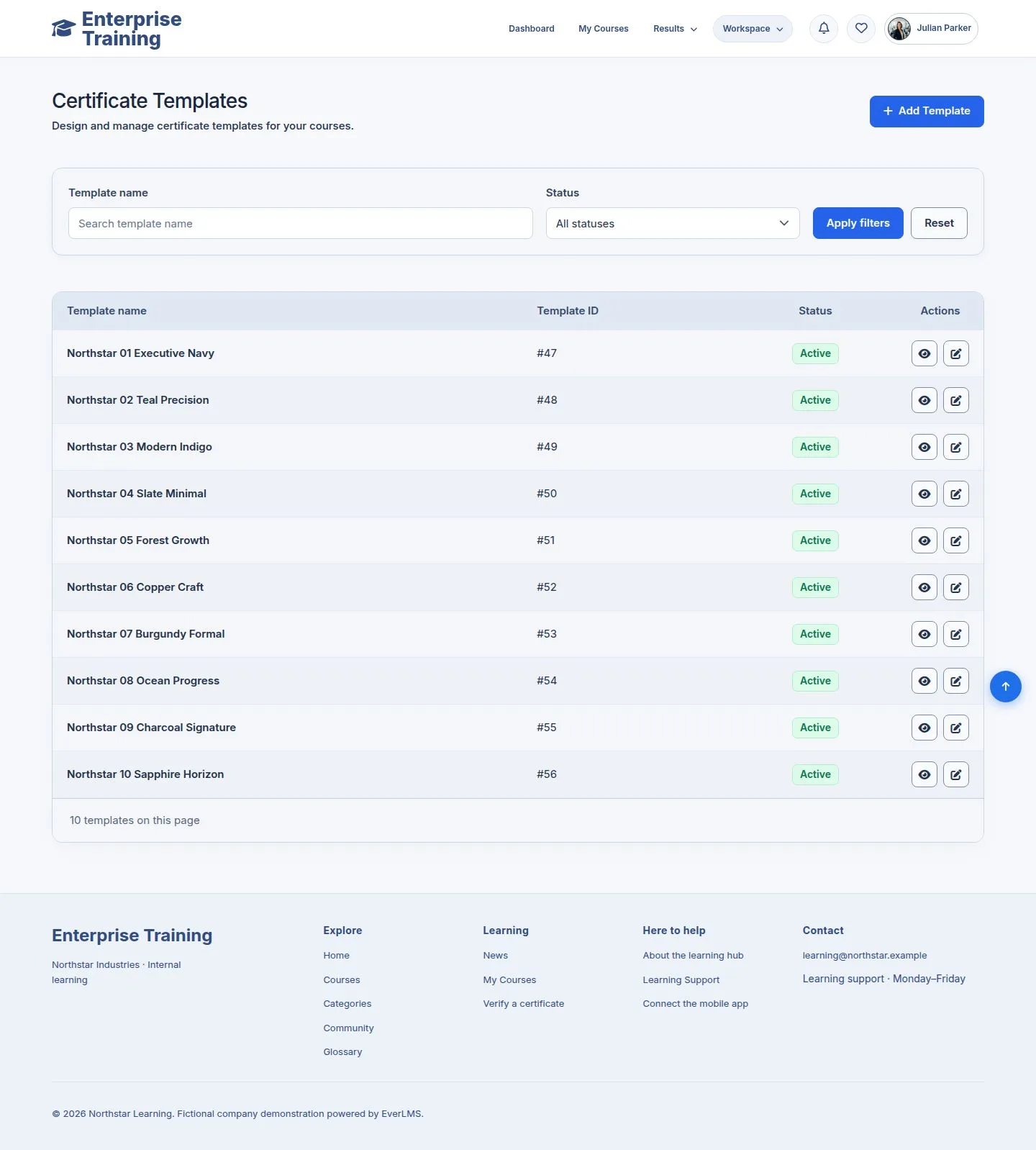
Templates

Manager

Templates

8Step 8 of 12

  1. Each template has a preview and an edit form.
  2. A course can name its template.

Enlarge, then scroll

Open illustrated screen ↗Full image ↗

Employee · Certificates08

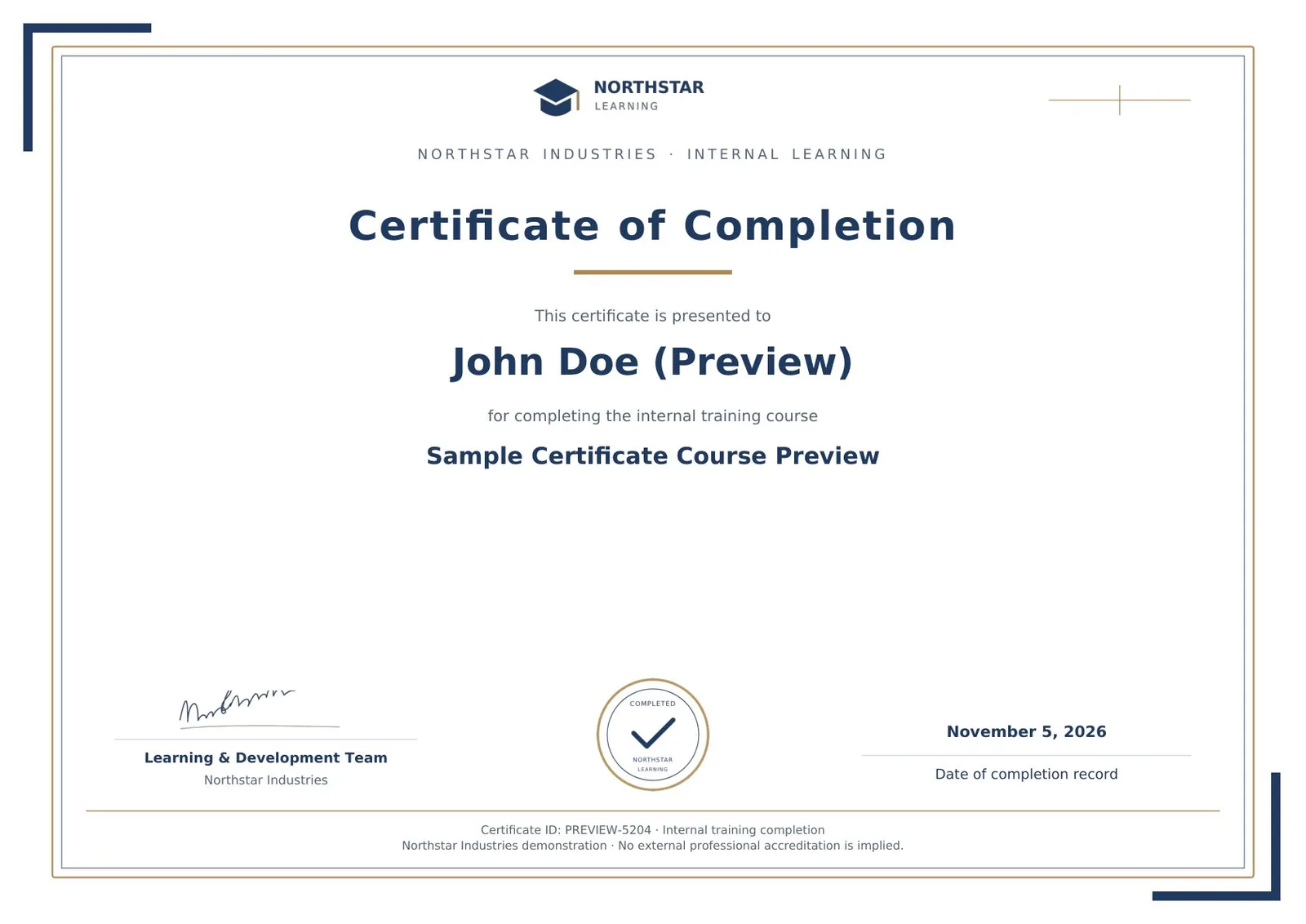
Preview

Manager

Preview

9Step 9 of 12

  1. Preview creates a sample PDF; nothing is issued.

Enlarge, then scroll

Open illustrated screen ↗Full image ↗

Employee · Certificates09

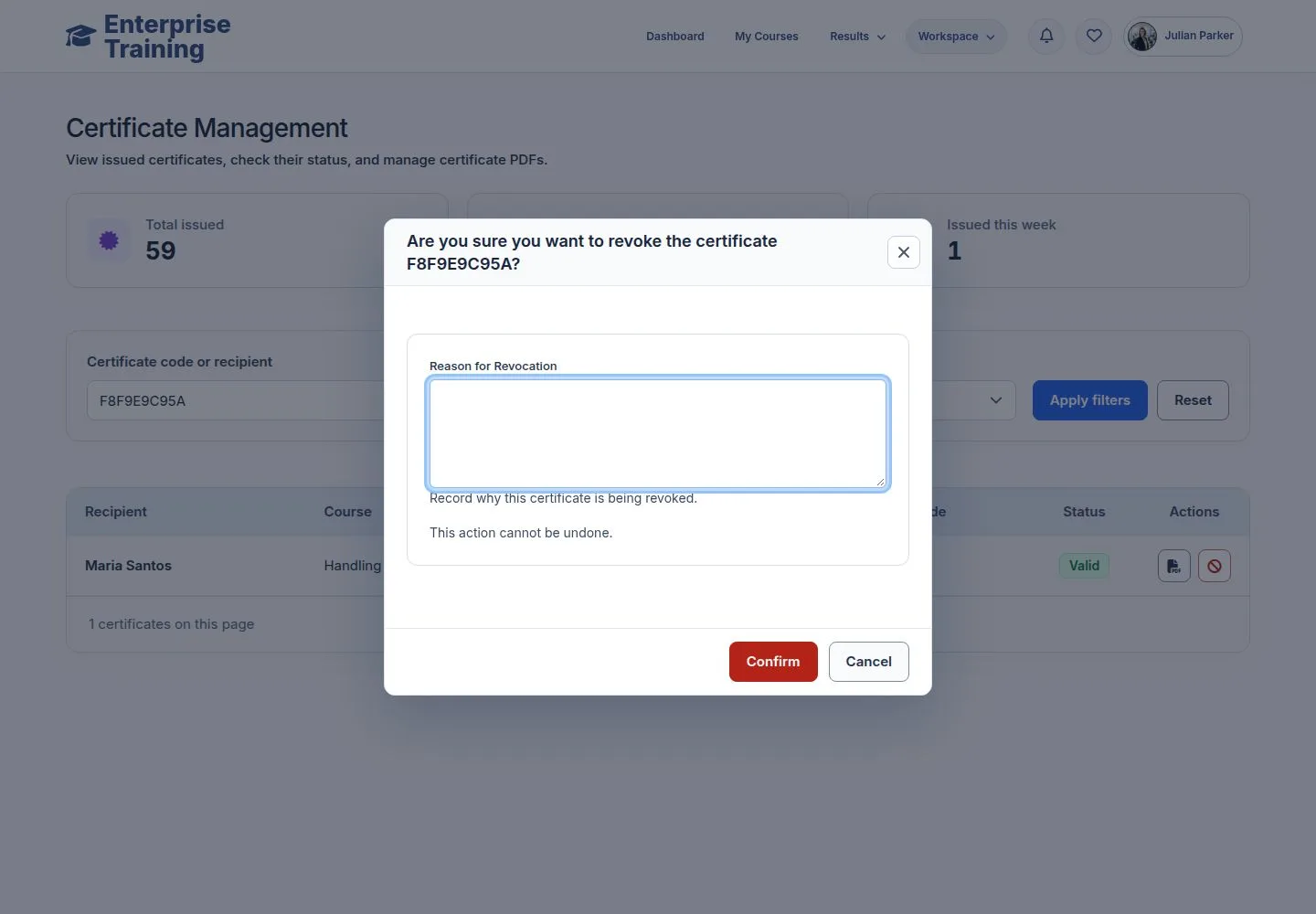
Revoke

Manager

Revoke

10Step 10 of 12

  1. Revoke asks for a reason and confirmation.

Open illustrated screen ↗Full image ↗

Employee · Certificates10

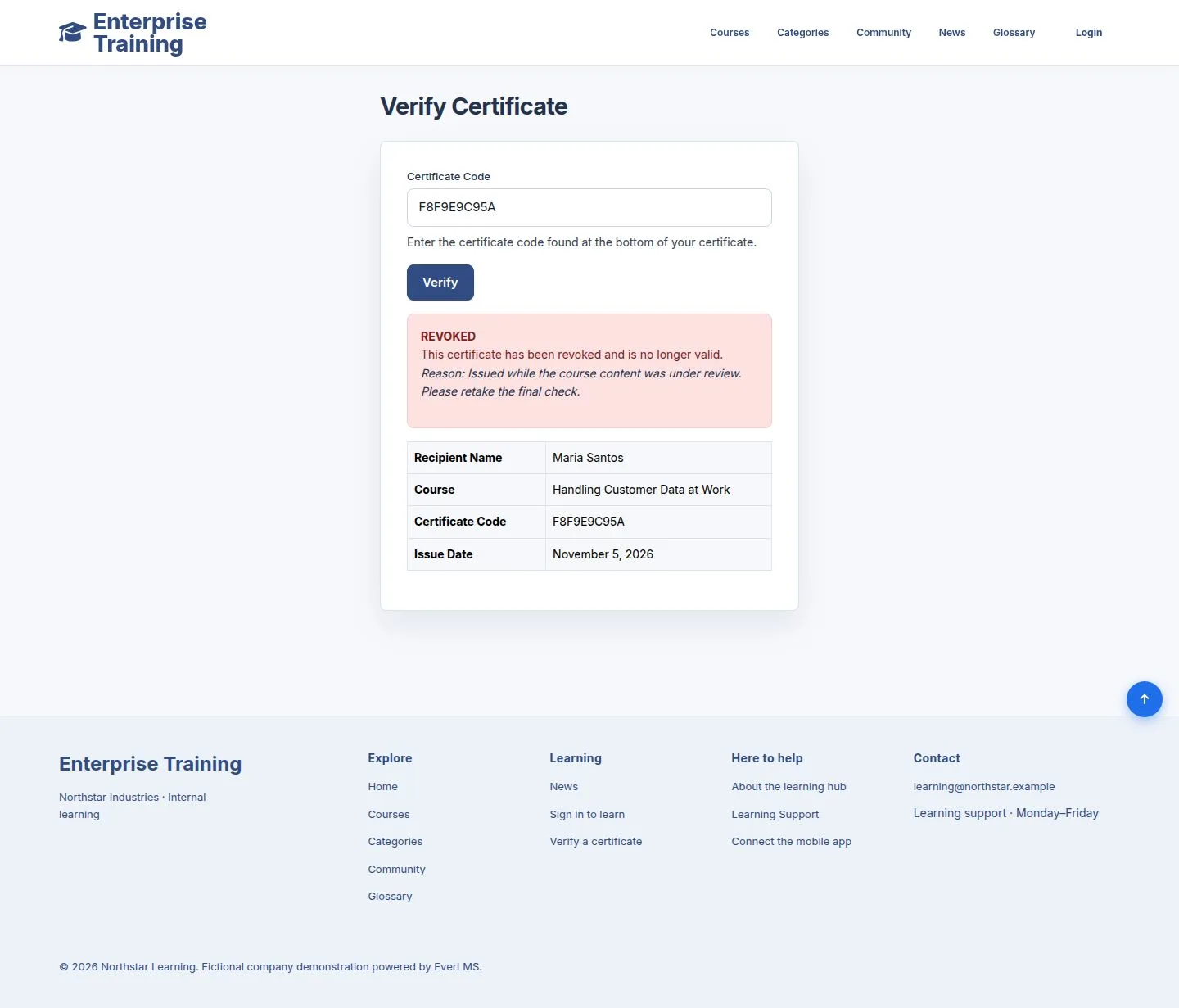
Revoked

Visitor

Revoked

11Step 11 of 12

  1. Verify shows it was revoked, with the reason.

Enlarge, then scroll

Open illustrated screen ↗Full image ↗

Employee · Certificates11

What the employee sees

Employee
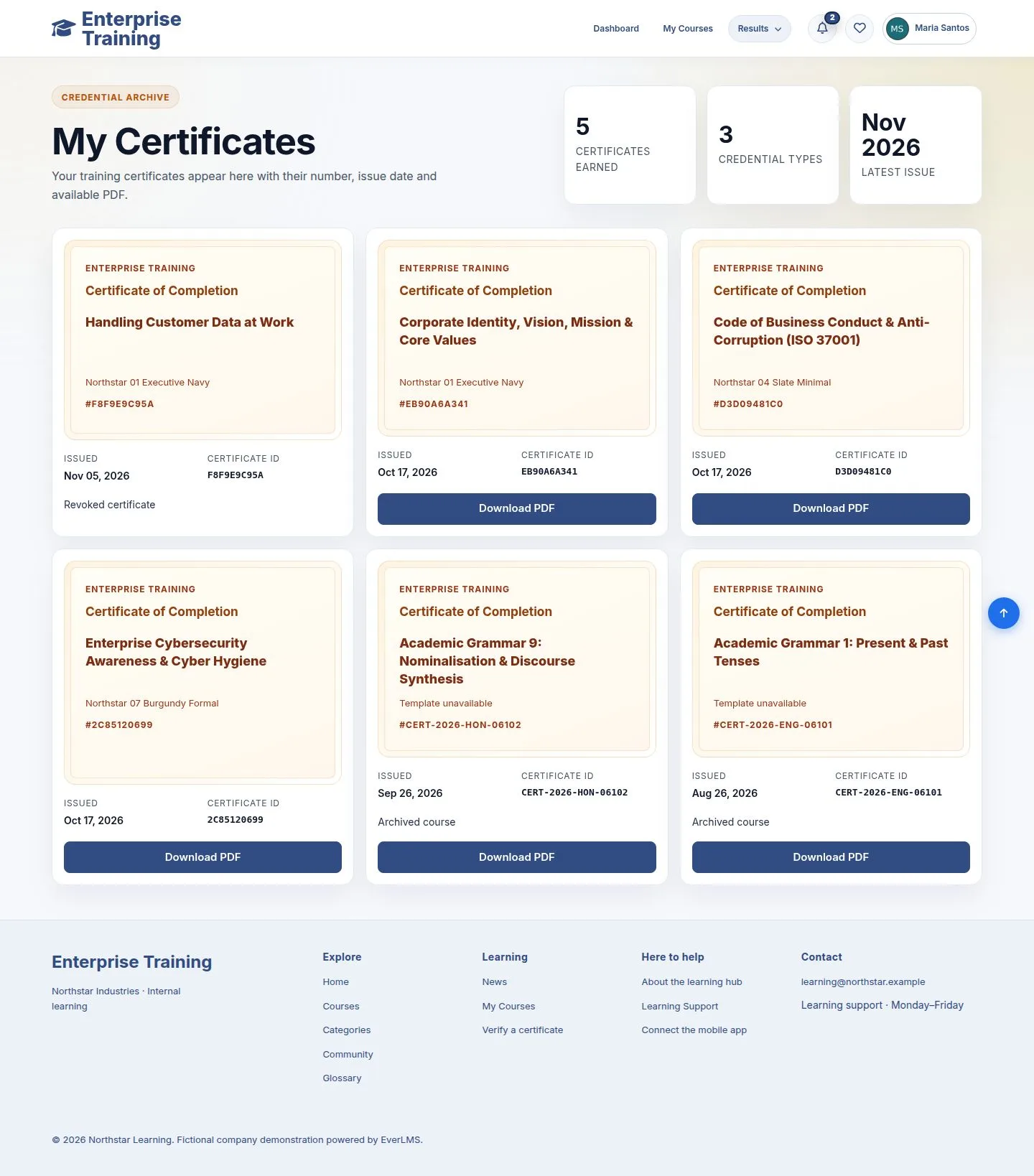
What the employee sees

12Step 12 of 12

  1. The card says Revoked certificate and has no download.

Enlarge, then scroll

Open illustrated screen ↗Full image ↗

Check

The certificate is in My Certificates and anyone can check its code

Employee · Certificates12
1 / 13
Privacy Terms