Learn a course

Lesson player, notes, questions, progress

  • Enrolled in the course, or assigned to it
Employee
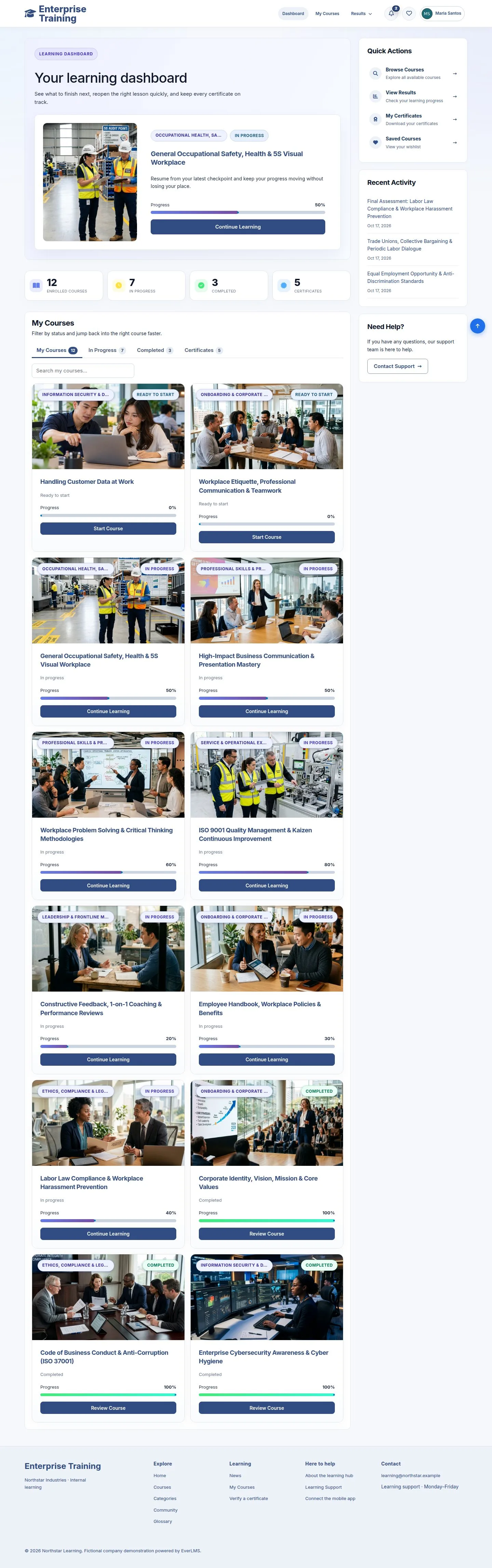
Dashboard

Employee

Dashboard

1Step 1 of 13

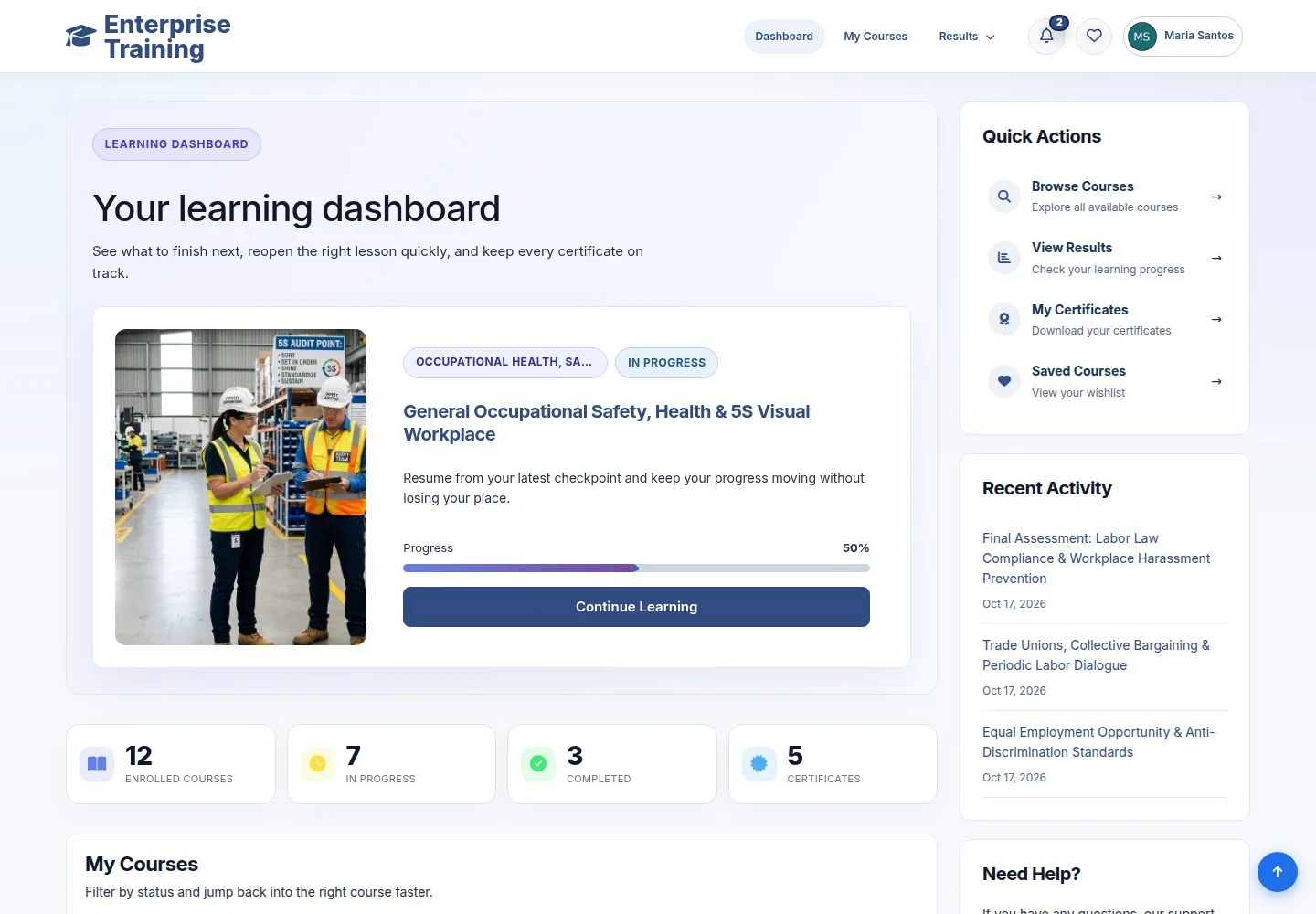
  1. The course to continue, your counts, recent activity.
  2. Continue Learning opens the lesson you stopped at.

Enlarge, then scroll

Open illustrated screen ↗Full image ↗

Employee · Learn a course01

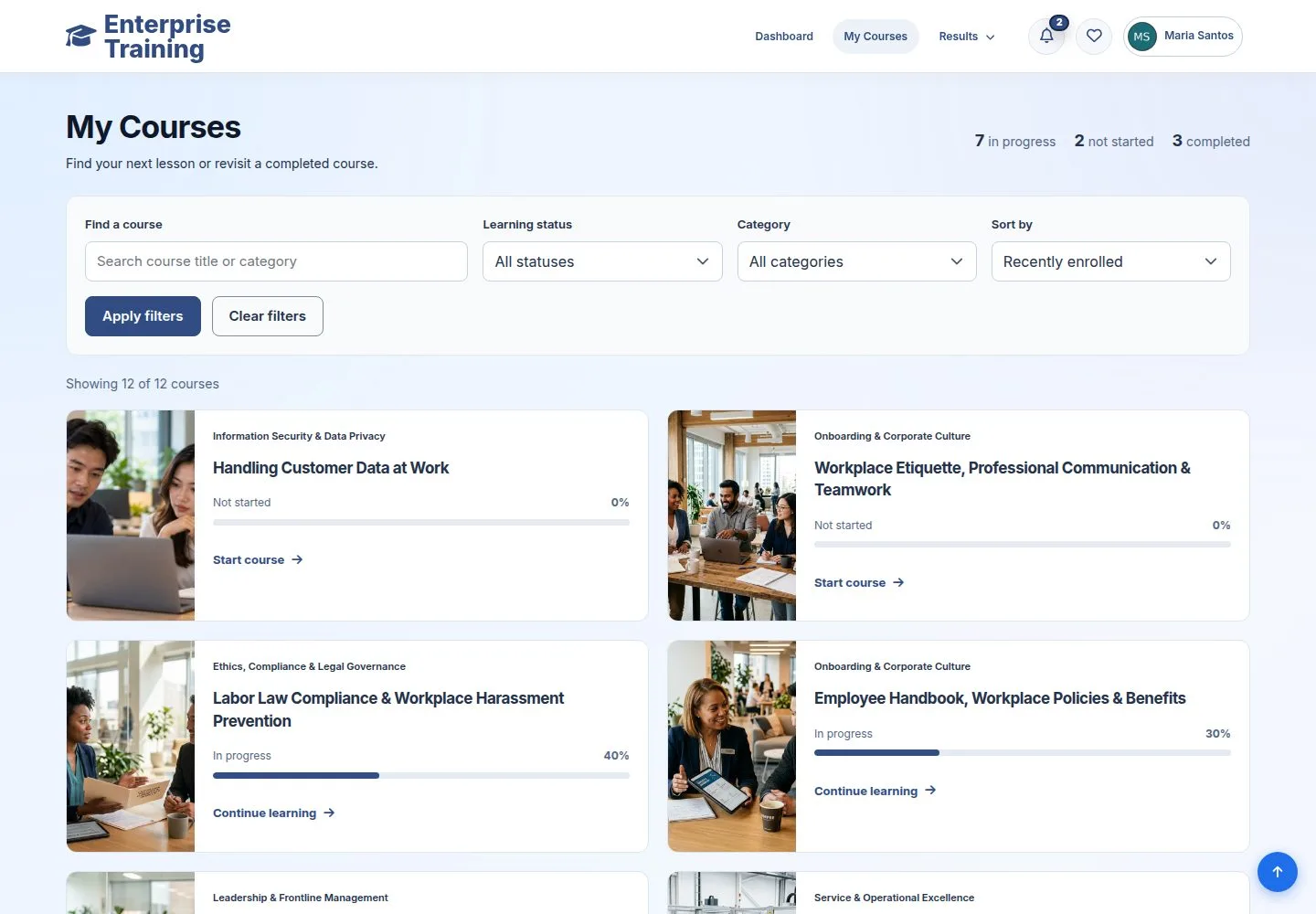
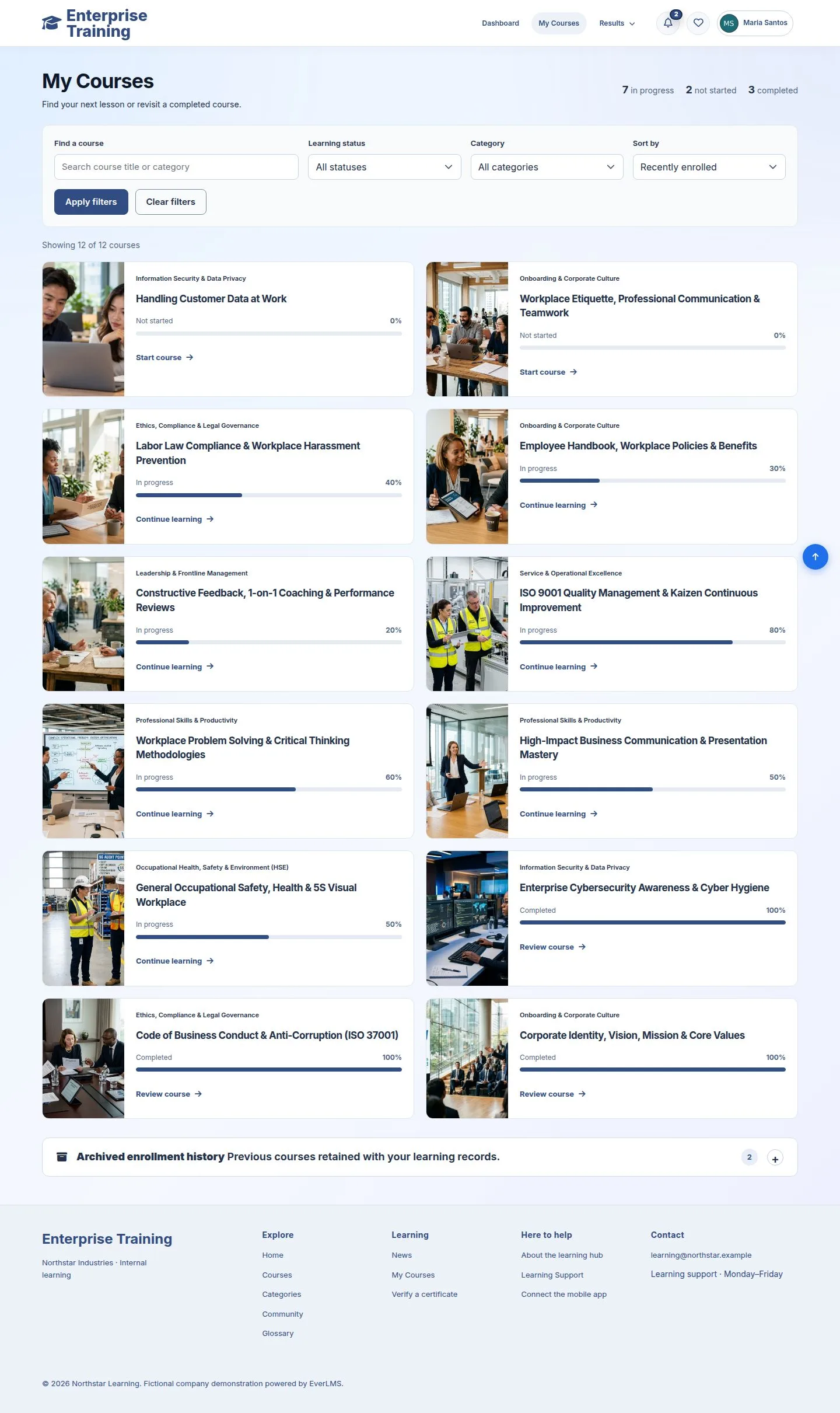
My Courses

Employee

My Courses

2Step 2 of 13

  1. Find a course by name or category.
  2. Filter by status, sort by progress or date.

Enlarge, then scroll

Open illustrated screen ↗Full image ↗

Employee · Learn a course02

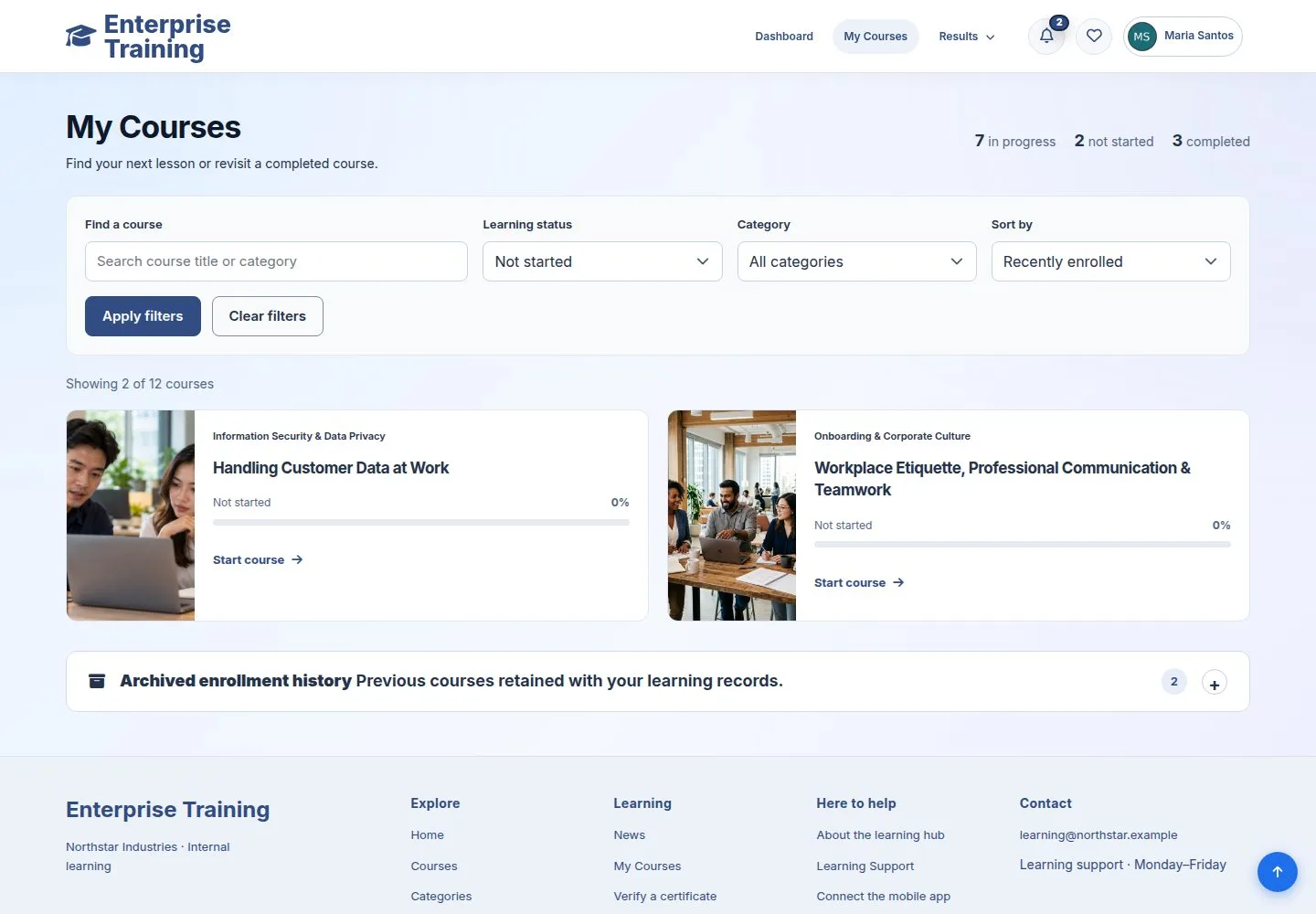
Filter by status

Employee

Filter by status

3Step 3 of 13

  1. Not started, In progress, Completed.
  2. Clear filters shows all again.

Enlarge, then scroll

Open illustrated screen ↗Full image ↗

Employee · Learn a course03

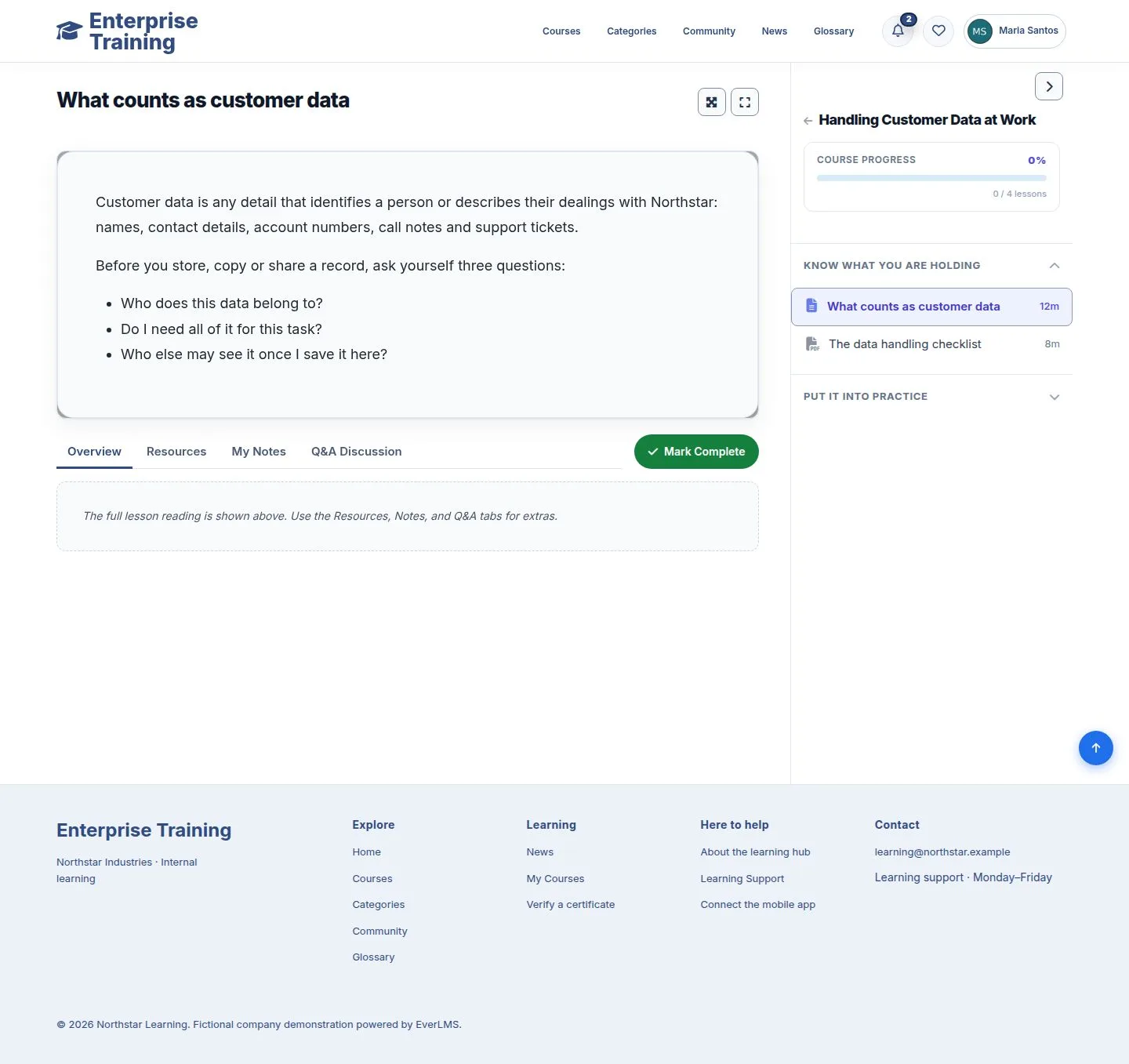
The lesson player

Employee

The lesson player

4Step 4 of 13

  1. Lesson content, with Overview, Resources, My Notes and Q&A Discussion.
  2. The outline on the right shows chapters, lessons and progress.

Text, PDF, SCORM, audio with transcript, video and quiz lessons all open here.

Enlarge, then scroll

Open illustrated screen ↗Full image ↗

Employee · Learn a course04

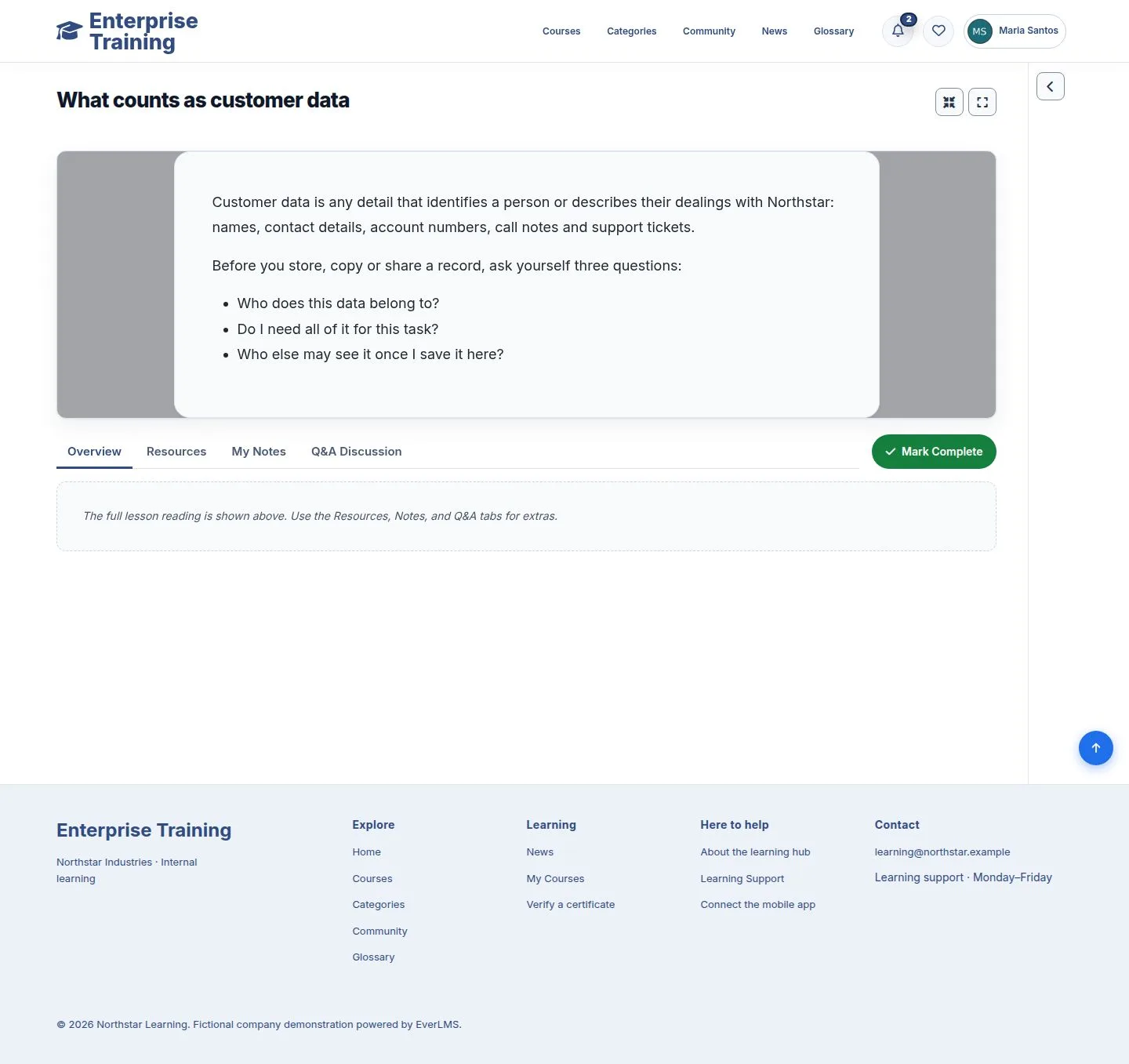
More room

Employee

More room

5Step 5 of 13

  1. The arrow hides the outline.
  2. The two buttons by the title widen the lesson and go full screen.

Enlarge, then scroll

Open illustrated screen ↗Full image ↗

Employee · Learn a course05

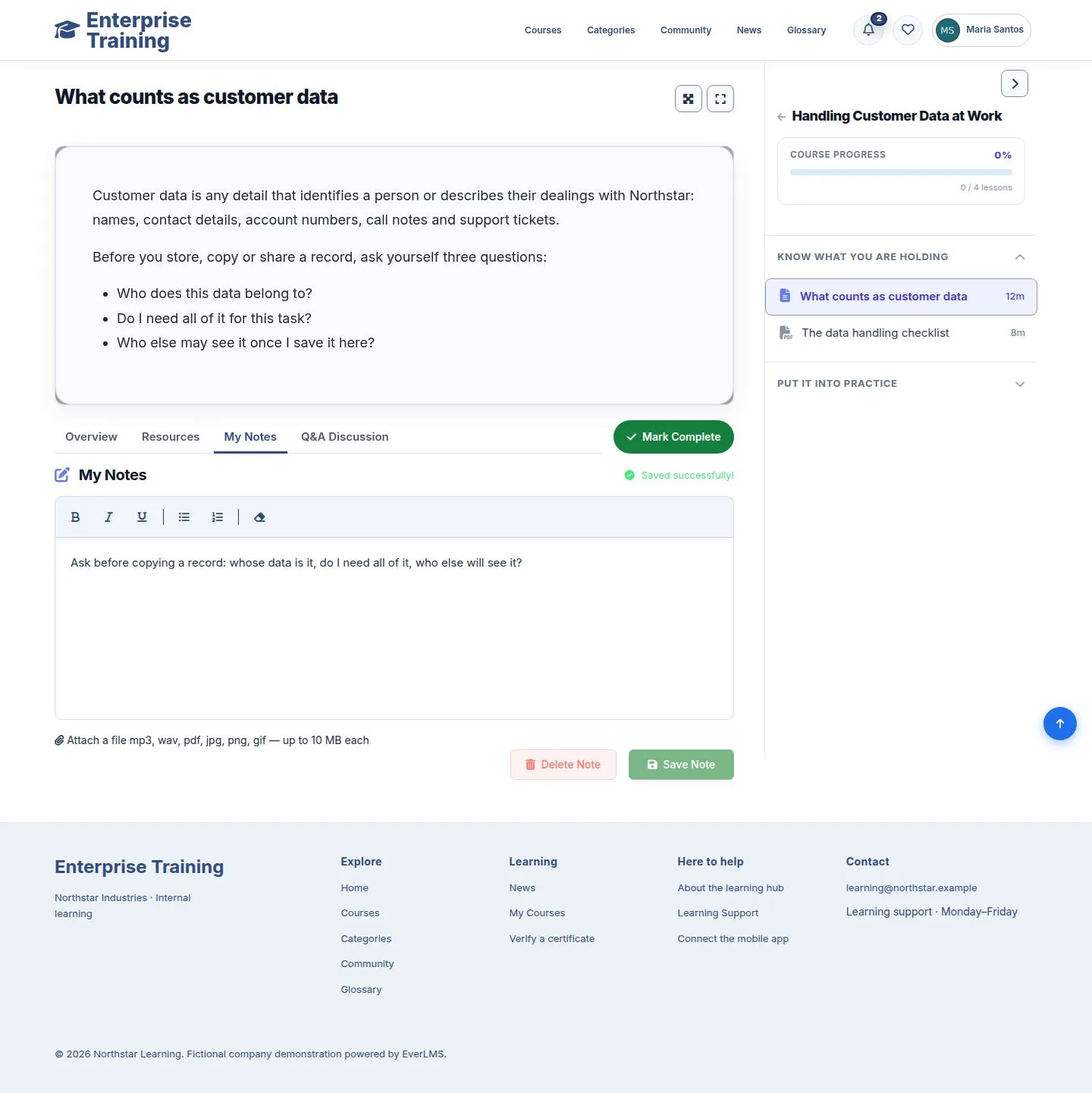
Notes

Employee

Notes

6Step 6 of 13

  1. My Notes: write, format, attach a file, Save Note.
  2. All your notes are also in My Notes under the account menu.

Enlarge, then scroll

Open illustrated screen ↗Full image ↗

Employee · Learn a course06

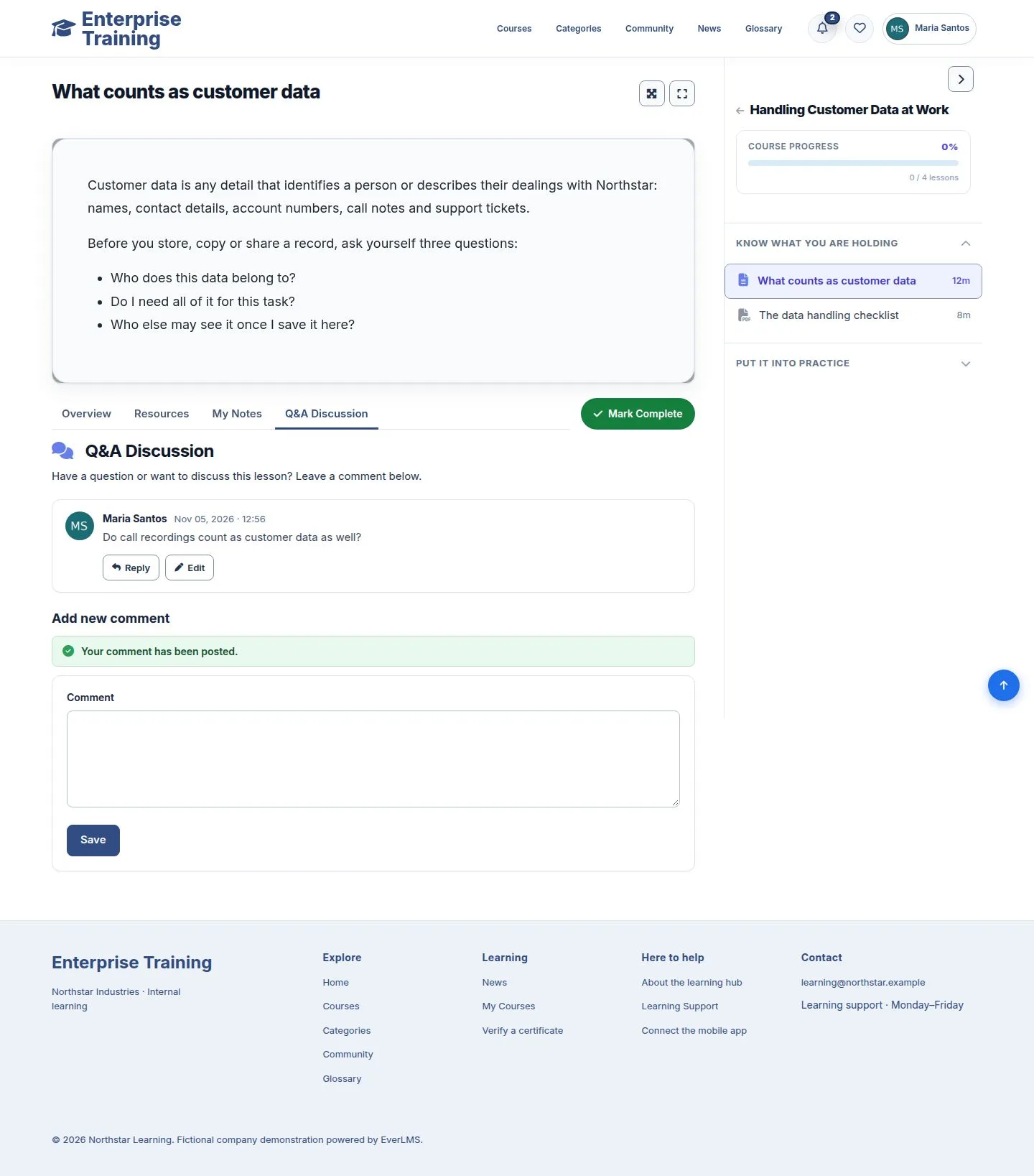
Ask a question

Employee

Ask a question

7Step 7 of 13

  1. Q&A Discussion: write and Save.
  2. The trainer sees it in the course activity and answers under it.

Enlarge, then scroll

Open illustrated screen ↗Full image ↗

Employee · Learn a course07

Mark Complete

Employee

Mark Complete

8Step 8 of 13

  1. Mark Complete counts the lesson and opens the next one.
  2. Progress and the outline update at once.

Enlarge, then scroll

Open illustrated screen ↗Full image ↗

Employee · Learn a course08

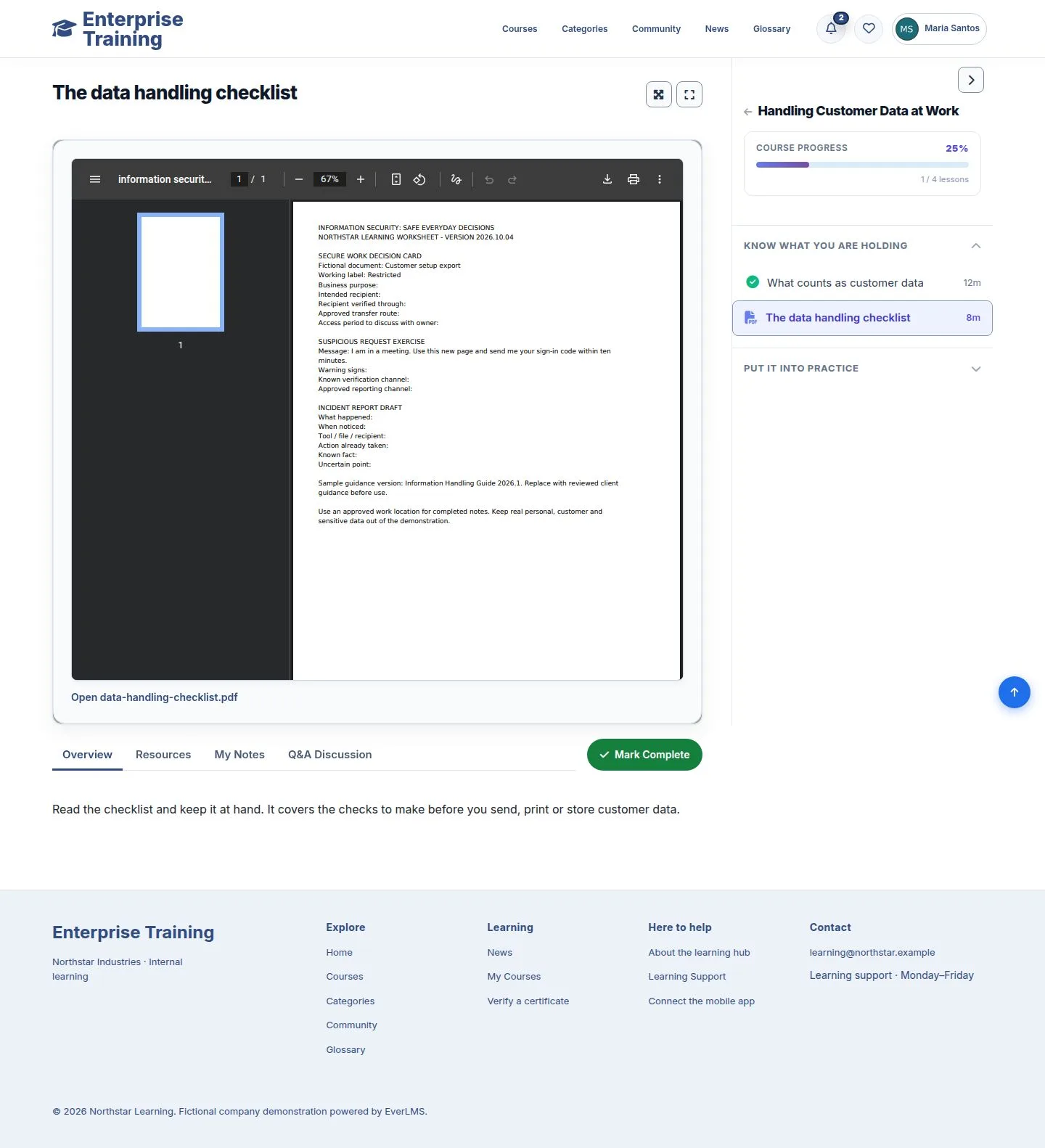
A PDF lesson

Employee

A PDF lesson

9Step 9 of 13

  1. The document opens in the lesson.
  2. Open <file> takes it to a new tab, for phones and downloads.

Enlarge, then scroll

Open illustrated screen ↗Full image ↗

Employee · Learn a course09

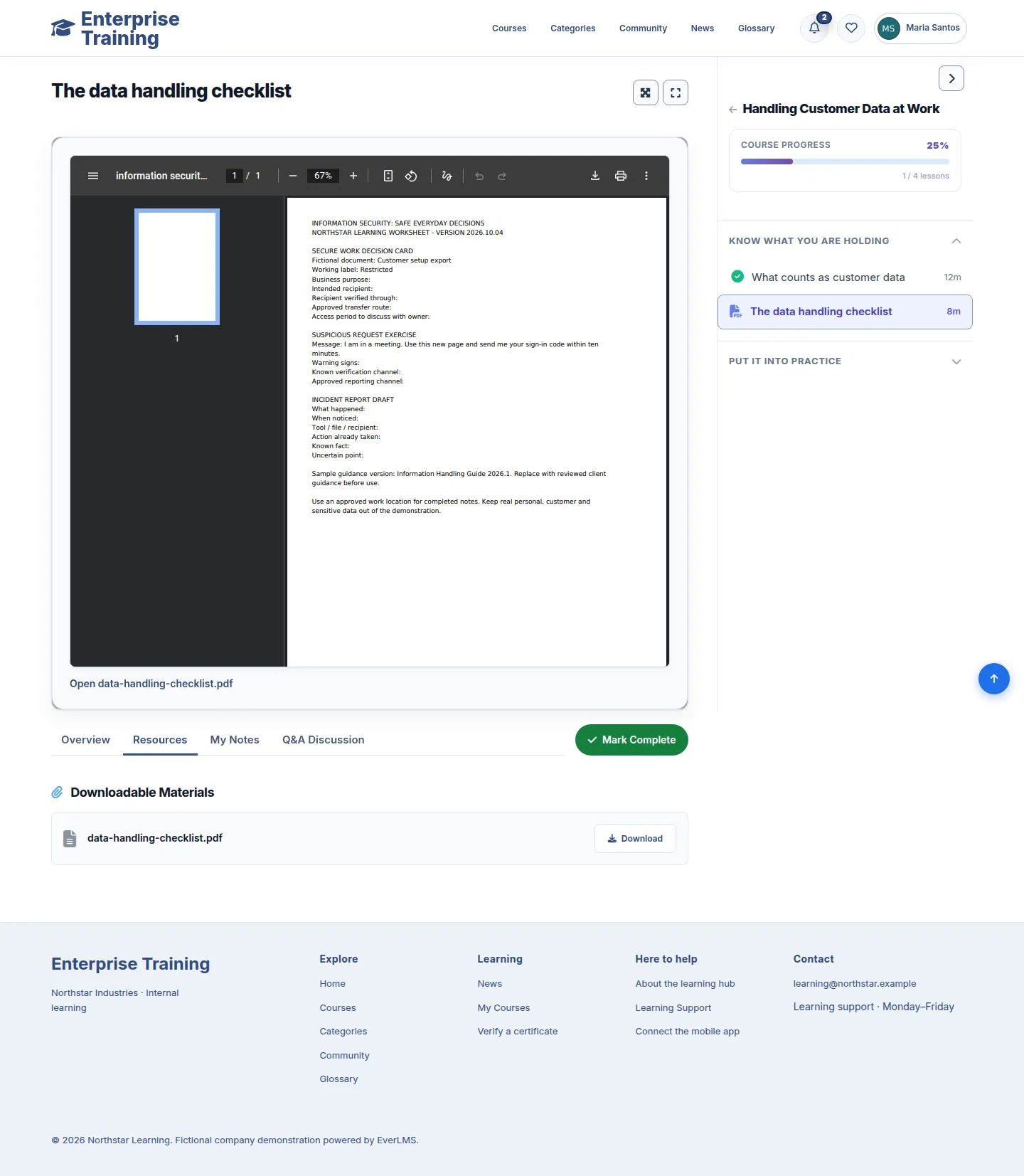
Lesson files

Employee

Lesson files

10Step 10 of 13

  1. Resources lists the files to download.

Enlarge, then scroll

Open illustrated screen ↗Full image ↗

Employee · Learn a course10

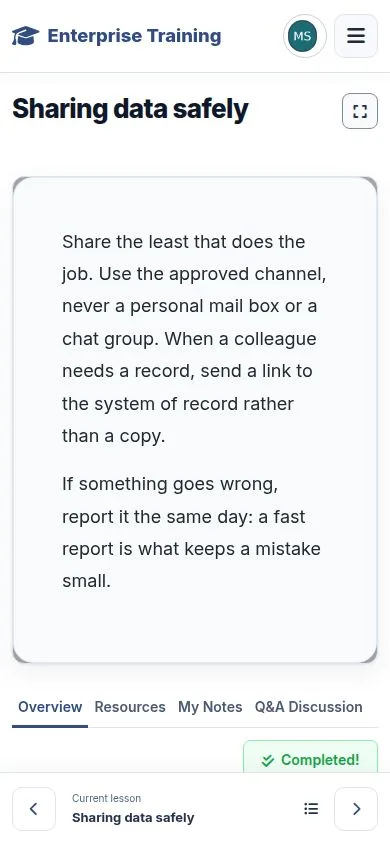
On a phone

Employee

On a phone

11Step 11 of 13

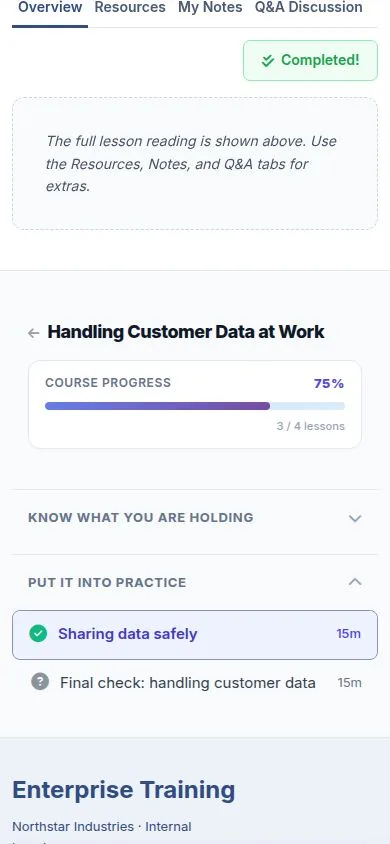
  1. A bar at the bottom shows the lesson name, previous, next and the outline.

Open illustrated screen ↗Full image ↗

Employee · Learn a course11

Scrolling on a phone

Employee

Scrolling on a phone

12Step 12 of 13

  1. Scrolling down hides the header; scrolling up brings it back.

Open illustrated screen ↗Full image ↗

Employee · Learn a course12

My Notes

Employee

My Notes

13Step 13 of 13

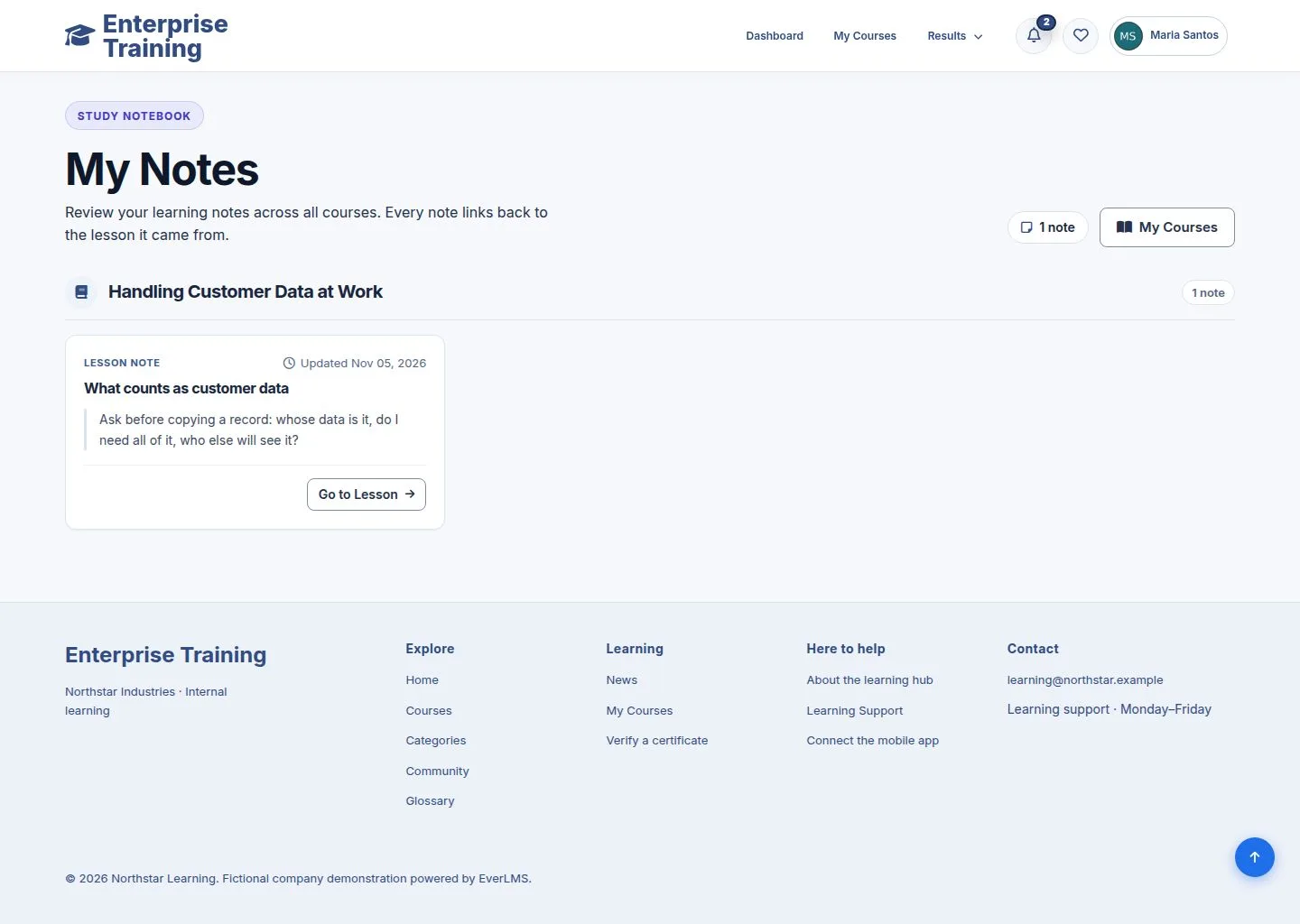
  1. Notes grouped by course; Go to Lesson returns to the place.

Enlarge, then scroll

Open illustrated screen ↗Full image ↗

Check

Progress moves with each lesson; the course is completed when every lesson and quiz is done

Employee · Learn a course13
1 / 14
Privacy Terms