




Sold out and online pause

Sold out board · Mark sold out · Pause online ordering

  • Signed in as a Waiter
Waiter

Sold out board

Waiter

Sold out board

1Step 1 of 6

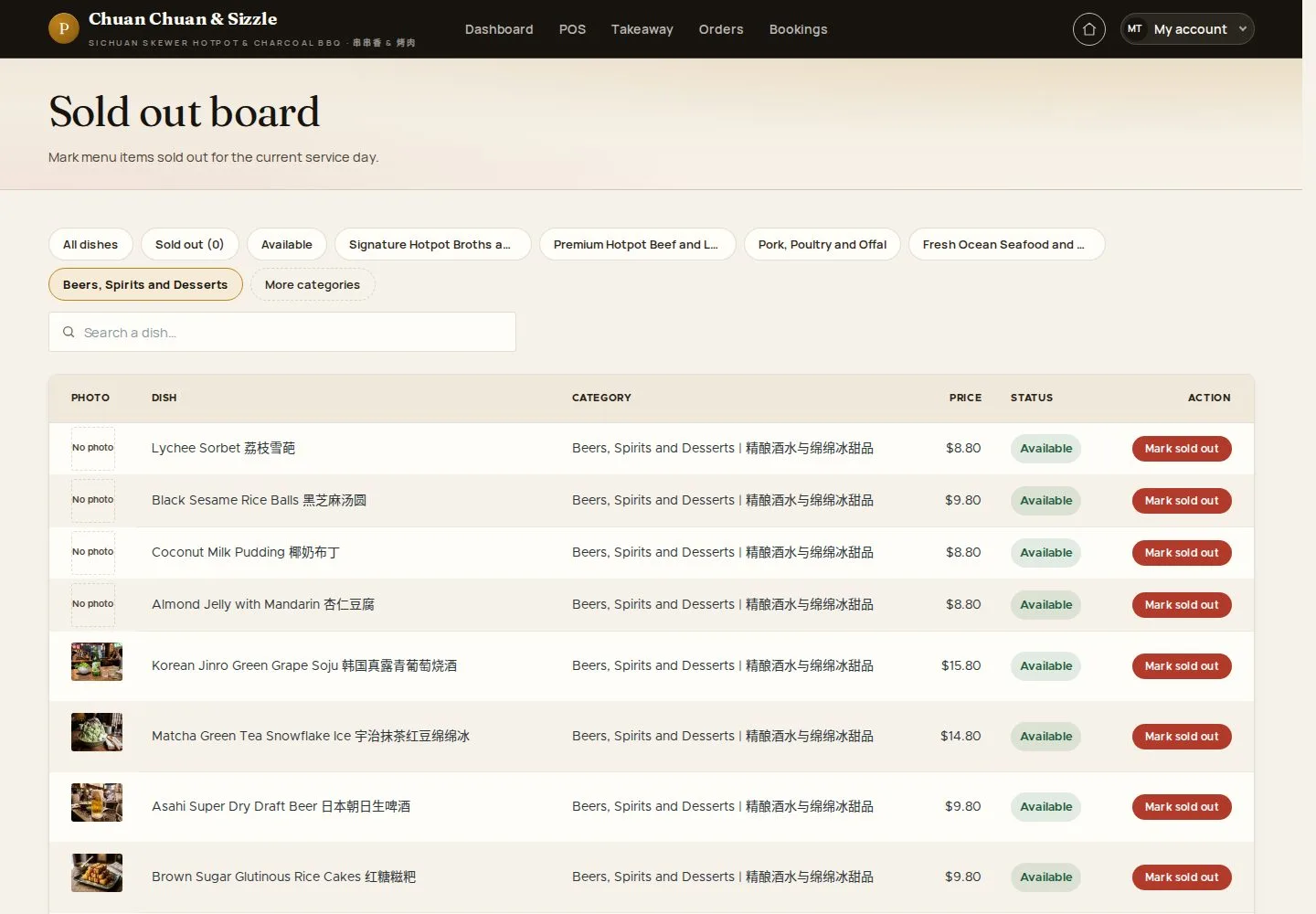
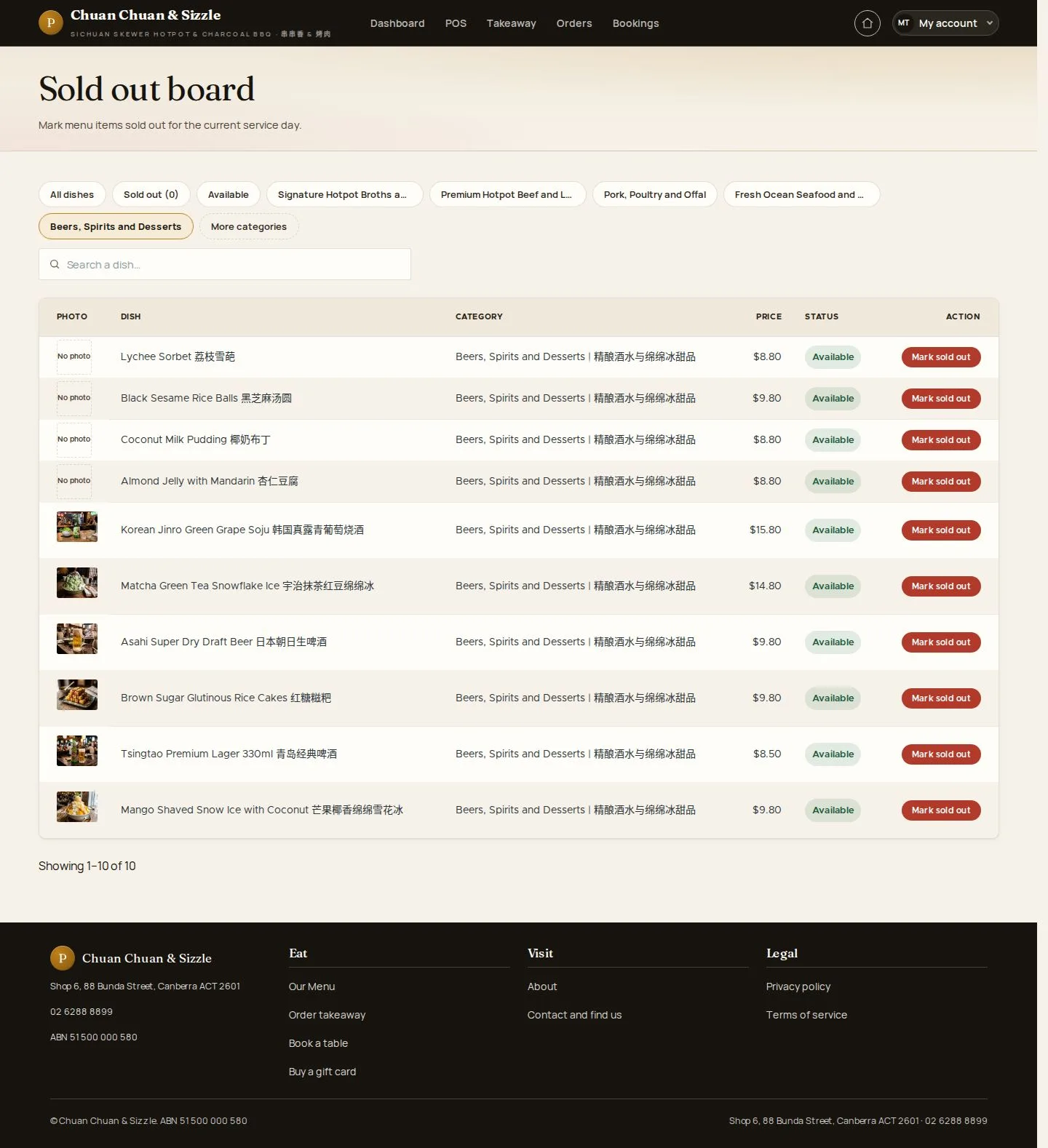
  1. My account › Sold out board: every dish and whether it is on sale today.
  2. Mark sold out, next to the dish.

Enlarge, then scroll

Open illustrated screen ↗Full image ↗

Waiter · Sold out and online pause01

Mark sold out

Waiter

Mark sold out

2Step 2 of 6

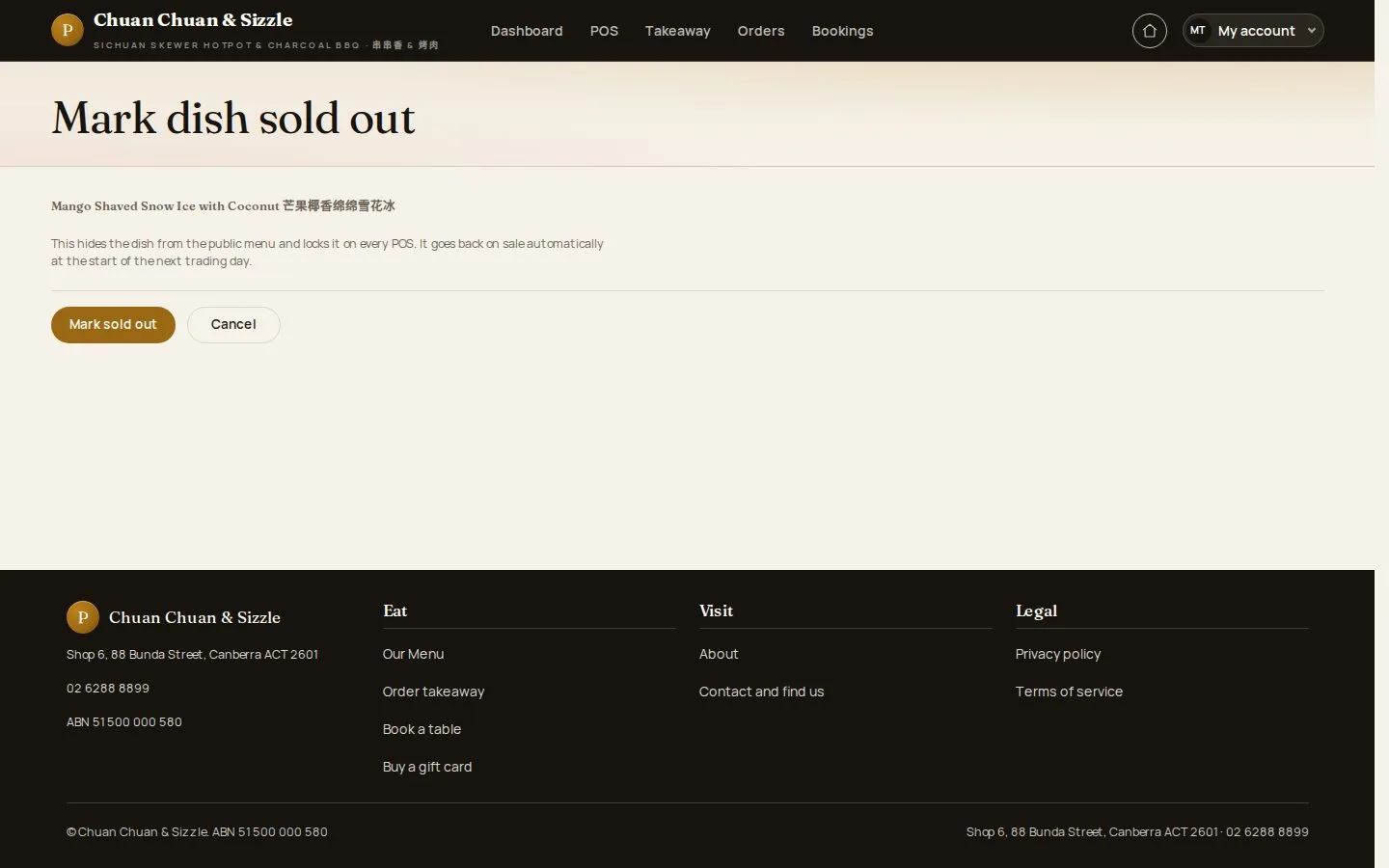
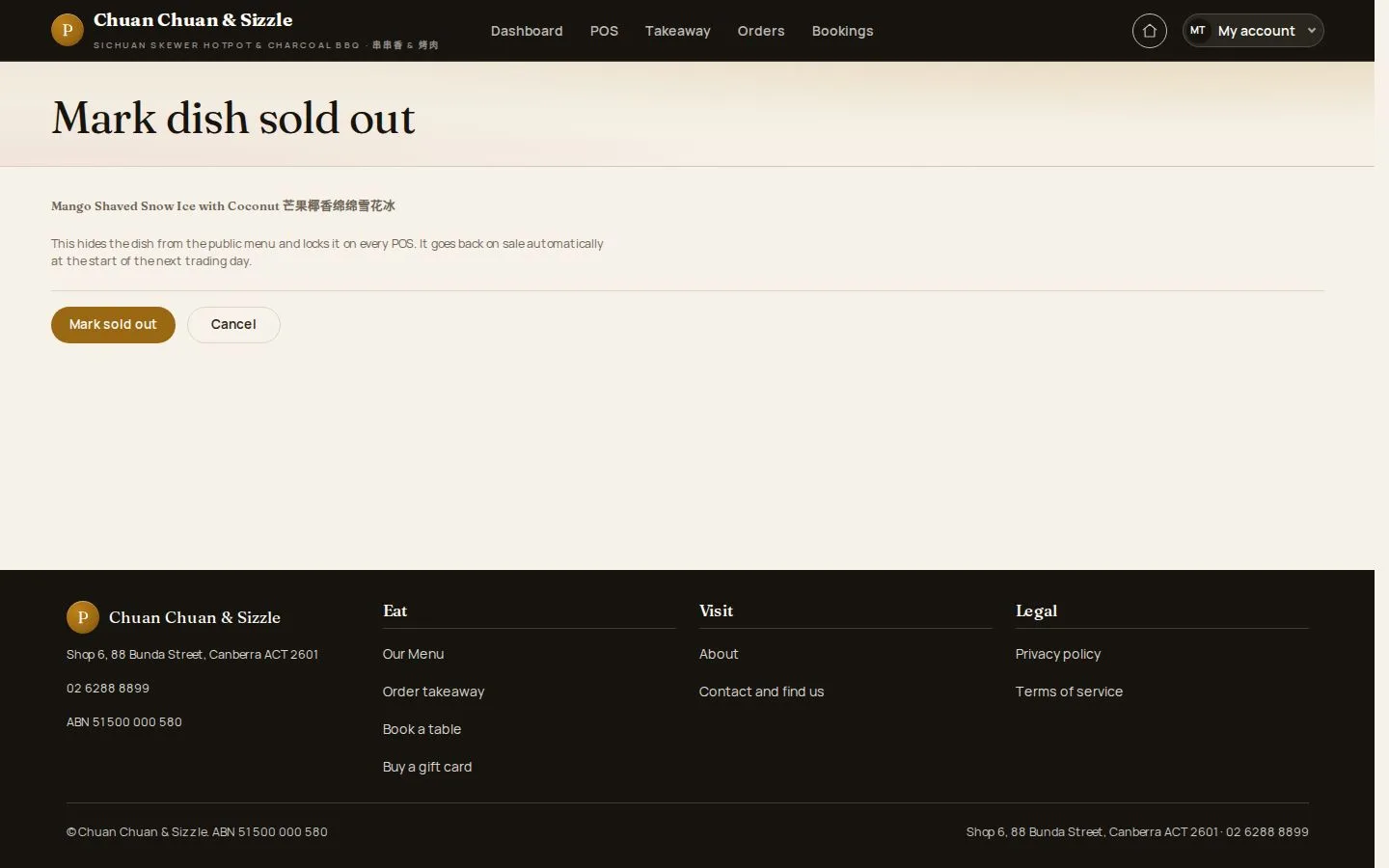
  1. The dish leaves the website and is locked on every POS.
  2. Mark sold out.

It comes back on sale by itself at the start of the next trading day.

Open illustrated screen ↗Full image ↗

Waiter · Sold out and online pause02

Sold out

Waiter

Sold out

3Step 3 of 6

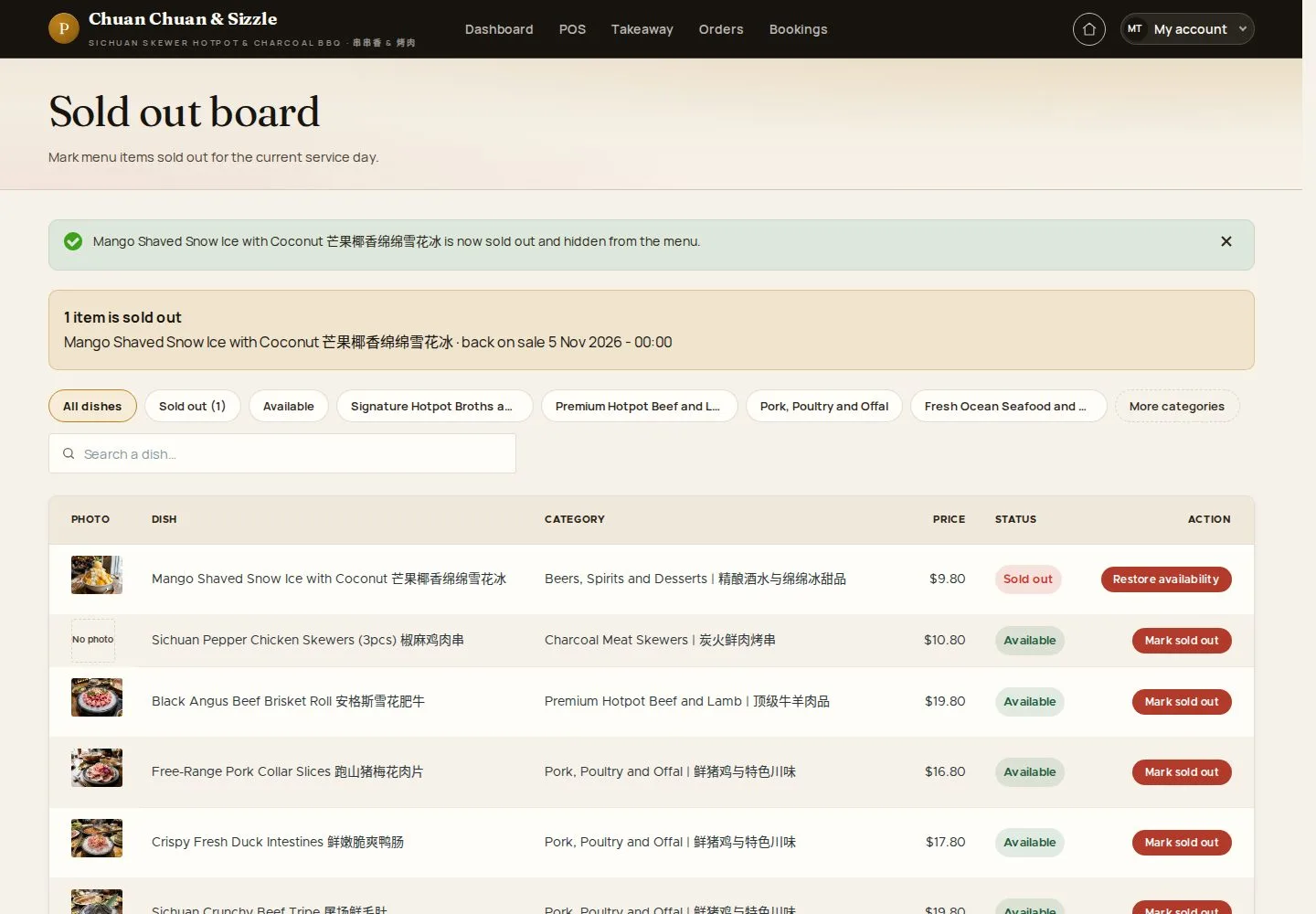
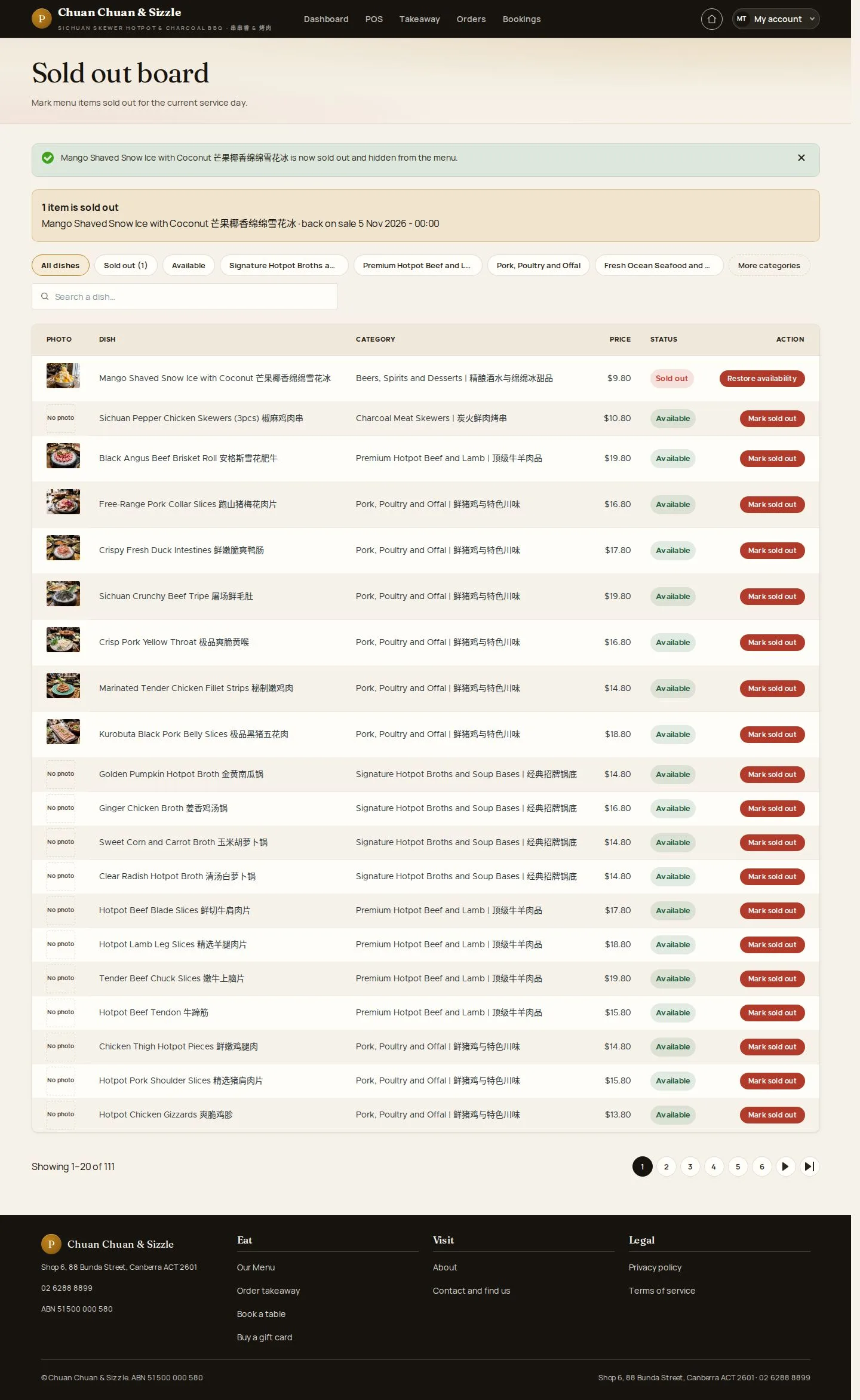
  1. The board lists the dish sold out, with the time it comes back.
  2. Restore availability puts it on sale again now.

Enlarge, then scroll

Open illustrated screen ↗Full image ↗

Waiter · Sold out and online pause03

Pause online ordering

Waiter

Pause online ordering

4Step 4 of 6

  1. When the kitchen is too busy: My account › Online ordering rules › Pause ordering.
  2. Pause online ordering for today.

Orders already accepted and orders at the table go on as usual.

Open illustrated screen ↗Full image ↗

Waiter · Sold out and online pause04

Paused

Waiter

Paused

5Step 5 of 6

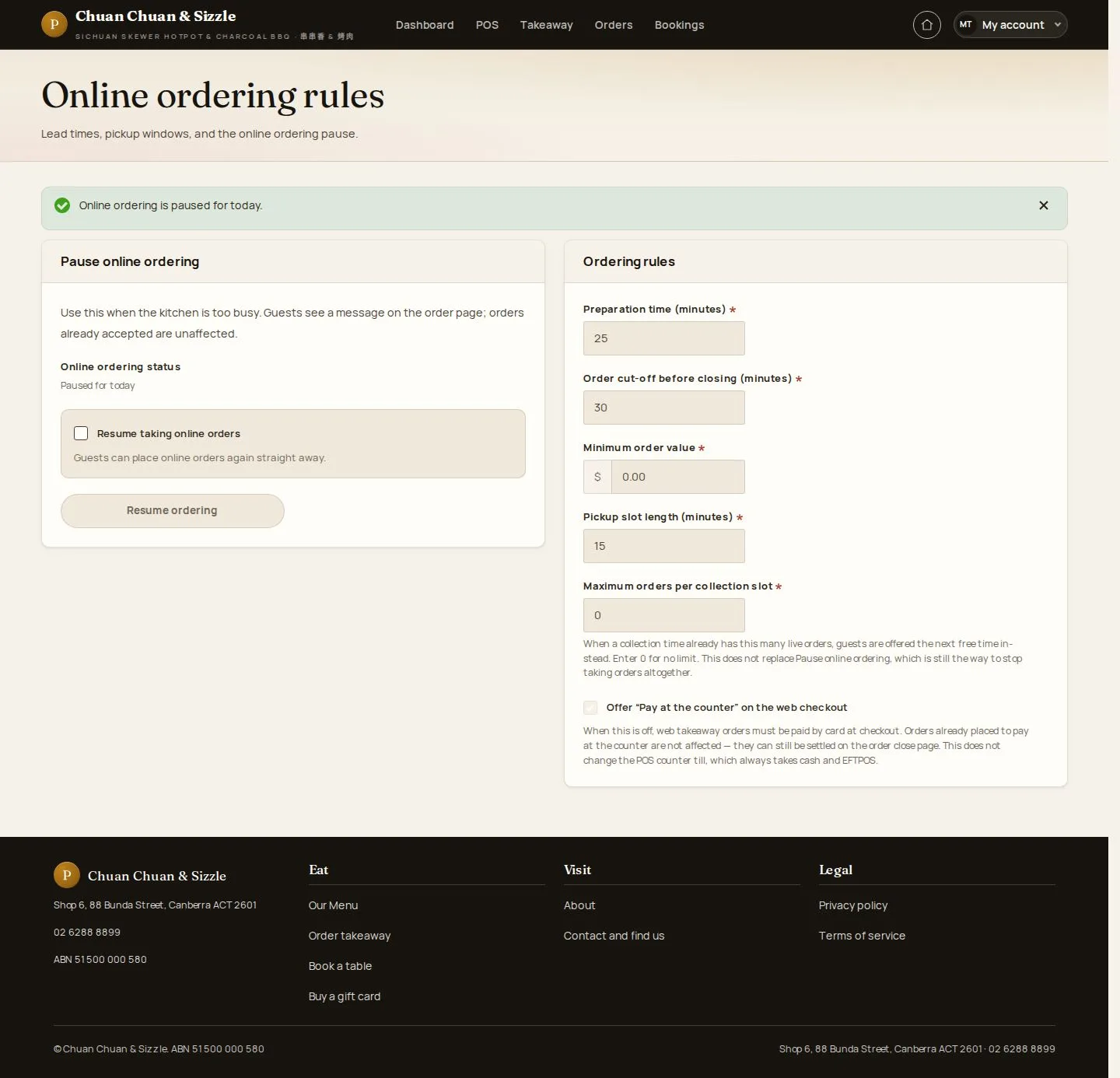
  1. Online ordering is paused for today.
  2. Resume ordering when the kitchen catches up; otherwise the pause ends when the next business day starts.

Enlarge, then scroll

Open illustrated screen ↗Full image ↗

Waiter · Sold out and online pause05

What guests see

Public

What guests see

6Step 6 of 6

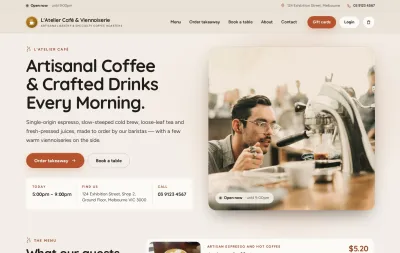
  1. Order takeaway says online orders are paused and gives the phone number.

Open illustrated screen ↗Full image ↗

Check

The website and the POS offer only what the kitchen can serve

Waiter · Sold out and online pause06
1 / 7
Privacy Terms