Order takeaway

Order takeaway · Options · Collection time · Checkout

  • No account needed
  • Online ordering not paused
Public

Order takeaway

Public

Order takeaway

1Step 1 of 6

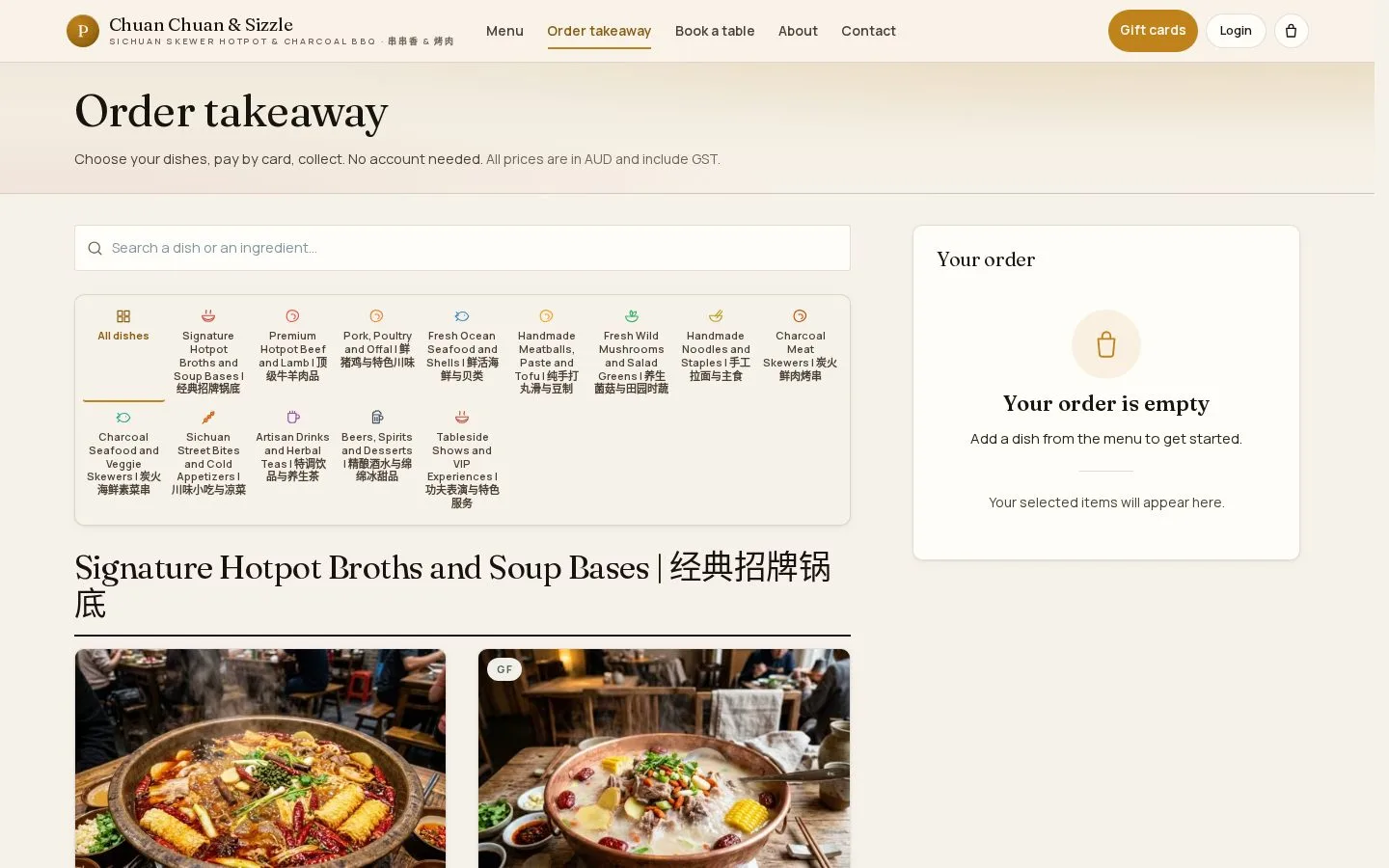
  1. Order takeaway, in the header: the dishes by category, and a search box.
  2. Your order, on the right, fills as you add dishes.

Open illustrated screen ↗Full image ↗

Public · Order takeaway01

Choose the options

Public

Choose the options

2Step 2 of 6

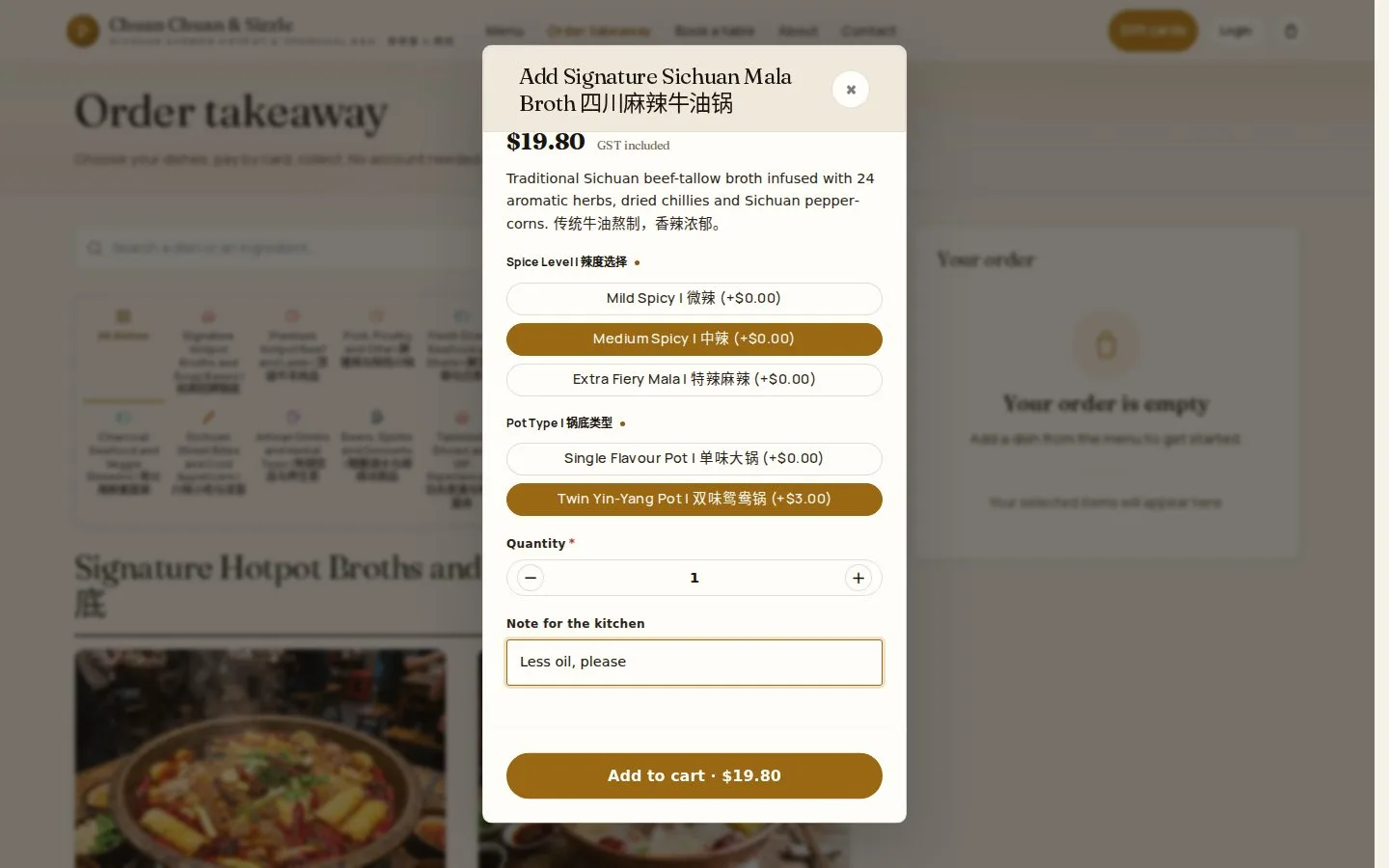
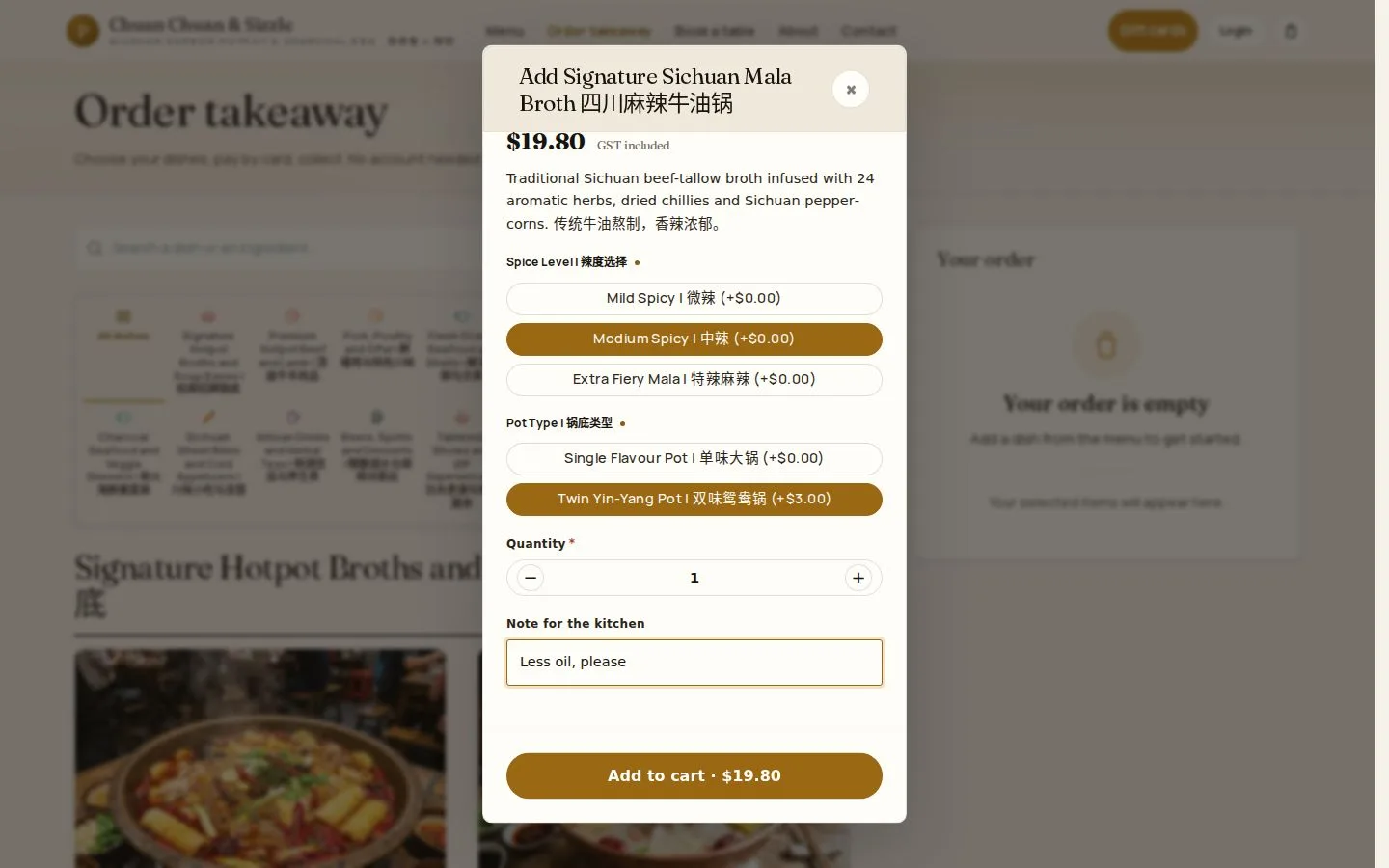
  1. Add on a dish: choose each required option (marked •).
  2. Set the Quantity with − and +; add a Note for the kitchen if needed.
  3. Add to cart; the button shows the price with the options.

Open illustrated screen ↗Full image ↗

Public · Order takeaway02

Your order

Public

Your order

3Step 3 of 6

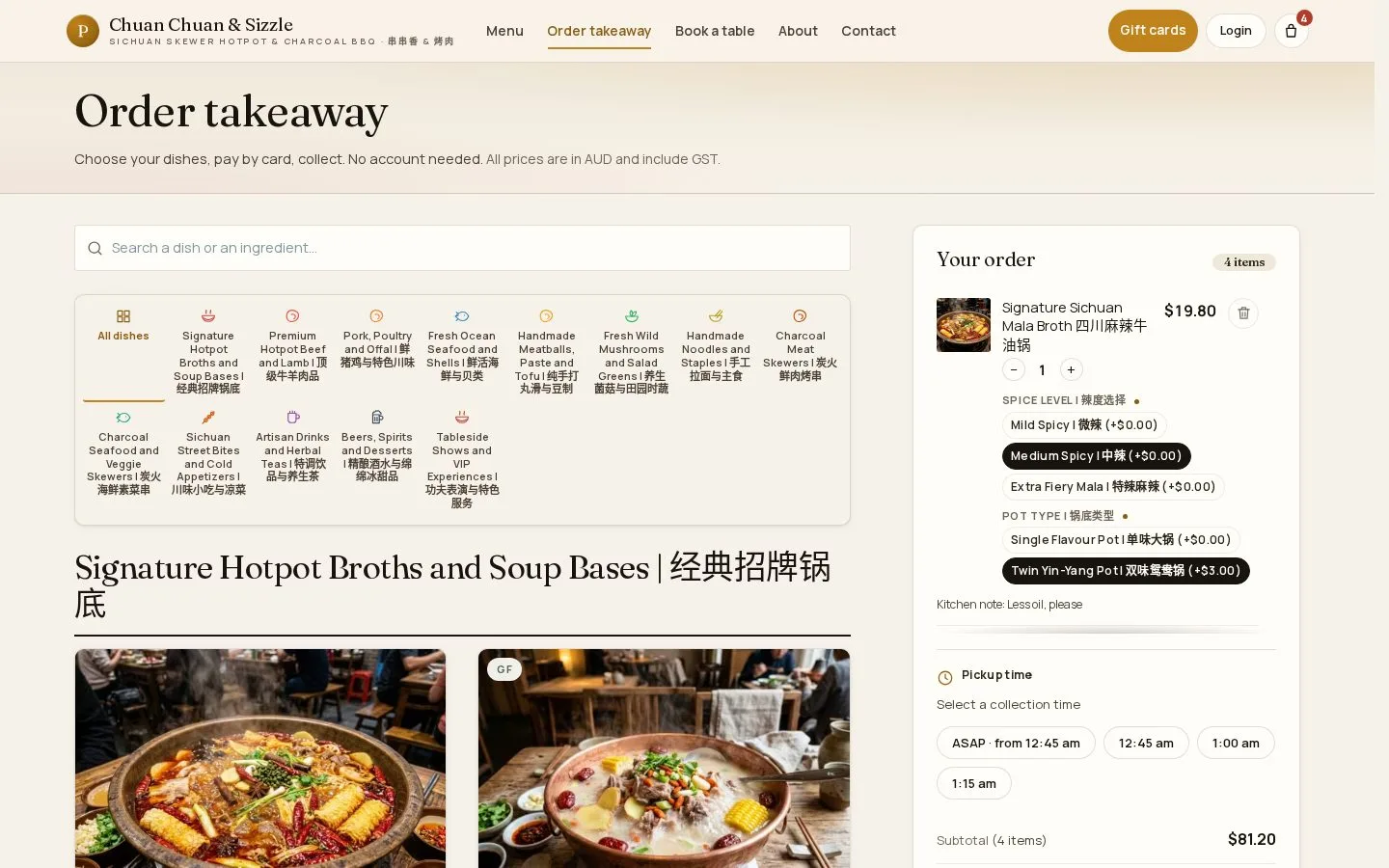
  1. Each dish with its options; − and + change the quantity, the bin removes it.
  2. Pickup time: ASAP or a later collection time.
  3. Continue to checkout.

Open illustrated screen ↗Full image ↗

Public · Order takeaway03

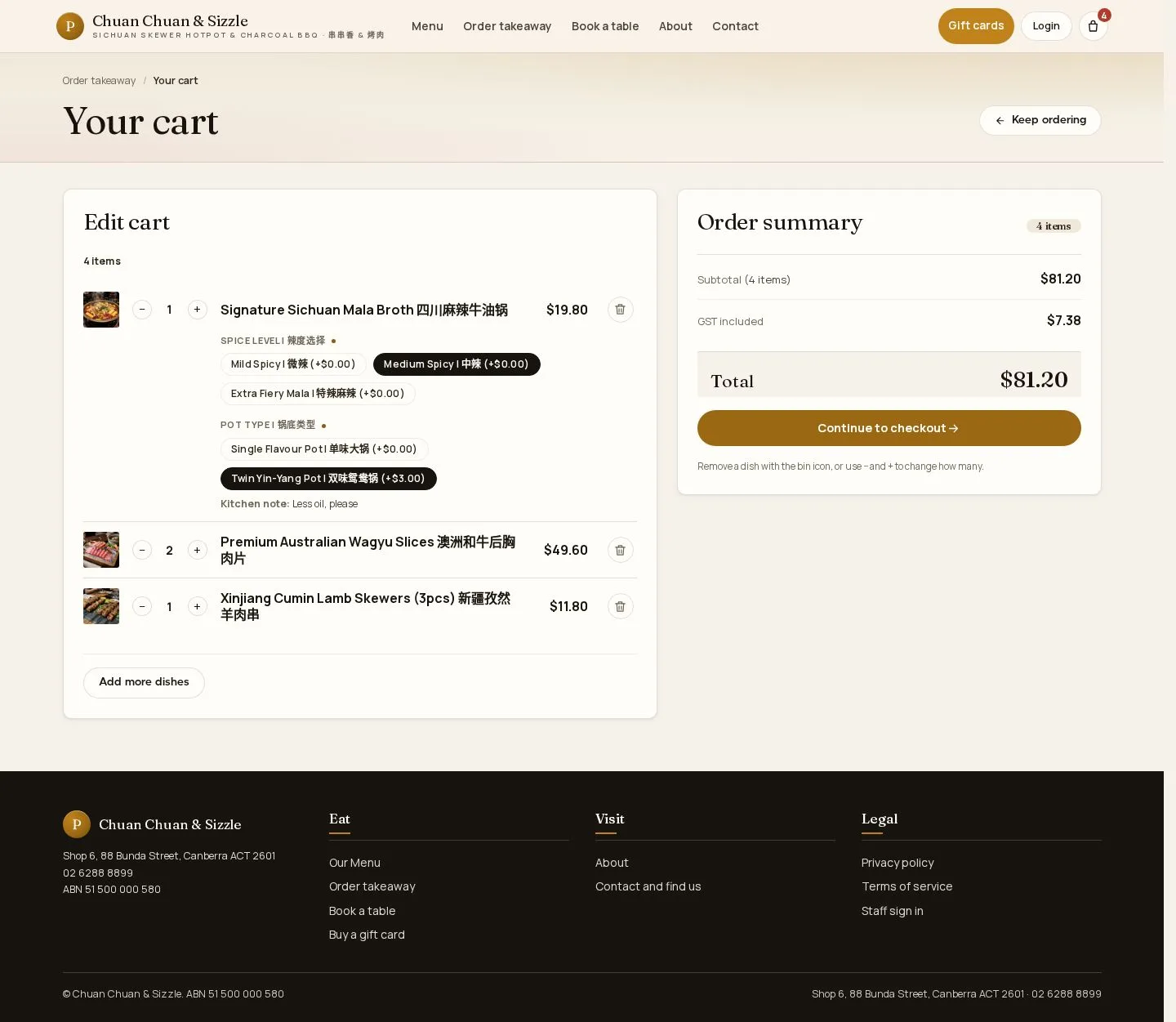
Your cart

Public

Your cart

4Step 4 of 6

  1. Review cart, or the bag icon, shows the whole order on one page.
  2. Change options or quantities, remove a dish, or Add more dishes.
  3. Continue to checkout.

Enlarge, then scroll

Open illustrated screen ↗Full image ↗

Public · Order takeaway04

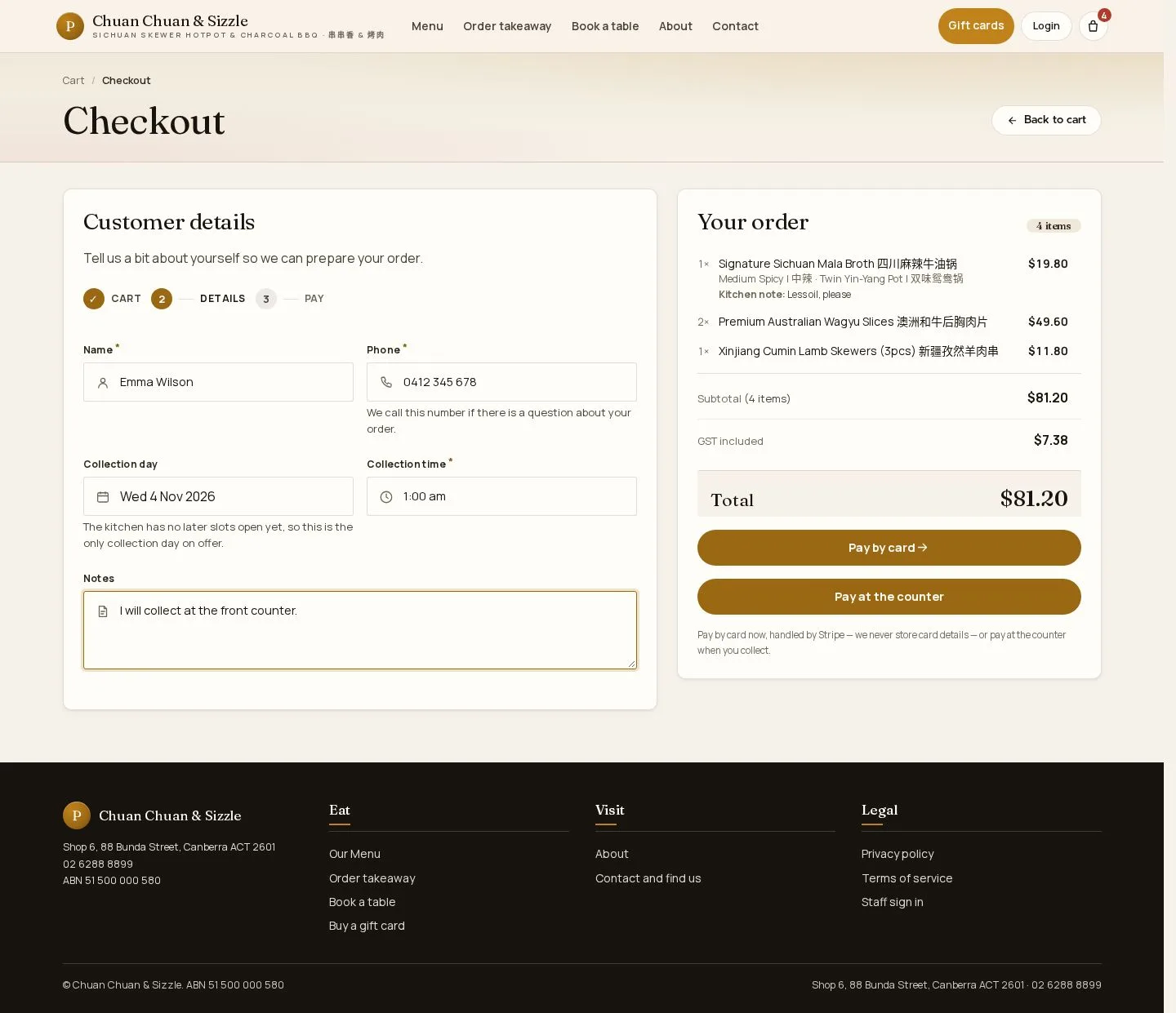
Checkout

Public

Checkout

5Step 5 of 6

  1. Name and Phone, the collection day and time, and Notes.
  2. Pay by card pays now; Pay at the counter pays when you collect.

Pay by card needs the restaurant's card payments. Without them, use Pay at the counter.

Enlarge, then scroll

Open illustrated screen ↗Full image ↗

Public · Order takeaway05

Order confirmed

Public

Order confirmed

6Step 6 of 6

  1. The order number, its status and the pickup time.
  2. Payment: what is due at the counter.
  3. Save or print this order.

Enlarge, then scroll

Full image ↗

Check

Order confirmed: the order number, the collection time and how you pay

Public · Order takeaway06
1 / 7
Privacy Terms