







Take payment and close

Orders · Take payment and close · Split payment · Gift card

  • Signed in as a Manager
  • Every round sent to the kitchen
Manager
Open orders

Manager

Open orders

1Step 1 of 6

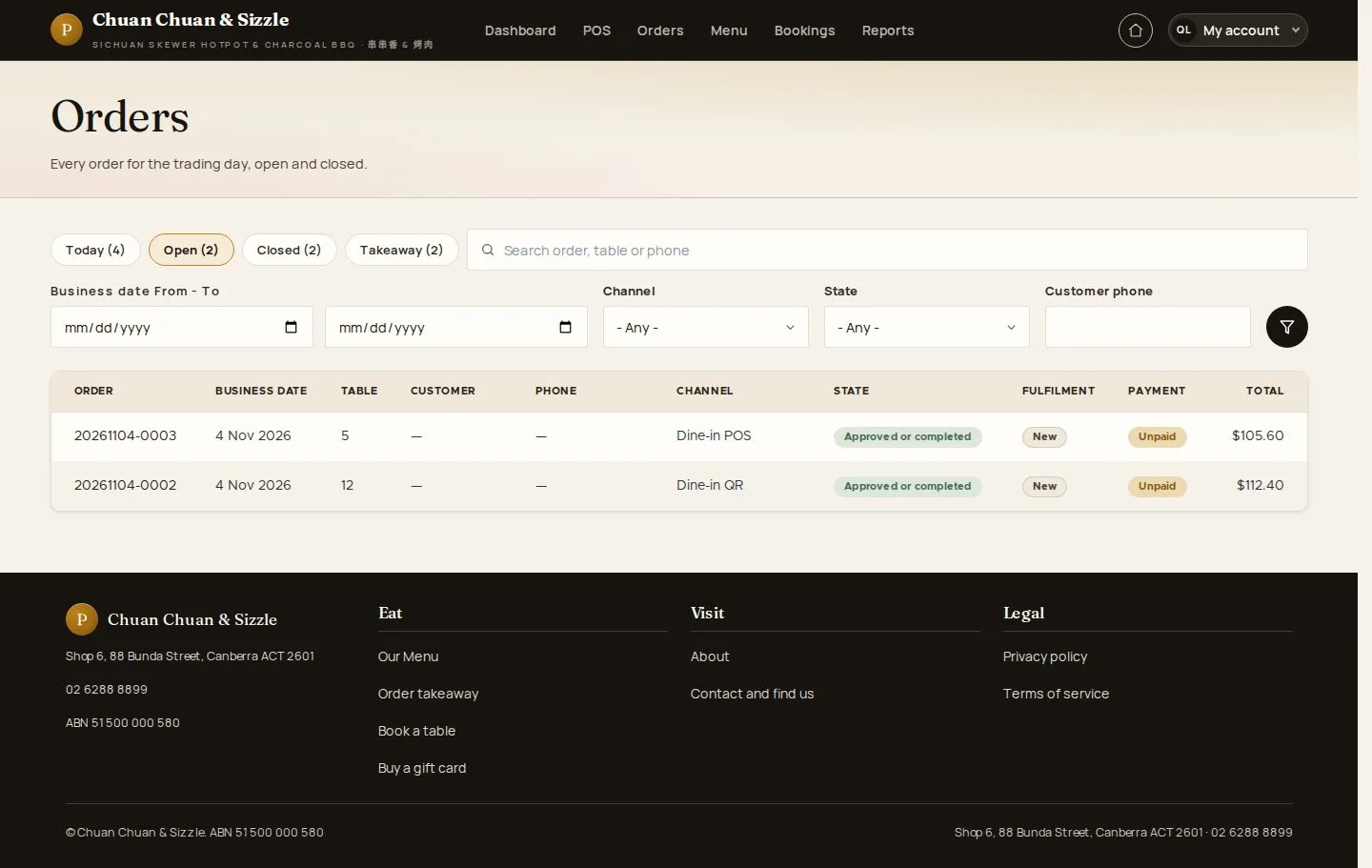
  1. Orders › Open: the orders still to be paid.
  2. Open the order of the table.

Open illustrated screen ↗Full image ↗

Manager · Take payment and close01

Take payment and close

Manager

Take payment and close

2Step 2 of 6

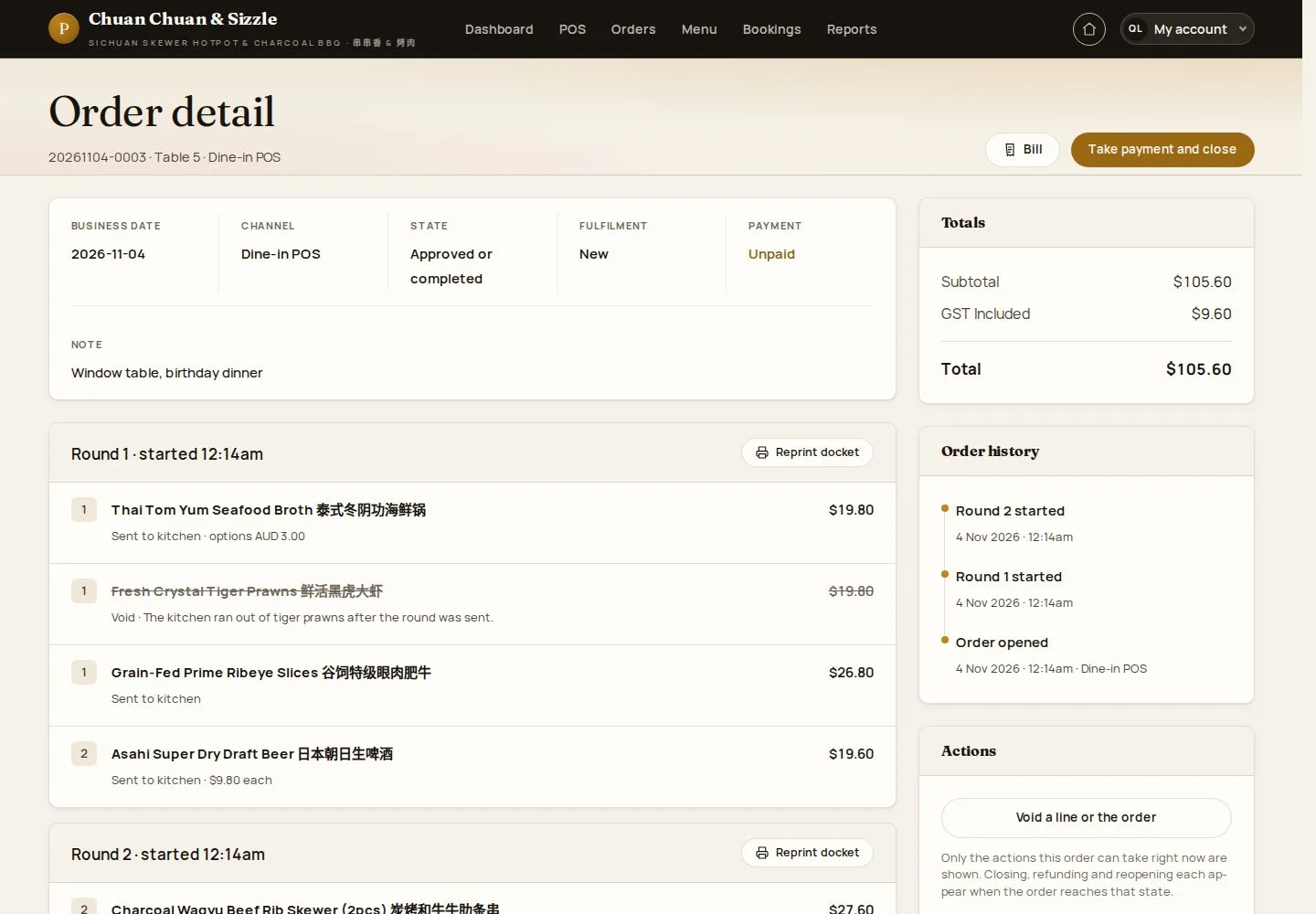
  1. Order detail: every round, voided lines, totals and history.
  2. Take payment and close.

Enlarge, then scroll

Open illustrated screen ↗Full image ↗

Manager · Take payment and close02

How was it paid?

Manager

How was it paid?

3Step 3 of 6

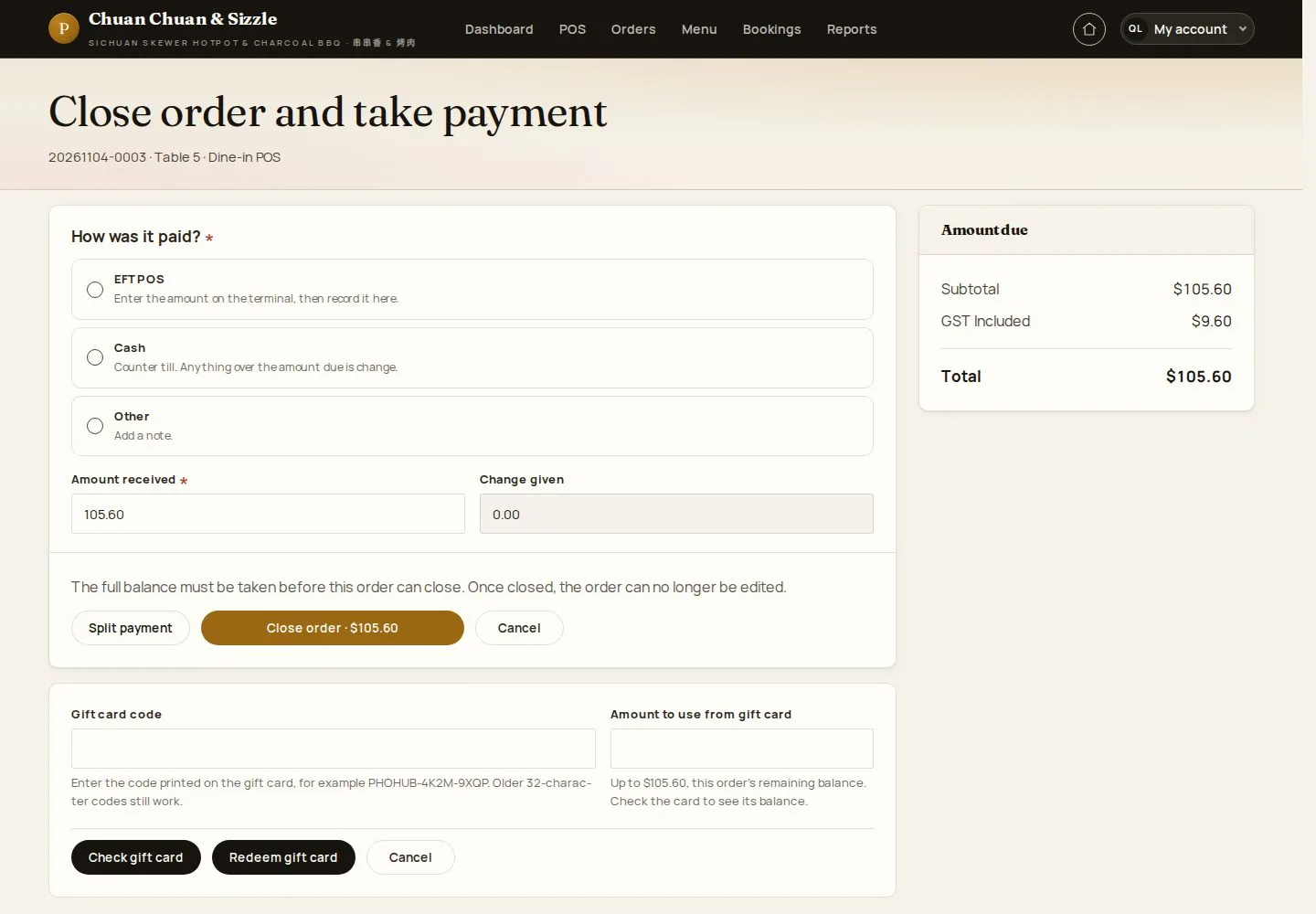
  1. EFTPOS, Cash or Other, and the Amount received; cash shows the change.
  2. Close order, once the full balance is taken.

EFTPOS is taken on the restaurant's own terminal; MenuNerds records the amount. A closed order can no longer be edited.

Enlarge, then scroll

Open illustrated screen ↗Full image ↗

Manager · Take payment and close03

Split payment

Manager

Split payment

4Step 4 of 6

  1. Split payment adds Payment 2: here $100.00 by EFTPOS and the rest in cash.
  2. Remove payment takes one away.

Enlarge, then scroll

Open illustrated screen ↗Full image ↗

Manager · Take payment and close04

A gift card

Manager

A gift card

5Step 5 of 6

  1. Gift card code, then Check gift card: the card balance and the amount to use.
  2. Redeem gift card takes that amount; pay any rest as above.

The amount is at most the card balance and what the order still owes.

Enlarge, then scroll

Open illustrated screen ↗Full image ↗

Manager · Take payment and close05

Paid order

Manager

Paid order

6Step 6 of 6

  1. Payments: each tender, and Balance $0.00; the order is Archived.
  2. Reopen a closed order is offered here for 24 hours.

Enlarge, then scroll

Open illustrated screen ↗Full image ↗

Check

The order is paid and closed; the table is free again

Manager · Take payment and close06
1 / 7
Privacy Terms