







Approve table orders

Guest orders to approve · Approve guest order · Print kitchen docket

  • Signed in as a Waiter
  • A table sent a round from its QR code
Waiter
Guest orders to approve

Waiter

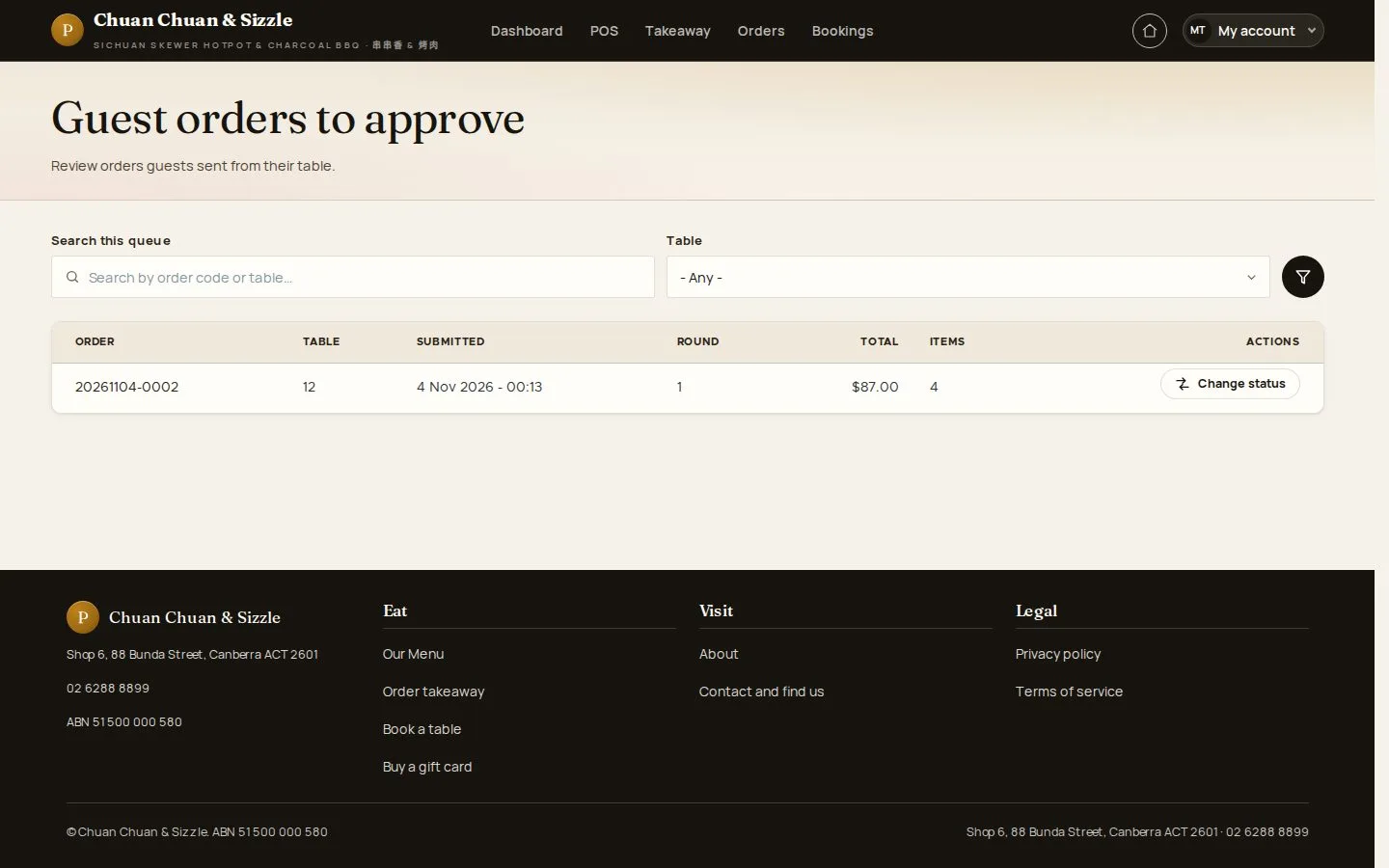
Guest orders to approve

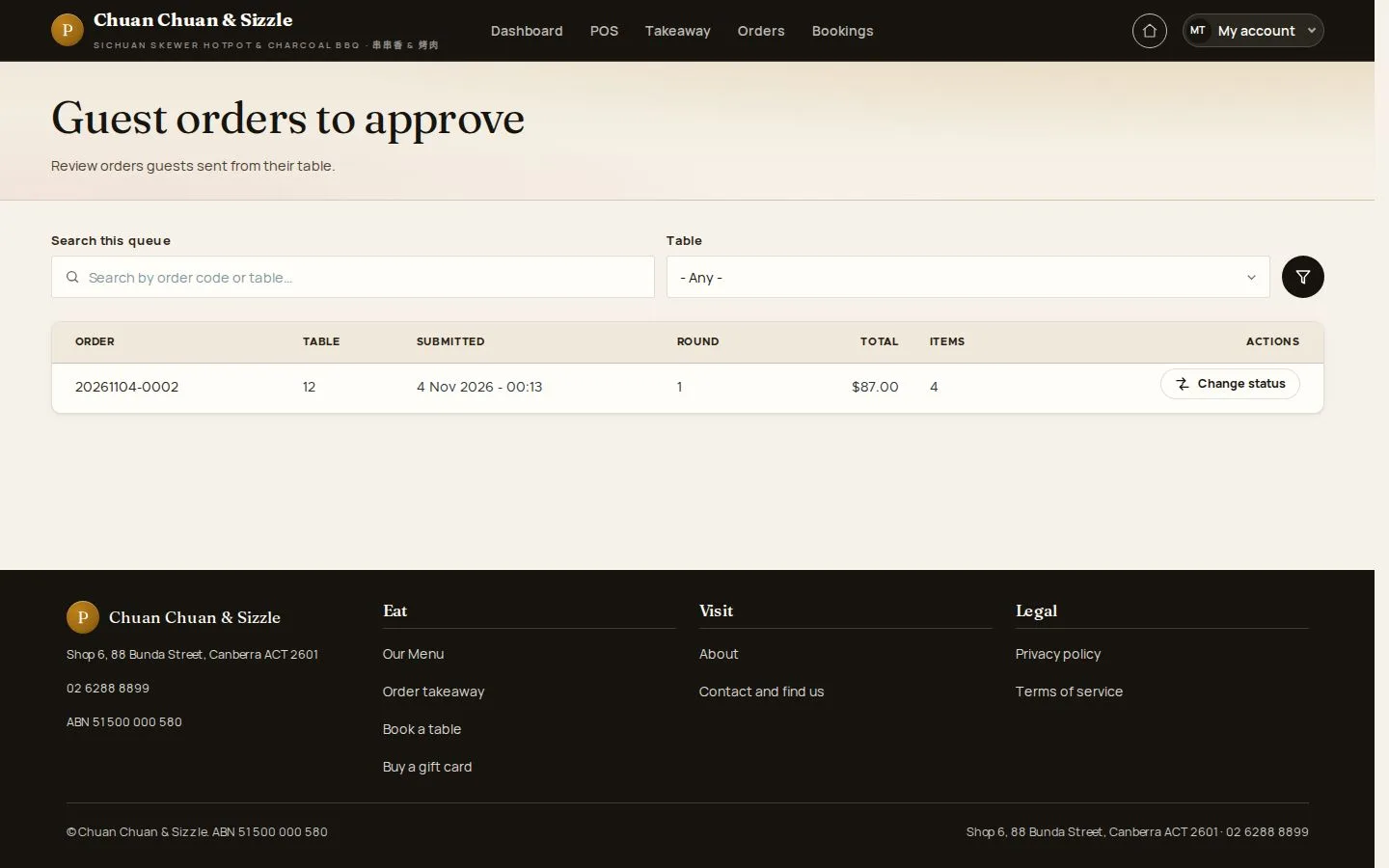
1Step 1 of 4

  1. My account › Guest orders to approve: order, table, round, total and items.
  2. Change status opens the round.

The dashboard tile Orders awaiting approval counts them.

Open illustrated screen ↗Full image ↗

Waiter · Approve table orders01

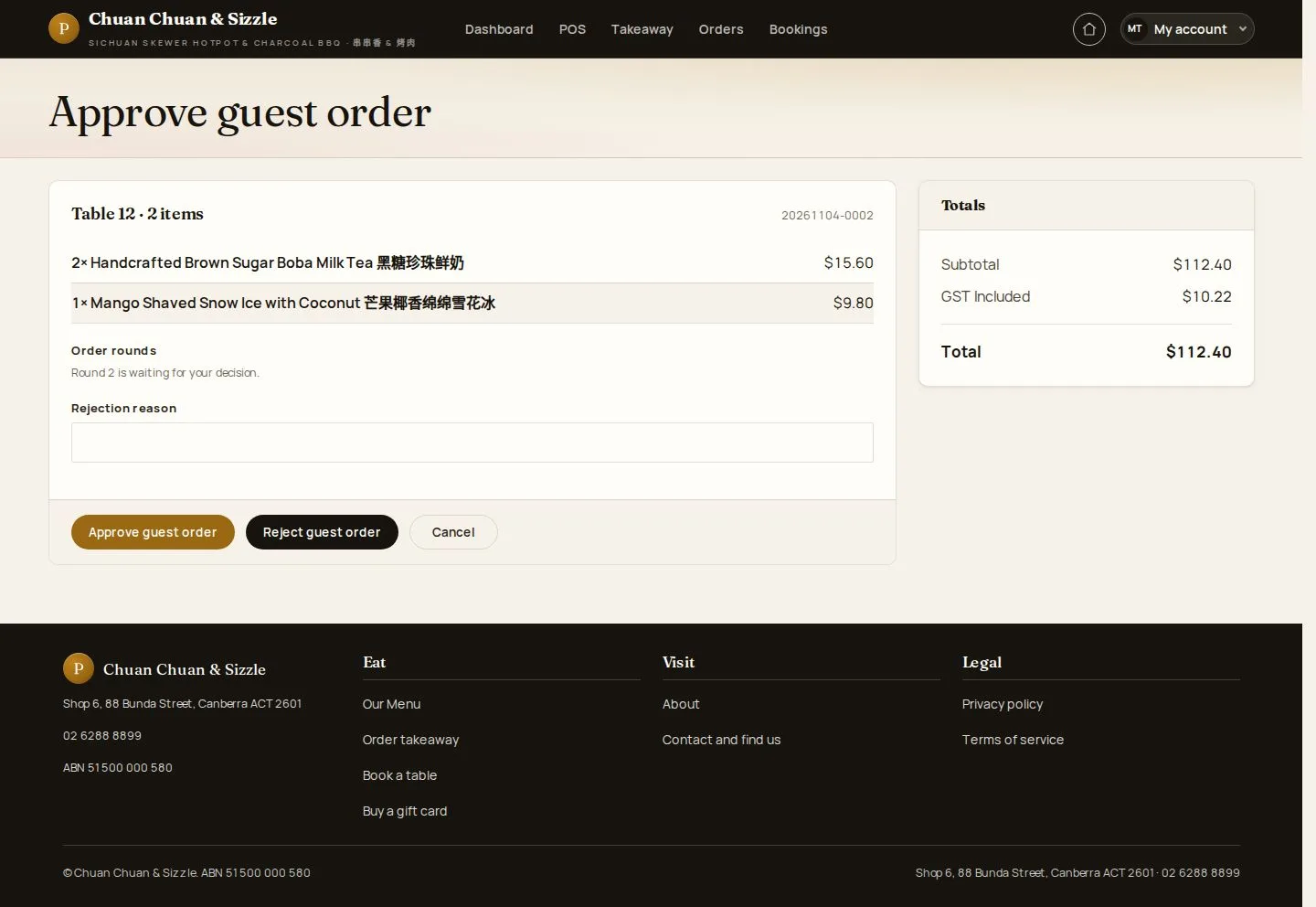
Check the round

Waiter

Check the round

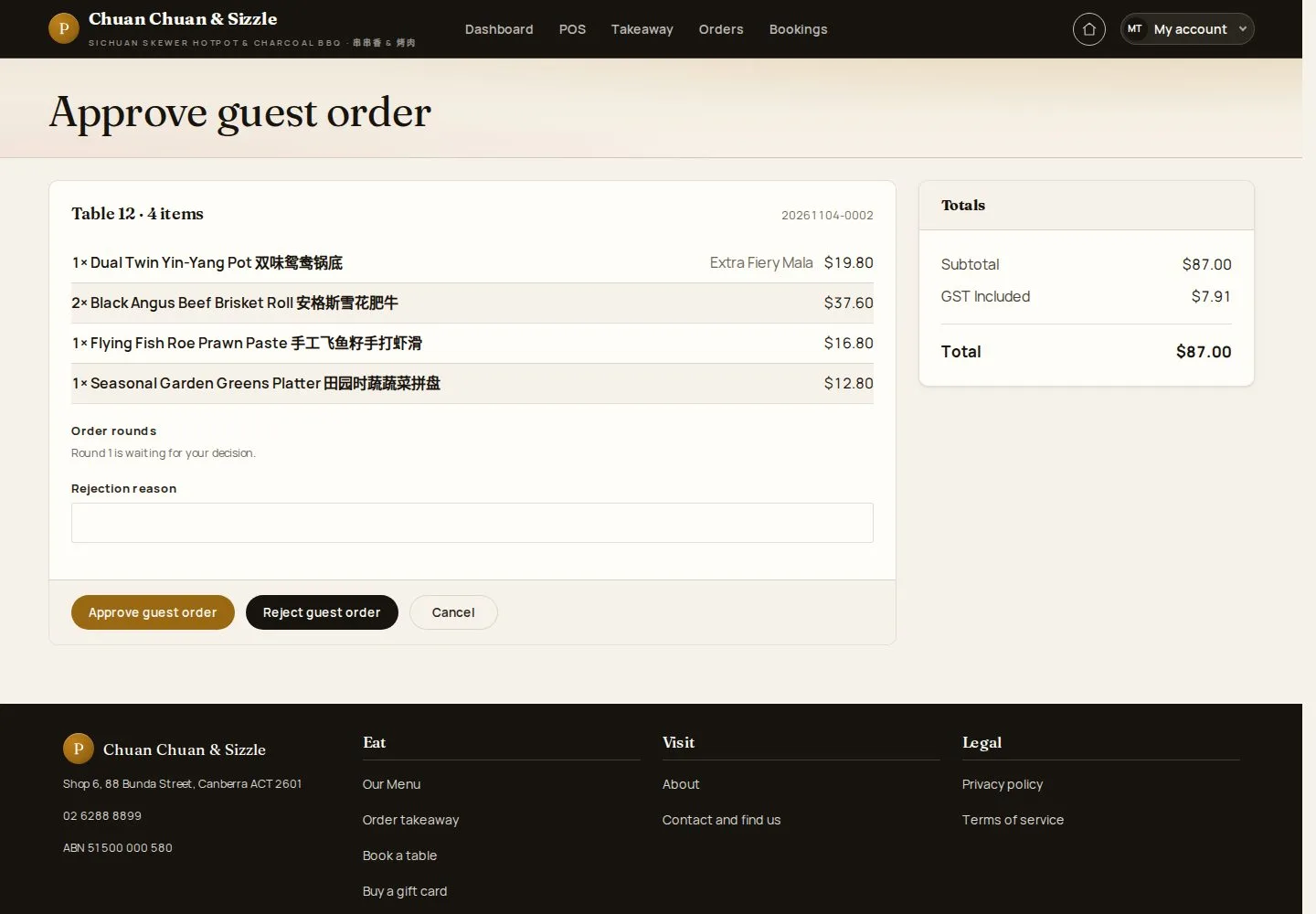
2Step 2 of 4

  1. Check the table, the dishes, their options and notes.
  2. Approve guest order sends the round to the kitchen; Reject guest order needs a Rejection reason.

Rejecting the first round frees the table.

Enlarge, then scroll

Open illustrated screen ↗Full image ↗

Waiter · Approve table orders02

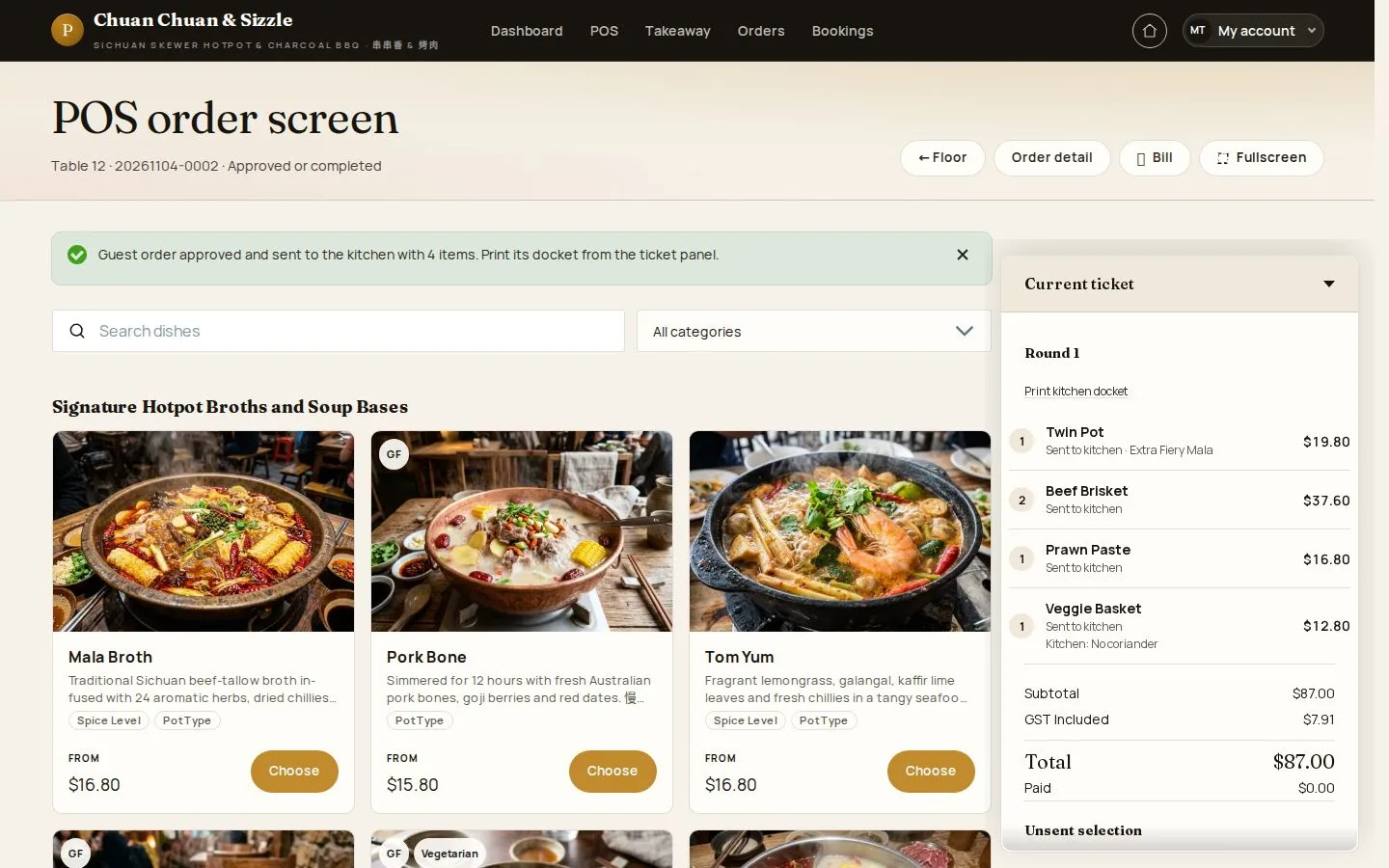
Approved

Waiter

Approved

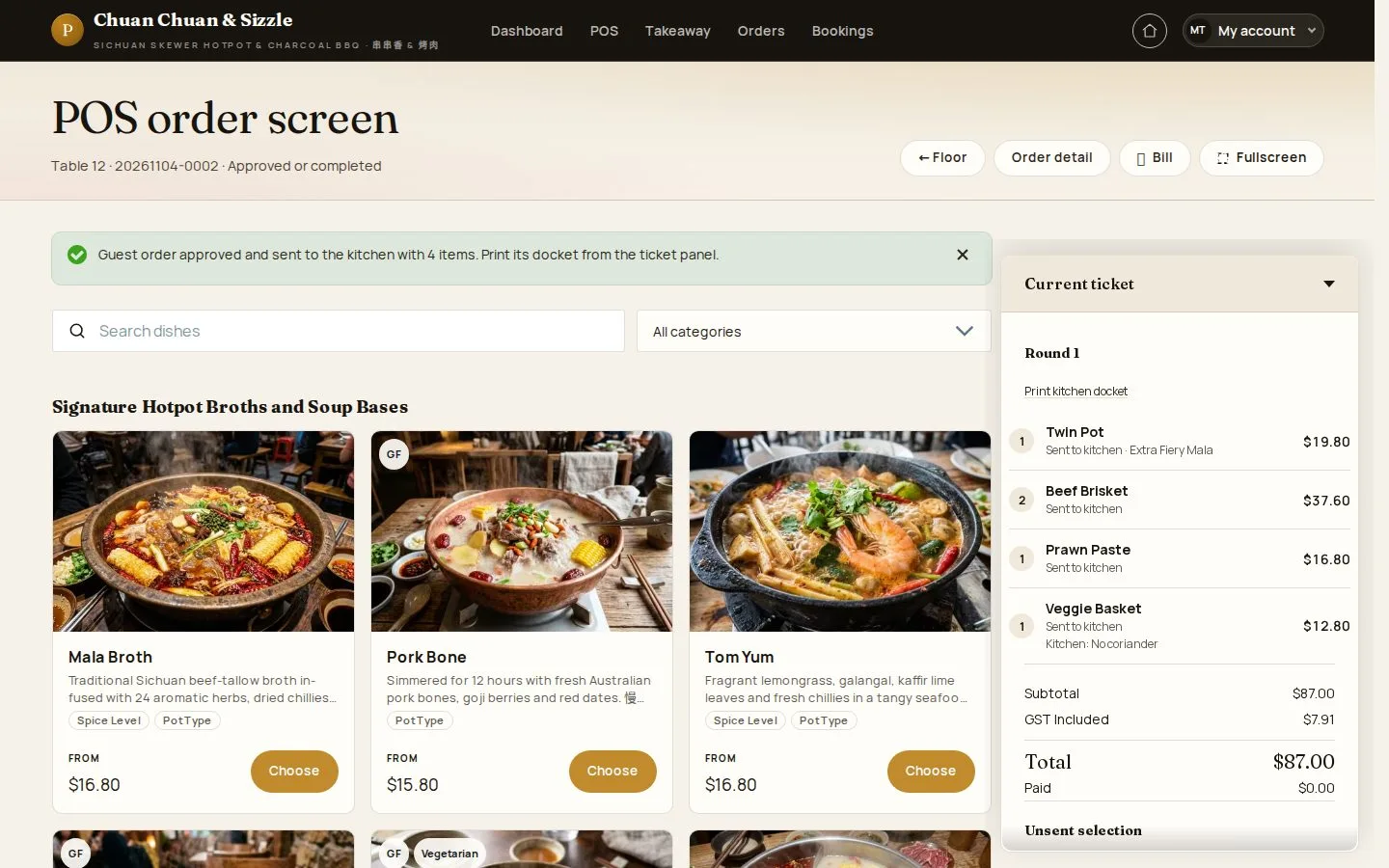
3Step 3 of 4

  1. The round is in the kitchen and on the table's ticket.
  2. Print kitchen docket, from the ticket panel.

Open illustrated screen ↗Full image ↗

Waiter · Approve table orders03

The next round

Waiter

The next round

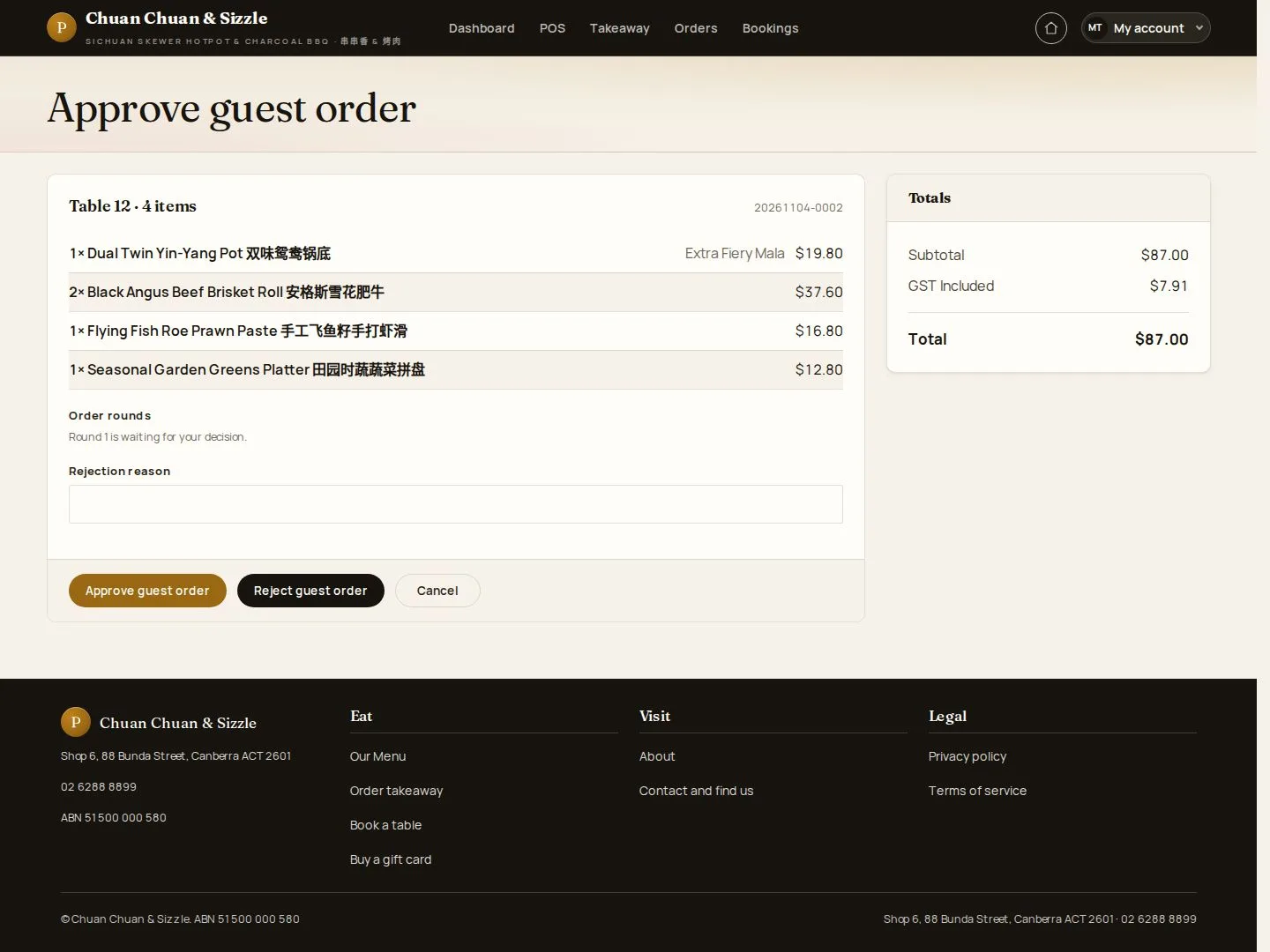
4Step 4 of 4

  1. A later round from the table comes back to Guest orders to approve.
  2. It lists only its own dishes; approve or reject it the same way.

Open illustrated screen ↗Full image ↗

Check

Each round is in the kitchen, or rejected with a reason

Waiter · Approve table orders04
1 / 5
Privacy Terms