







Categories and options

Menu categories · Option groups · Price change

  • Signed in as a Manager
Manager

Menu categories

Manager

Menu categories

1Step 1 of 4

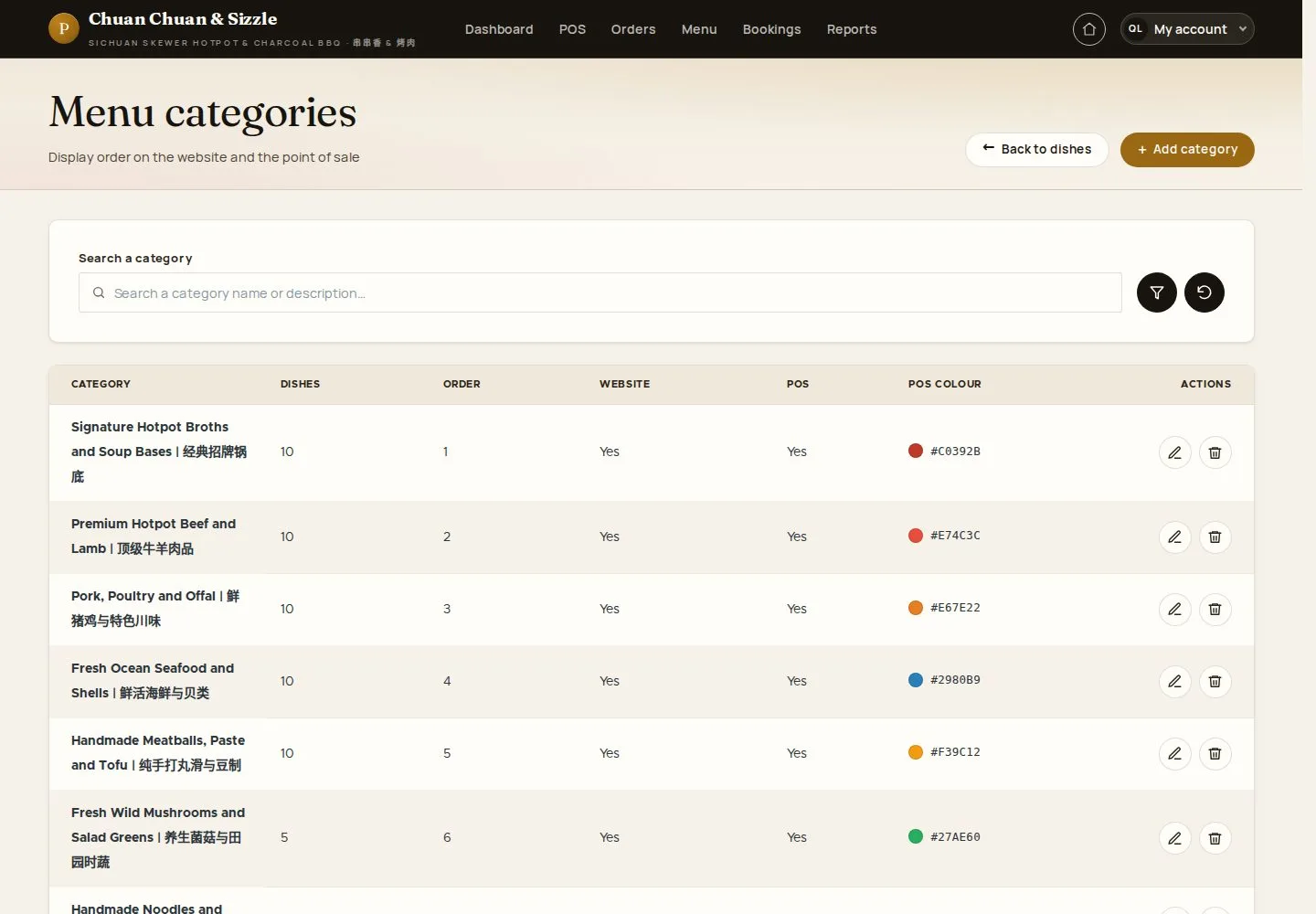
  1. Menu › Categories: dishes, display order, website, POS and POS colour.
  2. + Add category; the pencil edits one.

Enlarge, then scroll

Open illustrated screen ↗Full image ↗

Manager · Categories and options01

Add menu category

Manager

Add menu category

2Step 2 of 4

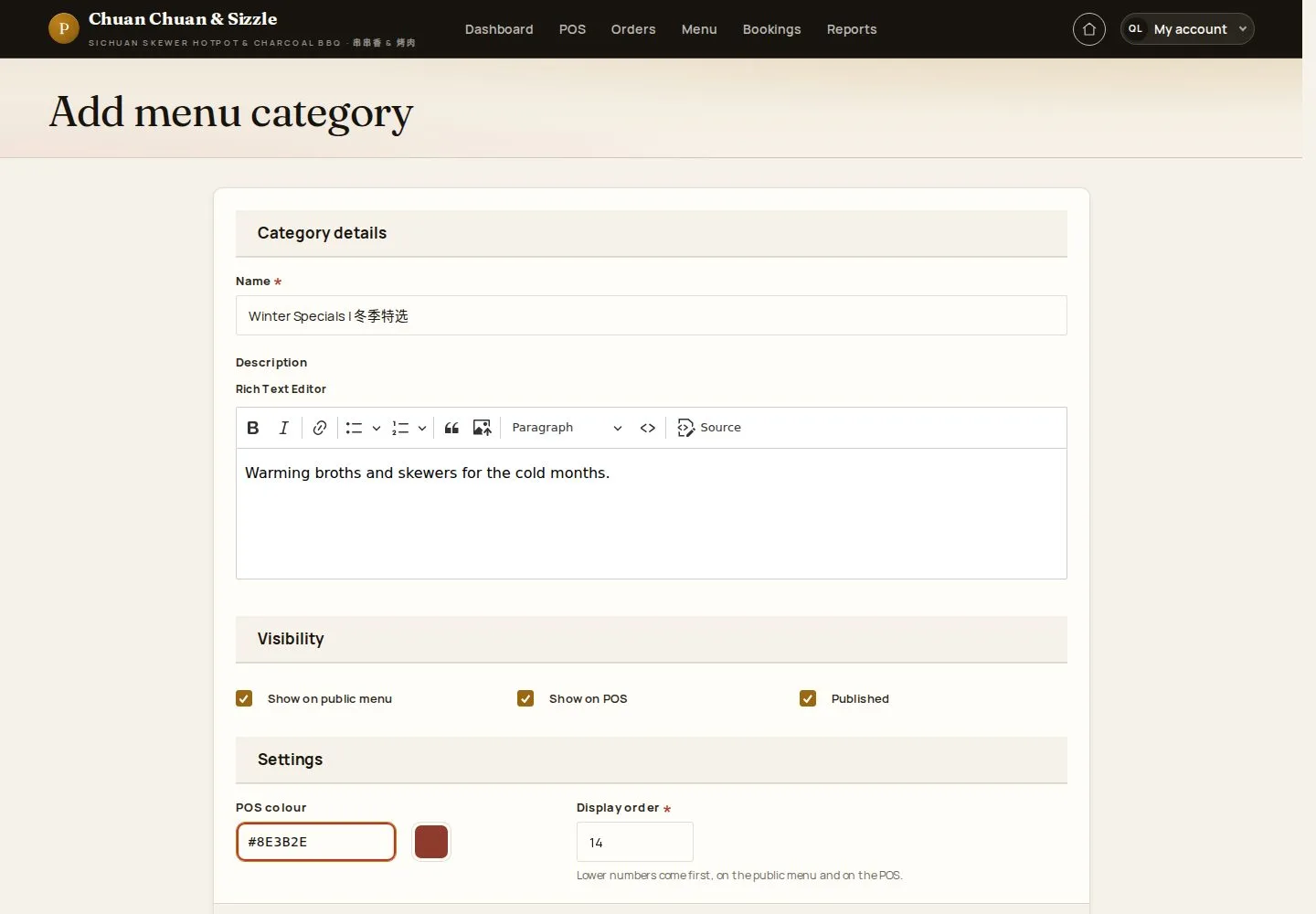
  1. Name and Description.
  2. Show on public menu, Show on POS and Published.
  3. POS colour and Display order, then Create category.

Enlarge, then scroll

Open illustrated screen ↗Full image ↗

Manager · Categories and options02

Option groups

Manager

Option groups

3Step 3 of 4

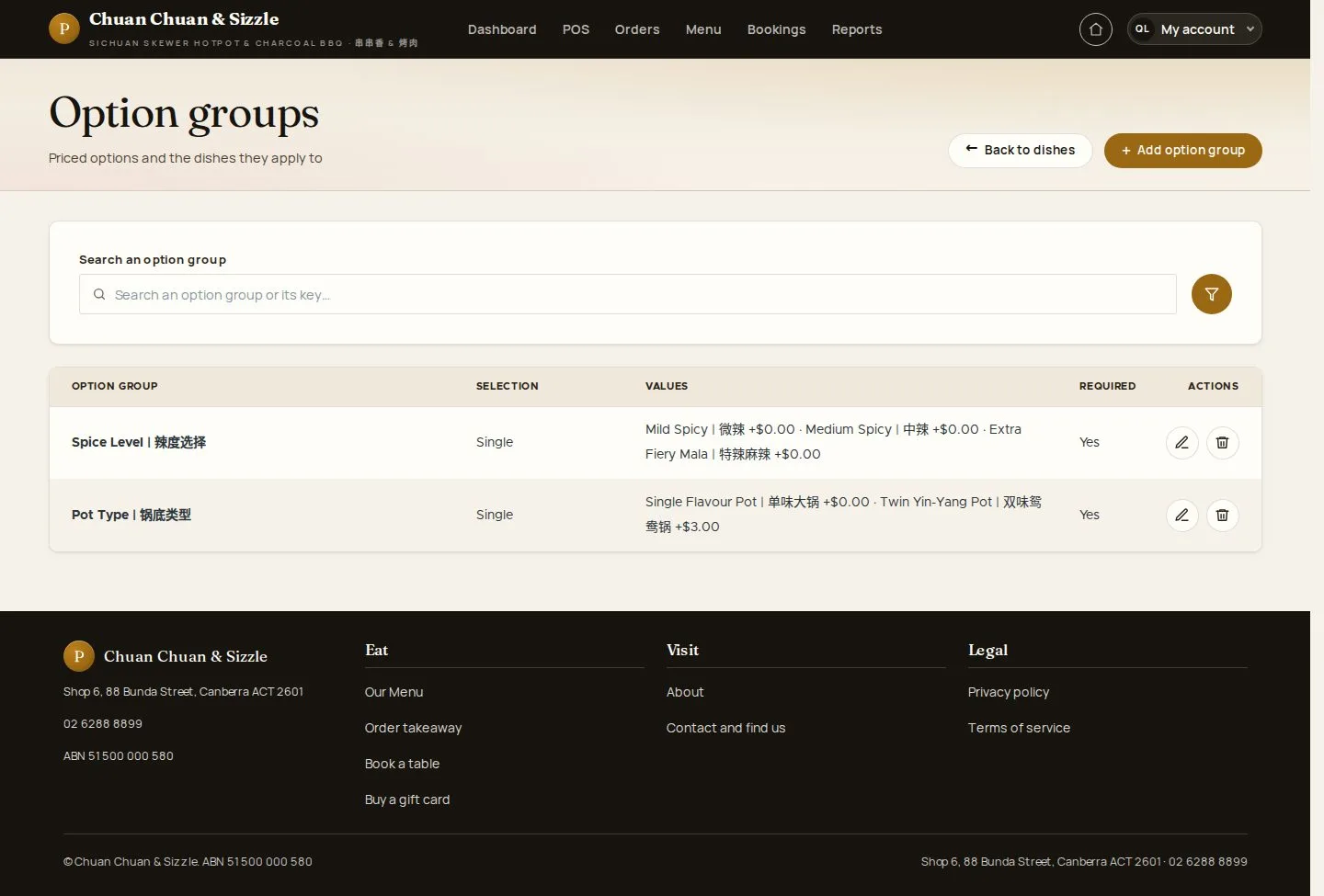
  1. Menu › Option groups: each group, single or multiple choice, its options with their price change, and whether one is required.
  2. + Add option group; the pencil edits one.

Open illustrated screen ↗Full image ↗

Manager · Categories and options03

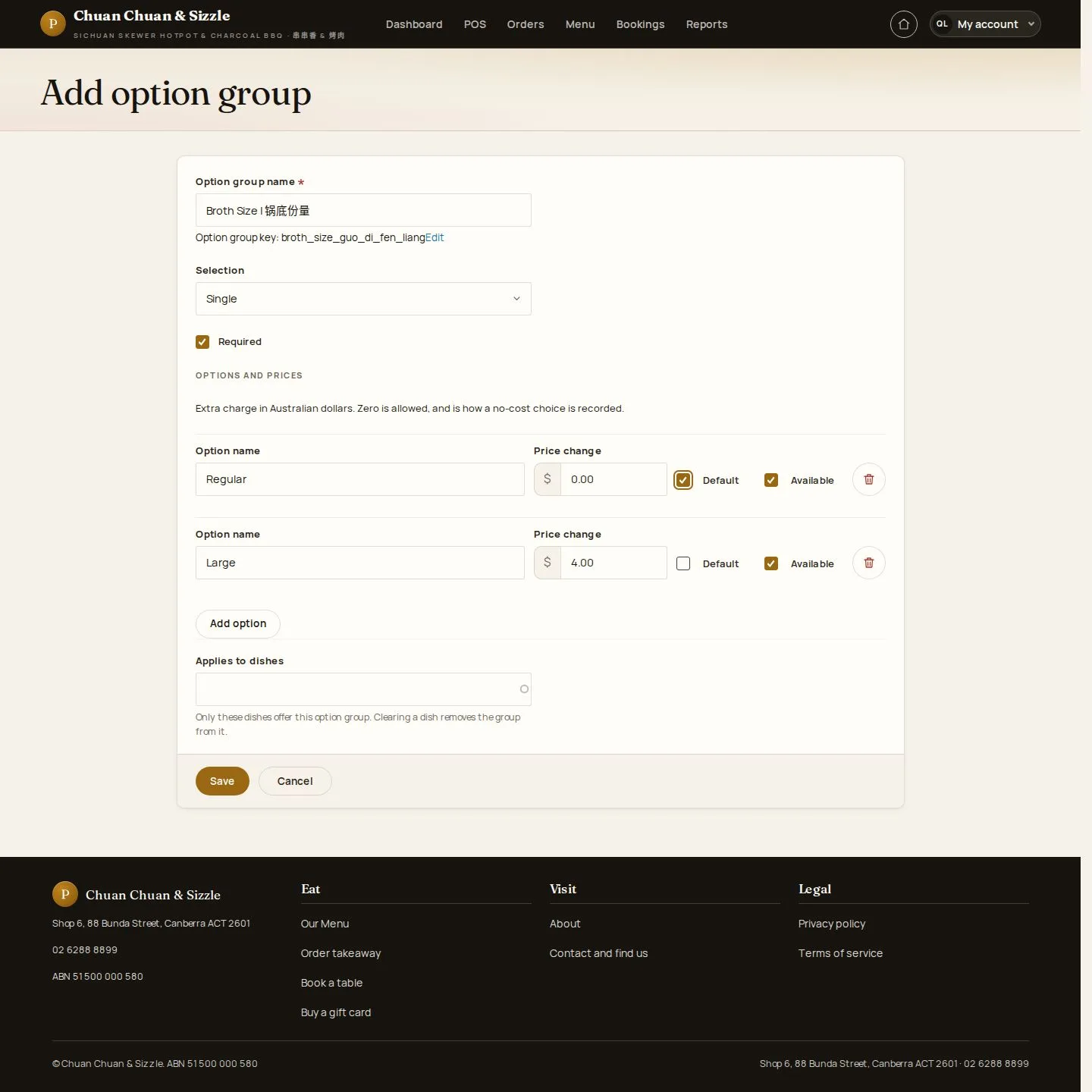
Add option group

Manager

Add option group

4Step 4 of 4

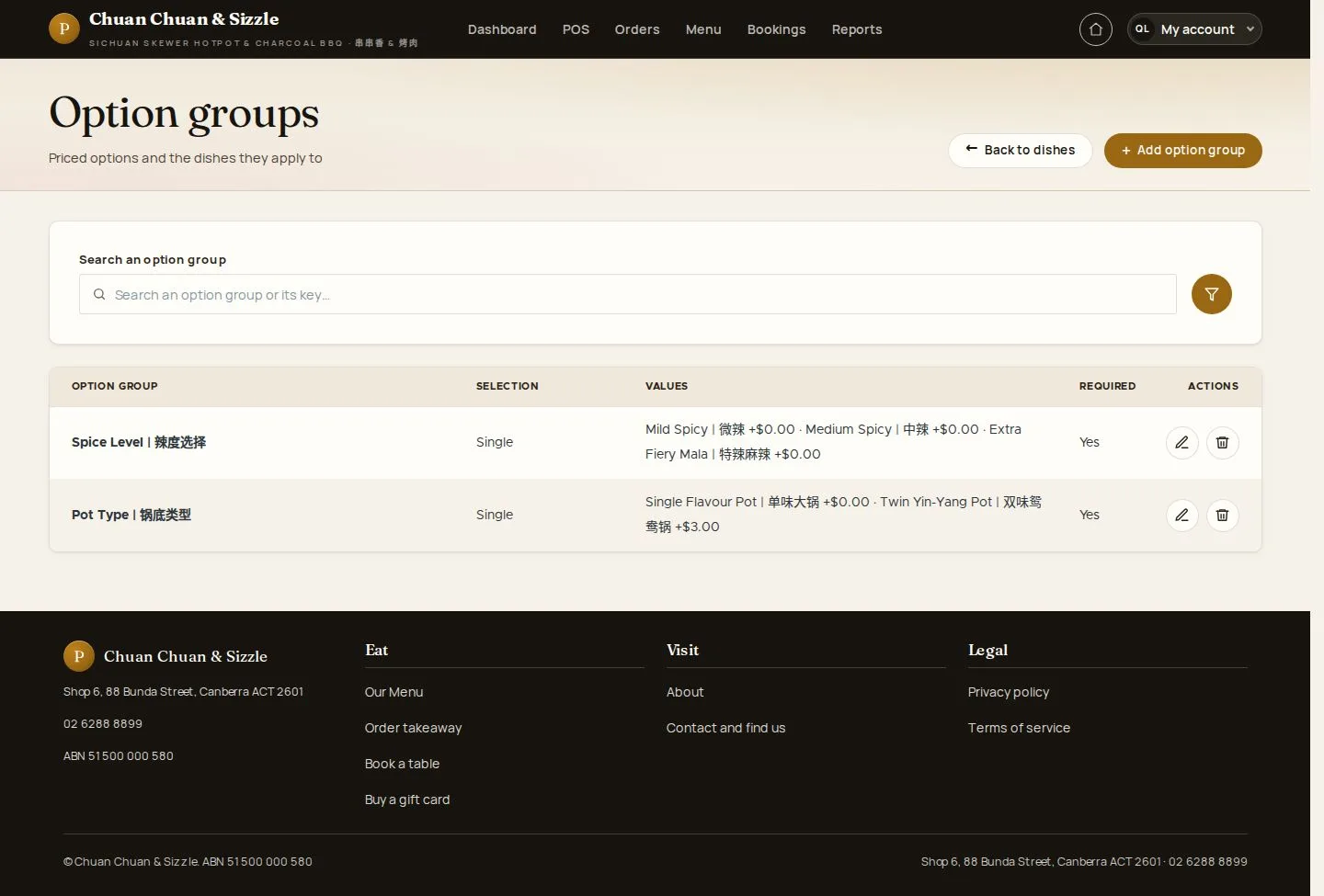
  1. Option group name, Selection and Required.
  2. Add option: its name and Price change; one option is the Default.
  3. Applies to dishes: the dishes that offer it; Save.

Enlarge, then scroll

Open illustrated screen ↗Full image ↗

Check

Categories and option groups match the menu

Manager · Categories and options04
1 / 5
Privacy Terms