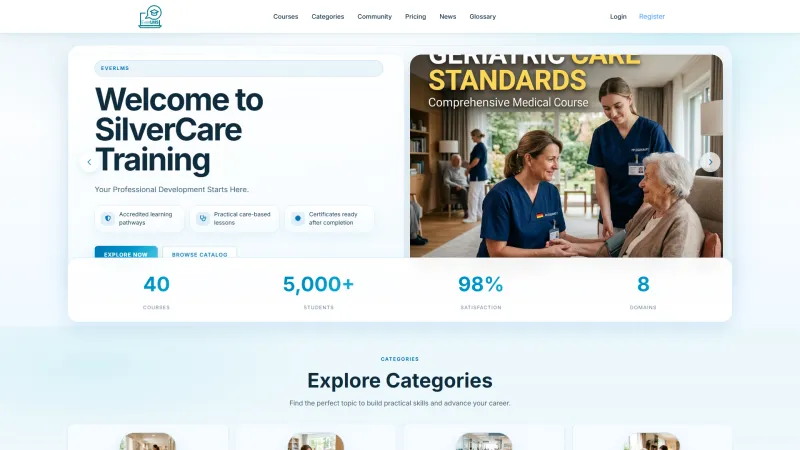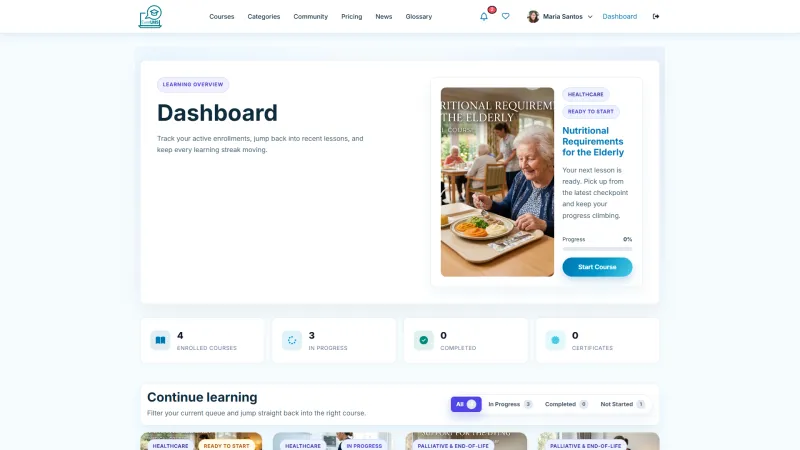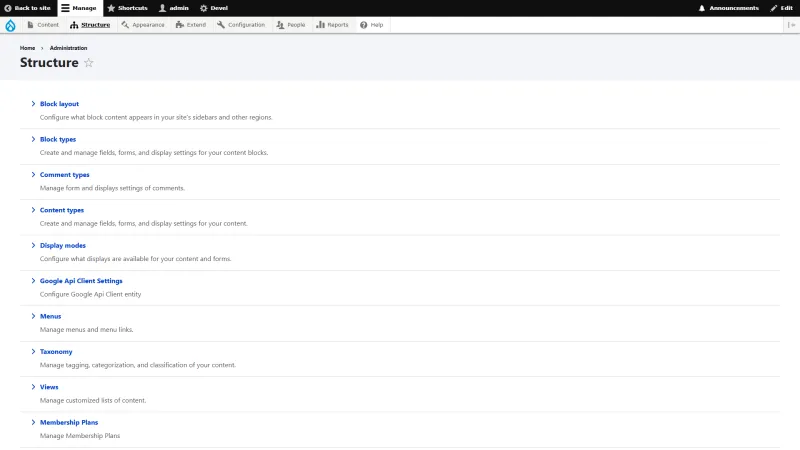

System Login
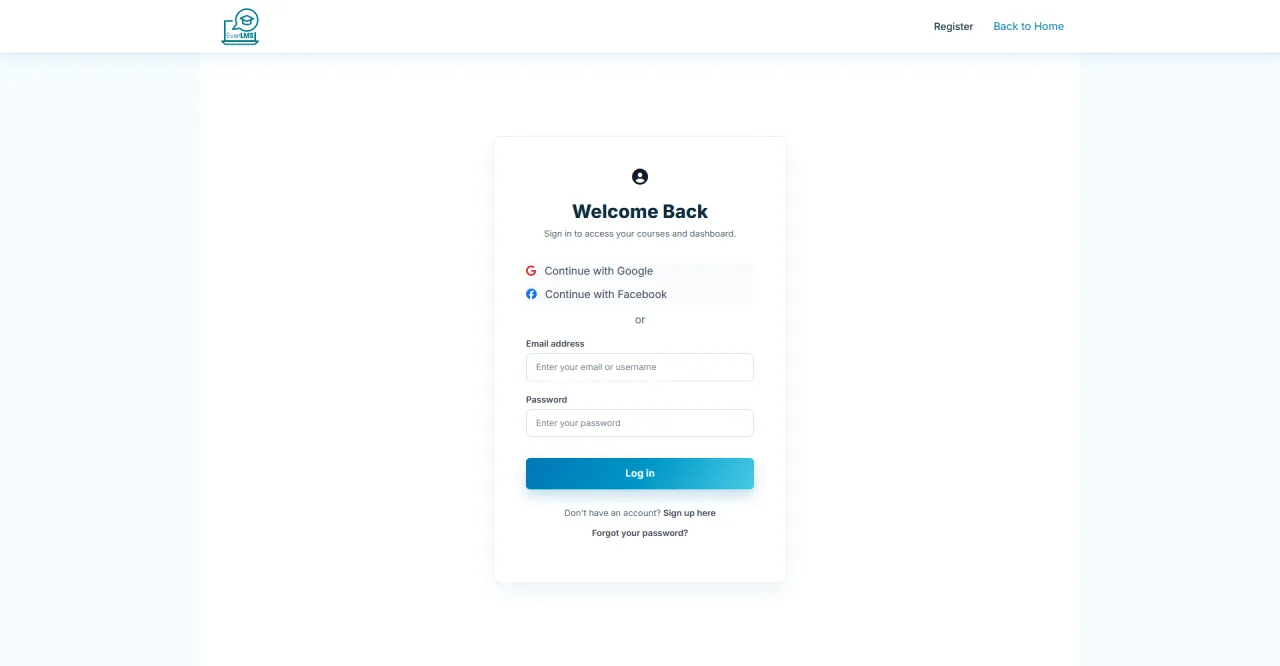
About this screen: To access system functions, you must log in with an authorized account.
Navigation: Homepage → Log In
- Fill in the Username (or Email) and Password fields
- Demo access: sandbox accounts are issued on request: request a guided demo.
- Click Log In to access the internal system.
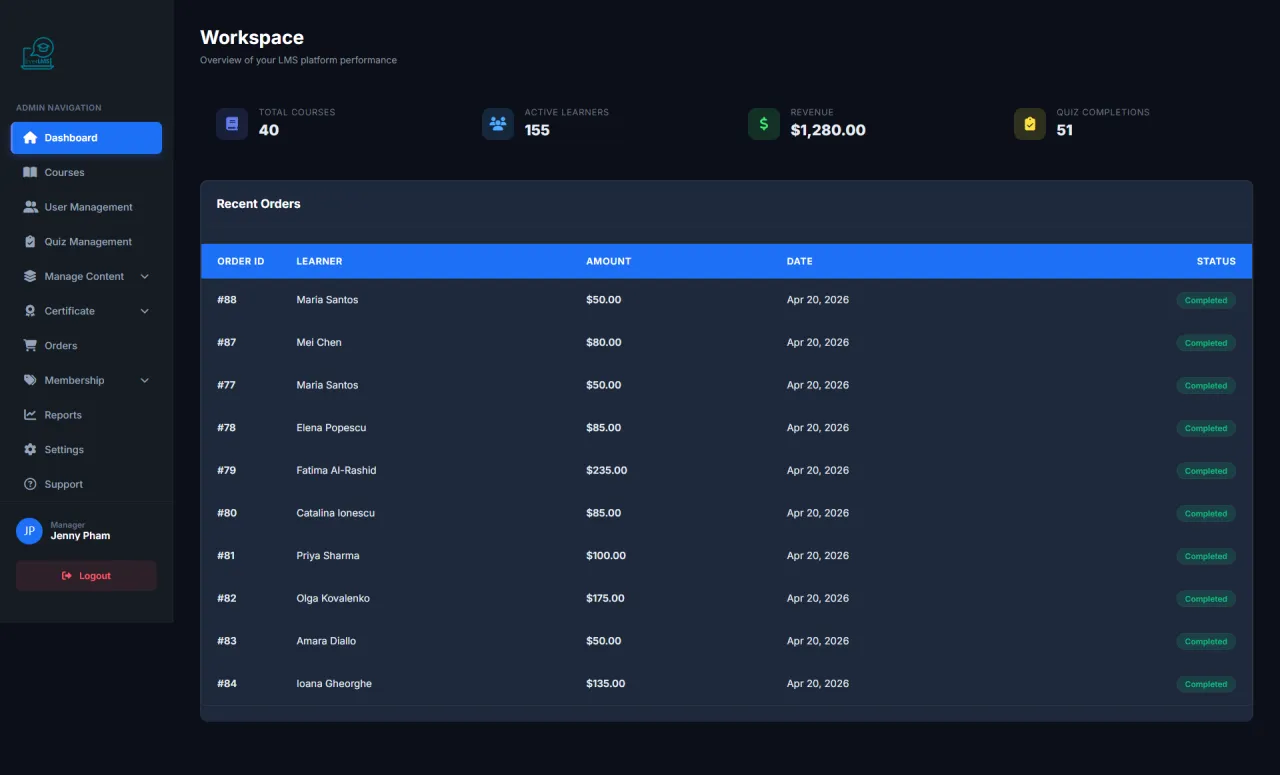
Manager Dashboard
About this screen: The Dashboard provides real-time operational metrics for the entire system.
Navigation: Login → Workspace
- Overview statistics: Courses, Users, Revenue
- Enrollment and revenue trend charts
- Featured courses and latest enrolled students
- Quick access to management features
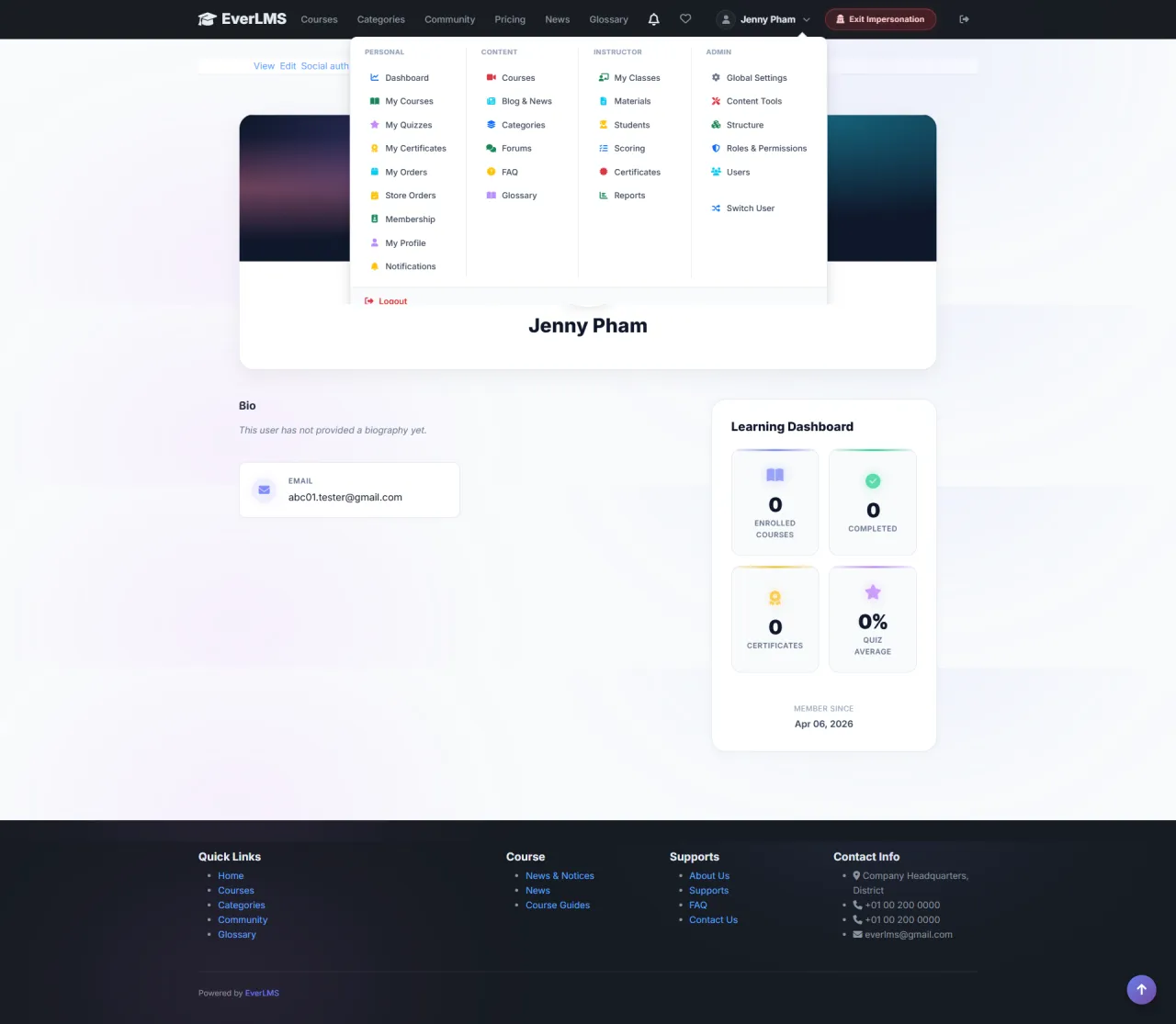
Manager Account
About this screen: The account menu provides quick navigation between Workspace and personal features.
Navigation: Click avatar/name in top right corner
- Workspace: Return to management dashboard
- My Courses: Enrolled courses
- My Certificates: Personal certificates
- Profile: Edit profile
- Switch to Learner: Switch to student interface
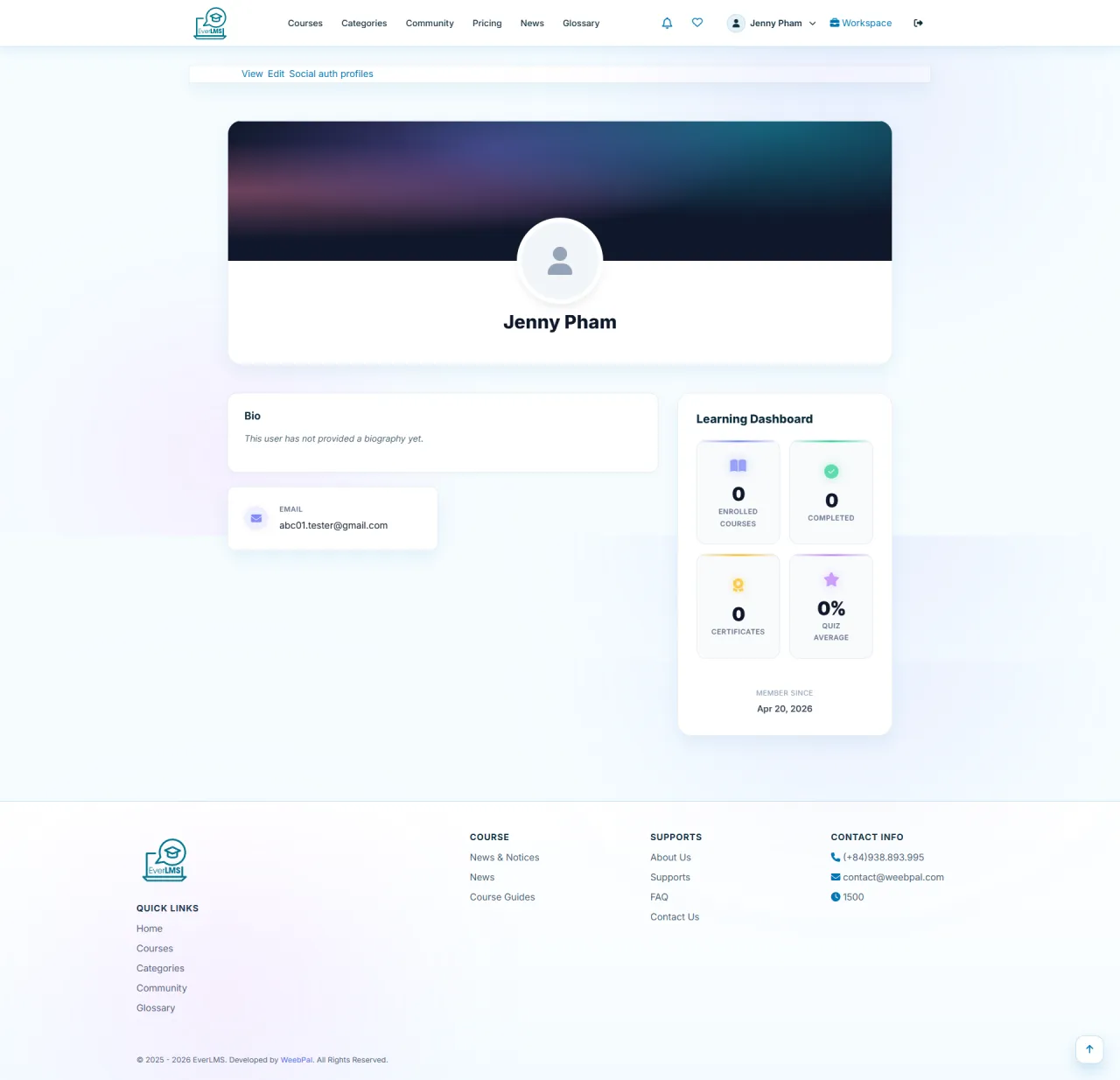
Manager Profile
About this screen: The Profile page lets managers update their personal information, avatar, and contact details.
Navigation: Account Menu → Profile
- Update display name and profile avatar
- Change email and contact information
- Update biography and personal description
- Change password for account security
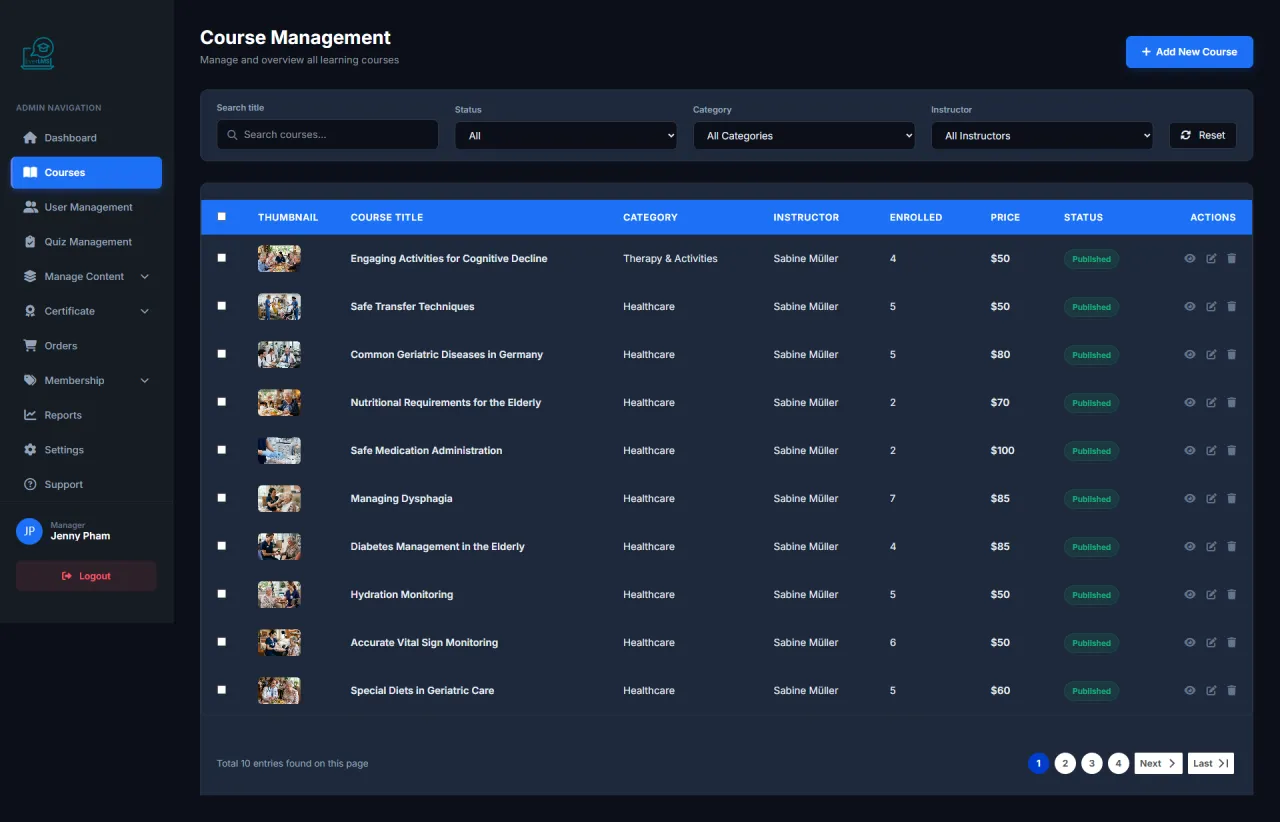
Course Management
About this screen: The Workspace Courses page displays the entire course catalog on the platform.
Navigation: Workspace → Courses
- View all courses with Published/Draft status
- Search by name, instructor, category
- Create new courses or edit existing ones
- Toggle course visibility
Edit Course
About this screen: Update all information, content, and settings for a course.
Navigation: Workspace Courses → Click course name → Edit
- Edit title, description and learning objectives
- Update Curriculum: add/remove sections and lessons
- Change price, category, and instructor
- Publish/Unpublish the course
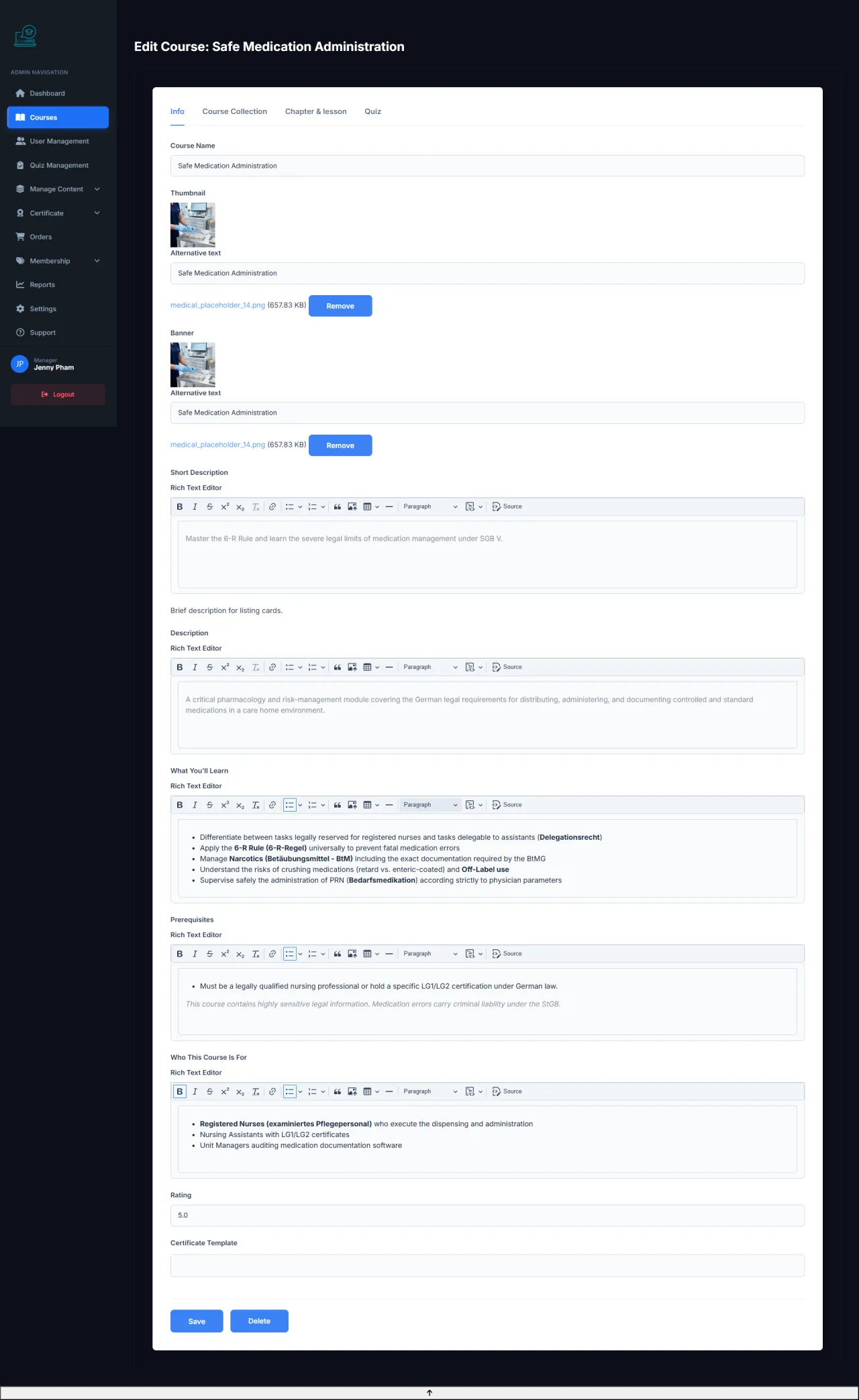
Course Structure
About this screen: The course structure editor lets you manage chapters and lessons inside a course with drag-and-drop reordering.
Navigation: Workspace → Courses → Edit → Curriculum Tab
- Add, remove, or reorder chapters via drag-and-drop
- Create lessons within each chapter: Video, Quiz, Text, Zoom Live, SCORM, H5P
- Set prerequisite conditions per chapter (must complete previous to unlock)
- Configure Drip Content: auto-unlock lessons after X days from enrollment
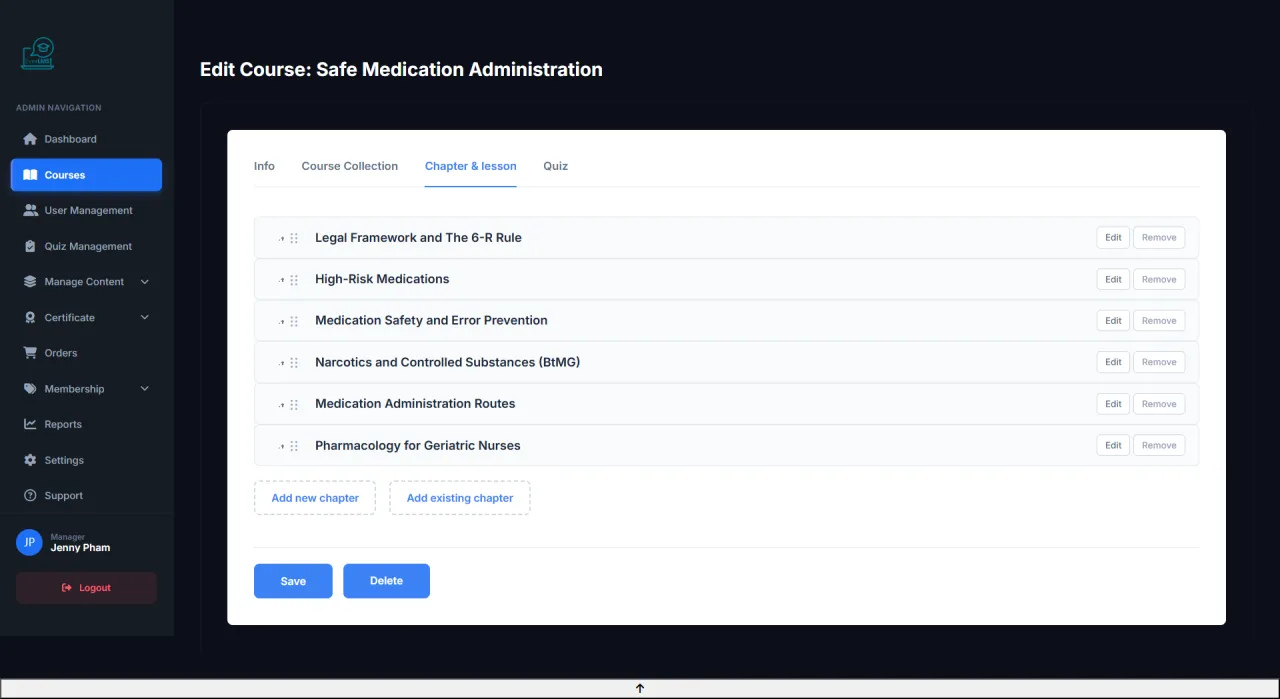
Edit Chapter
About this screen: Edit the details of a specific chapter within a course, including its title, description, and access settings.
Navigation: Workspace → Courses → Edit → Curriculum Tab → Chapter Edit
- Update chapter title and description
- Configure prerequisite requirements
- Set drip content: schedule unlock date or delay after enrollment
- Reorder lessons within the chapter
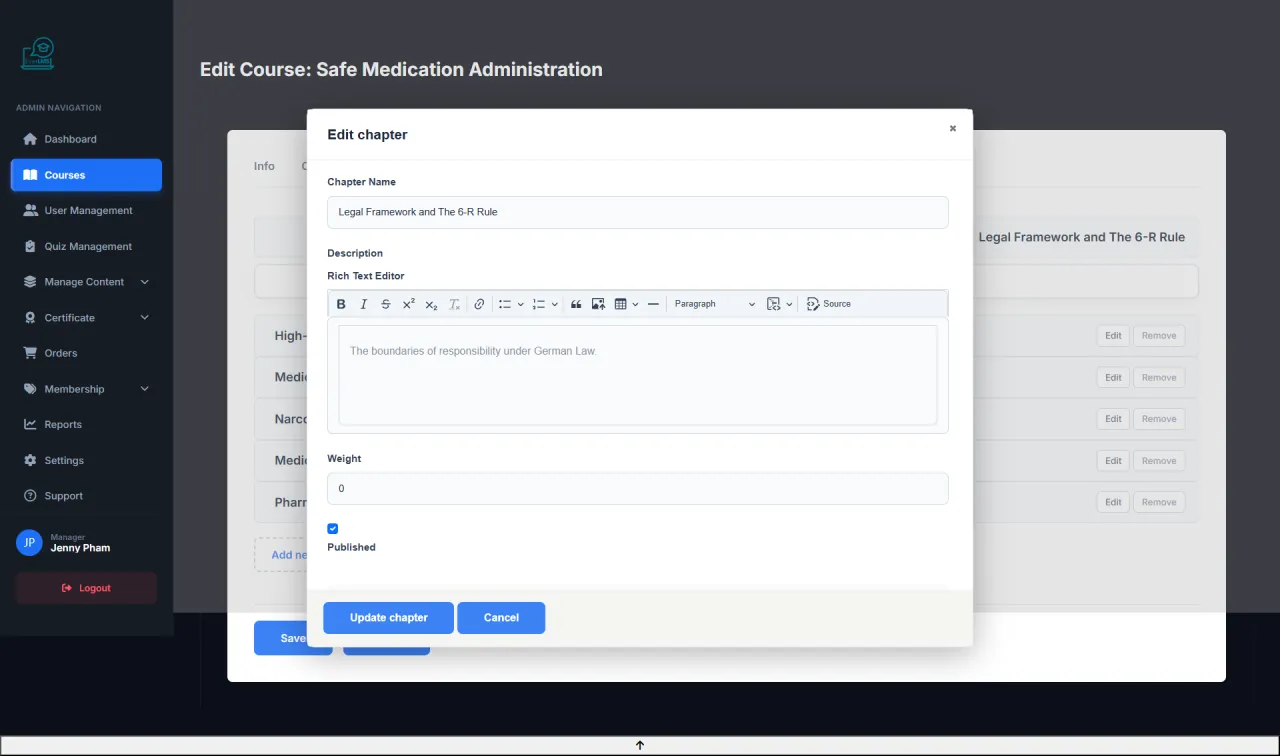
Course Collections
About this screen: Course Collections let you group multiple courses into a single bundle for purchase or enrollment.
Navigation: Workspace → Courses → Collections
- Bundle multiple courses into one collection
- Set a combined price for the collection
- Manage enrollment access for collection members
- Edit collection title, description, and cover image
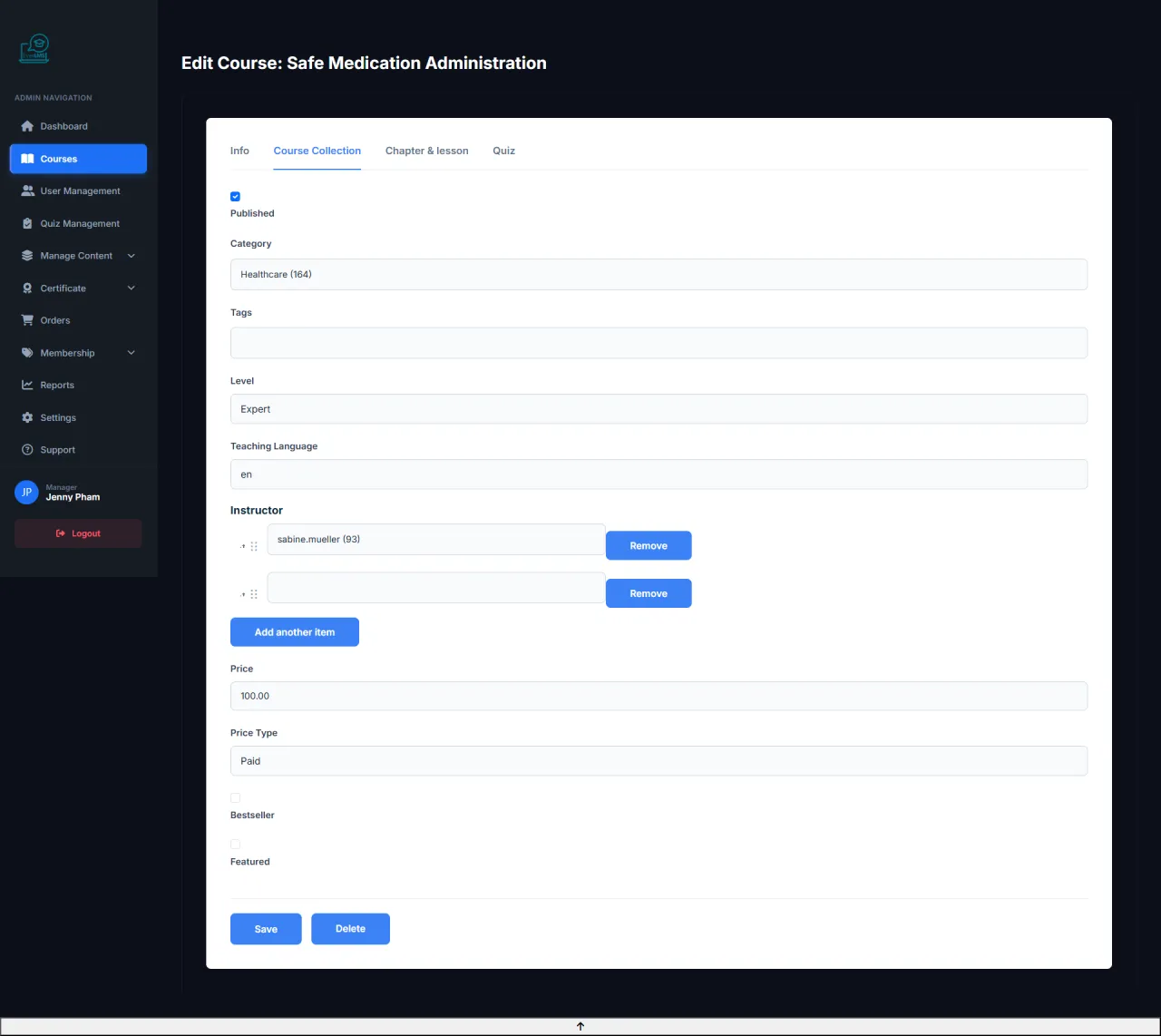
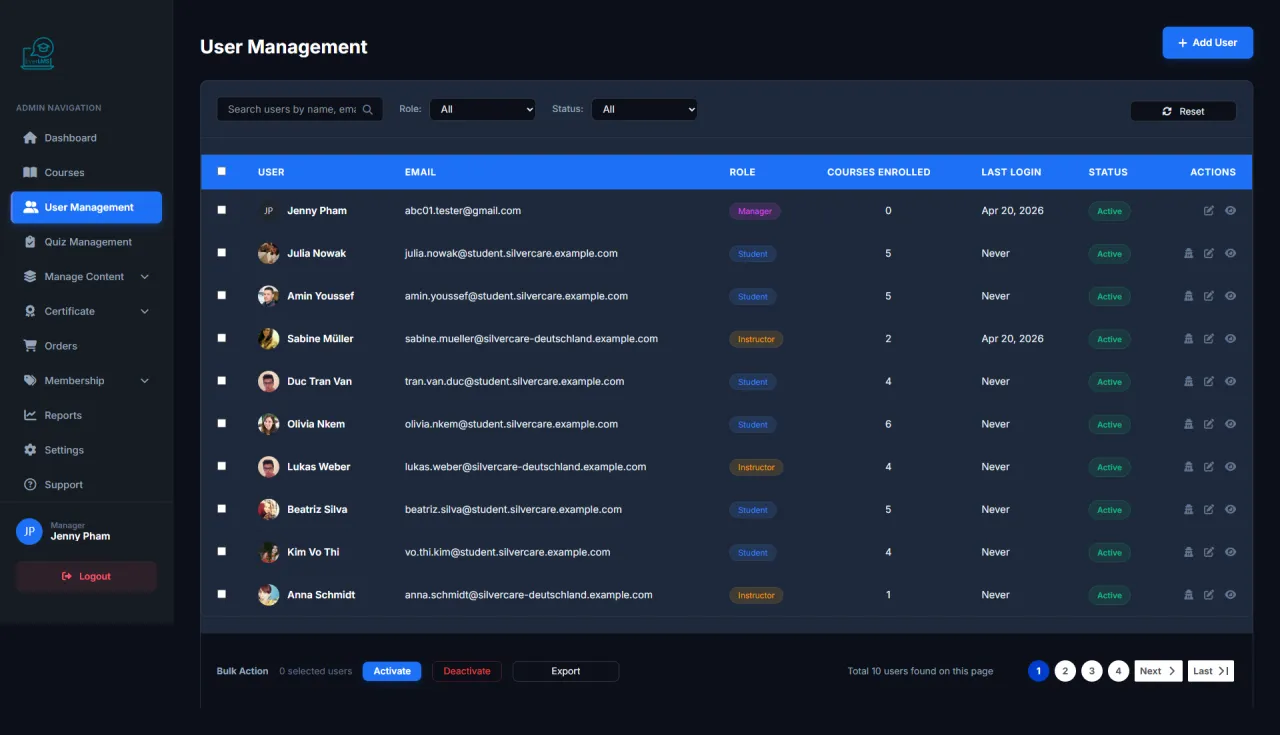
User Management
About this screen: The Workspace Users page lists all user accounts on the platform.
Navigation: Workspace → Users
- View user list with roles and status
- Search by name, email, role
- Create new accounts or edit information
- Lock/unlock user accounts
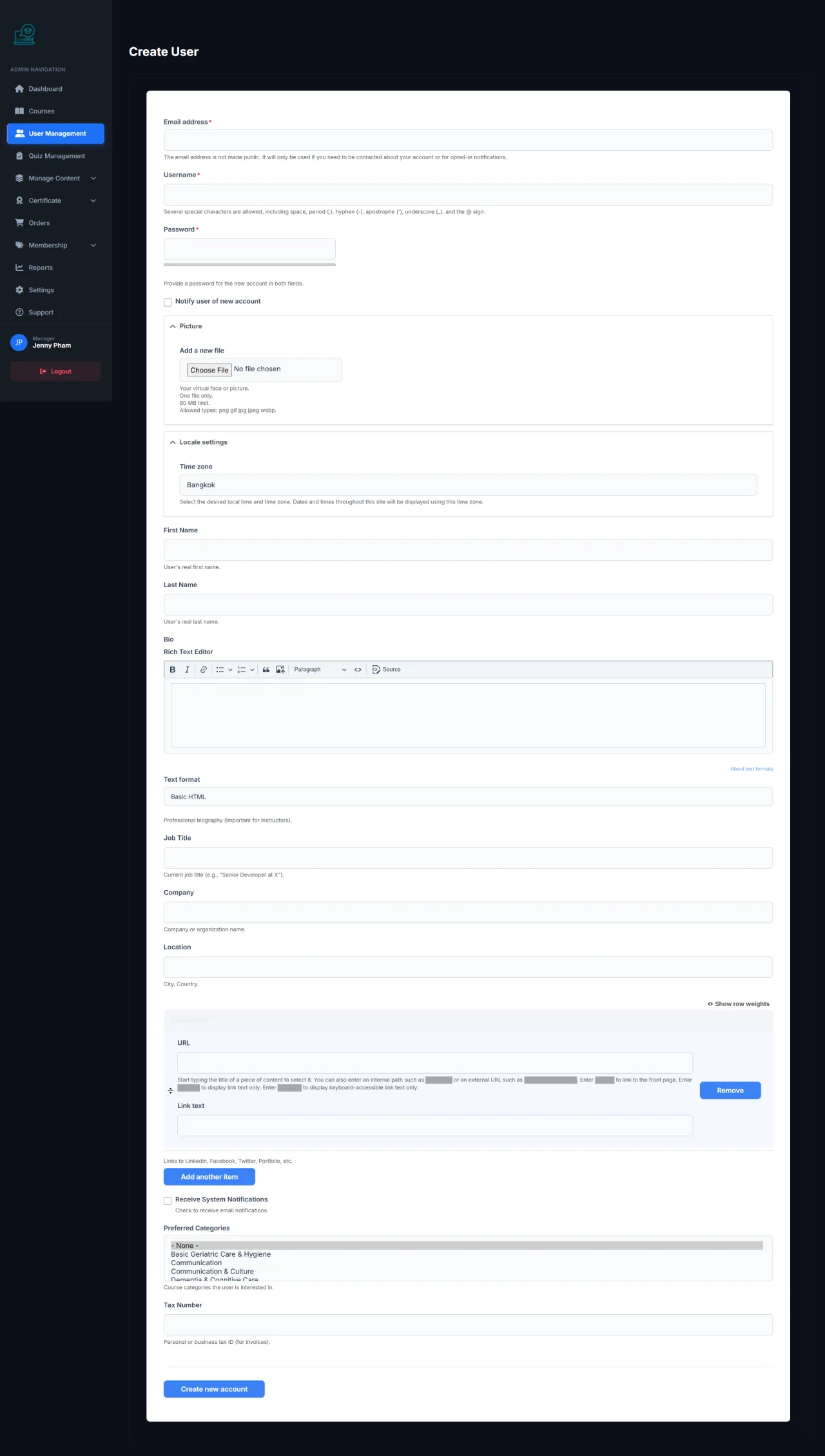
Create New User
About this screen: Admin/Manager creates a new user account with specific role and information.
Navigation: Workspace → Users → Add User
- Enter email, username and temporary password
- Select appropriate role (Student/Instructor/Manager)
- Fill in personal information: name, phone
- Send welcome email automatically
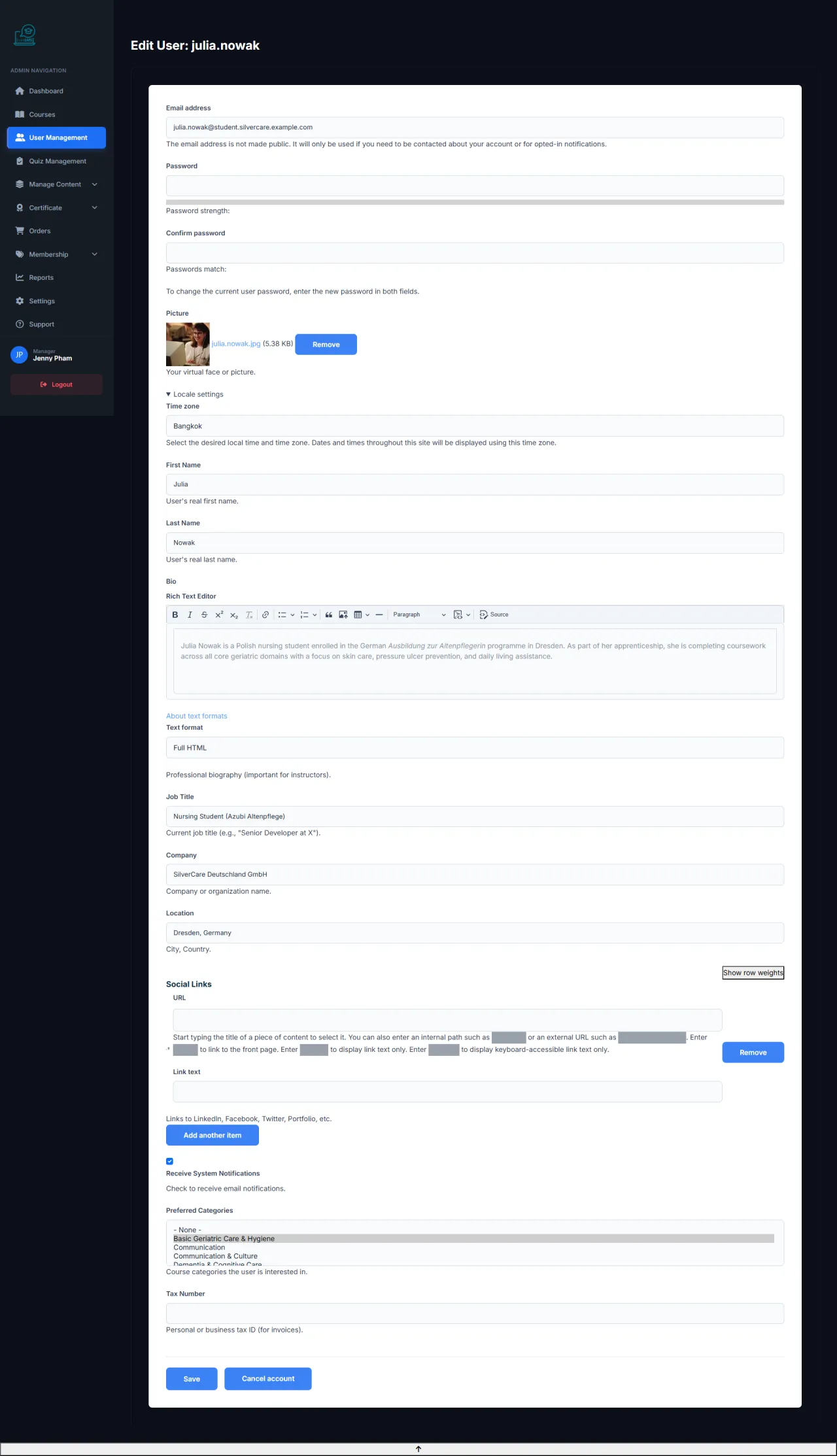
Edit User
About this screen: Update information, role, and account status for a specific user.
Navigation: Workspace Users → Click name → Edit
- Change role (Student ↔ Instructor ↔ Manager)
- Update email, name and contact information
- Reset password when a user forgets theirs
- Activate/deactivate the account
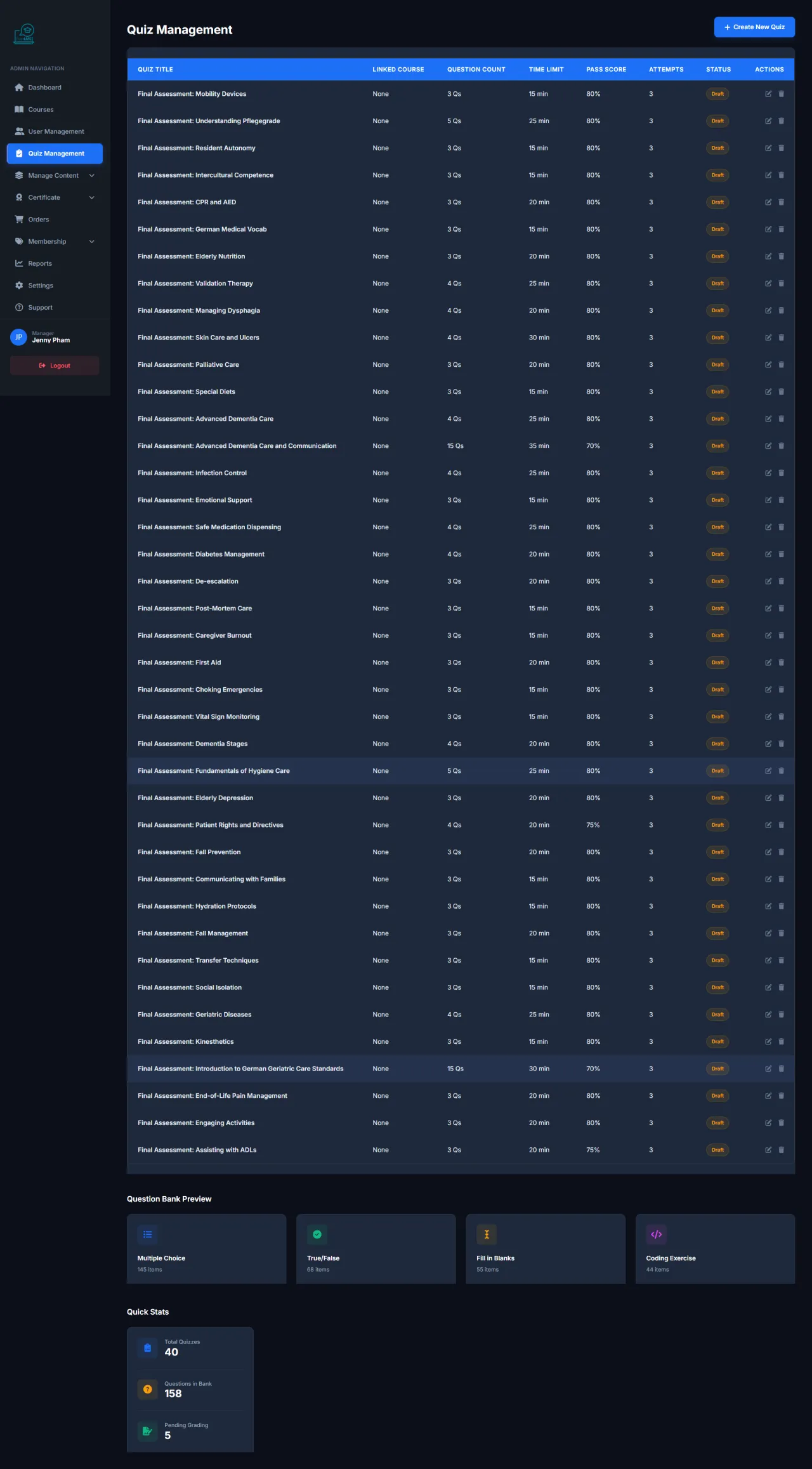
Quizzes
About this screen: The central hub for organizing and managing all quizzes on the platform.
Navigation: Workspace → Quizzes
- View quiz list with question count and settings
- Create new quizzes or edit existing ones
- Assign quizzes to specific lessons or chapters
- View student score statistics
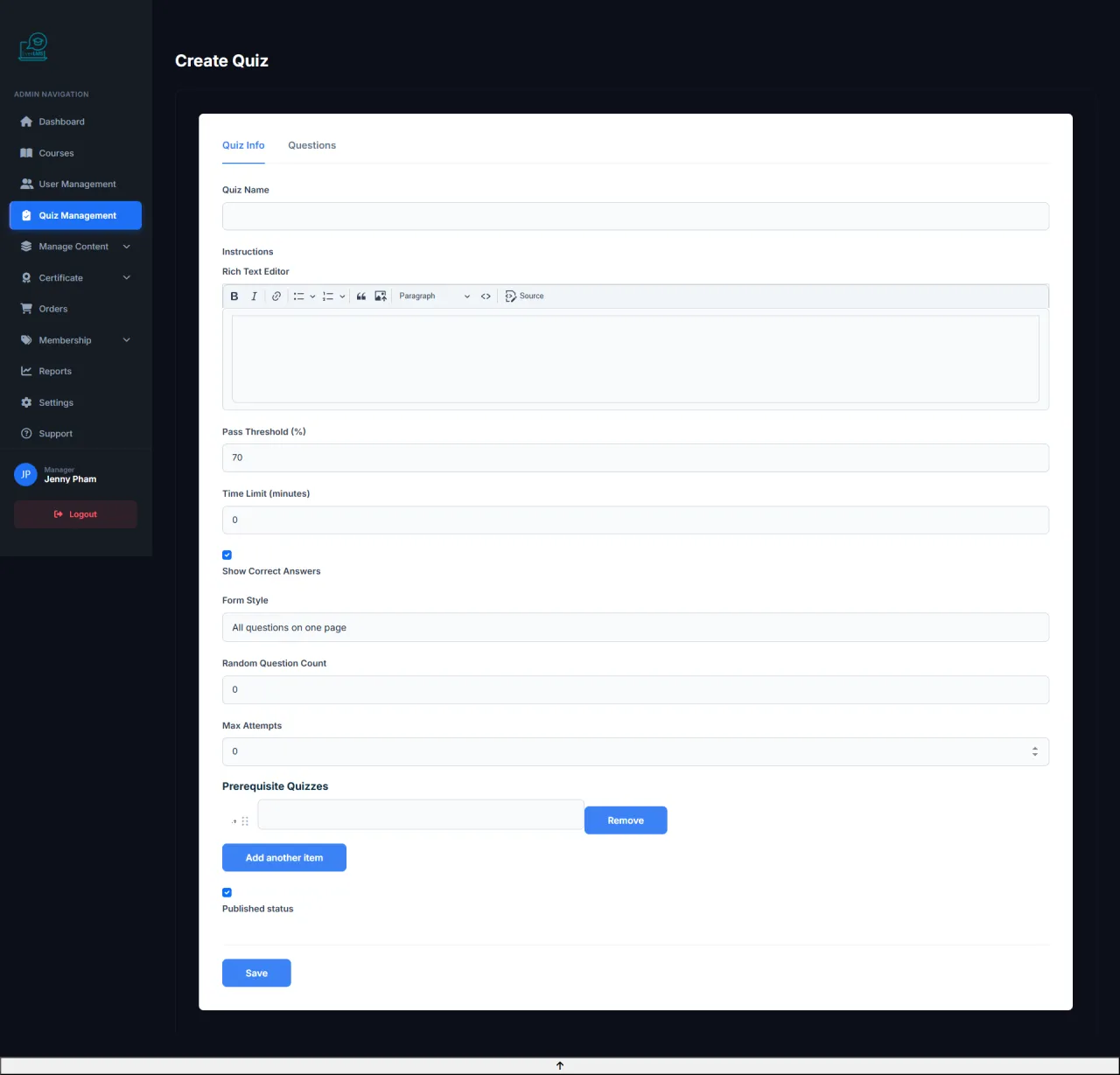
Create New Quiz
About this screen: Managers create new quizzes with score and time configurations.
Navigation: Workspace → Quizzes → Add Quiz
- Set quiz name and assessment objective description
- Configure time limit and number of retake attempts
- Set passing score (Pass Score %)
- Add questions from the question bank
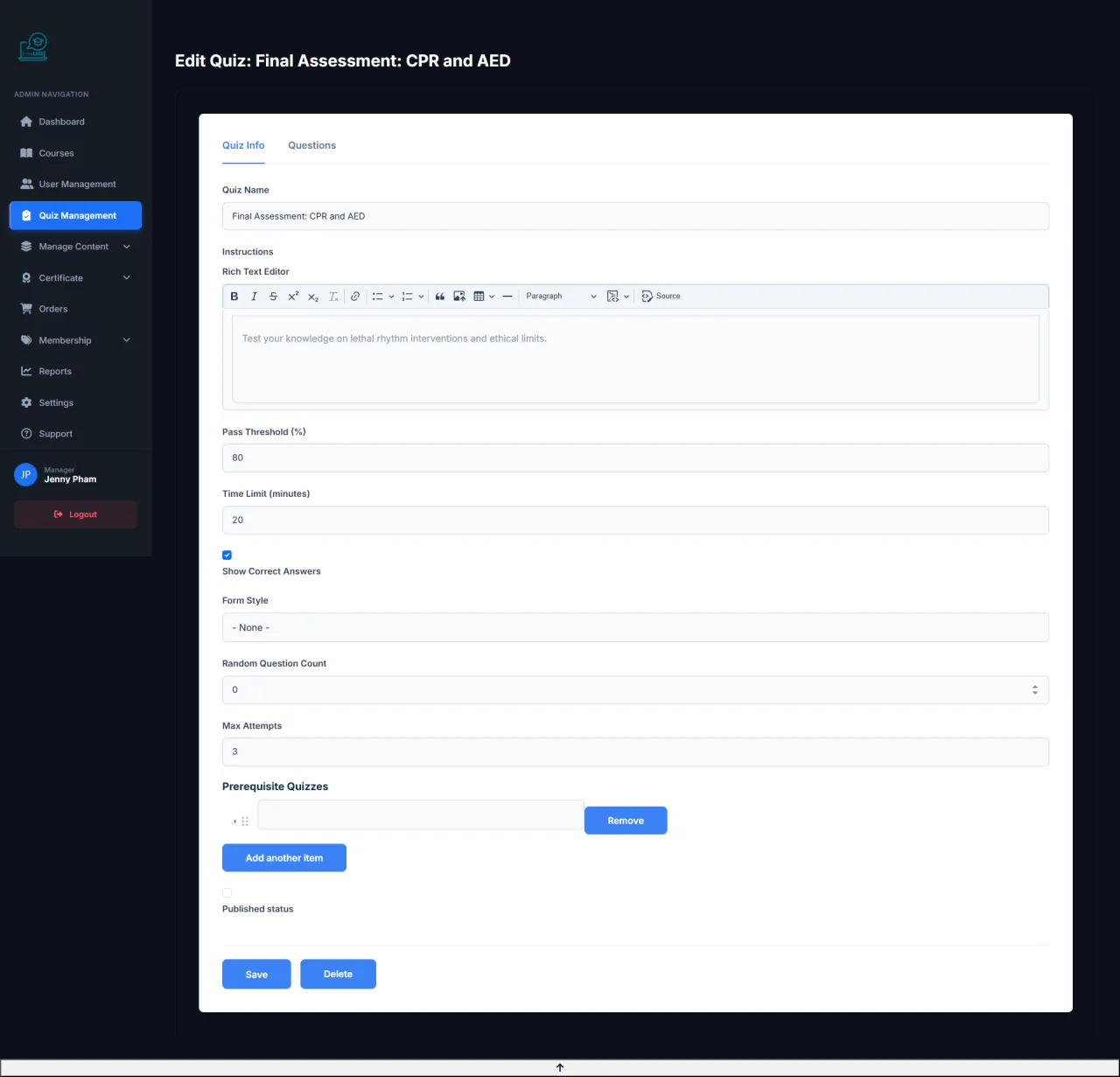
Edit Quiz
About this screen: Update content, questions, and settings of an existing quiz.
Navigation: Workspace Quizzes → Click quiz → Edit
- Add/remove/reorder questions in the quiz
- Adjust scores per question and passing score
- Update time limit and retake attempts
- Enable/disable the quiz without deleting it
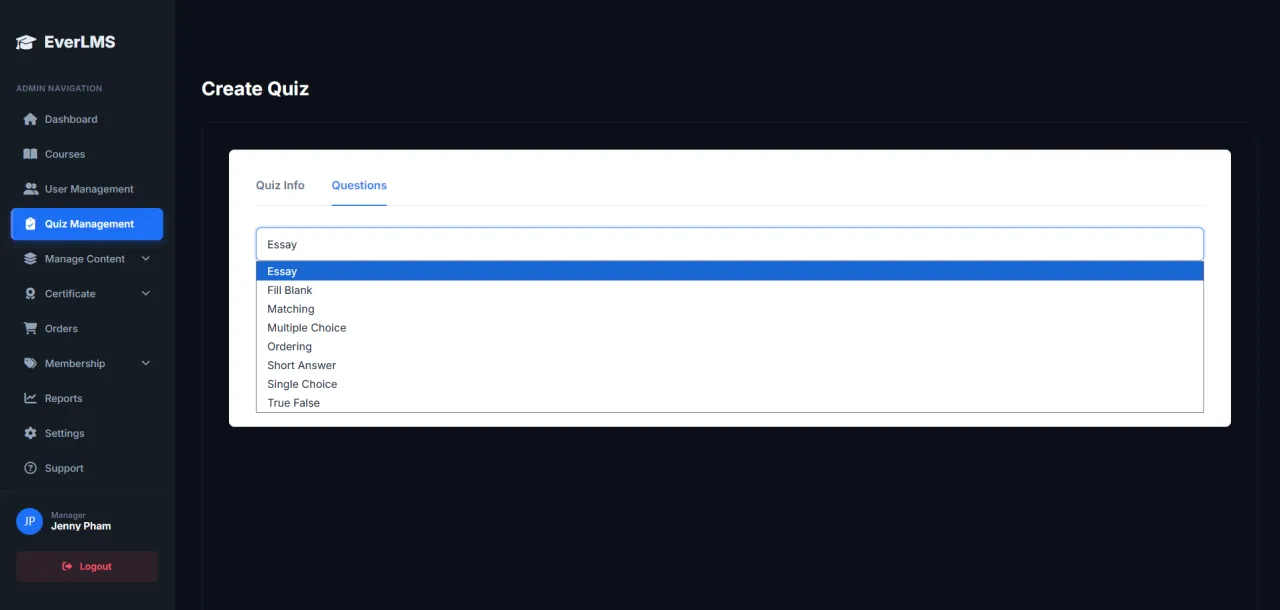
Question Types
About this screen: EverLMS supports various question types for comprehensive assessment.
Navigation: Quiz Editor → Add Question → Select type
- Multiple Choice: Single Choice (1 answer), Multiple Choice (multiple answers), True/False.
- Written: Short Answer, Essay.
- Other: File Upload (attach files), Matching (pair data).
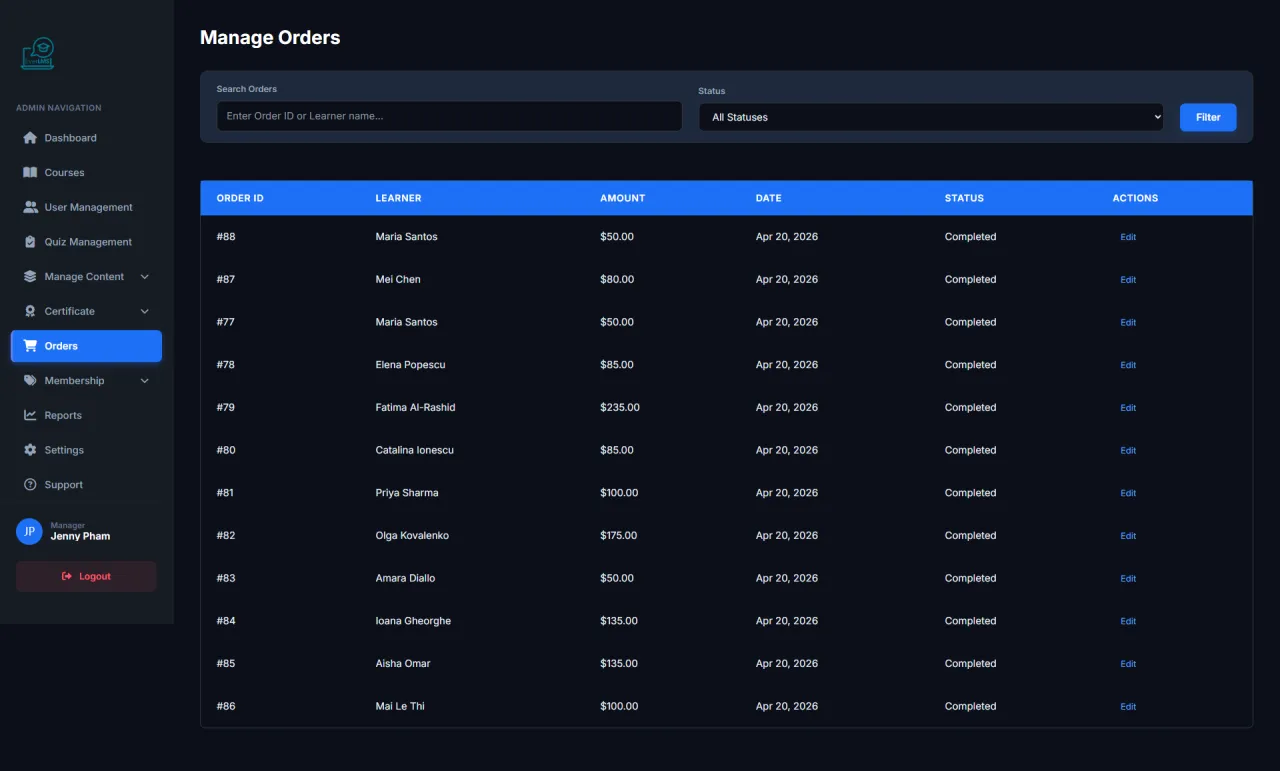
Order Management
About this screen: The Workspace Orders page manages all course purchase and membership orders.
Navigation: Workspace → Orders
- View order list with status (Pending/Completed)
- Filter by date, payment method
- Confirm bank transfer orders
- Export order reports as CSV/Excel
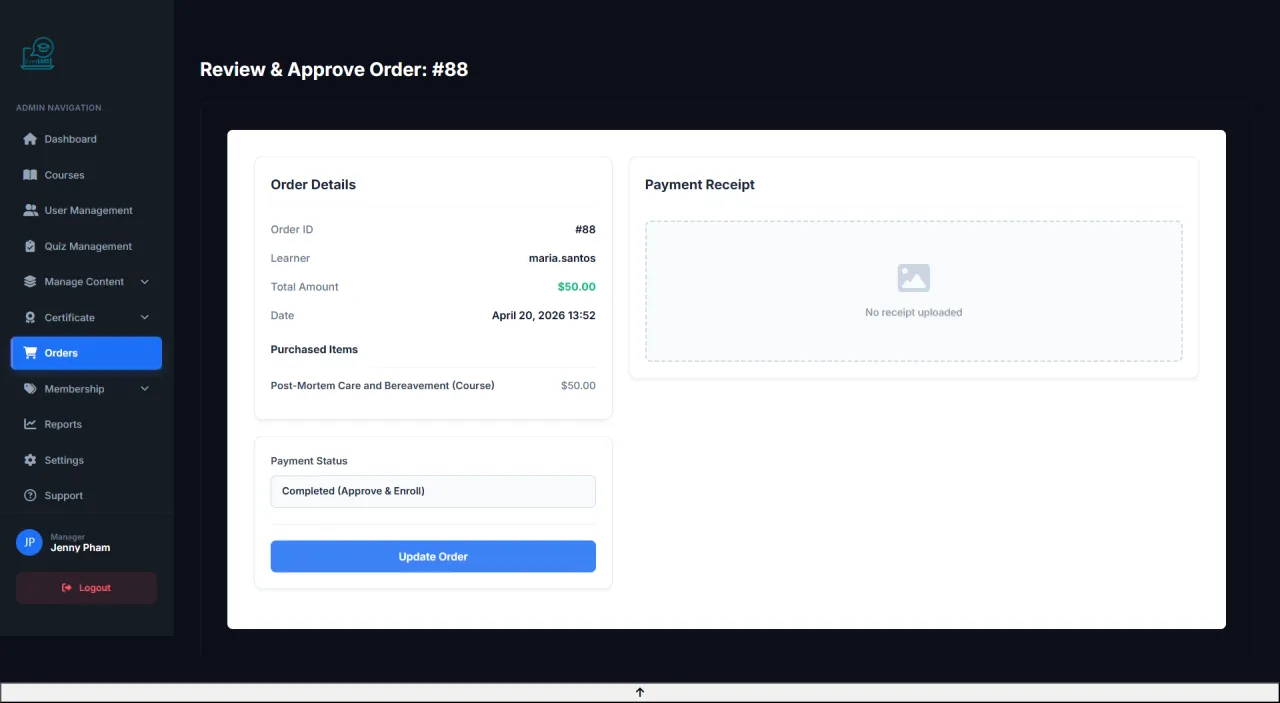
Order Details
About this screen: View and update the status of individual orders.
Navigation: Workspace Orders → Click order → Edit
- View student information and purchased course
- Check payment method and transaction code
- Change status (Pending → Completed)
- Resend confirmation email to the student
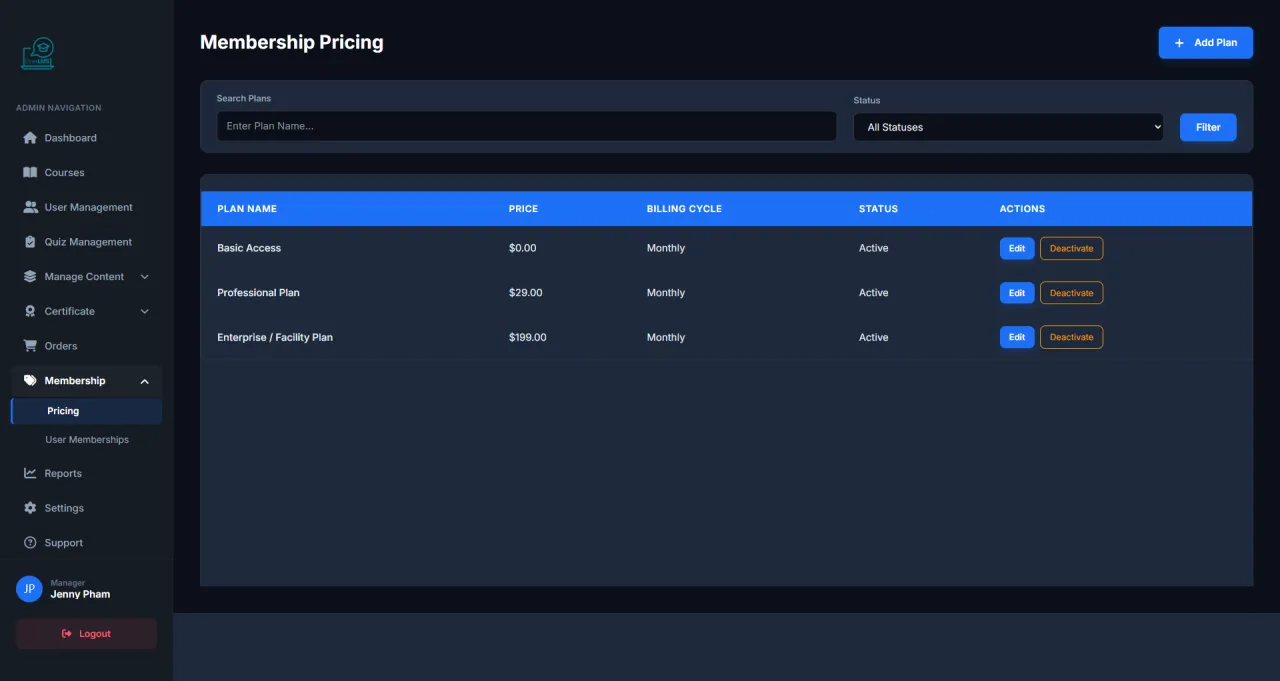
Pricing Plans
About this screen: The Workspace Pricing page manages membership plans and pricing strategies.
Navigation: Workspace → Pricing
- View plan list: Silver, Gold, Platinum
- Track subscriber count for each plan
- Enable/disable plans based on business strategy
- Create new plans or edit existing ones
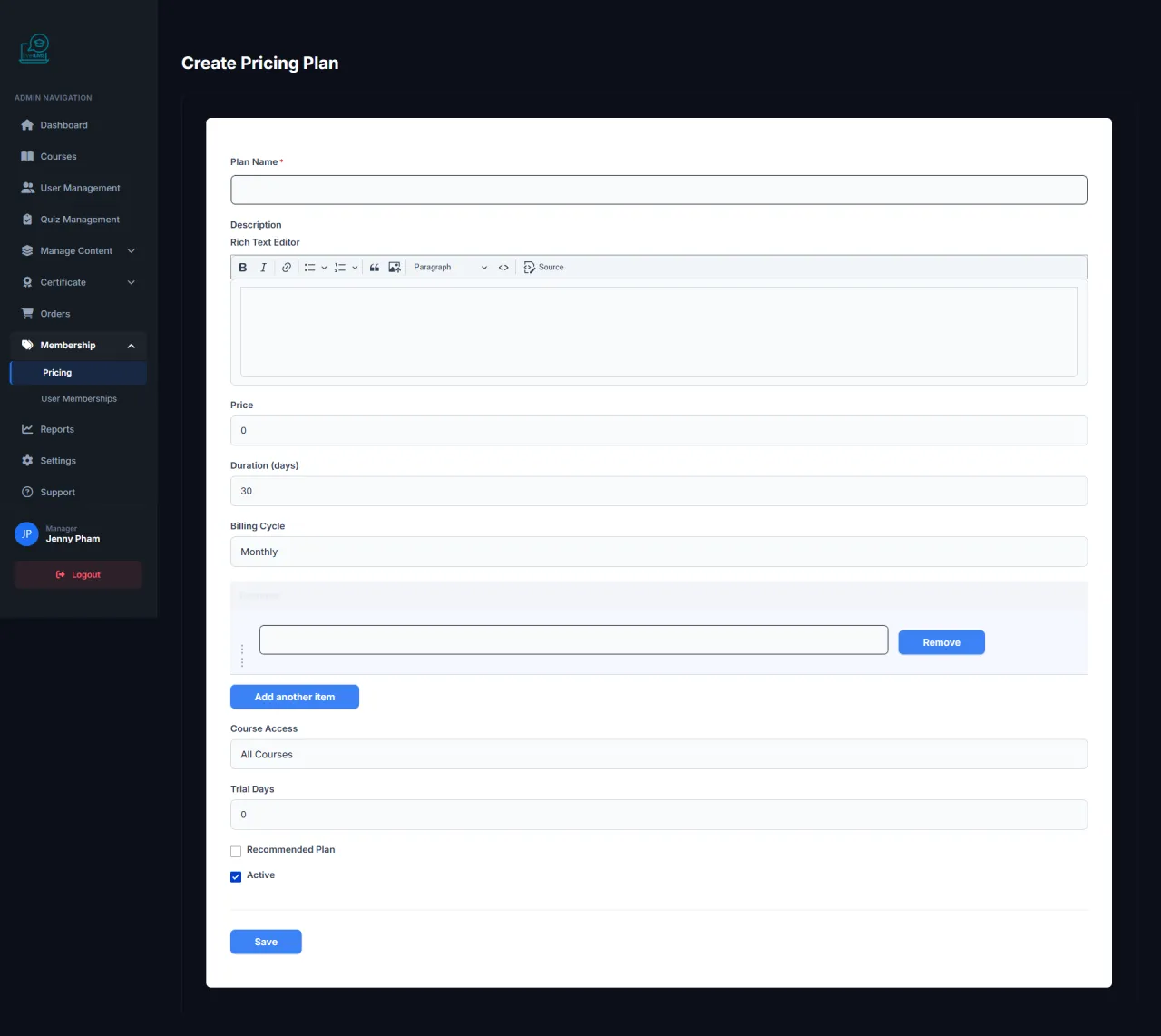
Create Pricing Plan
About this screen: Managers create new membership plans with specific access rights and pricing.
Navigation: Workspace → Pricing → Add Plan
- Set plan name and benefits description
- Configure price and billing cycle (monthly/annual)
- Select course categories included in the plan
- Set limited or unlimited course access
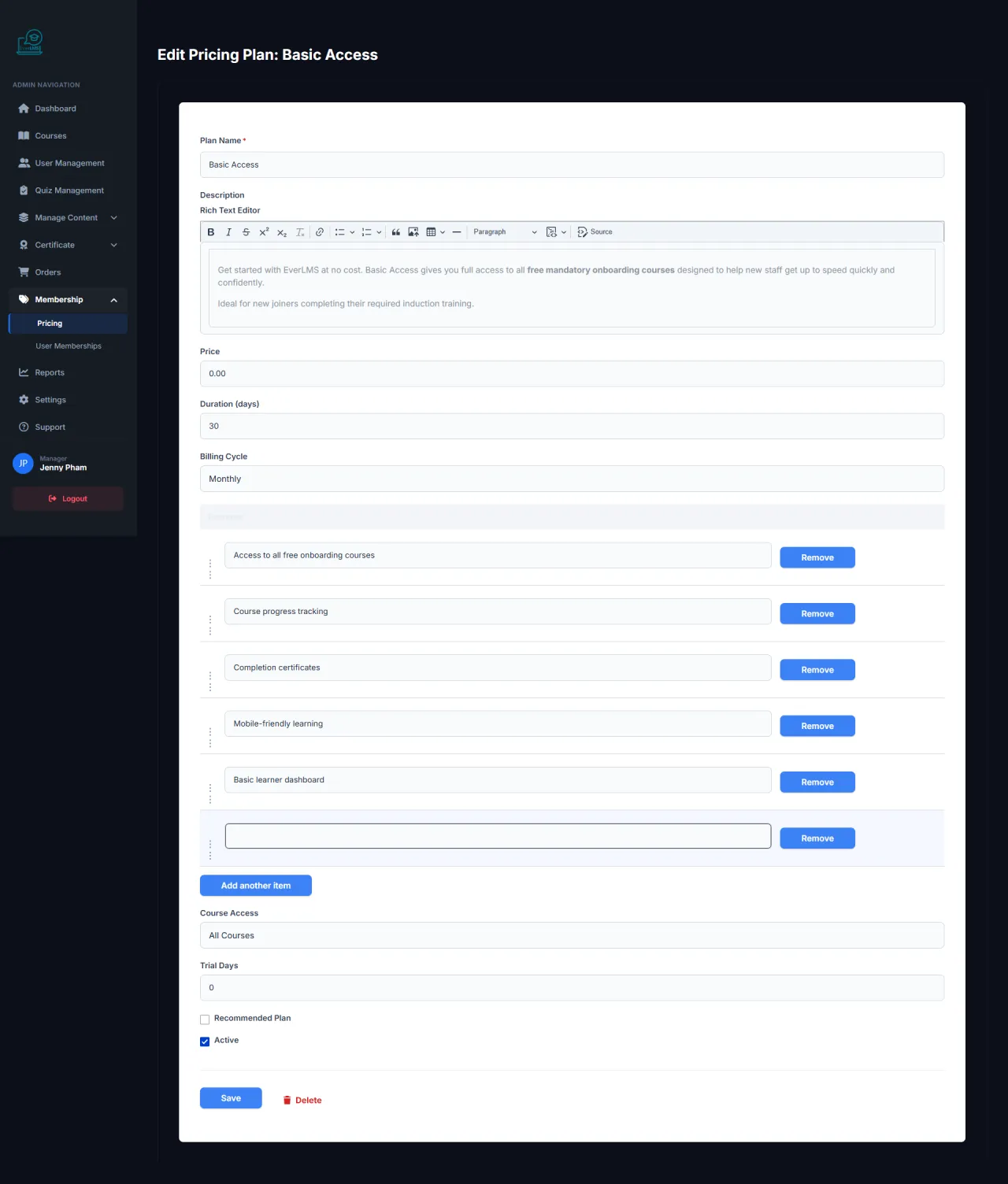
Edit Pricing Plan
About this screen: Update information, pricing, and benefits of a membership plan.
Navigation: Workspace Pricing → Click plan → Edit
- Update name, description and benefit list
- Adjust price and plan duration
- Add/remove course categories in the plan
- Activate/deactivate the plan
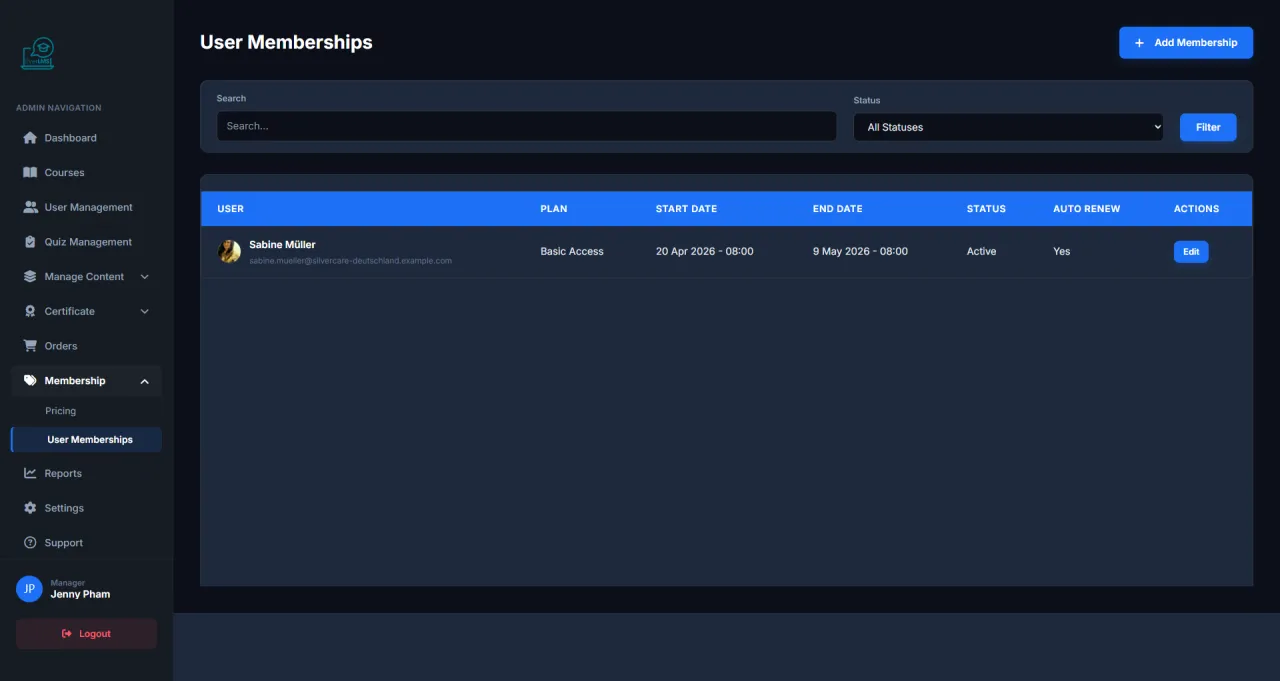
User Membership
About this screen: Manage individual user subscription memberships on the platform.
Navigation: Workspace → Memberships → User Memberships
- View list of users with active subscriptions
- Check expiration dates and current plans
- Manually renew or upgrade plans
- View membership history for each account
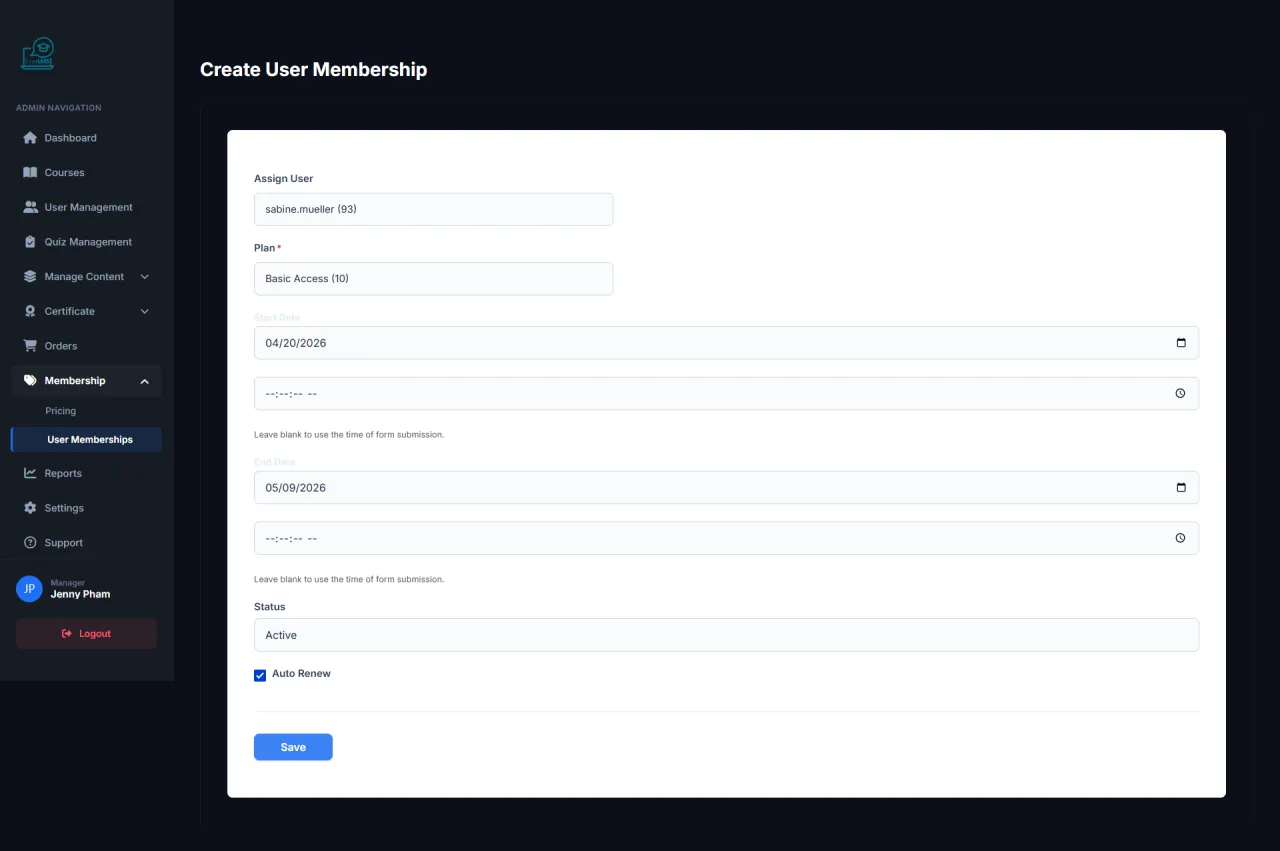
Add User Membership
About this screen: Managers manually assign membership plans to specific users.
Navigation: Workspace → Memberships → Add
- Select the user account to assign
- Choose membership plan (Silver/Gold/Platinum)
- Set start date and expiration date
- Save and notify the user
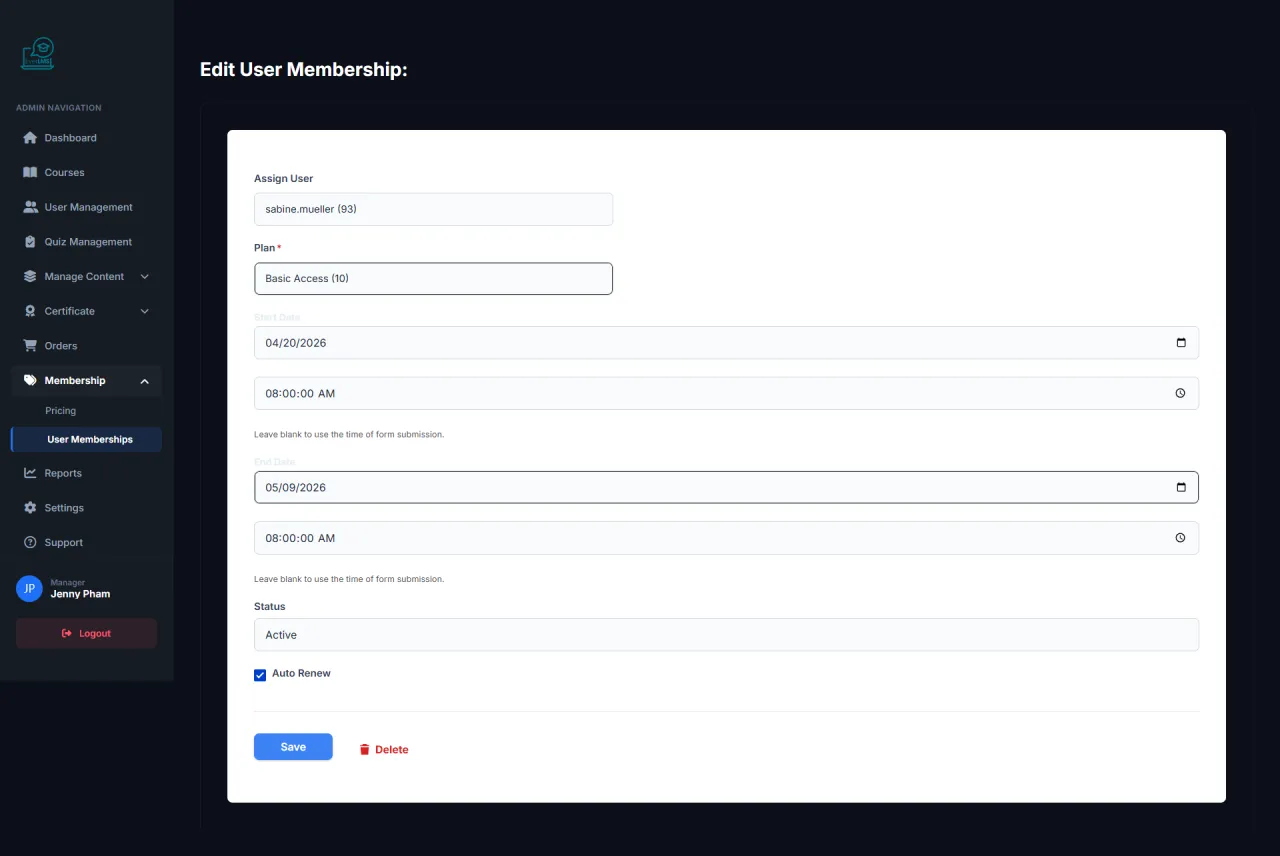
Edit Membership
About this screen: Update membership plan and expiration date for a specific user.
Navigation: User Memberships → Select user → Edit
- Change membership plan (upgrade/downgrade)
- Update new expiration date
- View payment and renewal history
- Cancel or pause the membership
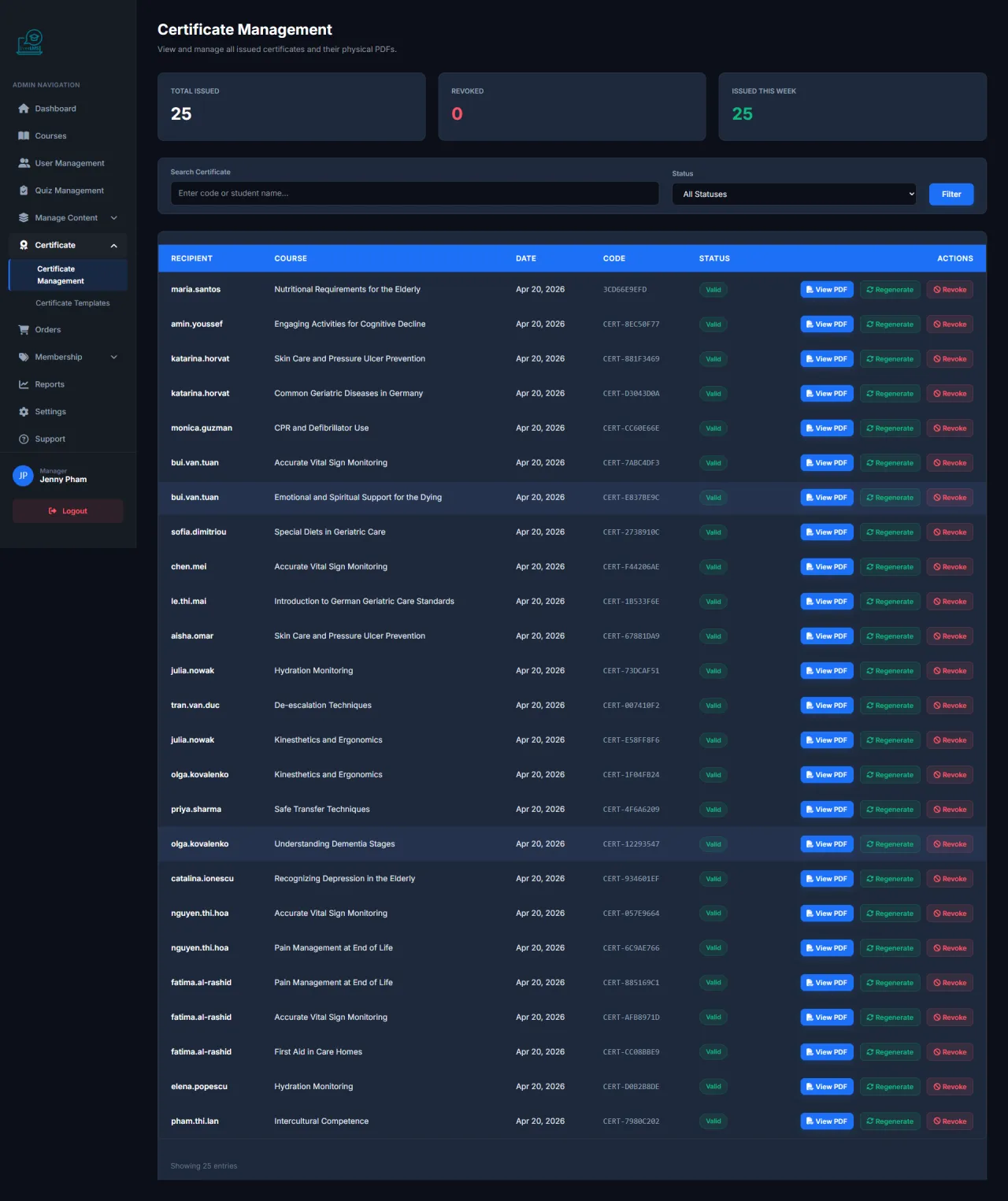
Certificate Management
About this screen: The Workspace Certificates page manages templates and issued certificates.
Navigation: Workspace → Certificates
- View list of certificate templates
- Create new templates or edit designs
- View all certificates issued to students
- Verify and revoke certificates as needed
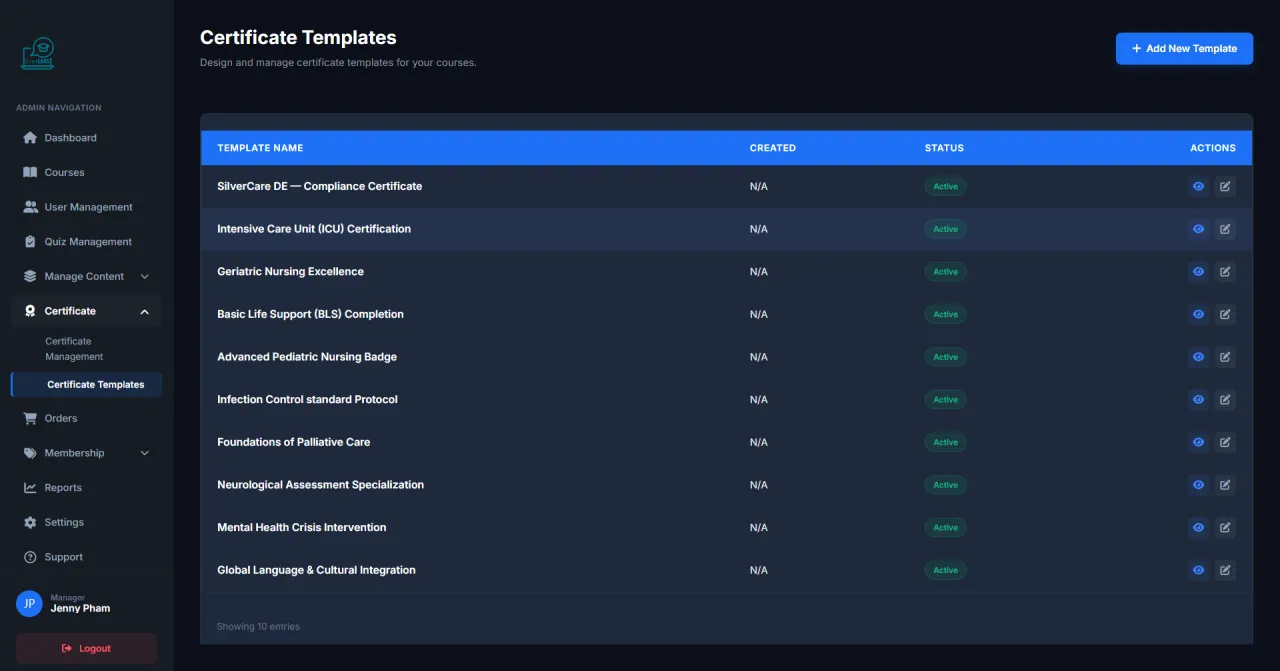
Certificate Templates
About this screen: The Certificate Templates list shows all available design templates that can be assigned to courses.
Navigation: Workspace → Certificates → Templates
- View all template designs with a preview thumbnail
- See which courses each template is currently assigned to
- Duplicate an existing template to create a variant quickly
- Delete unused templates to keep the library organized
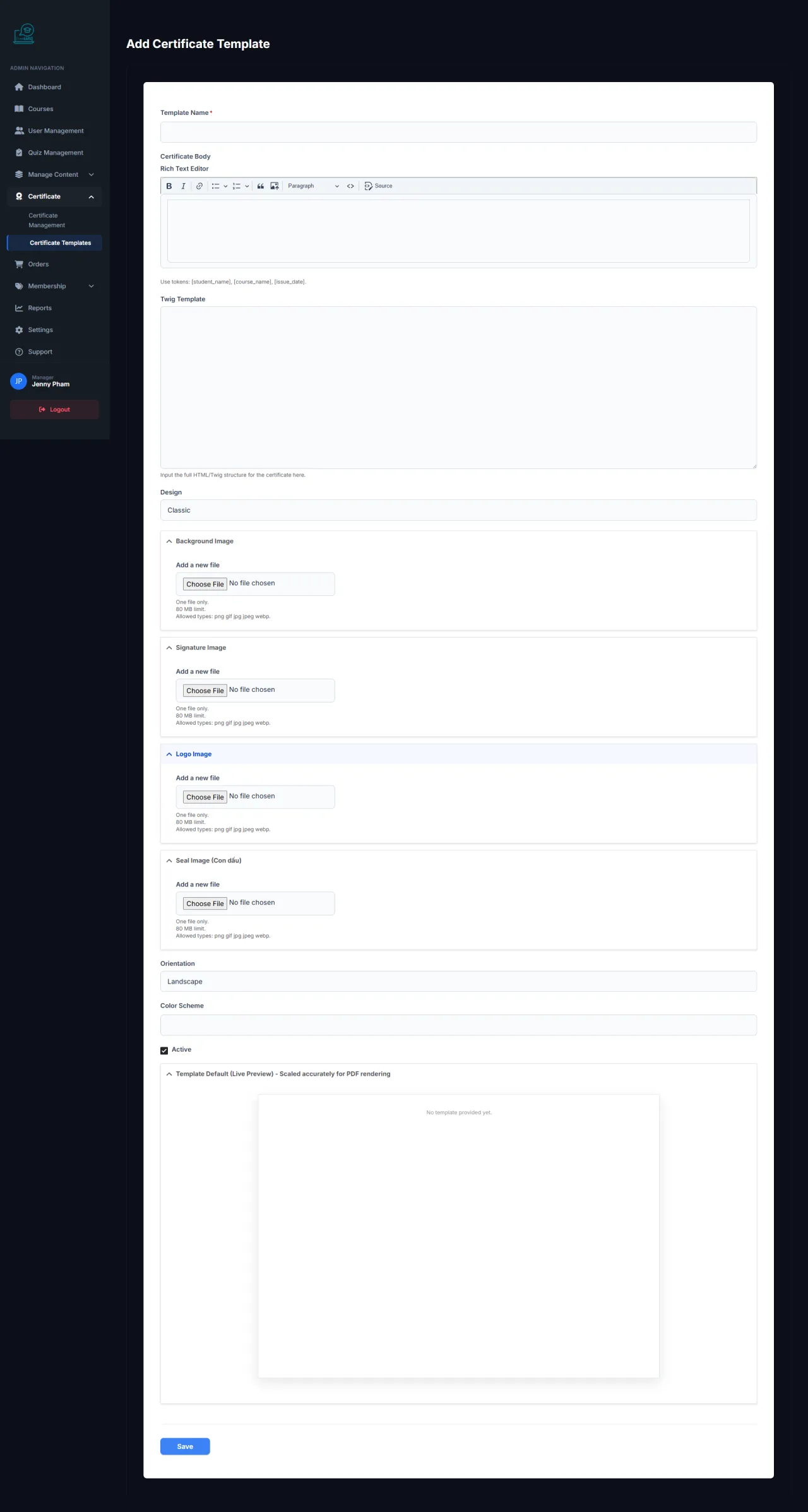
Create Certificate Template
About this screen: Managers create new certificate templates with custom design and content.
Navigation: Workspace → Certificates → Templates → Add
- Set template name and choose a basic layout
- Upload background image or organization logo
- Configure dynamic fields: student name, issue date
- Preview and save the template
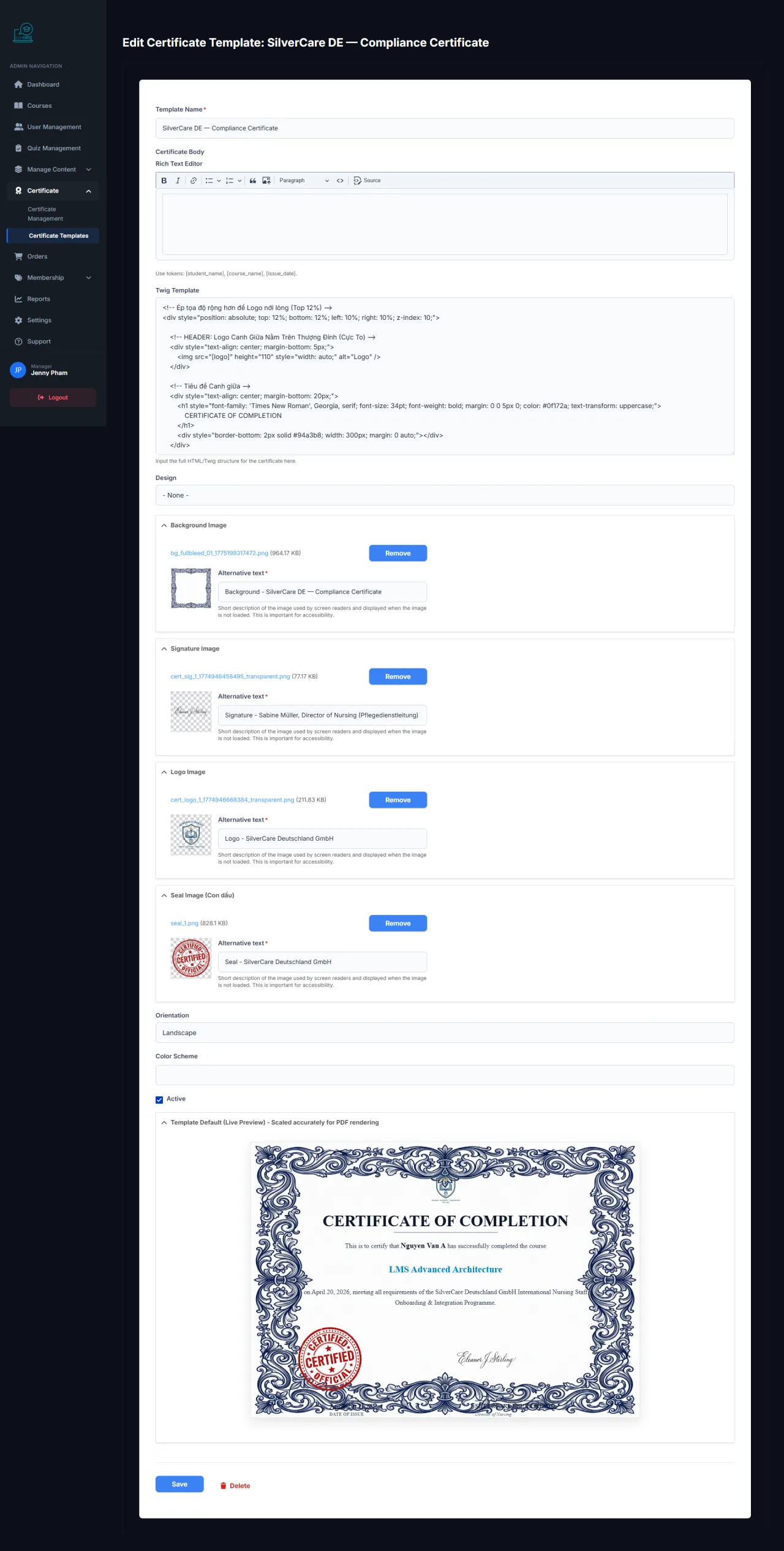
Edit Certificate
About this screen: Update the design and content of an existing certificate template.
Navigation: Workspace → Certificates → Templates → Edit
- Change layout, fonts, and colors
- Update organization logo and background image
- Adjust information field positions
- Preview before saving
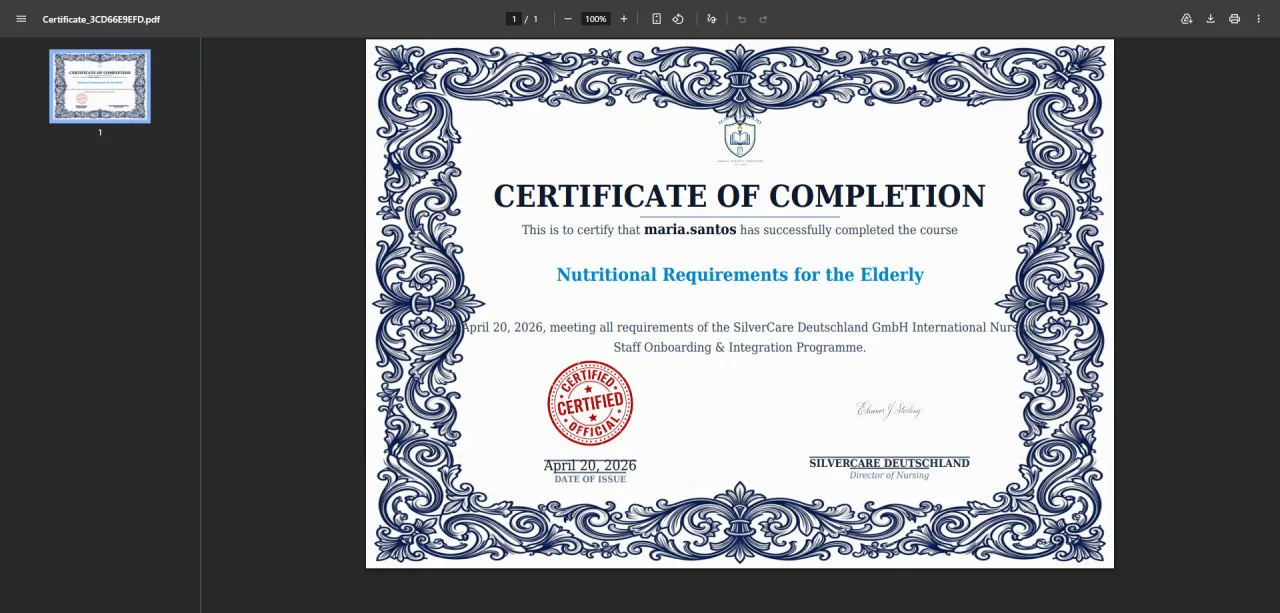
View Certificate PDF
About this screen: Managers preview and download student certificates in PDF format.
Navigation: Workspace → Certificates → View PDF
- View high-quality full-page certificate
- Download the PDF for storage or printing
- Verify that all printed information is correct
- Share the certificate URL link with the student
Learner Reports
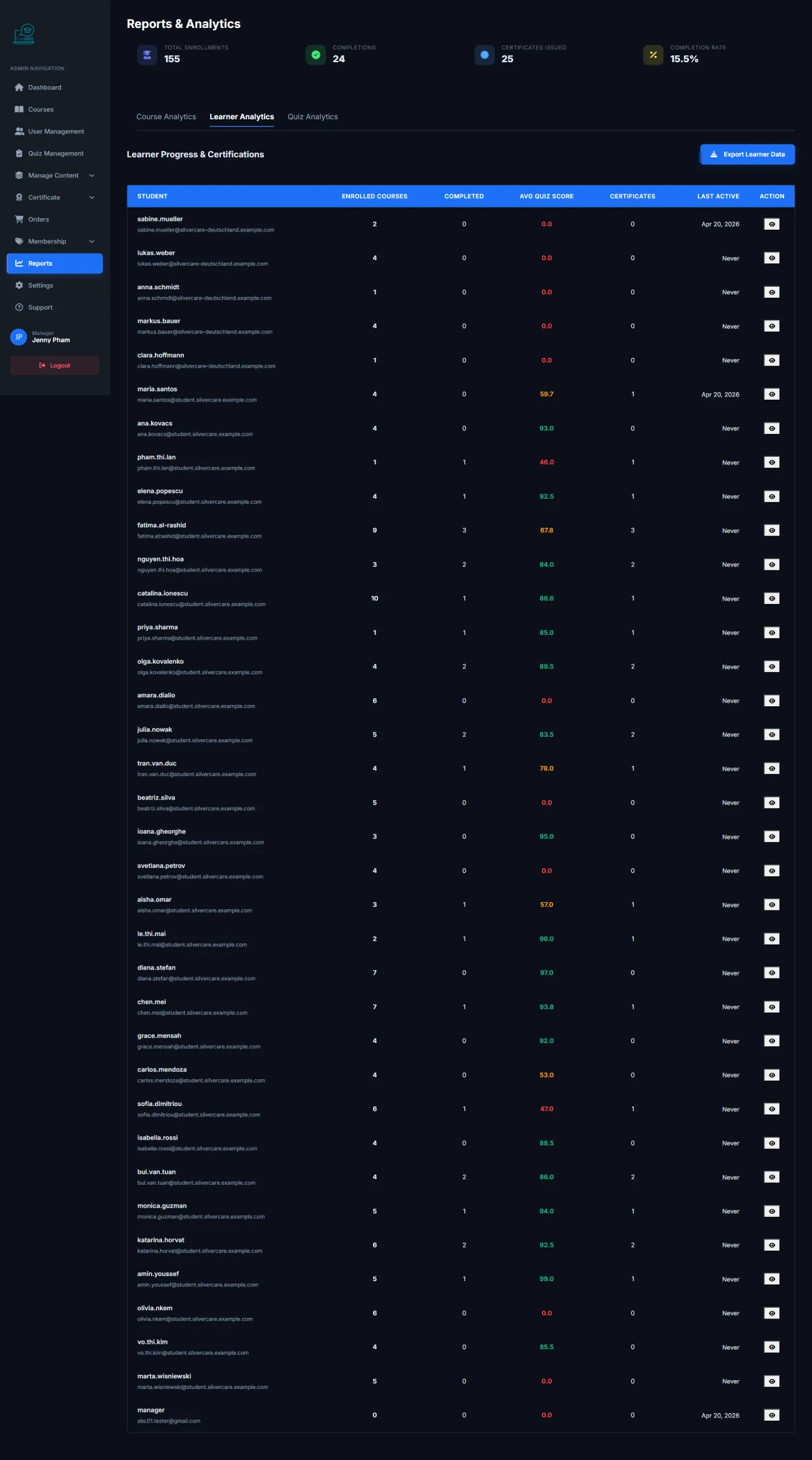
About this screen: The Learner Reports page provides detailed reports on learning progress.
Navigation: Workspace → Reports → Learner
- View actual progress for each student per course
- Statistics on completion rates and study time
- Filter by course, time period, student
- Export CSV reports for detailed analysis
Quiz Reports
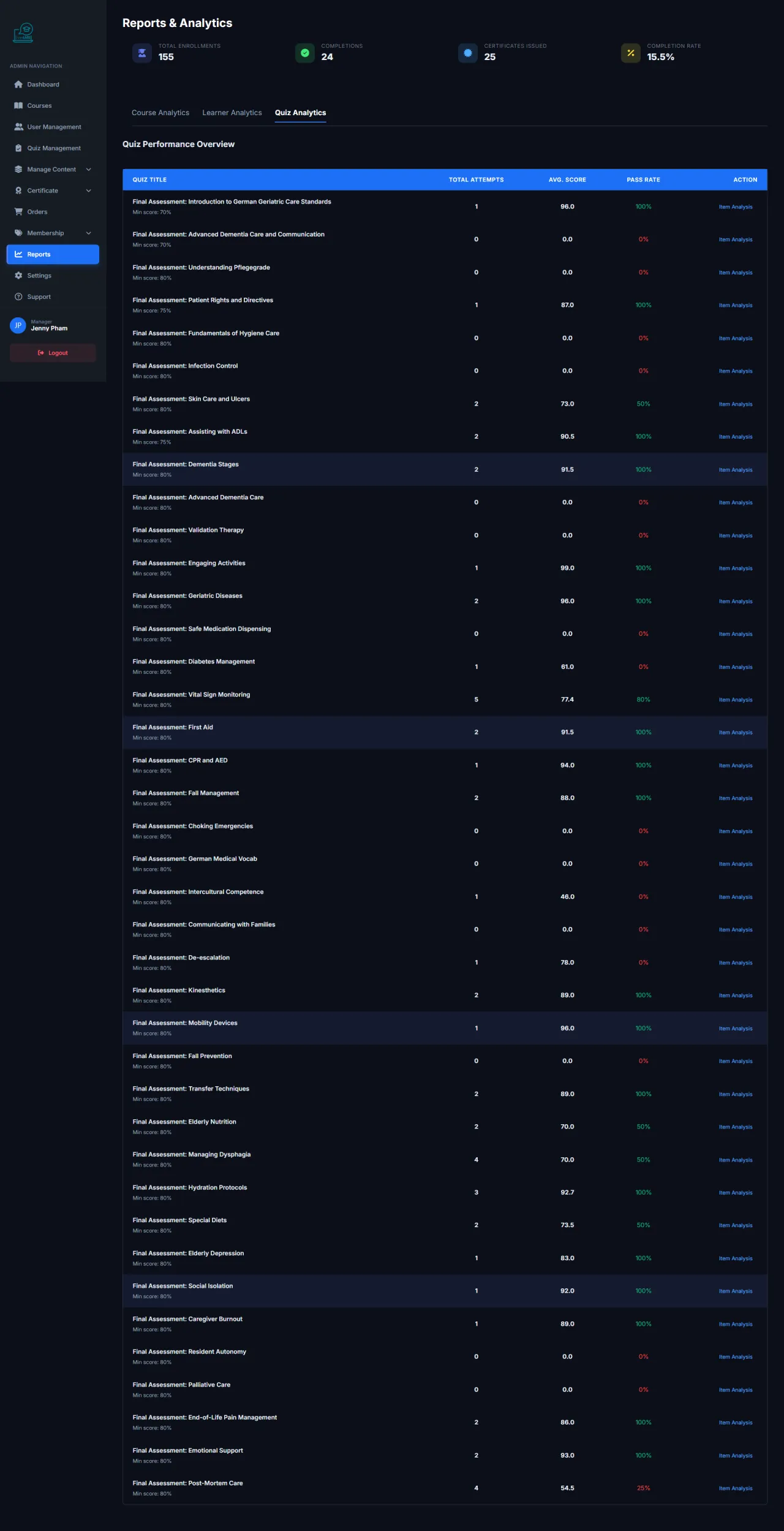
About this screen: The Quiz Reports page analyzes quiz results across the entire platform.
Navigation: Workspace → Reports → Quiz
- View average scores and pass/fail rates
- Analyze difficult questions (high error rates)
- View individual student score history per quiz
- Evaluate content quality for improvement
Course Reports
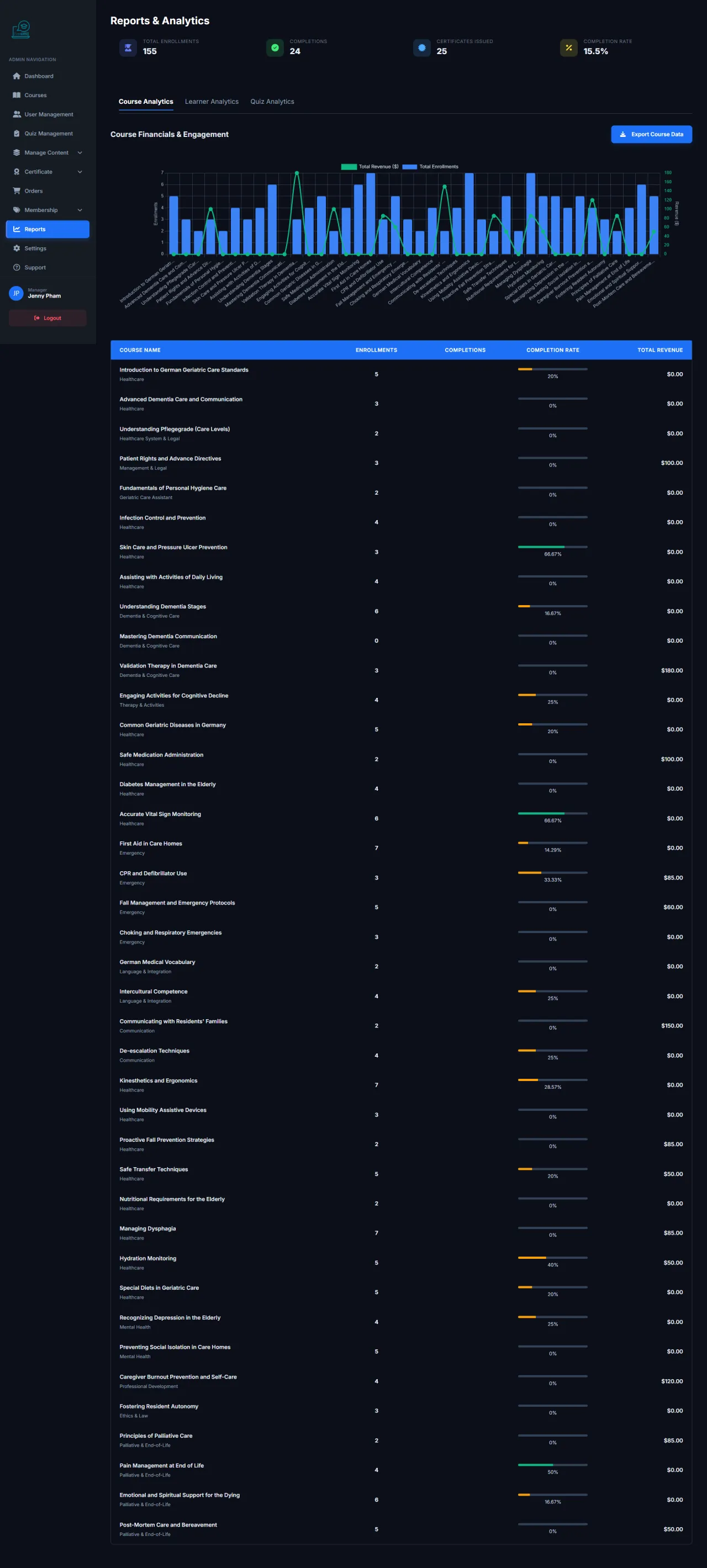
About this screen: The Course Reports page provides performance statistics for each course on the platform.
Navigation: Workspace → Reports → Course
- View student enrollment count per course
- Statistics on completion rates and average scores
- Compare performance across courses
- Export reports to share with instructors
Slideshow Management
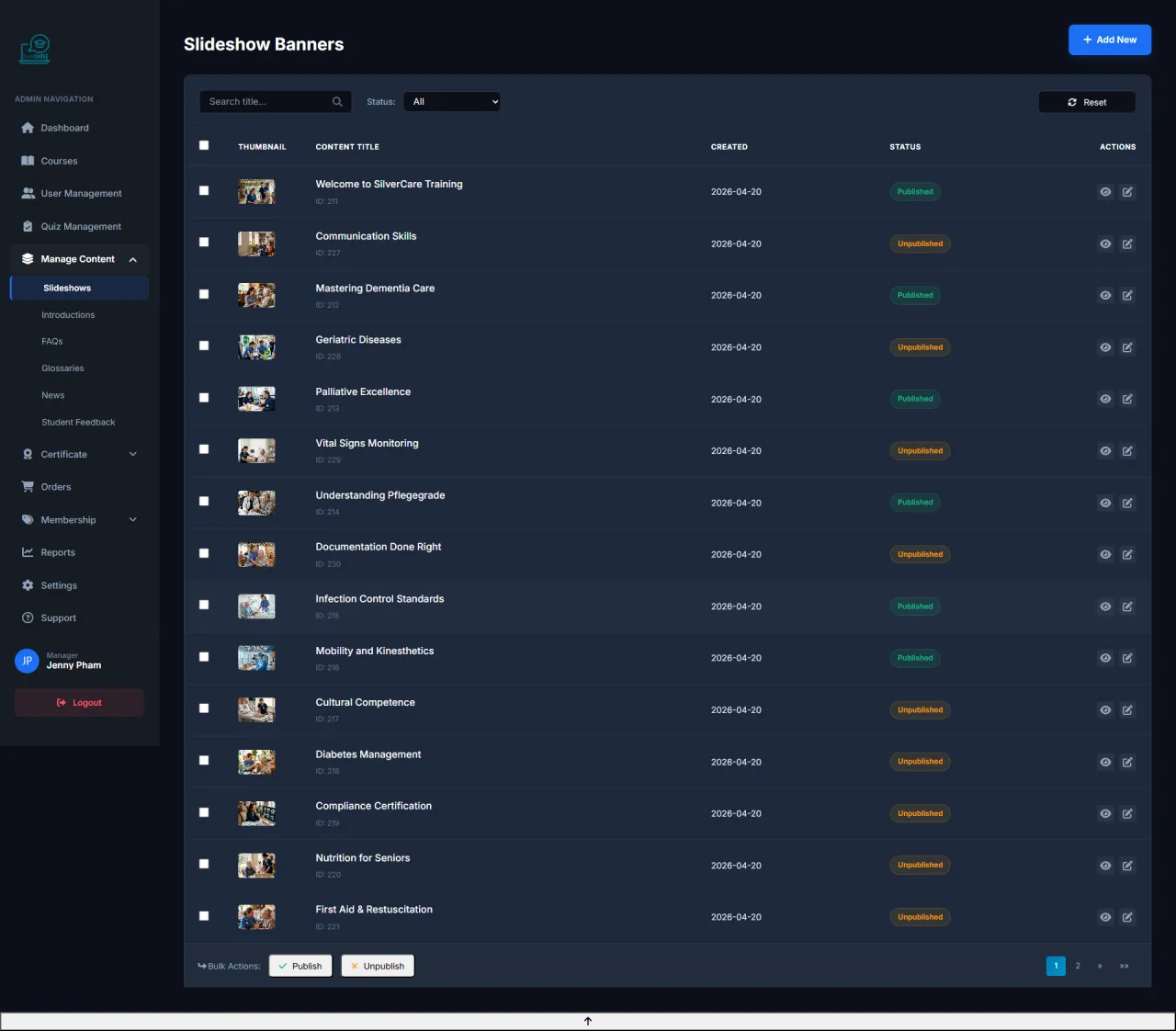
About this screen: Manage banners/carousels displayed on the platform homepage.
Navigation: Workspace → Content → Slideshows
- View the list of slides currently displayed on the homepage
- Edit the order and status of each slide
- Add new slides with images and CTA links
- Enable/disable slides based on marketing strategy
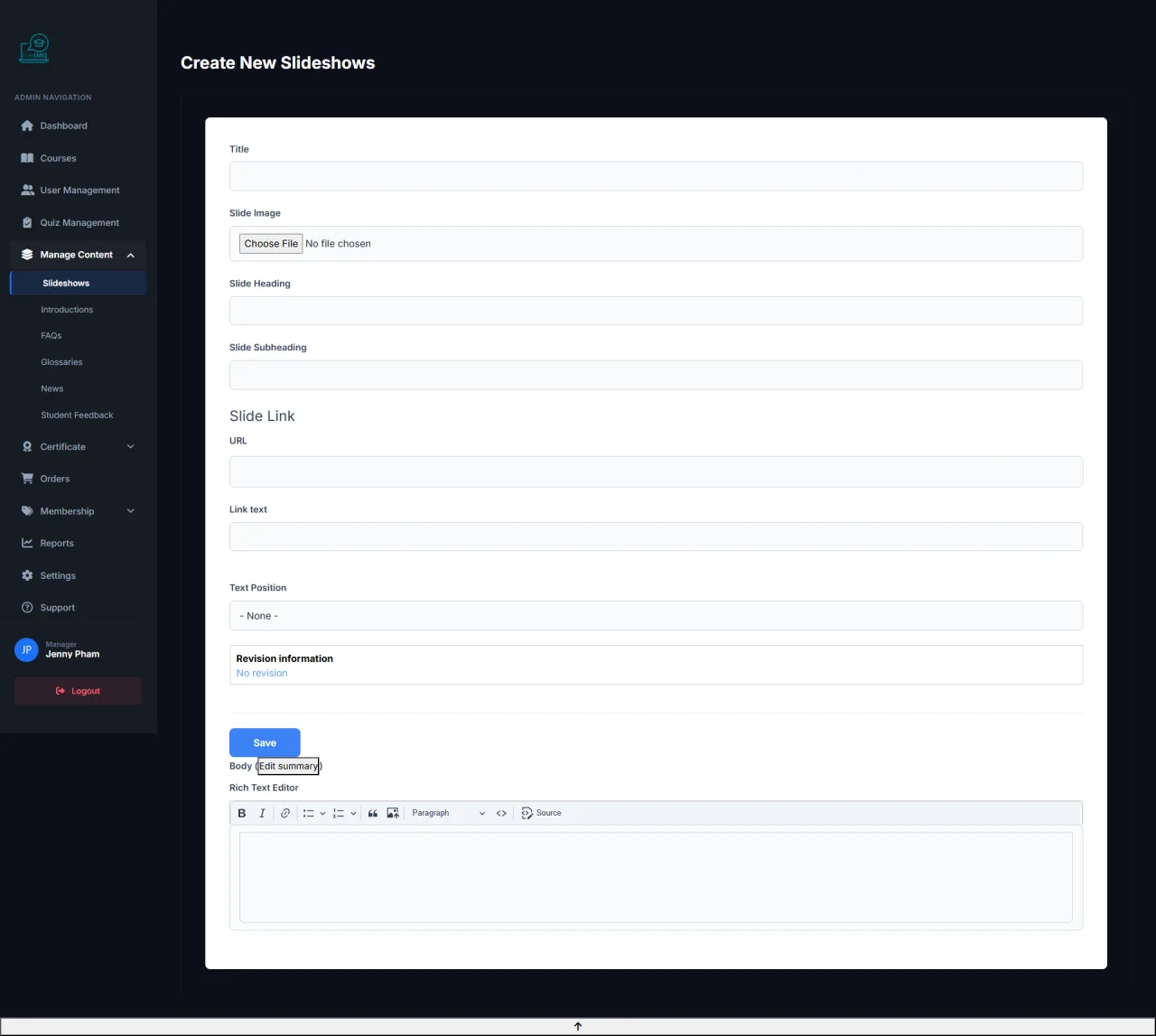
Add Slideshow
About this screen: Create a new homepage banner slide with custom image, headline, and call-to-action link.
Navigation: Workspace → Content → Slideshows → Add Slideshow
- Upload a high-quality banner image (recommended: 1920×600px)
- Set the headline, subtitle, and CTA button text
- Configure the CTA link to a course, category, or promotion page
- Set display order and schedule start/end dates for the slide
Edit Slideshow
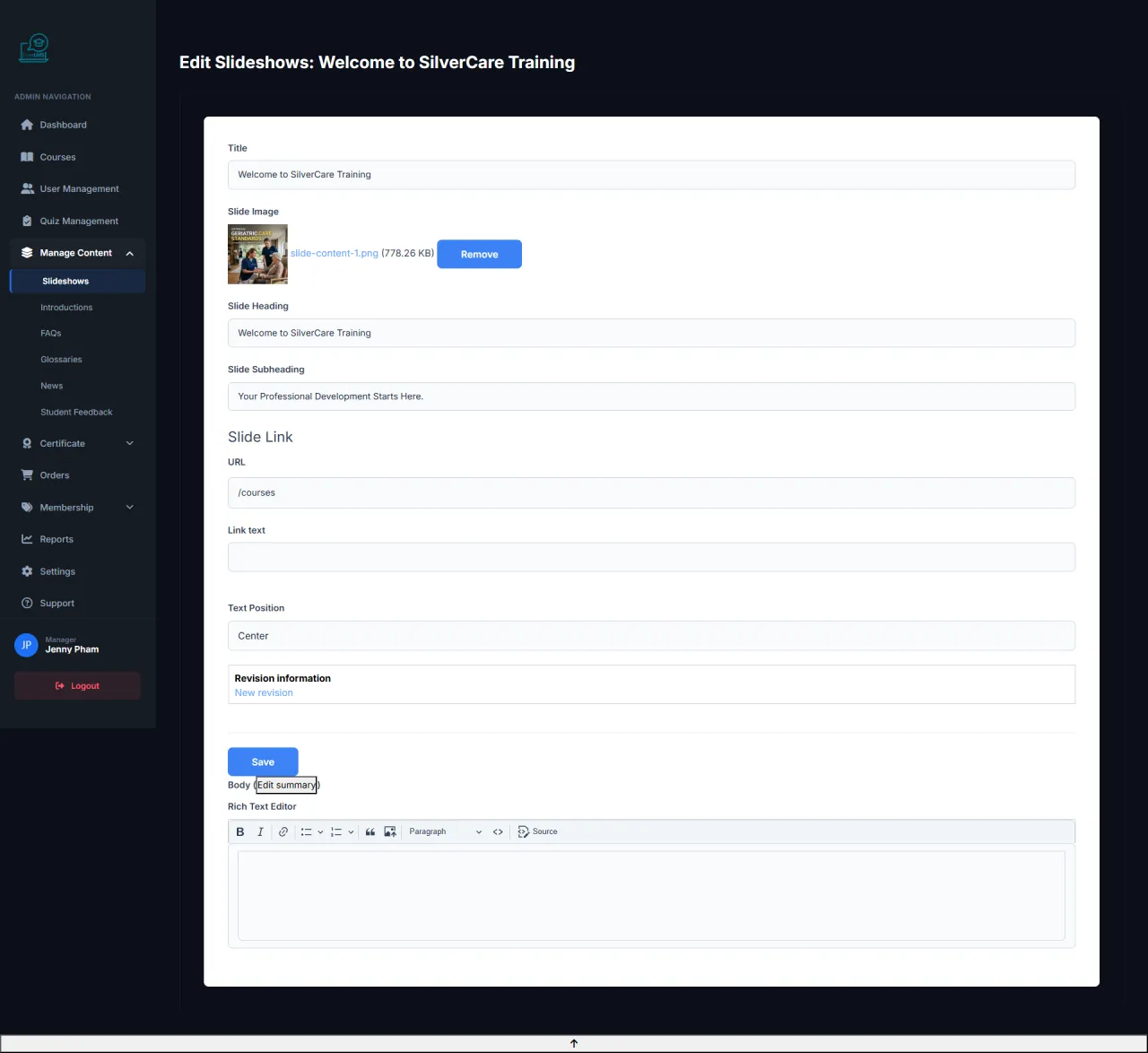
About this screen: Update content, images, and configuration of a displayed slide.
Navigation: Content → Slideshows → Click slide → Edit
- Replace banner image without losing settings
- Update title, description and CTA link
- Adjust order and display duration
- Enable/disable the slide without deleting it
Introductions Page
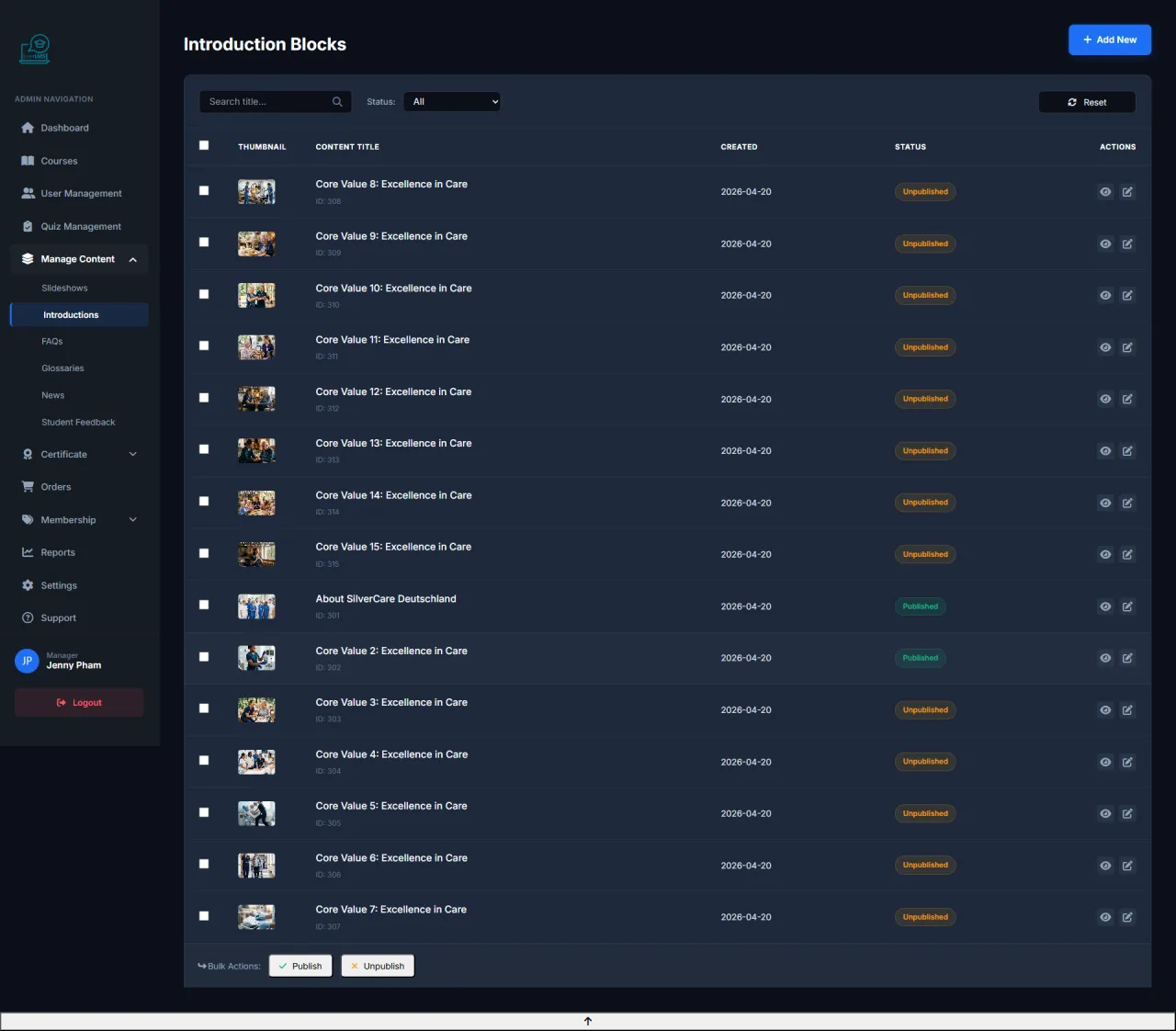
About this screen: The Workspace Introductions page manages introductory content about the platform.
Navigation: Workspace → Content → Introductions
- View and edit platform introductory content
- Add new introductions for special pages
- Update mission and vision statements
- Manage landing page content
Add Introduction
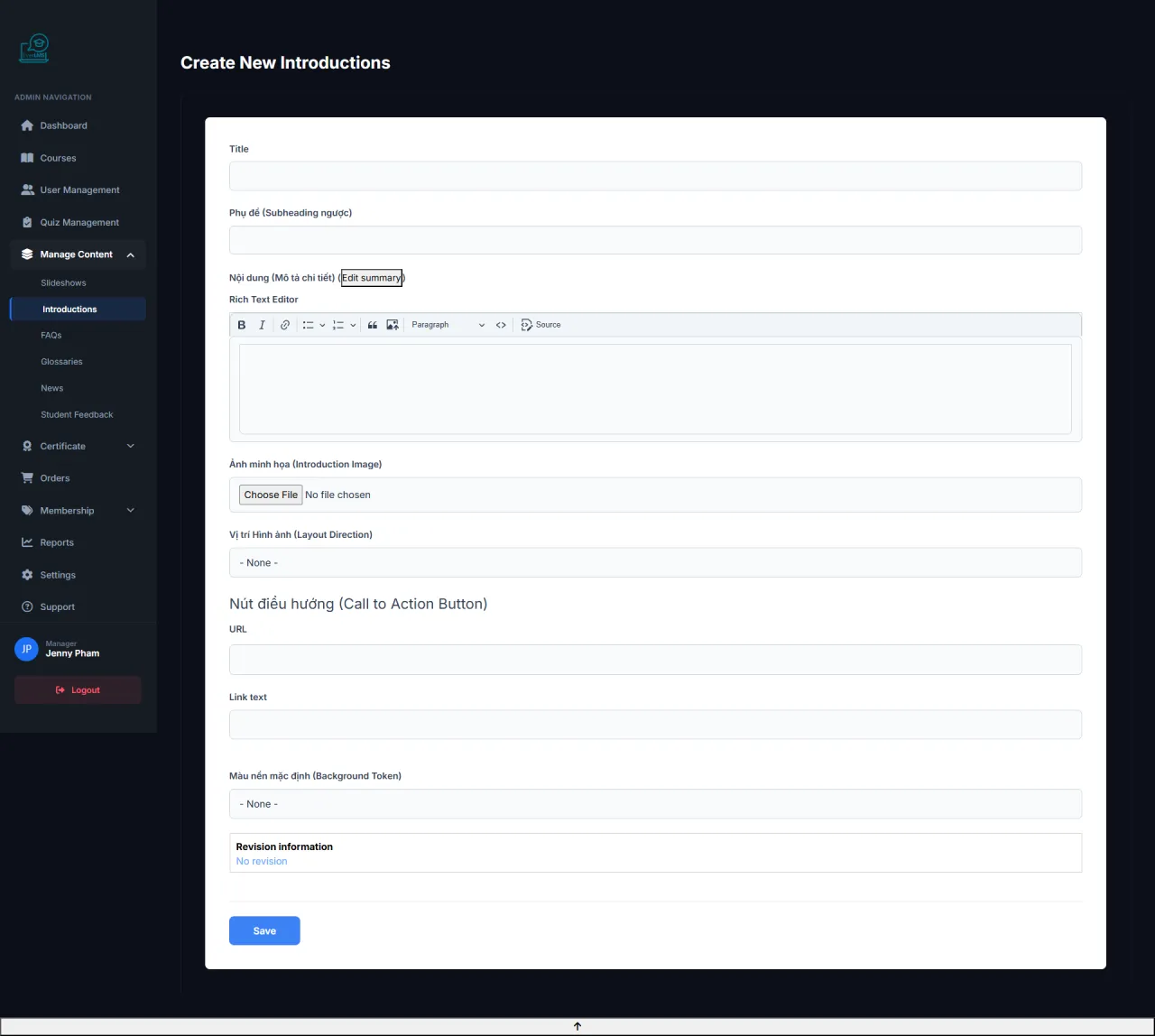
About this screen: Create new introductory content for information pages or landing pages.
Navigation: Workspace → Content → Introductions → Add
- Enter title and short description
- Write full content with the editor
- Upload illustrative images
- Assign to a specific page (Home, About, etc.)
Edit Introduction
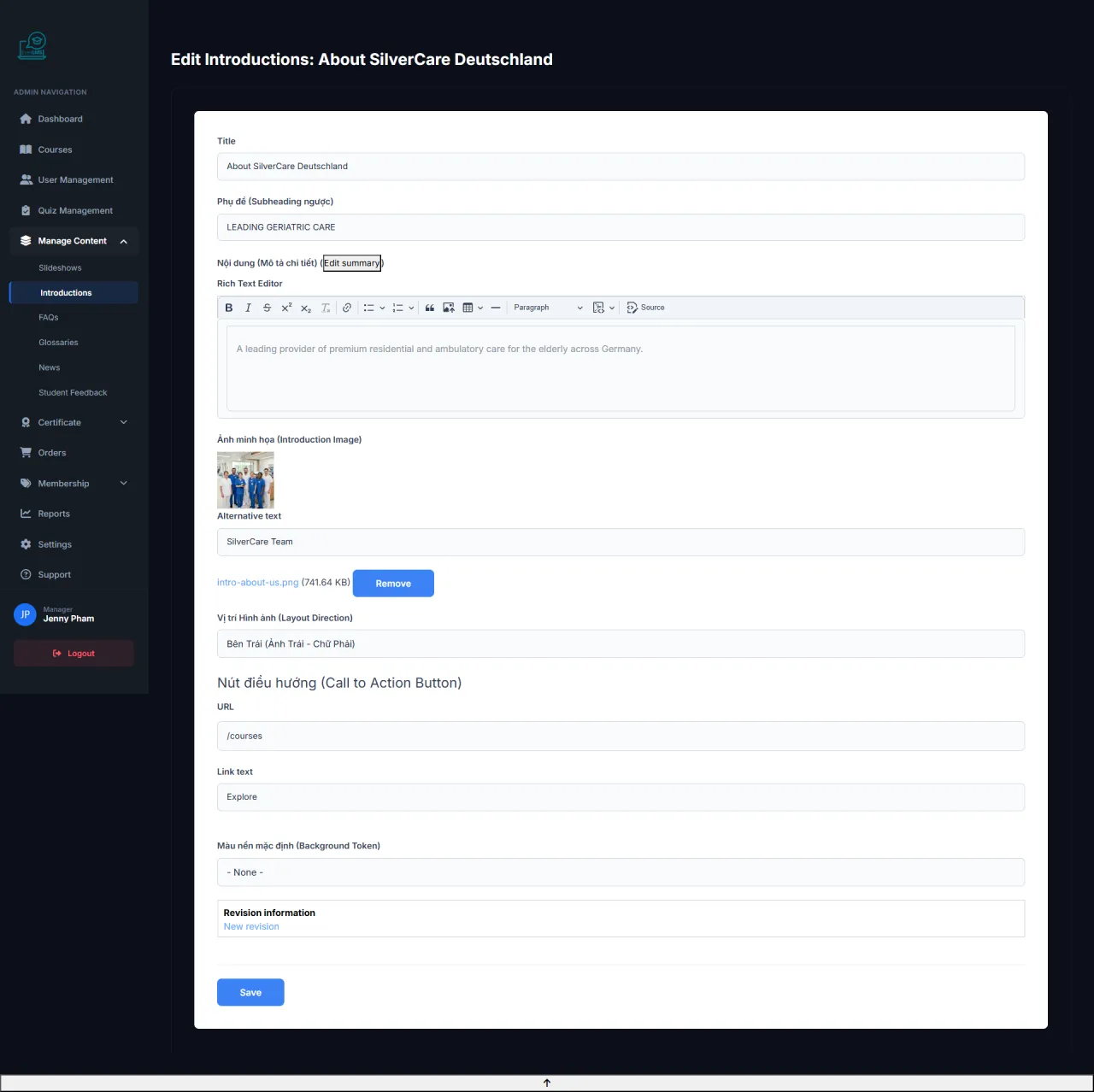
About this screen: Update introductory information displayed on the platform.
Navigation: Workspace → Content → Introductions → Edit
- Update title and content to reflect current state
- Change illustrative images
- Edit mission and core values
- Enable/disable introduction sections by campaign
FAQ Management
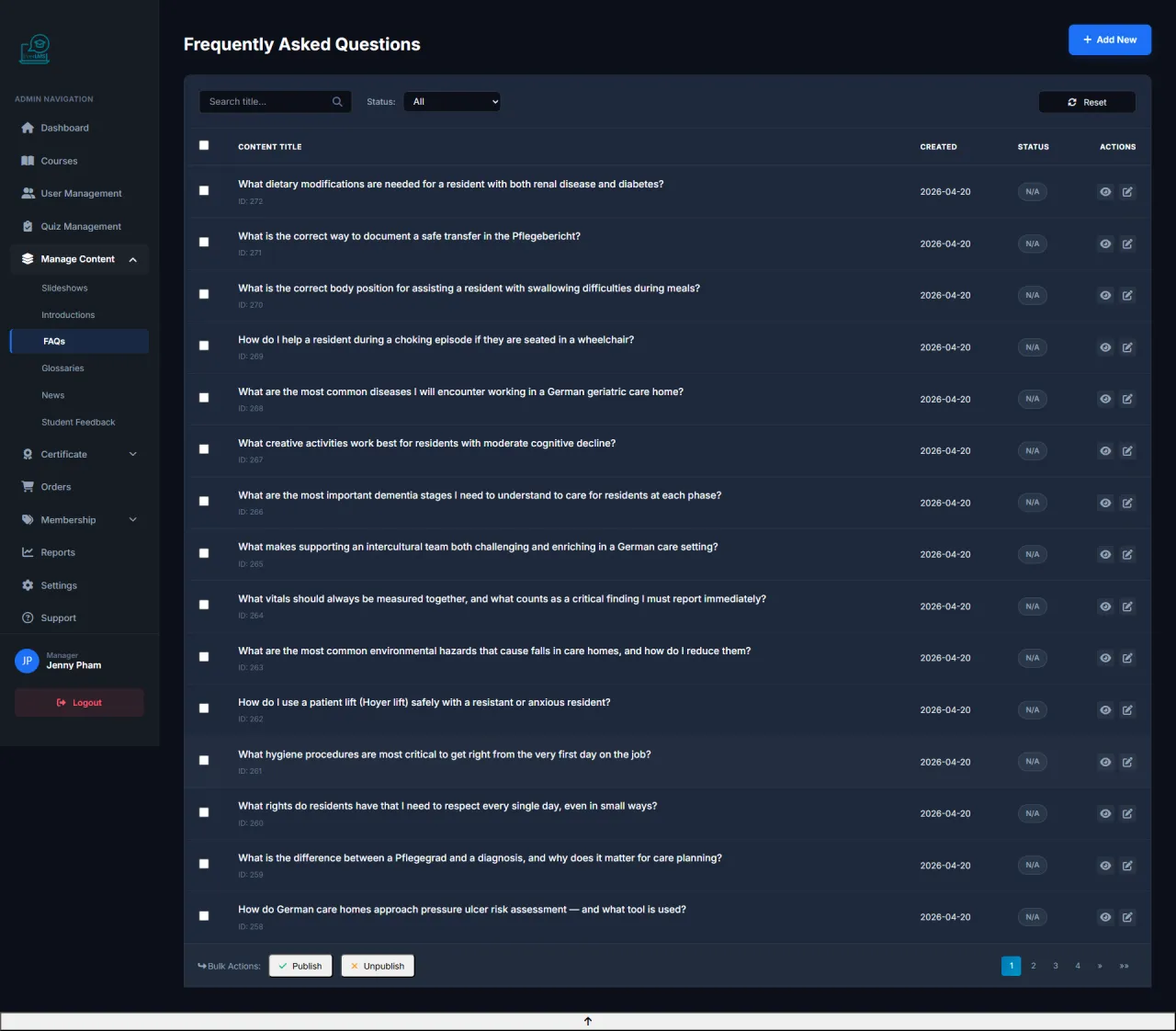
About this screen: Manage frequently asked questions displayed on course detail pages.
Navigation: Workspace → Content → FAQs
- View and edit the existing FAQ list
- Add new questions from student feedback
- Sort FAQs by importance level
- Assign FAQs to courses or the homepage
Add New FAQ
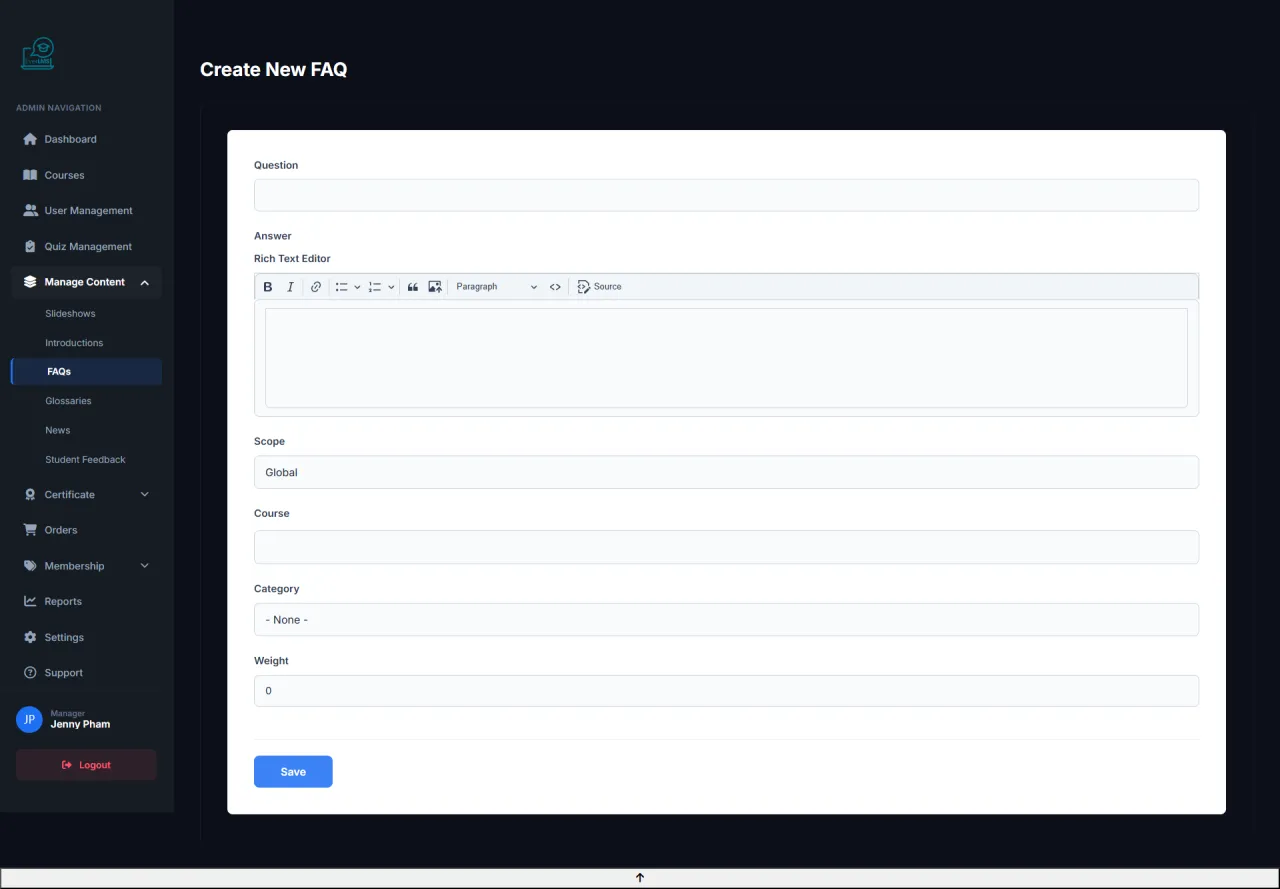
About this screen: Managers add new frequently asked questions to support students.
Navigation: Workspace → Content → FAQs → Add
- Enter a clear and concise question
- Write a detailed answer with rich formatting
- Select the appropriate FAQ category
- Set status to Published for immediate display
Edit FAQ
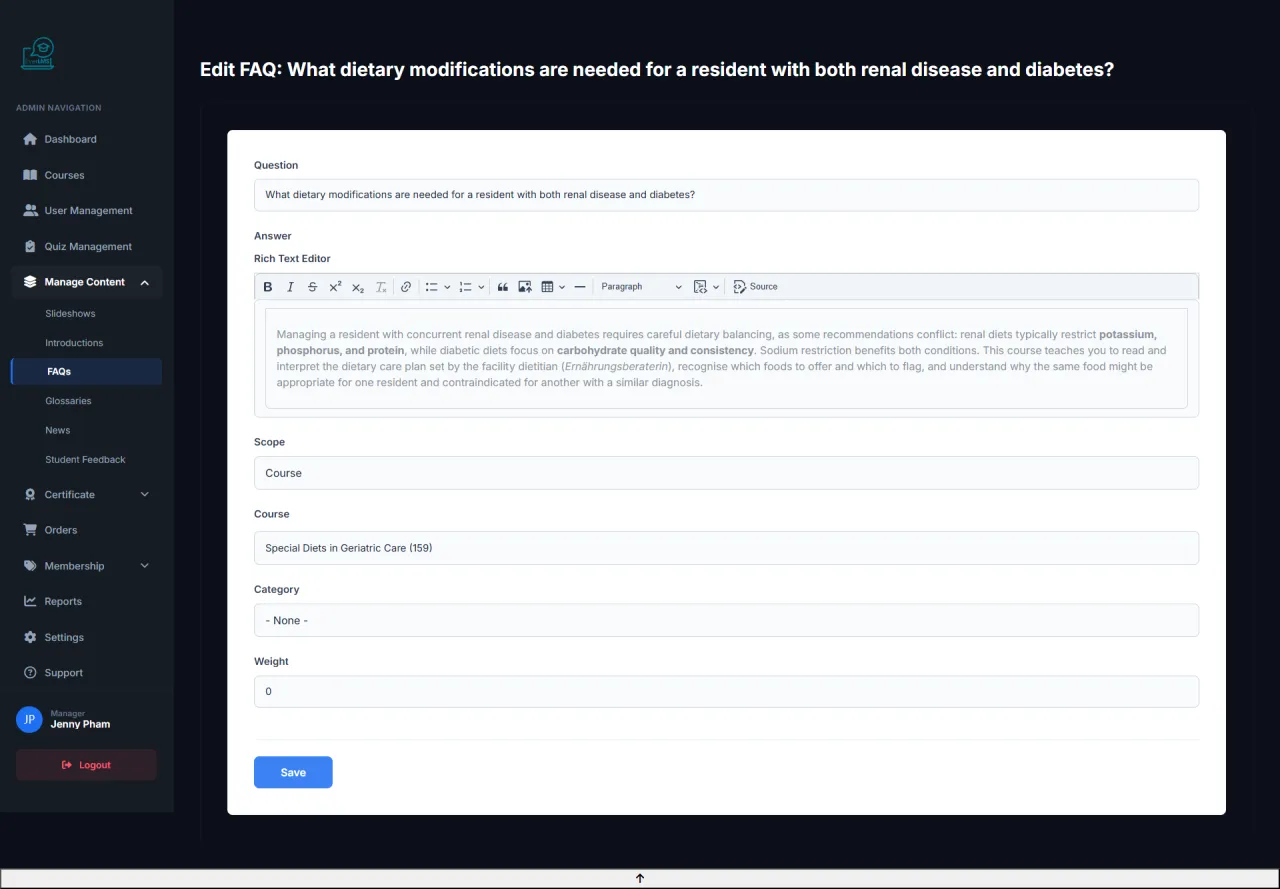
About this screen: Update question or answer content for an existing FAQ.
Navigation: Workspace → Content → FAQs → Edit
- Edit the question for better clarity
- Update the answer based on actual feedback
- Change category or display order
- Hide FAQs that are no longer relevant
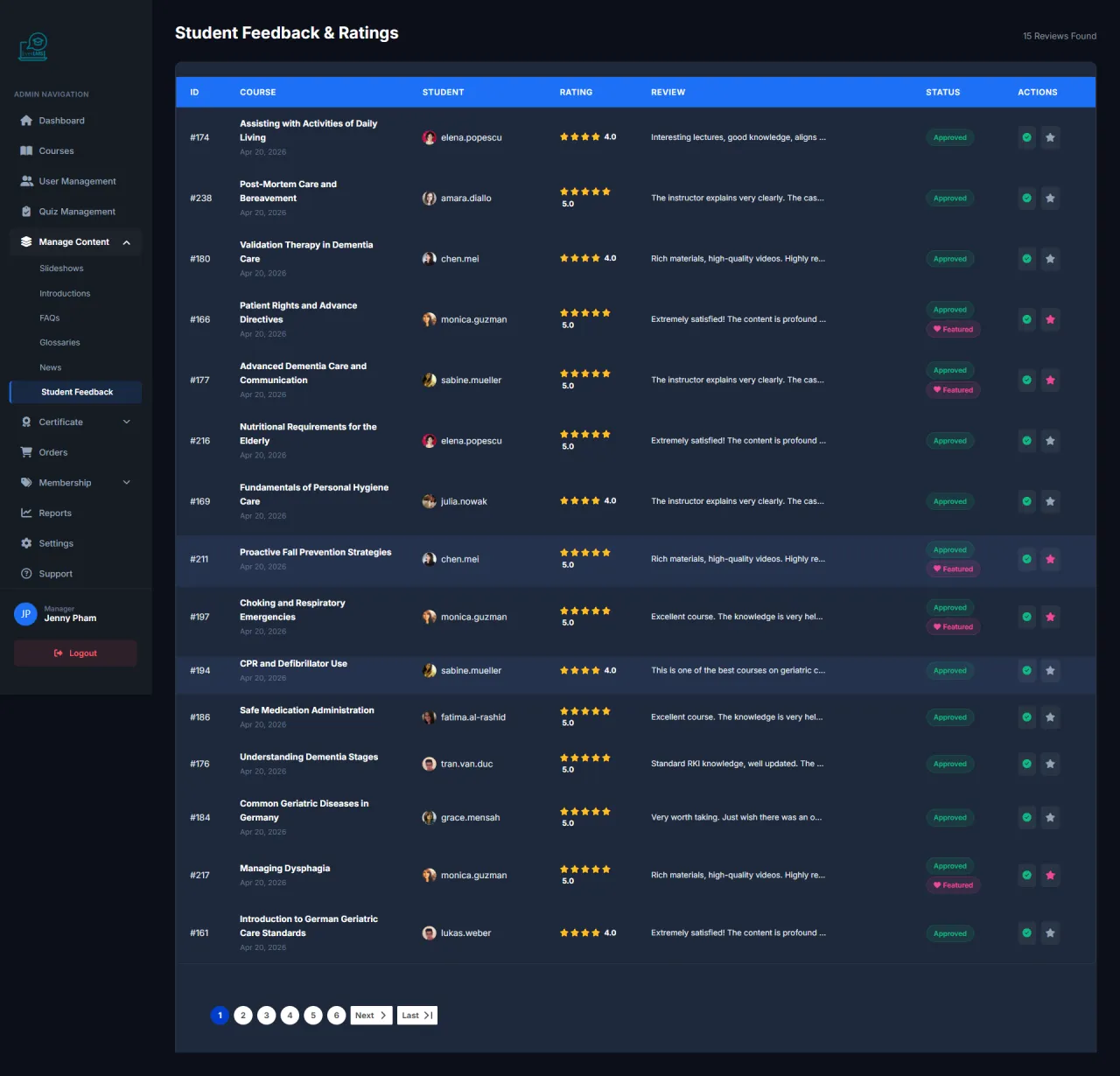
Review Management
About this screen: View and manage student reviews to control content quality.
Navigation: Manage Content → Student Feedback
- Track quality scores (1 to 5 stars) for courses
- View detailed actual feedback from students
- Approve, hide, or delete spam/policy-violating reviews
- Use feedback to update lecture quality
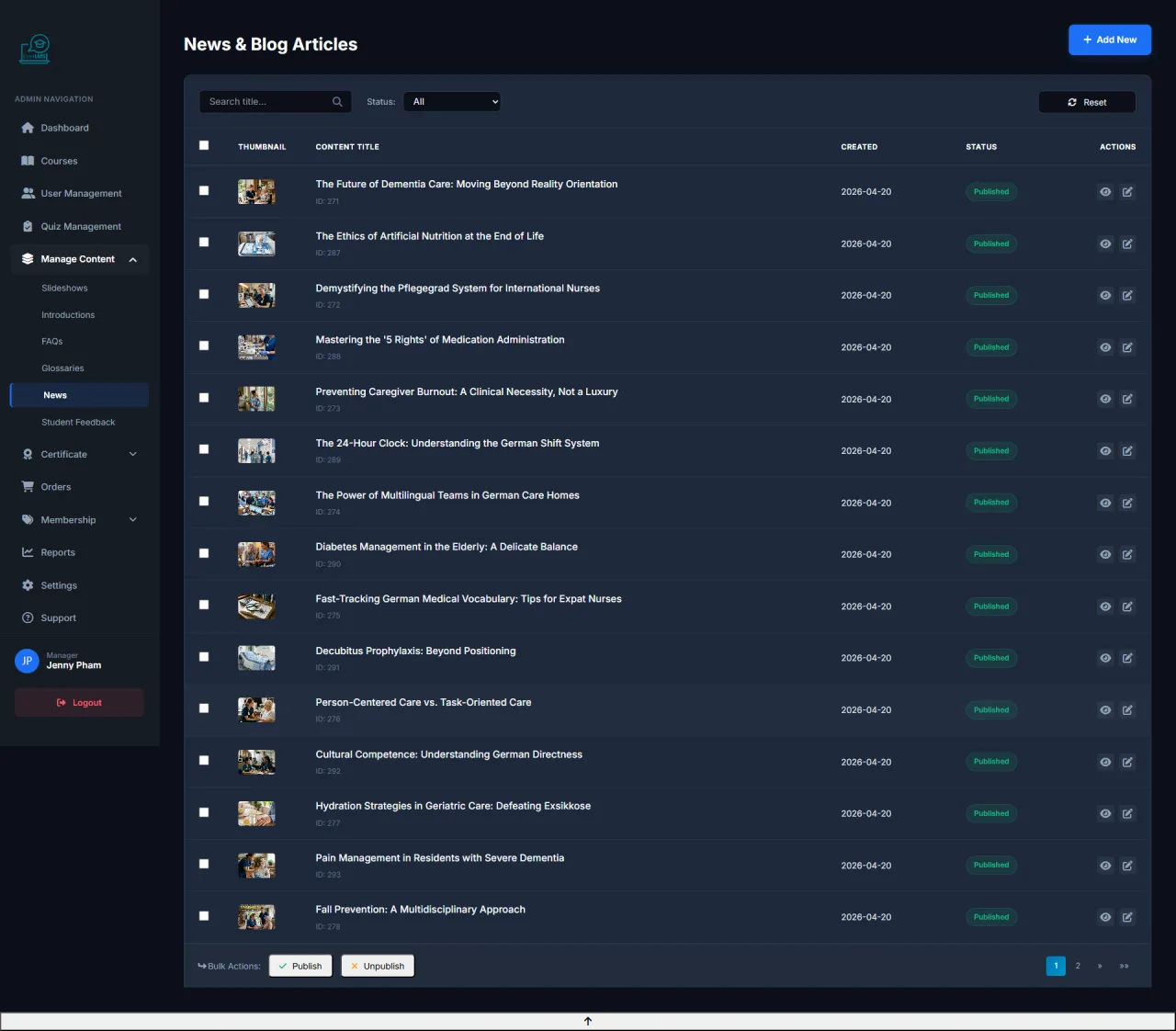
News Management
About this screen: Manage news articles and blog posts on the platform.
Navigation: Workspace → Content → News
- View articles with Published/Draft status
- Search by title or author
- Edit or delete inappropriate articles
- Check view counts and engagement
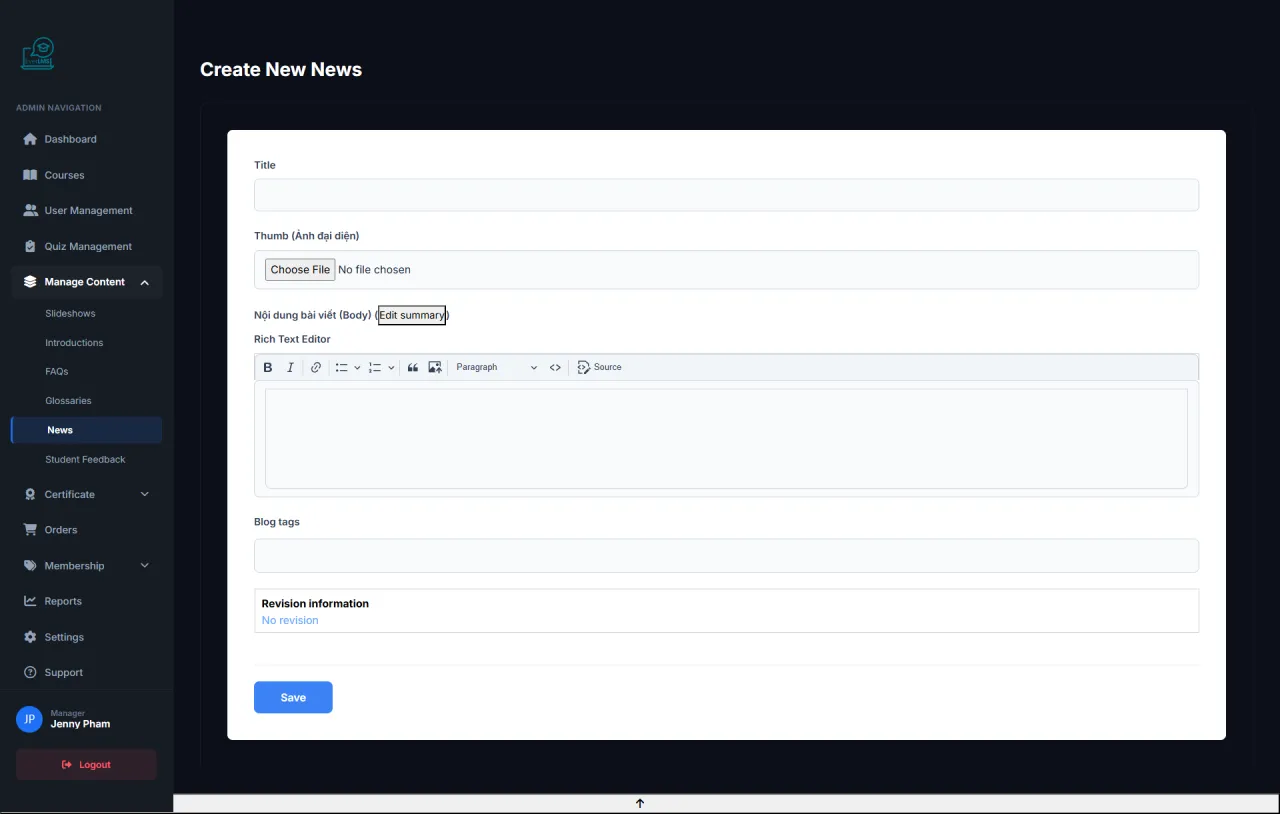
Add News Article
About this screen: Managers create new news articles to update the community with information.
Navigation: Workspace → Content → News → Add
- Enter an engaging, SEO-friendly title
- Write content with the rich editor
- Upload a high-quality thumbnail image
- Select category and add tags
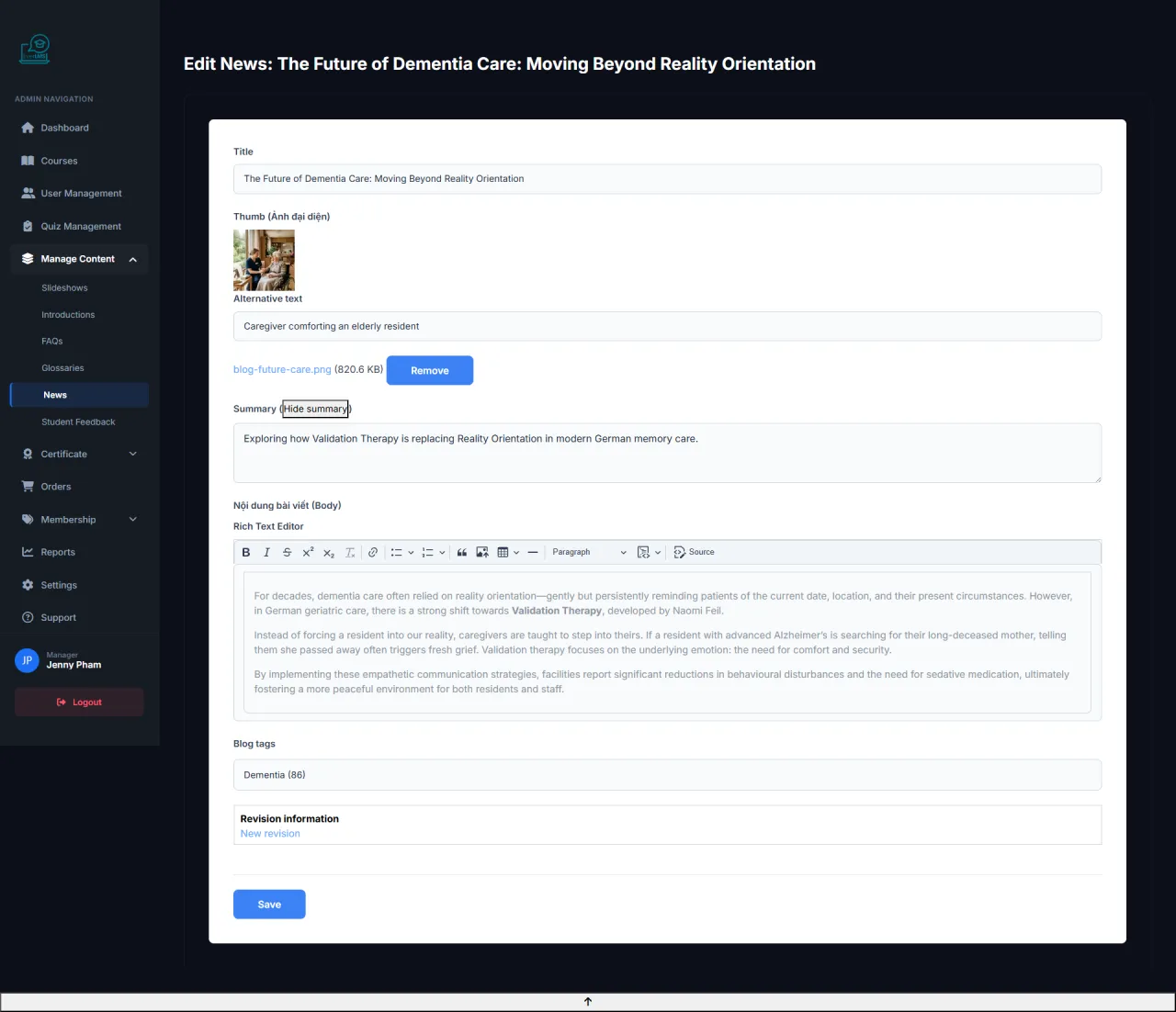
Edit News
About this screen: Update content, images, and information of a published article.
Navigation: Workspace → Content → News → Edit
- Edit article title and content
- Replace thumbnail or in-article images
- Update categories and tags
- Hide or delete when content is outdated
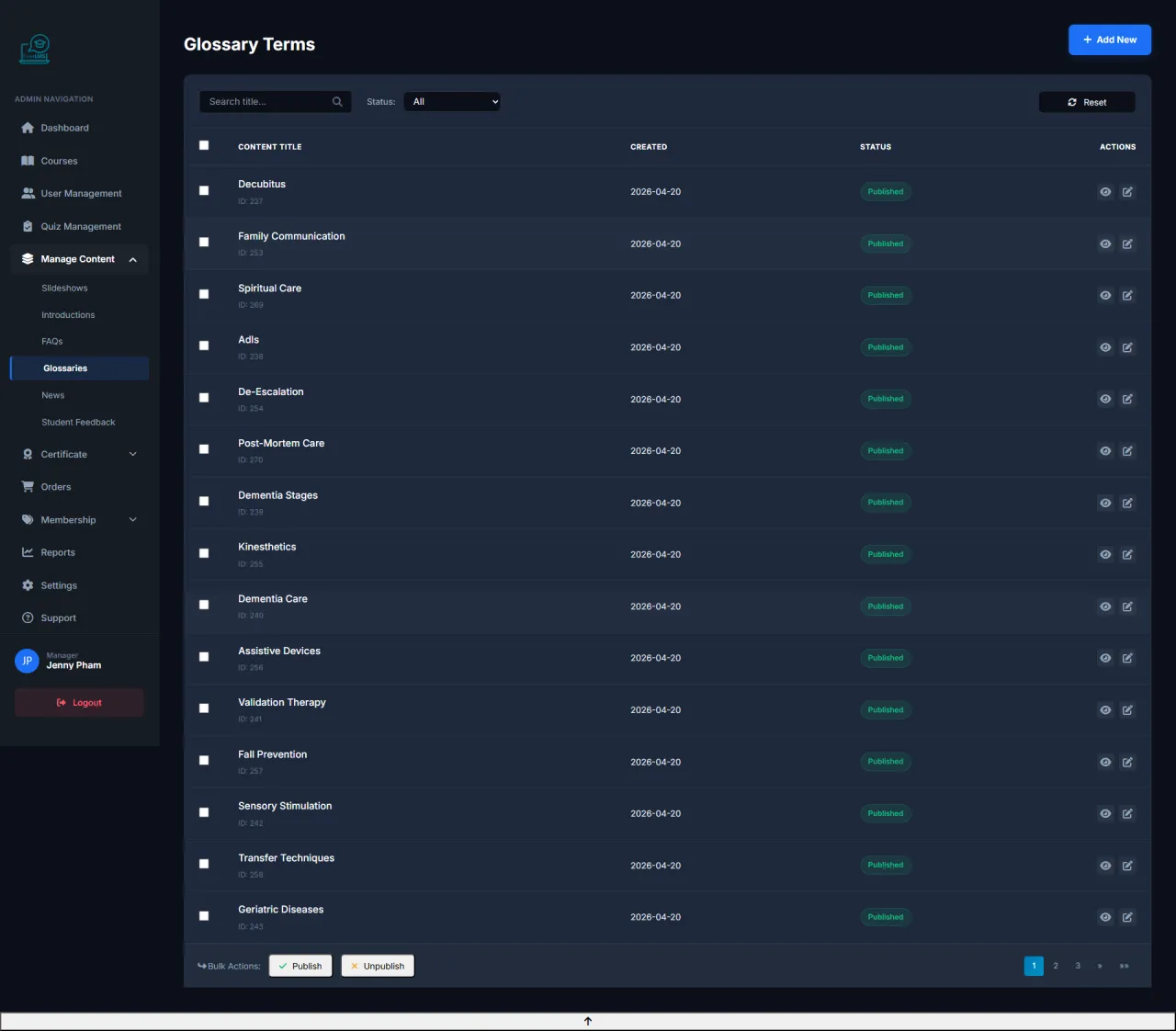
Glossary Management
About this screen: Manage the specialized terminology dictionary displayed on the platform.
Navigation: Workspace → Content → Glossaries
- View and manage the terminology catalog
- Add new terms as requested by instructors
- Edit definitions to ensure accuracy
- Expand the term library by field
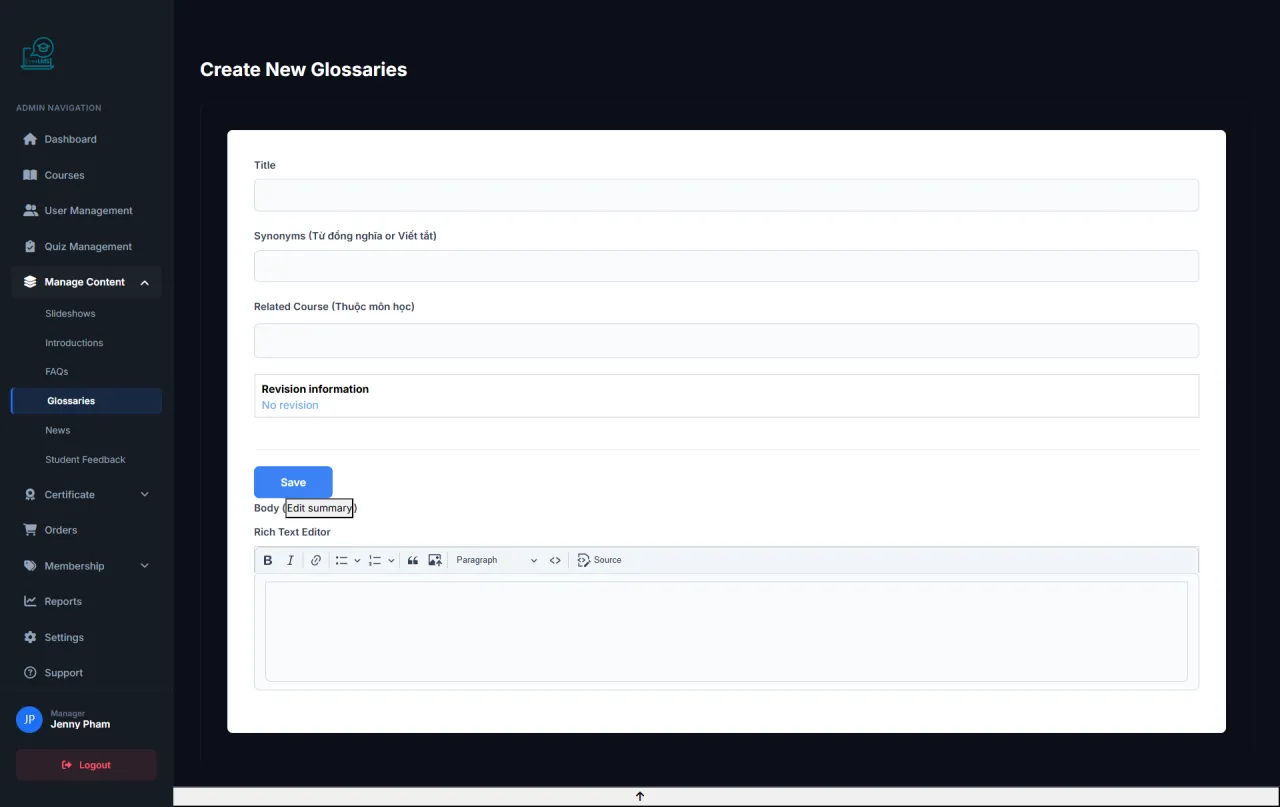
Add Glossary Term
About this screen: Managers add new terms to the Glossary to support students.
Navigation: Workspace → Content → Glossaries → Add
- Enter the accurate term name
- Write a clear definition with practical examples
- Select the alphabet letter for classification
- Add related terms for student exploration
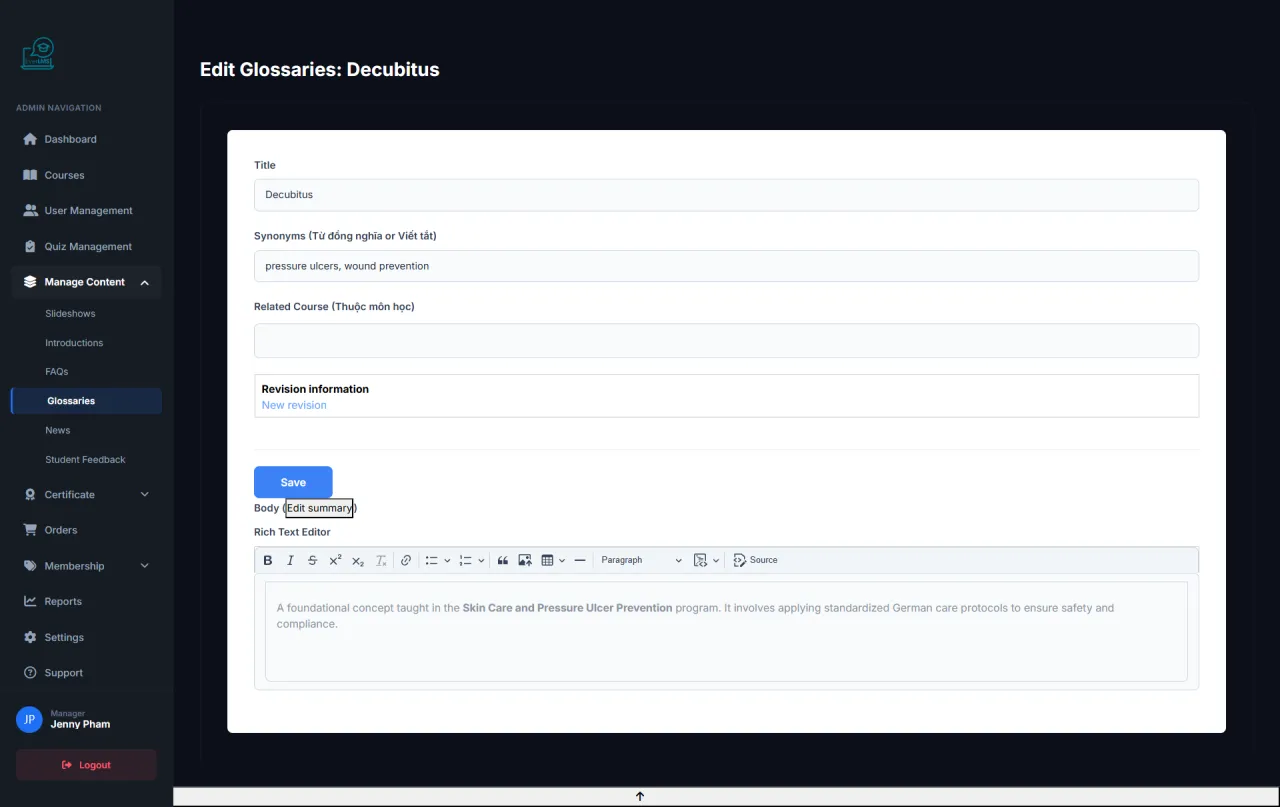
Edit Glossary Term
About this screen: Update definitions or information for existing terms in the Glossary.
Navigation: Workspace → Content → Glossaries → Edit
- Edit definitions for accuracy and currency
- Add new practical examples relevant to context
- Update related terms when new terms are added
- Delete or hide outdated terms
Running EverLMS in your own organisation
Names, prices and plans on these screens are set up differently for each deployment. We deploy EverLMS on your domain and adapt it to how you work, and you receive the running system and its source code.