
Home Page
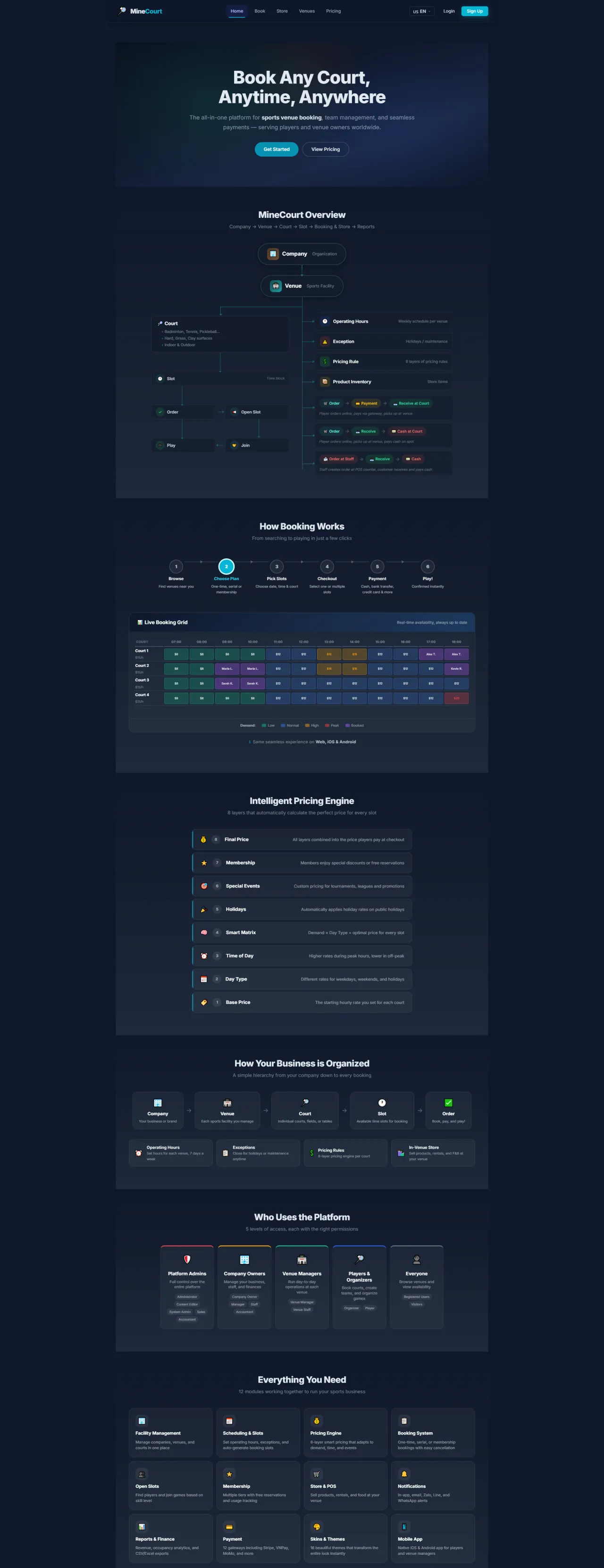
About this screen: Platform landing page with the hero banner, how booking works, the pricing layers and the roles on the platform.
Navigation: Menu → Home
- Explore court booking, shopping, and membership registration
- Quick access via menu: Book, Store, Venues
- Tap Get Started to begin
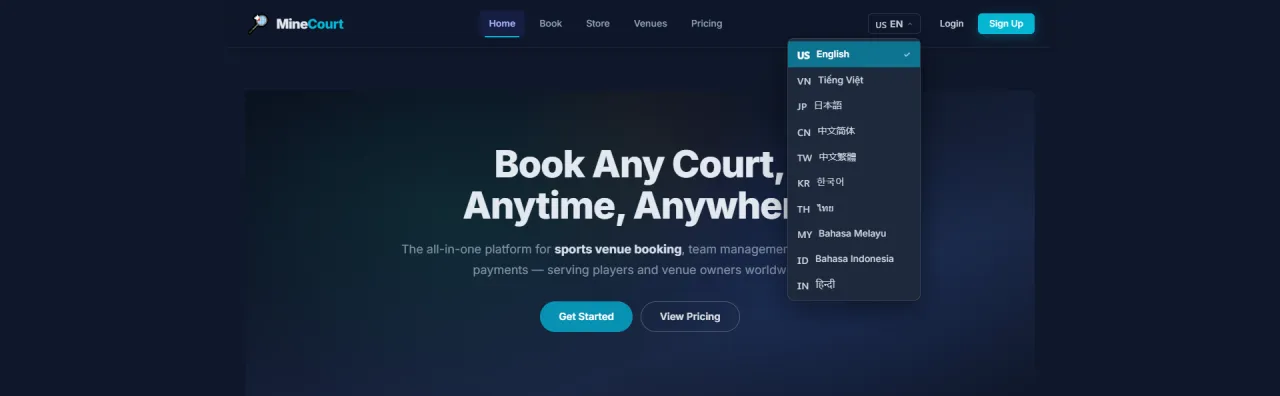
Multiple Languages
About this screen: Language selection dropdown in the navigation menu showing available language options (English, Vietnamese, etc.).
Navigation: Menu → Language
- Supports multiple languages (English, Vietnamese...) using URL prefix routing
- The interface reloads automatically in your selected language
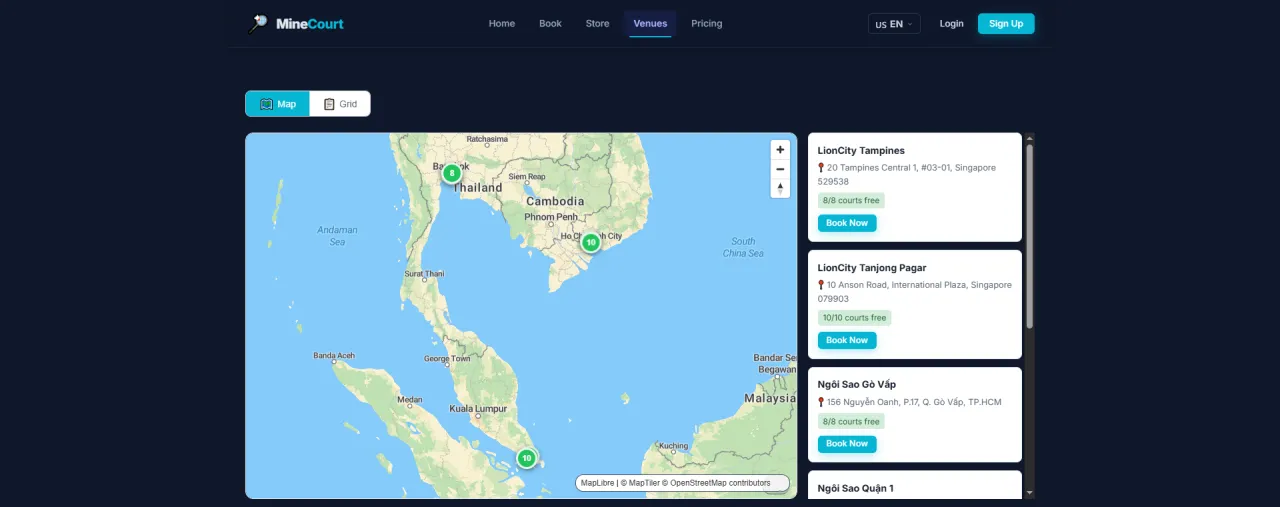
Venues: Map View
About this screen: Search for venues by geographic location on the map.
Navigation: Menu → Venues → Map
- View court locations on an interactive map, and tap a marker to preview
- Switch to list view by clicking the Grid tab
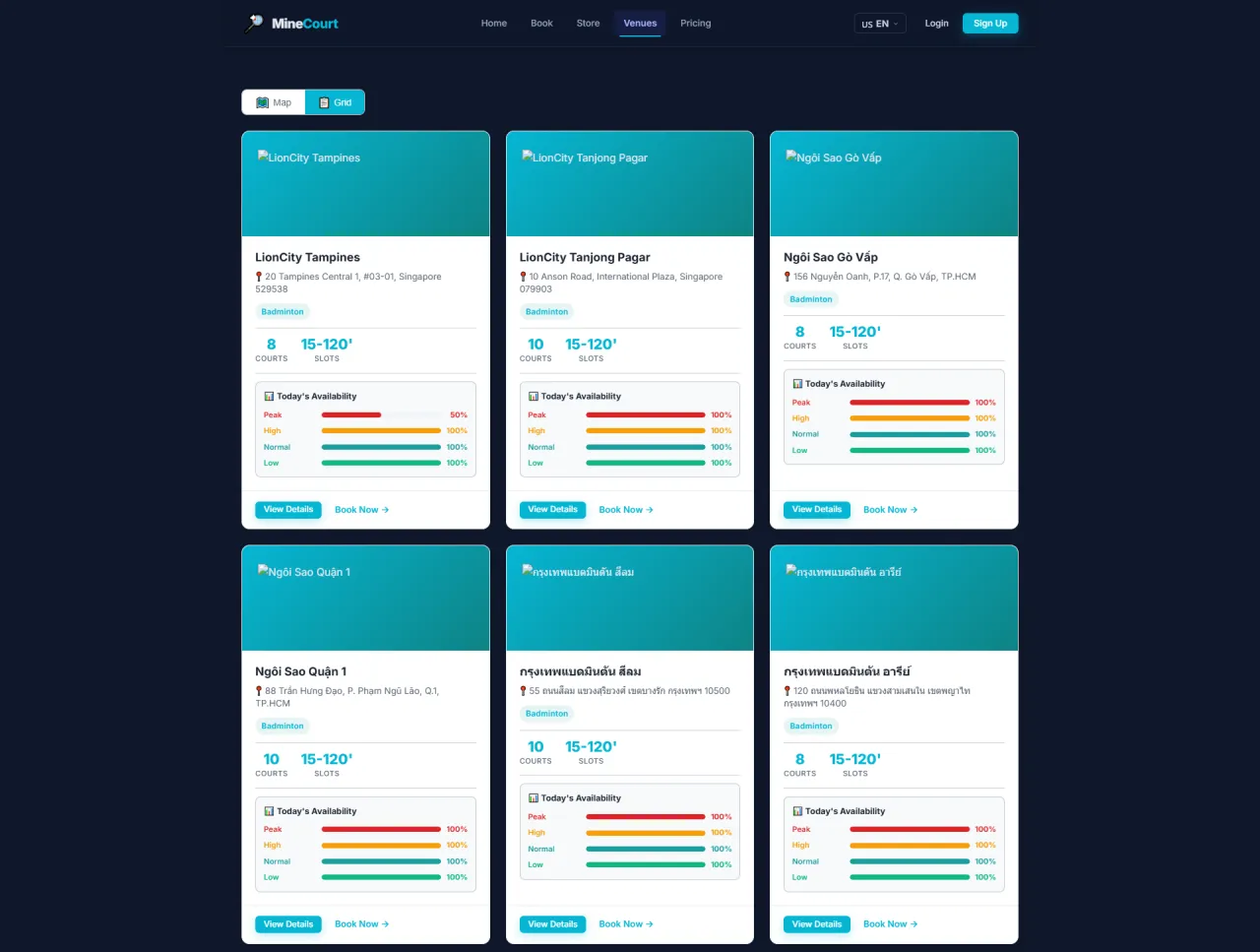
Venues: Grid View
About this screen: View all available venues as cards.
Navigation: Menu → Venues → Grid
- Each card shows: venue name, area, total courts, and availability
- Tap View Details to learn more or Book Now to go straight to booking
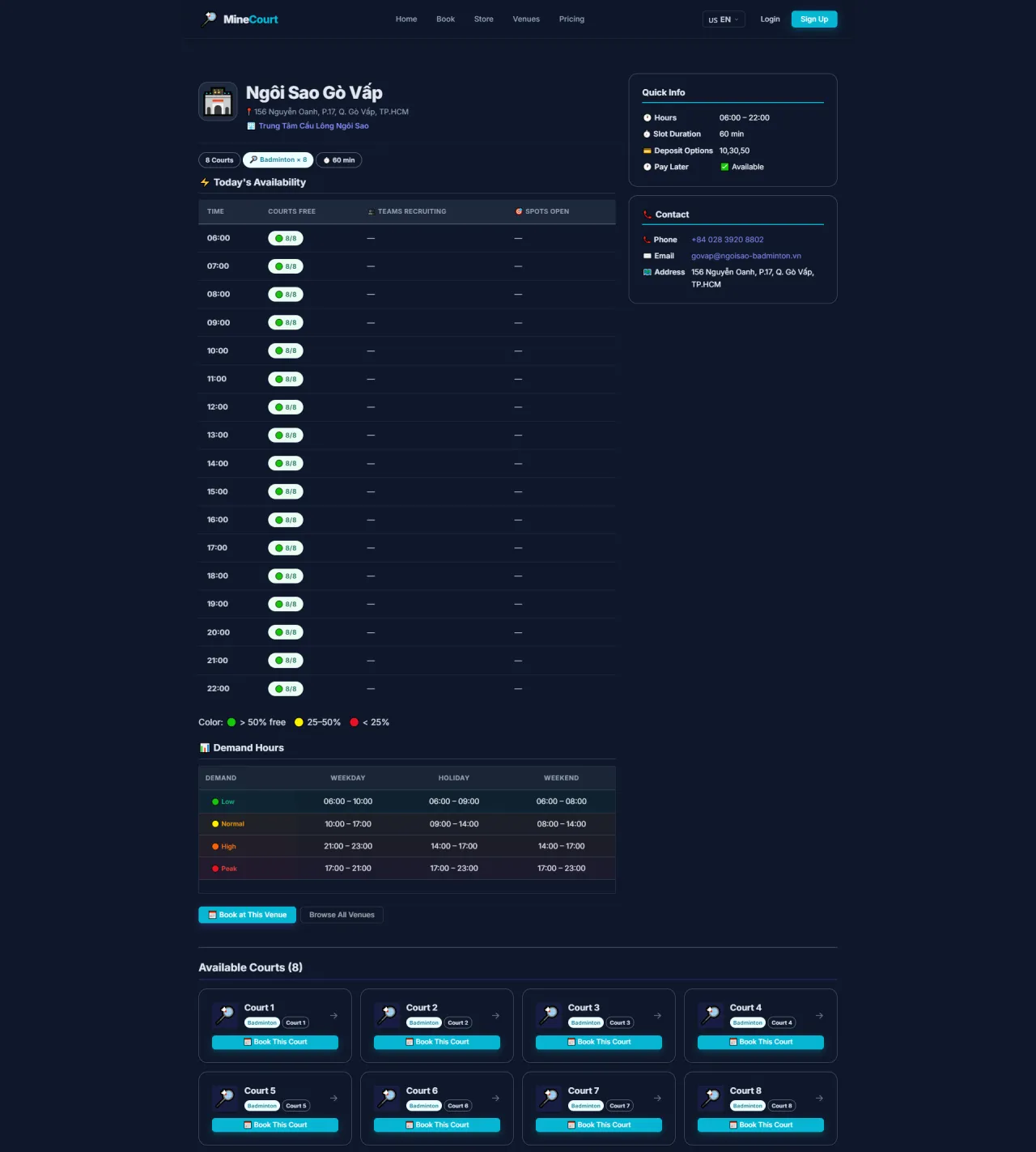
Venue Detail
About this screen: View full details of a specific court venue before booking.
Navigation: Venues → Tap any venue card → View Details
- Displays: Venue name, address, open hours, available courts, and photos
- See today's available time slots at a glance
- Tap Book Now to jump directly into the booking grid for this venue
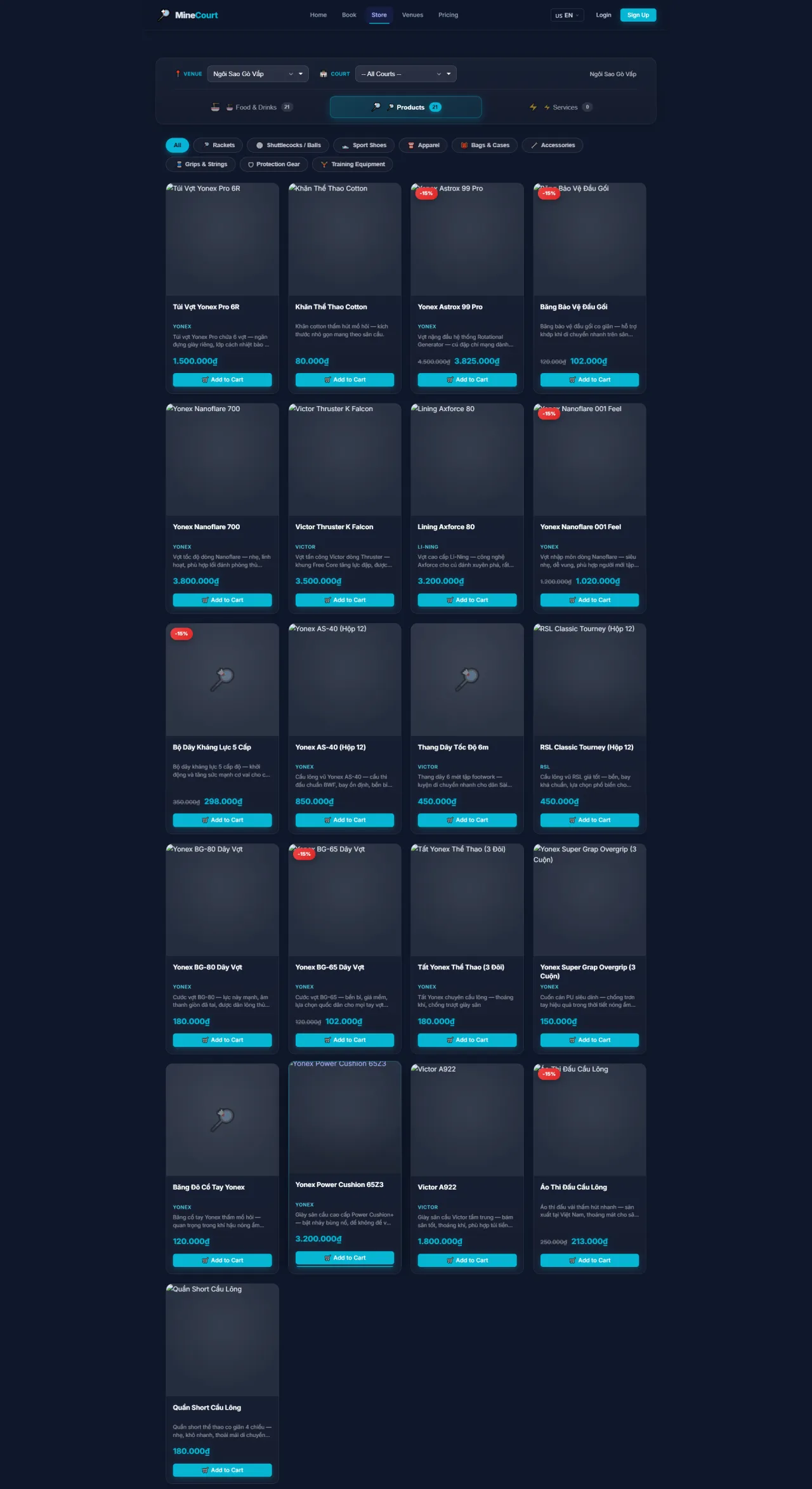
Store: Sports Products
About this screen: Browse and purchase sports equipment online.
Navigation: Menu → Store → Products
- Browse, filter by category, and search products
- View item details and add directly to your Cart
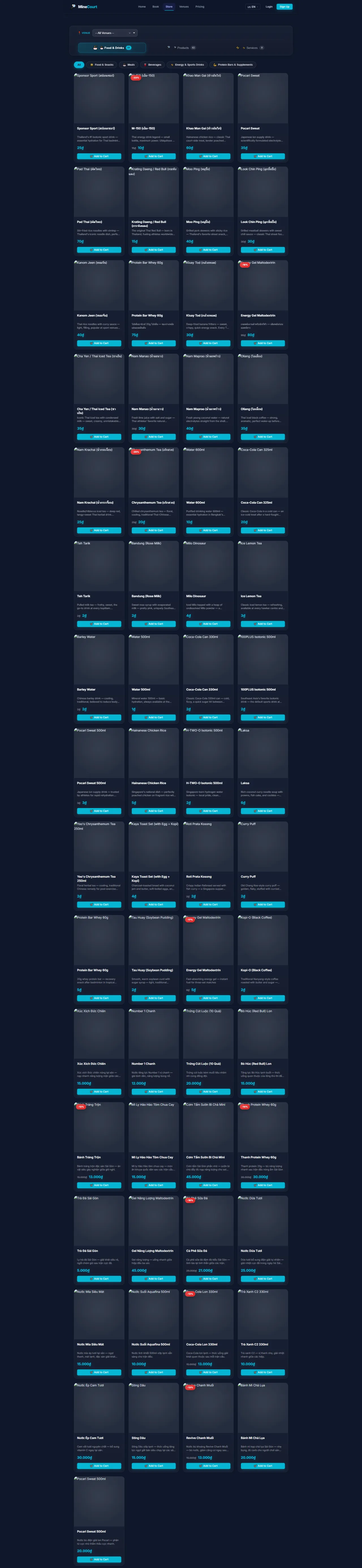
Store: Food & Drinks
About this screen: Order food and beverages directly from the online store.
Navigation: Menu → Store → Food & Drinks
- Choose from Snacks, Meals, and Fresh Juices
- Complete checkout and your order will be ready at the court
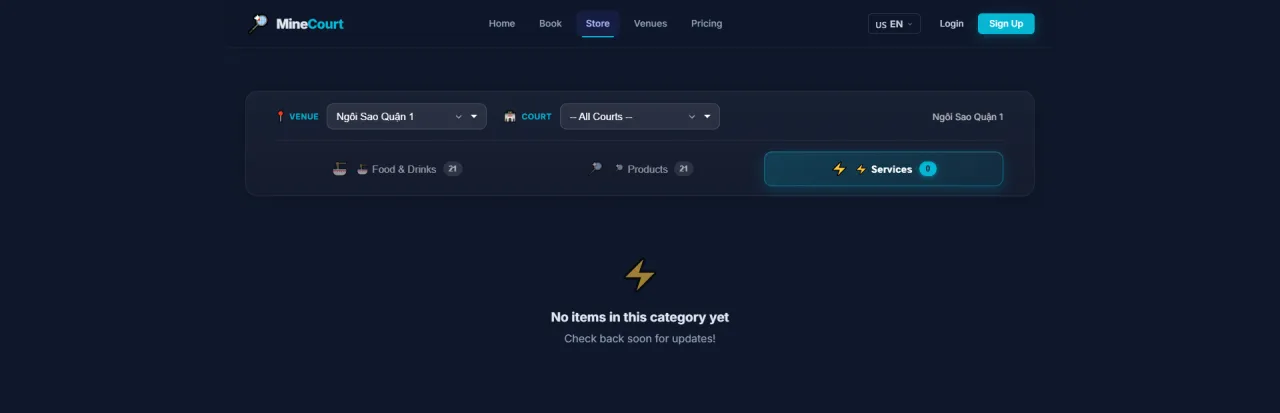
Store: Services
About this screen: Register for add-on services directly on the platform.
Navigation: Menu → Store → Services
- Services include coaching packages and ball retrieval
- Clear pricing and one-click purchase flow
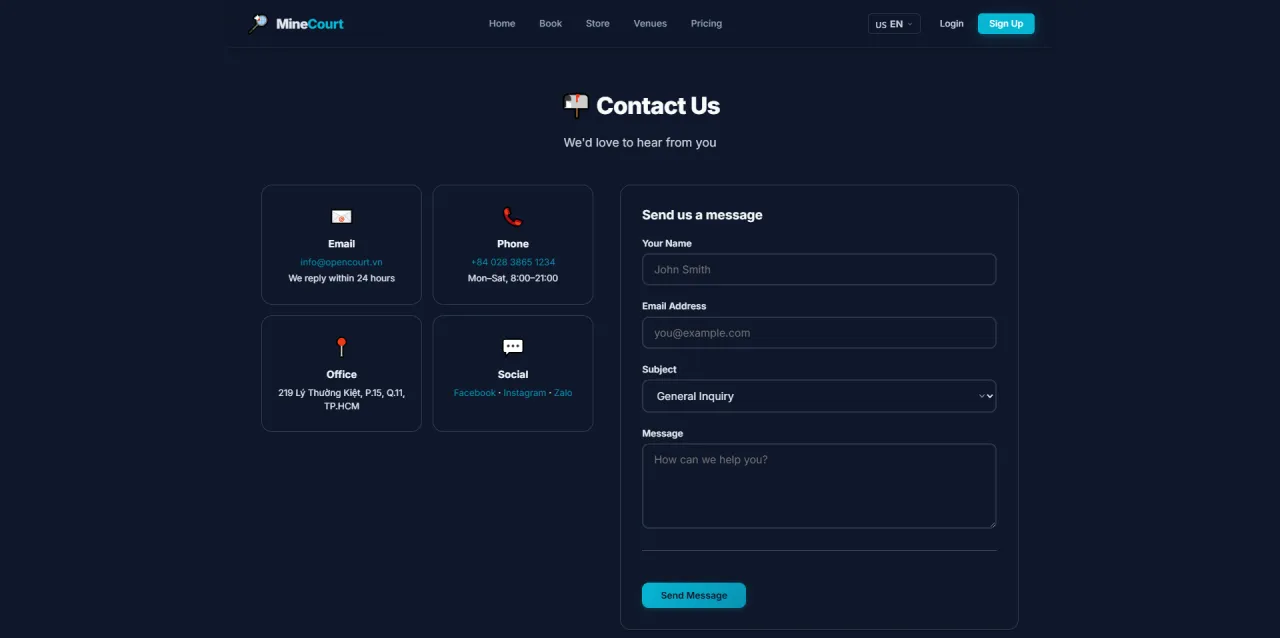
Contact Us
About this screen: Send a message to the platform team or find each venue's contact details.
Navigation: Menu → Contact
- Submit an inquiry via the contact form (name, email, message)
- View direct phone numbers and email addresses for each venue
- Operating hours displayed for support availability
Login
About this screen: Securely sign in to your MineCourt account.
Navigation: Menu → Login
- Enter your Username and Password, then click Log in
- Alternative: tap Create new account to register
- Forgot your password? Use Reset your password

Sign Up
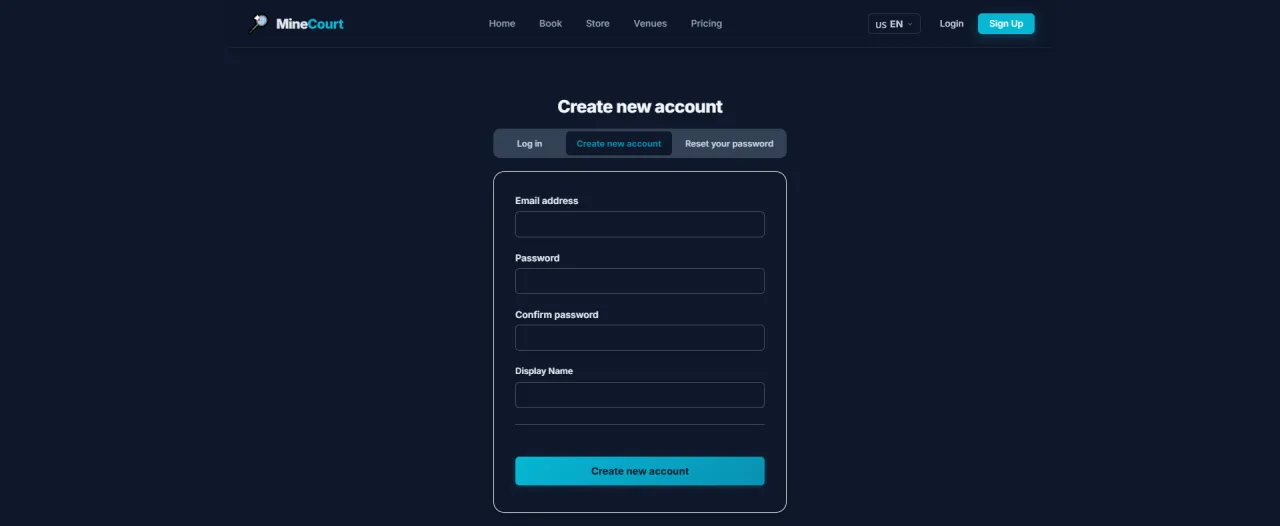
About this screen: Create a new MineCourt account.
Navigation: Menu → Sign Up
- Fill in your name, email, phone number, and a strong password
- Click Sign Up to submit
- Verify your identity via the confirmation link sent to your email
Reset Password
About this screen: Recover access when your password is lost or forgotten.
Navigation: Login → Reset Password
- Submit your registered email address
- A one-time reset link will be sent via Submit
- Follow the link in your email to set a new password

Step 1: Select Slot
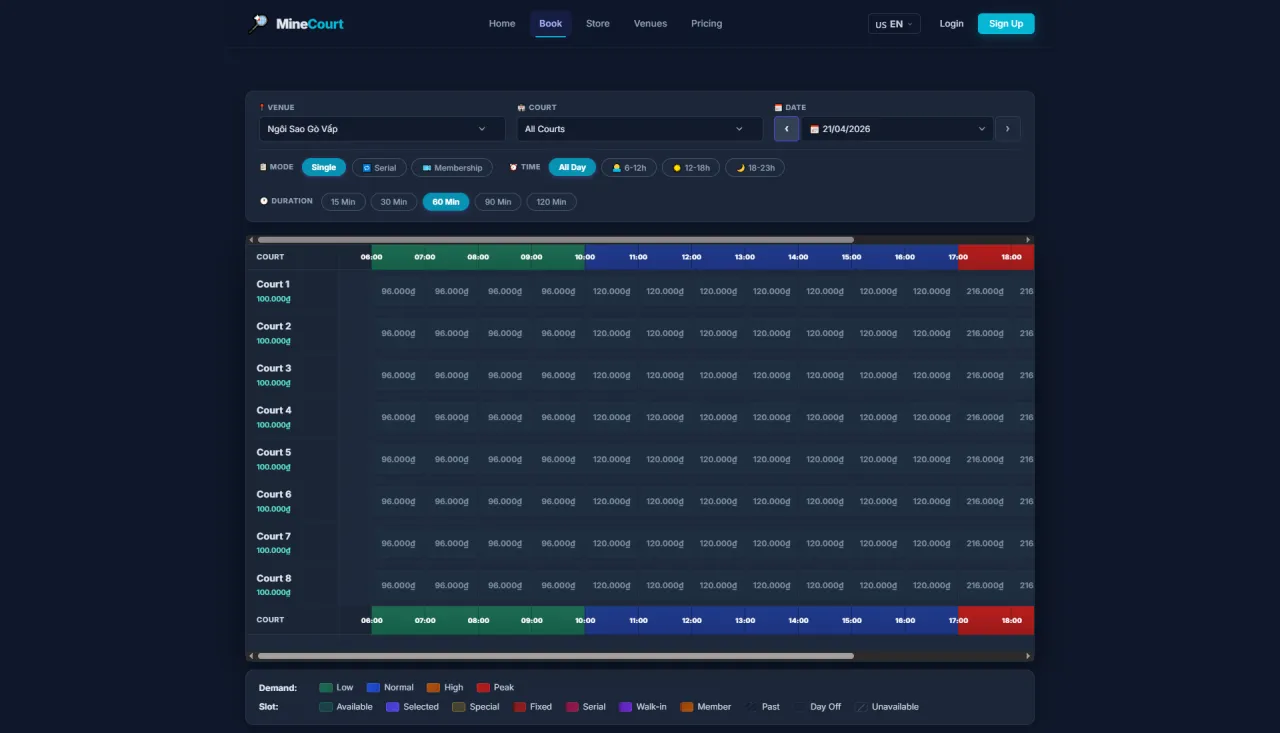
About this screen: Interactive schedule grid showing available time slots by date.
Navigation: Menu → Book
- Filter by: Venue, Court, and Date
- Switch booking mode to Single at the top
- Focus on time ranges: 6am–12pm, 12pm–6pm, 6pm–11pm
Step 2: Add Court to Cart
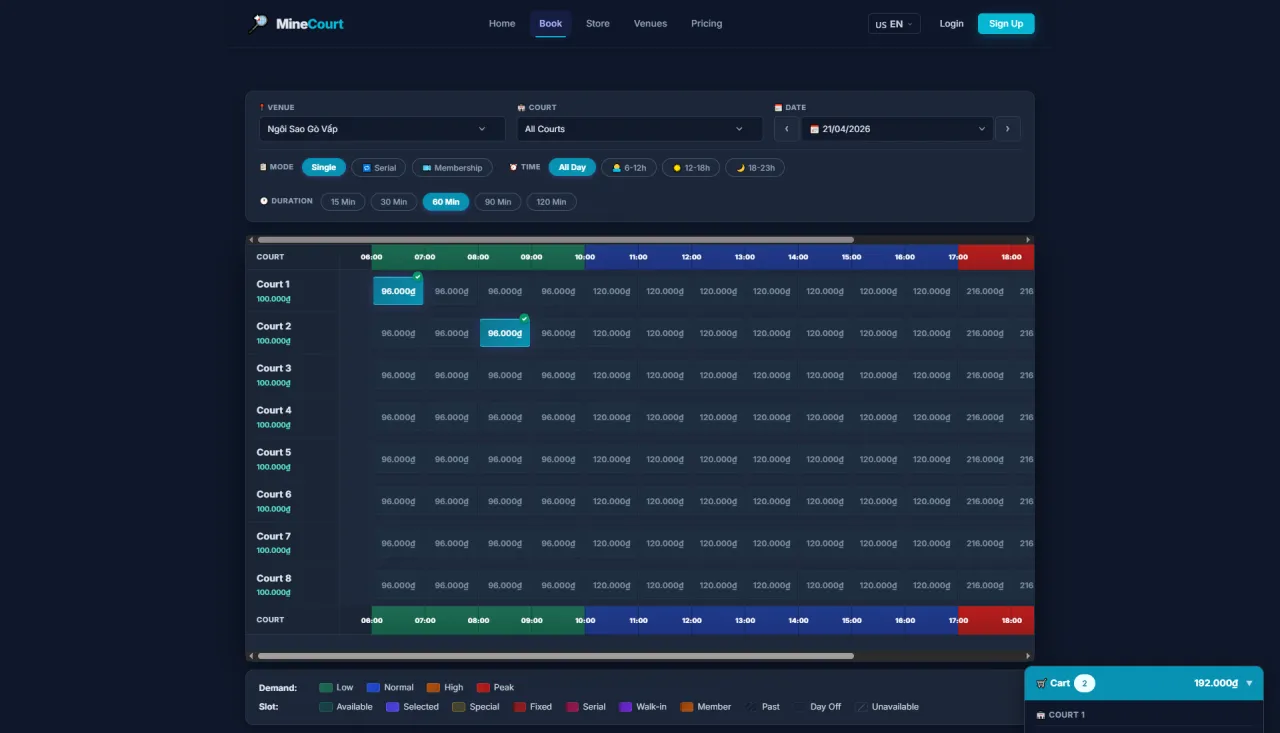
About this screen: Select your preferred slot and lock it in the cart.
Navigation: Click any available cell on the booking grid
- Click or tap a time slot cell to select it: the cell turns highlighted
- Multiple consecutive slots can be selected for longer sessions
- A Cart bar appears at the bottom showing total time and cost
- Click Checkout to proceed
Step 3: Sign In at Checkout
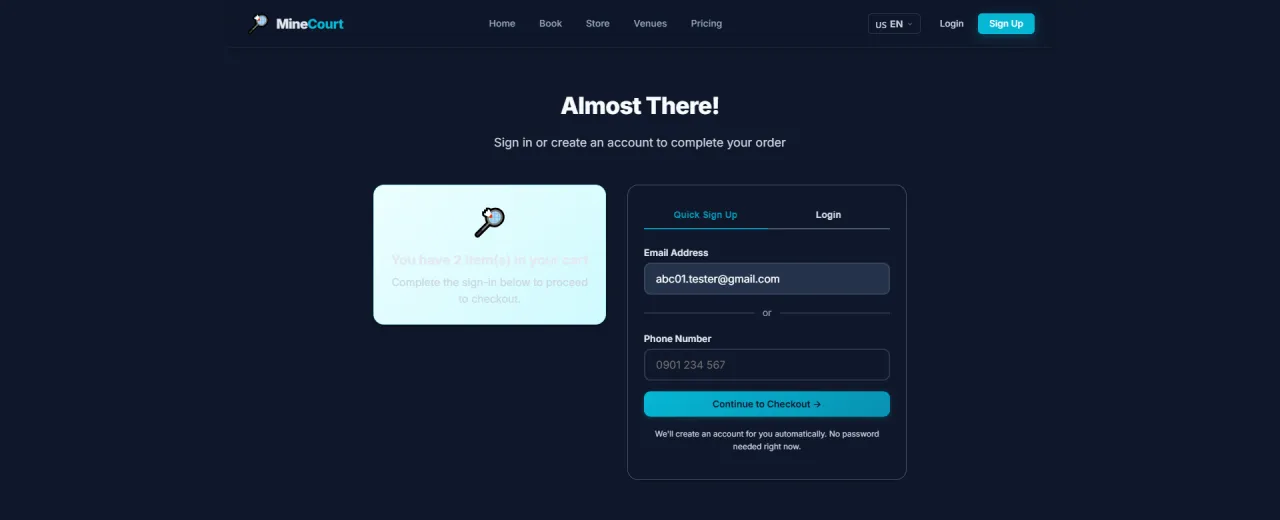
About this screen: Identity verification step, required to complete the booking.
Navigation: Cart → Checkout
- This prompt appears if you started booking without logging in
- Enter your Email or Phone and password to sign in
- Or click Create Account to register now without losing your cart
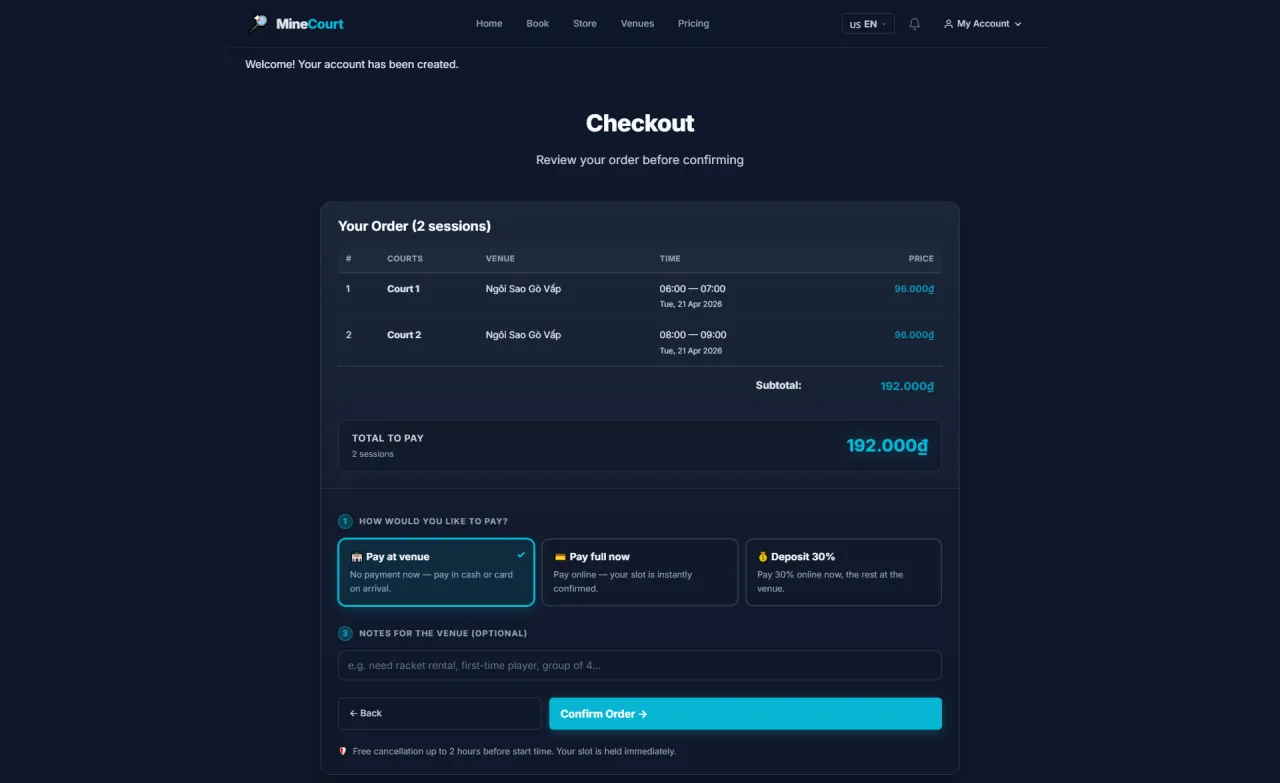
Step 4: Checkout & Payment Mode
About this screen: Review your order and choose how you want to pay.
Navigation: After sign-in → Checkout
- Full order summary: courts, dates, times, and total price
- Select a payment mode: Pay at Venue · Pay Full Now · Deposit 30%
- Add optional notes for the venue, then click Confirm Order
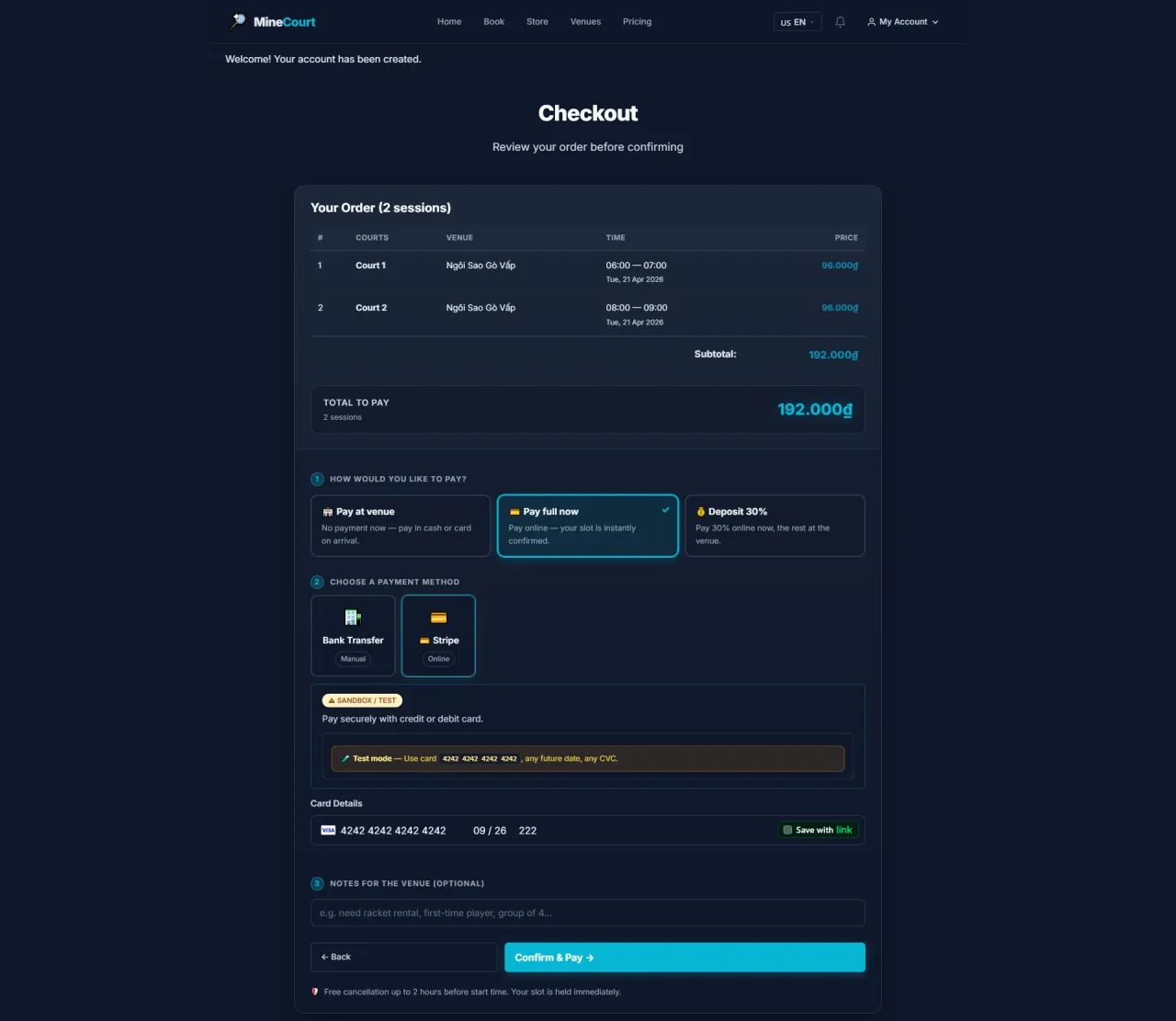
Step 5: Select Payment Method
About this screen: Choose how to pay for your booking.
Navigation: Checkout → Select Payment
- Available options: Bank Transfer, Credit/Debit Card, E-Wallet
- If you have a wallet balance, it will appear as an option
- Select your preferred method and click Continue
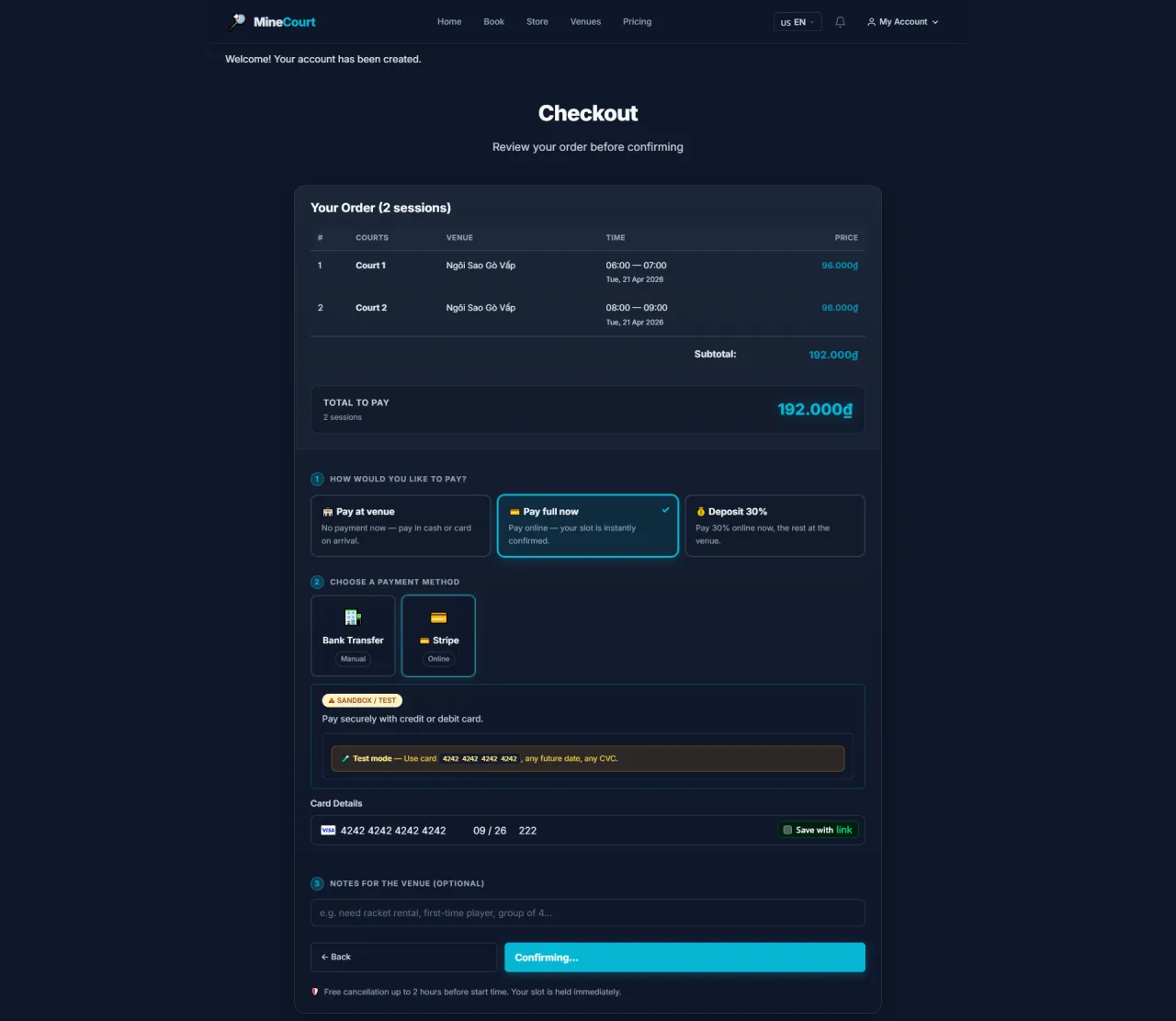
Step 6: Review & Confirm Payment
About this screen: Final order summary before payment is processed.
Navigation: Payment → Review order
- Final line-item view: slot cost, discounts applied, and total due
- No hidden fees: the final amount shown is exactly what is charged
- Click Confirm & Pay to process payment
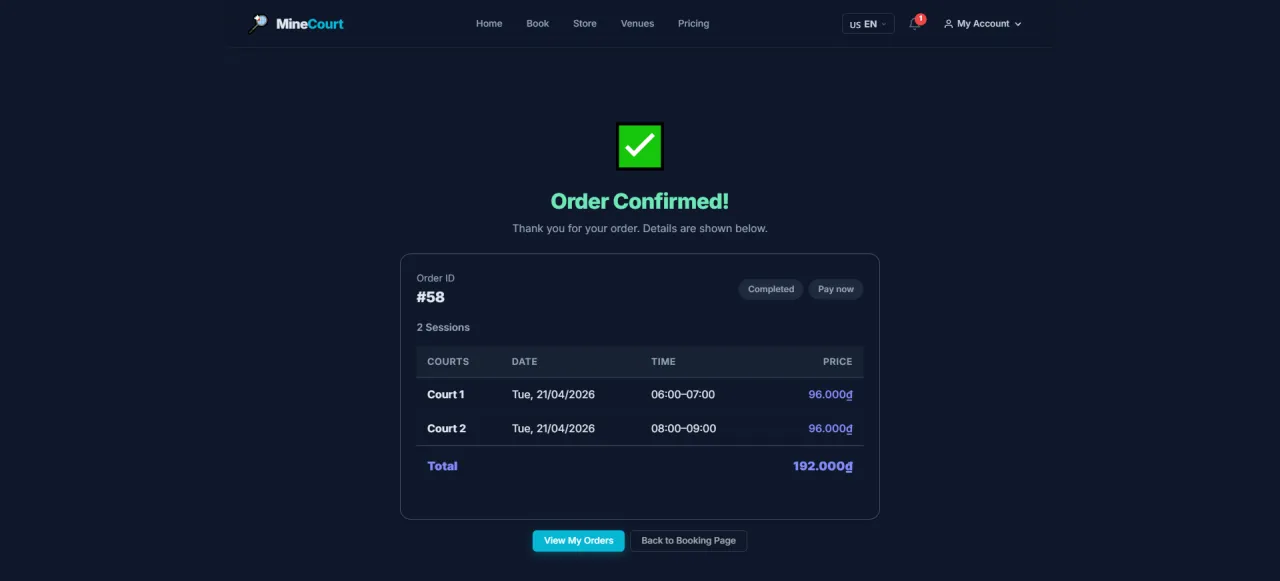
Step 7: Booking Confirmed
About this screen: Confirmation screen with booking ID and receipt.
Navigation: After successful payment
- Your unique Booking ID is displayed for check-in reference
- Tap View My Orders to see your QR code and booking details
- A receipt and booking confirmation are emailed automatically
Serial: Select Date & Pattern
About this screen: Configure a recurring booking schedule.
Navigation: Booking → Switch to Serial mode
- Set Start Date, End Date, and select the Day of Week
- System auto-highlights matching dates in the calendar
- Preview the full schedule before committing
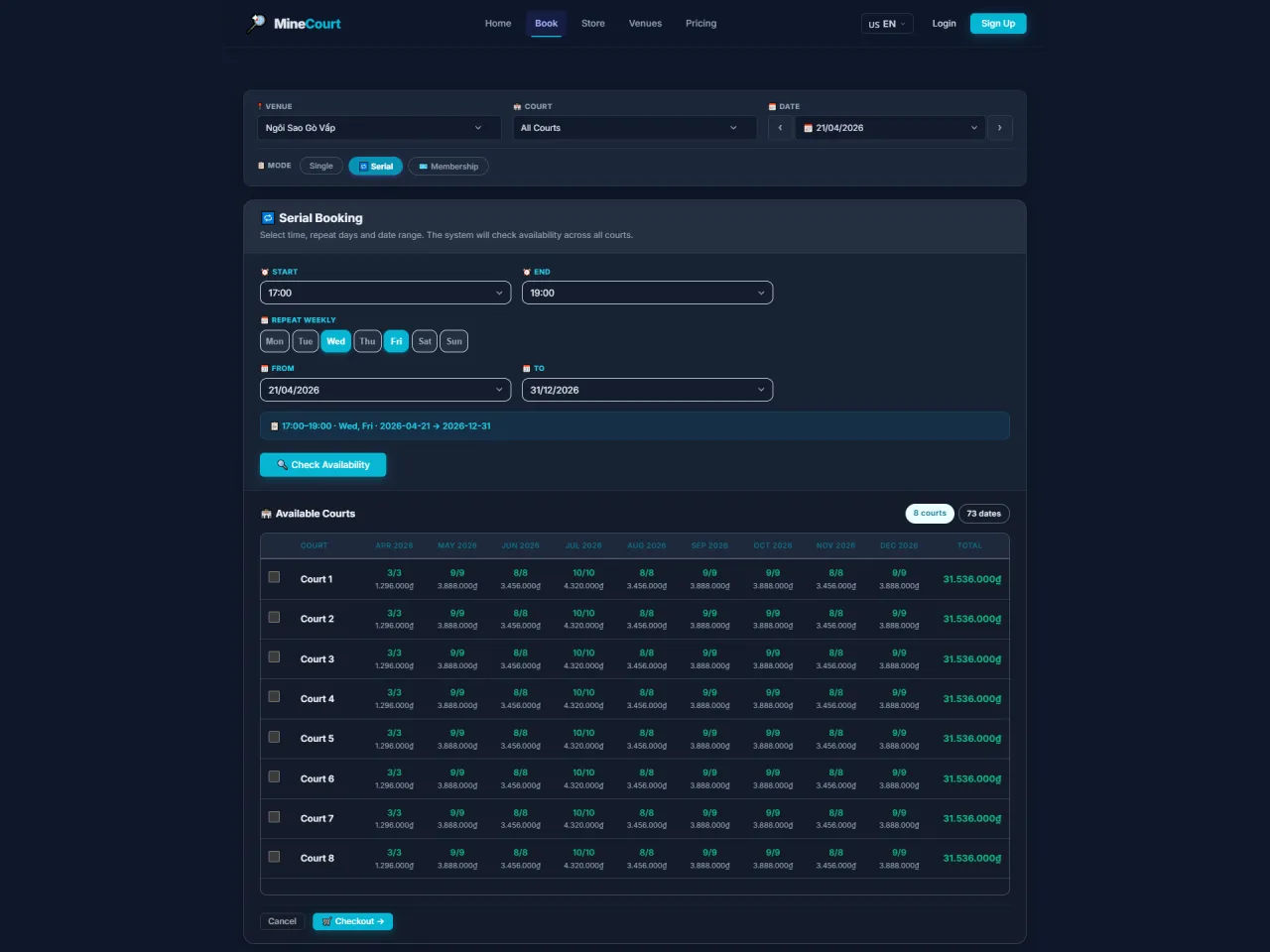
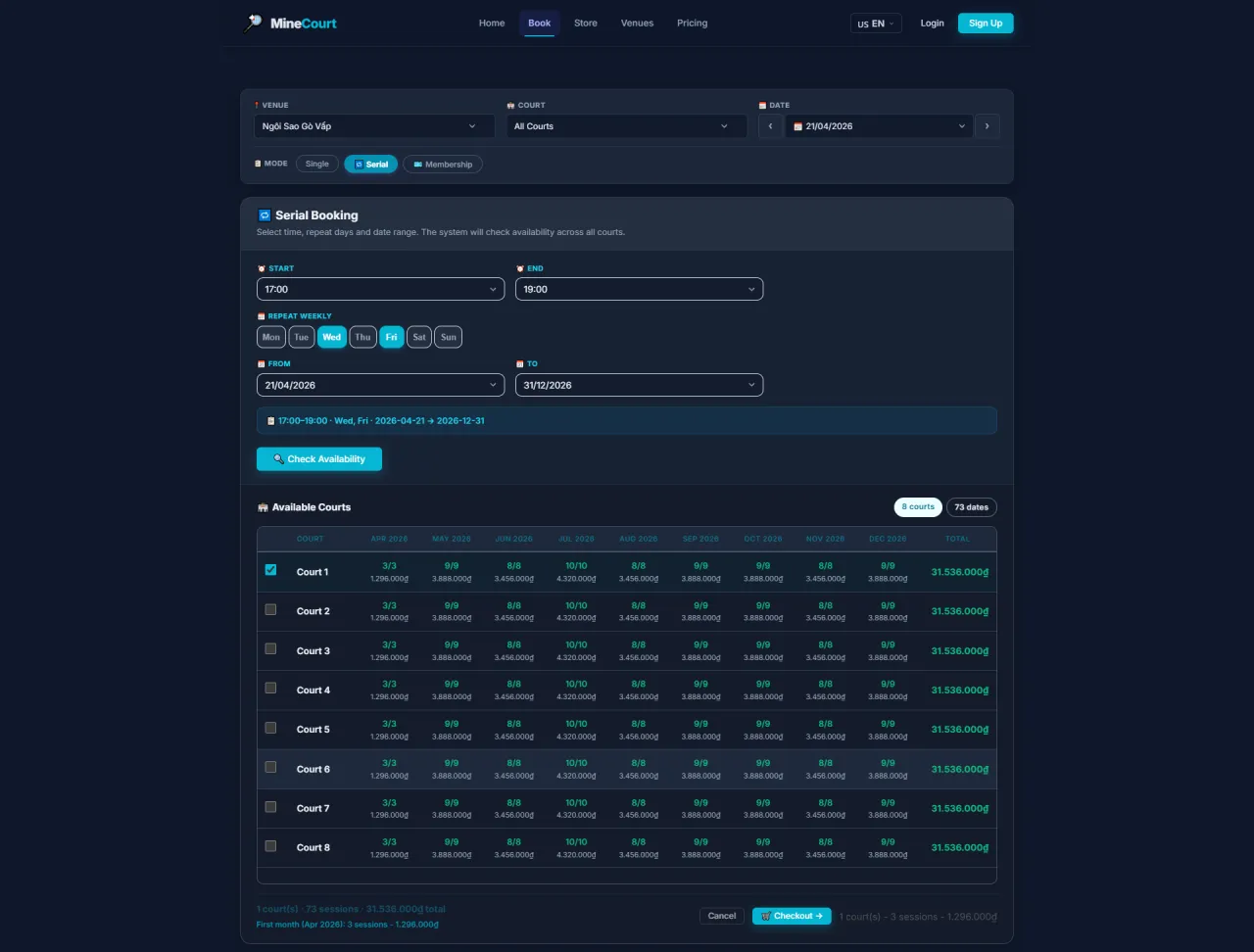
Serial: Select Courts
About this screen: Choose the time slot and court for each session in the series.
Navigation: Serial mode → Date selected → Choose slot
- Drag or click to select the time range on the grid
- Available courts are highlighted in green
- Conflicting (unavailable) dates are auto-skipped and shown in red
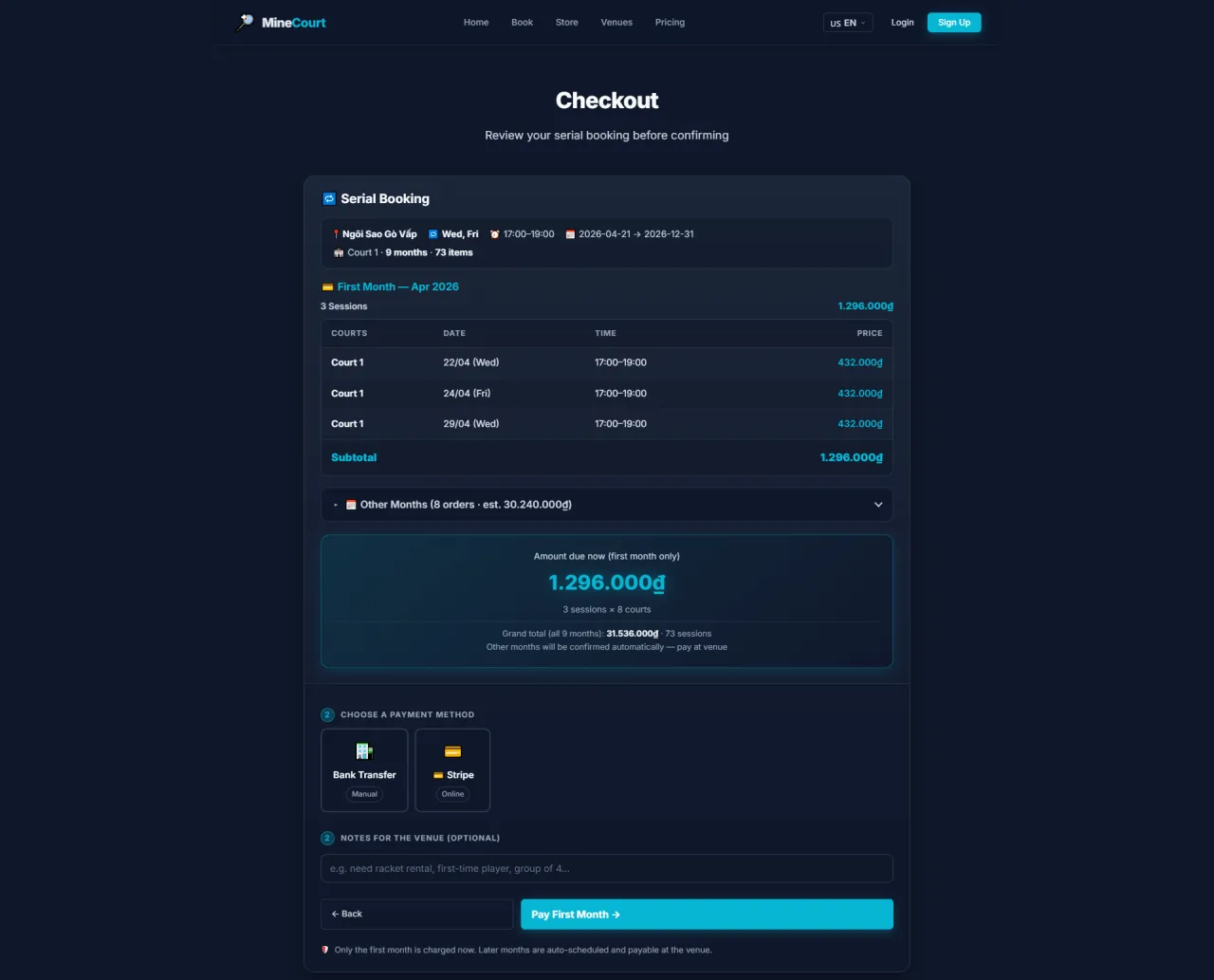
Serial: Checkout
About this screen: Review all sessions in the series before payment.
Navigation: Serial cart → Checkout
- Full list of all scheduled sessions with dates and times
- Total deposit amount to pay now vs. total series value
- Confirm your contact details before proceeding
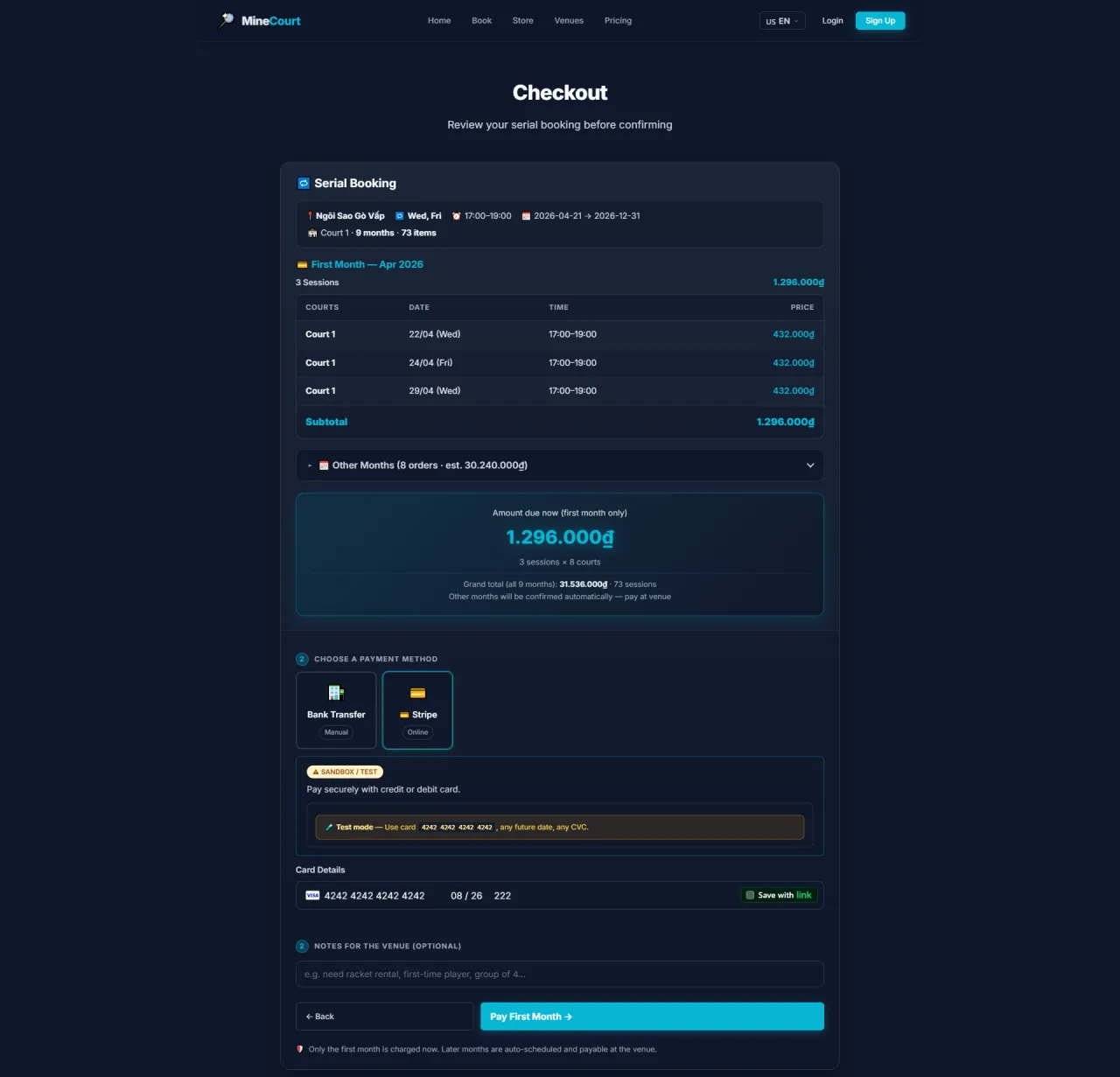
Serial: Select Payment Method
About this screen: Choose how to pay the deposit for the recurring series.
Navigation: Serial Checkout → Select Payment
- Same payment options as single booking: Bank Transfer, Card, E-Wallet
- Deposit amount is displayed clearly
- Select method and click Pay Now to lock in the series
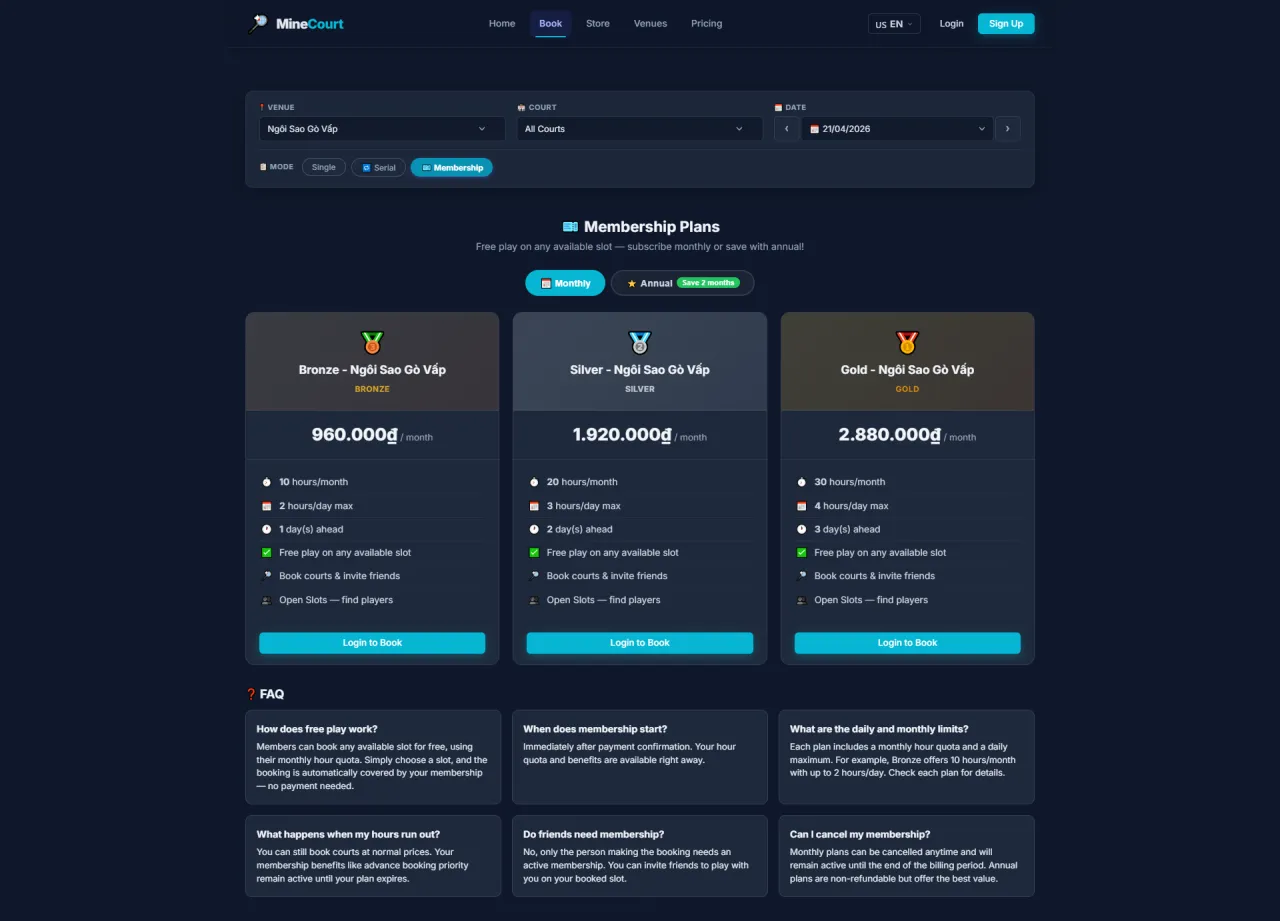
Membership: Choose a Plan
About this screen: Browse and select a membership plan that suits your play frequency.
Navigation: Menu → Book → Membership tab
- Three tiers available: Bronze, Silver, Gold, each with monthly hour quota and daily limits
- Toggle between Monthly and Annual billing (Annual saves 2 months)
- Click Login to Book on your chosen plan to proceed
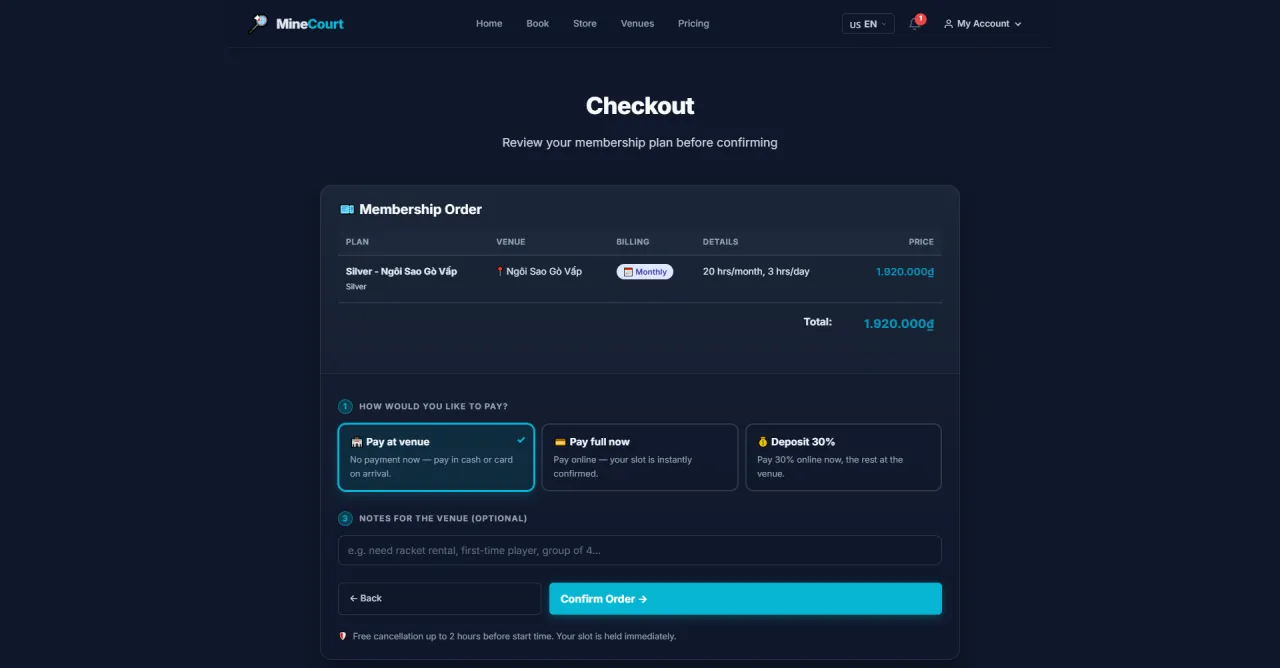
Membership: Checkout
About this screen: Review your membership order and select how you want to pay.
Navigation: Choose plan → Login → Checkout page
- Displays: Plan name, venue, billing cycle, and total price
- Choose a payment mode: Pay at Venue · Pay Full Now · Deposit 30%
- Add optional notes, then click Confirm Order
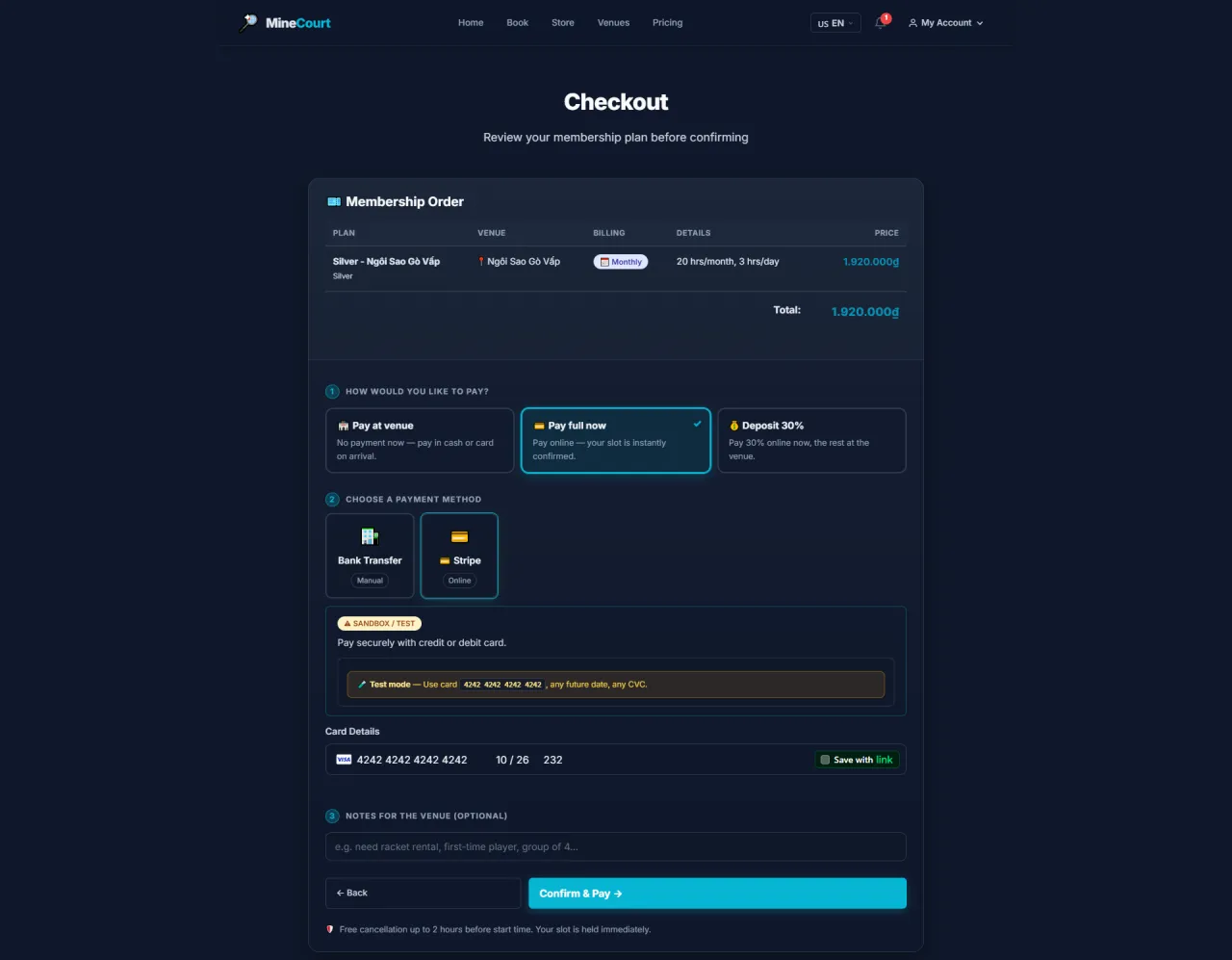
Membership: Select Payment
About this screen: Choose your payment method and complete the transaction.
Navigation: Checkout → Choose payment method → Confirm & Pay
- Select Bank Transfer (manual) or Stripe (instant card payment)
- Enter card details securely: Stripe processes payment immediately
- Click Confirm & Pay to finalize
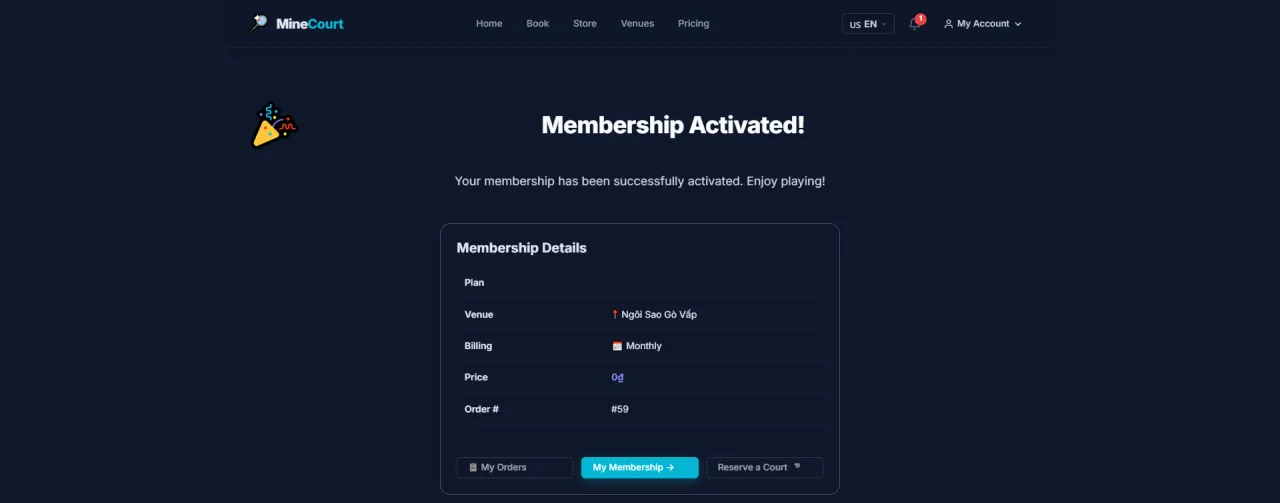
Membership: Activated
About this screen: Membership successfully purchased and quota immediately available.
Navigation: After payment → Membership Activated confirmation
- Displays plan details: venue, billing cycle, and Order number
- Quota is available instantly, so start booking courts right away
- Navigate to My Membership to view remaining hours, or Reserve a Court to book now
Running MineCourt in your own organisation
Names, prices and plans on these screens are set up differently for each deployment. We deploy MineCourt on your domain and adapt it to how you work, and you receive the running system and its source code.