
System Login
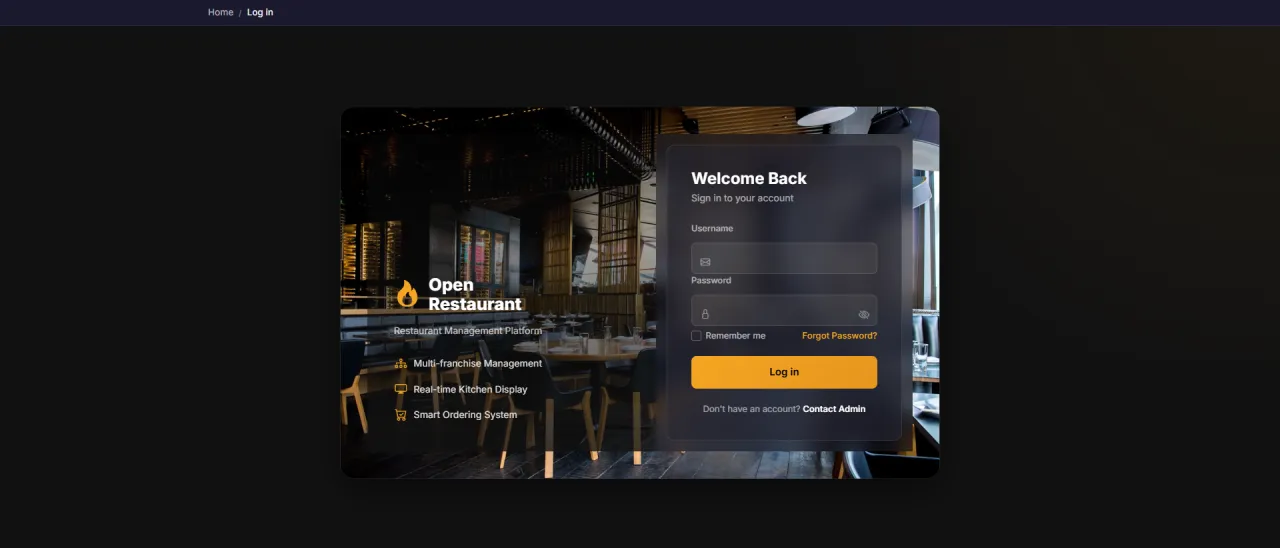
About this screen: Log in to access the store manager dashboard and branch operations.
Navigation:
- Demo access: sandbox accounts are issued on request: request a guided demo.
- Enter credentials → click Login → redirected to Manager Dashboard
- Sidebar displays: Dashboard, Products, Orders, Inventory, Promotions, Delivery
- Instantly see today's revenue, order count, and revenue trends
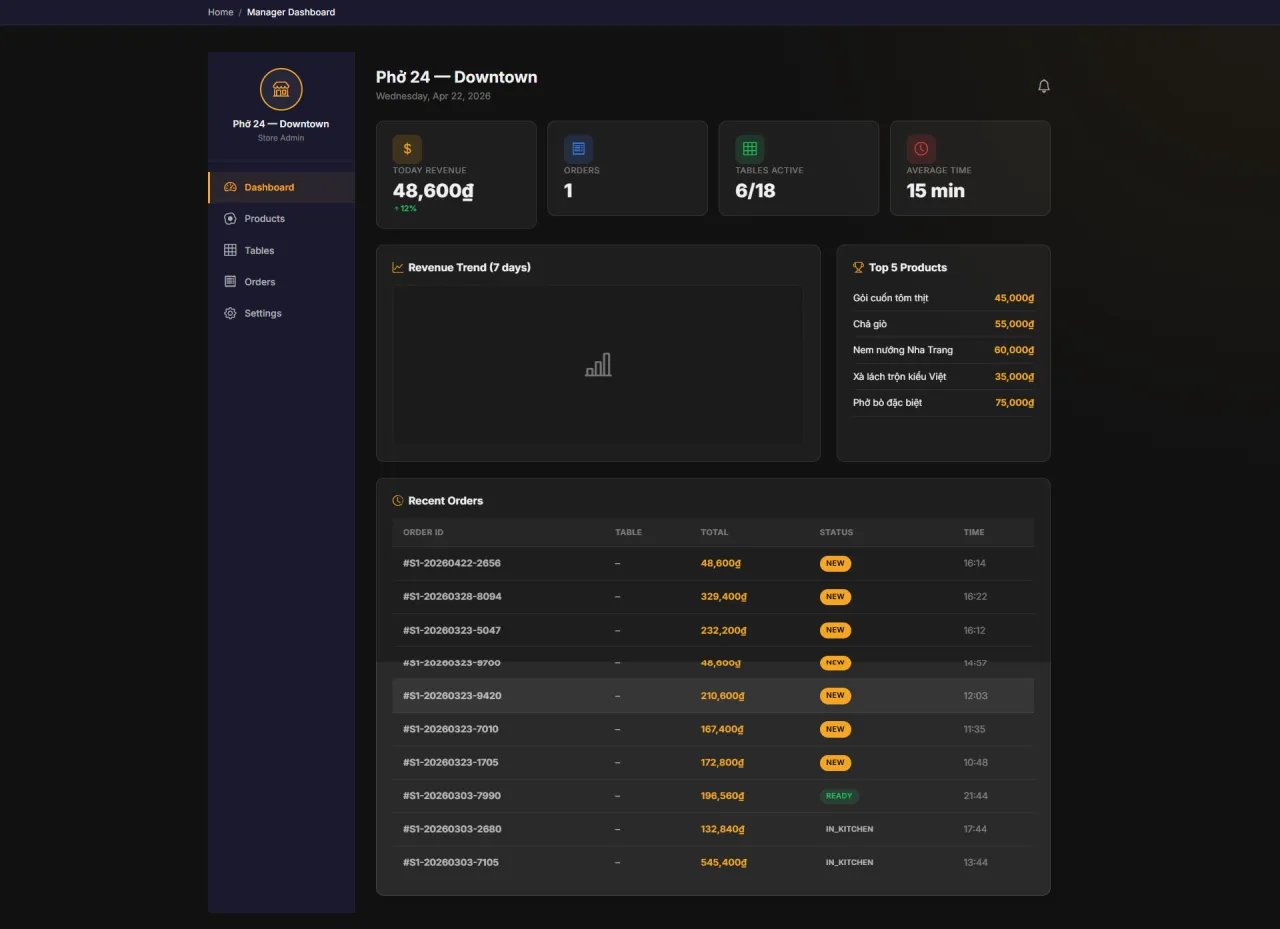
Dashboard
About this screen: Central control panel for the manager, displaying real-time operational performance.
Navigation: Sidebar → Dashboard
- Today Revenue: Current day's revenue with growth percentage
- Orders: Total orders processed today
- Revenue Trend: 7-day revenue performance chart
- Quick overview of branch performance metrics
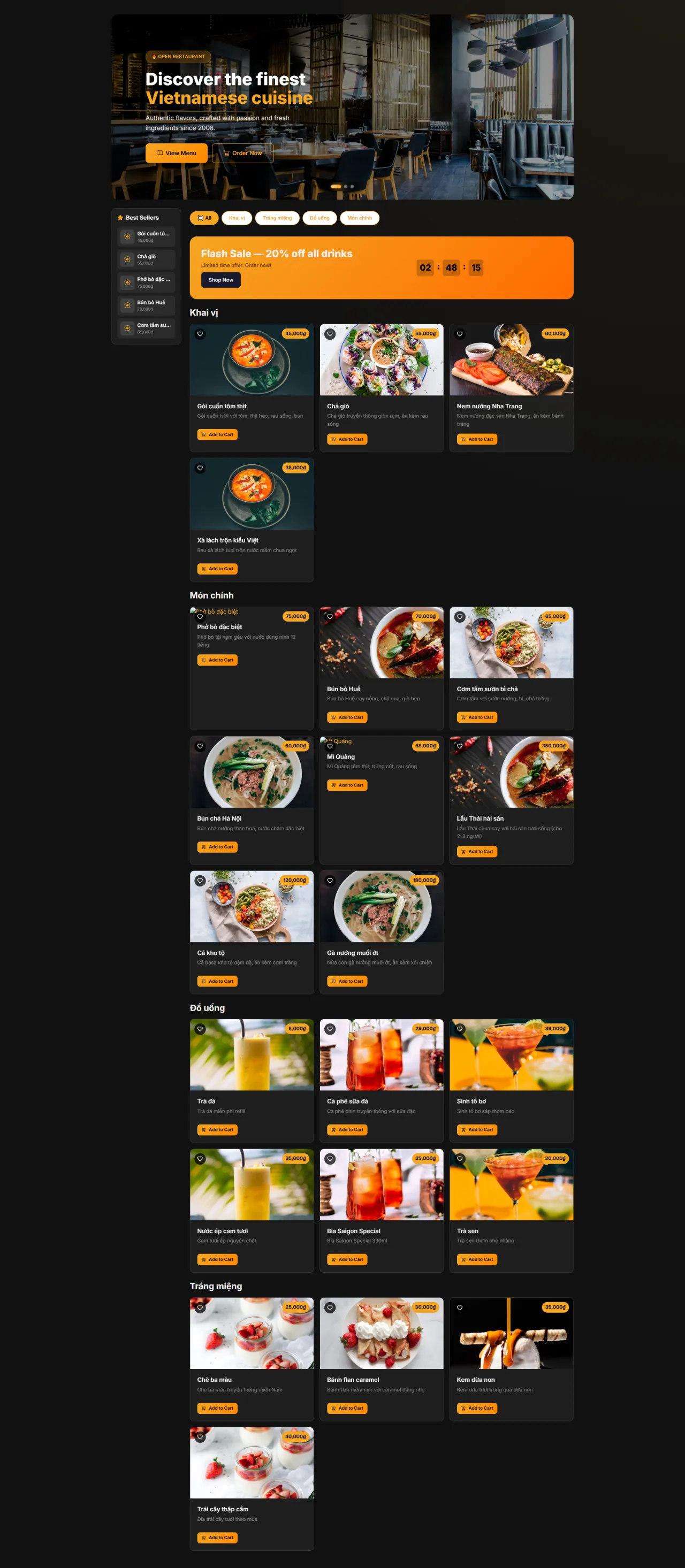
Products
About this screen: Menu management page (add, edit, show/hide menu items, and update pricing).
Navigation: Sidebar → Products
- View the complete product list for the menu
- Add new items or edit existing information
- Show/hide items based on availability
- Update prices and product descriptions
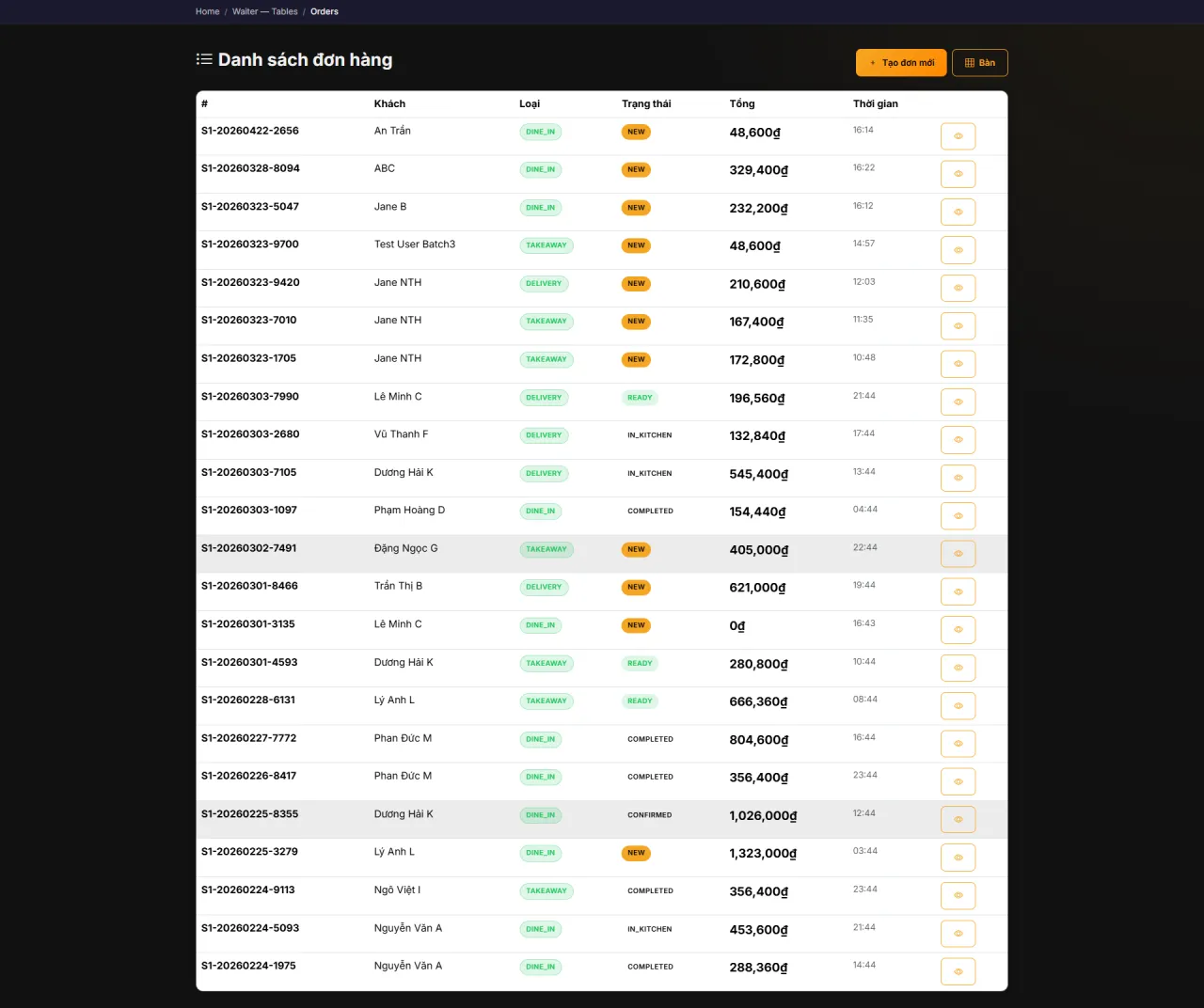
Orders
About this screen: Complete order tracking (view and manage all orders from placement to completion).
Navigation: Sidebar → Orders
- View all orders with status tracking
- Filter by order type: Dine-in, Take-away, Delivery
- Monitor order processing in real-time
- Track order history and performance metrics
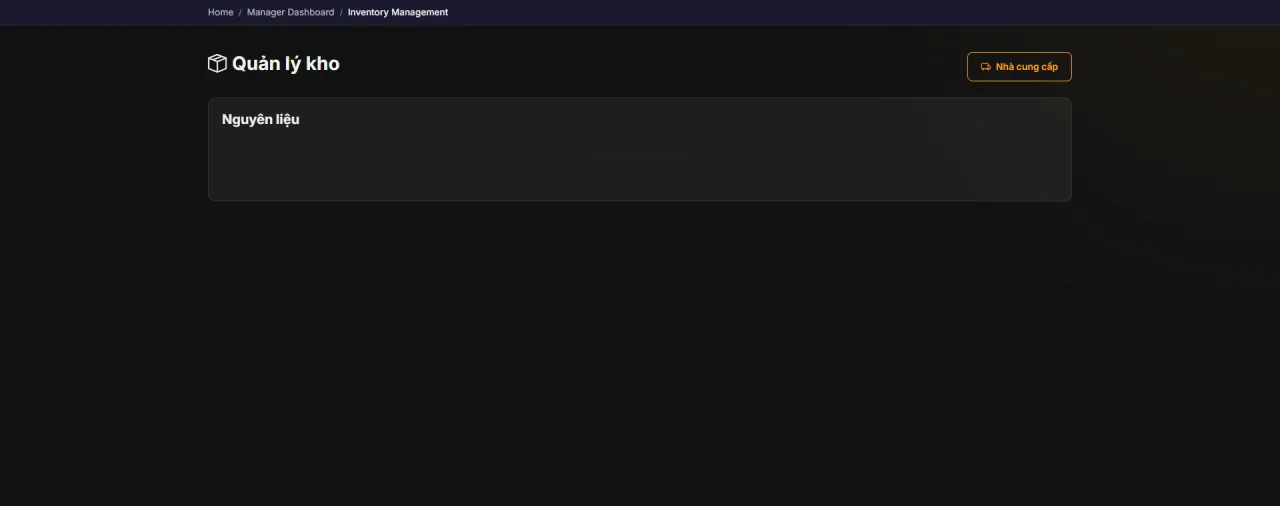
Inventory
About this screen: Track and manage ingredient stock (update quantities and set low-stock alert thresholds).
Navigation: Sidebar → Inventory
- View ingredient list and current stock levels
- Record incoming stock quantities
- Set minimum threshold alerts for low inventory
- Track stock-in and stock-out history
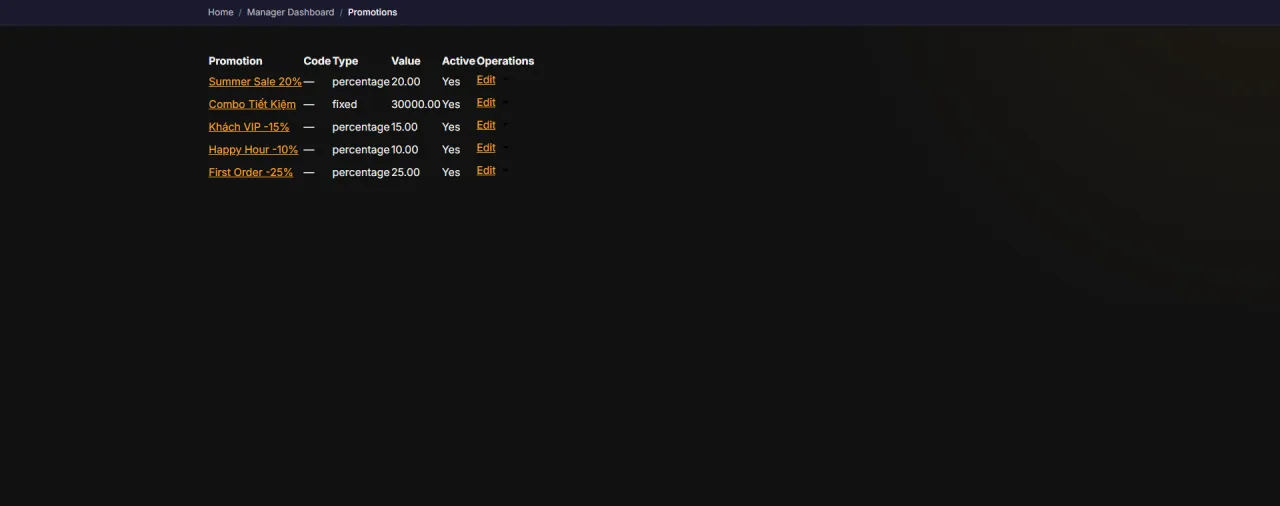
Promotions
About this screen: Create and manage promotional campaigns and discounts for the branch.
Navigation: Sidebar → Promotions
- Create discount codes and combo deals
- Set validity periods and conditions
- View promo code usage statistics
- Enable or disable promotions as needed
Delivery
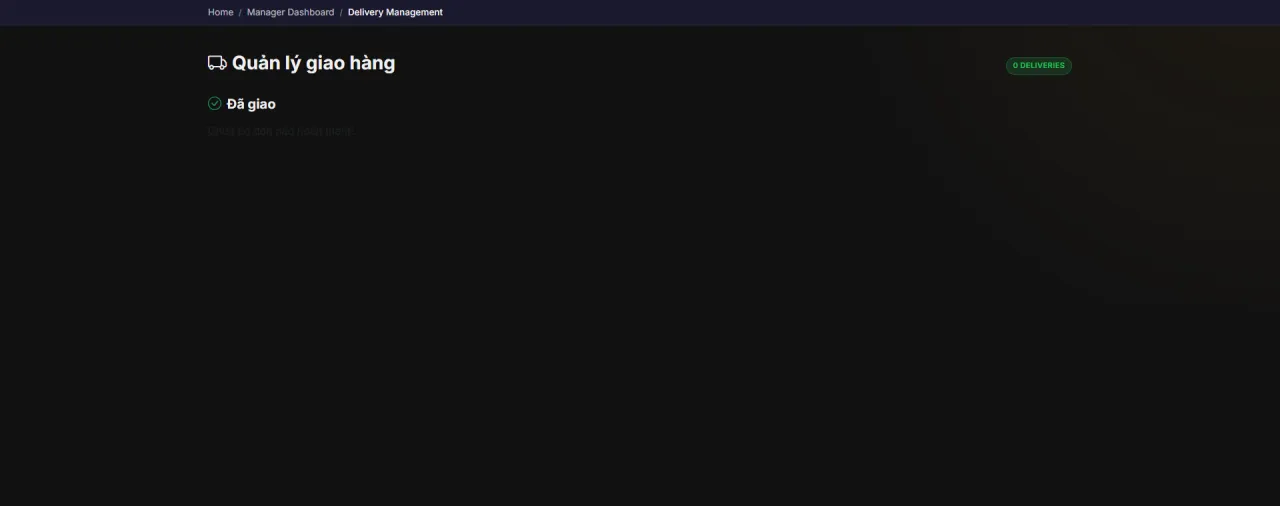
About this screen: Manage and track delivery orders for the branch.
Navigation: Sidebar → Delivery
- View list of delivery orders
- Track order status and assigned drivers
- Update delivery zones and shipping fees
- Monitor delivery performance metrics
Running MenuNerds in your own organisation
Names, prices and plans on these screens are set up differently for each deployment. We deploy MenuNerds on your domain and adapt it to how you work, and you receive the running system and its source code.