
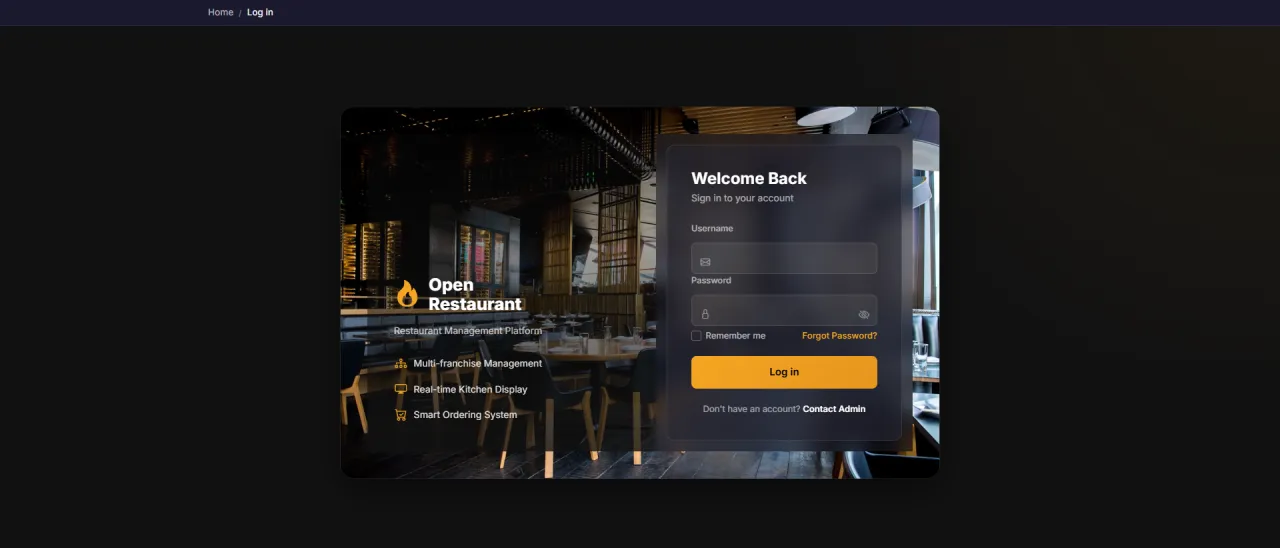
System Login
About this screen: Log in to access your customer account (orders, favorites, and profile).
Navigation:
- Demo access: sandbox accounts are issued on request: request a guided demo.
- Enter credentials → click Login → redirected to your dashboard
- Click My Account to manage your profile
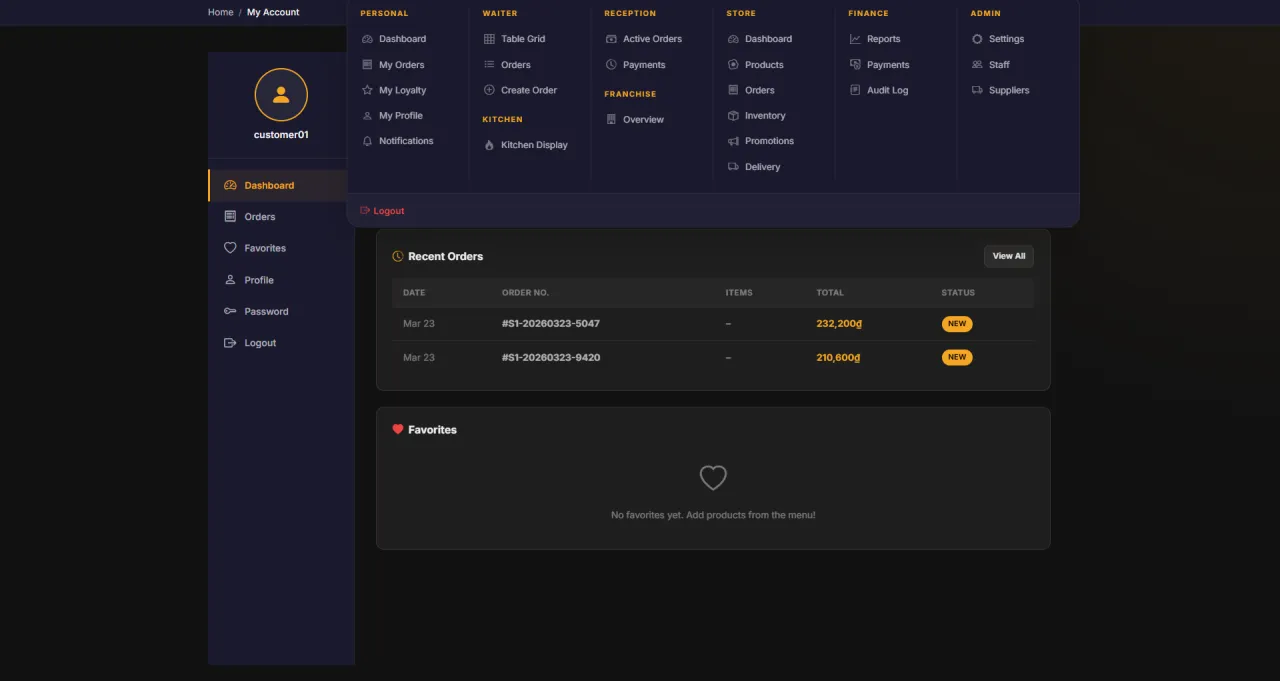
My Account
About this screen: Account navigation hub (access all your account features from the My Account menu).
Navigation: Top Navigation → My Account
- View account summary and loyalty points balance
- Quick access to: Dashboard, Orders, Favorites, Profile
- Manage account settings from a single menu
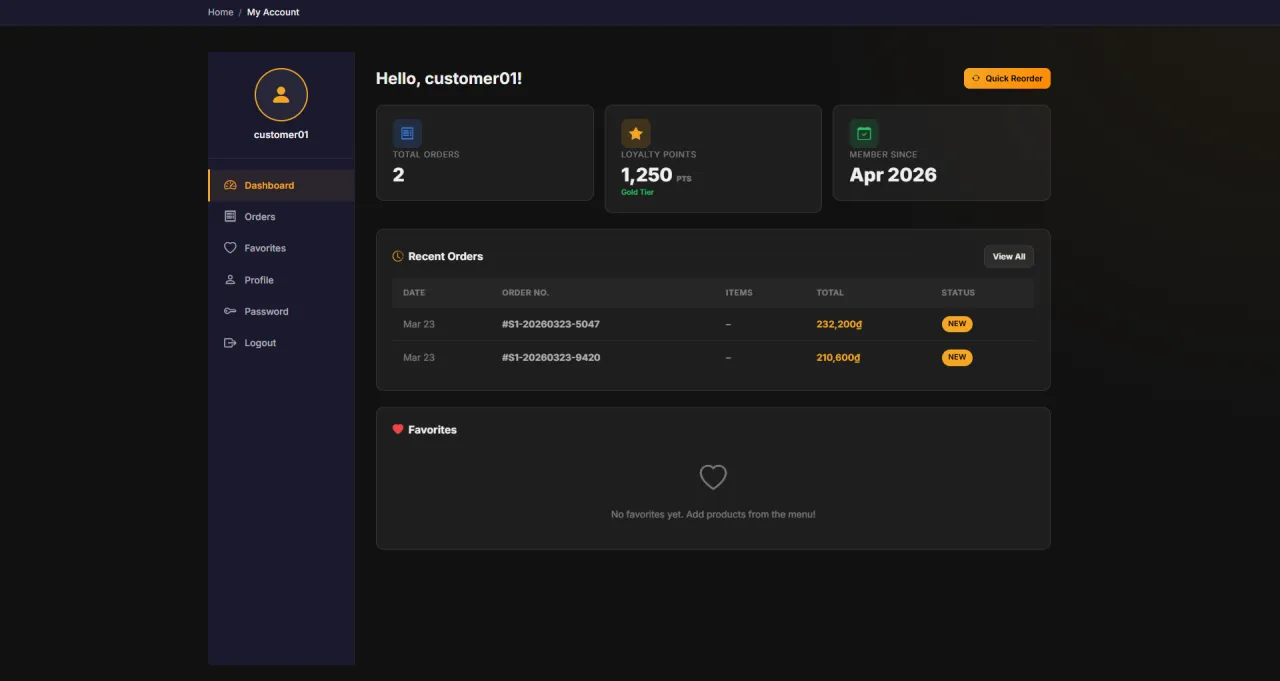
Account Overview (Dashboard)
About this screen: Personal overview page after login, with order statistics and quick access to key features.
Navigation: My Account → Dashboard
- View total number of placed orders
- Total accumulated loyalty points
- Quick access to: Orders, Favorites, Profile
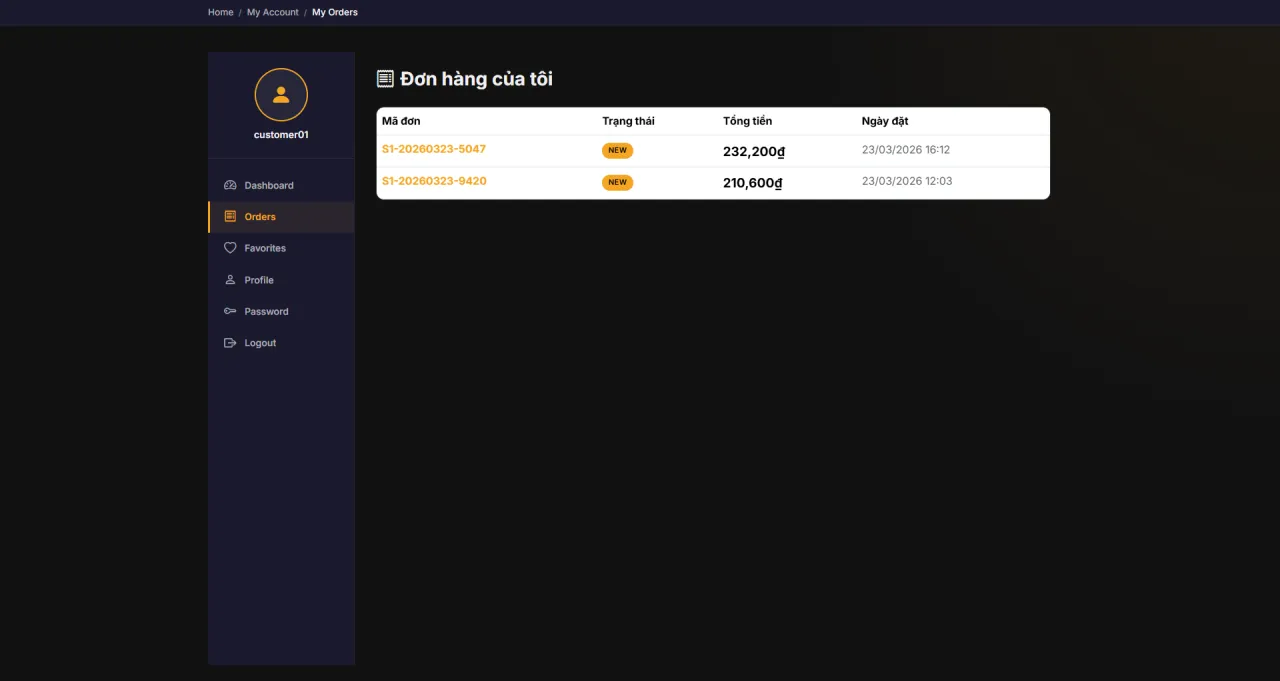
Order History (My Orders)
About this screen: Full list of all placed orders (track status and view details for each order).
Navigation: My Account → My Orders
- View orders listed by date
- Check status: New, In Kitchen, Ready, Completed
- Click on any order to view items and total amount
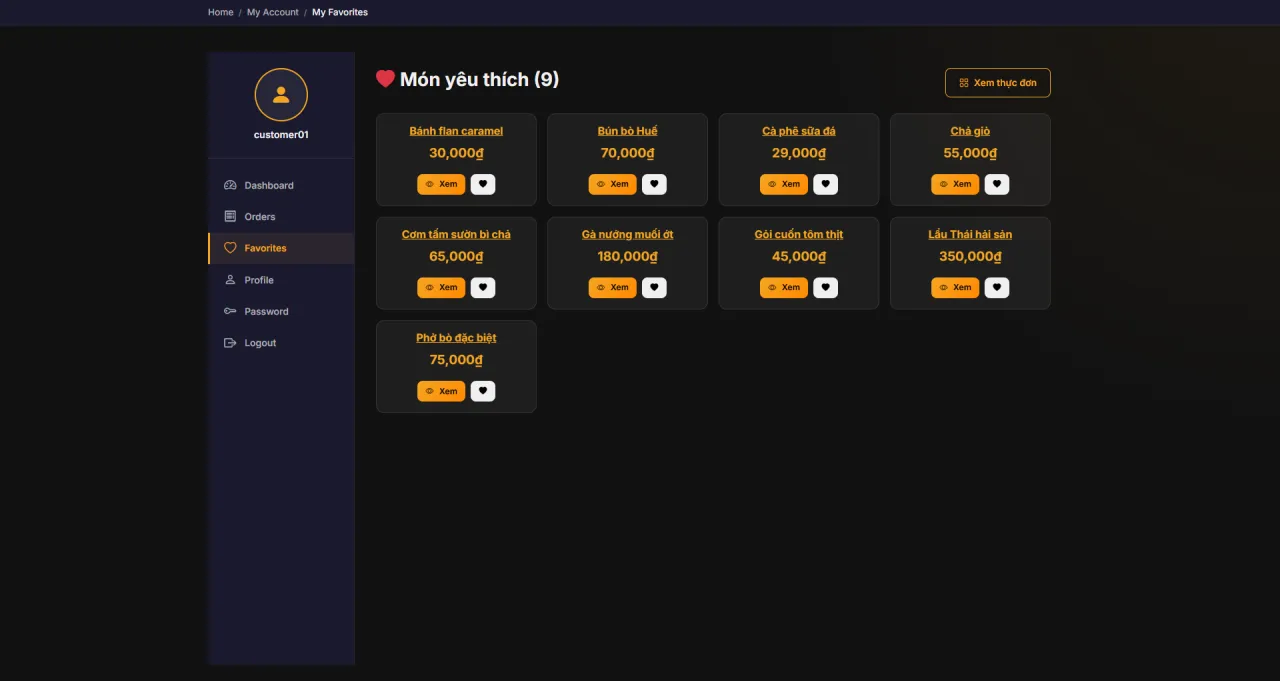
My Favorites
About this screen: Save your favorite dishes for quick reordering without searching the menu again.
Navigation: My Account → My Favorites
- View all saved favorite dishes
- Click Add to Cart to reorder directly from the list
- Remove dishes from favorites using the heart icon
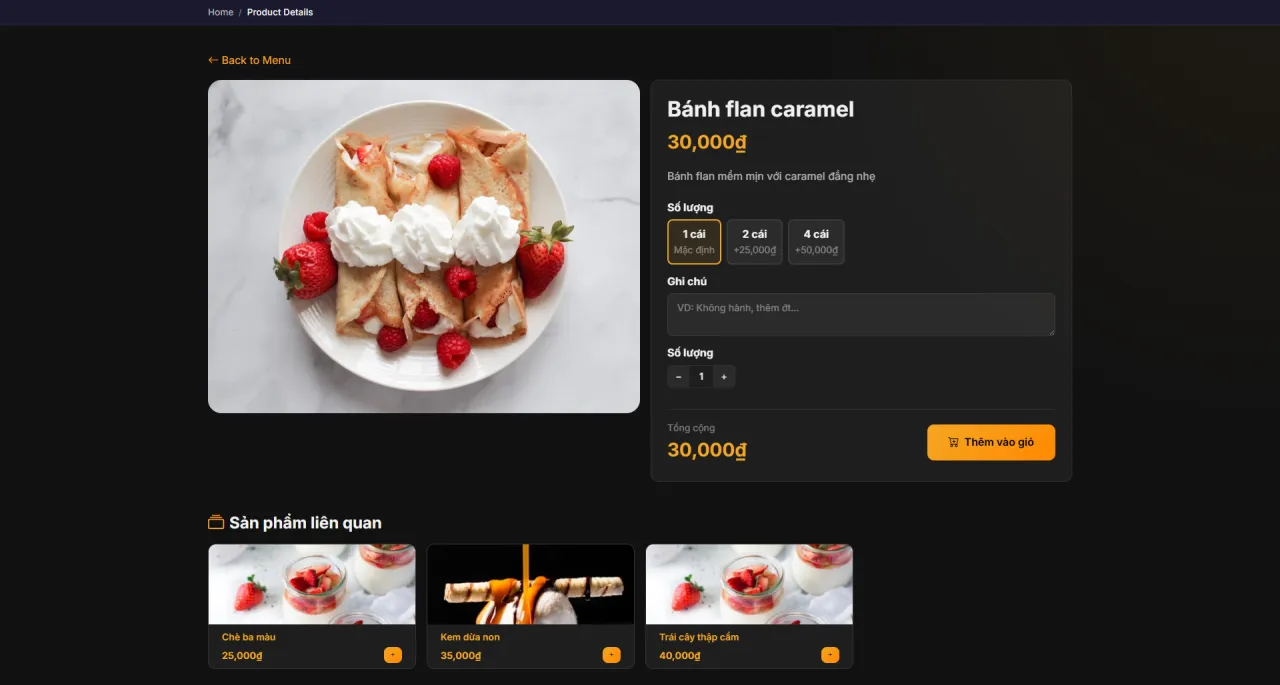
View Product Detail
About this screen: Full product detail page (description, ingredients, price, and Add to Cart button).
Navigation: Menu → select any dish
- View photos, description, and nutritional information
- Select quantity and click Add to Cart
- Save to favorites using the ❤️ icon
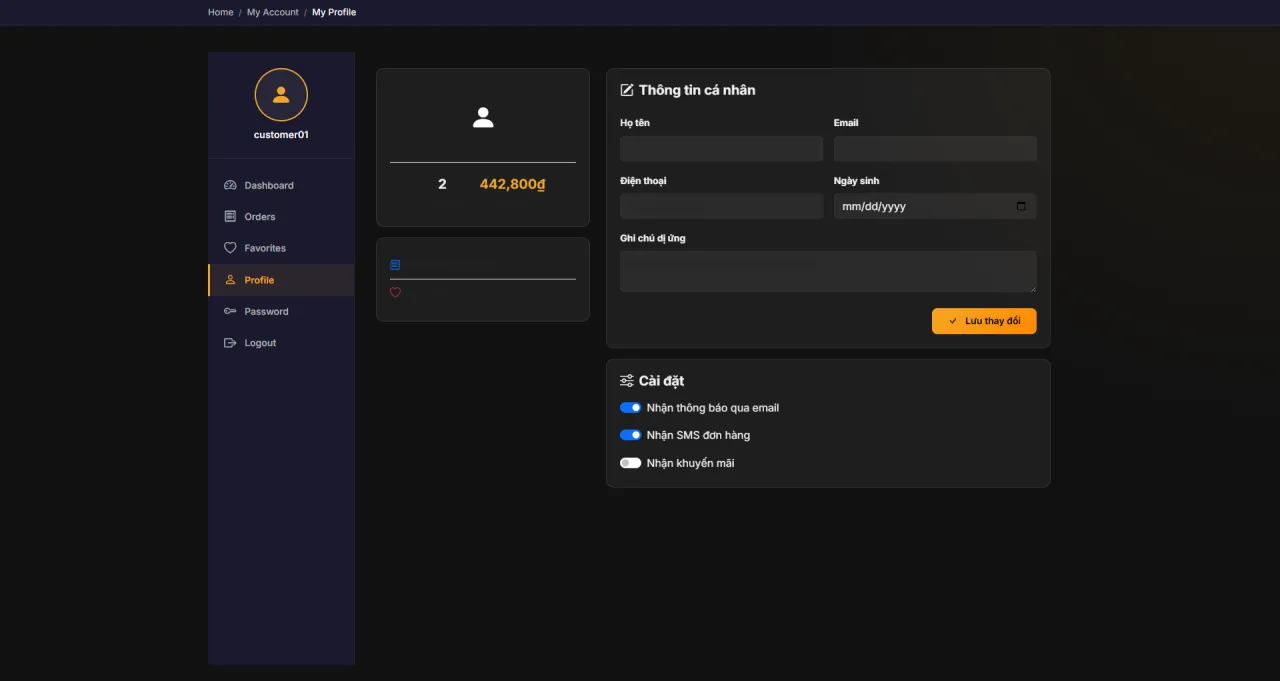
My Profile
About this screen: Manage your personal profile (name, email, phone number, and delivery address).
Navigation: My Account → My Profile
- Update display name and phone number
- Manage your default delivery address
- Click Save to apply changes
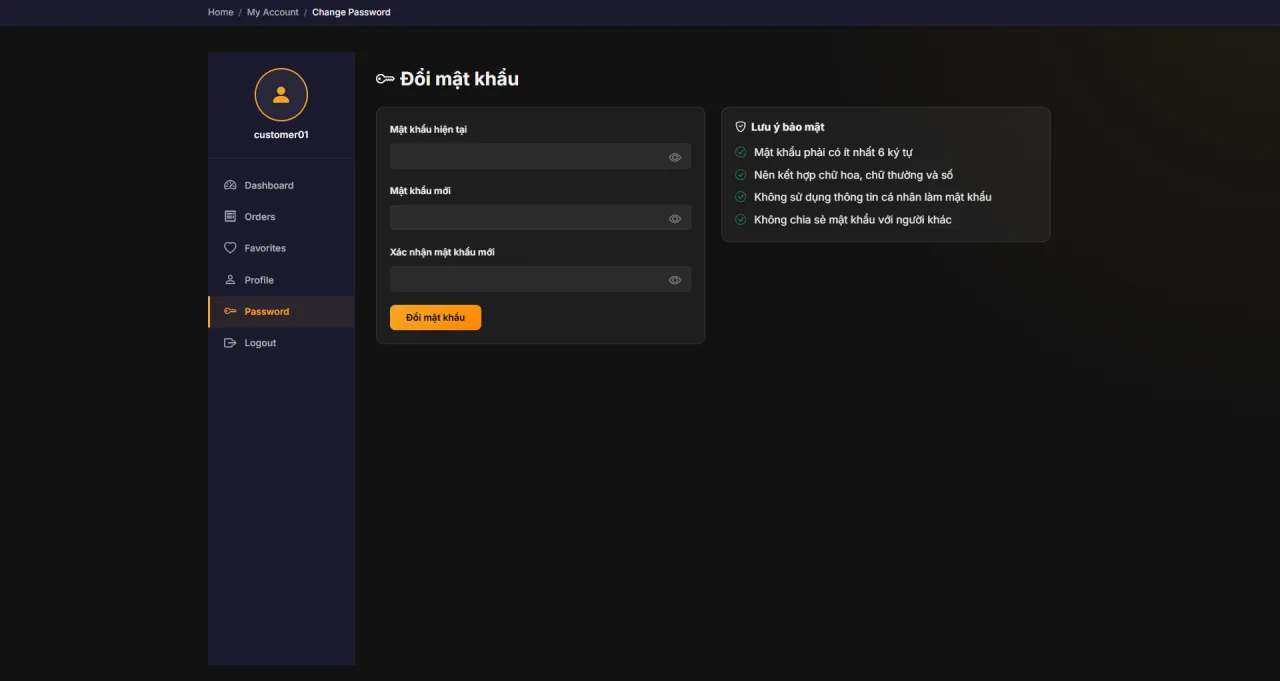
Change Password
About this screen: Change your login password, which requires entering the current password to verify identity.
Navigation: My Account → Change Password
- Enter current password to confirm identity
- Enter new password (minimum 8 characters)
- Re-enter new password to confirm
- Click Save to update
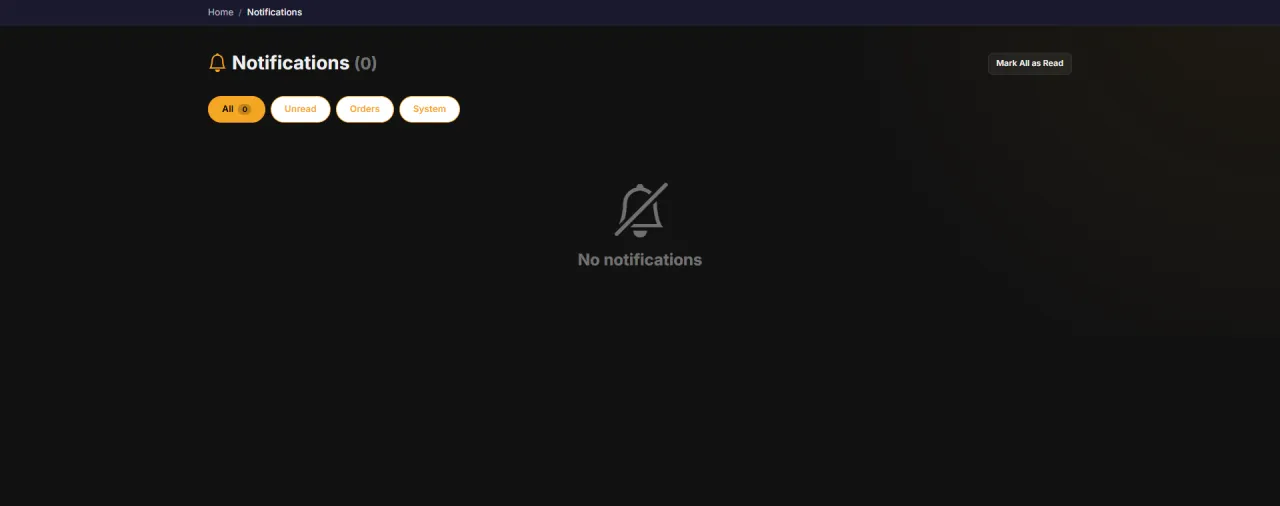
Notifications
About this screen: Personal notification center (receive updates on order status, promotions, and news from the restaurant).
Navigation: Bell icon 🔔 in the navigation bar
- Real-time order status updates
- Notifications about new deals and promotions
- Click any notification to view the related details
Running MenuNerds in your own organisation
Names, prices and plans on these screens are set up differently for each deployment. We deploy MenuNerds on your domain and adapt it to how you work, and you receive the running system and its source code.