
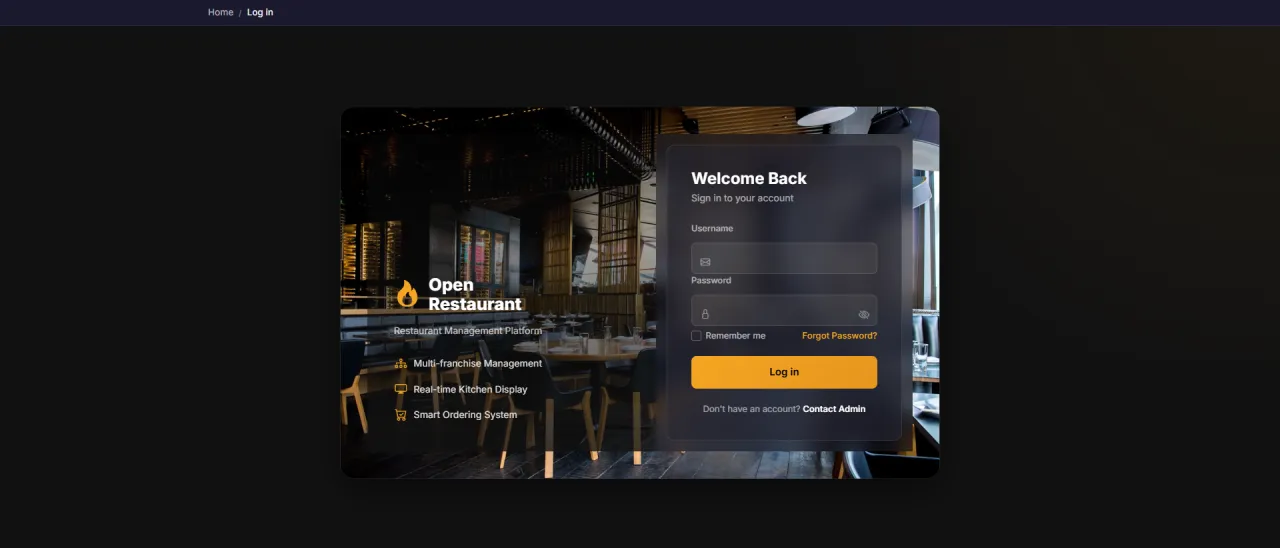
System Login
About this screen: Log in to access the receptionist dashboard and payment processing system.
Navigation:
- Demo access: sandbox accounts are issued on request: request a guided demo.
- Enter credentials → click Login → redirected to Receptionist Dashboard
- Sidebar displays: Dashboard, Orders, Payments, Report
- Instantly see pending payments count and today's revenue
Dashboard
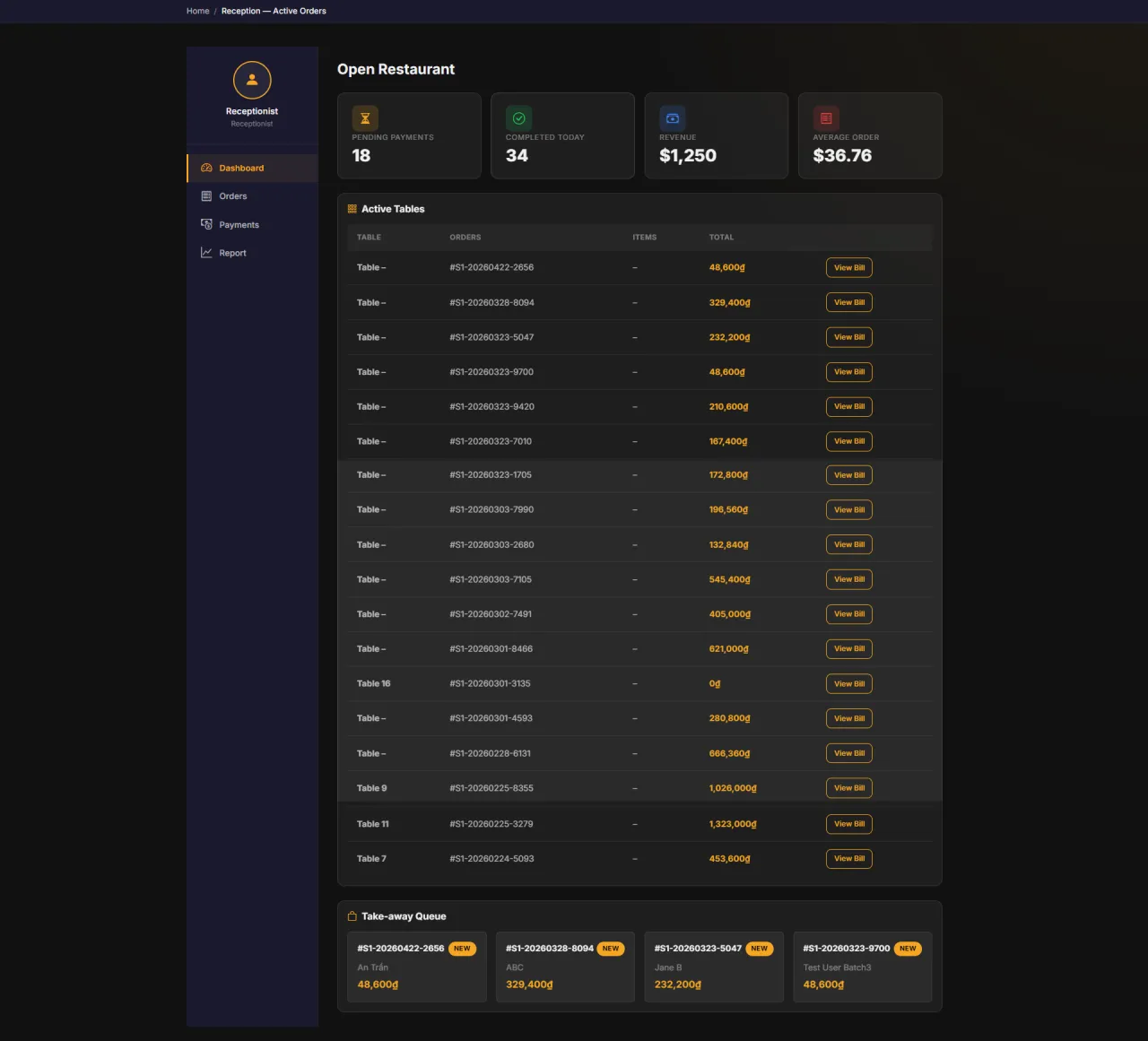
About this screen: Real-time overview that displays key metrics for the current shift.
Navigation: Sidebar → Dashboard
- Pending Payments: Tables awaiting payment
- Completed Today: Orders completed during this shift
- Revenue: Total current revenue
- Average Order: Average order value
- Active Tables and Take-away Queue panels below
Orders
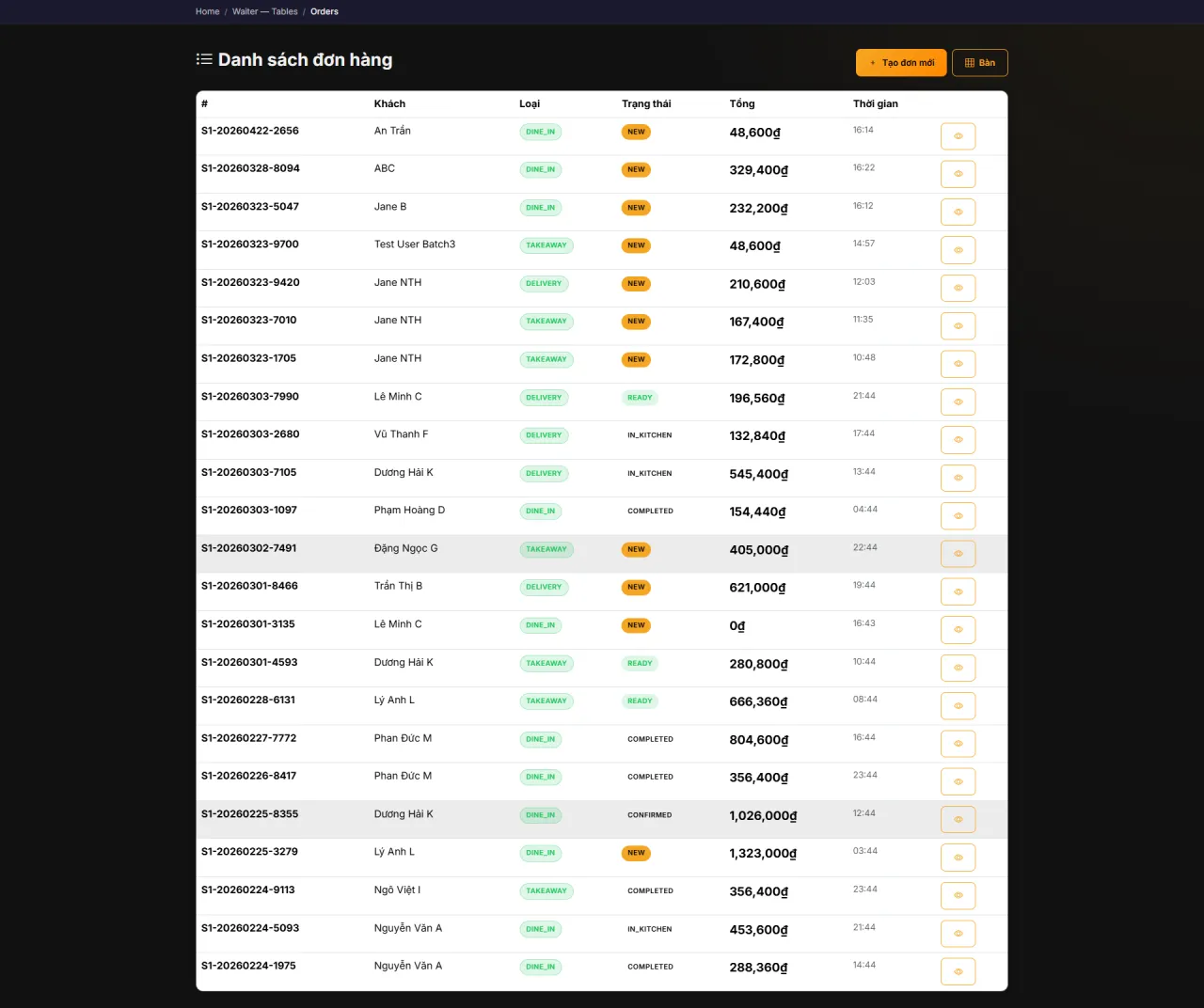
About this screen: Complete order list with customer details, to track all orders from placement to completion.
Navigation: Sidebar → Orders
- View detailed order list: Customer name, Type (Dine-in/Take-away), Status, Amount, Time
- Filter orders by status: NEW, IN KITCHEN, TAKEAWAY, READY, COMPLETED
- Sort and search orders by customer or order details
- Click on any order to view full details and items
Payments
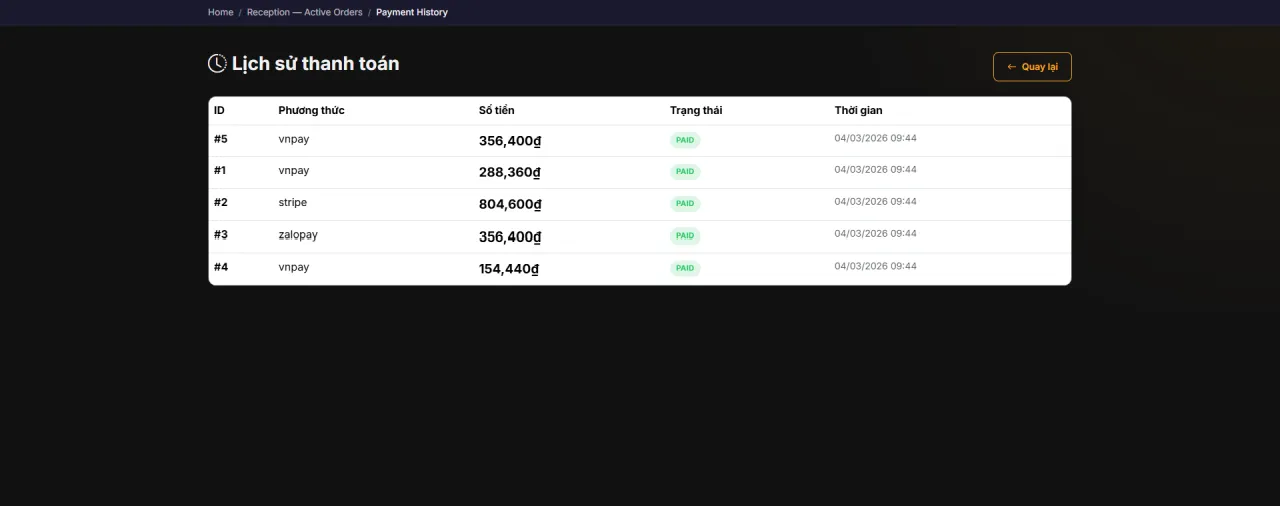
About this screen: Payment transaction history (view all completed payment records for reconciliation and verification).
Navigation: Sidebar → Payments
- View complete payment history with transaction IDs
- Check payment method used for each transaction
- See transaction amounts and timestamps
- Filter by date range for shift reconciliation
- All transactions show PAID status
Report
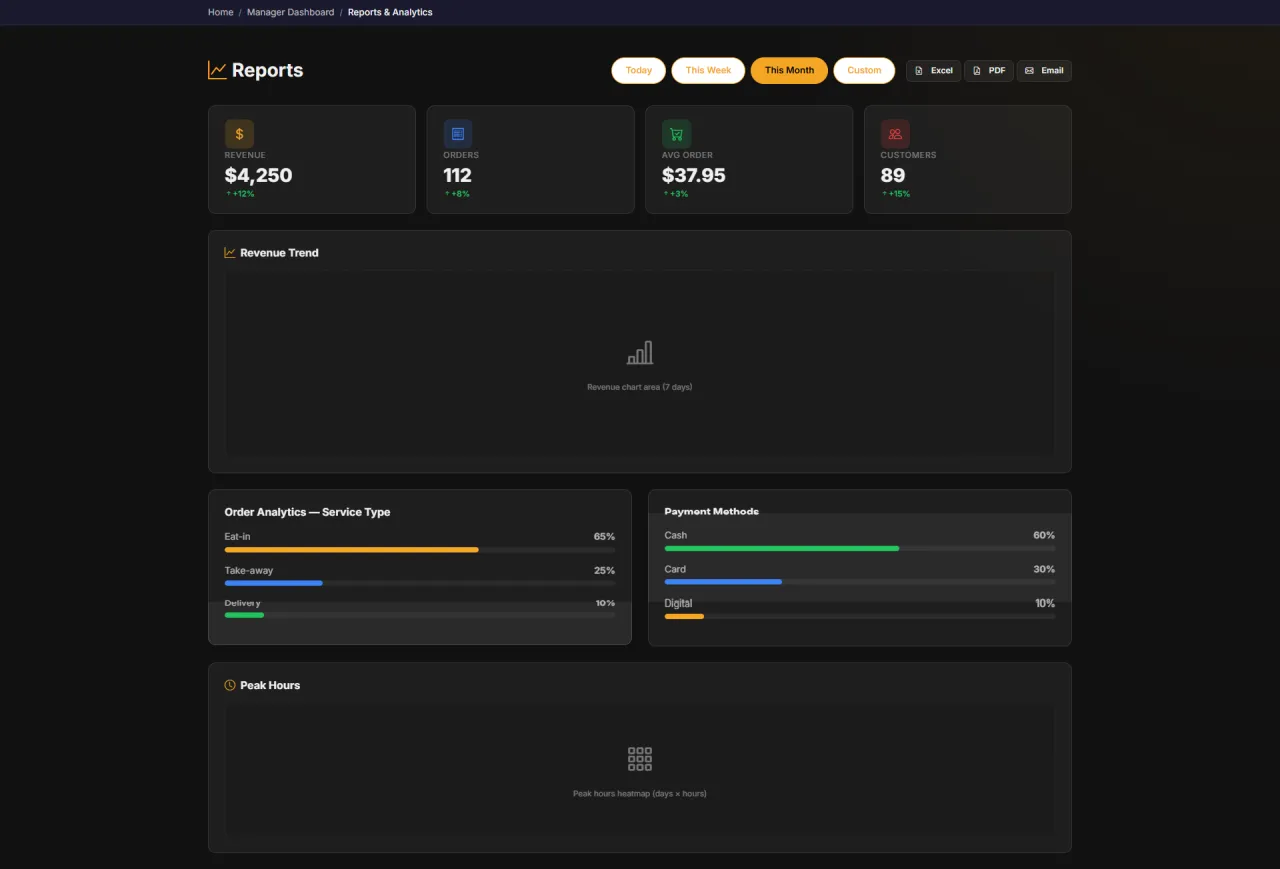
About this screen: View revenue and analytics reports, and track performance metrics for the current shift or selected period.
Navigation: Sidebar → Report
- Revenue Trend: Track revenue over time
- Order Analytics: Service type breakdown (Dine-in, Take-away, Delivery)
- Payment Methods: View payment method distribution (Cash, Card, Digital)
- Peak Hours: Identify busiest times for better shift planning
Running MenuNerds in your own organisation
Names, prices and plans on these screens are set up differently for each deployment. We deploy MenuNerds on your domain and adapt it to how you work, and you receive the running system and its source code.