
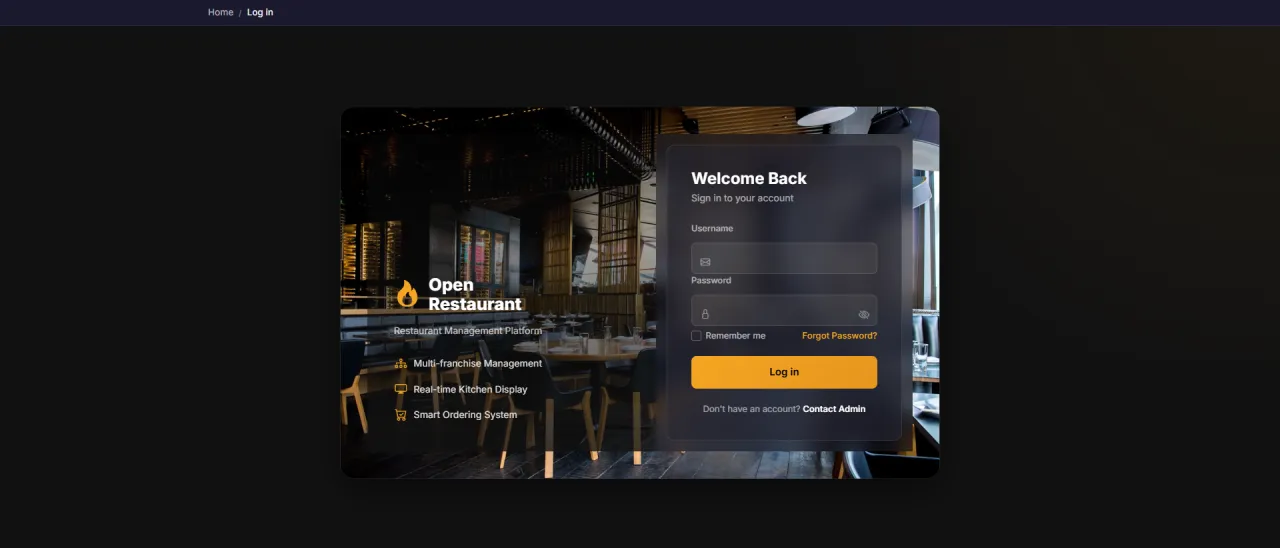
System Login
About this screen: Log in to access the real-time Kitchen Display.
Navigation:
- Demo access: sandbox accounts are issued on request: request a guided demo.
- Enter credentials → click Login → redirected to Kitchen Display
- All pending orders appear in real time, with no extra steps needed
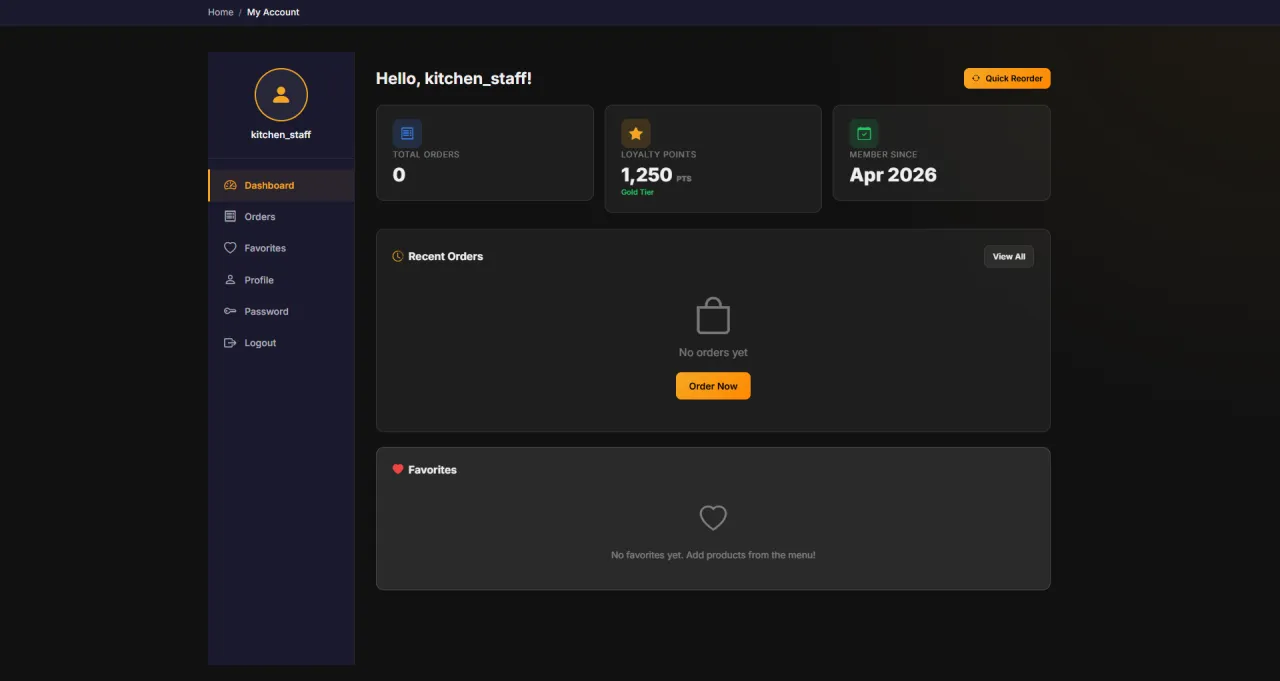
Kitchen Dashboard
About this screen: Home screen after login, with kitchen statistics and quick access to key functions.
Navigation: Sidebar → Dashboard
- View today's completed orders count
- Check active items in preparation
- Quick access to Kitchen Display and Products
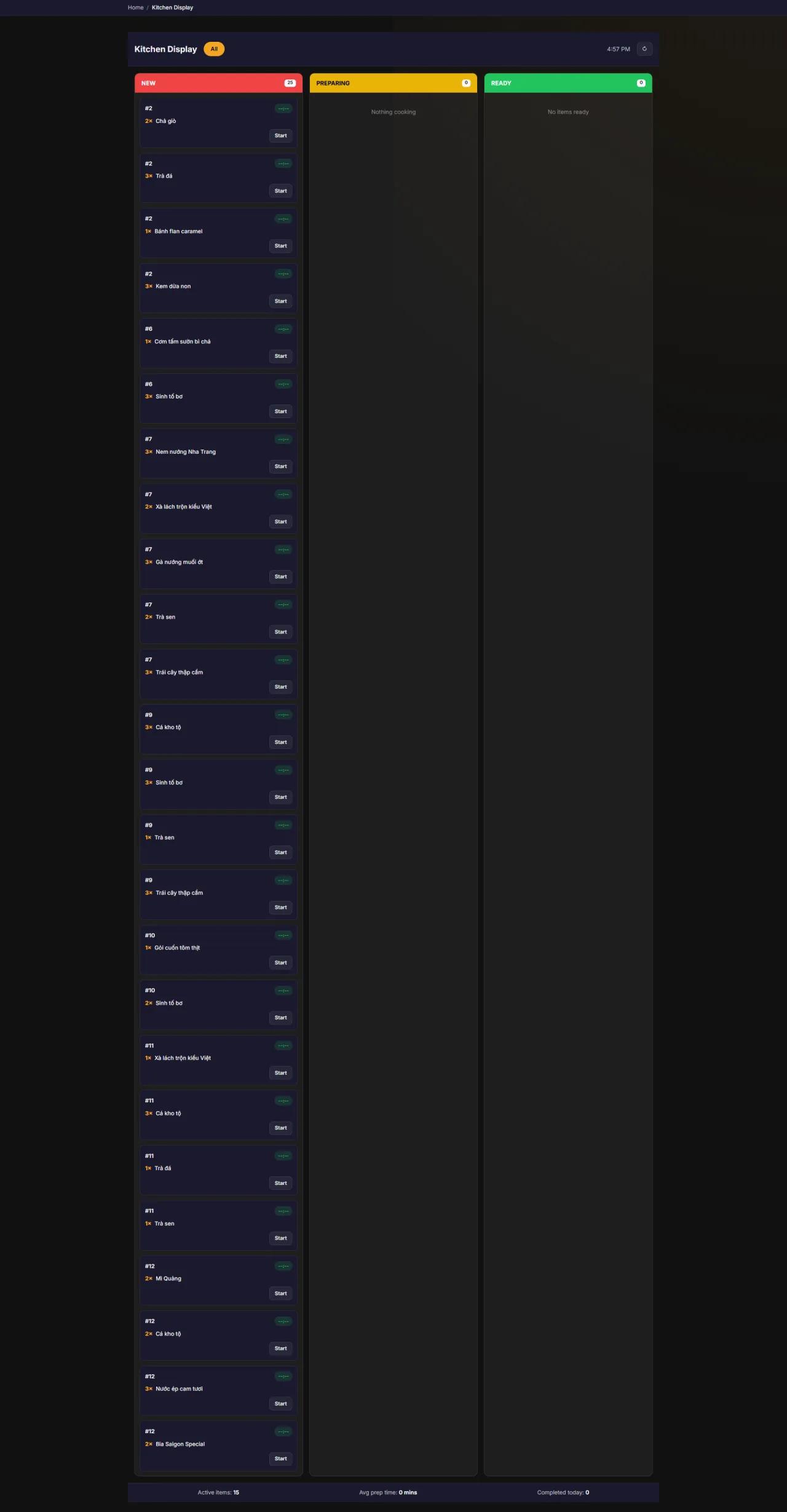
Kitchen Display
About this screen: Order tracking board organized by processing stage, displayed in status columns, auto-updated.
- NEW (red): New order, not yet started
- PREPARING (yellow): Currently being prepared
- READY (green): Completed, waiting to be served
- Click Start to move an order to Preparing status
- Footer shows: Active Items, Avg Prep Time, Completed Today
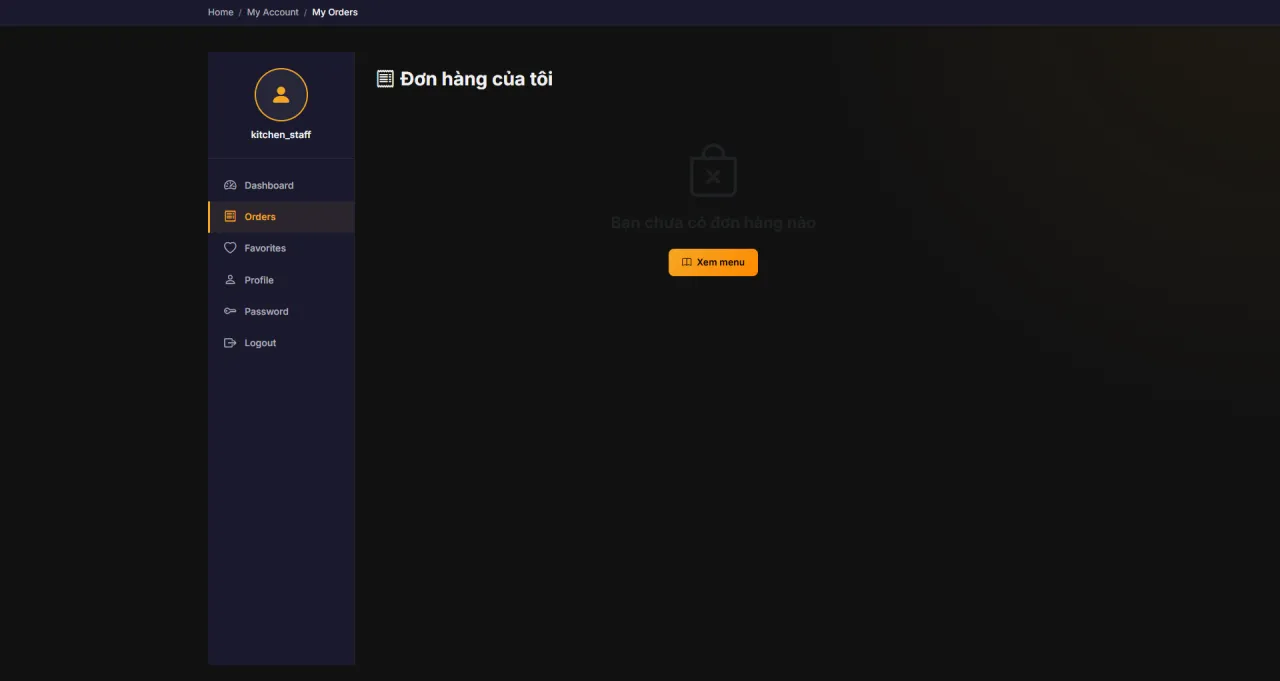
My Orders
About this screen: View your order processing history (track dishes you've prepared during your shifts).
Navigation: My Account → My Orders
- View all orders processed under your account
- Filter by date or order status
- Reference past orders for quality tracking
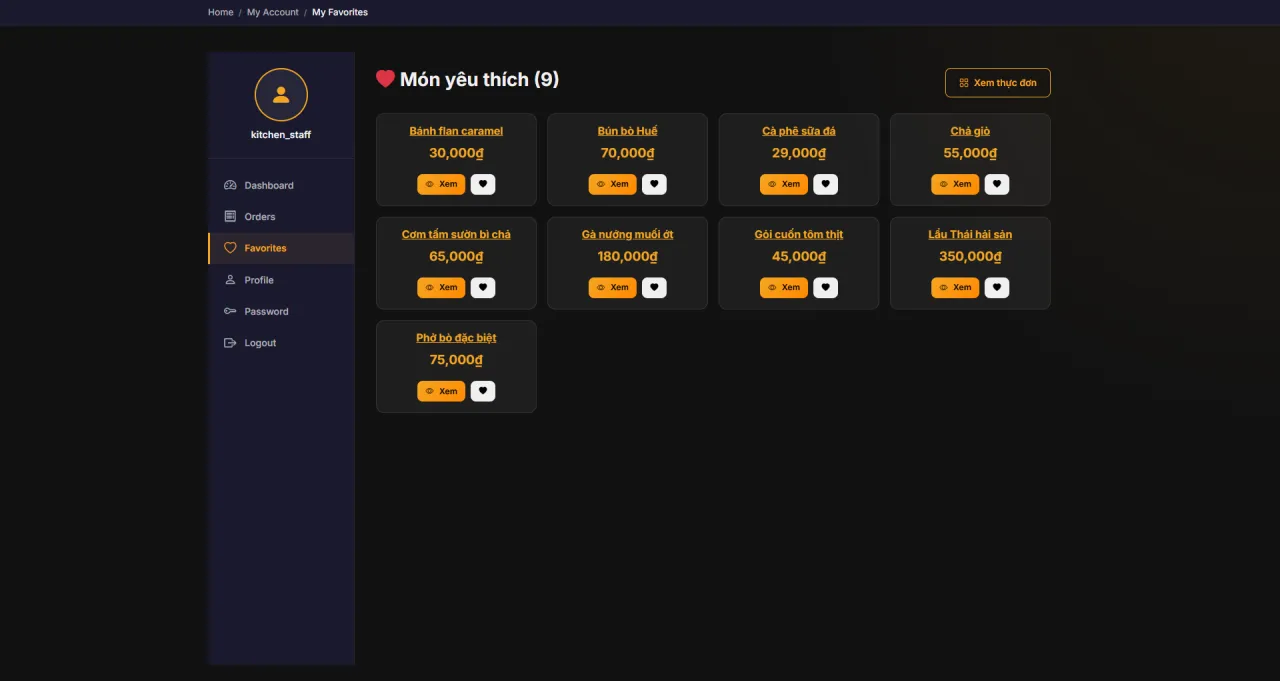
My Favorites
About this screen: Saved menu items for quick reference during order preparation.
Navigation: My Account → My Favorites
- View frequently referenced menu items
- Save dishes you handle most often for quick access
- Use as a reference for recipe and ingredient information
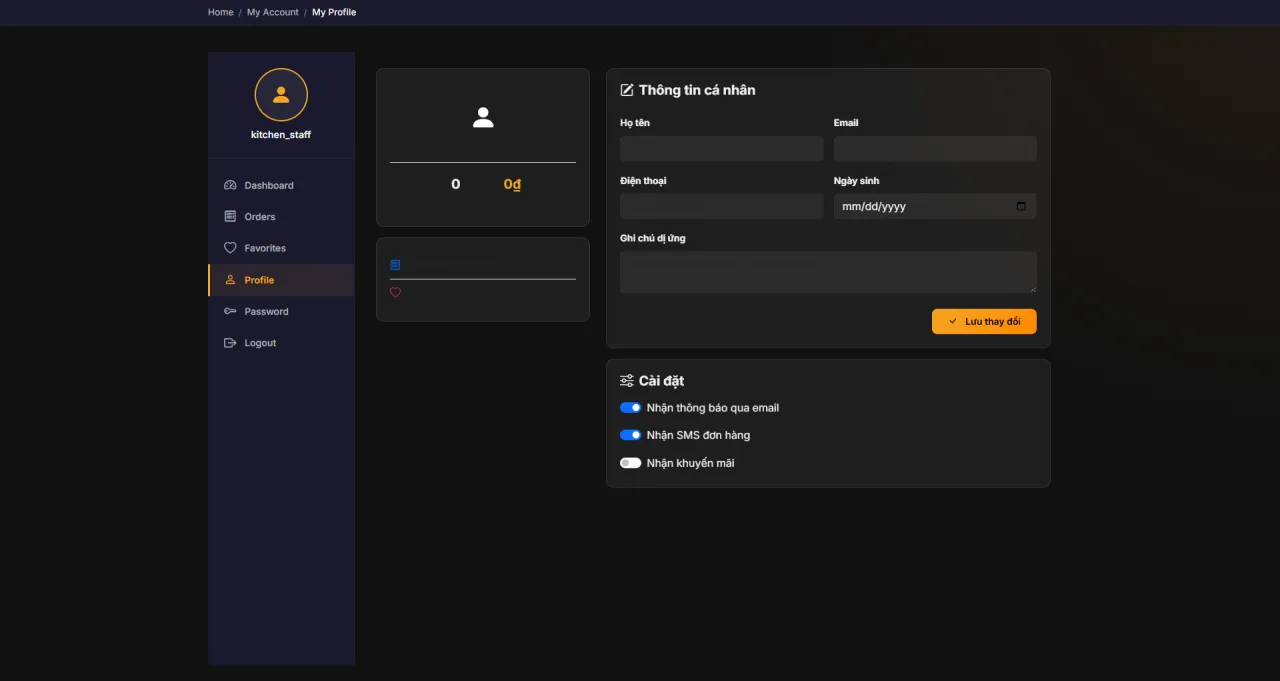
My Profile
About this screen: View and update your staff profile information.
Navigation: My Account → My Profile
- Update name and phone number
- Click Save to apply changes
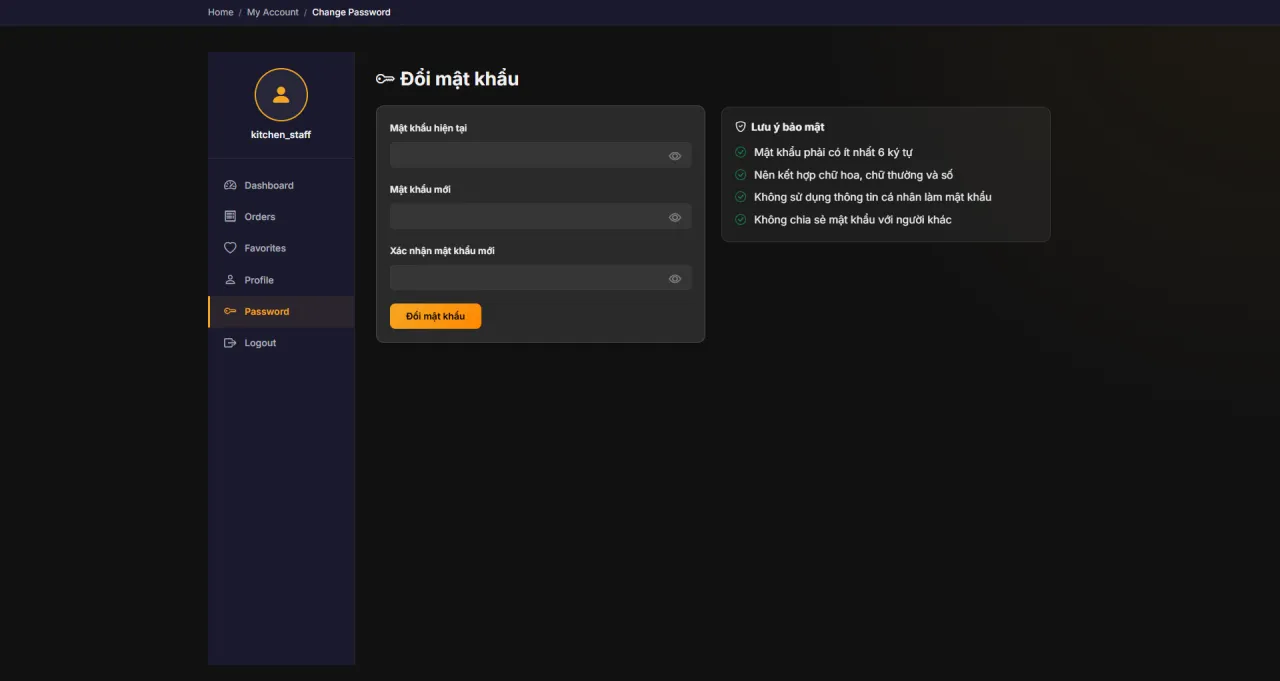
Change Password
About this screen: Update your account password to maintain account security.
Navigation: My Account → Change Password
- Enter current password → new password → confirm
- Click Save to update account security
Running MenuNerds in your own organisation
Names, prices and plans on these screens are set up differently for each deployment. We deploy MenuNerds on your domain and adapt it to how you work, and you receive the running system and its source code.