
System Login
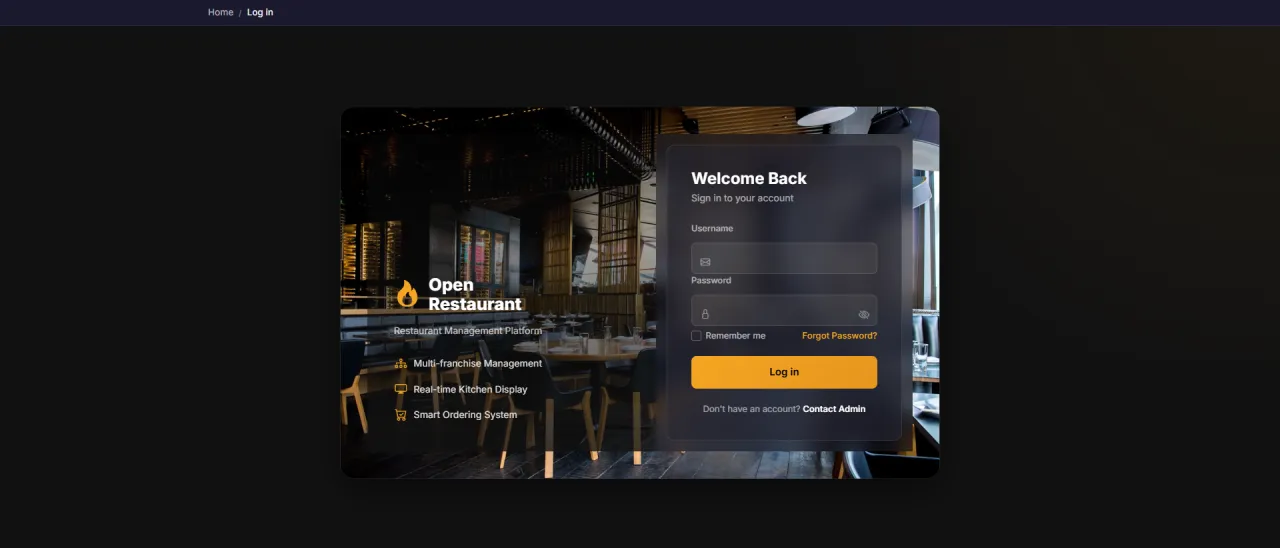
About this screen: Log in to access the franchise dashboard and multi-store management.
Navigation:
- Demo access: sandbox accounts are issued on request: request a guided demo.
- Enter credentials → click Login → redirected to Franchise Dashboard
- Sidebar displays: Dashboard, Stores, Products, Promotions
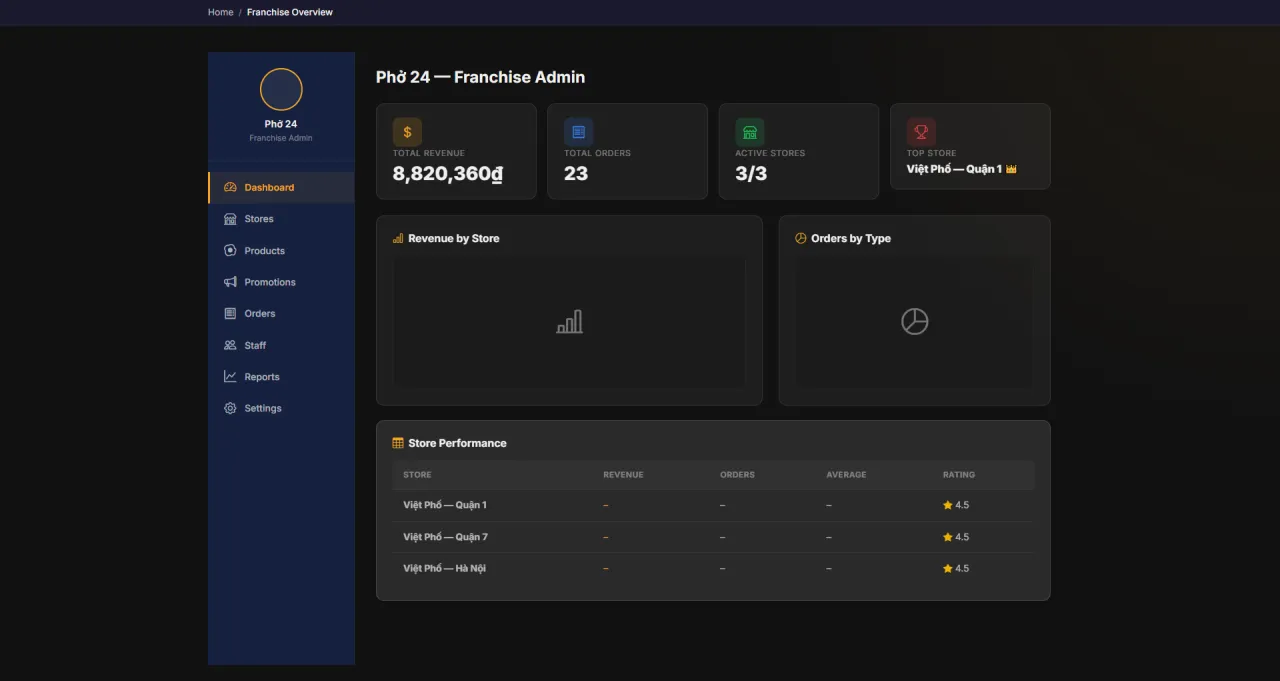
Franchise Dashboard
About this screen: Franchise-level control panel that aggregates all branch performance data in real time.
Navigation: Sidebar → Dashboard
- Total Revenue: Chain-wide total revenue
- Total Orders: Total orders processed across all branches
- Active Stores: Number of active branches (e.g. 3/3)
- Top Store: Highest revenue branch
- Revenue by Store chart and Orders by Type breakdown
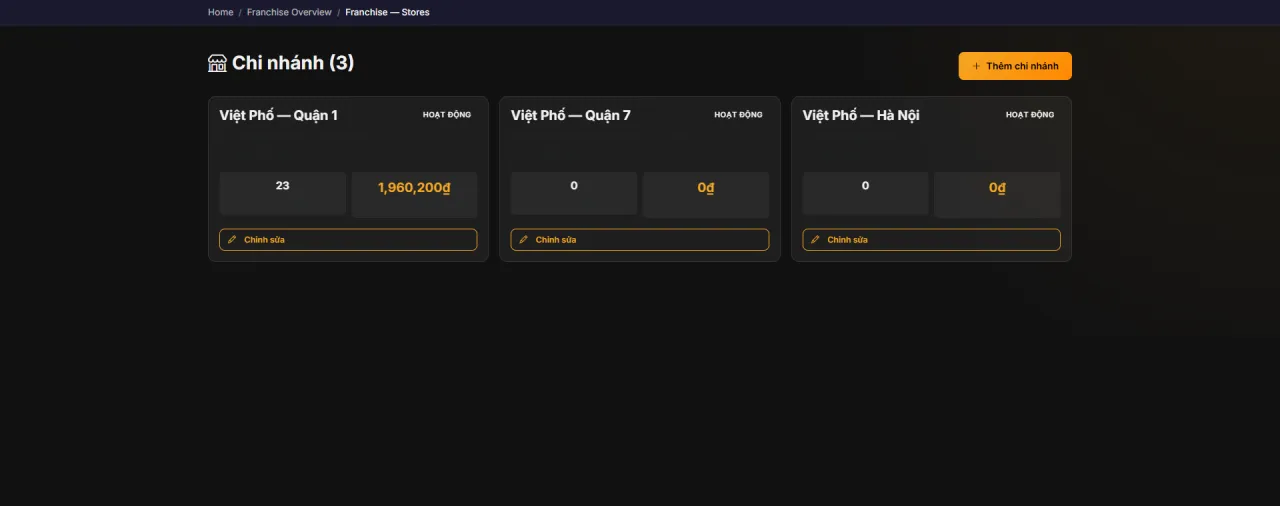
Store Management
About this screen: View the full list of branches in the chain (status, revenue, and basic information).
Navigation: Sidebar → Stores
- Branch list: e.g. District 1, District 7, Hanoi locations
- View the operational status of each store
- See summarized revenue and order counts per branch
- Add new branches or edit existing store information
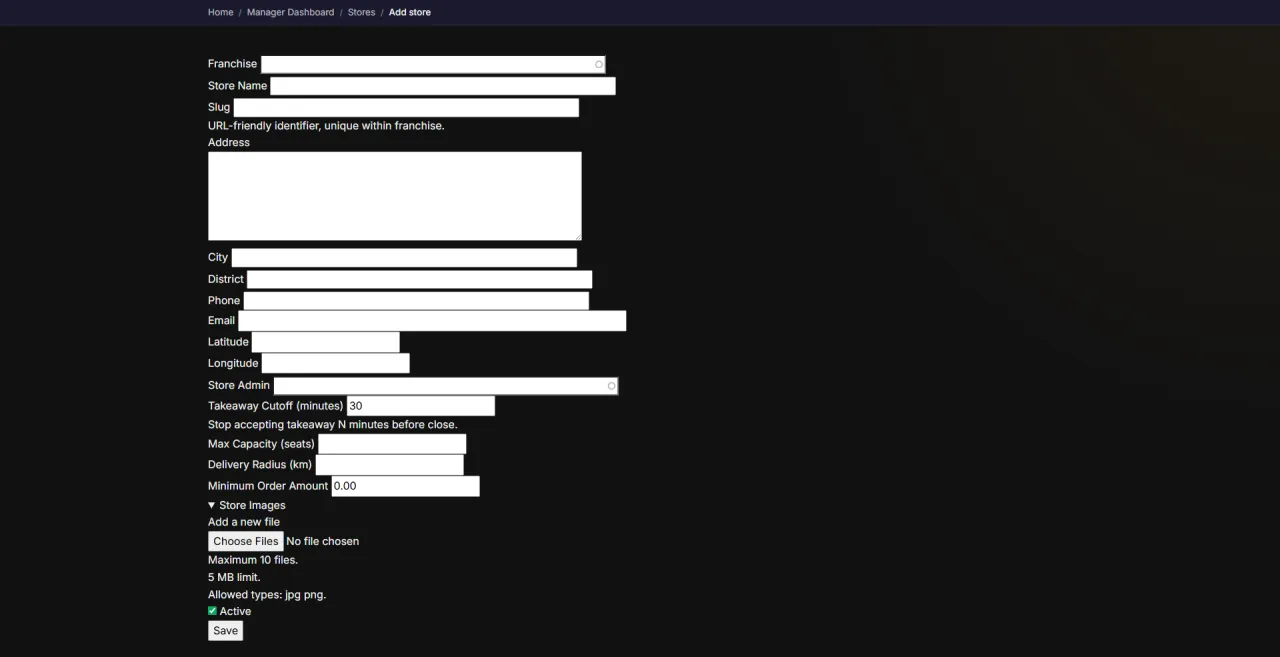
Add Stores
About this screen: Add new branches to the franchise chain.
Navigation: Stores → Add Store
- Enter branch name, address, and phone number
- Assign a Store Admin for the branch
- Set opening hours and contact details
- Click Save to add it to the chain
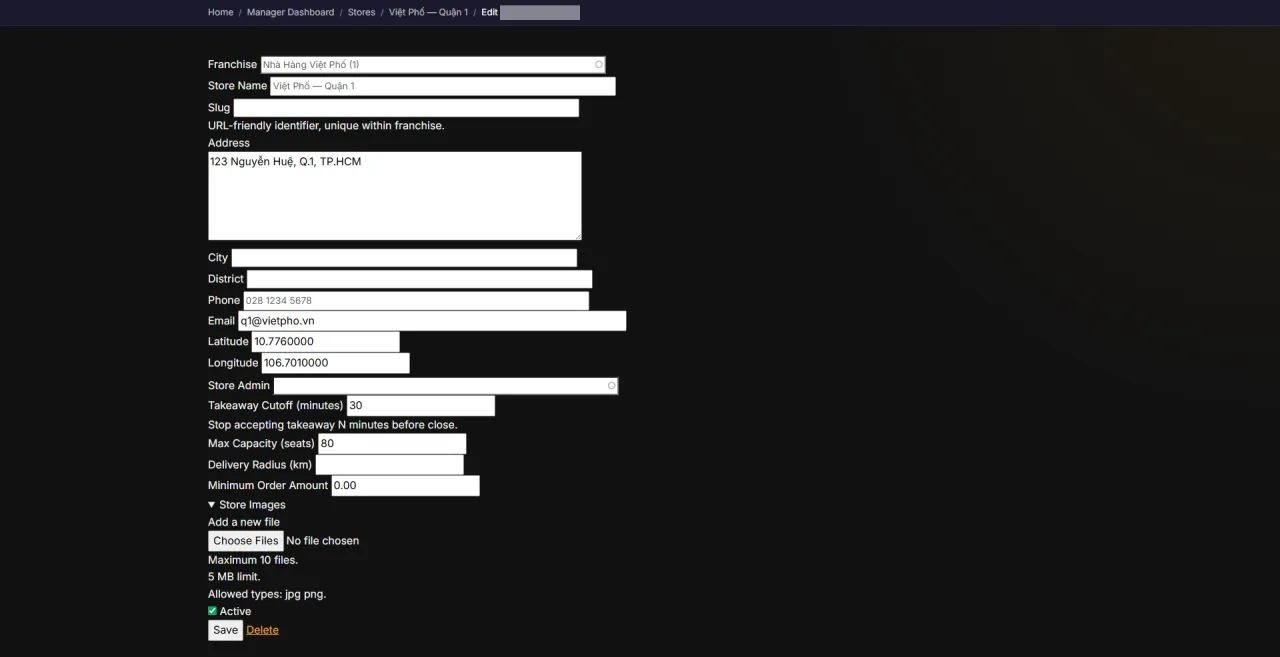
Edit Stores
About this screen: Update existing branch information and settings.
Navigation: Stores → [Branch] → Edit
- Update address and contact information
- Reassign the responsible Store Admin
- Enable or disable the branch's active status
- Modify opening hours and service options
Promotions
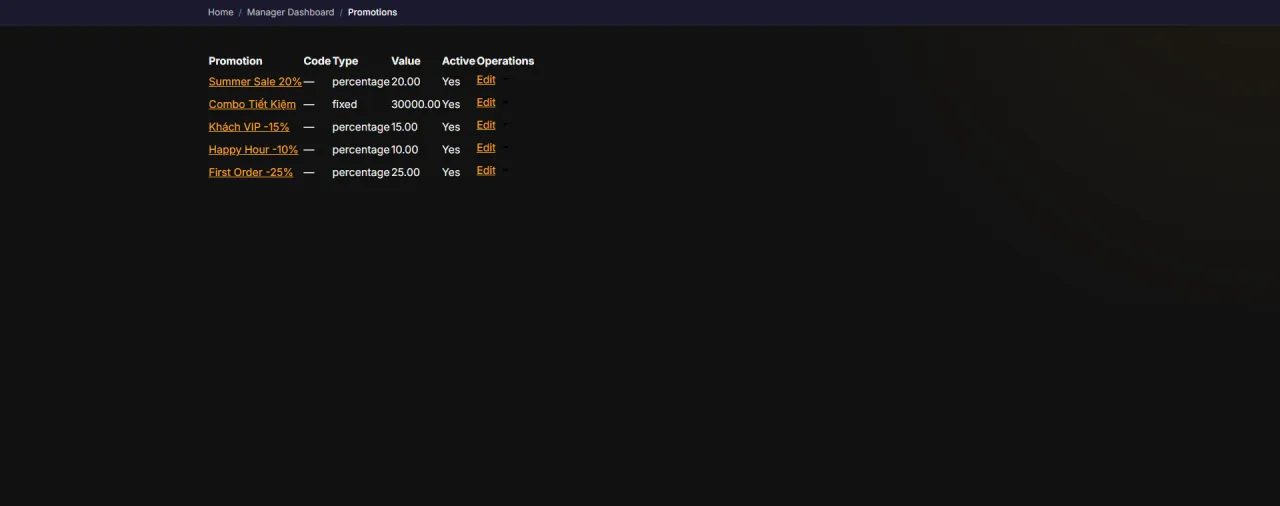
About this screen: Create and manage franchise-wide promotions in one place.
Navigation: Sidebar → Promotions
- Create discount campaigns and banner promotions
- Set valid date ranges and usage conditions
- Target one or more stores in the chain
- Review active and expired promotions quickly
Orders
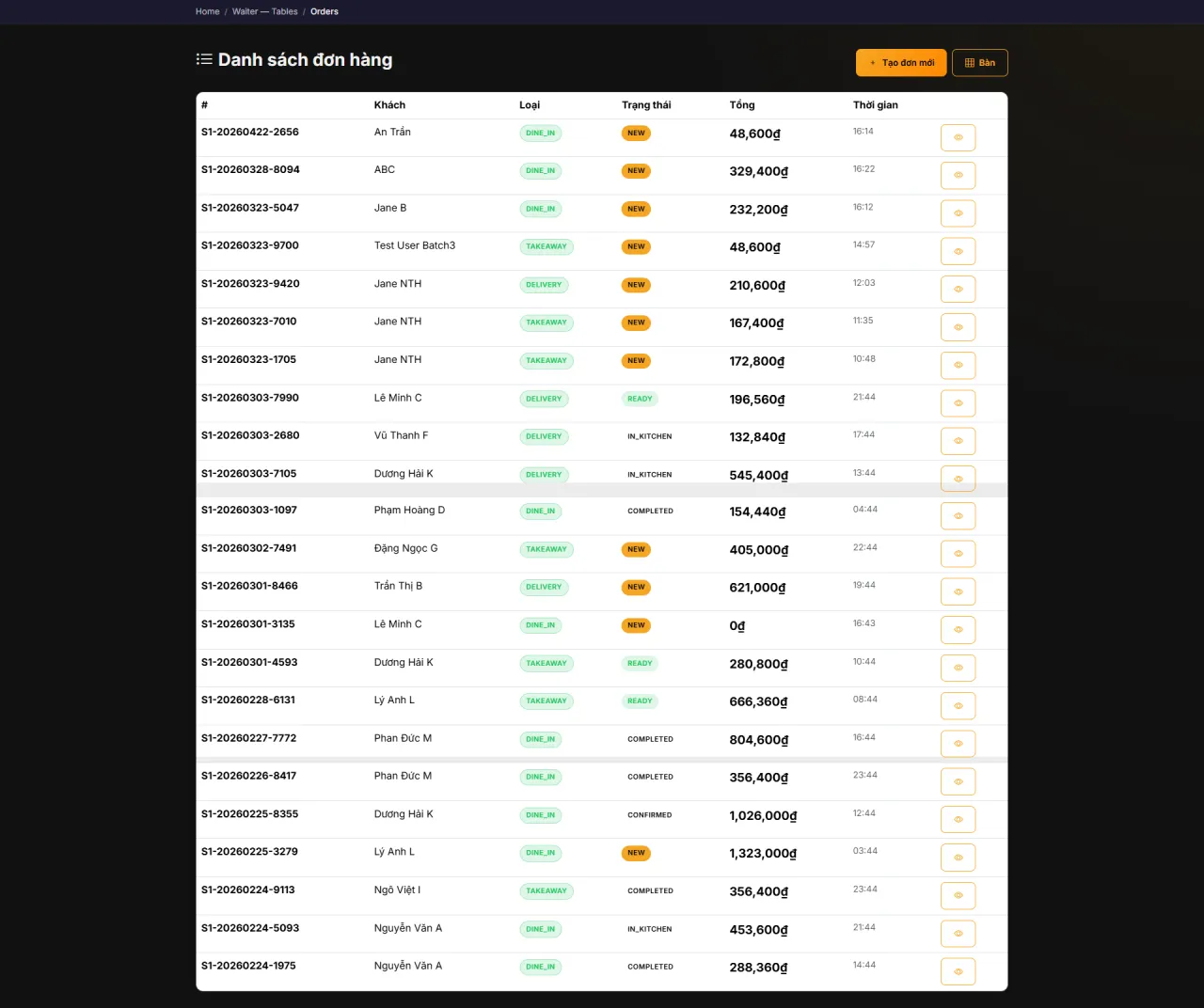
About this screen: Track all chain orders and monitor daily activity.
Navigation: Sidebar → Orders
- See all orders across branches in one list
- Filter by store, status, and date
- Open an order to review items and progress
- Keep an eye on workload spikes by branch
Staff
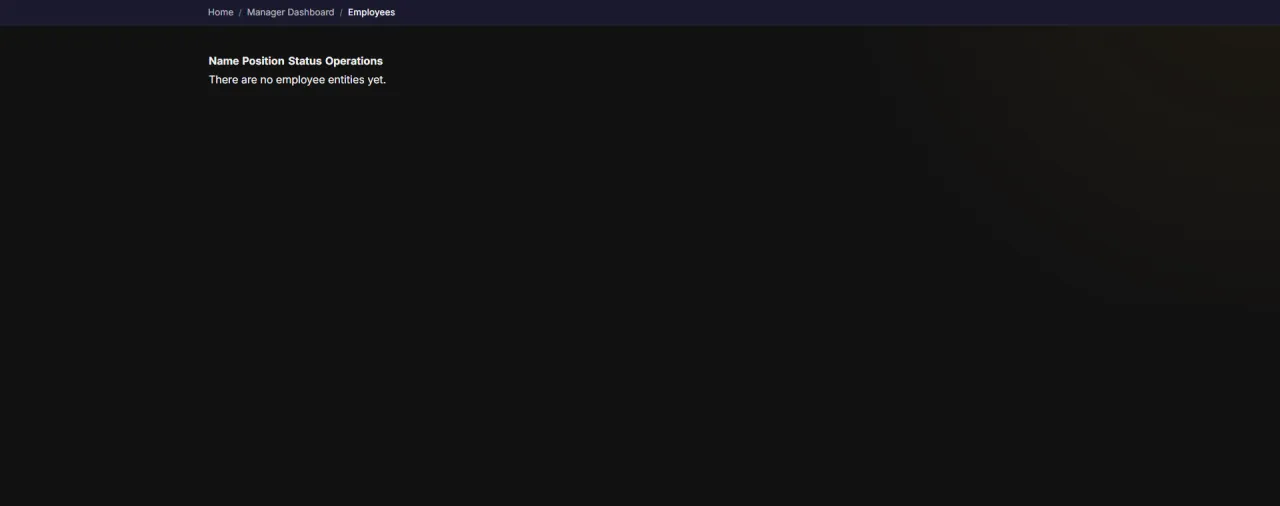
About this screen: Manage staff members and branch assignments.
Navigation: Sidebar → Staff
- View staff by store or role
- Add or update team member details
- Assign staff to the right branch
- Keep staffing aligned with branch workload
Revenue Reports
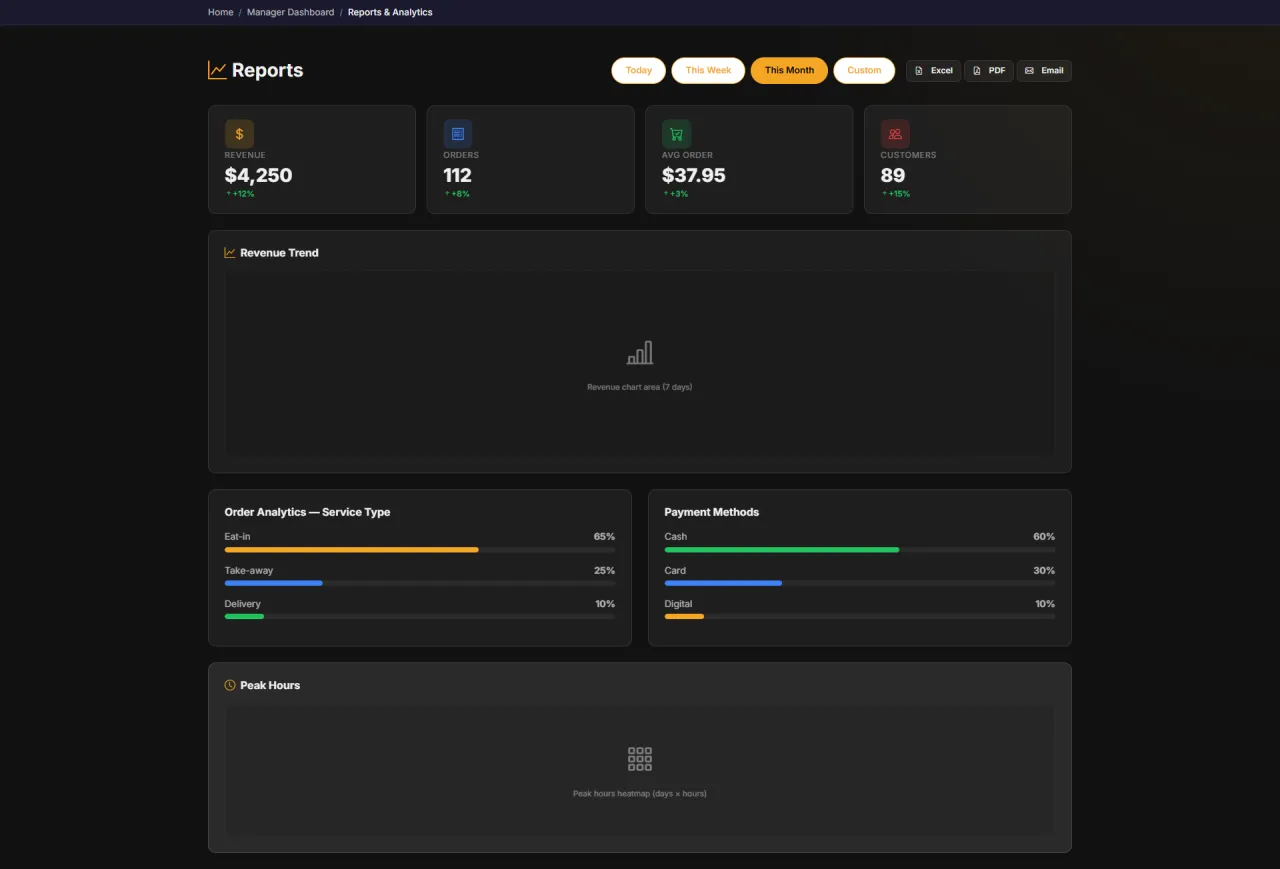
About this screen: Analyze chain-wide revenue over time and compare performance across branches.
Navigation: Sidebar → Reports
- Filter revenue by custom date range
- Compare revenue between branches
- Trend charts by day, week, or month
- Export reports as PDF or Excel
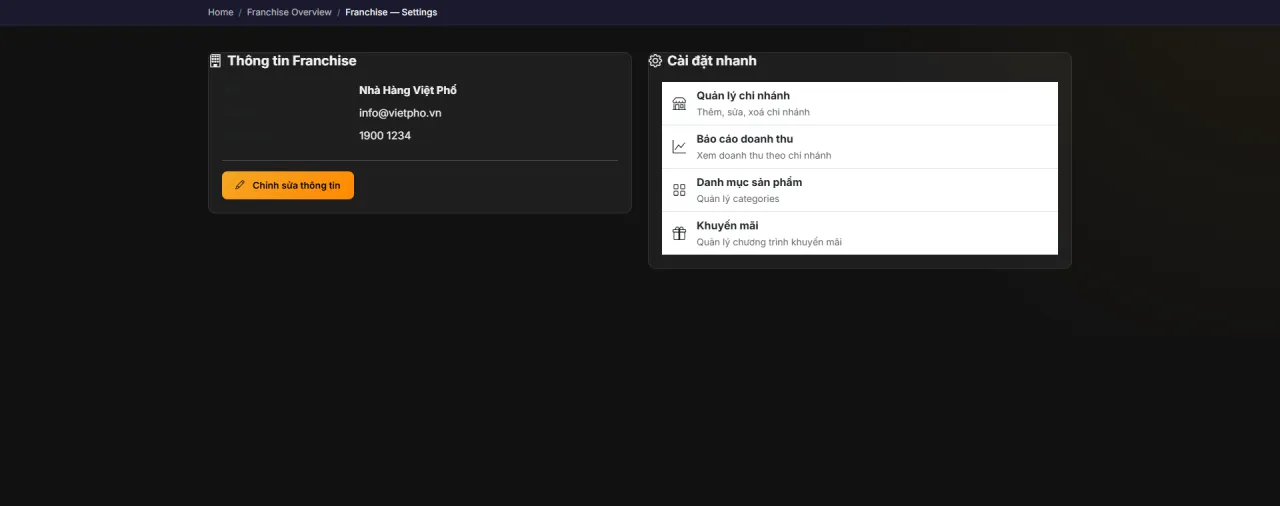
Franchise Settings
About this screen: Configure franchise-level settings (brand identity and chain-wide policies).
Navigation: Sidebar → Settings
- Update franchise brand name and logo
- Set chain-wide policies and defaults
- Configure default payment methods
- Manage franchise-level configurations
Running MenuNerds in your own organisation
Names, prices and plans on these screens are set up differently for each deployment. We deploy MenuNerds on your domain and adapt it to how you work, and you receive the running system and its source code.