


E-mail campaigns

Approved first, then sent; follow-ups when a lead warms up

  • An E-mail channel whose sending domain is verified
  • A segment of contacts with consent
  • Your postal address, phone and contact e-mail in Settings › Organization
Anonymous
Set up

Owner

Set up

1Step 1 of 10

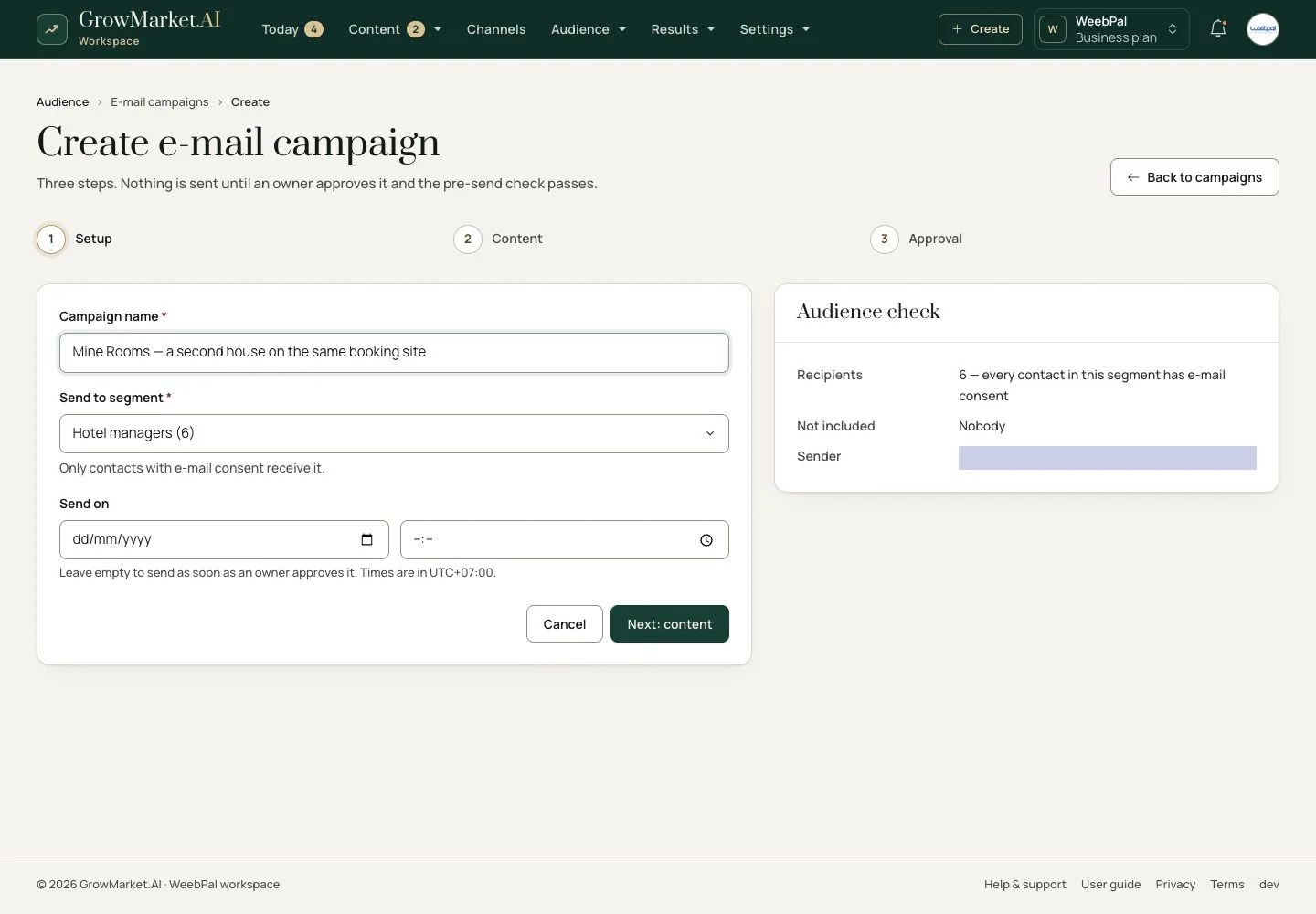
  1. Audience › E-mail campaigns › Create: name, segment and when to send.
  2. The audience check shows who has consent and who is left out.

Times are in the time zone of the workspace.

Open illustrated screen ↗Full image ↗

Anonymous · E-mail campaigns01

Write it

Owner

Write it

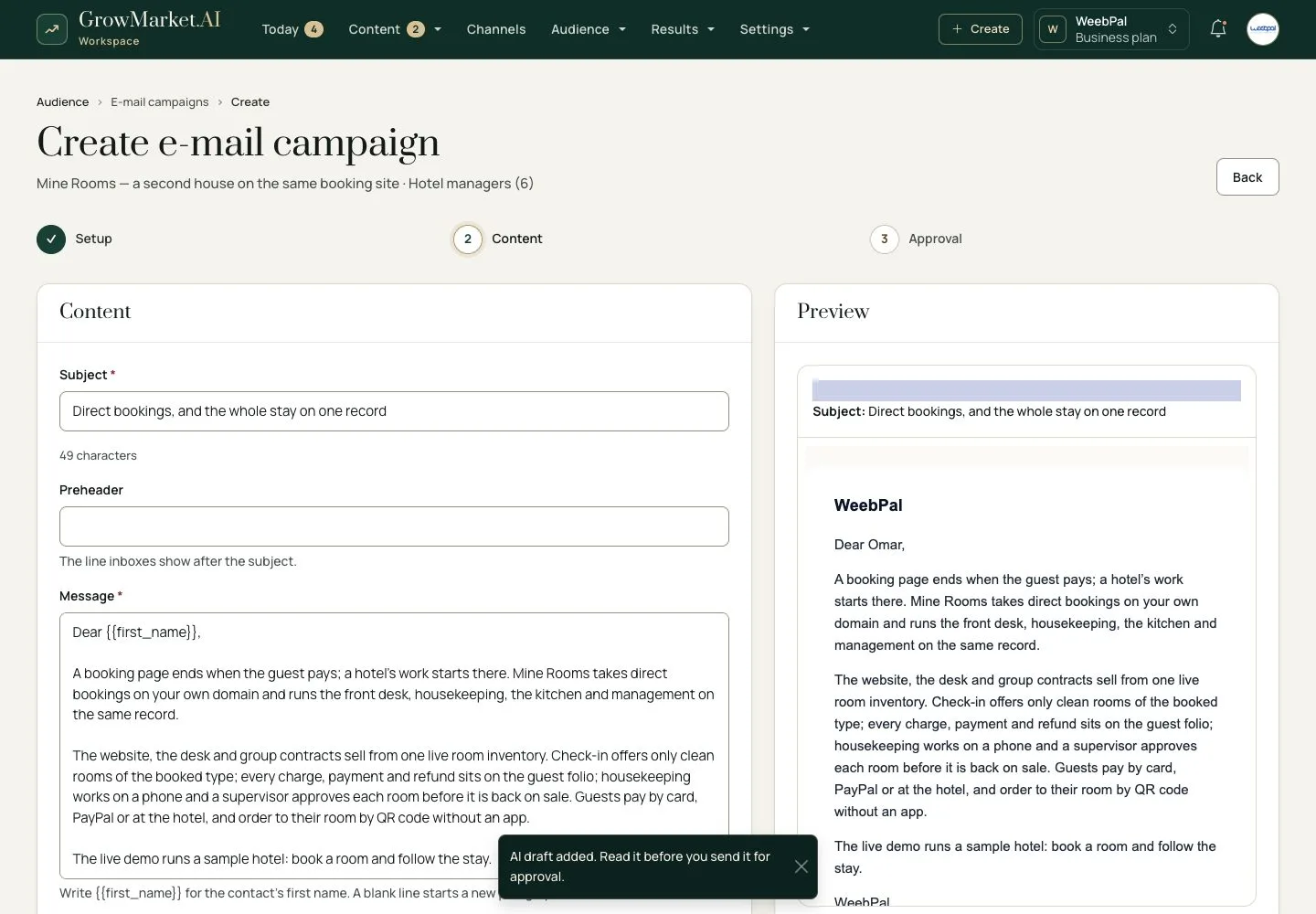
2Step 2 of 10

  1. Subject, preheader and the message; {{first_name}} becomes each contact’s first name.
  2. Write with AI writes the subject and the message from your verified facts; add a button with its text and link.
  3. Send test e-mail, then Send for approval.

Enlarge, then scroll

Open illustrated screen ↗Full image ↗

Anonymous · E-mail campaigns02

Approve it

Owner

Approve it

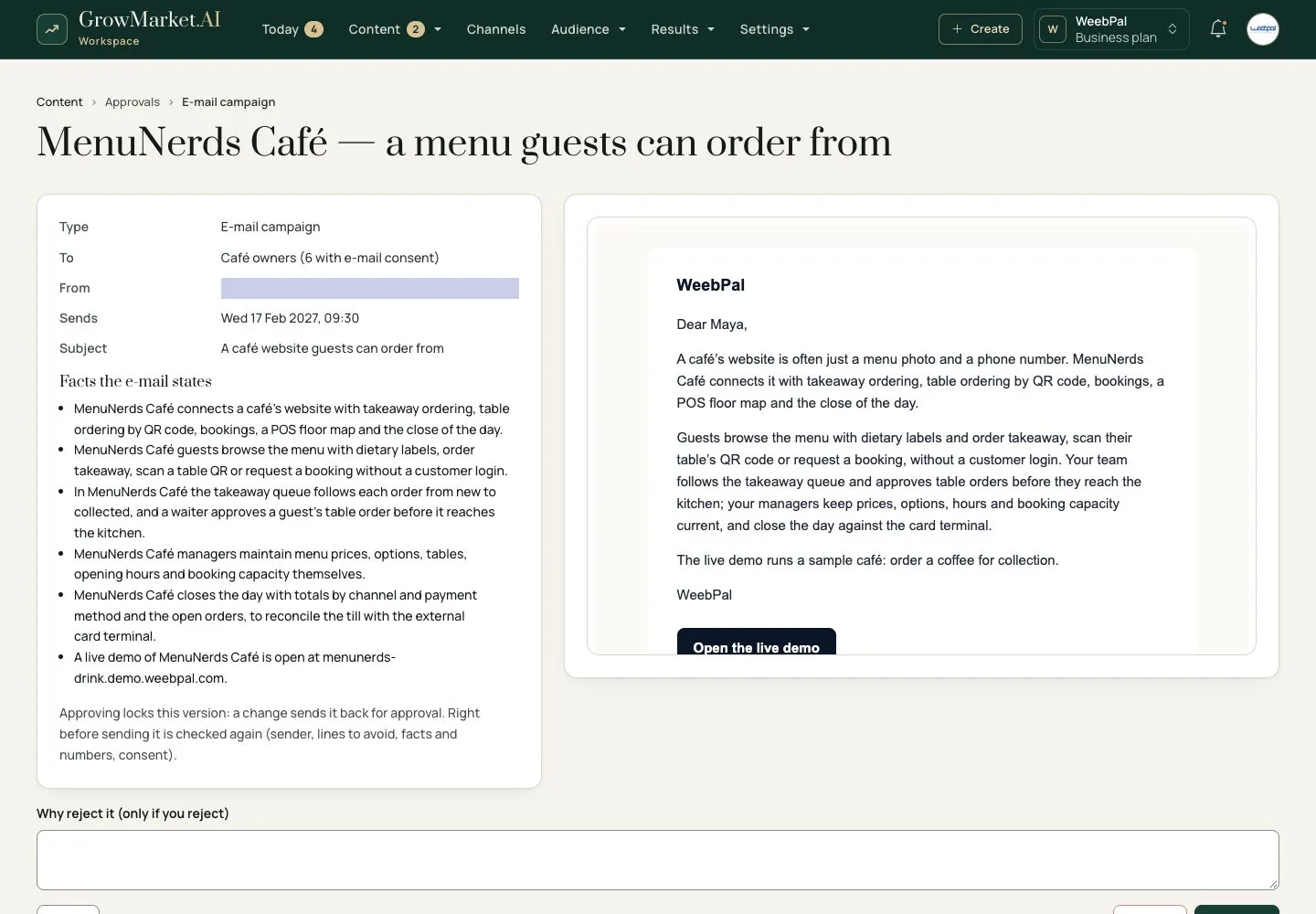
3Step 3 of 10

  1. The approval shows the e-mail as it will be sent, to whom, from whom and the facts it states.
  2. Approve locks that version; it is checked again right before sending.
  3. If the e-mail states a number that no fact states, tick I checked these numbers before you approve.

Enlarge, then scroll

Open illustrated screen ↗Full image ↗

Anonymous · E-mail campaigns03

Reject and fix

Owner

Reject and fix

4Step 4 of 10

  1. Reject asks for the reason; the e-mail goes back to Draft.
  2. The campaign page shows the reason and Edit the e-mail.
  3. Change it and send it for approval again.

Enlarge, then scroll

Open illustrated screen ↗Full image ↗

Anonymous · E-mail campaigns04

Cancel before it goes

Owner

Cancel before it goes

5Step 5 of 10

  1. An approved e-mail with a date waits as Scheduled.
  2. Cancel sending stops it before it goes out.
  3. It stays in the list under Cancelled.

Enlarge, then scroll

Open illustrated screen ↗Full image ↗

Anonymous · E-mail campaigns05

In the inbox

Anonymous

In the inbox

6Step 6 of 10

  1. Each contact gets the e-mail with their name, the button, your sender details and an unsubscribe link.

Full image ↗

Anonymous · E-mail campaigns06

Unsubscribe

Anonymous

Unsubscribe

7Step 7 of 10

  1. One button stops all e-mails from the workspace; nothing changes until it is pressed.

Full image ↗

Anonymous · E-mail campaigns07

Results

Owner

Results

8Step 8 of 10

  1. Sent, delivered, open rate, click rate and unsubscribed, from sent to clicked.
  2. Most engaged contacts: who opened, who clicked, who left.
  3. Clicks are the number to trust: an open is counted when the images load, so open rates can be too high.

Enlarge, then scroll

Open illustrated screen ↗Full image ↗

Anonymous · E-mail campaigns08

Follow-ups

Owner

Follow-ups

9Step 9 of 10

  1. When a lead’s score passes your threshold, the AI writes a follow-up about the product the lead asked about.
  2. It waits for your approval like every e-mail; the next one waits until the last one went out and the cool-down has passed.

Enlarge, then scroll

Open illustrated screen ↗Full image ↗

Anonymous · E-mail campaigns09

Double opt-in

Anonymous

Double opt-in

10Step 10 of 10

  1. A new signup confirms by e-mail before it receives anything.

Full image ↗

Check

Only contacts with consent got the approved e-mail; opens, clicks and unsubscribes are counted

Anonymous · E-mail campaigns10
1 / 11
Privacy Terms