




Support tickets

Answered inside the ticket

  • An owner with a question
  • A support account
Owner

Help & support

Owner

Help & support

1Step 1 of 9

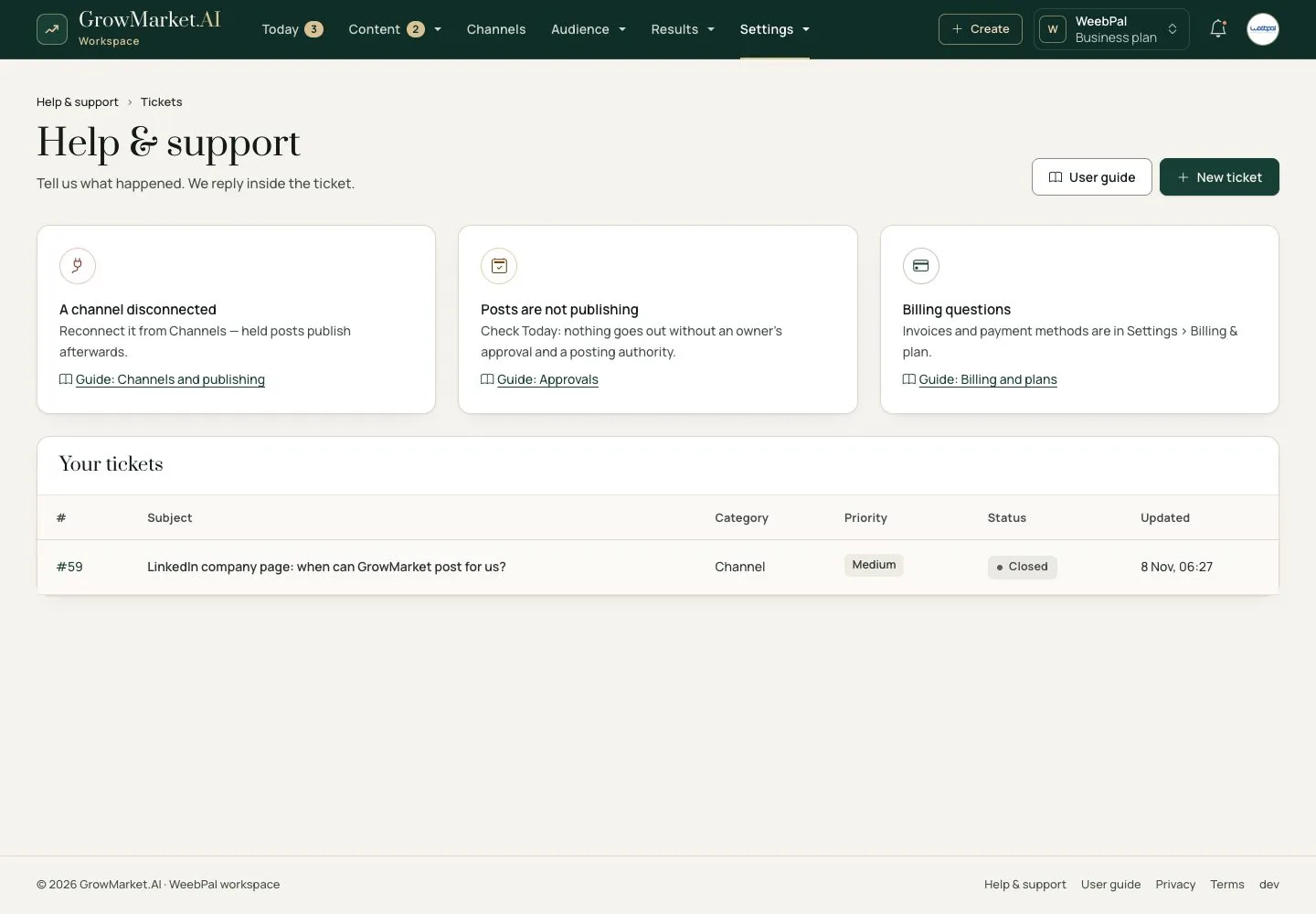
  1. Help & support: the user guide, three common answers with their guide, and your tickets; New ticket.

Open illustrated screen ↗Full image ↗

Owner · Support tickets01

A new ticket

Owner

A new ticket

2Step 2 of 9

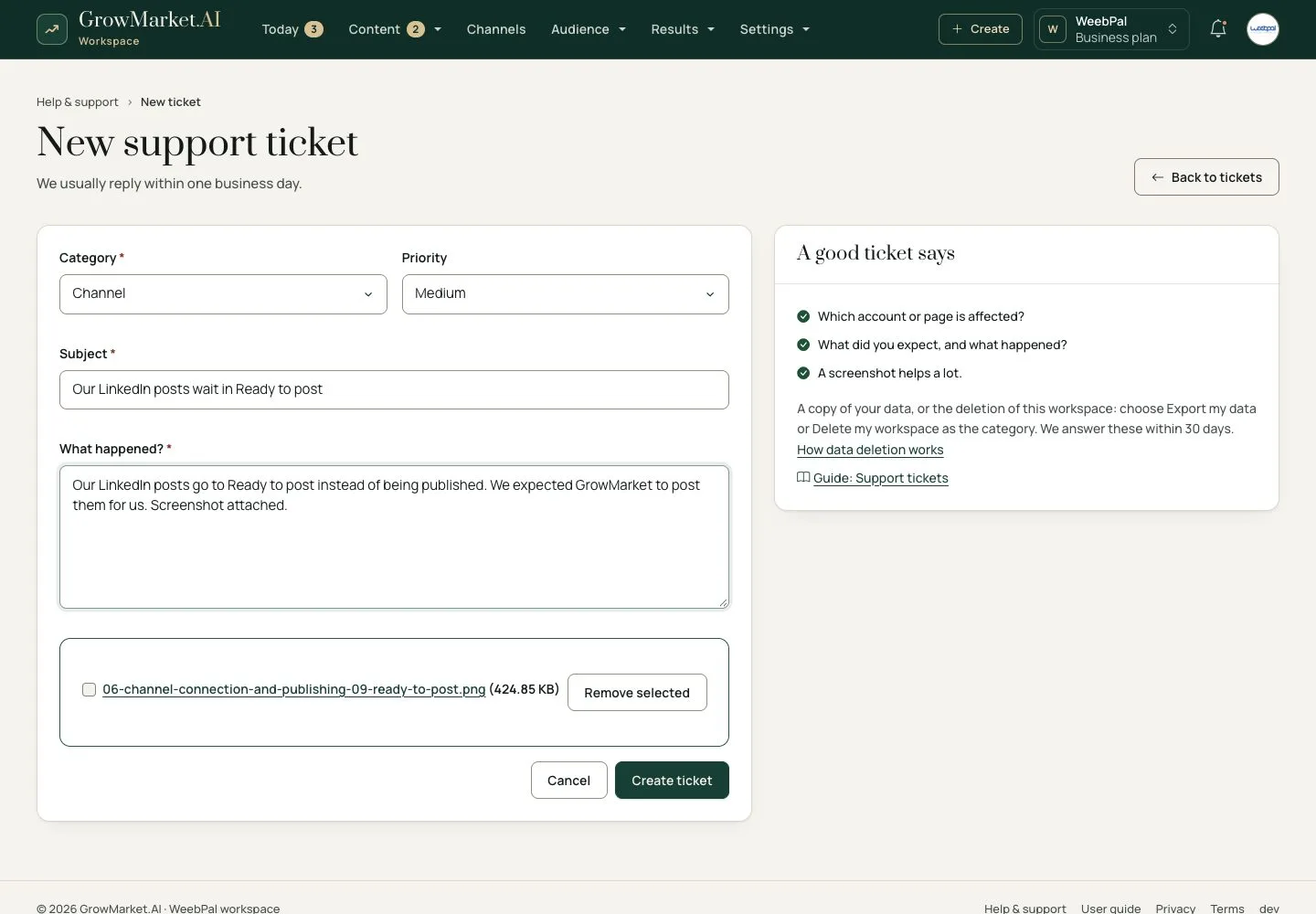
  1. Subject, category, priority, what happened and a screenshot.
  2. A good ticket says which account, what you expected and what happened.

Enlarge, then scroll

Open illustrated screen ↗Full image ↗

Owner · Support tickets02

Your data, or closing

Owner

Your data, or closing

3Step 3 of 9

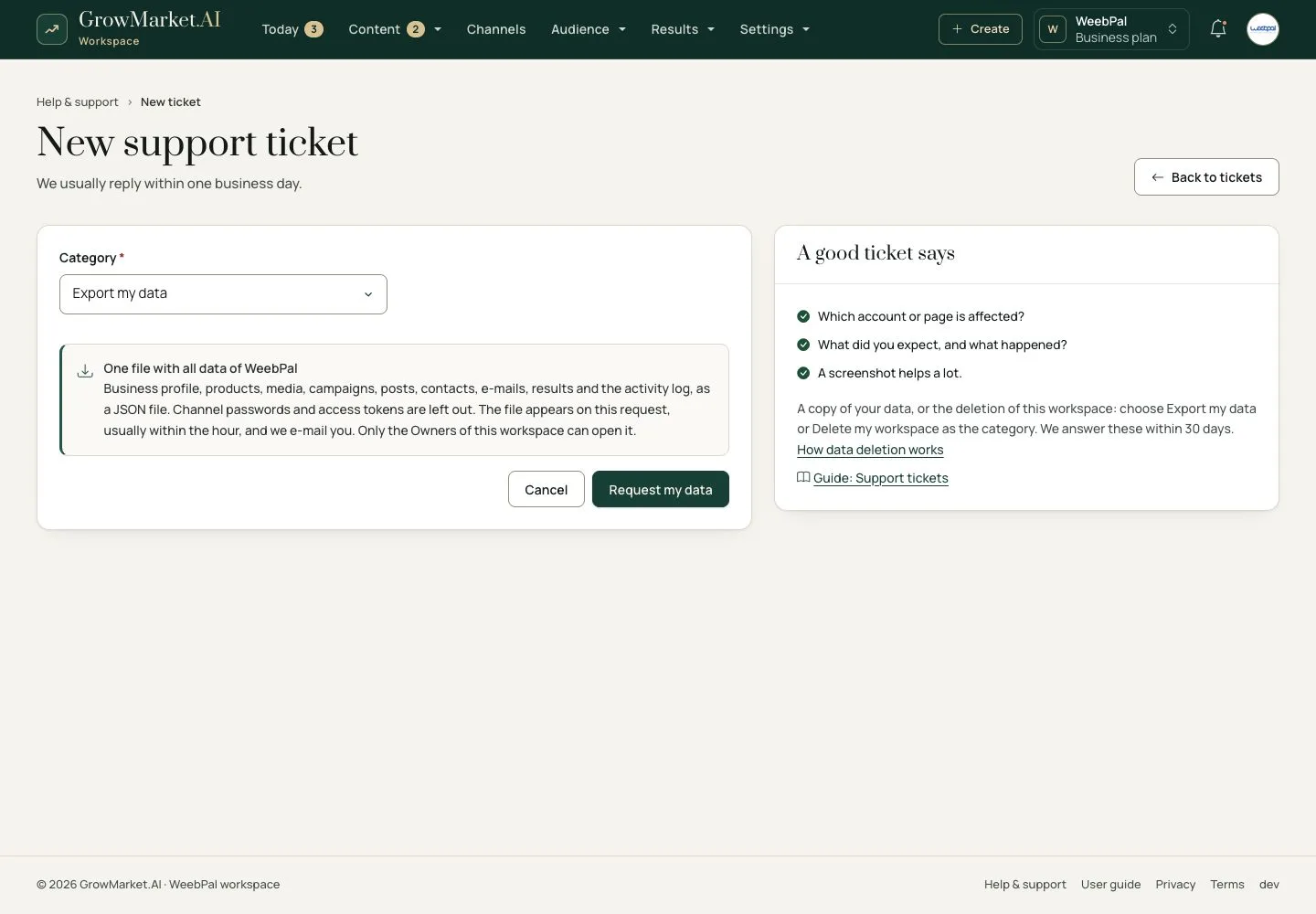
  1. Two categories are requests: Export my data prepares one file with all the workspace's data, which only its owners can open.
  2. Delete my workspace closes it at once for every owner and deletes the data after 30 days; you type its name to confirm.
  3. Both are answered within 30 days.

Open illustrated screen ↗Full image ↗

Owner · Support tickets03

Support center

Support

Support center

4Step 4 of 9

  1. Support in the back office menu opens the Support center: tickets of every workspace; search by tenant, filter by status and priority.

Open illustrated screen ↗Full image ↗

Owner · Support tickets04

Priority support first

Support

Priority support first

5Step 5 of 9

  1. Tickets waiting for an answer from a Business or Enterprise workspace come first and show Priority support.
  2. The priority on a ticket is what the owner chose; the plan sets the order.

Open illustrated screen ↗Full image ↗

Owner · Support tickets05

Reply, or note

Support

Reply, or note

6Step 6 of 9

  1. An internal note is never sent to the customer; a reply is, with its attachments.
  2. Status, priority and who it is assigned to; the tenant's page is one click away.

Enlarge, then scroll

Open illustrated screen ↗Full image ↗

Owner · Support tickets06

The owner answers

Owner

The owner answers

7Step 7 of 9

  1. The owner reads the reply in the ticket and by e-mail, and replies there.

Open illustrated screen ↗Full image ↗

Owner · Support tickets07

Close with a resolution

Support

Close with a resolution

8Step 8 of 9

  1. Write what was fixed in words the customer understands, then Close ticket.

Enlarge, then scroll

Open illustrated screen ↗Full image ↗

Owner · Support tickets08

What Support may do

Support

What Support may do

9Step 9 of 9

  1. Support sees tenants read-only and may View as owner with a reason; plans, finance and settings stay closed.

Open illustrated screen ↗Full image ↗

Check

The owner's question is answered and closed with a resolution both sides can read

Owner · Support tickets09
1 / 10
Privacy Terms