Approvals

Nothing goes out unapproved

  • Posts written for a campaign, or a post you wrote
Owner
Posts waiting for you

Owner

Posts waiting for you

1Step 1 of 8

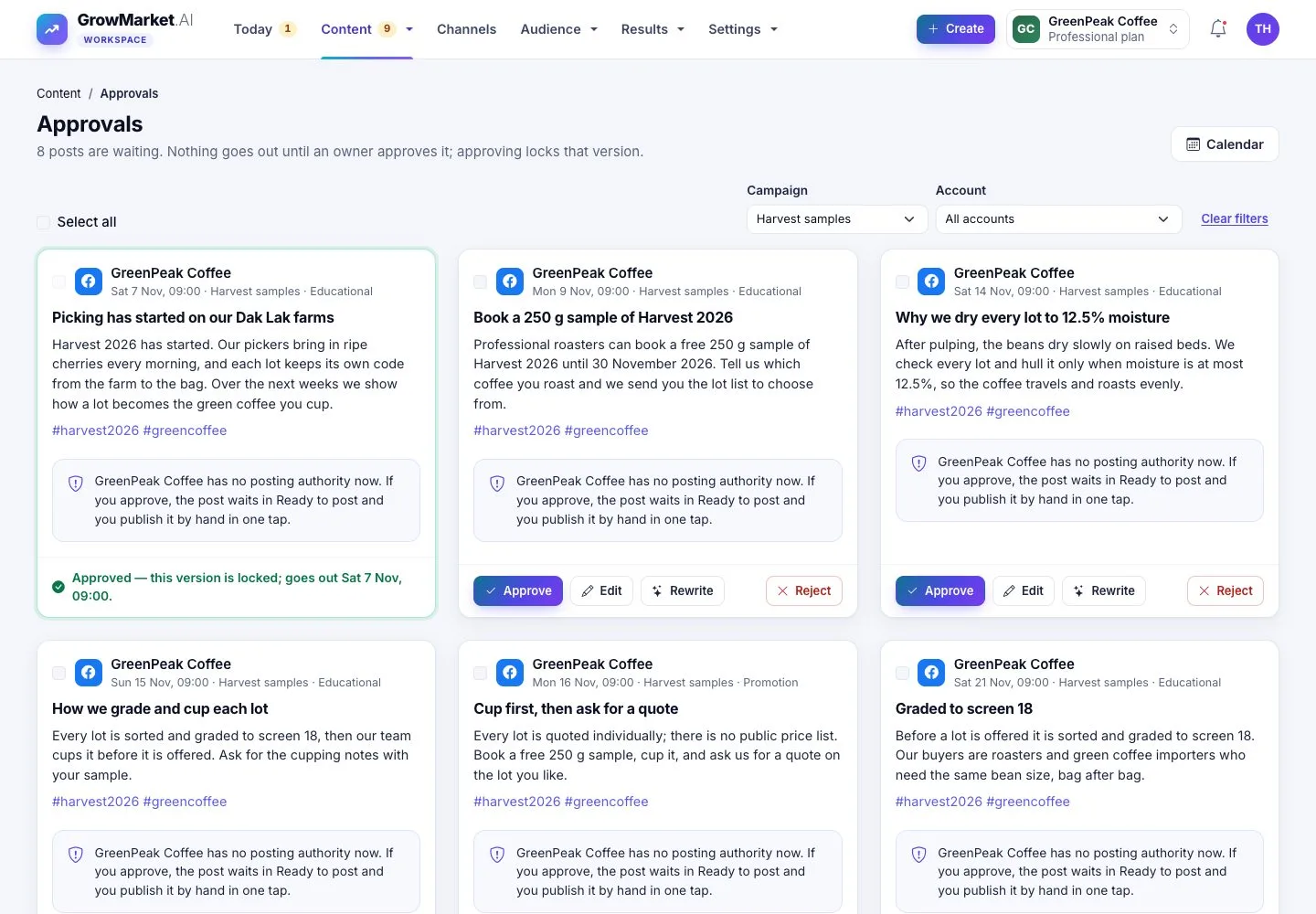
  1. Content › Approvals shows each post as it will go out: account, day and time, campaign, title, text, hashtags and image.
  2. Filter by campaign or account.

Enlarge, then scroll

Open illustrated screen ↗Full image ↗

Owner · Approvals01

Approve one

Owner

Approve one

2Step 2 of 8

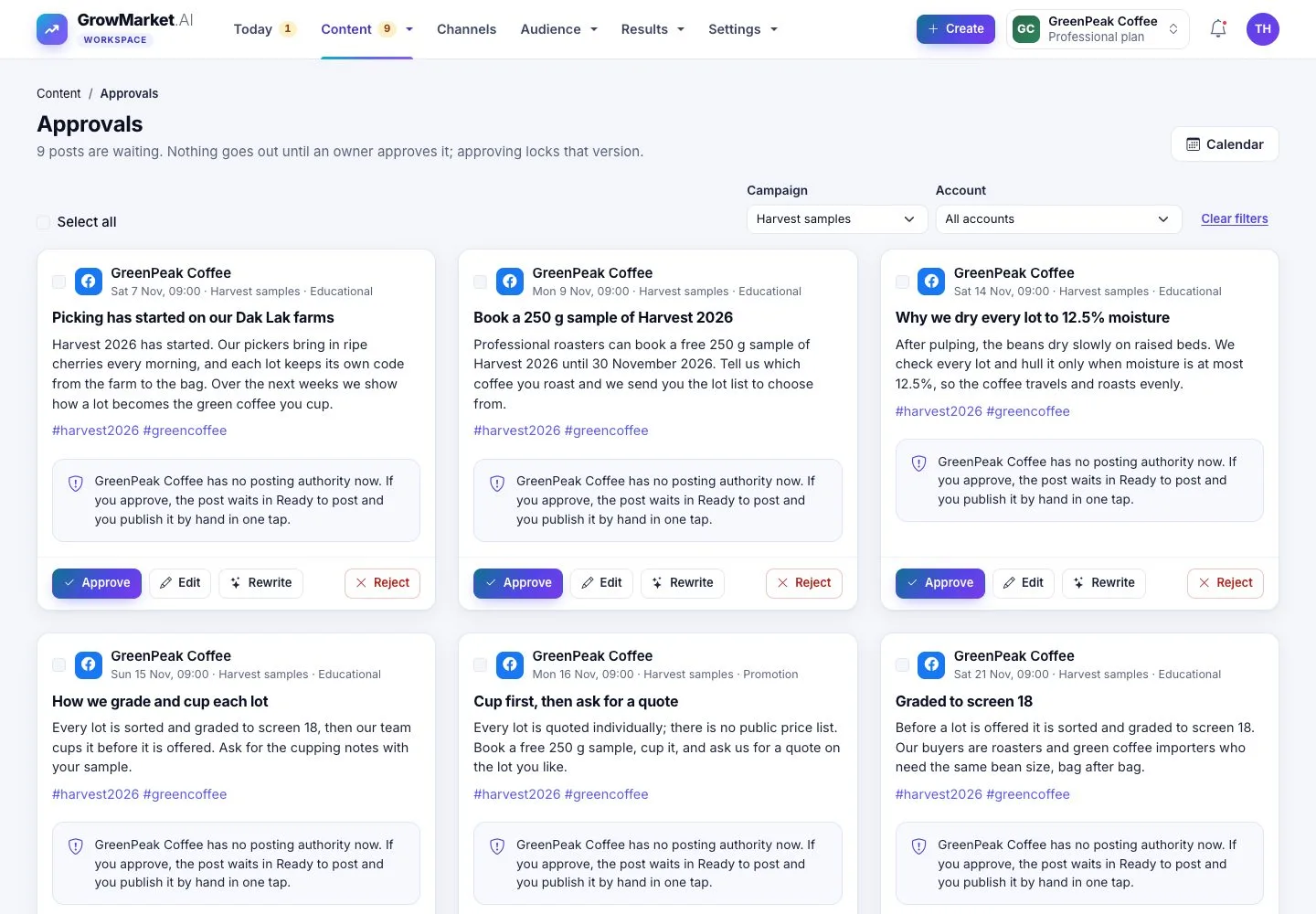
  1. Approve locks that version: it goes out at its time, within the posting authority.
  2. A channel without posting authority sends it to Ready to post instead.

Enlarge, then scroll

Open illustrated screen ↗Full image ↗

Owner · Approvals02

Reject with a reason

Owner

Reject with a reason

3Step 3 of 8

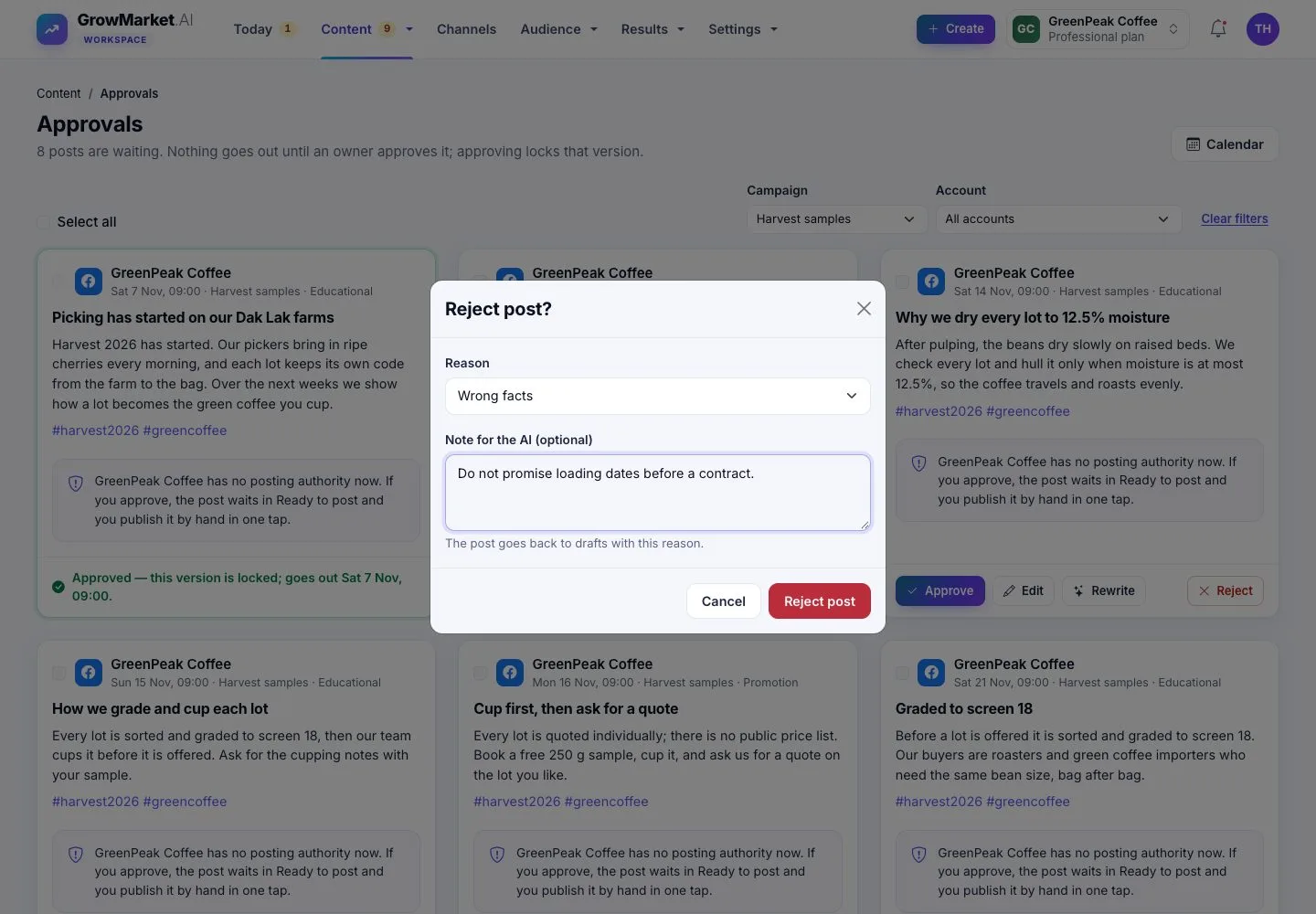
  1. Reject asks for the reason and a note for the AI.
  2. The post goes back to drafts with your reason.

Open illustrated screen ↗Full image ↗

Owner · Approvals03

Approve several

Owner

Approve several

4Step 4 of 8

  1. Tick posts, or Select all, then Approve selected or Reject selected.

Open illustrated screen ↗Full image ↗

Owner · Approvals04

Edit after approval

Owner

Edit after approval

5Step 5 of 8

  1. Edit opens the post with its live preview for the channel.
  2. Before it goes out lists the checks: length, link, facts, words to avoid, image, channel and authority.
  3. Saving an approved post sends it back to Approvals.

Enlarge, then scroll

Open illustrated screen ↗Full image ↗

Owner · Approvals05

On your phone

Owner

On your phone

6Step 6 of 8

  1. The same cards and buttons work on a phone.

Open illustrated screen ↗Full image ↗

Owner · Approvals06

Approve from the e-mail

Visitor

Approve from the e-mail

7Step 7 of 8

  1. The needs-your-decision e-mail has a one-tap link: it shows the post and approves exactly that version.
  2. Reject instead is on the same page. The link works once.

Full image ↗

Owner · Approvals07

The calendar

Owner

The calendar

8Step 8 of 8

  1. Content › Calendar shows every post by month or as a list, with its status and channel.
  2. Times are in the time zone of the workspace.

Enlarge, then scroll

Open illustrated screen ↗Full image ↗

Check

Each approved version goes out at its time; a rejected post is back in drafts with your reason

Owner · Approvals08
1 / 9
Privacy Terms