Channels and publishing

Checked again just before sending

  • An account on the channel, or your own website or SMTP server
Owner
Your channels

Owner

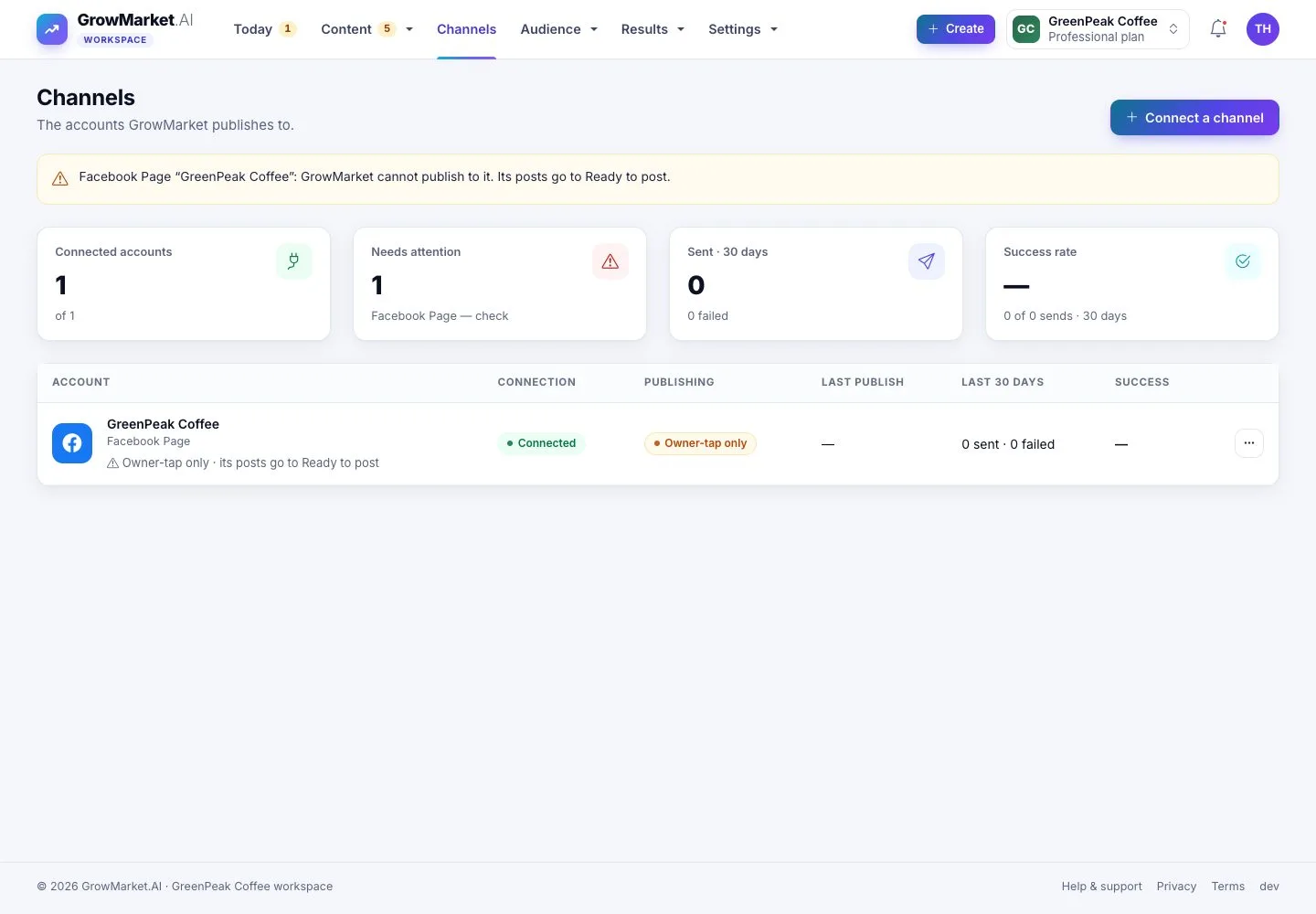
Your channels

1Step 1 of 10

  1. Channels: every account GrowMarket publishes to, with its connection, publishing mode, last publish and success rate.

Open illustrated screen ↗Full image ↗

Owner · Channels and publishing01

Connect a channel

Owner

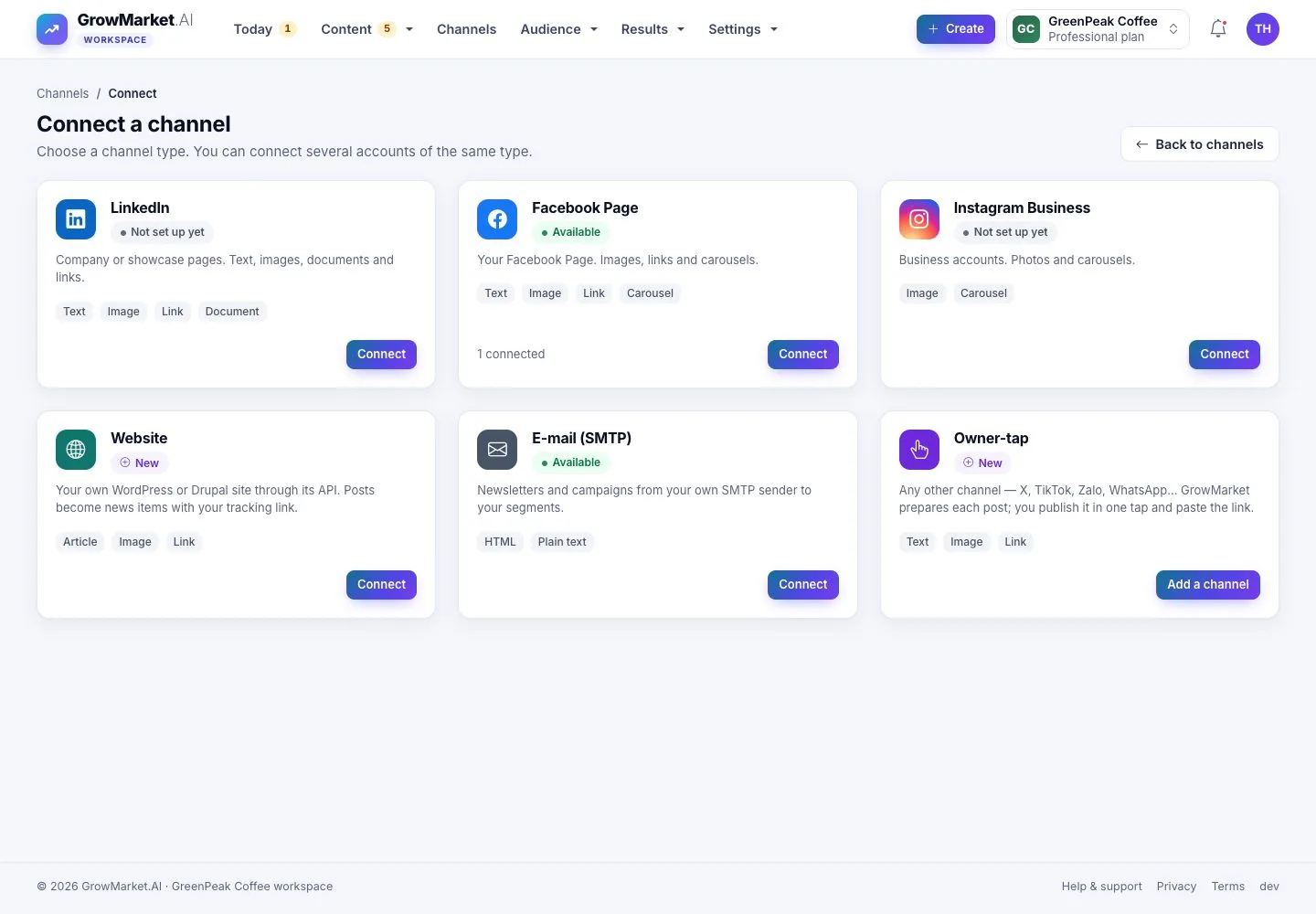
Connect a channel

2Step 2 of 10

  1. Choose a type: LinkedIn, Facebook Page, Instagram Business, Website, E-mail (SMTP) or Owner-tap for any other channel.
  2. Several accounts of one type are separate channels.

Open illustrated screen ↗Full image ↗

Owner · Channels and publishing02

Your website

Owner

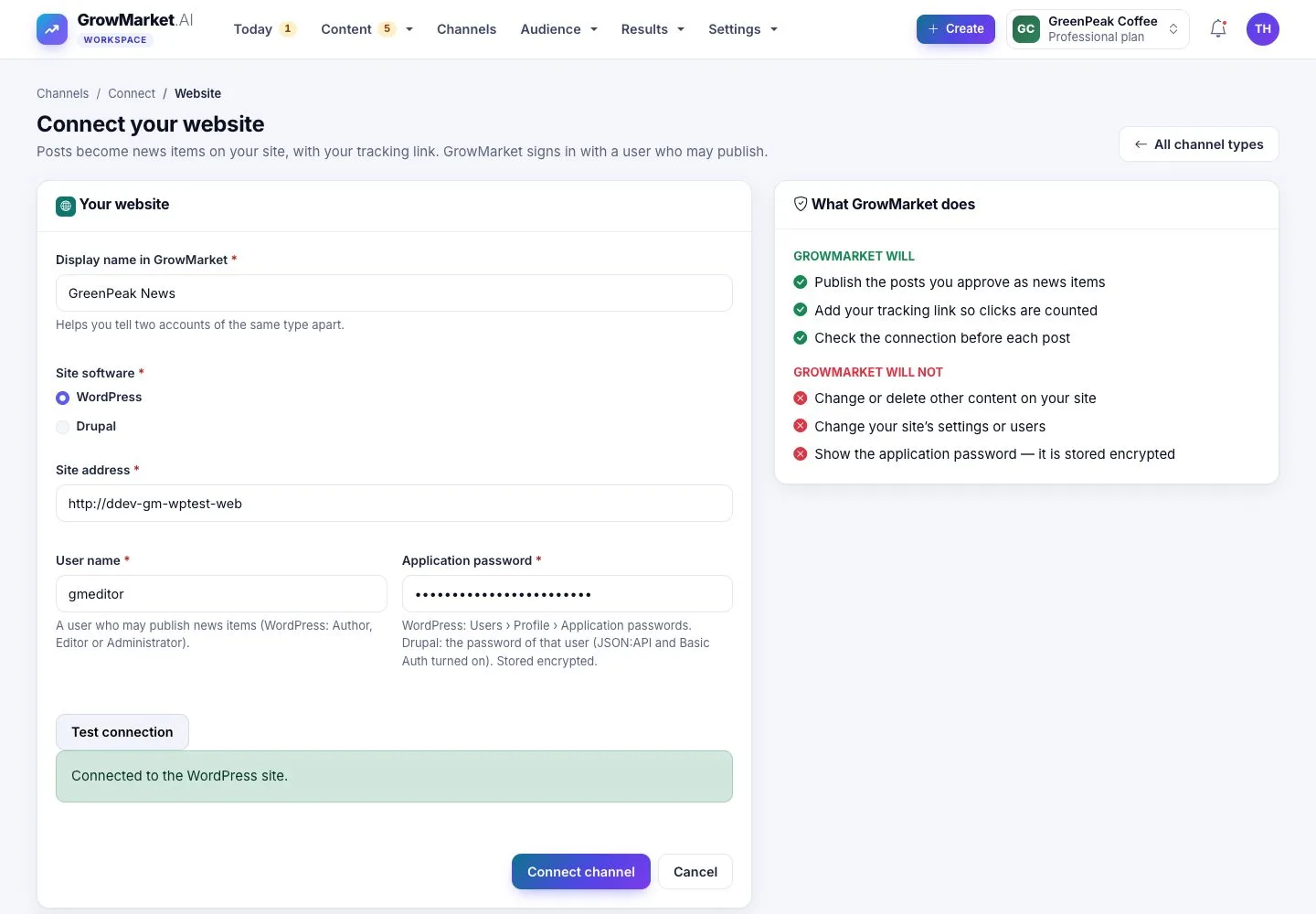
Your website

3Step 3 of 10

  1. Your WordPress or Drupal site, a user who may publish news items and its application password.
  2. Test connection before Connect channel; the password is stored encrypted.

Enlarge, then scroll

Open illustrated screen ↗Full image ↗

Owner · Channels and publishing03

Posting authority

Owner

Posting authority

4Step 4 of 10

  1. Settings › Approval & posting › Posting authority: how many approved posts GrowMarket may publish on its own, until when.
  2. It ends on its own; GrowMarket never extends it.

Open illustrated screen ↗Full image ↗

Owner · Channels and publishing04

Write a post

Owner

Write a post

5Step 5 of 10

  1. Create post: campaign, account, date and time, topic, content, call to action and link.
  2. Live preview shows it as the chosen channel will; Send for approval.

Enlarge, then scroll

Open illustrated screen ↗Full image ↗

Owner · Channels and publishing05

Held before sending

Owner

Held before sending

6Step 6 of 10

  1. Just before sending, the post is checked again: links, facts, words to avoid, image, connection and authority.
  2. A post that fails is On hold; the reason is under the title and first in Before it goes out.
  3. Fix it and save: it goes back to Approvals.

Enlarge, then scroll

Open illustrated screen ↗Full image ↗

Owner · Channels and publishing06

Published

Owner

Published

7Step 7 of 10

  1. The calendar marks the post Published, with View post.
  2. Clicks on its call to action are counted through its own tracking link.

Open illustrated screen ↗Full image ↗

Owner · Channels and publishing07

On your website

Visitor

On your website

8Step 8 of 10

  1. The post is a news item of your site, with its hashtags and its call to action.

Enlarge, then scroll

Open illustrated screen ↗Full image ↗

Owner · Channels and publishing08

Stop a post

Owner

Stop a post

9Step 9 of 10

  1. Stop post keeps it from going out until you resume it; nothing is deleted.

Open illustrated screen ↗Full image ↗

Owner · Channels and publishing09

Disconnect

Owner

Disconnect

10Step 10 of 10

  1. ⋯ › Disconnect stops publishing to the account.
  2. Its scheduled posts stay in the calendar and wait in Ready to post.

Open illustrated screen ↗Full image ↗

Check

Approved posts go out on time on the channels that may publish; a post that fails a check waits for you with the reason

Owner · Channels and publishing10
1 / 11
Privacy Terms